2017 FORD F450 SUPER DUTY audio
[x] Cancel search: audioPage 520 of 642
HD Radio technology is the digitalevolution of analog AM/FM radio. Yoursystem has a special receiver that allowsit to receive digital broadcasts (whereavailable) in addition to the analogbroadcasts, it already receives. Digitalbroadcasts provide a better sound qualitythan analog broadcasts with free,crystal-clear audio and no static ordistortion. For more information, and aguide to available stations andprogramming, please visit:
Website
www.hdradio.com
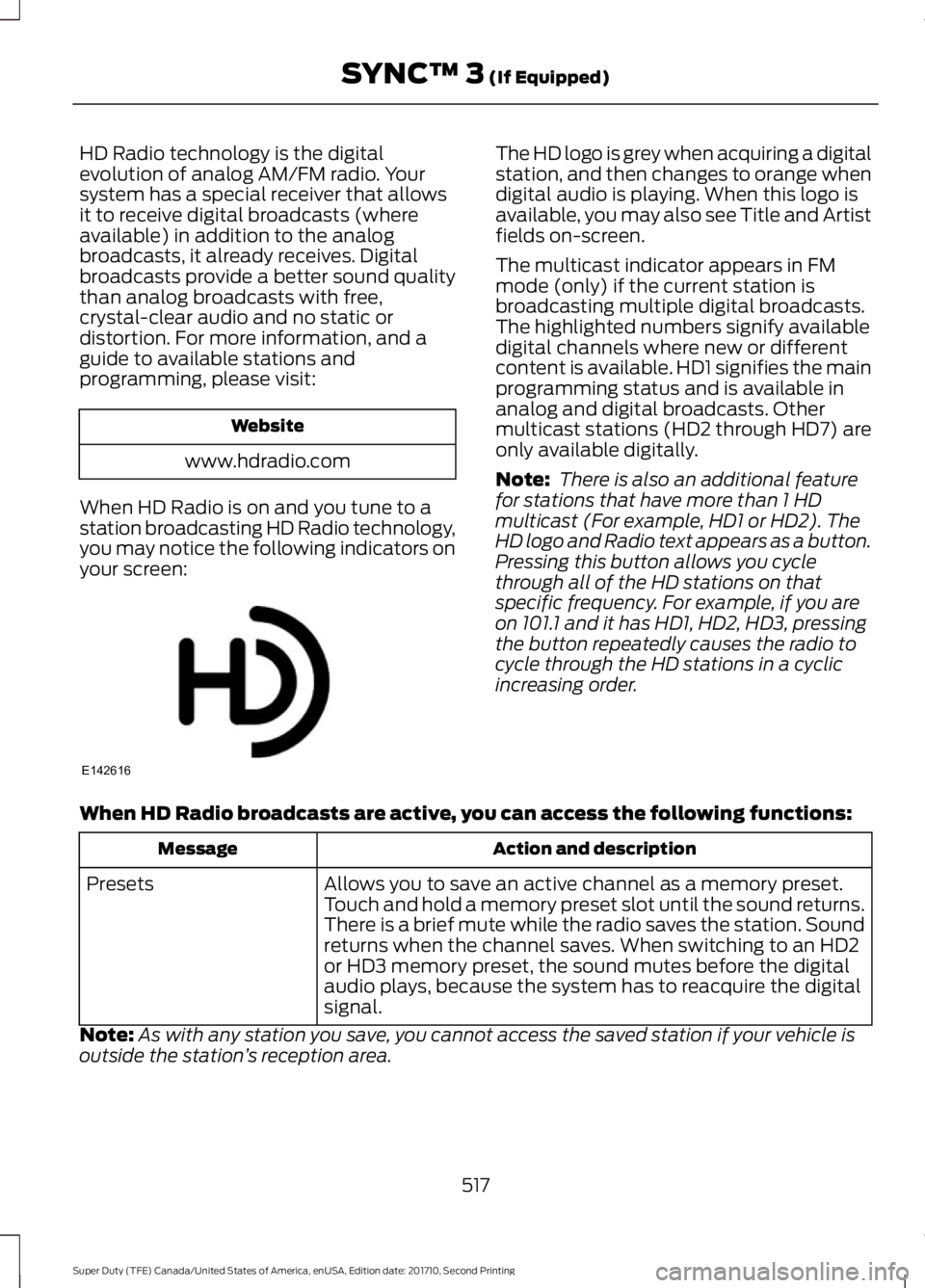
When HD Radio is on and you tune to astation broadcasting HD Radio technology,you may notice the following indicators onyour screen:
The HD logo is grey when acquiring a digitalstation, and then changes to orange whendigital audio is playing. When this logo isavailable, you may also see Title and Artistfields on-screen.
The multicast indicator appears in FMmode (only) if the current station isbroadcasting multiple digital broadcasts.The highlighted numbers signify availabledigital channels where new or differentcontent is available. HD1 signifies the mainprogramming status and is available inanalog and digital broadcasts. Othermulticast stations (HD2 through HD7) areonly available digitally.
Note: There is also an additional featurefor stations that have more than 1 HDmulticast (For example, HD1 or HD2). TheHD logo and Radio text appears as a button.Pressing this button allows you cyclethrough all of the HD stations on thatspecific frequency. For example, if you areon 101.1 and it has HD1, HD2, HD3, pressingthe button repeatedly causes the radio tocycle through the HD stations in a cyclicincreasing order.
When HD Radio broadcasts are active, you can access the following functions:
Action and descriptionMessage
Allows you to save an active channel as a memory preset.Touch and hold a memory preset slot until the sound returns.There is a brief mute while the radio saves the station. Soundreturns when the channel saves. When switching to an HD2or HD3 memory preset, the sound mutes before the digitalaudio plays, because the system has to reacquire the digitalsignal.
Presets
Note:As with any station you save, you cannot access the saved station if your vehicle isoutside the station’s reception area.
517
Super Duty (TFE) Canada/United States of America, enUSA, Edition date: 201710, Second Printing
SYNC™ 3 (If Equipped)E142616
Page 521 of 642
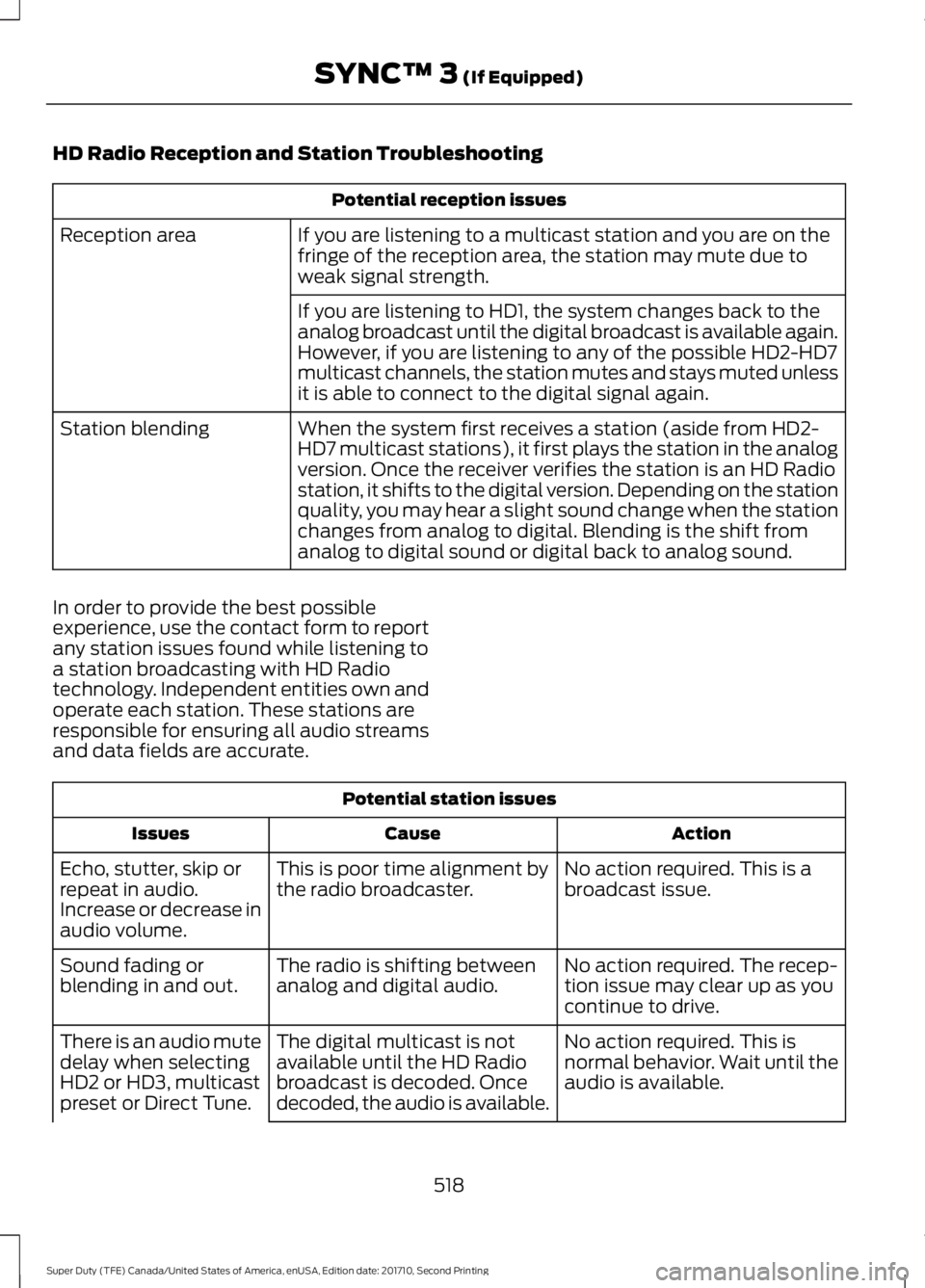
HD Radio Reception and Station Troubleshooting
Potential reception issues
If you are listening to a multicast station and you are on thefringe of the reception area, the station may mute due toweak signal strength.
Reception area
If you are listening to HD1, the system changes back to theanalog broadcast until the digital broadcast is available again.However, if you are listening to any of the possible HD2-HD7multicast channels, the station mutes and stays muted unlessit is able to connect to the digital signal again.
When the system first receives a station (aside from HD2-HD7 multicast stations), it first plays the station in the analogversion. Once the receiver verifies the station is an HD Radiostation, it shifts to the digital version. Depending on the stationquality, you may hear a slight sound change when the stationchanges from analog to digital. Blending is the shift fromanalog to digital sound or digital back to analog sound.
Station blending
In order to provide the best possibleexperience, use the contact form to reportany station issues found while listening toa station broadcasting with HD Radiotechnology. Independent entities own andoperate each station. These stations areresponsible for ensuring all audio streamsand data fields are accurate.
Potential station issues
ActionCauseIssues
No action required. This is abroadcast issue.This is poor time alignment bythe radio broadcaster.Echo, stutter, skip orrepeat in audio.Increase or decrease inaudio volume.
No action required. The recep-tion issue may clear up as youcontinue to drive.
The radio is shifting betweenanalog and digital audio.Sound fading orblending in and out.
No action required. This isnormal behavior. Wait until theaudio is available.
The digital multicast is notavailable until the HD Radiobroadcast is decoded. Oncedecoded, the audio is available.
There is an audio mutedelay when selectingHD2 or HD3, multicastpreset or Direct Tune.
518
Super Duty (TFE) Canada/United States of America, enUSA, Edition date: 201710, Second Printing
SYNC™ 3 (If Equipped)
Page 522 of 642
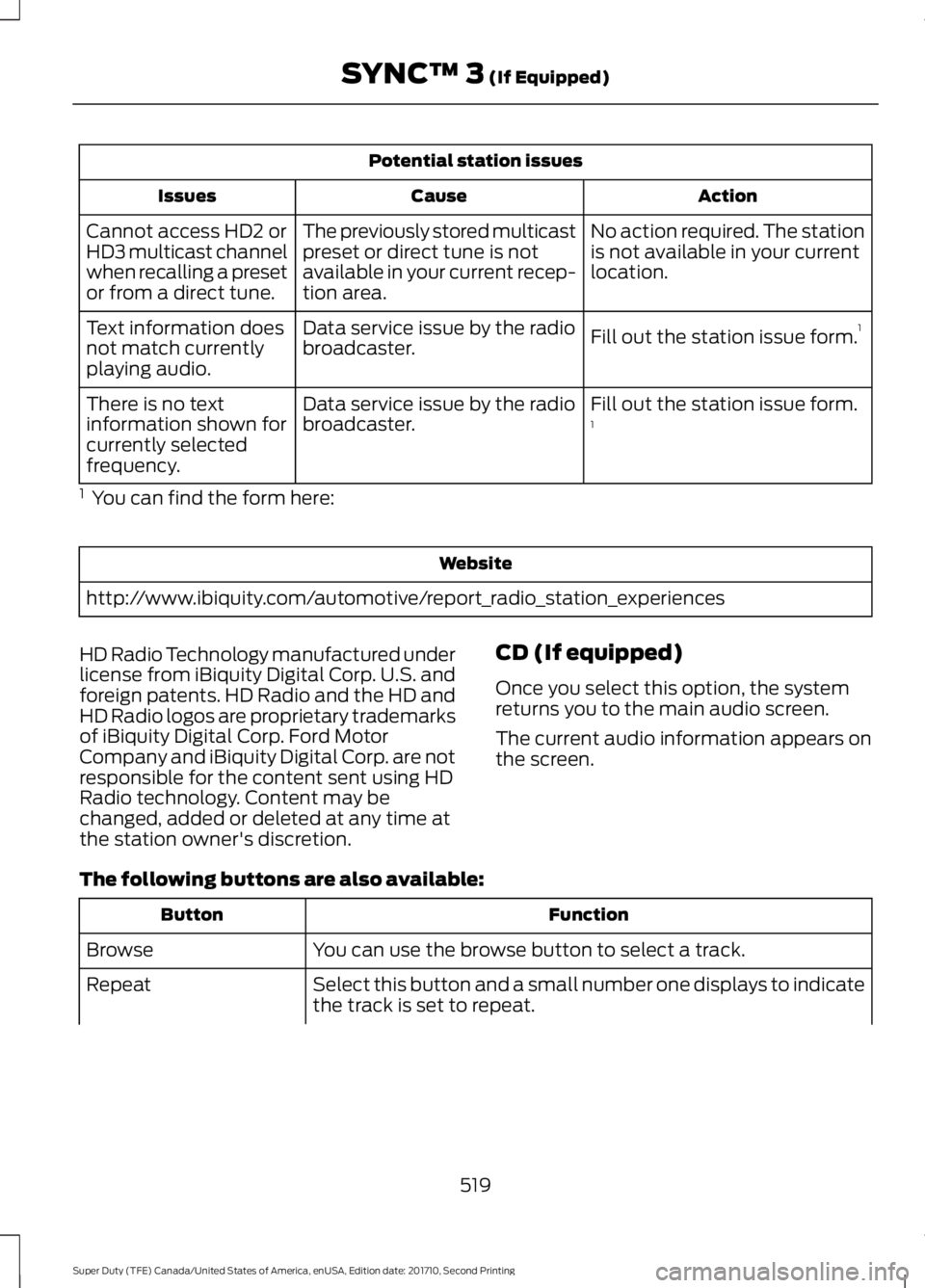
Potential station issues
ActionCauseIssues
No action required. The stationis not available in your currentlocation.
The previously stored multicastpreset or direct tune is notavailable in your current recep-tion area.
Cannot access HD2 orHD3 multicast channelwhen recalling a presetor from a direct tune.
Fill out the station issue form.1Data service issue by the radiobroadcaster.Text information doesnot match currentlyplaying audio.
Fill out the station issue form.1Data service issue by the radiobroadcaster.There is no textinformation shown forcurrently selectedfrequency.
1 You can find the form here:
Website
http://www.ibiquity.com/automotive/report_radio_station_experiences
HD Radio Technology manufactured underlicense from iBiquity Digital Corp. U.S. andforeign patents. HD Radio and the HD andHD Radio logos are proprietary trademarksof iBiquity Digital Corp. Ford MotorCompany and iBiquity Digital Corp. are notresponsible for the content sent using HDRadio technology. Content may bechanged, added or deleted at any time atthe station owner's discretion.
CD (If equipped)
Once you select this option, the systemreturns you to the main audio screen.
The current audio information appears onthe screen.
The following buttons are also available:
FunctionButton
You can use the browse button to select a track.Browse
Select this button and a small number one displays to indicatethe track is set to repeat.Repeat
519
Super Duty (TFE) Canada/United States of America, enUSA, Edition date: 201710, Second Printing
SYNC™ 3 (If Equipped)
Page 523 of 642
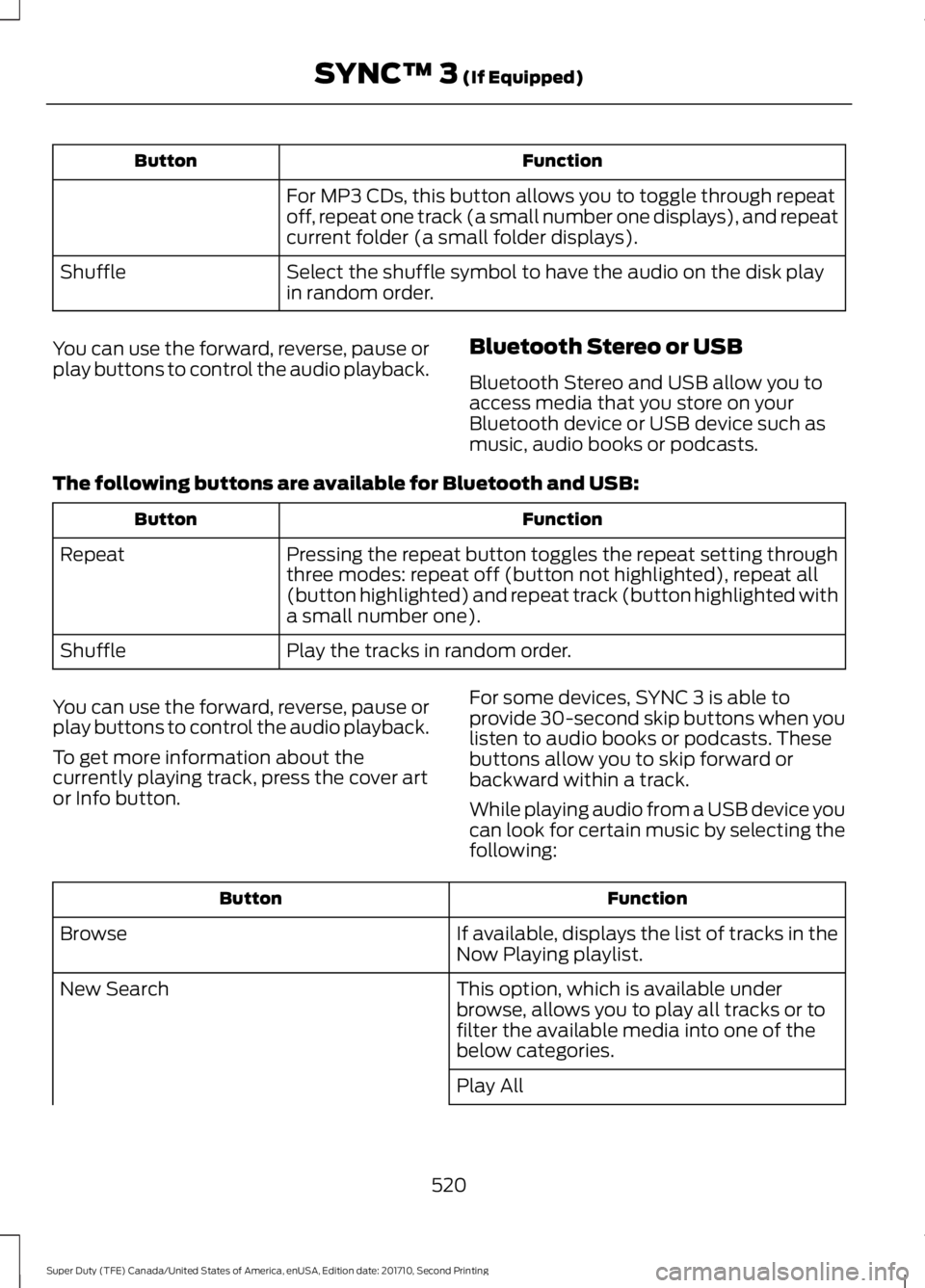
FunctionButton
For MP3 CDs, this button allows you to toggle through repeatoff, repeat one track (a small number one displays), and repeatcurrent folder (a small folder displays).
Select the shuffle symbol to have the audio on the disk playin random order.Shuffle
You can use the forward, reverse, pause orplay buttons to control the audio playback.Bluetooth Stereo or USB
Bluetooth Stereo and USB allow you toaccess media that you store on yourBluetooth device or USB device such asmusic, audio books or podcasts.
The following buttons are available for Bluetooth and USB:
FunctionButton
Pressing the repeat button toggles the repeat setting throughthree modes: repeat off (button not highlighted), repeat all(button highlighted) and repeat track (button highlighted witha small number one).
Repeat
Play the tracks in random order.Shuffle
You can use the forward, reverse, pause orplay buttons to control the audio playback.
To get more information about thecurrently playing track, press the cover artor Info button.
For some devices, SYNC 3 is able toprovide 30-second skip buttons when youlisten to audio books or podcasts. Thesebuttons allow you to skip forward orbackward within a track.
While playing audio from a USB device youcan look for certain music by selecting thefollowing:
FunctionButton
If available, displays the list of tracks in theNow Playing playlist.Browse
This option, which is available underbrowse, allows you to play all tracks or tofilter the available media into one of thebelow categories.
New Search
Play All
520
Super Duty (TFE) Canada/United States of America, enUSA, Edition date: 201710, Second Printing
SYNC™ 3 (If Equipped)
Page 524 of 642
FunctionButton
Playlists
Artists
Albums
Songs
Genres
Podcasts
Audio books
Composers
This button allows you to choose a specificletter to view within the category you arebrowsing.
A-Z Jump
If available, this allows you to browse thefolders and files on your USB device.Explore Device
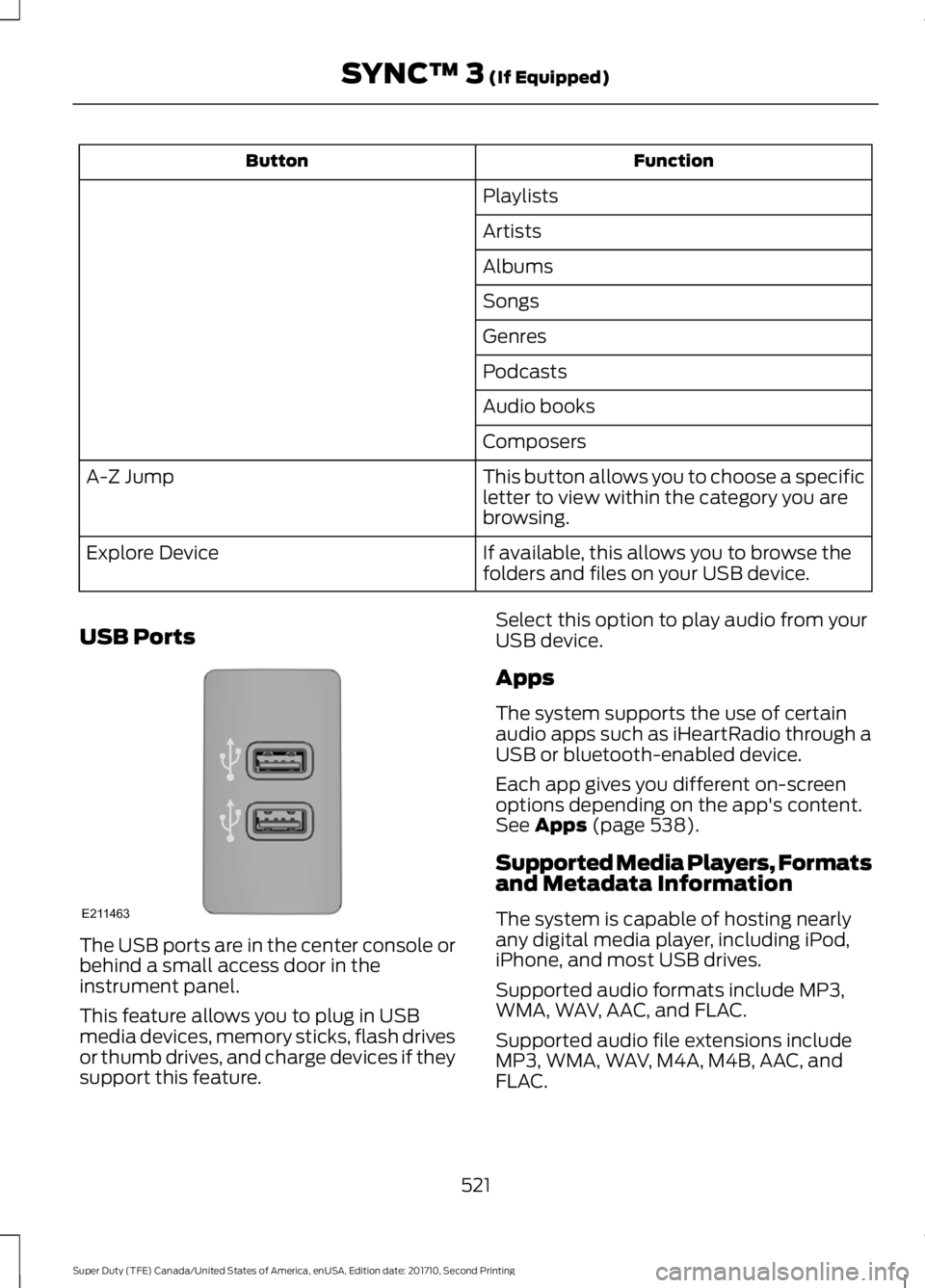
USB Ports
The USB ports are in the center console orbehind a small access door in theinstrument panel.
This feature allows you to plug in USBmedia devices, memory sticks, flash drivesor thumb drives, and charge devices if theysupport this feature.
Select this option to play audio from yourUSB device.
Apps
The system supports the use of certainaudio apps such as iHeartRadio through aUSB or bluetooth-enabled device.
Each app gives you different on-screenoptions depending on the app's content.See Apps (page 538).
Supported Media Players, Formatsand Metadata Information
The system is capable of hosting nearlyany digital media player, including iPod,iPhone, and most USB drives.
Supported audio formats include MP3,WMA, WAV, AAC, and FLAC.
Supported audio file extensions includeMP3, WMA, WAV, M4A, M4B, AAC, andFLAC.
521
Super Duty (TFE) Canada/United States of America, enUSA, Edition date: 201710, Second Printing
SYNC™ 3 (If Equipped)E211463
Page 539 of 642
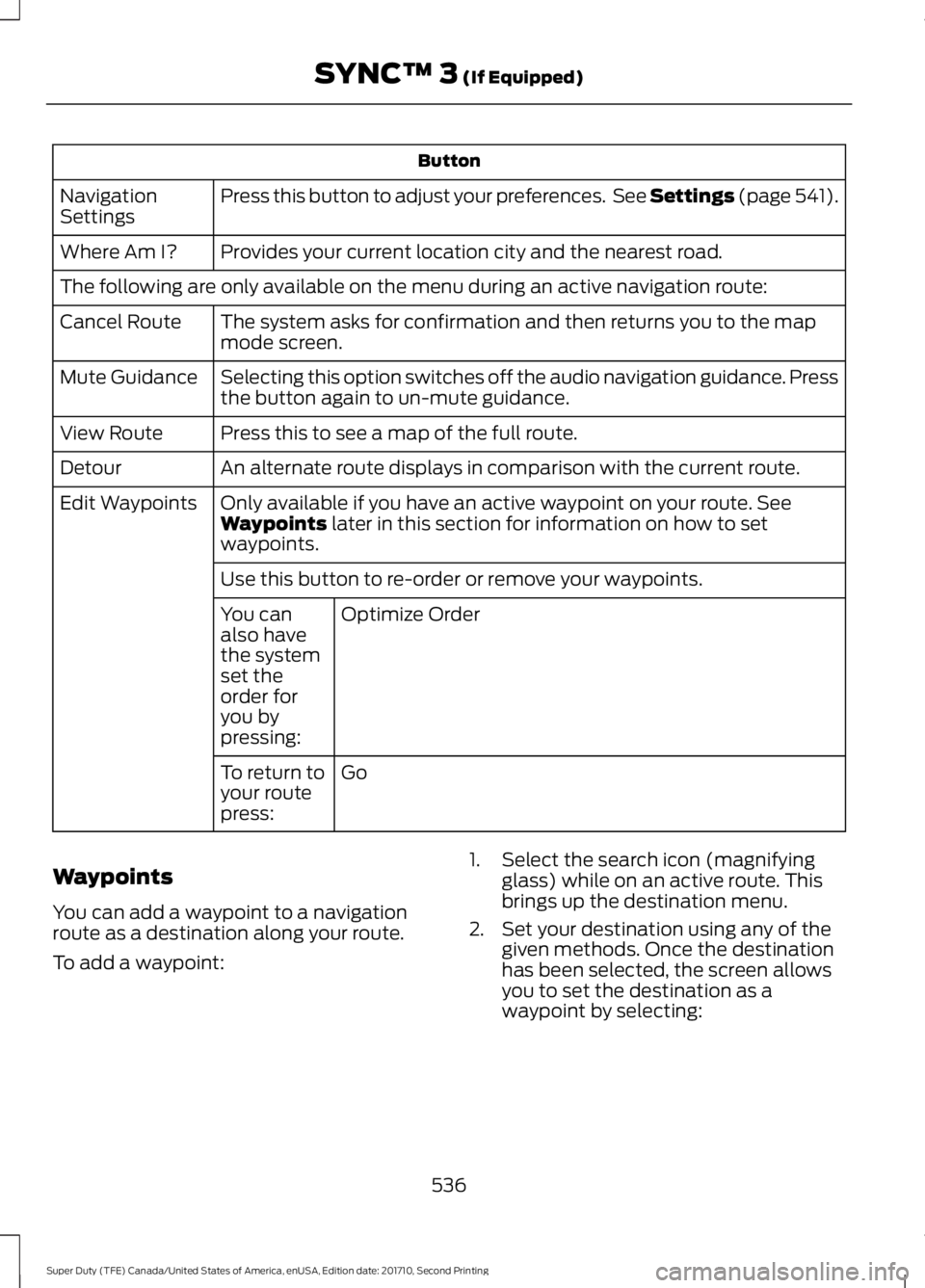
Button
Press this button to adjust your preferences. See Settings (page 541).NavigationSettings
Provides your current location city and the nearest road.Where Am I?
The following are only available on the menu during an active navigation route:
The system asks for confirmation and then returns you to the mapmode screen.Cancel Route
Selecting this option switches off the audio navigation guidance. Pressthe button again to un-mute guidance.Mute Guidance
Press this to see a map of the full route.View Route
An alternate route displays in comparison with the current route.Detour
Only available if you have an active waypoint on your route. SeeWaypoints later in this section for information on how to setwaypoints.
Edit Waypoints
Use this button to re-order or remove your waypoints.
Optimize OrderYou canalso havethe systemset theorder foryou bypressing:
GoTo return toyour routepress:
Waypoints
You can add a waypoint to a navigationroute as a destination along your route.
To add a waypoint:
1. Select the search icon (magnifyingglass) while on an active route. Thisbrings up the destination menu.
2. Set your destination using any of thegiven methods. Once the destinationhas been selected, the screen allowsyou to set the destination as awaypoint by selecting:
536
Super Duty (TFE) Canada/United States of America, enUSA, Edition date: 201710, Second Printing
SYNC™ 3 (If Equipped)
Page 544 of 642
Action and DescriptionMenu Item
Select to choose from a listing ofweather locations.Area
Touch this button to view scores and schedules from a varietyof sports. You can also save up to 10 favorite teams for easieraccess. The score automatically refreshes when a game is inprogress.
Sports Info
Touch this button to view ski conditions for a specific area.Ski Conditions
SETTINGS
Under this menu, you can access andadjust the settings for many of the systemfeatures. To access additional settings,swipe the screen left or right.
Sound
Pressing this button allows you to adjustthe following:
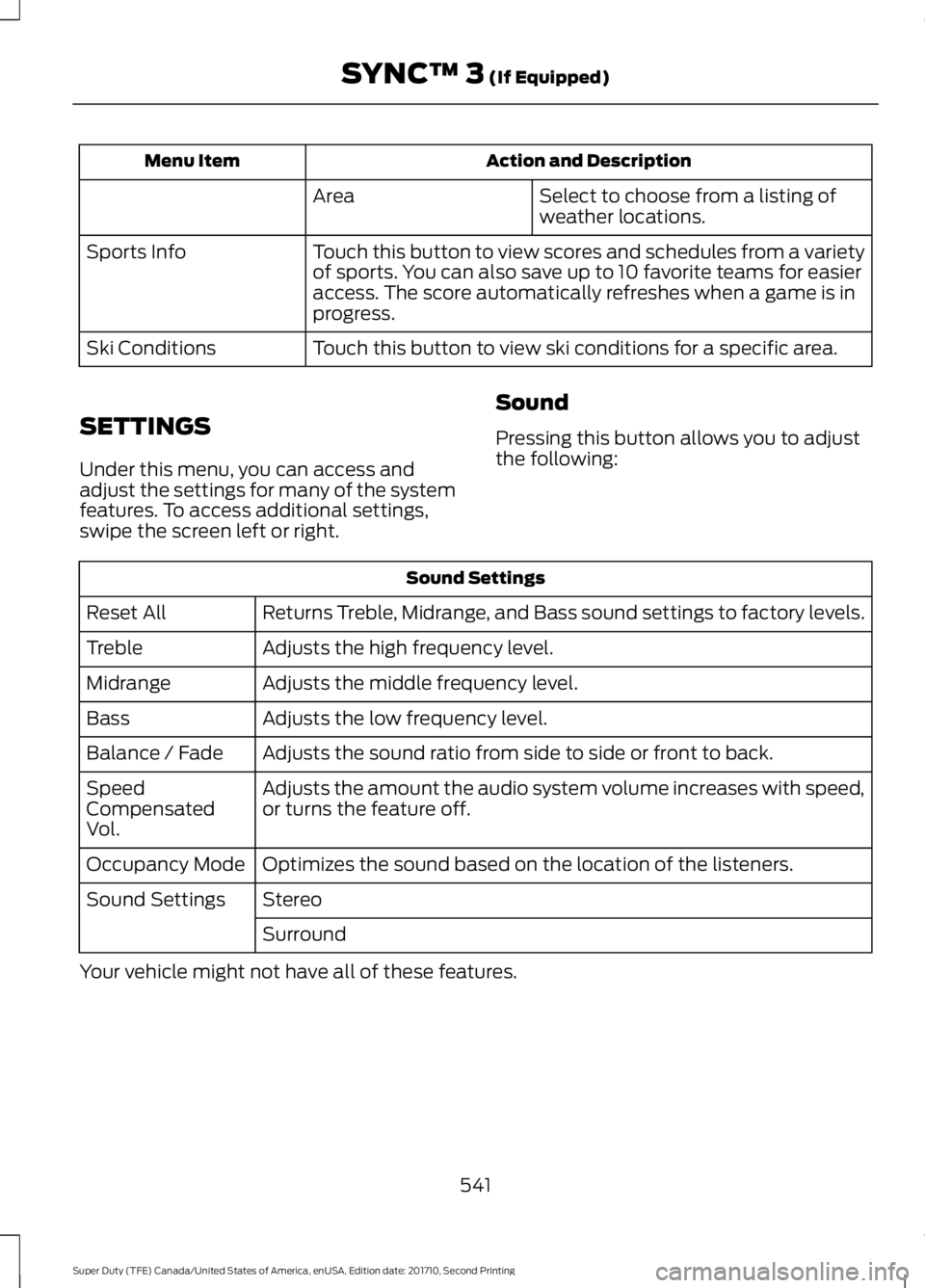
Sound Settings
Returns Treble, Midrange, and Bass sound settings to factory levels.Reset All
Adjusts the high frequency level.Treble
Adjusts the middle frequency level.Midrange
Adjusts the low frequency level.Bass
Adjusts the sound ratio from side to side or front to back.Balance / Fade
Adjusts the amount the audio system volume increases with speed,or turns the feature off.SpeedCompensatedVol.
Optimizes the sound based on the location of the listeners.Occupancy Mode
StereoSound Settings
Surround
Your vehicle might not have all of these features.
541
Super Duty (TFE) Canada/United States of America, enUSA, Edition date: 201710, Second Printing
SYNC™ 3 (If Equipped)
Page 545 of 642
Media Player
This button is available when a mediadevice such as a Bluetooth Stereo or USB
device is the active audio source. Pressingthe button allows you to access thefollowing options for active devices only.
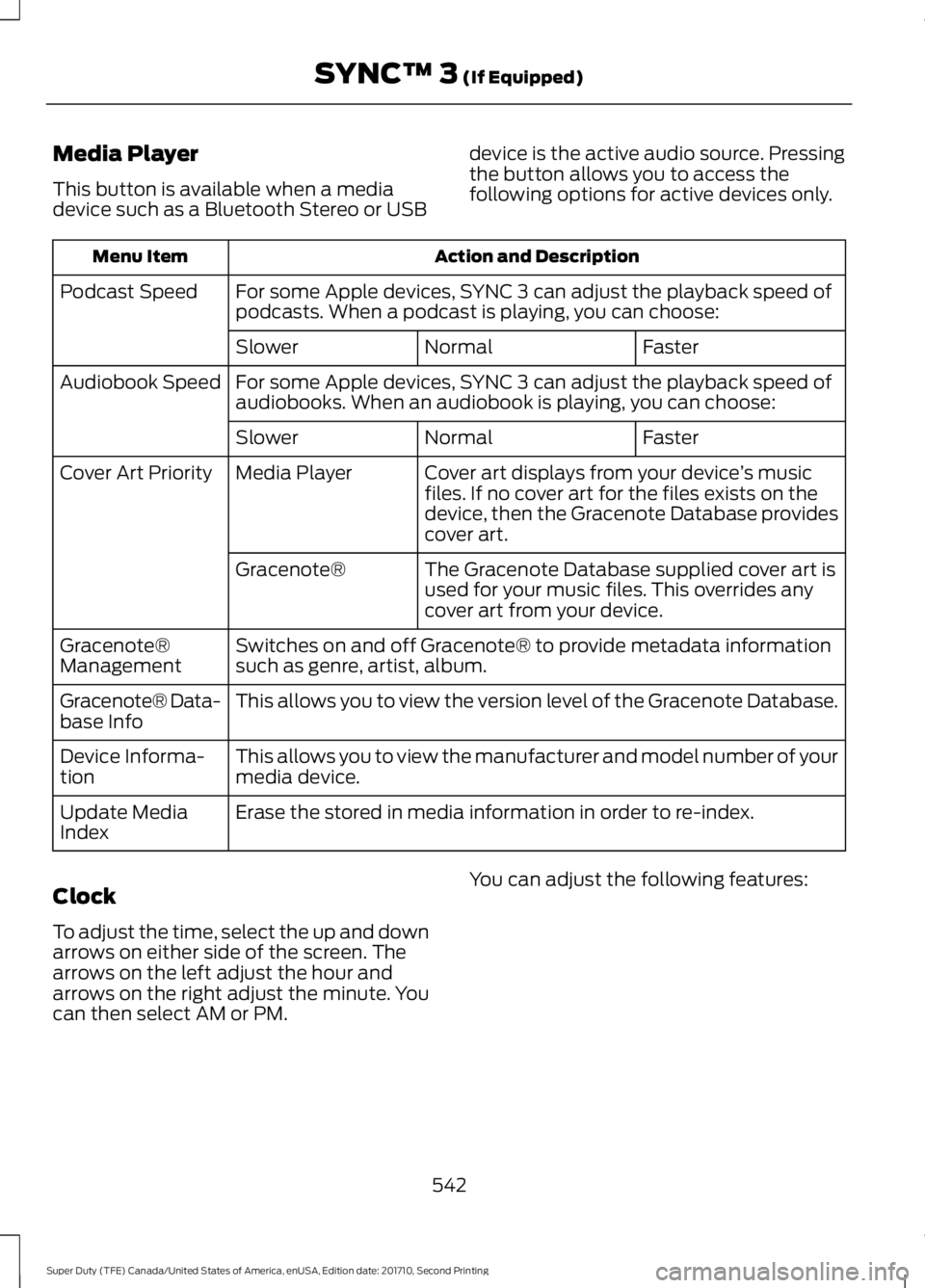
Action and DescriptionMenu Item
For some Apple devices, SYNC 3 can adjust the playback speed ofpodcasts. When a podcast is playing, you can choose:Podcast Speed
FasterNormalSlower
For some Apple devices, SYNC 3 can adjust the playback speed ofaudiobooks. When an audiobook is playing, you can choose:Audiobook Speed
FasterNormalSlower
Cover art displays from your device’s musicfiles. If no cover art for the files exists on thedevice, then the Gracenote Database providescover art.
Media PlayerCover Art Priority
The Gracenote Database supplied cover art isused for your music files. This overrides anycover art from your device.
Gracenote®
Switches on and off Gracenote® to provide metadata informationsuch as genre, artist, album.Gracenote®Management
This allows you to view the version level of the Gracenote Database.Gracenote® Data-base Info
This allows you to view the manufacturer and model number of yourmedia device.Device Informa-tion
Erase the stored in media information in order to re-index.Update MediaIndex
Clock
To adjust the time, select the up and downarrows on either side of the screen. Thearrows on the left adjust the hour andarrows on the right adjust the minute. Youcan then select AM or PM.
You can adjust the following features:
542
Super Duty (TFE) Canada/United States of America, enUSA, Edition date: 201710, Second Printing
SYNC™ 3 (If Equipped)