2017 FORD F150 reset
[x] Cancel search: resetPage 489 of 599
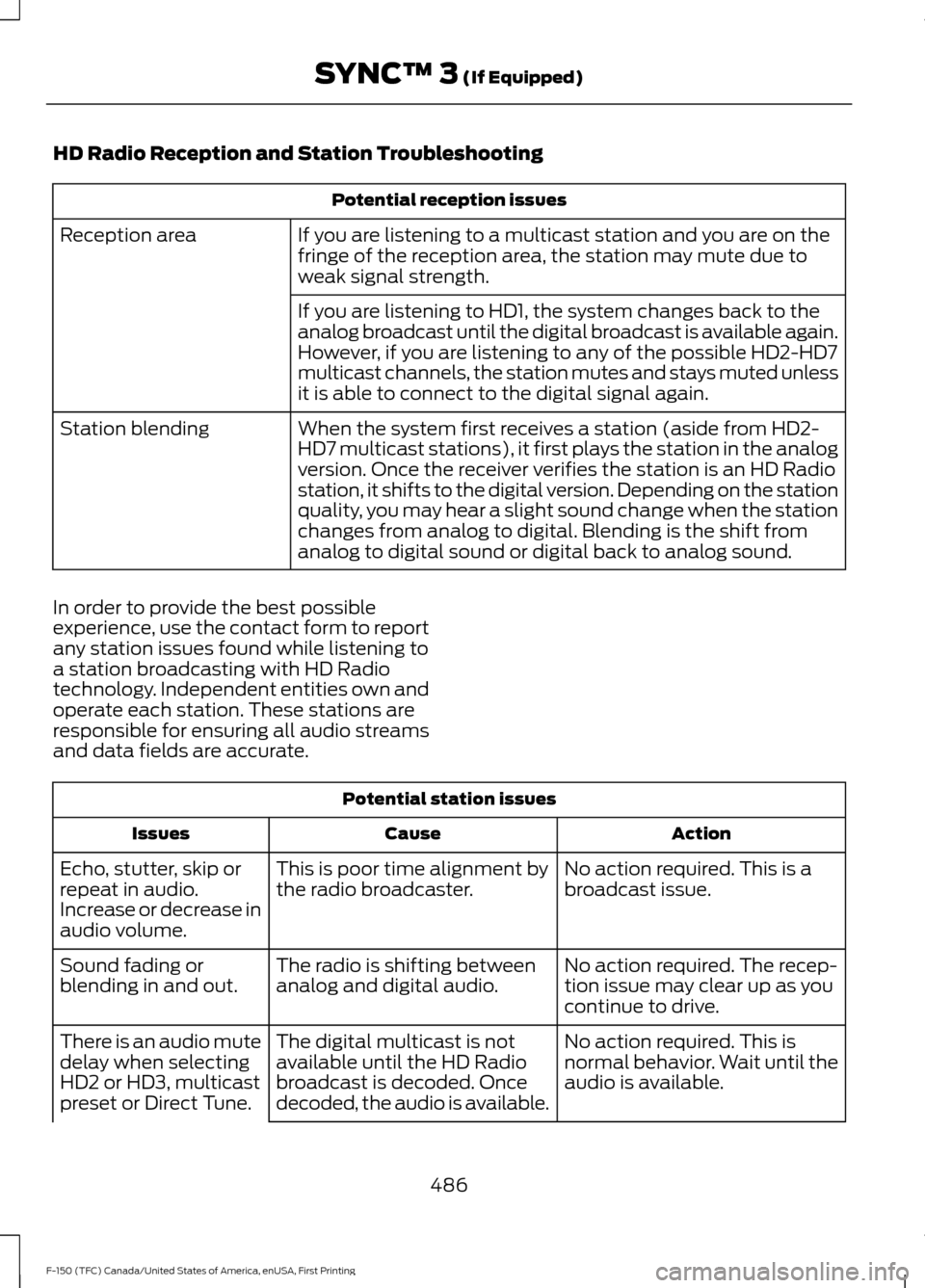
HD Radio Reception and Station Troubleshooting
Potential reception issues
If you are listening to a multicast station and you are on the
fringe of the reception area, the station may mute due to
weak signal strength.
Reception area
If you are listening to HD1, the system changes back to the
analog broadcast until the digital broadcast is available again.
However, if you are listening to any of the possible HD2-HD7
multicast channels, the station mutes and stays muted unless
it is able to connect to the digital signal again.
When the system first receives a station (aside from HD2-
HD7 multicast stations), it first plays the station in the analog
version. Once the receiver verifies the station is an HD Radio
station, it shifts to the digital version. Depending on the station
quality, you may hear a slight sound change when the station
changes from analog to digital. Blending is the shift from
analog to digital sound or digital back to analog sound.
Station blending
In order to provide the best possible
experience, use the contact form to report
any station issues found while listening to
a station broadcasting with HD Radio
technology. Independent entities own and
operate each station. These stations are
responsible for ensuring all audio streams
and data fields are accurate. Potential station issues
Action
Cause
Issues
No action required. This is a
broadcast issue.
This is poor time alignment by
the radio broadcaster.
Echo, stutter, skip or
repeat in audio.
Increase or decrease in
audio volume.
No action required. The recep-
tion issue may clear up as you
continue to drive.
The radio is shifting between
analog and digital audio.
Sound fading or
blending in and out.
No action required. This is
normal behavior. Wait until the
audio is available.
The digital multicast is not
available until the HD Radio
broadcast is decoded. Once
decoded, the audio is available.
There is an audio mute
delay when selecting
HD2 or HD3, multicast
preset or Direct Tune.
486
F-150 (TFC) Canada/United States of America, enUSA, First Printing SYNC™ 3 (If Equipped)
Page 490 of 599
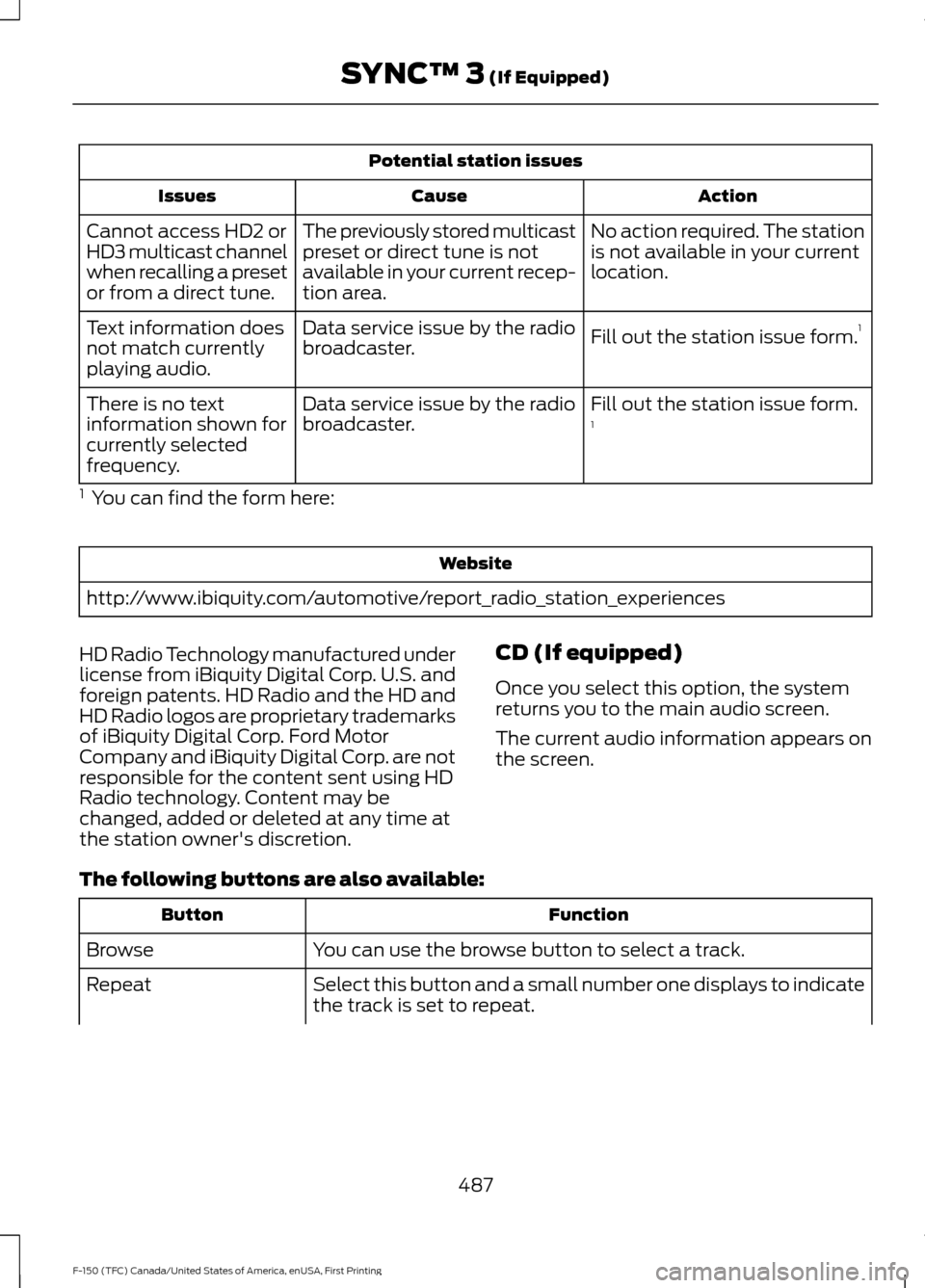
Potential station issues
Action
Cause
Issues
No action required. The station
is not available in your current
location.
The previously stored multicast
preset or direct tune is not
available in your current recep-
tion area.
Cannot access HD2 or
HD3 multicast channel
when recalling a preset
or from a direct tune.
Fill out the station issue form.1
Data service issue by the radio
broadcaster.
Text information does
not match currently
playing audio.
Fill out the station issue form.
1
Data service issue by the radio
broadcaster.
There is no text
information shown for
currently selected
frequency.
1 You can find the form here: Website
http://www.ibiquity.com/automotive/report_radio_station_experiences
HD Radio Technology manufactured under
license from iBiquity Digital Corp. U.S. and
foreign patents. HD Radio and the HD and
HD Radio logos are proprietary trademarks
of iBiquity Digital Corp. Ford Motor
Company and iBiquity Digital Corp. are not
responsible for the content sent using HD
Radio technology. Content may be
changed, added or deleted at any time at
the station owner's discretion. CD (If equipped)
Once you select this option, the system
returns you to the main audio screen.
The current audio information appears on
the screen.
The following buttons are also available: Function
Button
You can use the browse button to select a track.
Browse
Select this button and a small number one displays to indicate
the track is set to repeat.
Repeat
487
F-150 (TFC) Canada/United States of America, enUSA, First Printing SYNC™ 3 (If Equipped)
Page 500 of 599
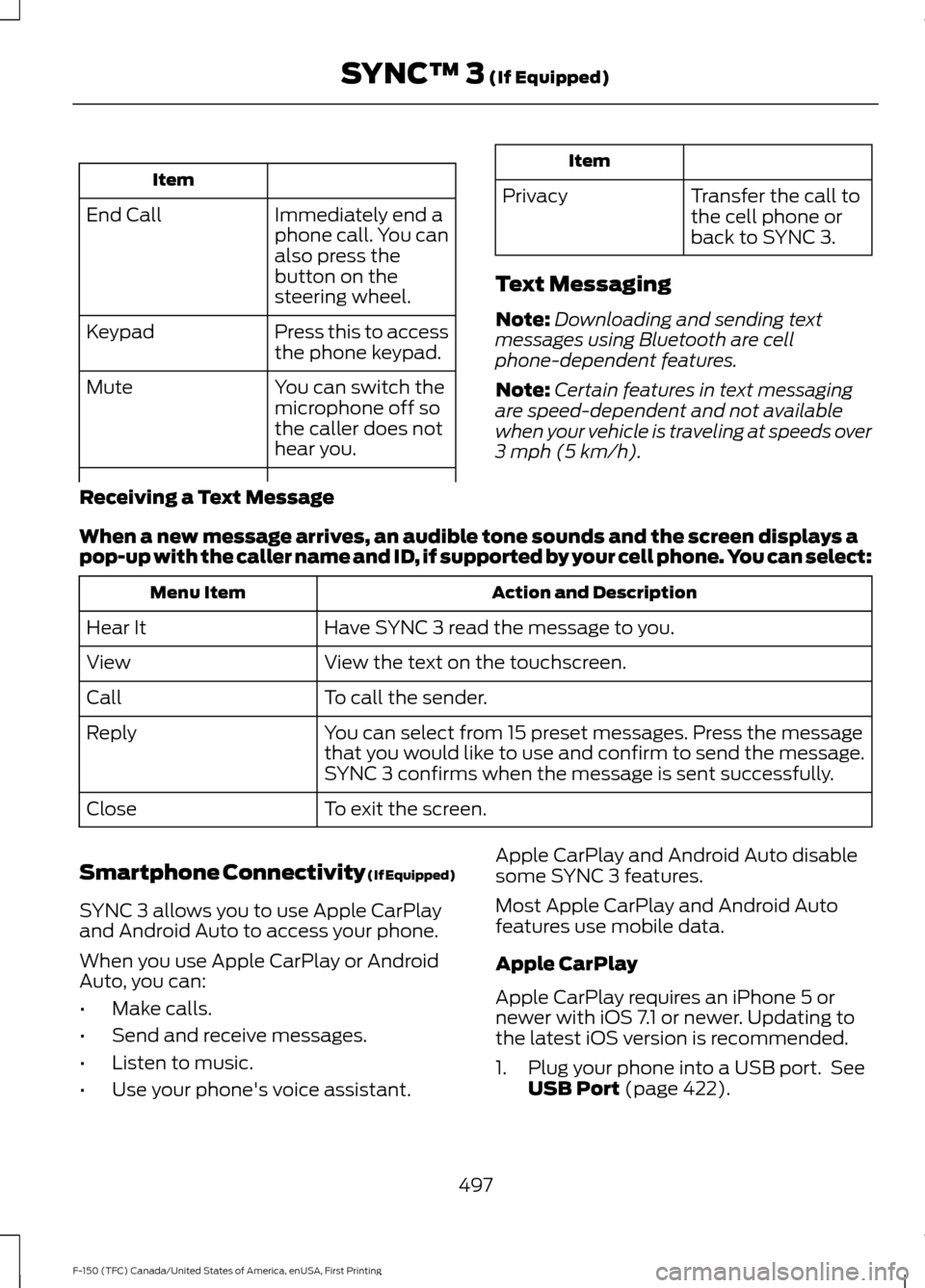
Item
Immediately end a
phone call. You can
also press the
button on the
steering wheel.
End Call
Press this to access
the phone keypad.
Keypad
You can switch the
microphone off so
the caller does not
hear you.
Mute Item
Privacy Transfer the call to
the cell phone or
back to SYNC 3.
Text Messaging
Note: Downloading and sending text
messages using Bluetooth are cell
phone-dependent features.
Note: Certain features in text messaging
are speed-dependent and not available
when your vehicle is traveling at speeds over
3 mph (5 km/h).
Receiving a Text Message
When a new message arrives, an audible tone sounds and the screen displays a
pop-up with the caller name and ID, if supported by your cell phone. You can select: Action and Description
Menu Item
Have SYNC 3 read the message to you.
Hear It
View the text on the touchscreen.
View
To call the sender.
Call
You can select from 15 preset messages. Press the message
that you would like to use and confirm to send the message.
SYNC 3 confirms when the message is sent successfully.
Reply
To exit the screen.
Close
Smartphone Connectivity (If Equipped)
SYNC 3 allows you to use Apple CarPlay
and Android Auto to access your phone.
When you use Apple CarPlay or Android
Auto, you can:
• Make calls.
• Send and receive messages.
• Listen to music.
• Use your phone's voice assistant. Apple CarPlay and Android Auto disable
some SYNC 3 features.
Most Apple CarPlay and Android Auto
features use mobile data.
Apple CarPlay
Apple CarPlay requires an iPhone 5 or
newer with iOS 7.1 or newer. Updating to
the latest iOS version is recommended.
1. Plug your phone into a USB port. See
USB Port
(page 422).
497
F-150 (TFC) Canada/United States of America, enUSA, First Printing SYNC™ 3
(If Equipped)
Page 502 of 599

3D city models are complete 3D models
of entire city areas including navigable
roads, parks, rivers and rendered buildings.
3D landmarks and city models appear in
3D map mode only. Coverage of these
varies and improves with updated map
releases.
Select the zoom in icon to see a
closer view of the map.
Select the zoom out icon to see
a farther away view of the map.
You can adjust the view in preset
increments. You can also pinch to zoom in
or out of the map.
The information bar tells you the names
of streets, cities or landmarks as you hover
over them with the crosshair curser.
You can change your view of the map by
tapping on the location indicator icon on
the right hand side of the screen. You can
choose from the following options: Heading up (2D map) This
always shows the direction of
forward travel to be upward on
the screen. This view is available
for map scales up to
3 mi (5 km). North up (2D map)
always
shows the northern direction to
be upward on the screen. 3D map mode
provides an
elevated perspective of the map.
Adjust this viewing angle and
rotate the map 180 degrees by
touching the map twice, and
then dragging your finger along the shaded
bar with arrows at the bottom of the map. Re-center the map by pressing
this icon whenever you scroll the
map away from your vehicle
’s
current location. Points of Interest (POI)
grouping icon: You can choose
up to three POI icons to display
on the map. If the chosen POIs
are located close together or are
at the same location a box is used to
display a single category icon instead of
repeating the same icon, in order to reduce
clutter. When you select the box on the
map, a pop-up appears indicating how
many POIs are in this location. Select the
pop up to see a list of the available POIs.
You can scroll through and select POIs
from this list.
If your vehicle is low on charge or fuel,
station icons automatically display on the
map.
If you have subscribed to SiriusXM Traffic
and Travel Link (where available), traffic
flow will be indicated on the map by green
(clear), yellow (slowing), and red
(stopped) road highlights. Traffic flow is
indicated where the information is
available and varies across the US.
You can choose to display traffic icons on
the map representing twelve different
types of incidents. See
Settings (page
509).
You can set a destination by hovering
above a location and selecting: Button
Start
499
F-150 (TFC) Canada/United States of America, enUSA, First Printing SYNC™ 3
(If Equipped)E207752 E207753 E207750 E207749 E207748 E207751 E207754
Page 512 of 599
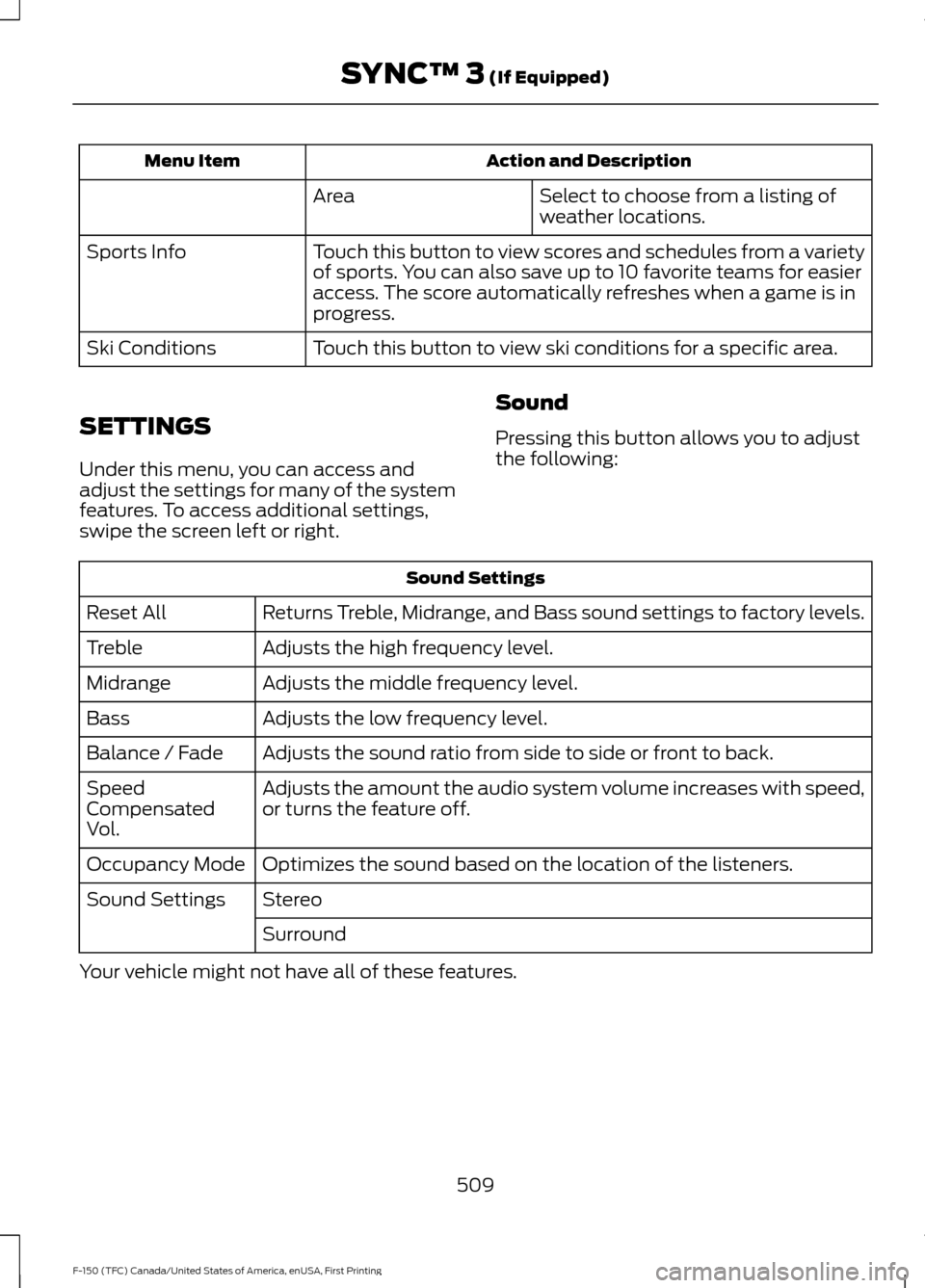
Action and Description
Menu Item
Select to choose from a listing of
weather locations.
Area
Touch this button to view scores and schedules from a variety
of sports. You can also save up to 10 favorite teams for easier
access. The score automatically refreshes when a game is in
progress.
Sports Info
Touch this button to view ski conditions for a specific area.
Ski Conditions
SETTINGS
Under this menu, you can access and
adjust the settings for many of the system
features. To access additional settings,
swipe the screen left or right. Sound
Pressing this button allows you to adjust
the following:Sound Settings
Returns Treble, Midrange, and Bass sound settings to factory levels.
Reset All
Adjusts the high frequency level.
Treble
Adjusts the middle frequency level.
Midrange
Adjusts the low frequency level.
Bass
Adjusts the sound ratio from side to side or front to back.
Balance / Fade
Adjusts the amount the audio system volume increases with speed,
or turns the feature off.
Speed
Compensated
Vol.
Optimizes the sound based on the location of the listeners.
Occupancy Mode
Stereo
Sound Settings
Surround
Your vehicle might not have all of these features.
509
F-150 (TFC) Canada/United States of America, enUSA, First Printing SYNC™ 3 (If Equipped)
Page 514 of 599
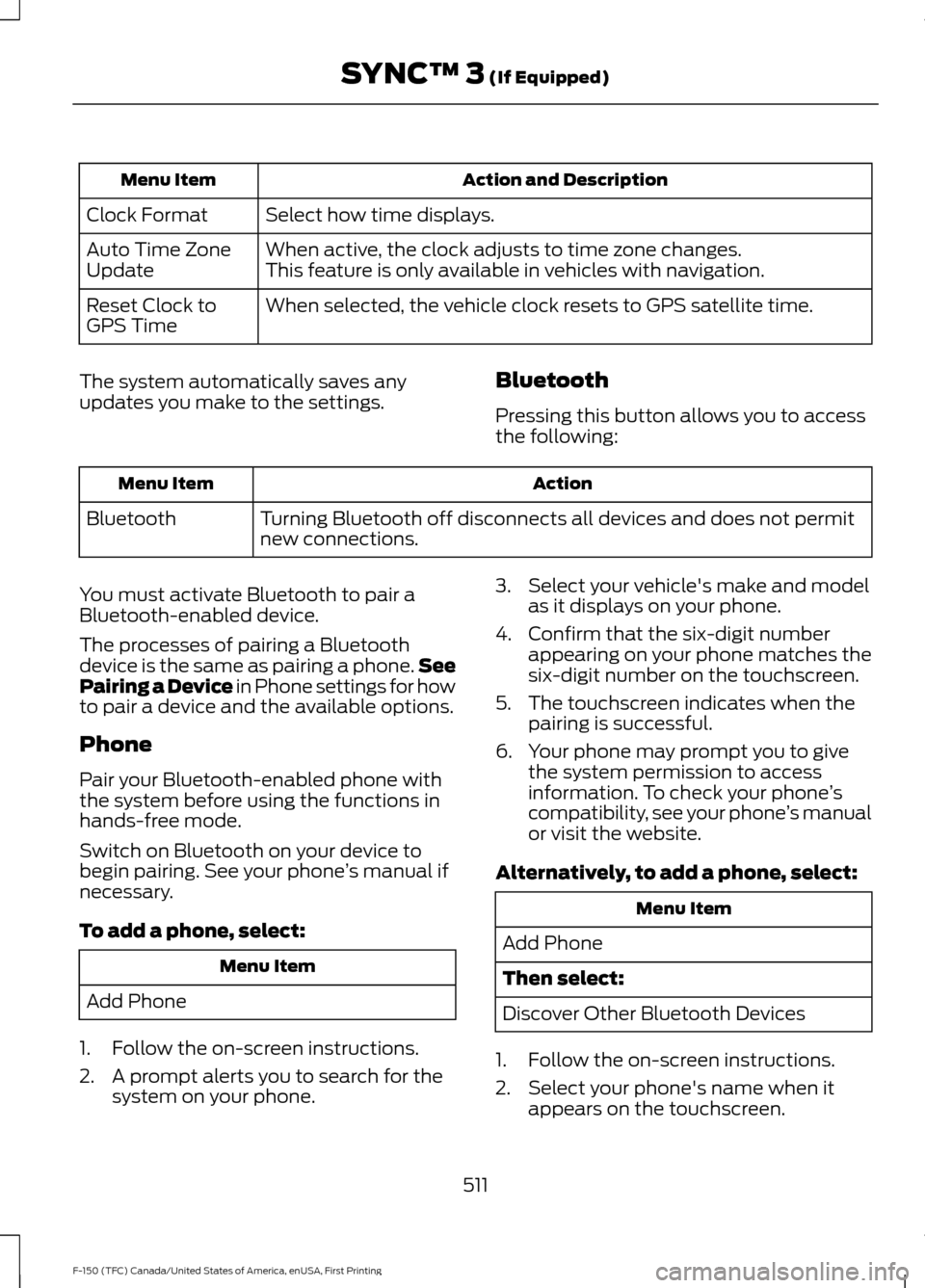
Action and Description
Menu Item
Select how time displays.
Clock Format
When active, the clock adjusts to time zone changes.
Auto Time Zone
Update This feature is only available in vehicles with navigation.
When selected, the vehicle clock resets to GPS satellite time.
Reset Clock to
GPS Time
The system automatically saves any
updates you make to the settings. Bluetooth
Pressing this button allows you to access
the following: Action
Menu Item
Turning Bluetooth off disconnects all devices and does not permit
new connections.
Bluetooth
You must activate Bluetooth to pair a
Bluetooth-enabled device.
The processes of pairing a Bluetooth
device is the same as pairing a phone. See
Pairing a Device in Phone settings for how
to pair a device and the available options.
Phone
Pair your Bluetooth-enabled phone with
the system before using the functions in
hands-free mode.
Switch on Bluetooth on your device to
begin pairing. See your phone ’s manual if
necessary.
To add a phone, select: Menu Item
Add Phone
1. Follow the on-screen instructions.
2. A prompt alerts you to search for the system on your phone. 3. Select your vehicle's make and model
as it displays on your phone.
4. Confirm that the six-digit number appearing on your phone matches the
six-digit number on the touchscreen.
5. The touchscreen indicates when the pairing is successful.
6. Your phone may prompt you to give the system permission to access
information. To check your phone ’s
compatibility, see your phone ’s manual
or visit the website.
Alternatively, to add a phone, select: Menu Item
Add Phone
Then select:
Discover Other Bluetooth Devices
1. Follow the on-screen instructions.
2. Select your phone's name when it appears on the touchscreen.
511
F-150 (TFC) Canada/United States of America, enUSA, First Printing SYNC™ 3 (If Equipped)
Page 518 of 599
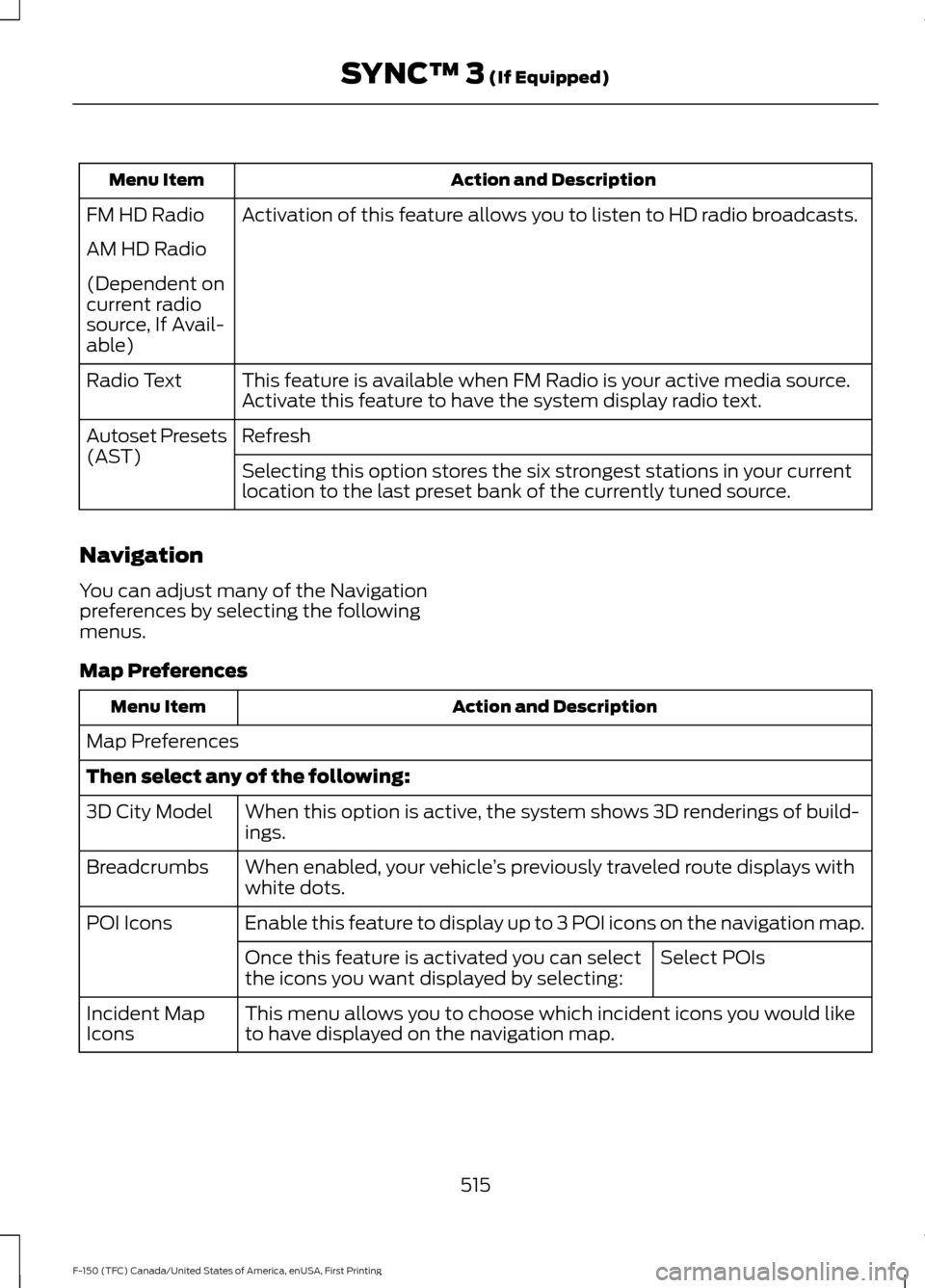
Action and Description
Menu Item
Activation of this feature allows you to listen to HD radio broadcasts.
FM HD Radio
AM HD Radio
(Dependent on
current radio
source, If Avail-
able)
This feature is available when FM Radio is your active media source.
Activate this feature to have the system display radio text.
Radio Text
Refresh
Autoset Presets
(AST)
Selecting this option stores the six strongest stations in your current
location to the last preset bank of the currently tuned source.
Navigation
You can adjust many of the Navigation
preferences by selecting the following
menus.
Map Preferences Action and Description
Menu Item
Map Preferences
Then select any of the following: When this option is active, the system shows 3D renderings of build-
ings.
3D City Model
When enabled, your vehicle ’s previously traveled route displays with
white dots.
Breadcrumbs
Enable this feature to display up to 3 POI icons on the navigation map.
POI Icons
Select POIs
Once this feature is activated you can select
the icons you want displayed by selecting:
This menu allows you to choose which incident icons you would like
to have displayed on the navigation map.
Incident Map
Icons
515
F-150 (TFC) Canada/United States of America, enUSA, First Printing SYNC™ 3 (If Equipped)
Page 522 of 599
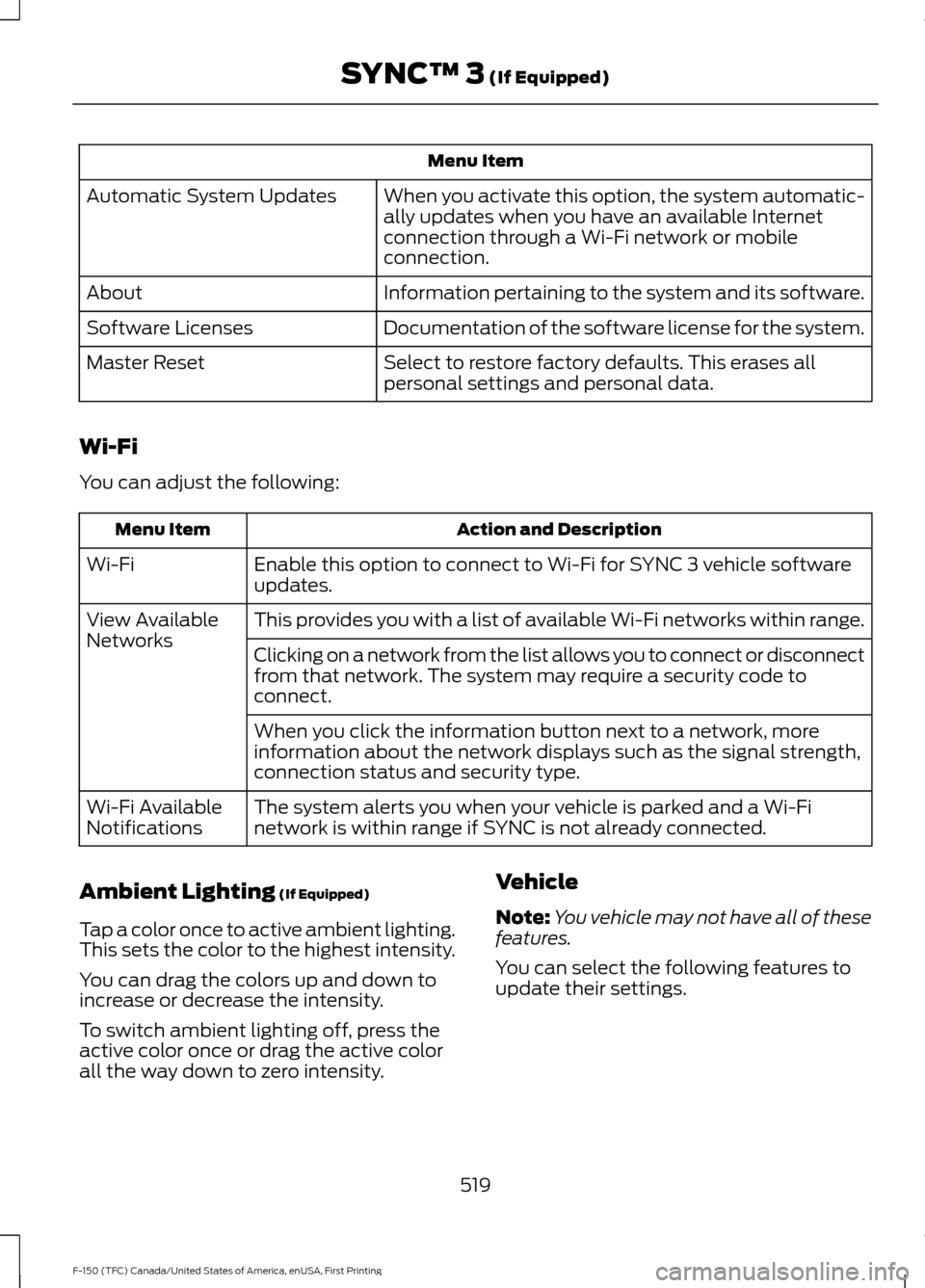
Menu Item
When you activate this option, the system automatic-
ally updates when you have an available Internet
connection through a Wi-Fi network or mobile
connection.
Automatic System Updates
Information pertaining to the system and its software.
About
Documentation of the software license for the system.
Software Licenses
Select to restore factory defaults. This erases all
personal settings and personal data.
Master Reset
Wi-Fi
You can adjust the following: Action and Description
Menu Item
Enable this option to connect to Wi-Fi for SYNC 3 vehicle software
updates.
Wi-Fi
This provides you with a list of available Wi-Fi networks within range.
View Available
Networks
Clicking on a network from the list allows you to connect or disconnect
from that network. The system may require a security code to
connect.
When you click the information button next to a network, more
information about the network displays such as the signal strength,
connection status and security type.
The system alerts you when your vehicle is parked and a Wi-Fi
network is within range if SYNC is not already connected.
Wi-Fi Available
Notifications
Ambient Lighting (If Equipped)
Tap a color once to active ambient lighting.
This sets the color to the highest intensity.
You can drag the colors up and down to
increase or decrease the intensity.
To switch ambient lighting off, press the
active color once or drag the active color
all the way down to zero intensity. Vehicle
Note:
You vehicle may not have all of these
features.
You can select the following features to
update their settings.
519
F-150 (TFC) Canada/United States of America, enUSA, First Printing SYNC™ 3
(If Equipped)