2017 FORD F150 pairing phone
[x] Cancel search: pairing phonePage 496 of 599
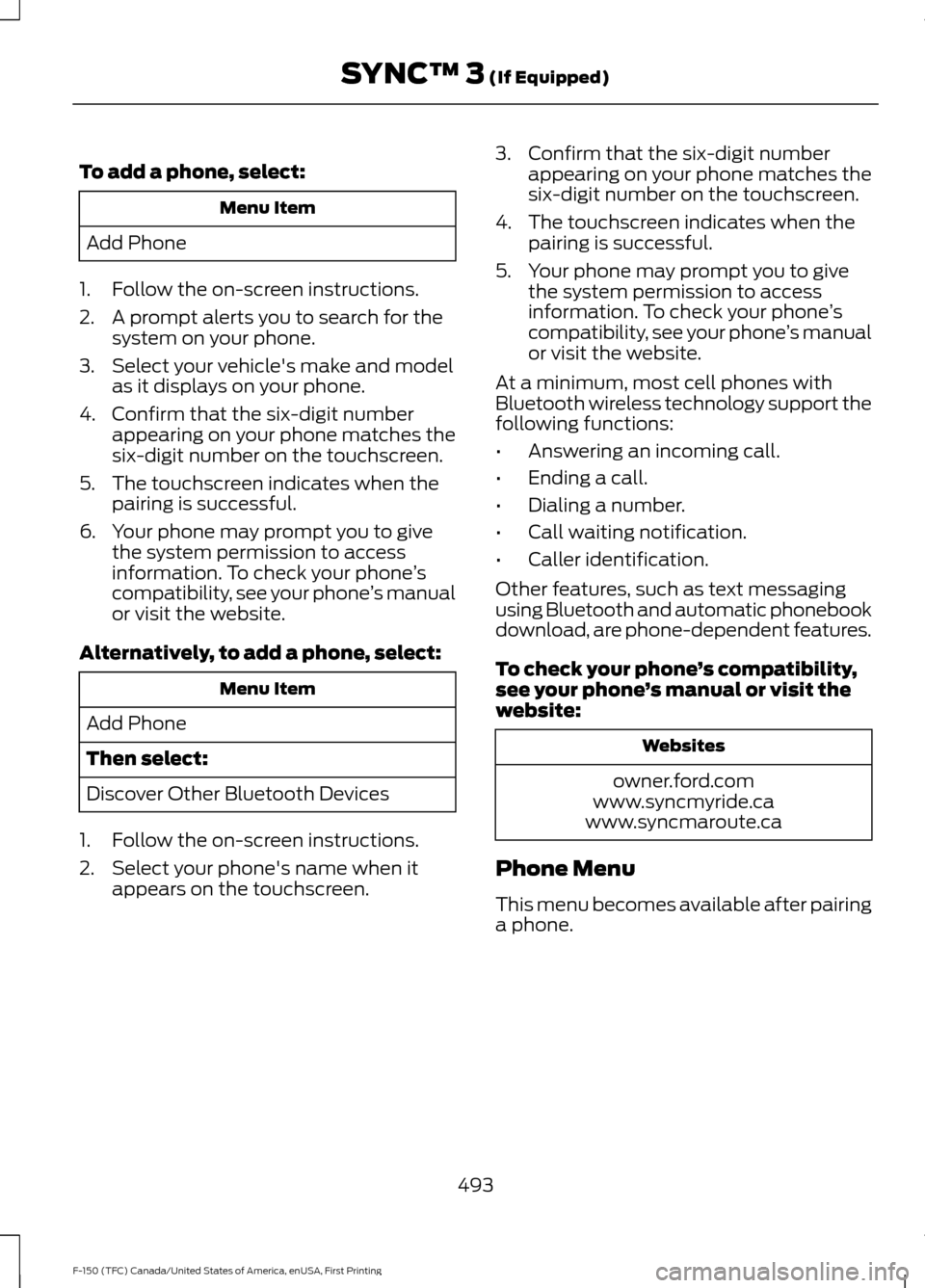
To add a phone, select:
Menu Item
Add Phone
1. Follow the on-screen instructions.
2. A prompt alerts you to search for the system on your phone.
3. Select your vehicle's make and model as it displays on your phone.
4. Confirm that the six-digit number appearing on your phone matches the
six-digit number on the touchscreen.
5. The touchscreen indicates when the pairing is successful.
6. Your phone may prompt you to give the system permission to access
information. To check your phone ’s
compatibility, see your phone ’s manual
or visit the website.
Alternatively, to add a phone, select: Menu Item
Add Phone
Then select:
Discover Other Bluetooth Devices
1. Follow the on-screen instructions.
2. Select your phone's name when it appears on the touchscreen. 3. Confirm that the six-digit number
appearing on your phone matches the
six-digit number on the touchscreen.
4. The touchscreen indicates when the pairing is successful.
5. Your phone may prompt you to give the system permission to access
information. To check your phone ’s
compatibility, see your phone ’s manual
or visit the website.
At a minimum, most cell phones with
Bluetooth wireless technology support the
following functions:
• Answering an incoming call.
• Ending a call.
• Dialing a number.
• Call waiting notification.
• Caller identification.
Other features, such as text messaging
using Bluetooth and automatic phonebook
download, are phone-dependent features.
To check your phone ’s compatibility,
see your phone ’s manual or visit the
website: Websites
owner.ford.com
www.syncmyride.ca
www.syncmaroute.ca
Phone Menu
This menu becomes available after pairing
a phone.
493
F-150 (TFC) Canada/United States of America, enUSA, First Printing SYNC™ 3 (If Equipped)
Page 514 of 599
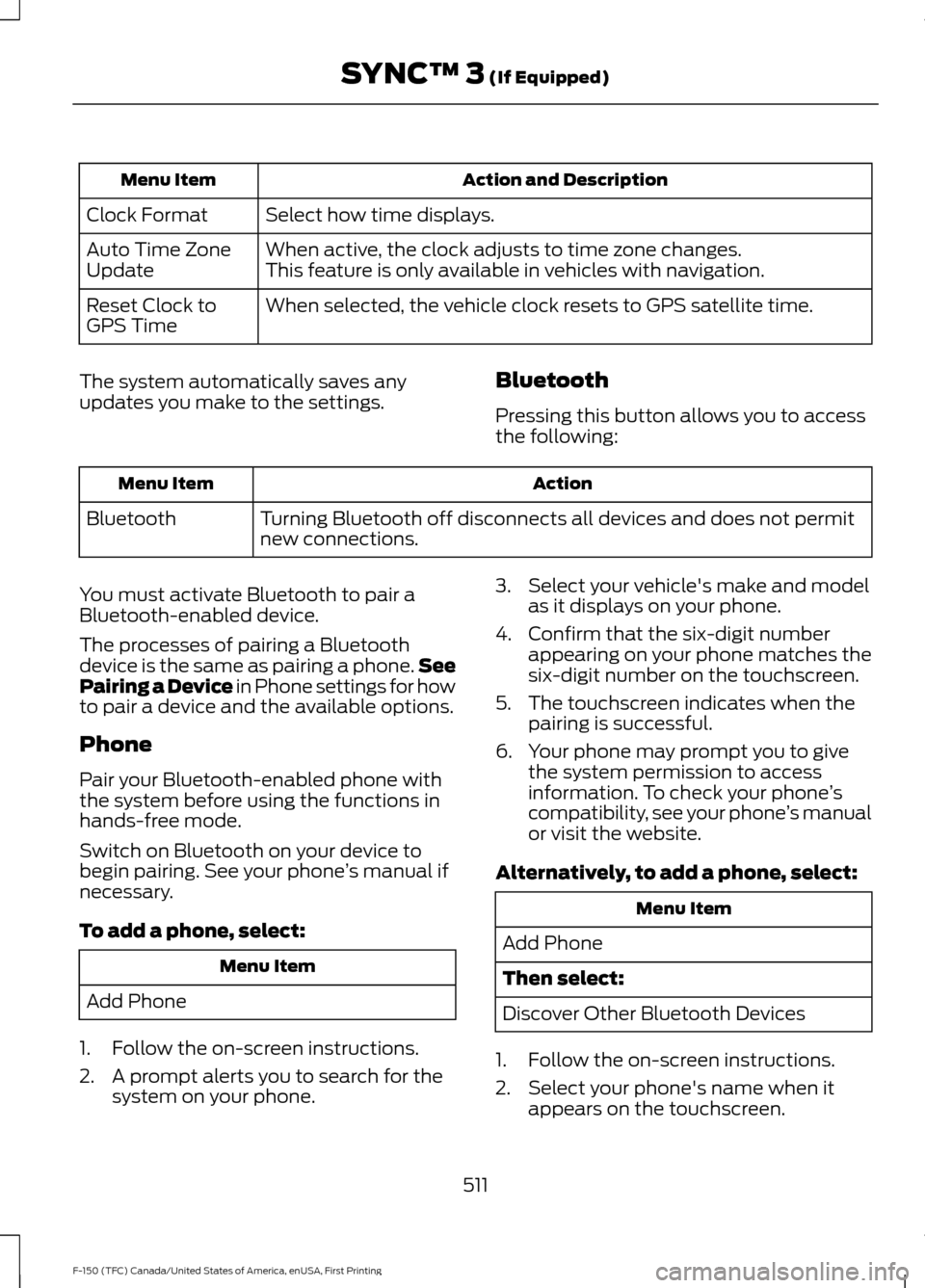
Action and Description
Menu Item
Select how time displays.
Clock Format
When active, the clock adjusts to time zone changes.
Auto Time Zone
Update This feature is only available in vehicles with navigation.
When selected, the vehicle clock resets to GPS satellite time.
Reset Clock to
GPS Time
The system automatically saves any
updates you make to the settings. Bluetooth
Pressing this button allows you to access
the following: Action
Menu Item
Turning Bluetooth off disconnects all devices and does not permit
new connections.
Bluetooth
You must activate Bluetooth to pair a
Bluetooth-enabled device.
The processes of pairing a Bluetooth
device is the same as pairing a phone. See
Pairing a Device in Phone settings for how
to pair a device and the available options.
Phone
Pair your Bluetooth-enabled phone with
the system before using the functions in
hands-free mode.
Switch on Bluetooth on your device to
begin pairing. See your phone ’s manual if
necessary.
To add a phone, select: Menu Item
Add Phone
1. Follow the on-screen instructions.
2. A prompt alerts you to search for the system on your phone. 3. Select your vehicle's make and model
as it displays on your phone.
4. Confirm that the six-digit number appearing on your phone matches the
six-digit number on the touchscreen.
5. The touchscreen indicates when the pairing is successful.
6. Your phone may prompt you to give the system permission to access
information. To check your phone ’s
compatibility, see your phone ’s manual
or visit the website.
Alternatively, to add a phone, select: Menu Item
Add Phone
Then select:
Discover Other Bluetooth Devices
1. Follow the on-screen instructions.
2. Select your phone's name when it appears on the touchscreen.
511
F-150 (TFC) Canada/United States of America, enUSA, First Printing SYNC™ 3 (If Equipped)
Page 515 of 599
3. Confirm that the six-digit number
appearing on your phone matches the
six-digit number on the touchscreen.
4. The touchscreen indicates when the pairing is successful.
5. Your phone may prompt you to give the system permission to access
information. To check your phone ’s
compatibility, see your phone ’s manual
or visit the website.
Other features, such as text messaging
using Bluetooth and automatic phonebook
download, are phone-dependent features. To check your phone
’s compatibility,
see your phone ’s manual or visit the
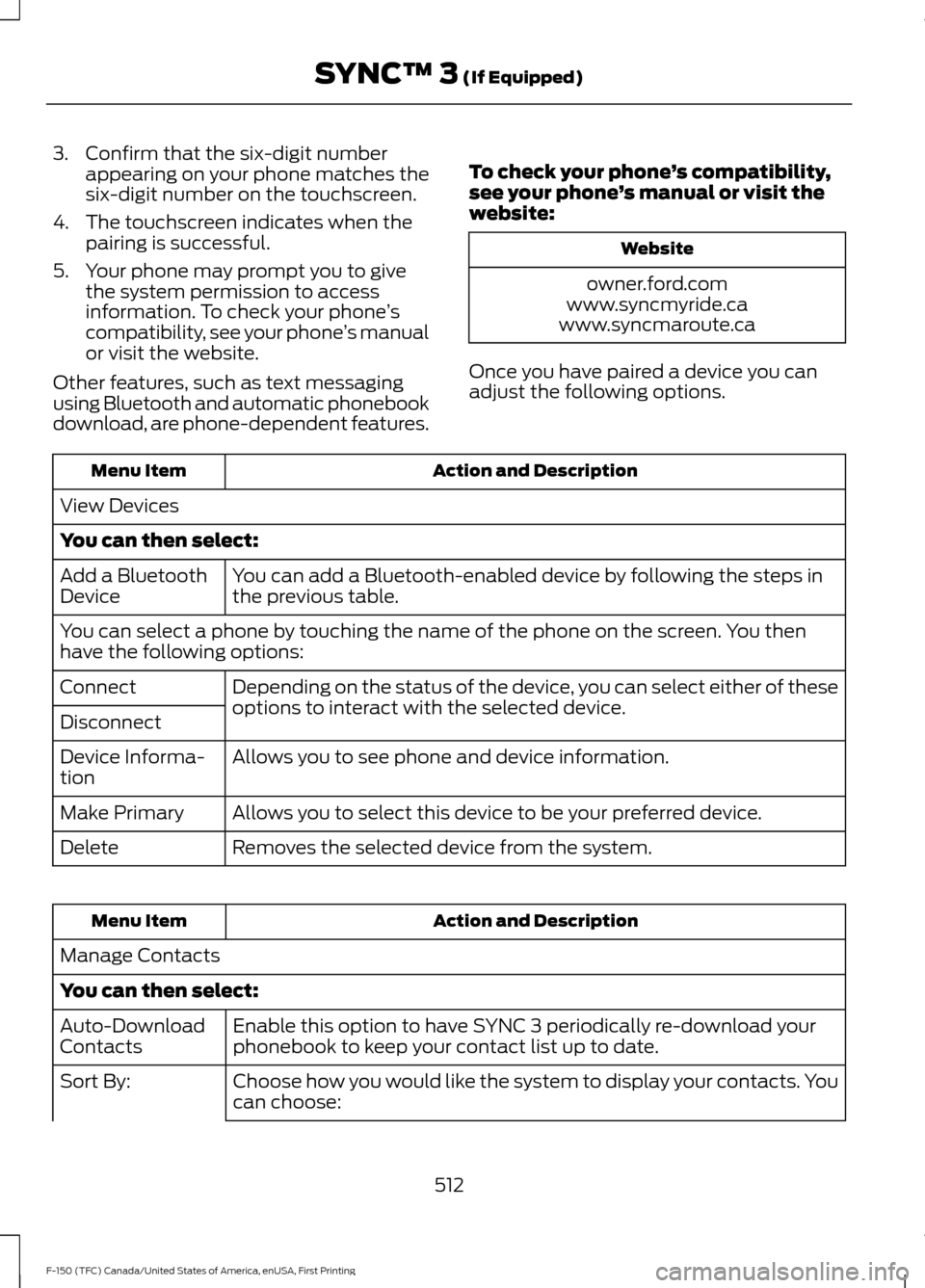
website: Website
owner.ford.com
www.syncmyride.ca
www.syncmaroute.ca
Once you have paired a device you can
adjust the following options. Action and Description
Menu Item
View Devices
You can then select: You can add a Bluetooth-enabled device by following the steps in
the previous table.
Add a Bluetooth
Device
You can select a phone by touching the name of the phone on the screen. You then
have the following options:
Depending on the status of the device, you can select either of these
options to interact with the selected device.
Connect
Disconnect
Allows you to see phone and device information.
Device Informa-
tion
Allows you to select this device to be your preferred device.
Make Primary
Removes the selected device from the system.
Delete Action and Description
Menu Item
Manage Contacts
You can then select: Enable this option to have SYNC 3 periodically re-download your
phonebook to keep your contact list up to date.
Auto-Download
Contacts
Choose how you would like the system to display your contacts. You
can choose:
Sort By:
512
F-150 (TFC) Canada/United States of America, enUSA, First Printing SYNC™ 3 (If Equipped)
Page 527 of 599
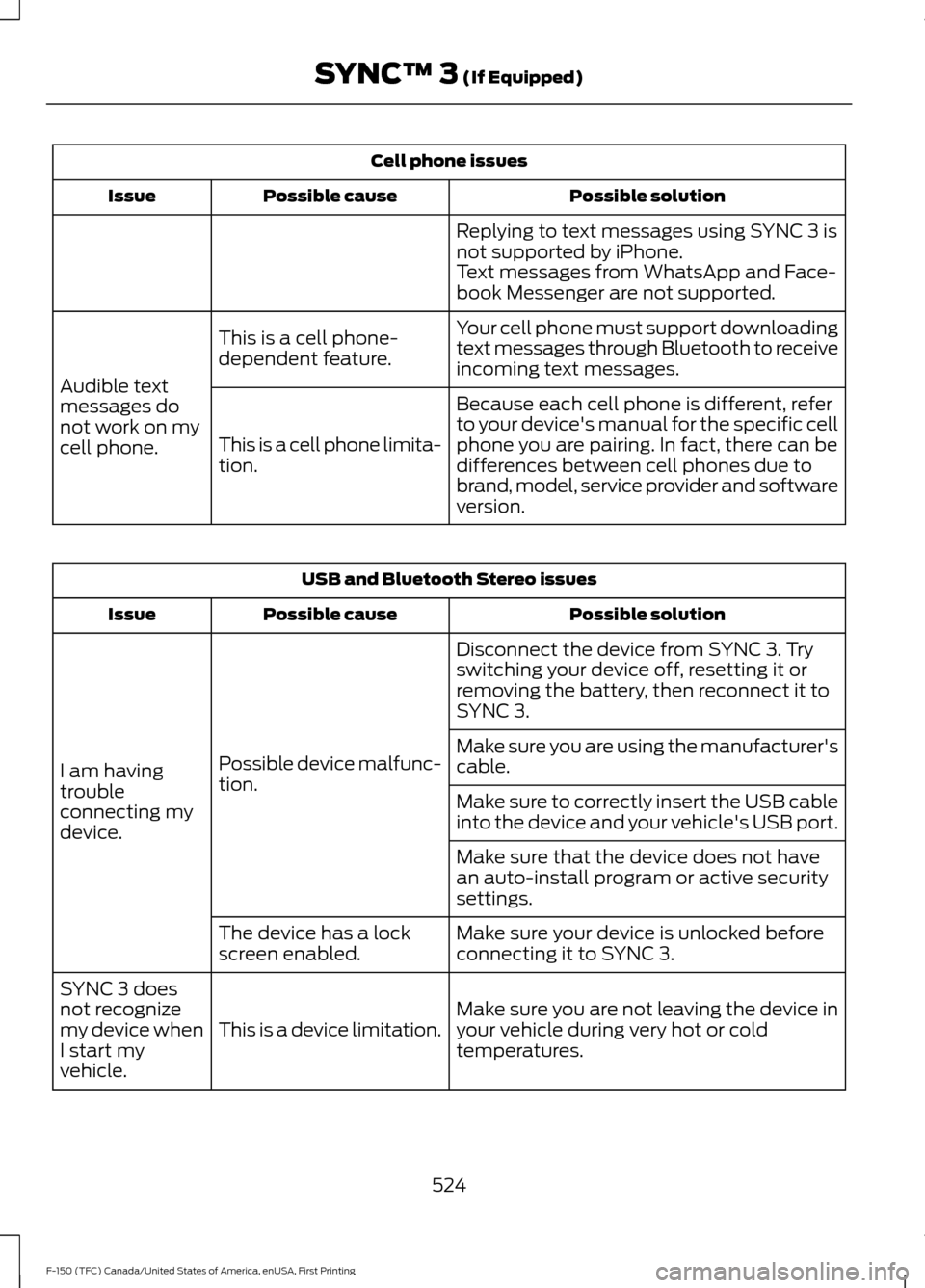
Cell phone issues
Possible solution
Possible cause
Issue
Replying to text messages using SYNC 3 is
not supported by iPhone.
Text messages from WhatsApp and Face-
book Messenger are not supported.
Your cell phone must support downloading
text messages through Bluetooth to receive
incoming text messages.
This is a cell phone-
dependent feature.
Audible text
messages do
not work on my
cell phone. Because each cell phone is different, refer
to your device's manual for the specific cell
phone you are pairing. In fact, there can be
differences between cell phones due to
brand, model, service provider and software
version.
This is a cell phone limita-
tion. USB and Bluetooth Stereo issues
Possible solution
Possible cause
Issue
Disconnect the device from SYNC 3. Try
switching your device off, resetting it or
removing the battery, then reconnect it to
SYNC 3.
Possible device malfunc-
tion.
I am having
trouble
connecting my
device. Make sure you are using the manufacturer's
cable.
Make sure to correctly insert the USB cable
into the device and your vehicle's USB port.
Make sure that the device does not have
an auto-install program or active security
settings.
Make sure your device is unlocked before
connecting it to SYNC 3.
The device has a lock
screen enabled.
Make sure you are not leaving the device in
your vehicle during very hot or cold
temperatures.
This is a device limitation.
SYNC 3 does
not recognize
my device when
I start my
vehicle.
524
F-150 (TFC) Canada/United States of America, enUSA, First Printing SYNC™ 3 (If Equipped)
Page 595 of 599
P
Parking Aids....................................................213
Principle of Operation....................................... 213
Parking Brake................................................204
Passive Anti-Theft System
.........................74
SecuriLock ™........................................................... 74
PATS See: Passive Anti-Theft System..................... 74
Pedals................................................................84
Perchlorate.........................................................11
Personal Safety System ™
..........................44
How Does the Personal Safety System
Work?.................................................................. 44
Phone
...............................................................492
During a Phone Call......................................... 496
Making Calls........................................................ 495
Pairing Your Cell Phone for the First Time................................................................... 492
Phone Menu........................................................ 493
Receiving Calls................................................... 496
Smartphone Connectivity.............................. 497
Text Messaging................................................... 497
Post-Crash Alert System...........................297
Power Door Locks See: Locking and Unlocking............................. 64
Power Running Boards
.................................78
Power Seats....................................................152
Multi-Contour Front Seats With Active
Motion ............................................................... 153
Power Lumbar..................................................... 153
Power Steering Fluid Check.....................328
Power Windows
.............................................95
Accessory Delay................................................... 96
Bounce-Back......................................................... 95
One-Touch Up or Down..................................... 95
Window Lock......................................................... 96
Protecting the Environment........................15
R
Rear Axle
..........................................................201
Rear Parking Aid............................................213
Obstacle Distance Indicator........................... 214
Rear Seat Armrest........................................159
Rear Seats.......................................................156 Folding Up the Rear Seat Cushion ..............156 Returning the Seat to the Seating
Position............................................................. 156
Rear View Camera
.......................................218
Camera guidelines............................................. 219
Manual Zoom...................................................... 220
Obstacle Distance Indicator.......................... 220
Rear Camera Delay........................................... 220
Using the Rear View Camera System.........218
Rear View Camera See: Rear View Camera.................................... 218
Recommended Towing Weights
............267
Calculating the Maximum Loaded Trailer
Weight for Your Vehicle............................... 277
Refueling.........................................................180 System Warnings................................................ 182
Remote Control..............................................53 Car Finder................................................................ 56
Integrated Keyhead Transmitters .................. 53
Intelligent Access Key......................................... 54
Memory Feature................................................... 56
Remote Start.......................................................... 57
Replacing the Battery......................................... 54
Sounding a Panic Alarm..................................... 57
Remote Start.................................................148 Automatic Settings............................................ 148
Removing the Tailgate.................................70
Repairing Minor Paint Damage..............345
Replacement Parts Recommendation........................................12
Collision Repairs.................................................... 12
Scheduled Maintenance and Mechanical Repairs.................................................................. 12
Warranty on Replacement Parts..................... 12
Replacing a Lost Key or Remote Control............................................................58
Reporting Safety Defects (Canada Only).............................................................305
Reporting Safety Defects (U.S. Only).............................................................305
Roadside Assistance..................................293 Vehicles Sold in Canada: Getting Roadside
Assistance....................................................... 293
Vehicles Sold in Canada: Roadside Assistance Program Coverage................294
Vehicles Sold in Canada: Using Roadside Assistance....................................................... 294
Vehicles Sold in the United States: Getting Roadside Assistance................................... 293
592
F-150 (TFC) Canada/United States of America, enUSA, First Printing Index
Page 598 of 599
Hilly Condition and Trailer Tow
Usage................................................................. 229
Low Speed Automatic Cancellation..........229
Overriding the System..................................... 228
Resuming the Set Speed................................ 228
Setting a Speed.................................................. 226
Setting the Gap Distance................................ 227
Switching the System Off.............................. 229
Switching the System On............................... 226
Switching to Normal Cruise Control............231
System Not Available...................................... 230
Using Cruise Control...................................224
Switching Cruise Control Off......................... 225
Switching Cruise Control On and Off.........224
Using Four-Wheel Drive
.............................193
4WD Indicator Lights........................................ 193
Driving Off-Road With Truck and Utility Vehicles............................................................. 196
How Your Vehicle Differs From Other Vehicles............................................................. 196
Using the 2-Speed Automatic 4WD System............................................................... 194
Using the Electronic Shift on the Fly 4WD system............................................................... 193
Using Hill Descent Control
........................212
Hill descent modes............................................ 212
Using MyKey With Remote Start Systems..........................................................62
Using Power Running Boards....................78 Automatic Power Deploy.................................. 78
Automatic Power Stow...................................... 78
Bounce-back.......................................................... 79
Enabling and Disabling...................................... 78
Manual Power Deploy........................................ 78
Using Snow Chains.....................................366
Using Stability Control...............................210 AdvanceTrac ™ with Roll Stability Control ™
(RSC™)............................................................. 210
Using SYNC™ With Your Media Player............................................................444
Accessing Your USB Song Library...............448
Bluetooth Devices and System Settings............................................................ 450
Connecting Your Digital Media Player to the USB Port.......................................................... 444
Media Menu Features....................................... 447
Media Voice Commands................................ 445
USB 2..................................................................... 450Voice Commands for Audio Sources..........451
Using SYNC™ With Your Phone
............427
Accessing Features through the Phone
Menu.................................................................. 432
Accessing Your Phone Settings................... 435
Bluetooth Devices............................................. 436
Making Calls......................................................... 431
Pairing a Phone for the First Time...............428
Pairing Subsequent Phones.......................... 429
Phone Options during an Active Call..........431
Phone Voice Commands................................ 429
Receiving Calls..................................................... 431
System Settings................................................. 437
Text Messaging................................................... 433
Using Traction Control
..............................208
Switching the System Off ............................. 208
System Indicator Lights and Messages......................................................... 208
Using Voice Recognition...........................425 Audio Voice Commands.................................. 474
Climate Voice Commands.............................. 475
Initiating a Voice Session................................ 425
Mobile App Voice Commands...................... 478
Navigation Voice Commands........................ 477
Phone Voice Commands................................ 475
SiriusXM Traffic and Travel Link Voice Commands..................................................... 478
System Interaction and Feedback..............426
Voice Settings Commands............................ 479
Utilizing the Mediation/Arbitration Program (Canada Only)........................303
V
Vehicle Care
..................................................340
General Information......................................... 340
Vehicle Certification Label.......................387
Vehicle Identification Number
...............386
Vehicle Storage............................................346
Battery.................................................................... 347
Body....................................................................... 346
Brakes..................................................................... 347
Cooling system................................................... 347
Engine..................................................................... 347
Fuel system.......................................................... 347
General.................................................................. 346
Miscellaneous...................................................... 347
Removing Vehicle From Storage.................. 347
595
F-150 (TFC) Canada/United States of America, enUSA, First Printing Index