2017 FORD F150 lock
[x] Cancel search: lockPage 414 of 599
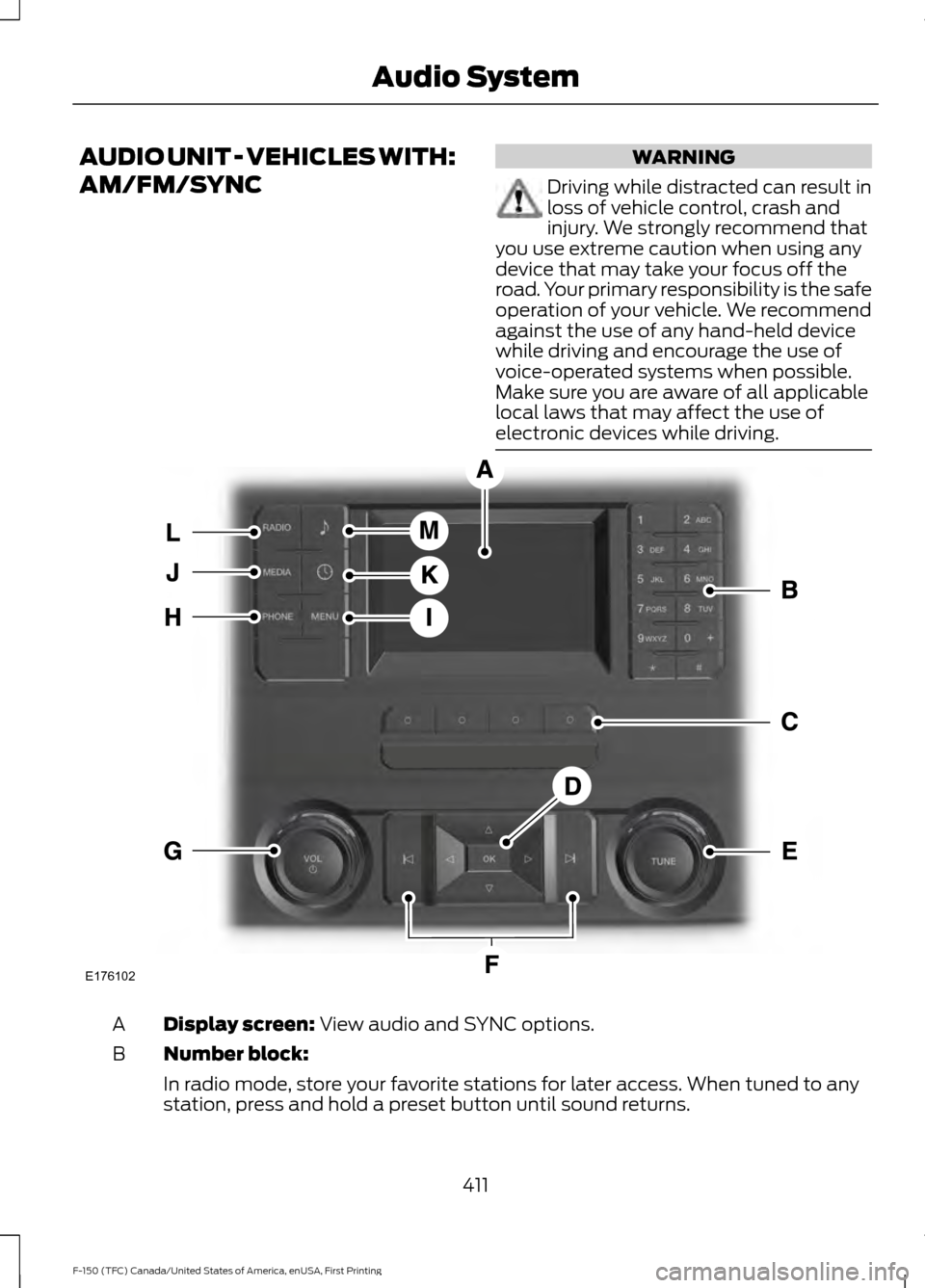
AUDIO UNIT - VEHICLES WITH:
AM/FM/SYNC WARNING
Driving while distracted can result in
loss of vehicle control, crash and
injury. We strongly recommend that
you use extreme caution when using any
device that may take your focus off the
road. Your primary responsibility is the safe
operation of your vehicle. We recommend
against the use of any hand-held device
while driving and encourage the use of
voice-operated systems when possible.
Make sure you are aware of all applicable
local laws that may affect the use of
electronic devices while driving. Display screen: View audio and SYNC options.
A
Number block:
B
In radio mode, store your favorite stations for later access. When tuned to any
station, press and hold a preset button until sound returns.
411
F-150 (TFC) Canada/United States of America, enUSA, First Printing Audio SystemE176102
Page 415 of 599
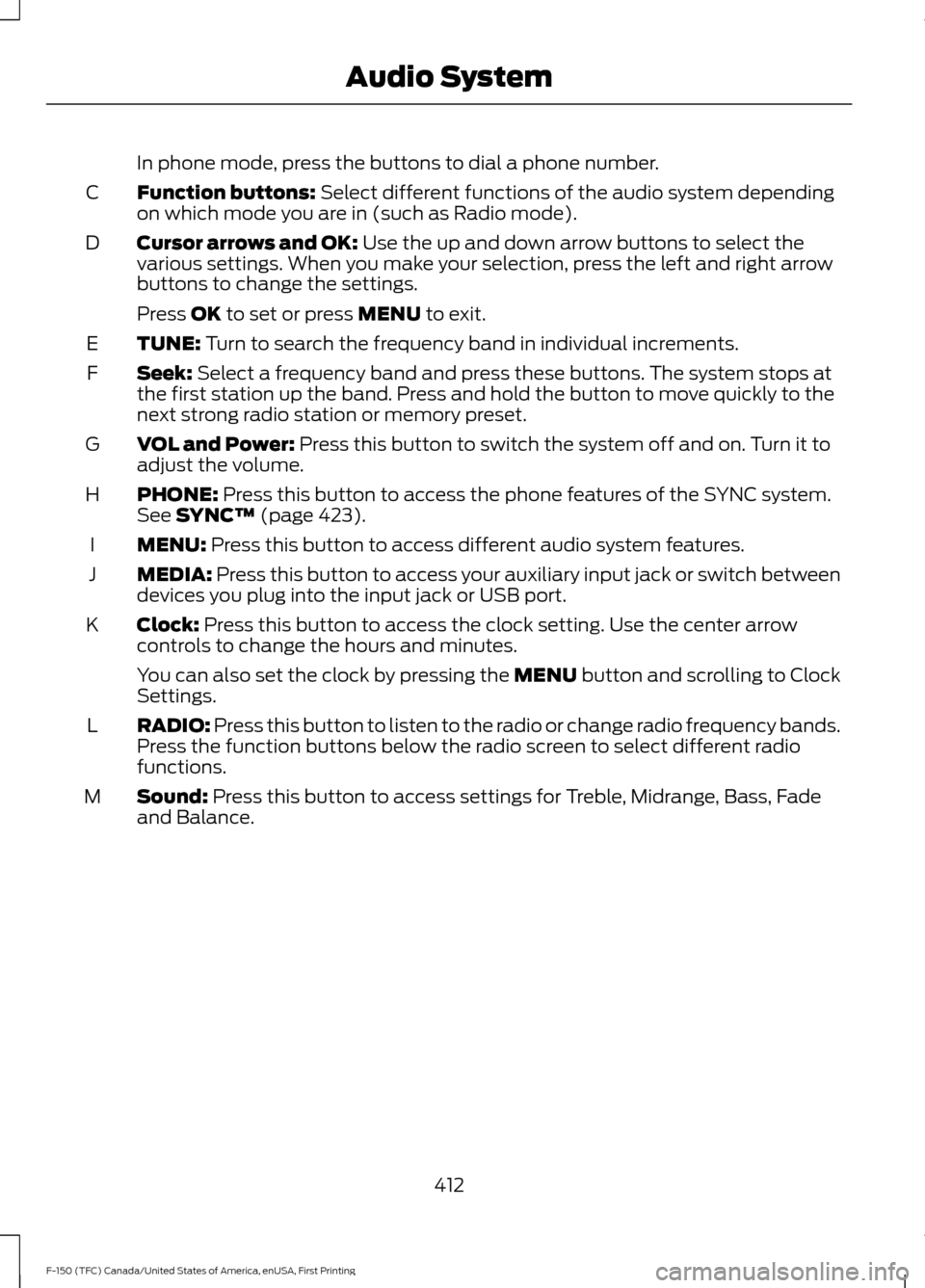
In phone mode, press the buttons to dial a phone number.
Function buttons: Select different functions of the audio system depending
on which mode you are in (such as Radio mode).
C
Cursor arrows and OK:
Use the up and down arrow buttons to select the
various settings. When you make your selection, press the left and right arrow
buttons to change the settings.
D
Press
OK to set or press MENU to exit.
TUNE:
Turn to search the frequency band in individual increments.
E
Seek:
Select a frequency band and press these buttons. The system stops at
the first station up the band. Press and hold the button to move quickly to the
next strong radio station or memory preset.
F
VOL and Power:
Press this button to switch the system off and on. Turn it to
adjust the volume.
G
PHONE:
Press this button to access the phone features of the SYNC system.
See SYNC™ (page 423).
H
MENU:
Press this button to access different audio system features.
I
MEDIA:
Press this button to access your auxiliary input jack or switch between
devices you plug into the input jack or USB port.
J
Clock:
Press this button to access the clock setting. Use the center arrow
controls to change the hours and minutes.
K
You can also set the clock by pressing the MENU button and scrolling to Clock
Settings.
RADIO:
Press this button to listen to the radio or change radio frequency bands.
Press the function buttons below the radio screen to select different radio
functions.
L
Sound:
Press this button to access settings for Treble, Midrange, Bass, Fade
and Balance.
M
412
F-150 (TFC) Canada/United States of America, enUSA, First Printing Audio System
Page 417 of 599
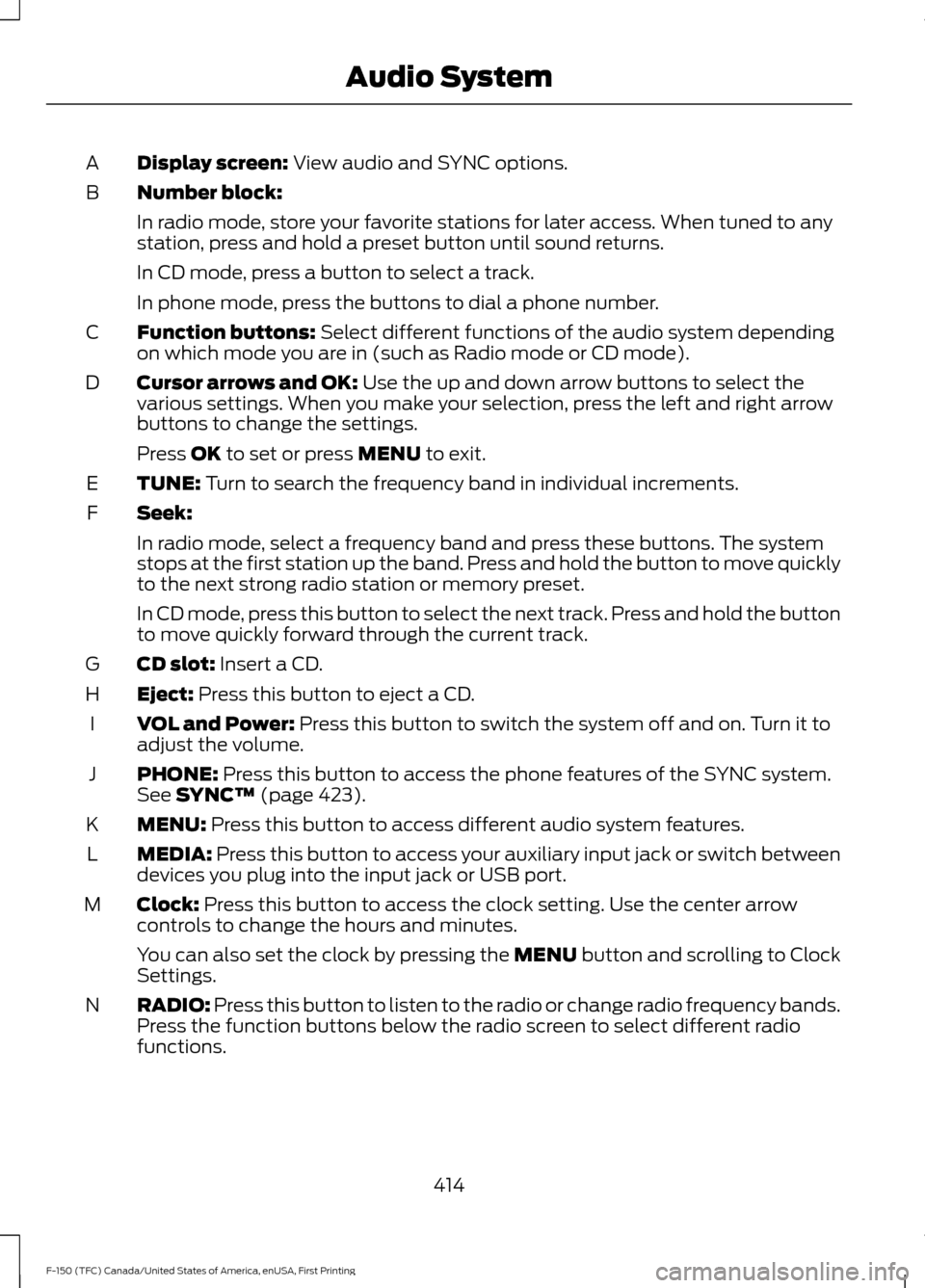
Display screen: View audio and SYNC options.
A
Number block:
B
In radio mode, store your favorite stations for later access. When tuned to any
station, press and hold a preset button until sound returns.
In CD mode, press a button to select a track.
In phone mode, press the buttons to dial a phone number.
Function buttons:
Select different functions of the audio system depending
on which mode you are in (such as Radio mode or CD mode).
C
Cursor arrows and OK:
Use the up and down arrow buttons to select the
various settings. When you make your selection, press the left and right arrow
buttons to change the settings.
D
Press
OK to set or press MENU to exit.
TUNE:
Turn to search the frequency band in individual increments.
E
Seek:
F
In radio mode, select a frequency band and press these buttons. The system
stops at the first station up the band. Press and hold the button to move quickly
to the next strong radio station or memory preset.
In CD mode, press this button to select the next track. Press and hold the button
to move quickly forward through the current track.
CD slot:
Insert a CD.
G
Eject:
Press this button to eject a CD.
H
VOL and Power:
Press this button to switch the system off and on. Turn it to
adjust the volume.
I
PHONE:
Press this button to access the phone features of the SYNC system.
See SYNC™ (page 423).
J
MENU:
Press this button to access different audio system features.
K
MEDIA:
Press this button to access your auxiliary input jack or switch between
devices you plug into the input jack or USB port.
L
Clock:
Press this button to access the clock setting. Use the center arrow
controls to change the hours and minutes.
M
You can also set the clock by pressing the MENU button and scrolling to Clock
Settings.
RADIO:
Press this button to listen to the radio or change radio frequency bands.
Press the function buttons below the radio screen to select different radio
functions.
N
414
F-150 (TFC) Canada/United States of America, enUSA, First Printing Audio System
Page 424 of 599
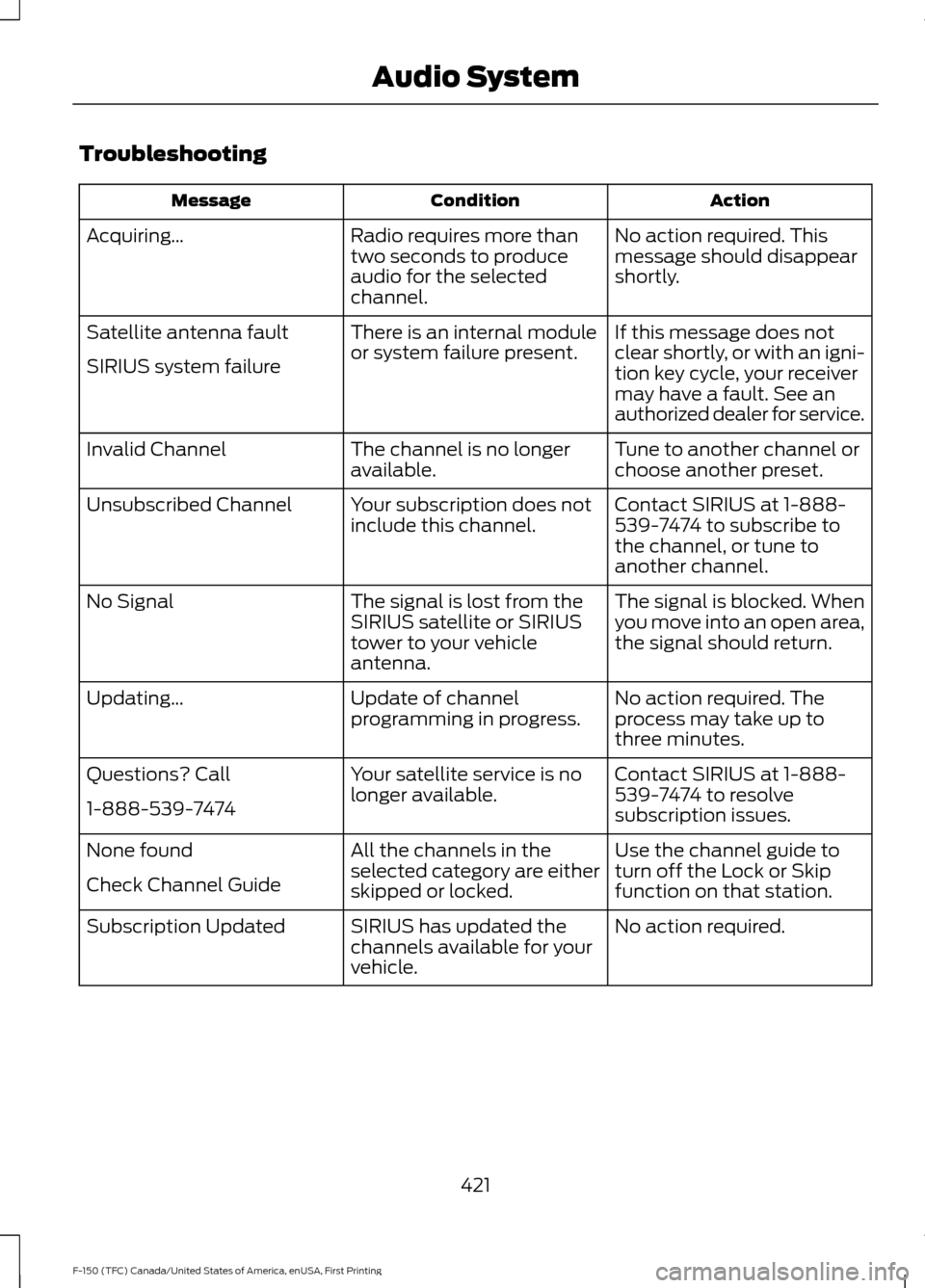
Troubleshooting
Action
Condition
Message
No action required. This
message should disappear
shortly.
Radio requires more than
two seconds to produce
audio for the selected
channel.
Acquiring\b
If this message does not
clear shortly, or with an igni-
tion key cycle, your receiver
may have a fault. See an
authorized dealer for service.
There is an internal module
or system failure present.
Satellite antenna fault
SIRIUS system failure
Tune to another channel or
choose another preset.
The channel is no longer
available.
Invalid Channel
Contact SIRIUS at 1-888-
539-7474 to subscribe to
the channel, or tune to
another channel.
Your subscription does not
include this channel.
Unsubscribed Channel
The signal is blocked. When
you move into an open area,
the signal should return.
The signal is lost from the
SIRIUS satellite or SIRIUS
tower to your vehicle
antenna.
No Signal
No action required. The
process may take up to
three minutes.
Update of channel
programming in progress.
Updating\b
Contact SIRIUS at 1-888-
539-7474 to resolve
subscription issues.
Your satellite service is no
longer available.
Questions? Call
1-888-539-7474
Use the channel guide to
turn off the Lock or Skip
function on that station.
All the channels in the
selected category are either
skipped or locked.
None found
Check Channel Guide
No action required.
SIRIUS has updated the
channels available for your
vehicle.
Subscription Updated
421
F-150 (TFC) Canada/United States of America, enUSA, First Printing Audio System
Page 465 of 599
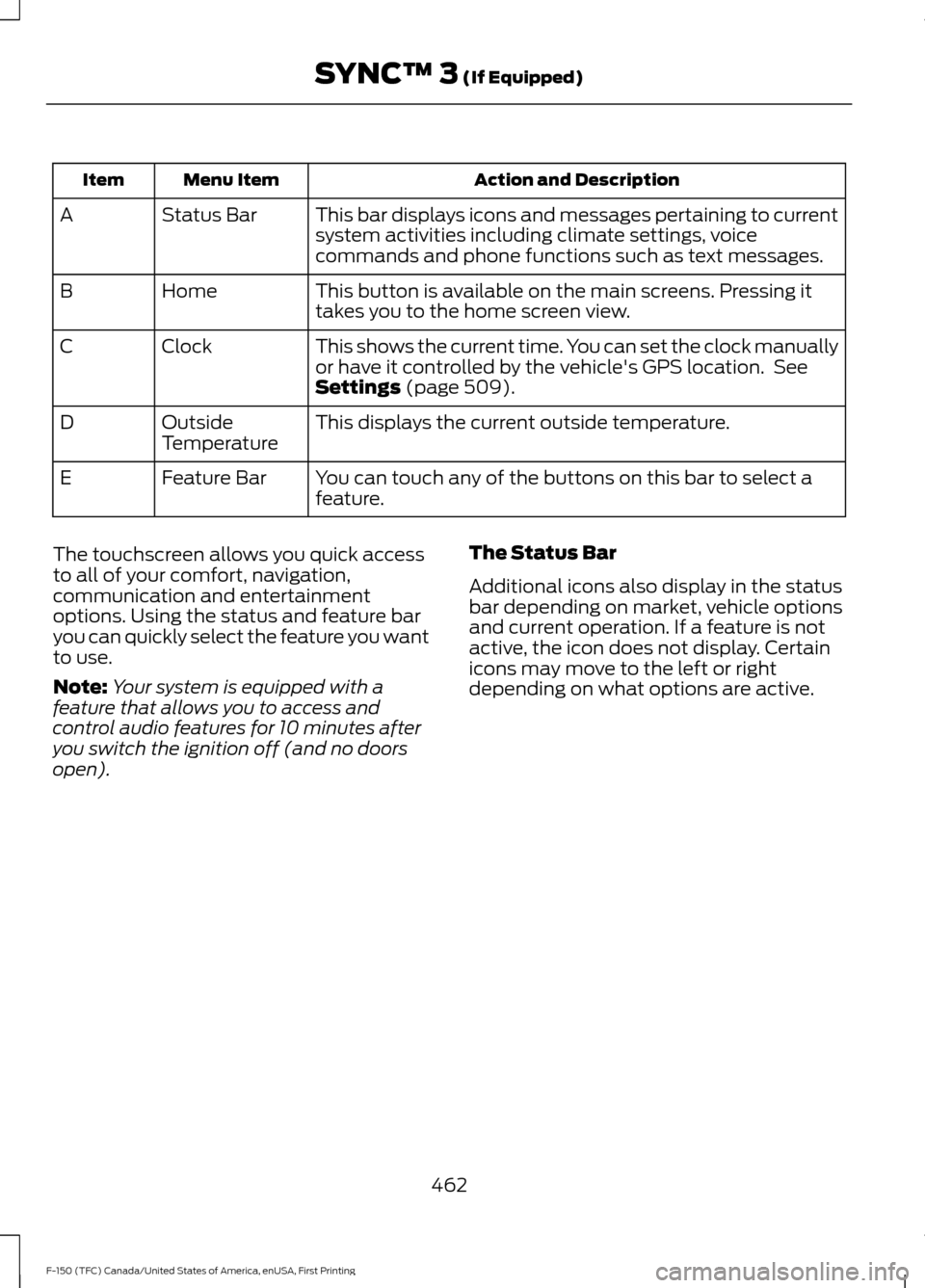
Action and Description
Menu Item
Item
This bar displays icons and messages pertaining to current
system activities including climate settings, voice
commands and phone functions such as text messages.
Status Bar
A
This button is available on the main screens. Pressing it
takes you to the home screen view.
Home
B
This shows the current time. You can set the clock manually
or have it controlled by the vehicle's GPS location. See
Settings (page 509).
Clock
C
This displays the current outside temperature.
Outside
Temperature
D
You can touch any of the buttons on this bar to select a
feature.
Feature Bar
E
The touchscreen allows you quick access
to all of your comfort, navigation,
communication and entertainment
options. Using the status and feature bar
you can quickly select the feature you want
to use.
Note: Your system is equipped with a
feature that allows you to access and
control audio features for 10 minutes after
you switch the ignition off (and no doors
open). The Status Bar
Additional icons also display in the status
bar depending on market, vehicle options
and current operation. If a feature is not
active, the icon does not display. Certain
icons may move to the left or right
depending on what options are active.
462
F-150 (TFC) Canada/United States of America, enUSA, First Printing SYNC™ 3
(If Equipped)
Page 473 of 599
Website
www.syncmaroute.ca
SYNC Connect (If Equipped)
With a SYNC® Connect-equipped vehicle,
you can use FordPass® to track your
vehicle ’s location and remotely access
vehicle features such as start, lock and
unlock and vehicle status including fuel
level and approximate mileage. You can
also schedule specific times to remotely
start your vehicle so it’ s ready to hit the
road as soon as you are. SYNC Connect is
an optional feature on select 2017 MY
vehicles. FordPass® is available through
a free download via the Apple App Store®
or Google Play ™. Message and data rates
may apply. Services may be limited by
mobile phone network coverage area.
• FCC: LHJ-FAN
• IC: 2807E-FAN
Updating Your System
You can choose to download the update
onto a USB drive or use Wi-Fi to deliver
automatic updates.
USB Updates
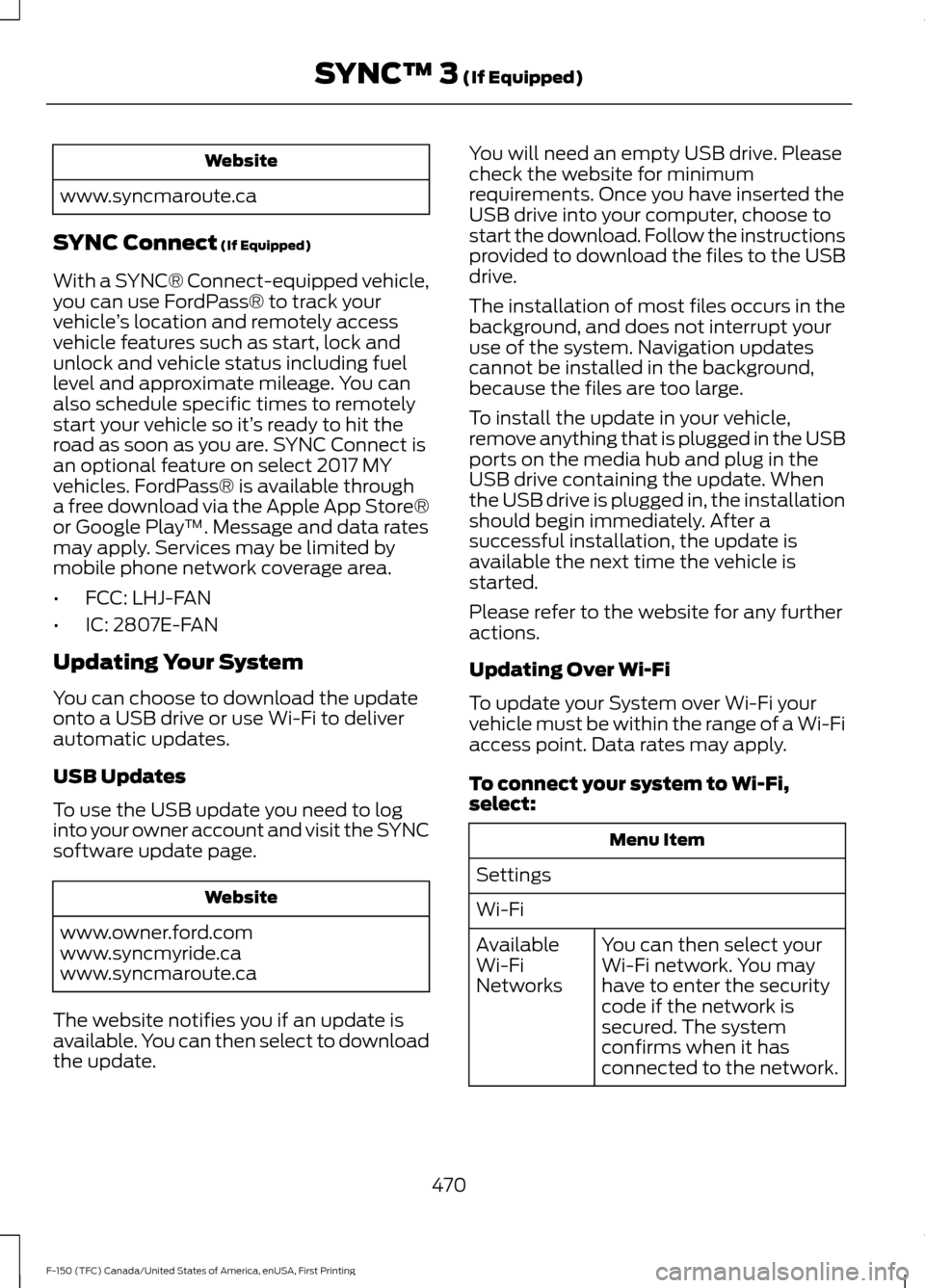
To use the USB update you need to log
into your owner account and visit the SYNC
software update page. Website
www.owner.ford.com
www.syncmyride.ca
www.syncmaroute.ca
The website notifies you if an update is
available. You can then select to download
the update. You will need an empty USB drive. Please
check the website for minimum
requirements. Once you have inserted the
USB drive into your computer, choose to
start the download. Follow the instructions
provided to download the files to the USB
drive.
The installation of most files occurs in the
background, and does not interrupt your
use of the system. Navigation updates
cannot be installed in the background,
because the files are too large.
To install the update in your vehicle,
remove anything that is plugged in the USB
ports on the media hub and plug in the
USB drive containing the update. When
the USB drive is plugged in, the installation
should begin immediately. After a
successful installation, the update is
available the next time the vehicle is
started.
Please refer to the website for any further
actions.
Updating Over Wi-Fi
To update your System over Wi-Fi your
vehicle must be within the range of a Wi-Fi
access point. Data rates may apply.
To connect your system to Wi-Fi,
select:
Menu Item
Settings
Wi-Fi You can then select your
Wi-Fi network. You may
have to enter the security
code if the network is
secured. The system
confirms when it has
connected to the network.
Available
Wi-Fi
Networks
470
F-150 (TFC) Canada/United States of America, enUSA, First Printing SYNC™ 3
(If Equipped)
Page 479 of 599
Making Calls
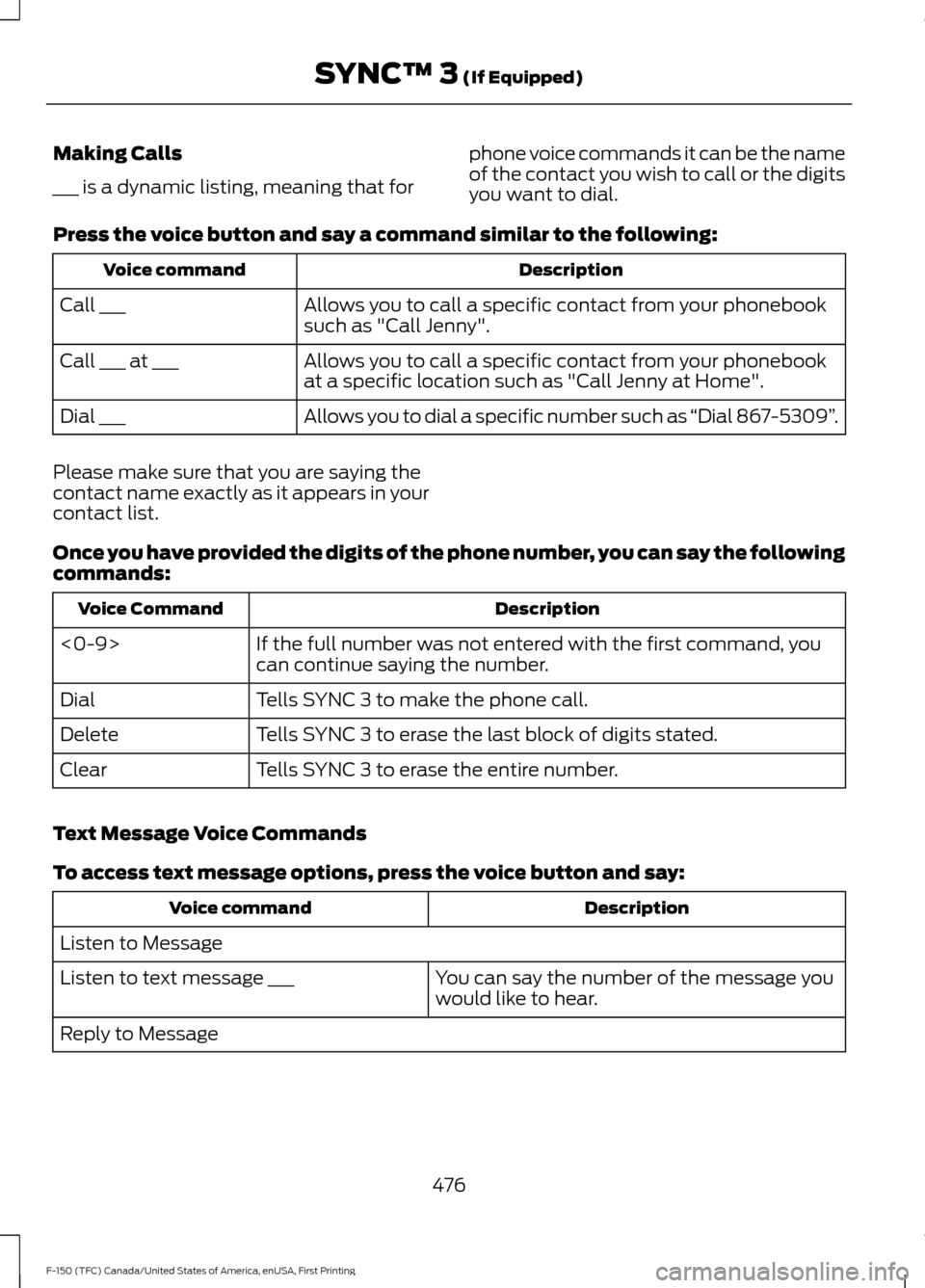
___ is a dynamic listing, meaning that for
phone voice commands it can be the name
of the contact you wish to call or the digits
you want to dial.
Press the voice button and say a command similar to the following: Description
Voice command
Allows you to call a specific contact from your phonebook
such as "Call Jenny".
Call ___
Allows you to call a specific contact from your phonebook
at a specific location such as "Call Jenny at Home".
Call ___ at ___
Allows you to dial a specific number such as “Dial 867-5309”.
Dial ___
Please make sure that you are saying the
contact name exactly as it appears in your
contact list.
Once you have provided the digits of the phone number, you can say the following
commands: Description
Voice Command
If the full number was not entered with the first command, you
can continue saying the number.
<0-9>
Tells SYNC 3 to make the phone call.
Dial
Tells SYNC 3 to erase the last block of digits stated.
Delete
Tells SYNC 3 to erase the entire number.
Clear
Text Message Voice Commands
To access text message options, press the voice button and say: Description
Voice command
Listen to Message You can say the number of the message you
would like to hear.
Listen to text message ___
Reply to Message
476
F-150 (TFC) Canada/United States of America, enUSA, First Printing SYNC™ 3 (If Equipped)
Page 487 of 599
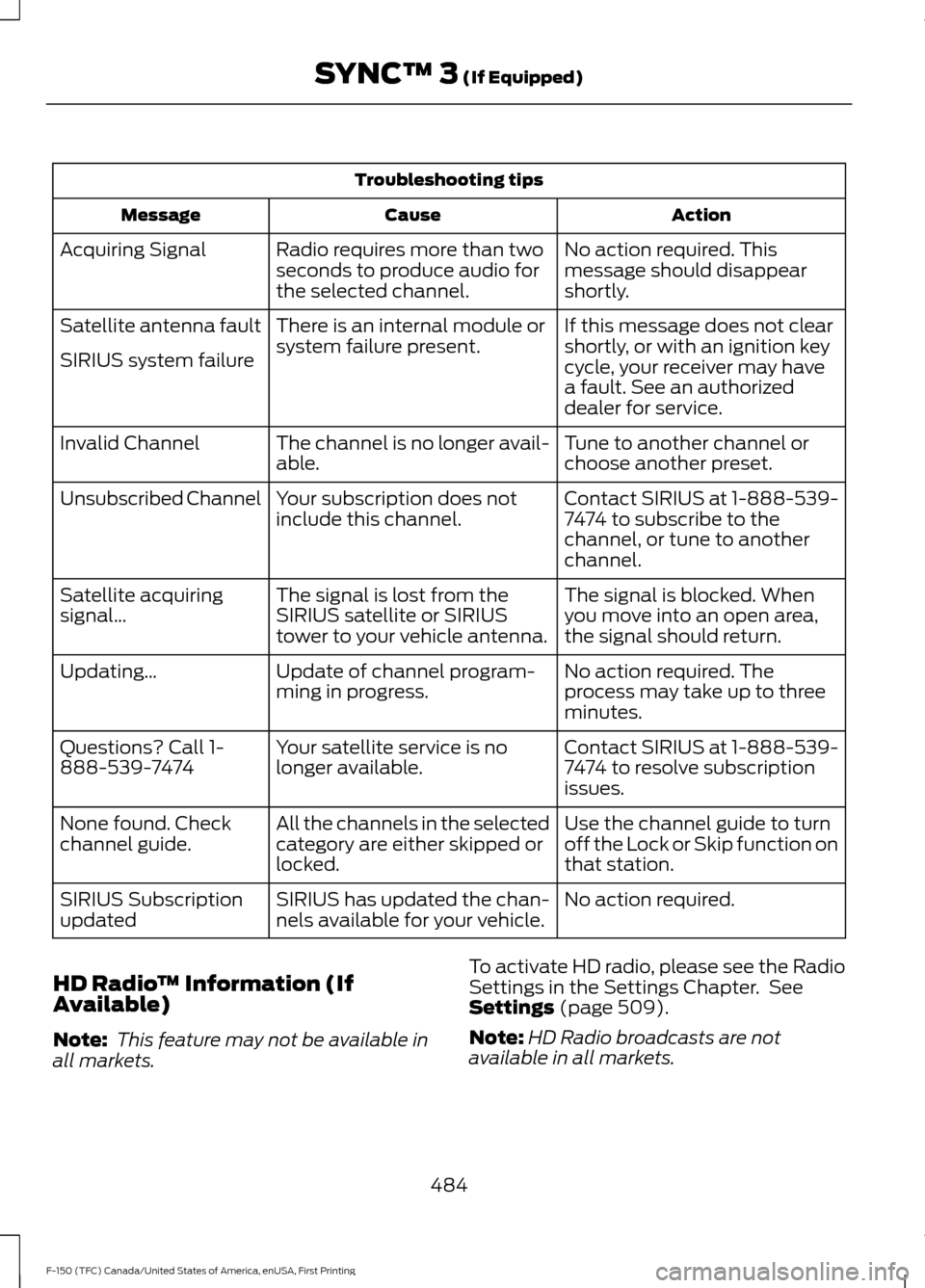
Troubleshooting tips
Action
Cause
Message
No action required. This
message should disappear
shortly.
Radio requires more than two
seconds to produce audio for
the selected channel.
Acquiring Signal
If this message does not clear
shortly, or with an ignition key
cycle, your receiver may have
a fault. See an authorized
dealer for service.
There is an internal module or
system failure present.
Satellite antenna fault
SIRIUS system failure
Tune to another channel or
choose another preset.
The channel is no longer avail-
able.
Invalid Channel
Contact SIRIUS at 1-888-539-
7474 to subscribe to the
channel, or tune to another
channel.
Your subscription does not
include this channel.
Unsubscribed Channel
The signal is blocked. When
you move into an open area,
the signal should return.
The signal is lost from the
SIRIUS satellite or SIRIUS
tower to your vehicle antenna.
Satellite acquiring
signal\b
No action required. The
process may take up to three
minutes.
Update of channel program-
ming in progress.
Updating\b
Contact SIRIUS at 1-888-539-
7474 to resolve subscription
issues.
Your satellite service is no
longer available.
Questions? Call 1-
888-539-7474
Use the channel guide to turn
off the Lock or Skip function on
that station.
All the channels in the selected
category are either skipped or
locked.
None found. Check
channel guide.
No action required.
SIRIUS has updated the chan-
nels available for your vehicle.
SIRIUS Subscription
updated
HD Radio ™ Information (If
Available)
Note: This feature may not be available in
all markets. To activate HD radio, please see the Radio
Settings in the Settings Chapter. See
Settings (page 509).
Note: HD Radio broadcasts are not
available in all markets.
484
F-150 (TFC) Canada/United States of America, enUSA, First Printing SYNC™ 3
(If Equipped)