2017 FORD F150 display
[x] Cancel search: displayPage 248 of 599

You can use your information display
control to adjust the collision warning
system's sensitivity or to turn the system
On or Off. Your vehicle will remember
these settings across key cycles. You may
change the collision warning system
sensitivity to any one of three possible
settings. See General Information (page
110).
Note: It is recommended that you turn the
collision warning system off if a snow plow
or similar object is installed in such a way
that it may block the radar sensor. Your
vehicle will remember the selected setting
across key cycles.
Note: When possible, the manufacturer
recommends using the highest sensitivity
setting. If warnings are too frequent, you can
reduce your system's sensitivity. Reduced
sensitivity causes fewer and later system
warnings.
See General Information (page
110). Blocked Sensors If a blocked sensor message appears in the
information display, dirt, water, or an object
is blocking the sensor. The sensor is
located behind a cover near the driver side
of the lower grille. If anything blocks the
sensor, your vehicle cannot see through
the sensor, and the collision warning
system will not work. Possible causes for
the blocked sensor message and corrective
actions are listed below.
Action
Cause
Clean the radar sensor cover or remove theobstruction
The radar sensor cover in the grille is dirty
or obstructed
Wait a short time. The radar may take
several minutes to reset after you remove the obstruction
The surface of the radar sensor cover is
clean but the message remains in the display
The collision warning system is temporarilydisabled. Shortly after weather conditions improve, the collision warning system automatically reactivates
Heavy rain, spray, snow or fog in the air
interferes with the radar signals
The collision warning system is temporarilydisabled. Shortly after weather conditions improve, the collision warning system automatically reactivates
Swirling water, snow or ice on the road
surface interferes with the radar signals
245
F-150 (TFC) Canada/United States of America, enUSA, First Printing Driving AidsE183741
Page 259 of 599

TOWING A TRAILER
WARNINGS
Do not exceed the GVWR or
the GAWR specified on the
certification label. Towing trailers beyond the
maximum recommended
gross trailer weight exceeds the
limit of your vehicle and could
result in engine damage,
transmission damage, structural
damage, loss of vehicle control,
vehicle rollover and personal
injury. Do not exceed the lowest
rating capacity for your
vehicle or trailer hitch. Overloading
your vehicle or trailer hitch can
impair your vehicle stability and
handling. Failure to follow this
instruction could result in the loss
of control of your vehicle, personal
injury or death. Do not cut, drill, weld or
modify the trailer hitch.
Modifying the trailer hitch could
reduce the hitch rating. Note:
To prevent your trailer from
accumulating distance, and the
trailer information status appearing
when you restart your vehicle after
disconnecting your trailer, you must
deactivate your trailer. Using the
information display, go to the
Towing menu and then the Select
Trailer option. Select the No active
trailer option. See Information
Displays (page 110).
Your vehicle may have electrical
items, such as fuses or relays,
related to towing. See
Fuses
(page 307).
Your vehicle may have ability to
modify trailer towing features.
See
General Information (page
110).
Your vehicle's load capacity
designation is by weight, not by
volume, so you cannot necessarily
use all available space when
loading a vehicle or trailer.
Towing a trailer places an extra
load on your vehicle's engine,
transmission, axle, brakes, tires
and suspension. Inspect these
components periodically during,
and after, any towing operation.
256
F-150 (TFC) Canada/United States of America, enUSA, First Printing Towing
Page 261 of 599
WARNINGS
This system is an extra driving aid. It
does not replace your attention and
judgment, or the need to apply the
brakes. This system does NOT
automatically brake your vehicle. If you fail
to press the brake pedal when necessary,
you may collide with another vehicle. Note:
The system is not a substitute for
safe driving practices.
Note: You must always be aware of the
vehicle and trailer combination and the
surrounding environment.
Note: The system does not detect or
prevent the vehicle or trailer from making
contact with obstacles in the surrounding
environment.
Note: Keep in mind that the front end of
the vehicle swings out when changing the
direction of the trailer.
Note: The system relies on user
measurements to determine sticker
placement and system limits. It is critical to
take the key measurements correctly.
Incorrect measurements can result in the
improper function of the system up to and
including contact between the vehicle and
trailer.
Note: The system limits vehicle speed when
backing up. The system is not a replacement
for proper use of the throttle and brake
pedals.
Principle of Operation
This feature helps you to steer your vehicle
when backing up with a trailer attached.
Turn and hold the control knob in the
direction you want the trailer to go and the
system takes over the steering. This allows
you to focus on checking the mirrors and
operating the brake and accelerator.
Each trailer you use with your vehicle has
to be setup once. You must take care to follow the setup
process accurately, to make sure the
sticker is placed correctly.
Setting Up Pro Trailer Backup
Assist
Note:
Once you have entered a trailer's
information into the system, it is stored for
easy recall. A maximum of 10 trailers can be
added to the system.
Step 1: Position your Vehicle and Trailer
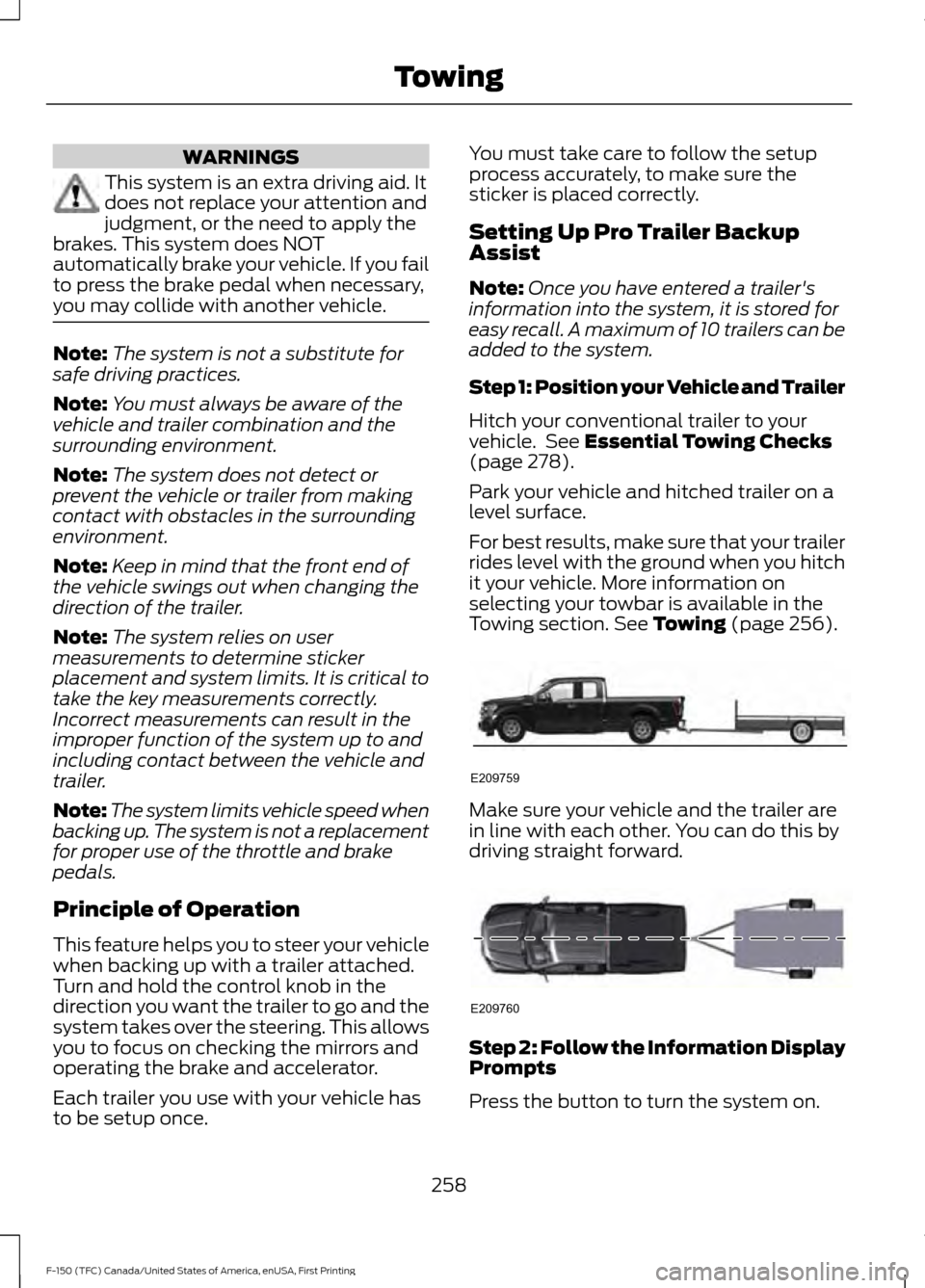
Hitch your conventional trailer to your
vehicle. See Essential Towing Checks
(page 278).
Park your vehicle and hitched trailer on a
level surface.
For best results, make sure that your trailer
rides level with the ground when you hitch
it your vehicle. More information on
selecting your towbar is available in the
Towing section.
See Towing (page 256). Make sure your vehicle and the trailer are
in line with each other. You can do this by
driving straight forward.
Step 2: Follow the Information Display
Prompts
Press the button to turn the system on.
258
F-150 (TFC) Canada/United States of America, enUSA, First Printing TowingE209759 E209760
Page 262 of 599
1.
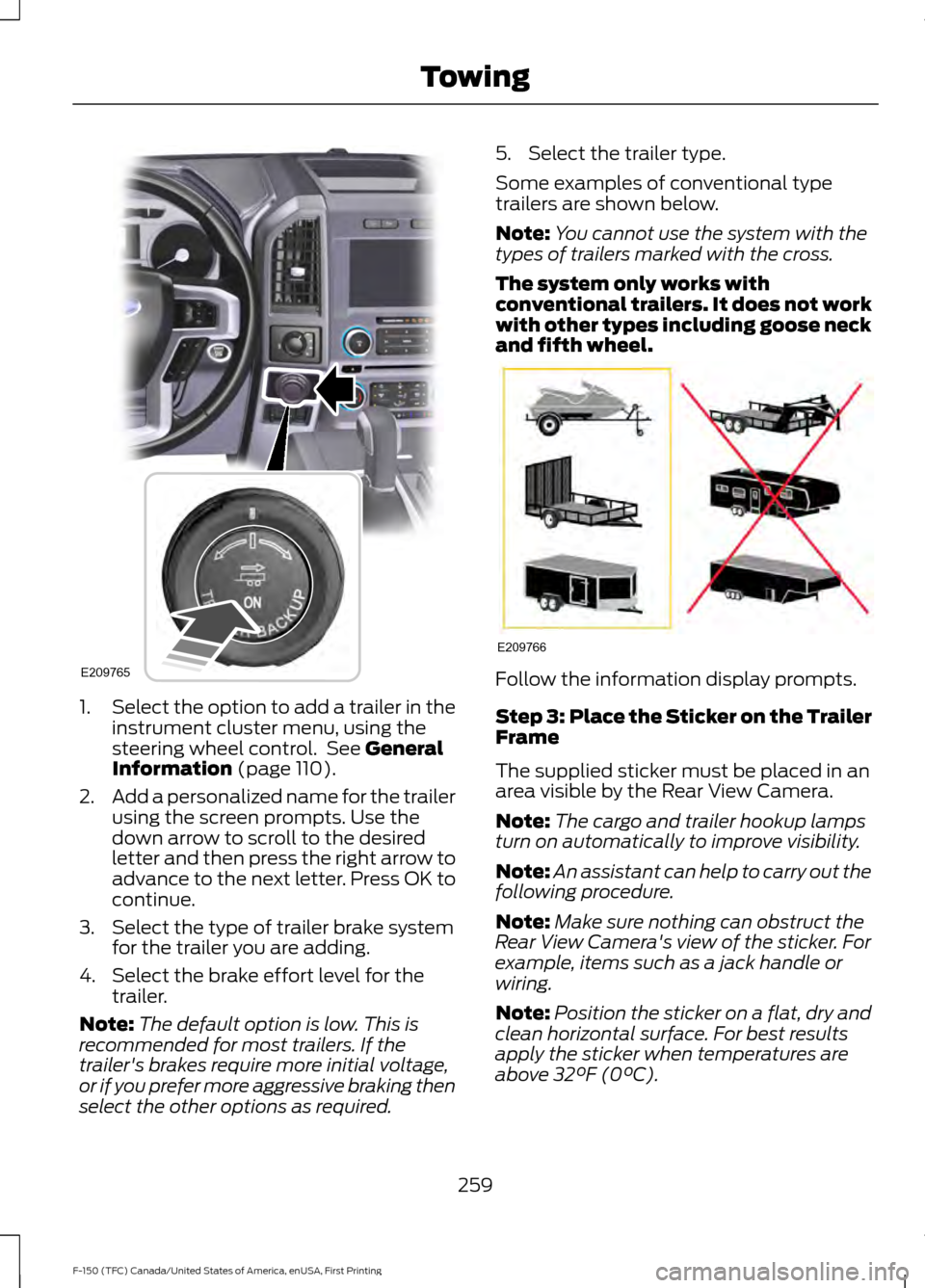
Select the option to add a trailer in the
instrument cluster menu, using the
steering wheel control. See General
Information (page 110).
2. Add a personalized name for the trailer
using the screen prompts. Use the
down arrow to scroll to the desired
letter and then press the right arrow to
advance to the next letter. Press OK to
continue.
3. Select the type of trailer brake system for the trailer you are adding.
4. Select the brake effort level for the trailer.
Note: The default option is low. This is
recommended for most trailers. If the
trailer's brakes require more initial voltage,
or if you prefer more aggressive braking then
select the other options as required. 5. Select the trailer type.
Some examples of conventional type
trailers are shown below.
Note:
You cannot use the system with the
types of trailers marked with the cross.
The system only works with
conventional trailers. It does not work
with other types including goose neck
and fifth wheel. Follow the information display prompts.
Step 3: Place the Sticker on the Trailer
Frame
The supplied sticker must be placed in an
area visible by the Rear View Camera.
Note:
The cargo and trailer hookup lamps
turn on automatically to improve visibility.
Note: An assistant can help to carry out the
following procedure.
Note: Make sure nothing can obstruct the
Rear View Camera's view of the sticker. For
example, items such as a jack handle or
wiring.
Note: Position the sticker on a flat, dry and
clean horizontal surface. For best results
apply the sticker when temperatures are
above
32°F (0°C).
259
F-150 (TFC) Canada/United States of America, enUSA, First Printing TowingE209765 E209766
Page 263 of 599
Note:
Do not move stickers after they are
placed. Do not re-use any stickers if
removed.
Note: Additional stickers may be purchased
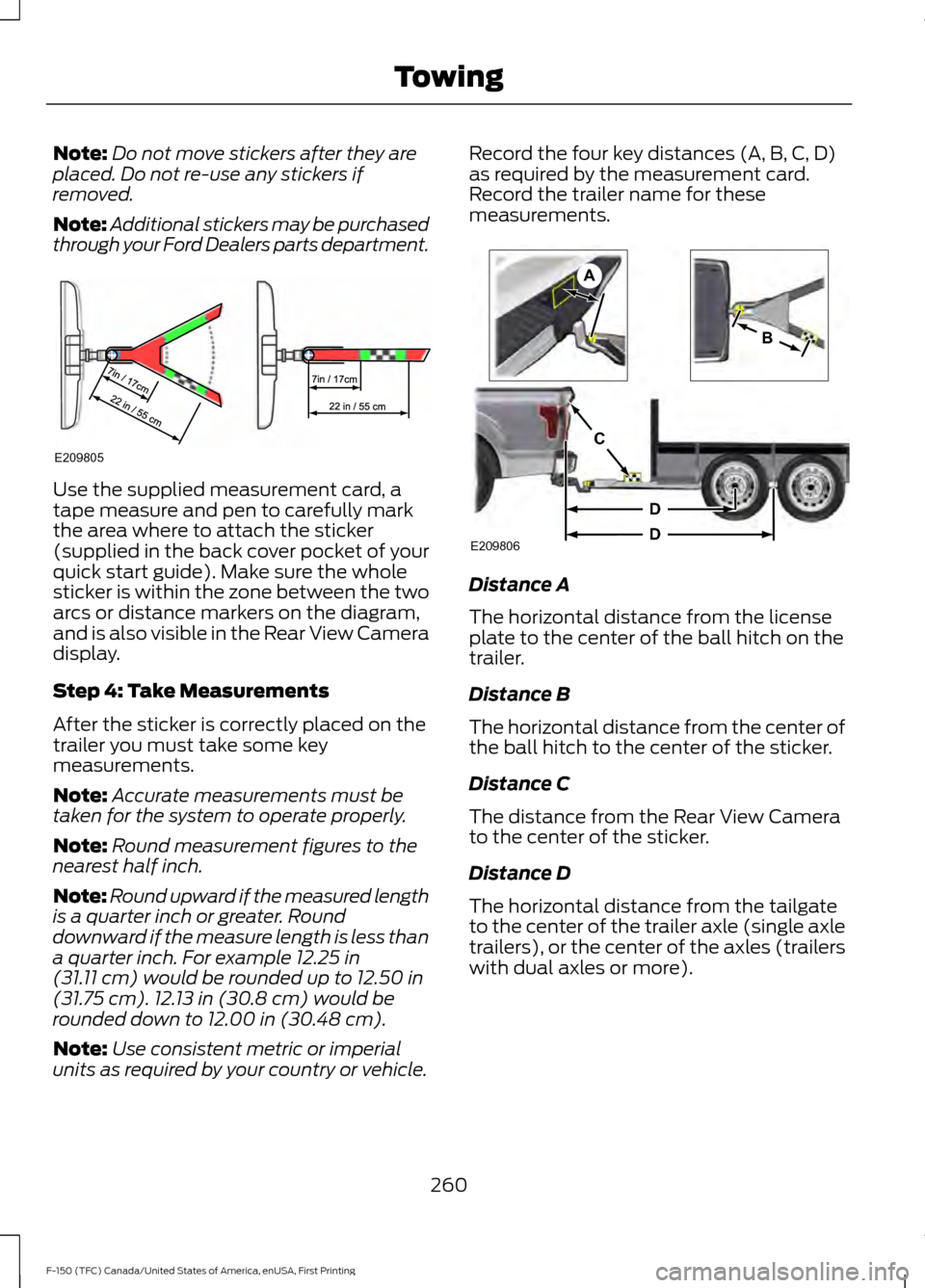
through your Ford Dealers parts department. Use the supplied measurement card, a
tape measure and pen to carefully mark
the area where to attach the sticker
(supplied in the back cover pocket of your
quick start guide). Make sure the whole
sticker is within the zone between the two
arcs or distance markers on the diagram,
and is also visible in the Rear View Camera
display.
Step 4: Take Measurements
After the sticker is correctly placed on the
trailer you must take some key
measurements.
Note:
Accurate measurements must be
taken for the system to operate properly.
Note: Round measurement figures to the
nearest half inch.
Note: Round upward if the measured length
is a quarter inch or greater. Round
downward if the measure length is less than
a quarter inch. For example 12.25 in
(31.11 cm) would be rounded up to 12.50 in
(31.75 cm). 12.13 in (30.8 cm) would be
rounded down to 12.00 in (30.48 cm).
Note: Use consistent metric or imperial
units as required by your country or vehicle. Record the four key distances (A, B, C, D)
as required by the measurement card.
Record the trailer name for these
measurements.
Distance A
The horizontal distance from the license
plate to the center of the ball hitch on the
trailer.
Distance B
The horizontal distance from the center of
the ball hitch to the center of the sticker.
Distance C
The distance from the Rear View Camera
to the center of the sticker.
Distance D
The horizontal distance from the tailgate
to the center of the trailer axle (single axle
trailers), or the center of the axles (trailers
with dual axles or more).
260
F-150 (TFC) Canada/United States of America, enUSA, First Printing TowingE209805 E209806
A
B
C
D
D
Page 264 of 599
Step 5: Enter Measurements Using the
Information Display
Using the recorded measurements, enter
the required data into the system. Follow
the on screen prompts to enter each of the
measurements taken in step 4. When all
four distances have been entered, a
confirmation display will appear. Check
the values are correct before proceeding,
or go back to change any if required.
Step 6: Confirming the Sticker Location
Check the Rear View Camera display to
see if the sticker is identified by the system
and marked with a red circle.
Confirm that the red circle is correctly
located over the sticker image in the
display. The on screen prompt will ask you
to confirm this.
Note:
If the system cannot locate the
sticker try cleaning the camera lens, and
also make sure the sticker is within the green
zone as indicated in step 3.
Calibrating the System
To complete setup, drive your vehicle
straight forward between 4 mph (6 km/h)
and 24 mph (39 km/h) following the on
screen prompt.
Note: Check your measurements to make
sure you measured from the correct points.
Note: If you move the steering wheel during
this procedure, the calibration pauses.
Note: We recommend that you do not do
this at night.
A message will be displayed during
calibration and after calibration is
complete.
Using Pro Trailer Backup Assist
To use the system press the button and
select the required trailer from the display. When the sticker is located, the display
prompts you to shift into reverse (R). The
system turns on.
Note:
The system does not function if your
hands are on the steering wheel. Remove
your hands to resume operation.
Follow the screen prompts to steer your
vehicle and trailer.
Note: You may have to drive forward to
straighten the trailer.
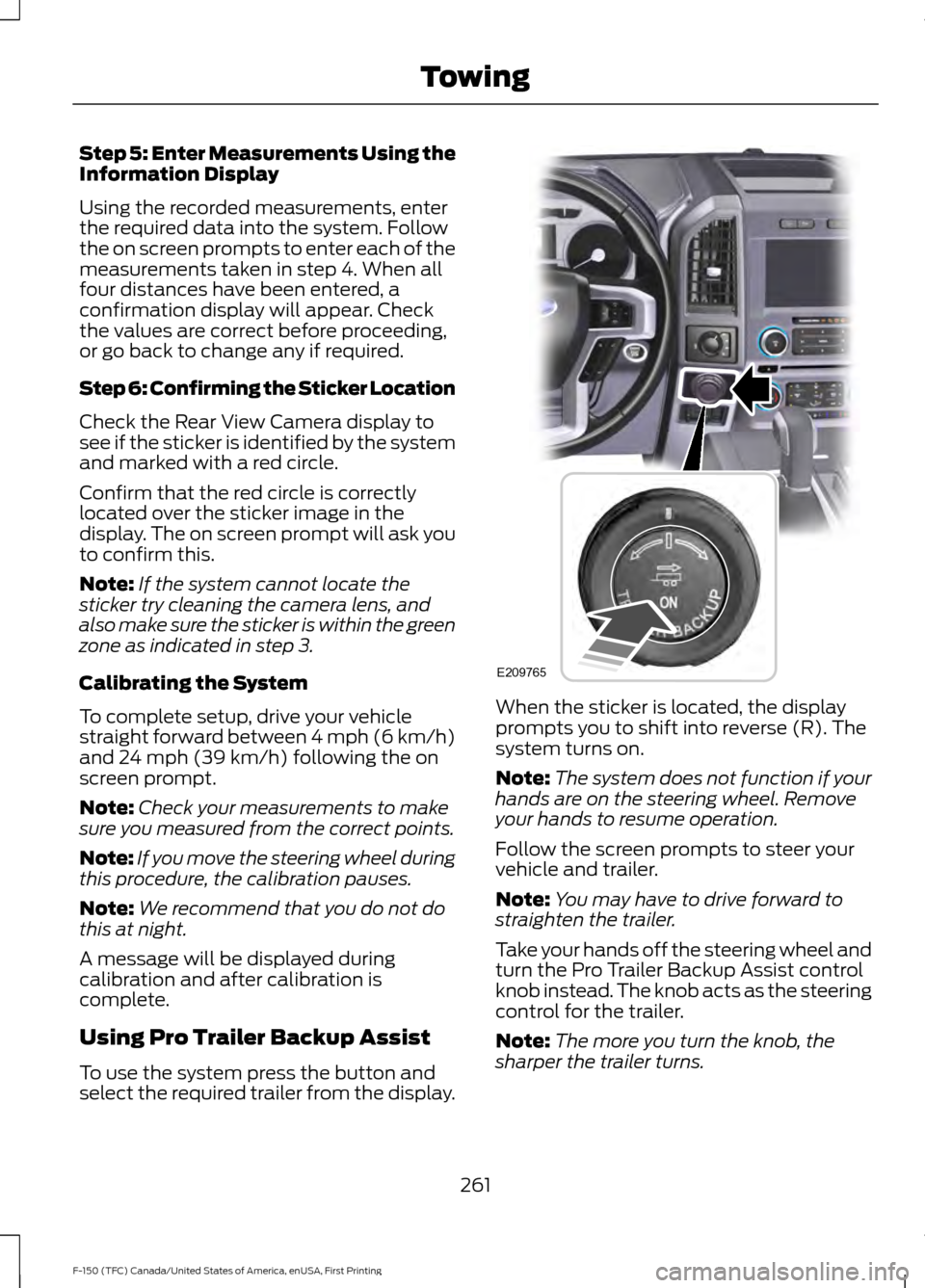
Take your hands off the steering wheel and
turn the Pro Trailer Backup Assist control
knob instead. The knob acts as the steering
control for the trailer.
Note: The more you turn the knob, the
sharper the trailer turns.
261
F-150 (TFC) Canada/United States of America, enUSA, First Printing TowingE209765
Page 267 of 599
Measurement D has reached maximum or
minimum value:
•
Make sure that the measurement being
made is the horizontal distance only
from tailgate to the center of the single
axle or the center of all the axles on the
trailer. See step 4 of the setup for
additional measurement instructions.
The TBA system does not support
trailer lengths outside the range
allowed by the information display.
System is circling something beside the
sticker or system cannot find the sticker:
• Make sure the rear camera is clean and
the sticker is clearly visible in the
camera image. Clean the camera and
sticker if necessary.
• The camera system uses the entered
measurements to help locate the
sticker. Inaccurate sticker
measurements will degrade the
system ’s ability to locate the sticker.
Verify the measurements entered into
the system are accurate.
• Remove the incorrectly circled label or
decal if possible.
• If you cannot resolve the issue a new
sticker location should be tried. The
sticker location must still meet the
requirements noted in step 3 of the
setup instructions. Only one sticker can
be placed on the trailer for correct
system function. The previous sticker
must be removed or covered so only
one sticker is visible to the camera.
Calibration
The system monitors various vehicle
parameters to ensure your vehicle is being
driven straight and the trailer straight
behind your vehicle. Any steering input or
trailer movement will pause the calibration. For best results:
•
Use a long, straight, smooth and level
road when attempting to calibrate.
• Drive straight forward.
• Drive between 4 mph (6 km/h) and
24 mph (39 km/h).
System Operation
The following warnings or difficulties may
occur during feature operation. Tips to
resolve them are listed below.
The system is not available:
• The system relies on many
sub-systems in your vehicle to operate
correctly. If those sub-systems are not
operating correctly the system may not
be available.
• Low battery voltage is a condition
which will prevent the system from
operating. Please make sure the
battery is correctly charged if the
system is not available.
• You may need to drive your vehicle
straight forward above
25 mph
(40 km/h) before the system is
available again.
• If the message still displays take your
vehicle to an authorized dealer for
service.
Sticker lost:
• If the system cannot initially find the
sticker, it may be necessary for you to
change the lighting conditions by
moving the vehicle and trailer or
waiting until conditions change.
• Check for the following if you receive
the lost sticker message while using
the system.
• Stop your vehicle as soon as the
message displays.
• Make sure the sticker is visible and the
pattern is discernable in the rear view
camera image.
264
F-150 (TFC) Canada/United States of America, enUSA, First Printing Towing
Page 269 of 599
System will not backup straight:
•
Factors such as the drawbar
connection to the hitch receiver, road
camber, road grade and compliance in
the trailer suspension can influence
how straight the system is able to back
your trailer when the knob is not turned.
You can compensate for the trailer
drifting to the right or left by slowly
turning the Pro Trailer Backup Assist
knob until the trailer is following your
desired path and then holding the knob
in that position. If you would like to
recalibrate the system for straight
backing, you can do so with the
following procedure.
• Go into the Towing menu, select trailer
options, select change trailer setting
and then select the change sticker
option. Your saved measurements will
be displayed. Do not change them but
continue to confirm measurements.
Once you confirm the measurements,
the system will then prompt you to
perform the calibration procedure.
System consistently shows Stop Now Max
trailer angle reached warning:
• The system uses your measurements
to determine sticker position and
establish system limits. Accurate
sticker placement and trailer
measurements will provide the best
system performance. If you are
consistently receiving this warning it is
likely there is an issue with sticker
placement or the entered
measurements. Make sure that the sticker is placed correctly based on
steps 3 and the measurements were
made correctly according to Step 4.
The troubleshooting guide for trailer
measurements can also be reviewed
for help in making measurements.
• To change sticker location or change
trailer measurements, go into the
Towing menu, select trailer options,
select change trailer setting and then
select the change sticker option.
• If the sticker location needs to be
changed, the previous sticker must be
removed and a new sticker needs to
be placed on the trailer. ONLY ONE
STICKER SHOULD BE PLACED ON
THE TRAILER FOR PROPER
SYSTEM FUNCTION.
• Disregard the prompt to remove this
sticker and continue to the next step if
you only plan to update the
measurements for the current sticker
location.
System consistently shows Stop now take
control of steering warning:
• The system displays this warning when
it can no longer steer the vehicle and
you must take over steering. There are
four reasons why this warning displays
and additional information regarding
the reason for the warning is available
on the center display.
• The steering wheel is touched while
the system is controlling it. Avoid
touching the wheel during system
operation.
• The maximum speed for feature
operation is exceeded. System
performance is optimized at slower
speeds. Backup slowly.
266
F-150 (TFC) Canada/United States of America, enUSA, First Printing Towing