2017 FORD EXPEDITION EL buttons
[x] Cancel search: buttonsPage 318 of 500
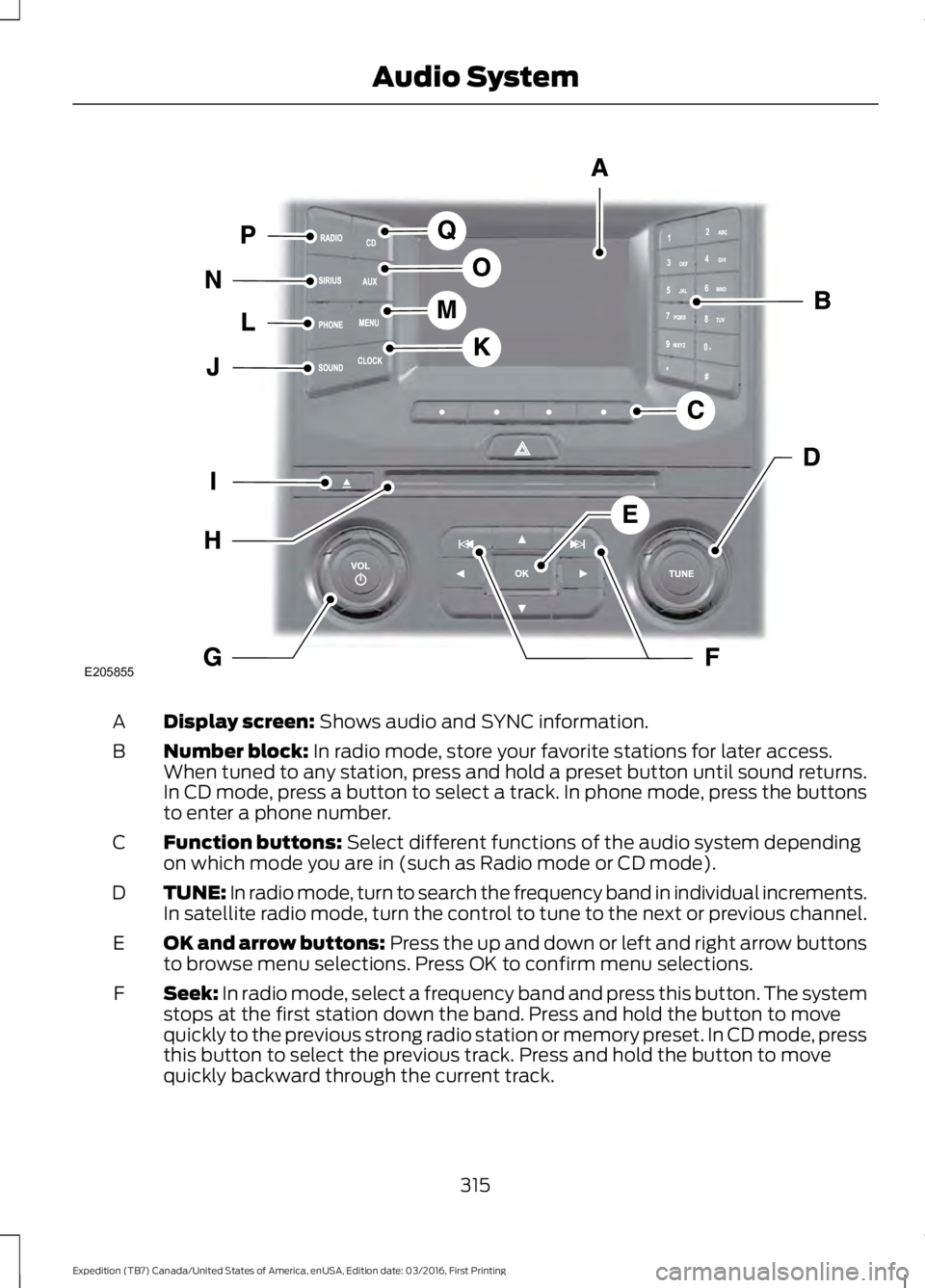
Display screen: Shows audio and SYNC information.A
Number block: In radio mode, store your favorite stations for later access.When tuned to any station, press and hold a preset button until sound returns.In CD mode, press a button to select a track. In phone mode, press the buttonsto enter a phone number.
B
Function buttons: Select different functions of the audio system dependingon which mode you are in (such as Radio mode or CD mode).C
TUNE: In radio mode, turn to search the frequency band in individual increments.In satellite radio mode, turn the control to tune to the next or previous channel.D
OK and arrow buttons: Press the up and down or left and right arrow buttonsto browse menu selections. Press OK to confirm menu selections.E
Seek: In radio mode, select a frequency band and press this button. The systemstops at the first station down the band. Press and hold the button to movequickly to the previous strong radio station or memory preset. In CD mode, pressthis button to select the previous track. Press and hold the button to movequickly backward through the current track.
F
315
Expedition (TB7) Canada/United States of America, enUSA, Edition date: 03/2016, First Printing
Audio SystemE205855
Page 319 of 500
Power and volume: Press this button to switch the system off and on. Turnthe control to adjust the volume.G
CD slot: Insert a CD.H
Eject: Press this button to eject a CD.I
SOUND: Press this button to adjust settings for Treble, Midrange, Bass, Balanceand Fade.J
CLOCK: Press this button to access the clock setting. Use the center arrowcontrols to change the hours and minutes.K
PHONE: Press this button to access the phone features of the SYNC system.L
MENU: Press this button to access different audio system features.M
MUTE or SIRIUS: Press this button to mute the playing audio, or if equipped,listen to Sirius satellite radio.N
AUX: Press this button to access your auxiliary input jack or switch betweendevices you plug into the input jack or USB port.O
RADIO: Press this button to listen to the radio or change radio frequency bands.Press the function buttons below the radio screen to select different radiofunctions.
P
CD: Press this button to listen to a CD. Press the function buttons below theradio screen to select on-screen options of Repeat or Shuffle.Q
AUDIO UNIT - VEHICLES WITH:
SONY AM/FM/CD
WARNING
Driving while distracted can result inloss of vehicle control, crash andinjury. We strongly recommend thatyou use extreme caution when using anydevice that may take your focus off theroad. Your primary responsibility is the safeoperation of your vehicle. We recommendagainst the use of any hand-held devicewhile driving and encourage the use ofvoice-operated systems when possible.Make sure you are aware of all applicablelocal laws that may affect the use ofelectronic devices while driving.
Note:The touchscreen controls most ofthe audio features. See your SYNCinformation.
316
Expedition (TB7) Canada/United States of America, enUSA, Edition date: 03/2016, First Printing
Audio System
Page 331 of 500
To adjust this setting press the voice button, when prompted say:
Action and DescriptionVoice Command
voice settings
Then any of the following:
When enabled, this feature will prompt youto confirm any voice initiated call commandprior to the call being placed.
phone confirmation on
The system will make a best guess; youmay still occasionally be asked to confirmsettings.
phone confirmation off
Changing the Voice Settings
In addition to using voice commands tochange the voice settings, you can also usethe menu in the audio display.
To change the voice settings press theMenu button then select:
Menu Item
SYNC-Settings
Voice settings
Note:Depending on the current climatecontrol settings, the fan speed mayautomatically go down while issuing voicecommands or while making and receivingphone calls via SYNC to reduce the amountof background noise in the vehicle. The fanspeed will automatically return to normaloperation once the voice session ends. Fanspeed can also be adjusted normally duringa voice session, simply press fan buttons (orturn fan knob) to increase or decrease fanspeed to desired setting.
To disable this automatic fan speedreduction feature during voice sessions,press and hold the climate control AC andRecirculated air buttons simultaneously,release and then increase fan speed within2 seconds. To re-enable this feature, repeatthe above sequence.
USING SYNC™ WITH YOUR
PHONE
Hands-free calling is one of the mainfeatures of SYNC. While the systemsupports a variety of features, many aredependent on your cellular phone'sfunctionality. At a minimum, most cellularphones with Bluetooth wireless technologysupport the following functions:
•Answering an incoming call.
•Ending a call.
•Using privacy mode.
•Dialing a number.
•Redialing.
•Call waiting notification.
•Caller ID.
328
Expedition (TB7) Canada/United States of America, enUSA, Edition date: 03/2016, First Printing
SYNC™ (If Equipped)
Page 339 of 500
Sending a Text Message
Note:You can only send a text message toone recipient at a time.
1. Select the send option when thedesired selection highlights in the audiodisplay.
2. Select the confirmation option whenthe contact appears.
3. Press the OK button again to confirmwhen the system asks if you want tosend the message. A pre-definedsignature appears on each textmessage.
Note:You can send text messages eitherby choosing a contact from the phonebookand selecting the text option from the audiodisplay or by replying to a received messagein the inbox.
Accessing Your Phone Settings
These are phone-dependent features. Yourphone settings allow you to access andadjust features such as your ring tone andtext message notification, modify yourphonebook, and set up automaticdownload.
1. Press the PHONE button.
2. Scroll until the phone settings optionappears, and then press the OK button.
Scroll to select from the following options:
Description and actionMenu Item
If this option is checked, the system uses the cellular phoneas the master when there is more than one cellular phonepaired to the system. This option can be changed for allcellular phones (not only the active phone) using theBluetooth Devices menu.
Set as master
See the cellular phone name, provider name, cellularphone number, and signal level. When done, press the leftarrow buttons to return to the phone status menu.
Phone status
Select which ringtone sounds during an incoming call (oneof the system's tones or your cellular phone's). If yourphone supports in-band ringing, your phone's ringtonesounds when you choose the cellular phone ringtoneoption.
Set ringtone
1. Press the OK button to select and scroll to hear eachringtone.2. Press the OK button to select a ringtone.
Have the option of hearing an audible tone to notify youwhen a text message arrives. Press the OK button toswitch the audible tone off or on.
Text msg notify
Modify the contents of your phonebook (such as add,delete or download). Press the OK button to select andscroll between the choices in the phonebook preferencestable below.
Phonebook pref.
336
Expedition (TB7) Canada/United States of America, enUSA, Edition date: 03/2016, First Printing
SYNC™ (If Equipped)
Page 342 of 500
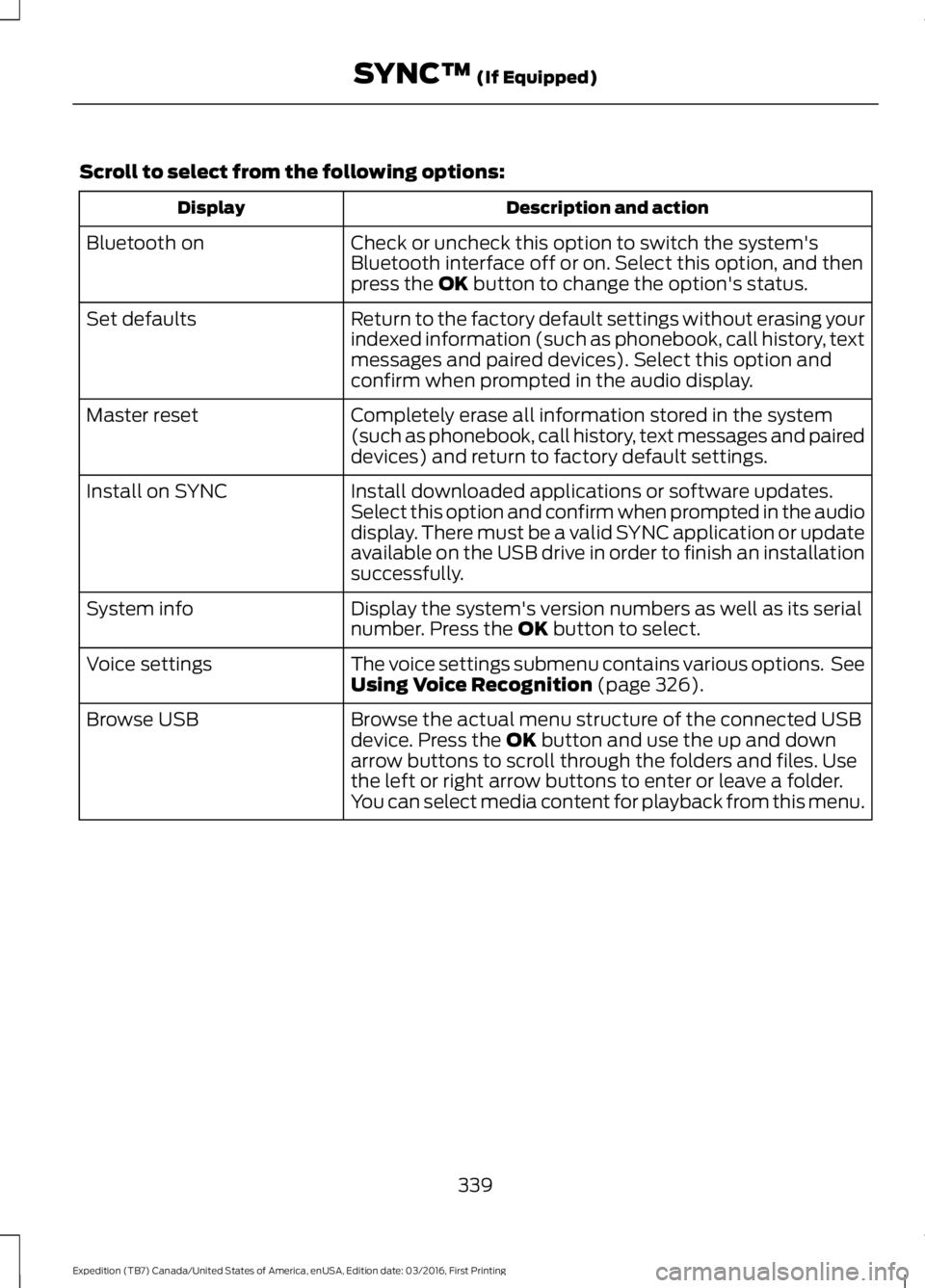
Scroll to select from the following options:
Description and actionDisplay
Check or uncheck this option to switch the system'sBluetooth interface off or on. Select this option, and thenpress the OK button to change the option's status.
Bluetooth on
Return to the factory default settings without erasing yourindexed information (such as phonebook, call history, textmessages and paired devices). Select this option andconfirm when prompted in the audio display.
Set defaults
Completely erase all information stored in the system(such as phonebook, call history, text messages and paireddevices) and return to factory default settings.
Master reset
Install downloaded applications or software updates.Select this option and confirm when prompted in the audiodisplay. There must be a valid SYNC application or updateavailable on the USB drive in order to finish an installationsuccessfully.
Install on SYNC
Display the system's version numbers as well as its serialnumber. Press the OK button to select.System info
The voice settings submenu contains various options. SeeUsing Voice Recognition (page 326).Voice settings
Browse the actual menu structure of the connected USBdevice. Press the OK button and use the up and downarrow buttons to scroll through the folders and files. Usethe left or right arrow buttons to enter or leave a folder.You can select media content for playback from this menu.
Browse USB
339
Expedition (TB7) Canada/United States of America, enUSA, Edition date: 03/2016, First Printing
SYNC™ (If Equipped)
Page 352 of 500
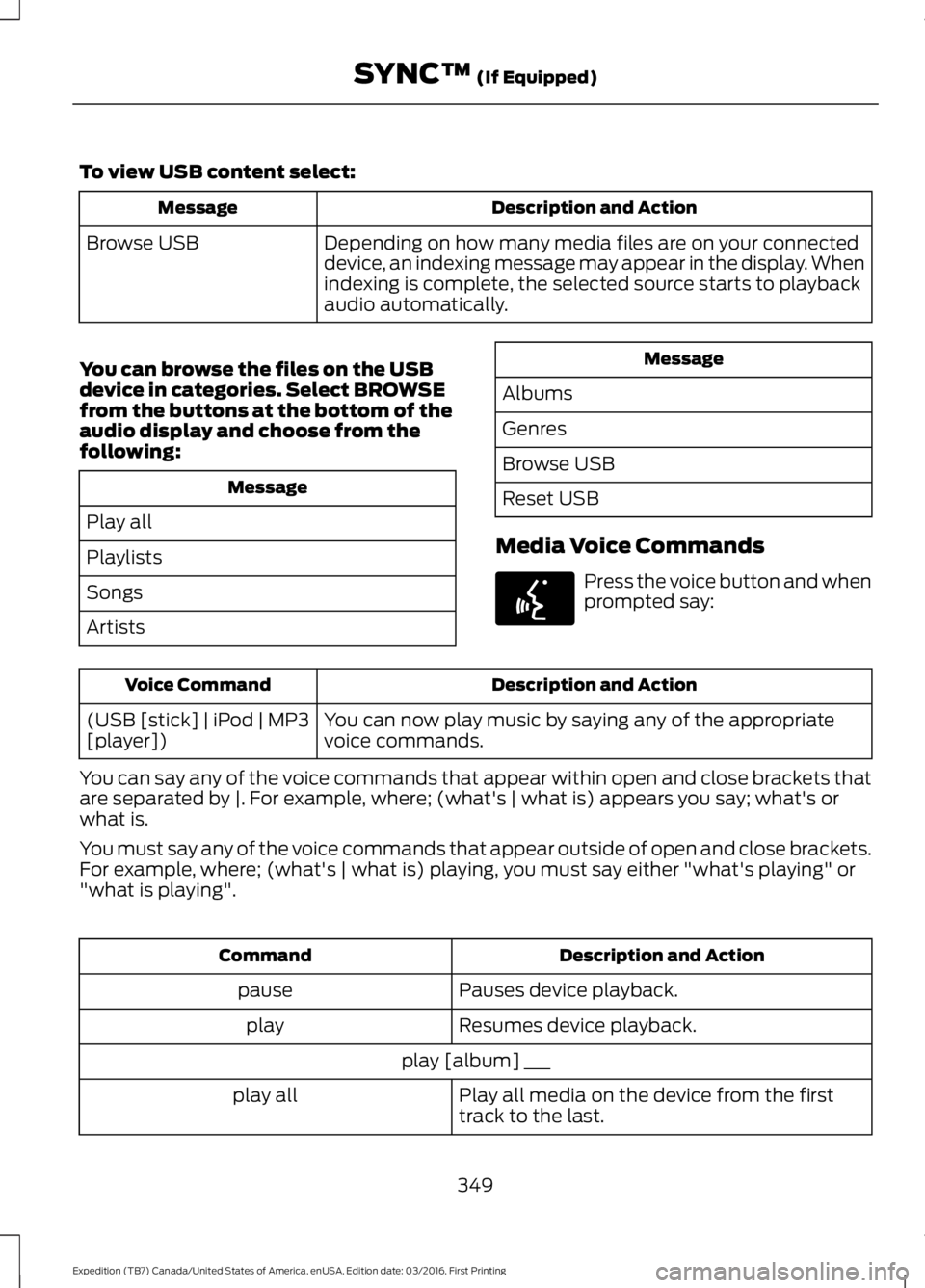
To view USB content select:
Description and ActionMessage
Depending on how many media files are on your connecteddevice, an indexing message may appear in the display. Whenindexing is complete, the selected source starts to playbackaudio automatically.
Browse USB
You can browse the files on the USBdevice in categories. Select BROWSEfrom the buttons at the bottom of theaudio display and choose from thefollowing:
Message
Play all
Playlists
Songs
Artists
Message
Albums
Genres
Browse USB
Reset USB
Media Voice Commands
Press the voice button and whenprompted say:
Description and ActionVoice Command
You can now play music by saying any of the appropriatevoice commands.(USB [stick] | iPod | MP3[player])
You can say any of the voice commands that appear within open and close brackets thatare separated by |. For example, where; (what's | what is) appears you say; what's orwhat is.
You must say any of the voice commands that appear outside of open and close brackets.For example, where; (what's | what is) playing, you must say either "what's playing" or"what is playing".
Description and ActionCommand
Pauses device playback.pause
Resumes device playback.play
play [album] ___
Play all media on the device from the firsttrack to the last.play all
349
Expedition (TB7) Canada/United States of America, enUSA, Edition date: 03/2016, First Printing
SYNC™ (If Equipped)E142599
Page 356 of 500
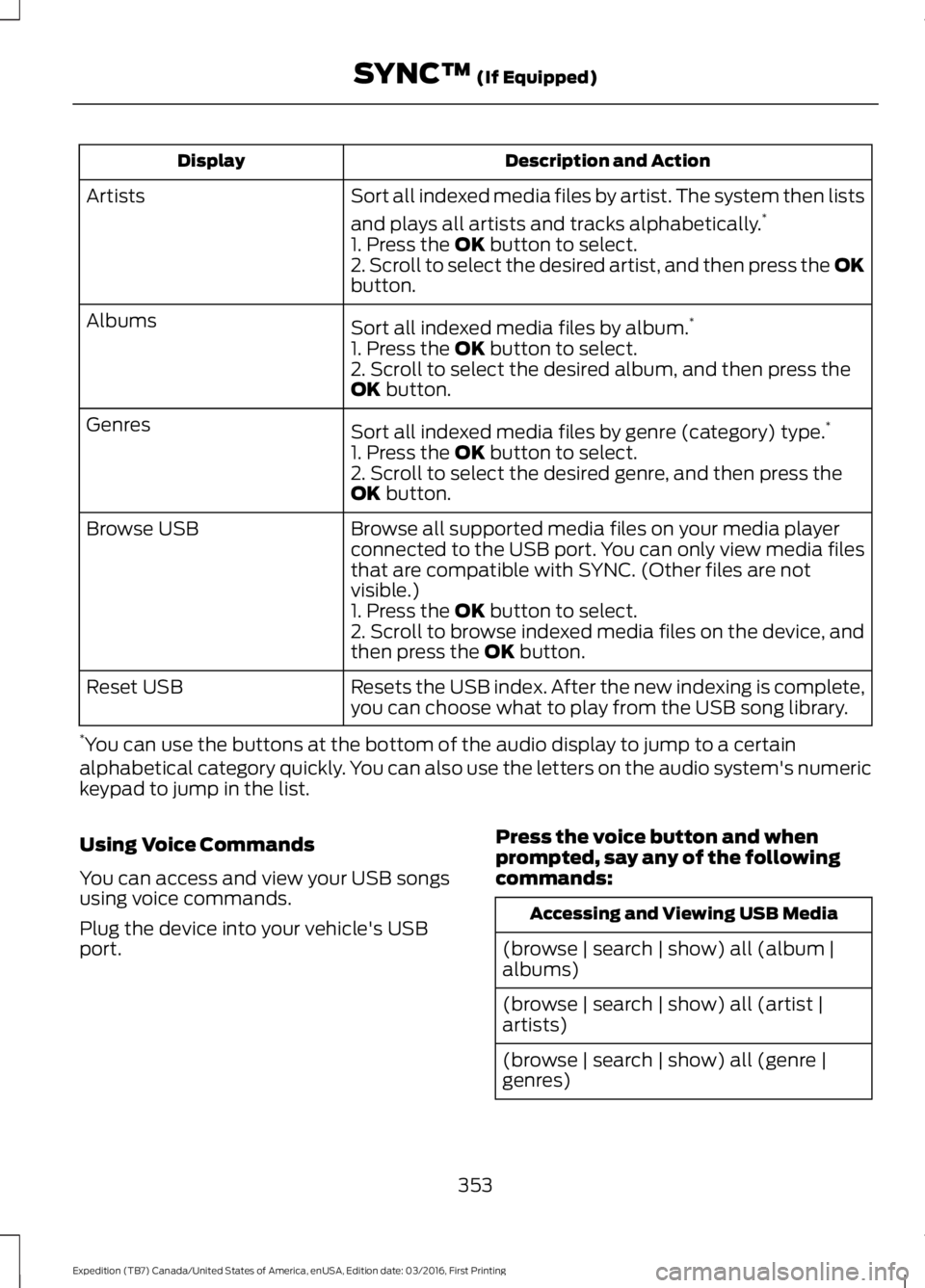
Description and ActionDisplay
Sort all indexed media files by artist. The system then lists
and plays all artists and tracks alphabetically.*Artists
1. Press the OK button to select.2. Scroll to select the desired artist, and then press the OKbutton.
Sort all indexed media files by album.*Albums
1. Press the OK button to select.2. Scroll to select the desired album, and then press theOK button.
Sort all indexed media files by genre (category) type.*Genres
1. Press the OK button to select.2. Scroll to select the desired genre, and then press theOK button.
Browse all supported media files on your media playerconnected to the USB port. You can only view media filesthat are compatible with SYNC. (Other files are notvisible.)
Browse USB
1. Press the OK button to select.2. Scroll to browse indexed media files on the device, andthen press the OK button.
Resets the USB index. After the new indexing is complete,you can choose what to play from the USB song library.Reset USB
*You can use the buttons at the bottom of the audio display to jump to a certainalphabetical category quickly. You can also use the letters on the audio system's numerickeypad to jump in the list.
Using Voice Commands
You can access and view your USB songsusing voice commands.
Plug the device into your vehicle's USBport.
Press the voice button and whenprompted, say any of the followingcommands:
Accessing and Viewing USB Media
(browse | search | show) all (album |albums)
(browse | search | show) all (artist |artists)
(browse | search | show) all (genre |genres)
353
Expedition (TB7) Canada/United States of America, enUSA, Edition date: 03/2016, First Printing
SYNC™ (If Equipped)
Page 367 of 500
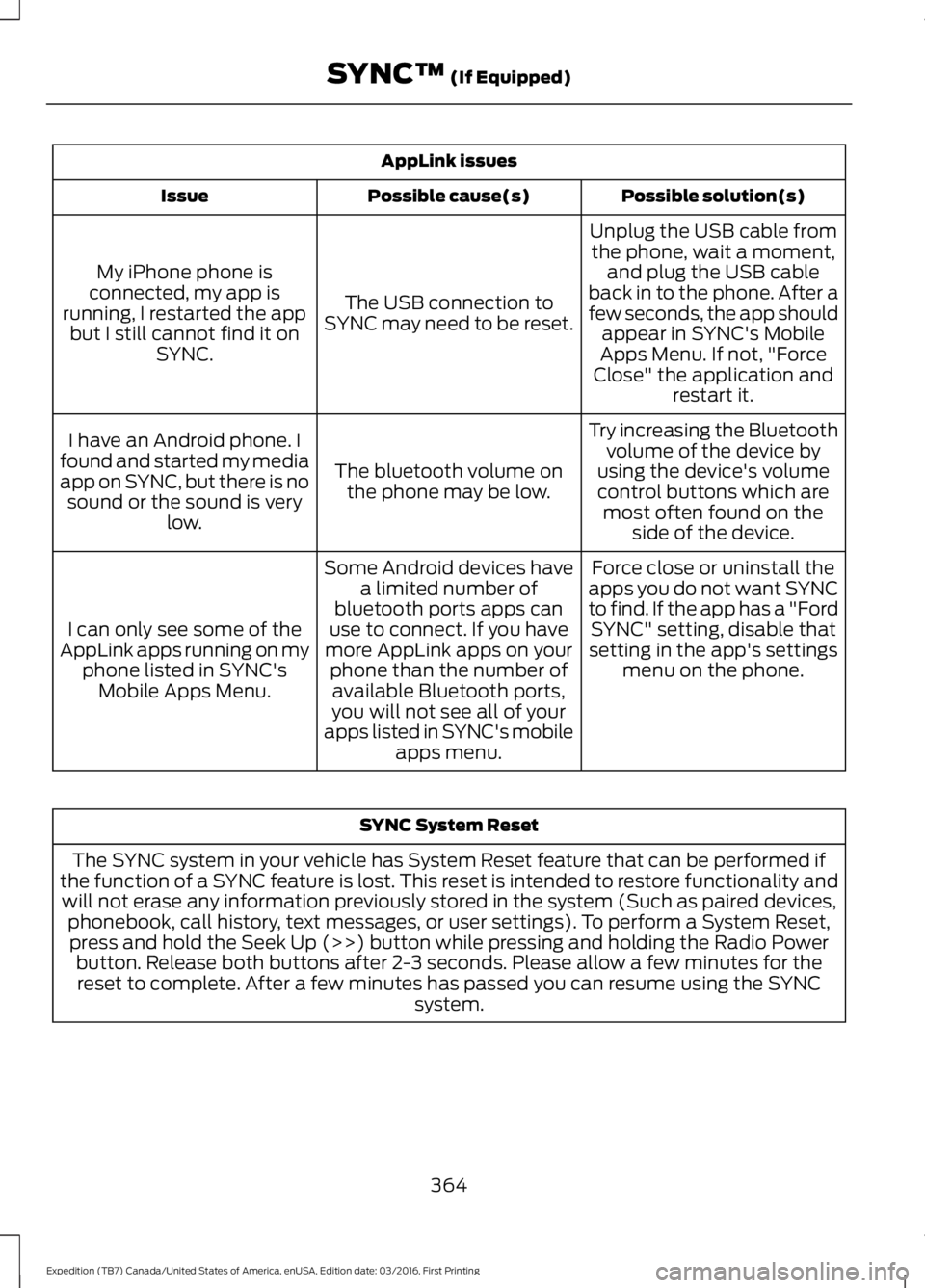
AppLink issues
Possible solution(s)Possible cause(s)Issue
Unplug the USB cable fromthe phone, wait a moment,and plug the USB cableback in to the phone. After afew seconds, the app shouldappear in SYNC's MobileApps Menu. If not, "ForceClose" the application andrestart it.
The USB connection toSYNC may need to be reset.
My iPhone phone isconnected, my app isrunning, I restarted the appbut I still cannot find it onSYNC.
Try increasing the Bluetoothvolume of the device byusing the device's volumecontrol buttons which aremost often found on theside of the device.
The bluetooth volume onthe phone may be low.
I have an Android phone. Ifound and started my mediaapp on SYNC, but there is nosound or the sound is verylow.
Force close or uninstall theapps you do not want SYNCto find. If the app has a "FordSYNC" setting, disable thatsetting in the app's settingsmenu on the phone.
Some Android devices havea limited number ofbluetooth ports apps canuse to connect. If you havemore AppLink apps on yourphone than the number ofavailable Bluetooth ports,you will not see all of yourapps listed in SYNC's mobileapps menu.
I can only see some of theAppLink apps running on myphone listed in SYNC'sMobile Apps Menu.
SYNC System Reset
The SYNC system in your vehicle has System Reset feature that can be performed ifthe function of a SYNC feature is lost. This reset is intended to restore functionality andwill not erase any information previously stored in the system (Such as paired devices,phonebook, call history, text messages, or user settings). To perform a System Reset,press and hold the Seek Up (>>) button while pressing and holding the Radio Powerbutton. Release both buttons after 2-3 seconds. Please allow a few minutes for thereset to complete. After a few minutes has passed you can resume using the SYNCsystem.
364
Expedition (TB7) Canada/United States of America, enUSA, Edition date: 03/2016, First Printing
SYNC™ (If Equipped)