2017 FORD EXPEDITION EL navigation system
[x] Cancel search: navigation systemPage 414 of 500
cityseeker (If Equipped)
Note:cityseeker point of interest (POI)information is limited to approximately 1110cities (1049 in the United States, 36 inCanada and 15 in Mexico).
cityseeker, when available, is a service thatprovides more information about certainpoints of interest such as restaurants,hotels and attractions.
When you have selected a point of interest,the location and information appear, suchas address, phone number and a starrating.
Press More Information to see a photo,a review, a list of services and facilities, theaverage room or meal price and the webaddress. This screen displays the point ofinterest icons.
For restaurants, cityseeker can provideinformation such as star rating, averagecost, review, handicap access, hours ofoperation, and website address.
For hotels, cityseeker can provideinformation such as star rating, pricecategory, review, check-in and checkouttimes, hotel service icons and websiteaddress. Hotel service icons include:
•Restaurant
•Business center
•Handicap facilities
•Laundry
•Refrigerator
•24 hour room service
•Fitness center
•Internet access
•Pool
•Wi-Fi
Attractions include nearby landmarks,amusement parks, historic buildings andmore. cityseeker can provide informationsuch as star rating, reviews, hour ofoperation and admission price.
SiriusXM Traffic and Travel Link
SiriusXM Traffic and Travel Link is availableon vehicles equipped with navigation andonly in select markets. You must activateand subscribe to receive SiriusXM Trafficand Travel Link information. It helps youlocate the best gas prices, find movielistings, get current traffic alerts, view theweather map, get accurate ski conditionsand see current sports scores. See Apps(page 412).
The system calculates a reasonableefficient route based on available speedlimits, traffic, and road conditions. You mayknow a local short cut that is more efficientat a given time than the route provided bySYNC 3, but you should expect a slightdifference in minutes or miles with theSYNC 3 route.
Navigation Map Updates
Annual navigation map updates areavailable for purchase through yourdealership, by calling 1-866-462-8837 inthe United States and Canada or01-800-557-5539 in Mexico. You can alsovisit:
Website
www.navigation.com/sync
You need to specify the make and modelof your vehicle to determine if there is anupdate available.
411
Expedition (TB7) Canada/United States of America, enUSA, Edition date: 03/2016, First Printing
SYNC™ 3 (If Equipped)E225487
Page 415 of 500

HERE is the digital map provider for thenavigation application. If you find map dataerrors, you may report them directly toHERE by going towww.here.com/mapcreator. HEREevaluates all reported map errors andresponds with the result of theirinvestigation by e-mail.
Map coverage includes the USA (includingPuerto Rico and the US Virgin Islands),Canada and Mexico.
APPS
The system enables voice, steering wheel,and touch screen control of SYNC 3AppLink enabled smartphone apps. Oncean app is running through AppLink, you cancontrol main features of the app throughvoice commands and steering wheelcontrols.
Note:Available AppLink enabled apps willvary by market.
Note:You must pair and connect yoursmartphone via Bluetooth to SYNC 3 toaccess AppLink.
Note:iPhone users need to connect thephone to the USB port.
Note:For information on available apps,supported smartphone devices andtroubleshooting tips please visit:
Websites
owner.ford.comwww.syncmyride.ca
Websites
www.syncmaroute.ca
Note:Make sure you have an active accountfor the app that you have downloaded.Some apps will work automatically with nosetup. Other apps will want you to configureyour personal settings and personalize yourexperience by creating stations or favorites.We recommend you do this at home oroutside of your vehicle.
Note:We encourage you to review thesmartphone app’s terms of service andprivacy policies because Ford is notresponsible for your app or its use of data.
Note:AppLink is a native SYNC systemfeature. Accessing mobile apps throughAppLink is only possible when Android Autoor Apple CarPlay are disabled. Some appsmay only be accessible in the car throughApplink and others only through AndroidAuto or Apple CarPlay. Please refer to theSmartphone Connectivity information todisable Android Auto or Apple CarPlay.
Note:In order to use an app with SYNC 3,the App needs to be running in thebackground of your phone. If you shut downthe app on your phone, it shuts down theapp on SYNC 3 as well.
Note:If a SYNC 3 AppLink compatible appis not shown in the Apps Domain, make surethe required app is running on the mobiledevice.
412
Expedition (TB7) Canada/United States of America, enUSA, Edition date: 03/2016, First Printing
SYNC™ 3 (If Equipped)
Page 417 of 500
Note:In order to use SiriusXM Traffic andTravel Link, your vehicle must havenavigation.
Note:A paid subscription is required toaccess and use these features. Go towww.siriusxm.com/travellink for moreinformation.
Note:Visit www.siriusxm.com/traffic andclick on Coverage map and details for acomplete listing of all traffic areas coveredby SiriusXM Traffic and Travel Link.
Note:Neither Sirius nor Ford is responsiblefor any errors or inaccuracies in the SiriusXMTraffic and Travel Link services or its use invehicles.
When you subscribe to SiriusXM Trafficand Travel Link, it can help you locate thebest gas prices, find movie listings, getcurrent traffic alerts, view the currentweather map, get accurate ski conditionsand see scores to current sports games.
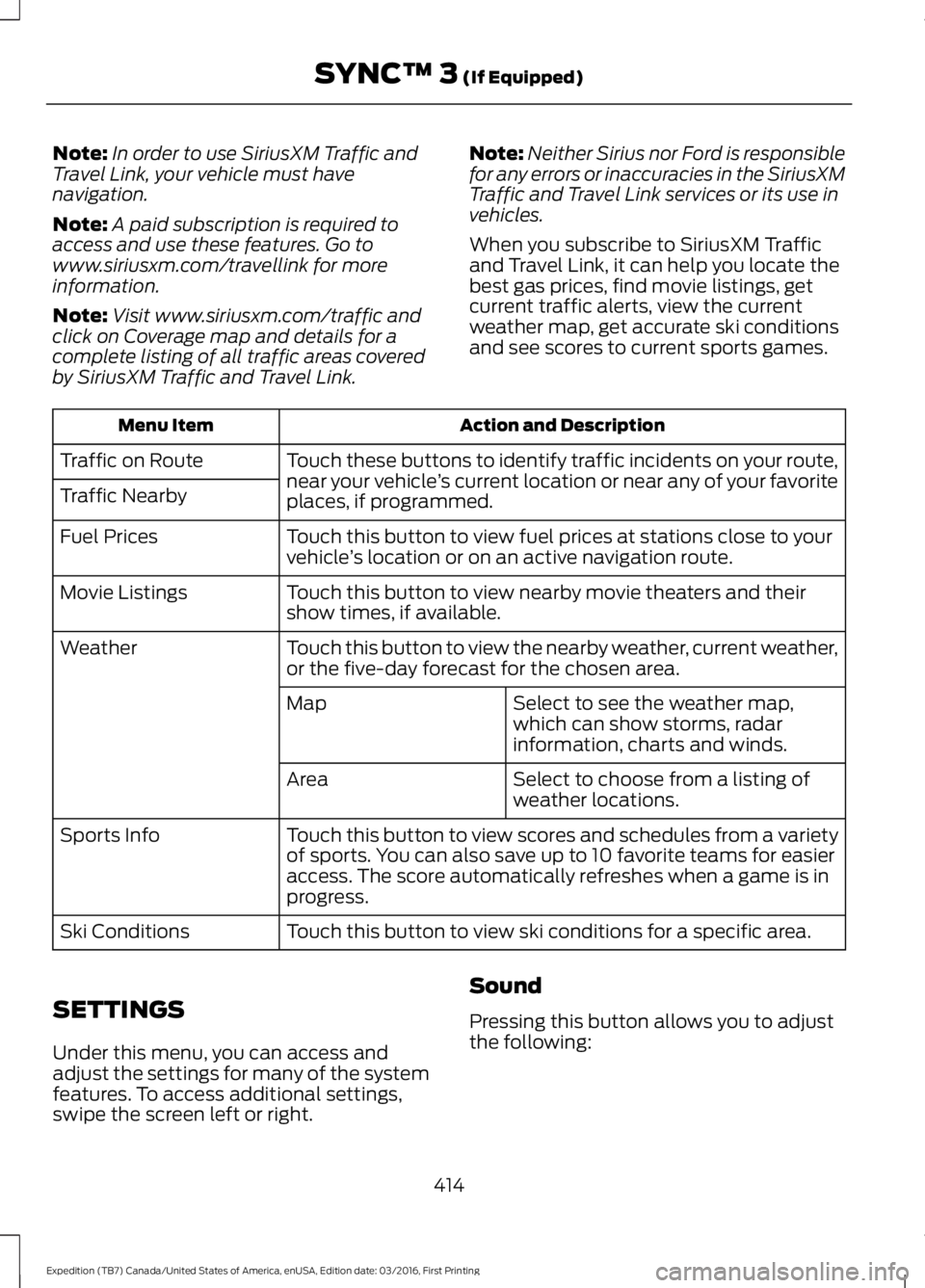
Action and DescriptionMenu Item
Touch these buttons to identify traffic incidents on your route,near your vehicle’s current location or near any of your favoriteplaces, if programmed.
Traffic on Route
Traffic Nearby
Touch this button to view fuel prices at stations close to yourvehicle’s location or on an active navigation route.Fuel Prices
Touch this button to view nearby movie theaters and theirshow times, if available.Movie Listings
Touch this button to view the nearby weather, current weather,or the five-day forecast for the chosen area.Weather
Select to see the weather map,which can show storms, radarinformation, charts and winds.
Map
Select to choose from a listing ofweather locations.Area
Touch this button to view scores and schedules from a varietyof sports. You can also save up to 10 favorite teams for easieraccess. The score automatically refreshes when a game is inprogress.
Sports Info
Touch this button to view ski conditions for a specific area.Ski Conditions
SETTINGS
Under this menu, you can access andadjust the settings for many of the systemfeatures. To access additional settings,swipe the screen left or right.
Sound
Pressing this button allows you to adjustthe following:
414
Expedition (TB7) Canada/United States of America, enUSA, Edition date: 03/2016, First Printing
SYNC™ 3 (If Equipped)
Page 419 of 500
Action and DescriptionMenu Item
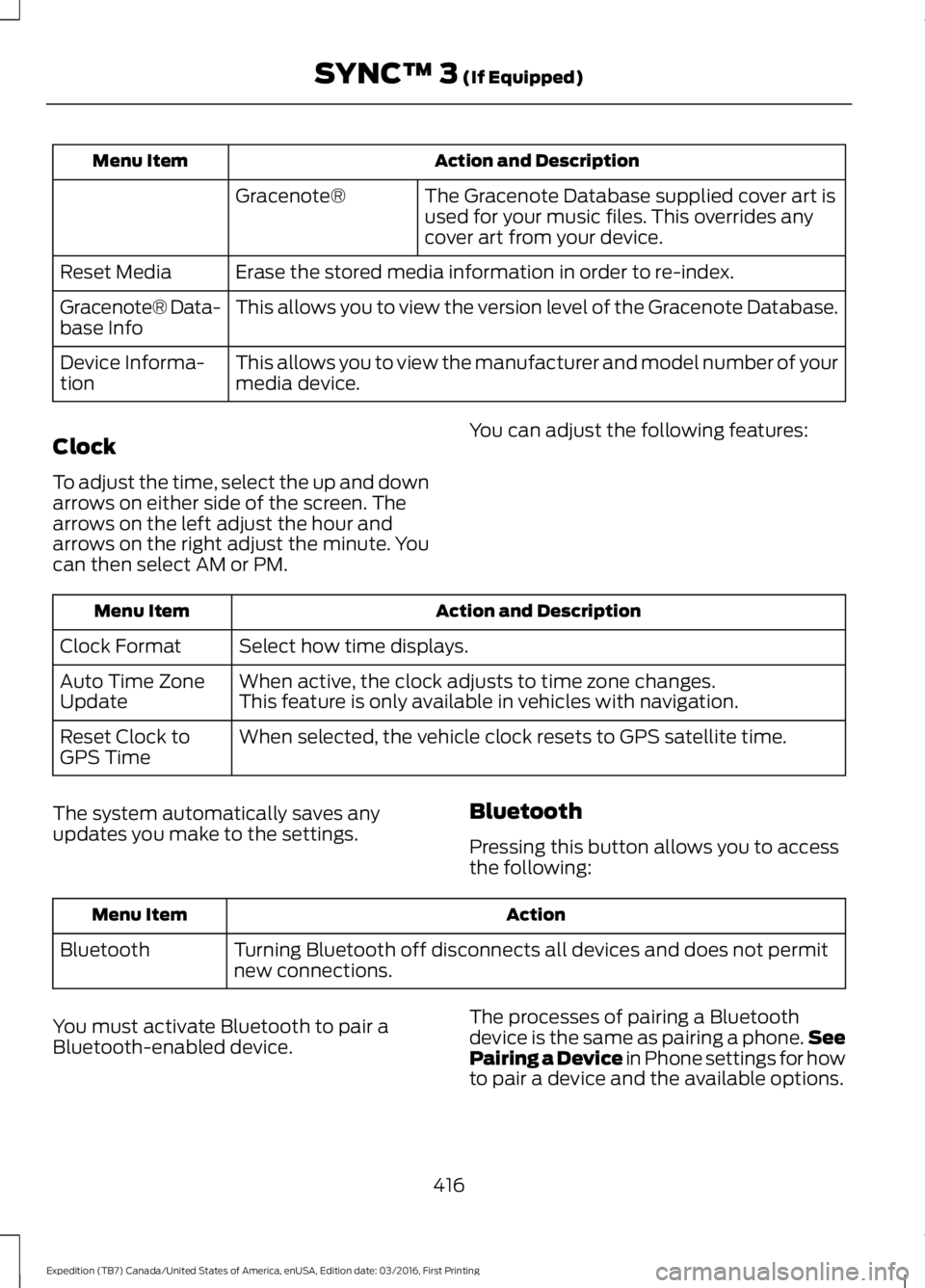
The Gracenote Database supplied cover art isused for your music files. This overrides anycover art from your device.
Gracenote®
Erase the stored media information in order to re-index.Reset Media
This allows you to view the version level of the Gracenote Database.Gracenote® Data-base Info
This allows you to view the manufacturer and model number of yourmedia device.Device Informa-tion
Clock
To adjust the time, select the up and downarrows on either side of the screen. Thearrows on the left adjust the hour andarrows on the right adjust the minute. Youcan then select AM or PM.
You can adjust the following features:
Action and DescriptionMenu Item
Select how time displays.Clock Format
When active, the clock adjusts to time zone changes.Auto Time ZoneUpdateThis feature is only available in vehicles with navigation.
When selected, the vehicle clock resets to GPS satellite time.Reset Clock toGPS Time
The system automatically saves anyupdates you make to the settings.Bluetooth
Pressing this button allows you to accessthe following:
ActionMenu Item
Turning Bluetooth off disconnects all devices and does not permitnew connections.Bluetooth
You must activate Bluetooth to pair aBluetooth-enabled device.
The processes of pairing a Bluetoothdevice is the same as pairing a phone.SeePairing a Device in Phone settings for howto pair a device and the available options.
416
Expedition (TB7) Canada/United States of America, enUSA, Edition date: 03/2016, First Printing
SYNC™ 3 (If Equipped)
Page 423 of 500
Action and DescriptionMenu Item
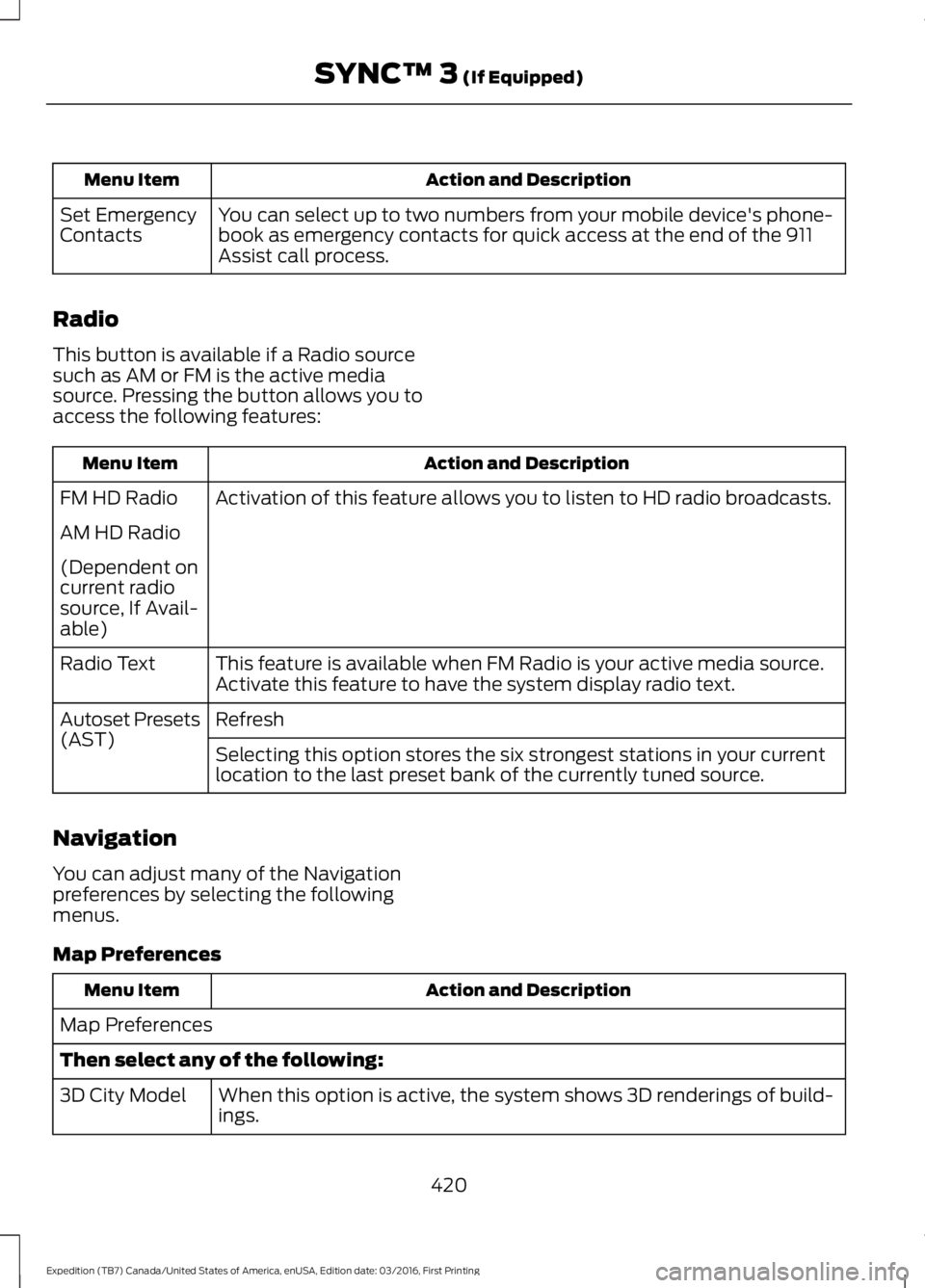
You can select up to two numbers from your mobile device's phone-book as emergency contacts for quick access at the end of the 911Assist call process.
Set EmergencyContacts
Radio
This button is available if a Radio sourcesuch as AM or FM is the active mediasource. Pressing the button allows you toaccess the following features:
Action and DescriptionMenu Item
Activation of this feature allows you to listen to HD radio broadcasts.FM HD Radio
AM HD Radio
(Dependent oncurrent radiosource, If Avail-able)
This feature is available when FM Radio is your active media source.Activate this feature to have the system display radio text.Radio Text
RefreshAutoset Presets(AST)Selecting this option stores the six strongest stations in your currentlocation to the last preset bank of the currently tuned source.
Navigation
You can adjust many of the Navigationpreferences by selecting the followingmenus.
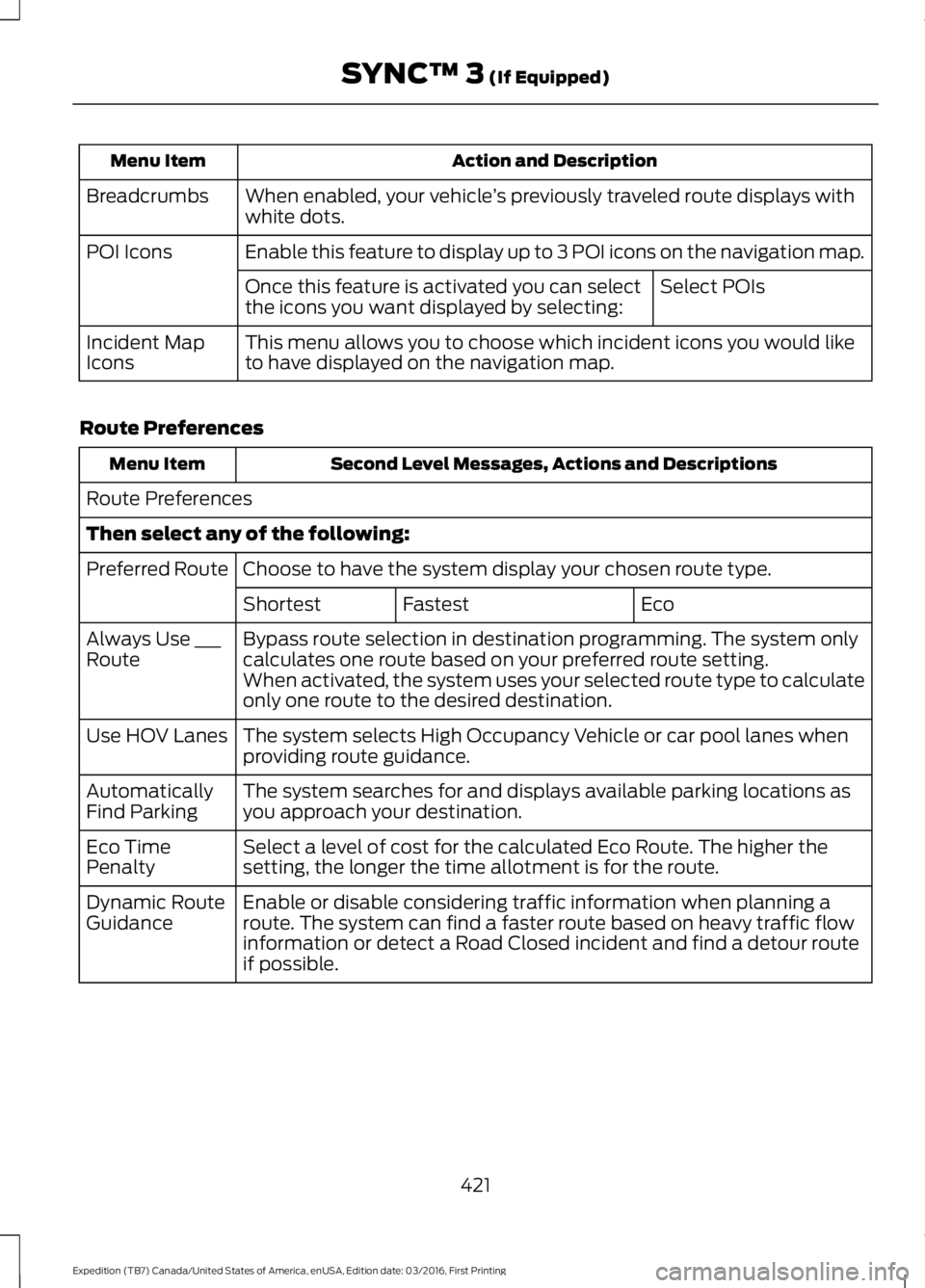
Map Preferences
Action and DescriptionMenu Item
Map Preferences
Then select any of the following:
When this option is active, the system shows 3D renderings of build-ings.3D City Model
420
Expedition (TB7) Canada/United States of America, enUSA, Edition date: 03/2016, First Printing
SYNC™ 3 (If Equipped)
Page 424 of 500
Action and DescriptionMenu Item
When enabled, your vehicle’s previously traveled route displays withwhite dots.Breadcrumbs
Enable this feature to display up to 3 POI icons on the navigation map.POI Icons
Select POIsOnce this feature is activated you can selectthe icons you want displayed by selecting:
This menu allows you to choose which incident icons you would liketo have displayed on the navigation map.Incident MapIcons
Route Preferences
Second Level Messages, Actions and DescriptionsMenu Item
Route Preferences
Then select any of the following:
Choose to have the system display your chosen route type.Preferred Route
EcoFastestShortest
Bypass route selection in destination programming. The system onlycalculates one route based on your preferred route setting.Always Use ___RouteWhen activated, the system uses your selected route type to calculateonly one route to the desired destination.
The system selects High Occupancy Vehicle or car pool lanes whenproviding route guidance.Use HOV Lanes
The system searches for and displays available parking locations asyou approach your destination.AutomaticallyFind Parking
Select a level of cost for the calculated Eco Route. The higher thesetting, the longer the time allotment is for the route.Eco TimePenalty
Enable or disable considering traffic information when planning aroute. The system can find a faster route based on heavy traffic flowinformation or detect a Road Closed incident and find a detour routeif possible.
Dynamic RouteGuidance
421
Expedition (TB7) Canada/United States of America, enUSA, Edition date: 03/2016, First Printing
SYNC™ 3 (If Equipped)
Page 425 of 500
Second Level Messages, Actions and DescriptionsMenu Item
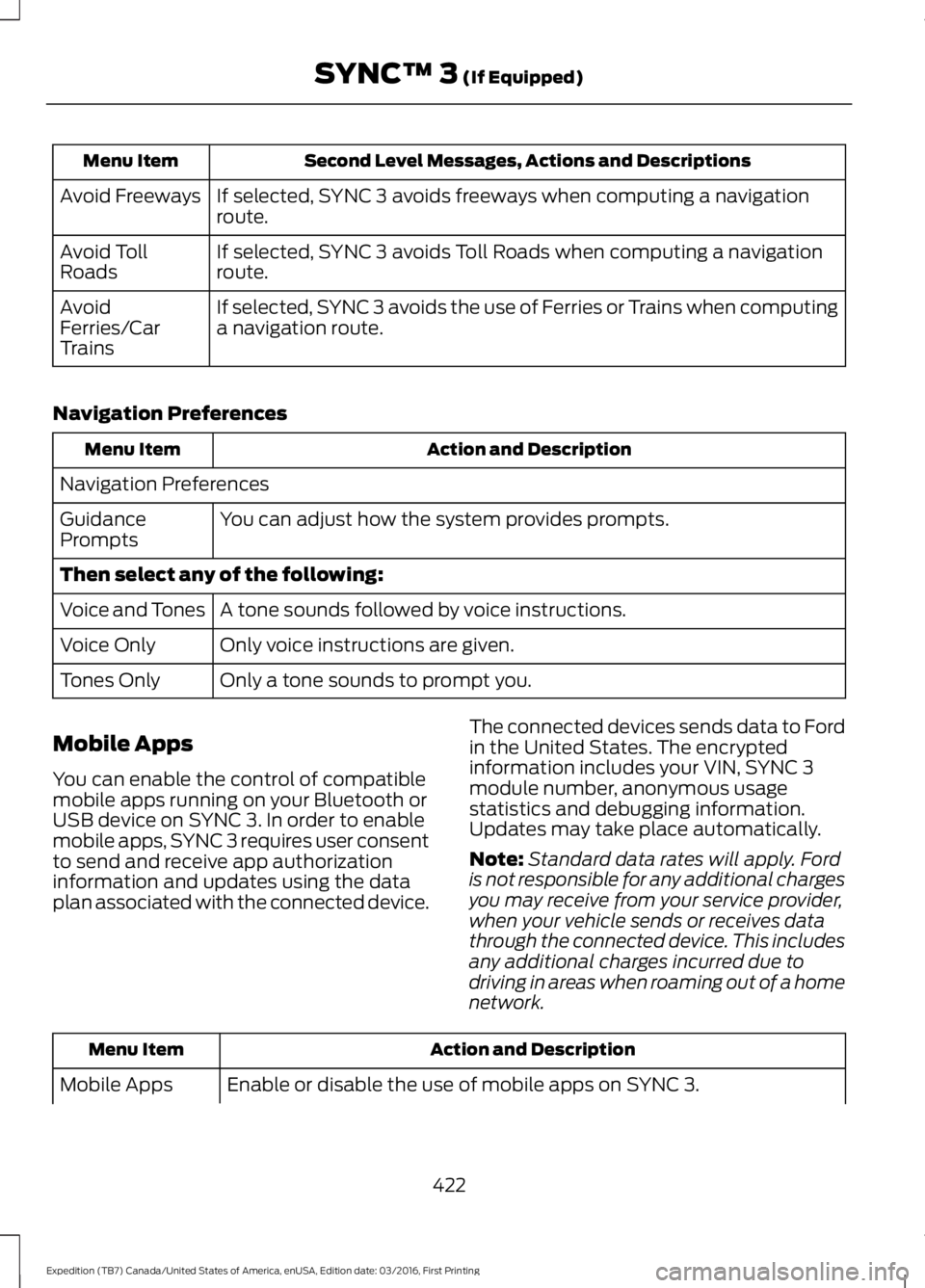
If selected, SYNC 3 avoids freeways when computing a navigationroute.Avoid Freeways
If selected, SYNC 3 avoids Toll Roads when computing a navigationroute.Avoid TollRoads
If selected, SYNC 3 avoids the use of Ferries or Trains when computinga navigation route.AvoidFerries/CarTrains
Navigation Preferences
Action and DescriptionMenu Item
Navigation Preferences
You can adjust how the system provides prompts.GuidancePrompts
Then select any of the following:
A tone sounds followed by voice instructions.Voice and Tones
Only voice instructions are given.Voice Only
Only a tone sounds to prompt you.Tones Only
Mobile Apps
You can enable the control of compatiblemobile apps running on your Bluetooth orUSB device on SYNC 3. In order to enablemobile apps, SYNC 3 requires user consentto send and receive app authorizationinformation and updates using the dataplan associated with the connected device.
The connected devices sends data to Fordin the United States. The encryptedinformation includes your VIN, SYNC 3module number, anonymous usagestatistics and debugging information.Updates may take place automatically.
Note:Standard data rates will apply. Fordis not responsible for any additional chargesyou may receive from your service provider,when your vehicle sends or receives datathrough the connected device. This includesany additional charges incurred due todriving in areas when roaming out of a homenetwork.
Action and DescriptionMenu Item
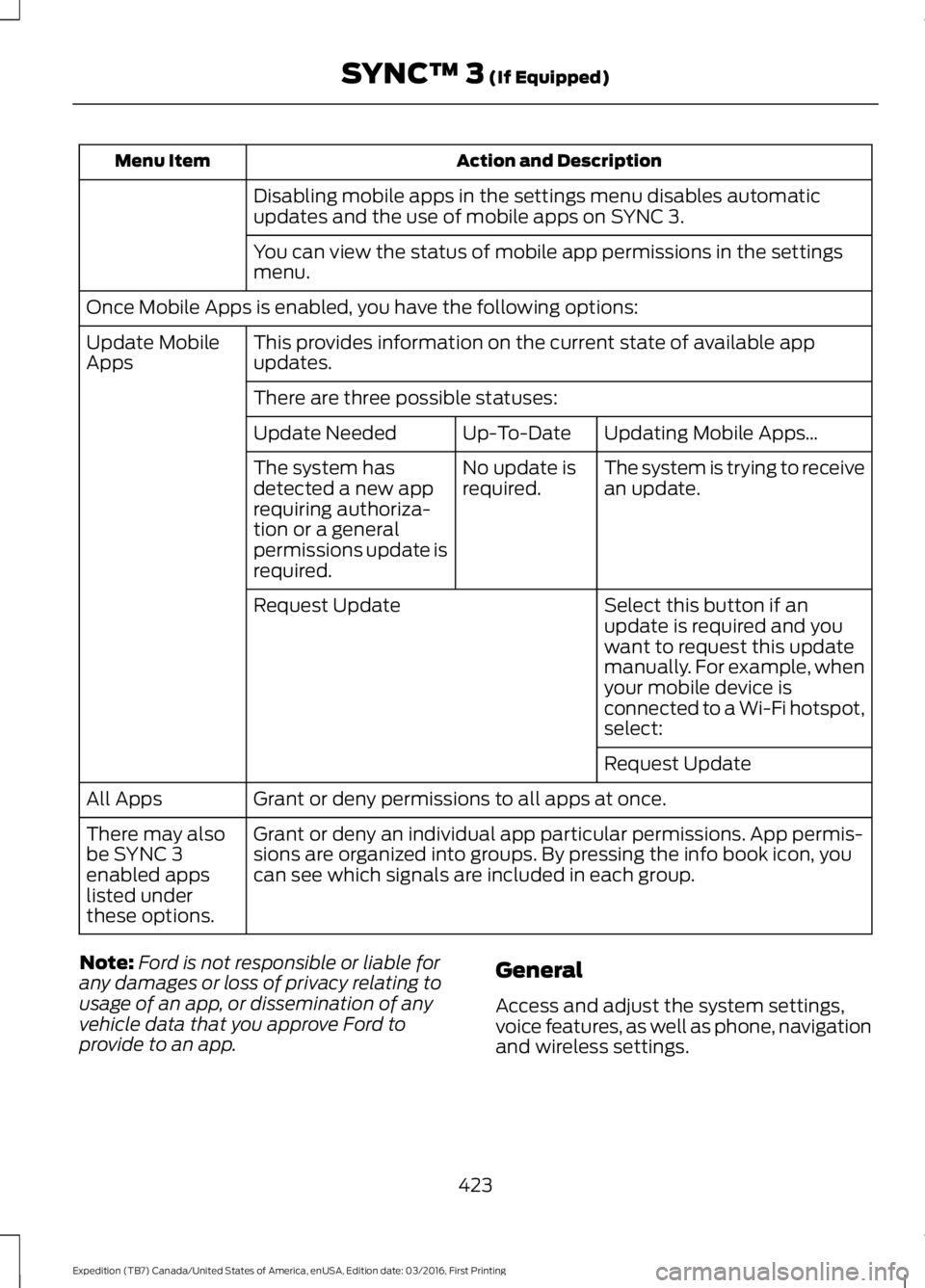
Enable or disable the use of mobile apps on SYNC 3.Mobile Apps
422
Expedition (TB7) Canada/United States of America, enUSA, Edition date: 03/2016, First Printing
SYNC™ 3 (If Equipped)
Page 426 of 500
Action and DescriptionMenu Item
Disabling mobile apps in the settings menu disables automaticupdates and the use of mobile apps on SYNC 3.
You can view the status of mobile app permissions in the settingsmenu.
Once Mobile Apps is enabled, you have the following options:
This provides information on the current state of available appupdates.Update MobileApps
There are three possible statuses:
Updating Mobile Apps…Up-To-DateUpdate Needed
The system is trying to receivean update.No update isrequired.The system hasdetected a new apprequiring authoriza-tion or a generalpermissions update isrequired.
Select this button if anupdate is required and youwant to request this updatemanually. For example, whenyour mobile device isconnected to a Wi-Fi hotspot,select:
Request Update
Request Update
Grant or deny permissions to all apps at once.All Apps
Grant or deny an individual app particular permissions. App permis-sions are organized into groups. By pressing the info book icon, youcan see which signals are included in each group.
There may alsobe SYNC 3enabled appslisted underthese options.
Note:Ford is not responsible or liable forany damages or loss of privacy relating tousage of an app, or dissemination of anyvehicle data that you approve Ford toprovide to an app.
General
Access and adjust the system settings,voice features, as well as phone, navigationand wireless settings.
423
Expedition (TB7) Canada/United States of America, enUSA, Edition date: 03/2016, First Printing
SYNC™ 3 (If Equipped)