2017 FORD EXPEDITION EL light
[x] Cancel search: lightPage 408 of 500
You can adjust the view in presetincrements. You can also pinch to zoom inor out of the map.
The information bar tells you the namesof streets, cities or landmarks as you hoverover them with the crosshair curser.
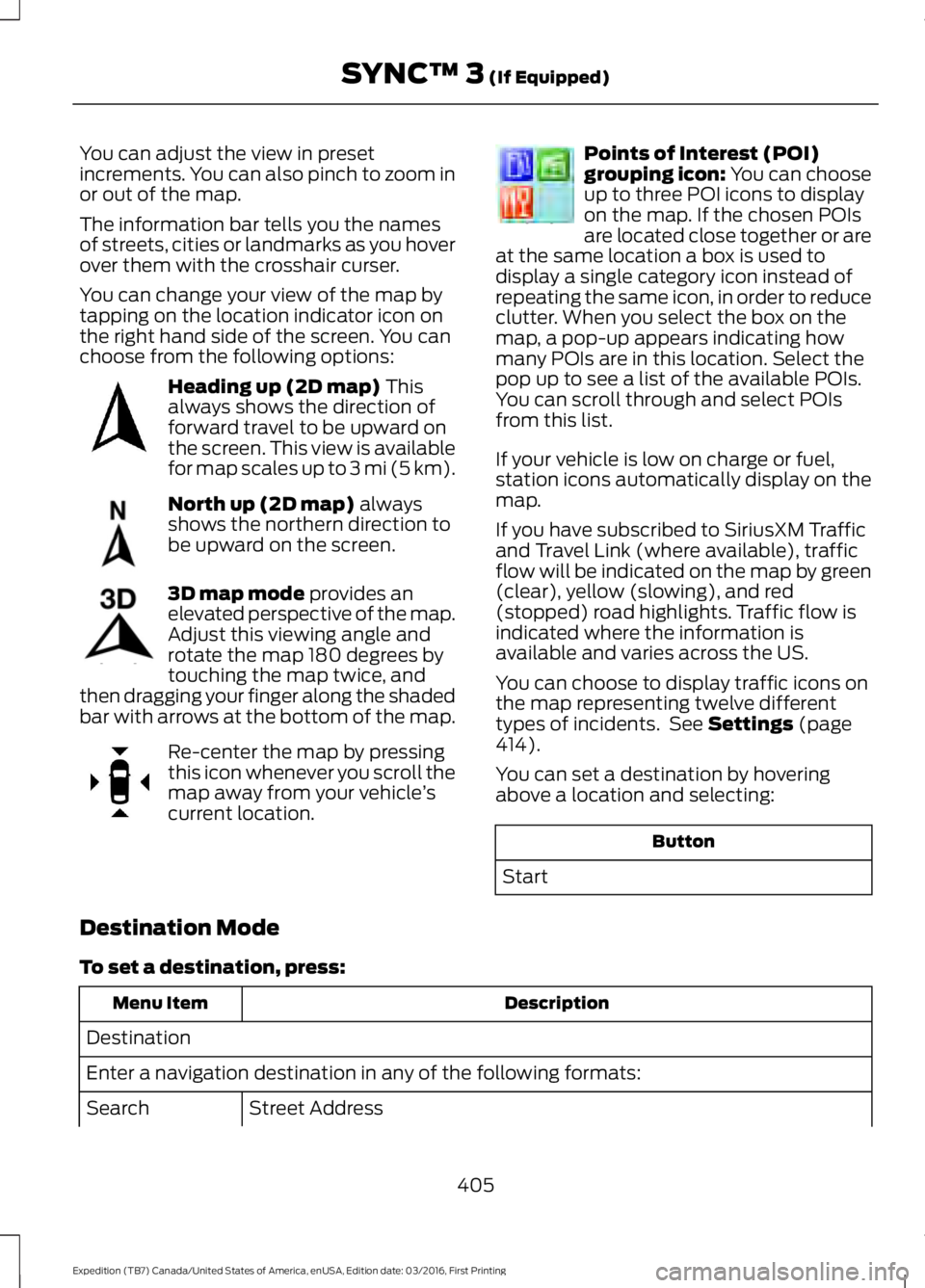
You can change your view of the map bytapping on the location indicator icon onthe right hand side of the screen. You canchoose from the following options:
Heading up (2D map) Thisalways shows the direction offorward travel to be upward onthe screen. This view is availablefor map scales up to 3 mi (5 km).
North up (2D map) alwaysshows the northern direction tobe upward on the screen.
3D map mode provides anelevated perspective of the map.Adjust this viewing angle androtate the map 180 degrees bytouching the map twice, andthen dragging your finger along the shadedbar with arrows at the bottom of the map.
Re-center the map by pressingthis icon whenever you scroll themap away from your vehicle’scurrent location.
Points of Interest (POI)grouping icon: You can chooseup to three POI icons to displayon the map. If the chosen POIsare located close together or areat the same location a box is used todisplay a single category icon instead ofrepeating the same icon, in order to reduceclutter. When you select the box on themap, a pop-up appears indicating howmany POIs are in this location. Select thepop up to see a list of the available POIs.You can scroll through and select POIsfrom this list.
If your vehicle is low on charge or fuel,station icons automatically display on themap.
If you have subscribed to SiriusXM Trafficand Travel Link (where available), trafficflow will be indicated on the map by green(clear), yellow (slowing), and red(stopped) road highlights. Traffic flow isindicated where the information isavailable and varies across the US.
You can choose to display traffic icons onthe map representing twelve differenttypes of incidents. See Settings (page414).
You can set a destination by hoveringabove a location and selecting:
Button
Start
Destination Mode
To set a destination, press:
DescriptionMenu Item
Destination
Enter a navigation destination in any of the following formats:
Street AddressSearch
405
Expedition (TB7) Canada/United States of America, enUSA, Edition date: 03/2016, First Printing
SYNC™ 3 (If Equipped)E207750 E207749 E207748 E207751 E207754
Page 414 of 500
cityseeker (If Equipped)
Note:cityseeker point of interest (POI)information is limited to approximately 1110cities (1049 in the United States, 36 inCanada and 15 in Mexico).
cityseeker, when available, is a service thatprovides more information about certainpoints of interest such as restaurants,hotels and attractions.
When you have selected a point of interest,the location and information appear, suchas address, phone number and a starrating.
Press More Information to see a photo,a review, a list of services and facilities, theaverage room or meal price and the webaddress. This screen displays the point ofinterest icons.
For restaurants, cityseeker can provideinformation such as star rating, averagecost, review, handicap access, hours ofoperation, and website address.
For hotels, cityseeker can provideinformation such as star rating, pricecategory, review, check-in and checkouttimes, hotel service icons and websiteaddress. Hotel service icons include:
•Restaurant
•Business center
•Handicap facilities
•Laundry
•Refrigerator
•24 hour room service
•Fitness center
•Internet access
•Pool
•Wi-Fi
Attractions include nearby landmarks,amusement parks, historic buildings andmore. cityseeker can provide informationsuch as star rating, reviews, hour ofoperation and admission price.
SiriusXM Traffic and Travel Link
SiriusXM Traffic and Travel Link is availableon vehicles equipped with navigation andonly in select markets. You must activateand subscribe to receive SiriusXM Trafficand Travel Link information. It helps youlocate the best gas prices, find movielistings, get current traffic alerts, view theweather map, get accurate ski conditionsand see current sports scores. See Apps(page 412).
The system calculates a reasonableefficient route based on available speedlimits, traffic, and road conditions. You mayknow a local short cut that is more efficientat a given time than the route provided bySYNC 3, but you should expect a slightdifference in minutes or miles with theSYNC 3 route.
Navigation Map Updates
Annual navigation map updates areavailable for purchase through yourdealership, by calling 1-866-462-8837 inthe United States and Canada or01-800-557-5539 in Mexico. You can alsovisit:
Website
www.navigation.com/sync
You need to specify the make and modelof your vehicle to determine if there is anupdate available.
411
Expedition (TB7) Canada/United States of America, enUSA, Edition date: 03/2016, First Printing
SYNC™ 3 (If Equipped)E225487
Page 428 of 500
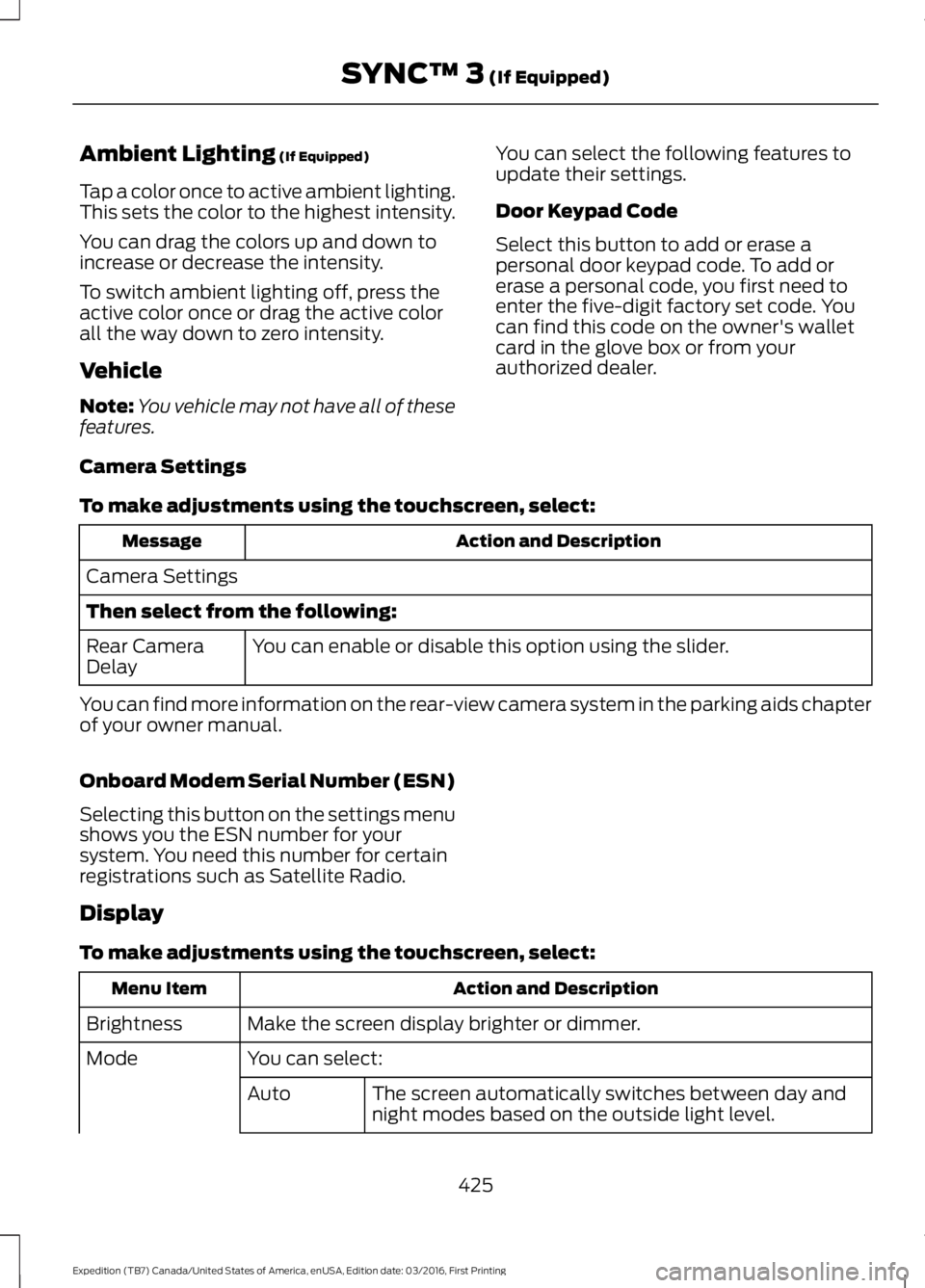
Ambient Lighting (If Equipped)
Tap a color once to active ambient lighting.This sets the color to the highest intensity.
You can drag the colors up and down toincrease or decrease the intensity.
To switch ambient lighting off, press theactive color once or drag the active colorall the way down to zero intensity.
Vehicle
Note:You vehicle may not have all of thesefeatures.
You can select the following features toupdate their settings.
Door Keypad Code
Select this button to add or erase apersonal door keypad code. To add orerase a personal code, you first need toenter the five-digit factory set code. Youcan find this code on the owner's walletcard in the glove box or from yourauthorized dealer.
Camera Settings
To make adjustments using the touchscreen, select:
Action and DescriptionMessage
Camera Settings
Then select from the following:
You can enable or disable this option using the slider.Rear CameraDelay
You can find more information on the rear-view camera system in the parking aids chapterof your owner manual.
Onboard Modem Serial Number (ESN)
Selecting this button on the settings menushows you the ESN number for yoursystem. You need this number for certainregistrations such as Satellite Radio.
Display
To make adjustments using the touchscreen, select:
Action and DescriptionMenu Item
Make the screen display brighter or dimmer.Brightness
You can select:Mode
The screen automatically switches between day andnight modes based on the outside light level.Auto
425
Expedition (TB7) Canada/United States of America, enUSA, Edition date: 03/2016, First Printing
SYNC™ 3 (If Equipped)
Page 429 of 500
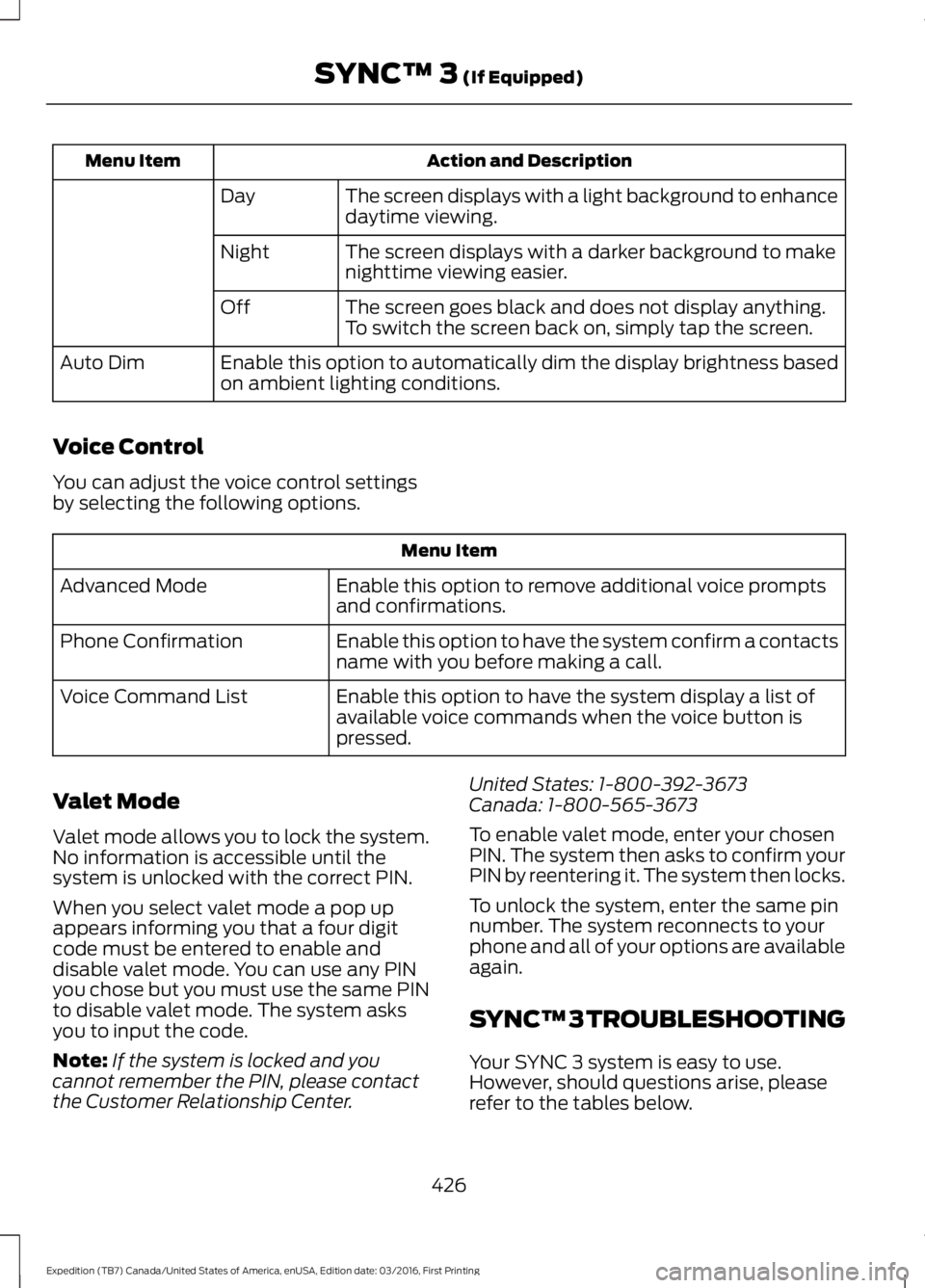
Action and DescriptionMenu Item
The screen displays with a light background to enhancedaytime viewing.Day
The screen displays with a darker background to makenighttime viewing easier.Night
The screen goes black and does not display anything.To switch the screen back on, simply tap the screen.Off
Enable this option to automatically dim the display brightness basedon ambient lighting conditions.Auto Dim
Voice Control
You can adjust the voice control settingsby selecting the following options.
Menu Item
Enable this option to remove additional voice promptsand confirmations.Advanced Mode
Enable this option to have the system confirm a contactsname with you before making a call.Phone Confirmation
Enable this option to have the system display a list ofavailable voice commands when the voice button ispressed.
Voice Command List
Valet Mode
Valet mode allows you to lock the system.No information is accessible until thesystem is unlocked with the correct PIN.
When you select valet mode a pop upappears informing you that a four digitcode must be entered to enable anddisable valet mode. You can use any PINyou chose but you must use the same PINto disable valet mode. The system asksyou to input the code.
Note:If the system is locked and youcannot remember the PIN, please contactthe Customer Relationship Center.
United States: 1-800-392-3673Canada: 1-800-565-3673
To enable valet mode, enter your chosenPIN. The system then asks to confirm yourPIN by reentering it. The system then locks.
To unlock the system, enter the same pinnumber. The system reconnects to yourphone and all of your options are availableagain.
SYNC™ 3 TROUBLESHOOTING
Your SYNC 3 system is easy to use.However, should questions arise, pleaserefer to the tables below.
426
Expedition (TB7) Canada/United States of America, enUSA, Edition date: 03/2016, First Printing
SYNC™ 3 (If Equipped)
Page 430 of 500
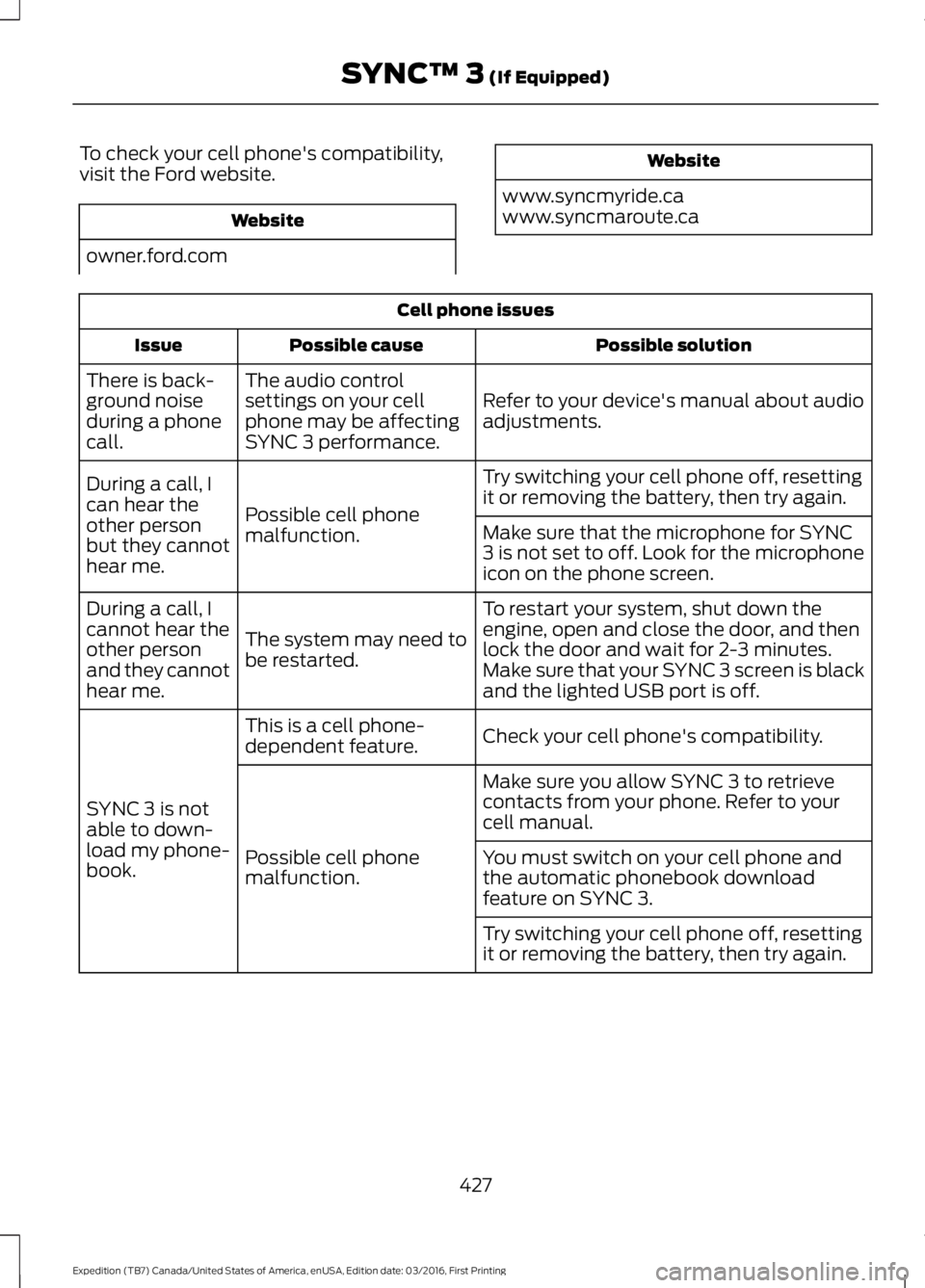
To check your cell phone's compatibility,visit the Ford website.
Website
owner.ford.com
Website
www.syncmyride.cawww.syncmaroute.ca
Cell phone issues
Possible solutionPossible causeIssue
Refer to your device's manual about audioadjustments.
The audio controlsettings on your cellphone may be affectingSYNC 3 performance.
There is back-ground noiseduring a phonecall.
Try switching your cell phone off, resettingit or removing the battery, then try again.Possible cell phonemalfunction.
During a call, Ican hear theother personbut they cannothear me.
Make sure that the microphone for SYNC3 is not set to off. Look for the microphoneicon on the phone screen.
To restart your system, shut down theengine, open and close the door, and thenlock the door and wait for 2-3 minutes.Make sure that your SYNC 3 screen is blackand the lighted USB port is off.
The system may need tobe restarted.
During a call, Icannot hear theother personand they cannothear me.
Check your cell phone's compatibility.This is a cell phone-dependent feature.
SYNC 3 is notable to down-load my phone-book.
Make sure you allow SYNC 3 to retrievecontacts from your phone. Refer to yourcell manual.
Possible cell phonemalfunction.You must switch on your cell phone andthe automatic phonebook downloadfeature on SYNC 3.
Try switching your cell phone off, resettingit or removing the battery, then try again.
427
Expedition (TB7) Canada/United States of America, enUSA, Edition date: 03/2016, First Printing
SYNC™ 3 (If Equipped)
Page 442 of 500

For a complete listing of the accessoriesthat are available for your vehicle, pleasecontact your authorized dealer or visit theonline store web site:
Web Address (United States)
www.Accessories.Ford.com
Web Address (Canada)
www.Accessories.Ford.ca
Ford Accessories are available for yourvehicle through an authorized Ford dealer.Ford Motor Company will repair or replaceany properly authorized dealer-installedFord Original Accessory found to bedefective in factory-supplied materials orworkmanship during the warranty period,as well as any component damaged by thedefective accessories.
Ford Custom Accessories are available foryour vehicle through an authorized dealer.Ford Motor Company will repair or replaceany properly authorized dealer-installedFord Original Accessory found to bedefective in factory-supplied materials orworkmanship during the warranty period,as well as any component damaged by thedefective accessories.
Ford Motor Company will warrant yourFord accessory through the warranty thatprovides the greatest benefit:
•24 months, unlimited mileage.
•The remainder of your new vehiclelimited warranty.
Contact an authorized dealer for detailsand a copy of the warranty.
Exterior Style
•Keyless entry.
•Side window deflectors.
•Sill plates.
•Splash guards.
Interior Style
•Floor mats.
•Rear seat entertainment system*.
•Seat covers.
Lifestyle
•Ash cup or coin holder.
•Cargo organization and management.
•Interior light kit.
•In-vehicle safe*.
•Roof rack and carriers*.
•SUV camping tent*.
•Trailer hitches, wiring harnesses andaccessories.
Peace of Mind
•Back-up alarm.
•Bumper protector.
•Car cover*.
•Cargo area protector.
•Cargo security shade.
•Hood deflector.
•Locking fuel plug.
•Park assist sensors.
•Remote start.
•Roadside assistance kit*.
•Vehicle security system.
•Wheel locks.
439
Expedition (TB7) Canada/United States of America, enUSA, Edition date: 03/2016, First Printing
Accessories
Page 448 of 500
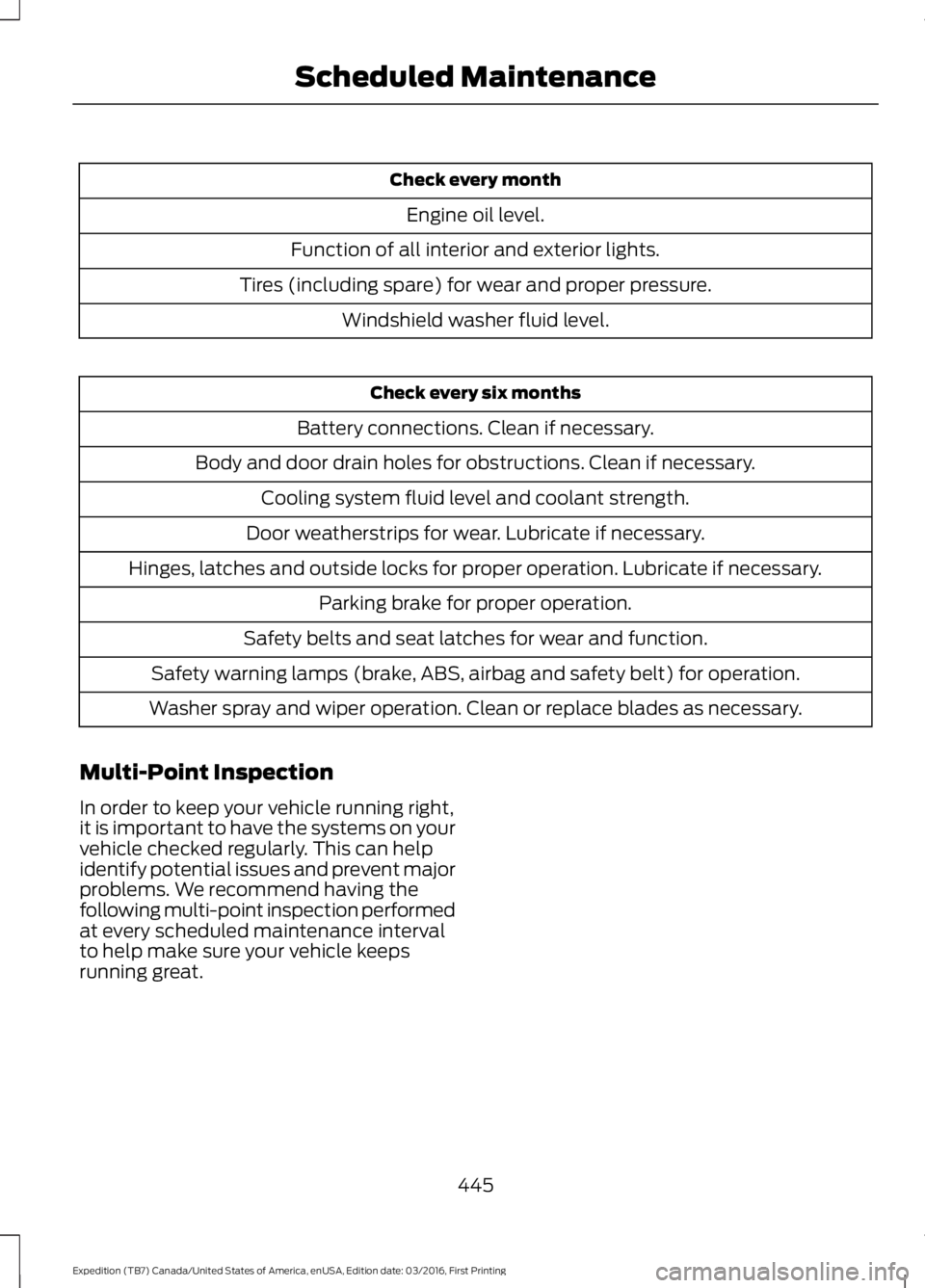
Check every month
Engine oil level.
Function of all interior and exterior lights.
Tires (including spare) for wear and proper pressure.
Windshield washer fluid level.
Check every six months
Battery connections. Clean if necessary.
Body and door drain holes for obstructions. Clean if necessary.
Cooling system fluid level and coolant strength.
Door weatherstrips for wear. Lubricate if necessary.
Hinges, latches and outside locks for proper operation. Lubricate if necessary.
Parking brake for proper operation.
Safety belts and seat latches for wear and function.
Safety warning lamps (brake, ABS, airbag and safety belt) for operation.
Washer spray and wiper operation. Clean or replace blades as necessary.
Multi-Point Inspection
In order to keep your vehicle running right,it is important to have the systems on yourvehicle checked regularly. This can helpidentify potential issues and prevent majorproblems. We recommend having thefollowing multi-point inspection performedat every scheduled maintenance intervalto help make sure your vehicle keepsrunning great.
445
Expedition (TB7) Canada/United States of America, enUSA, Edition date: 03/2016, First Printing
Scheduled Maintenance
Page 488 of 500
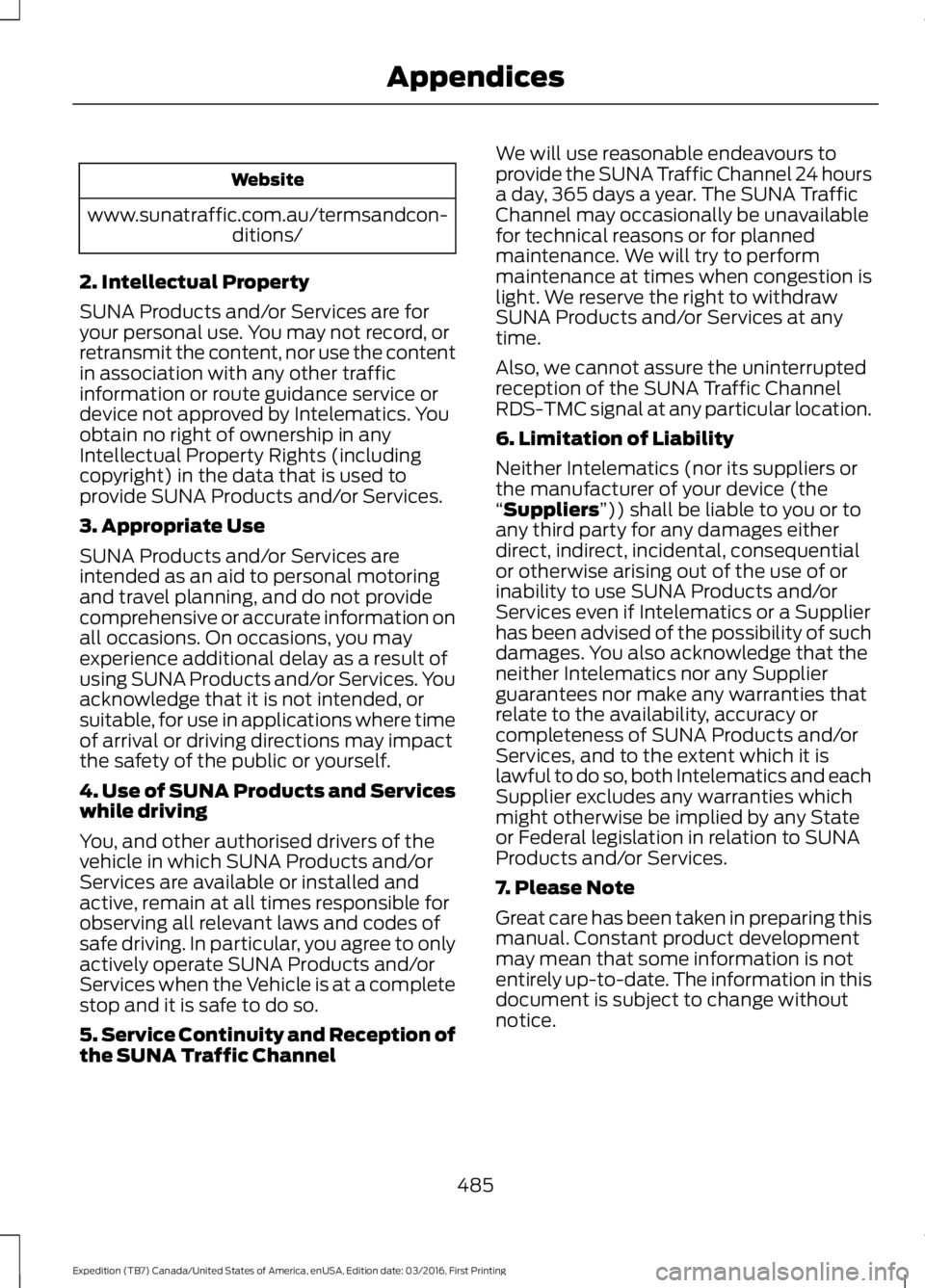
Website
www.sunatraffic.com.au/termsandcon-ditions/
2. Intellectual Property
SUNA Products and/or Services are foryour personal use. You may not record, orretransmit the content, nor use the contentin association with any other trafficinformation or route guidance service ordevice not approved by Intelematics. Youobtain no right of ownership in anyIntellectual Property Rights (includingcopyright) in the data that is used toprovide SUNA Products and/or Services.
3. Appropriate Use
SUNA Products and/or Services areintended as an aid to personal motoringand travel planning, and do not providecomprehensive or accurate information onall occasions. On occasions, you mayexperience additional delay as a result ofusing SUNA Products and/or Services. Youacknowledge that it is not intended, orsuitable, for use in applications where timeof arrival or driving directions may impactthe safety of the public or yourself.
4. Use of SUNA Products and Serviceswhile driving
You, and other authorised drivers of thevehicle in which SUNA Products and/orServices are available or installed andactive, remain at all times responsible forobserving all relevant laws and codes ofsafe driving. In particular, you agree to onlyactively operate SUNA Products and/orServices when the Vehicle is at a completestop and it is safe to do so.
5. Service Continuity and Reception ofthe SUNA Traffic Channel
We will use reasonable endeavours toprovide the SUNA Traffic Channel 24 hoursa day, 365 days a year. The SUNA TrafficChannel may occasionally be unavailablefor technical reasons or for plannedmaintenance. We will try to performmaintenance at times when congestion islight. We reserve the right to withdrawSUNA Products and/or Services at anytime.
Also, we cannot assure the uninterruptedreception of the SUNA Traffic ChannelRDS-TMC signal at any particular location.
6. Limitation of Liability
Neither Intelematics (nor its suppliers orthe manufacturer of your device (the“Suppliers”)) shall be liable to you or toany third party for any damages eitherdirect, indirect, incidental, consequentialor otherwise arising out of the use of orinability to use SUNA Products and/orServices even if Intelematics or a Supplierhas been advised of the possibility of suchdamages. You also acknowledge that theneither Intelematics nor any Supplierguarantees nor make any warranties thatrelate to the availability, accuracy orcompleteness of SUNA Products and/orServices, and to the extent which it islawful to do so, both Intelematics and eachSupplier excludes any warranties whichmight otherwise be implied by any Stateor Federal legislation in relation to SUNAProducts and/or Services.
7. Please Note
Great care has been taken in preparing thismanual. Constant product developmentmay mean that some information is notentirely up-to-date. The information in thisdocument is subject to change withoutnotice.
485
Expedition (TB7) Canada/United States of America, enUSA, Edition date: 03/2016, First Printing
Appendices