2017 FORD EDGE manual transmission
[x] Cancel search: manual transmissionPage 199 of 544

The system determines the clearance to
the front and rear of your vehicle and
automatically steers your vehicle out of a
parallel parking space (hands-free) while
you control the accelerator, gearshift and
brakes. The system visually and audibly
guides you to enter traffic.
After the system has directed your vehicle
past the adjacent vehicle or object, it
guides you to take control of the steering
to complete the exit from the parking spot.
Note:
If the clearance in front of your
vehicle allows easy departure, the Parallel
Park Out Assist feature might not be
available.
Note: You are responsible for controlling
your vehicle and making sure the path is
clear prior to pulling into traffic.
Note: This system is not intended to assist
in exiting perpendicular parking spaces,
damages to your vehicle may occur.
Note: If your vehicle speed exceeds 6 mph
(10 km/h) or the maneuver is interrupted
(driver input), the system switches off and
you need to take full control of your vehicle. Deactivating the Active Park
Assist Feature
Manually deactivate the system by:
•
Pressing the active park assist button
during an active maneuver.
• Grabbing the steering wheel during an
active maneuver.
• Driving above approximately
22 mph
(35 km/h) for 30 seconds during an
active park search.
• Driving above approximately
6 mph
(10 km/h) during automatic steering.
• Switching off the traction control
system.
Certain vehicle conditions can also
deactivate the system, such as:
• Traction control has activated.
• There is an anti-lock brake system
activation or failure.
If a problem occurs with the system, a
warning message displays accompanied
by a tone. Occasional system messages
may occur in normal operation. For
recurring or frequent system faults, contact
an authorized dealer to have your vehicle
serviced.
Troubleshooting the System The system does not look for a space
The traction control system may be off.
The transmission is in reverse (R). Your vehicle must be moving forward to be able to
detect a parking space.
196
Edge (CDQ) Canada/United States of America, enUSA, Edition date: 201608, First Printing Parking Aids
Page 203 of 544
The fixed and active guidelines fade in and
out depending on the steering wheel
position. The active guidelines do not
display when the steering wheel position
is straight.
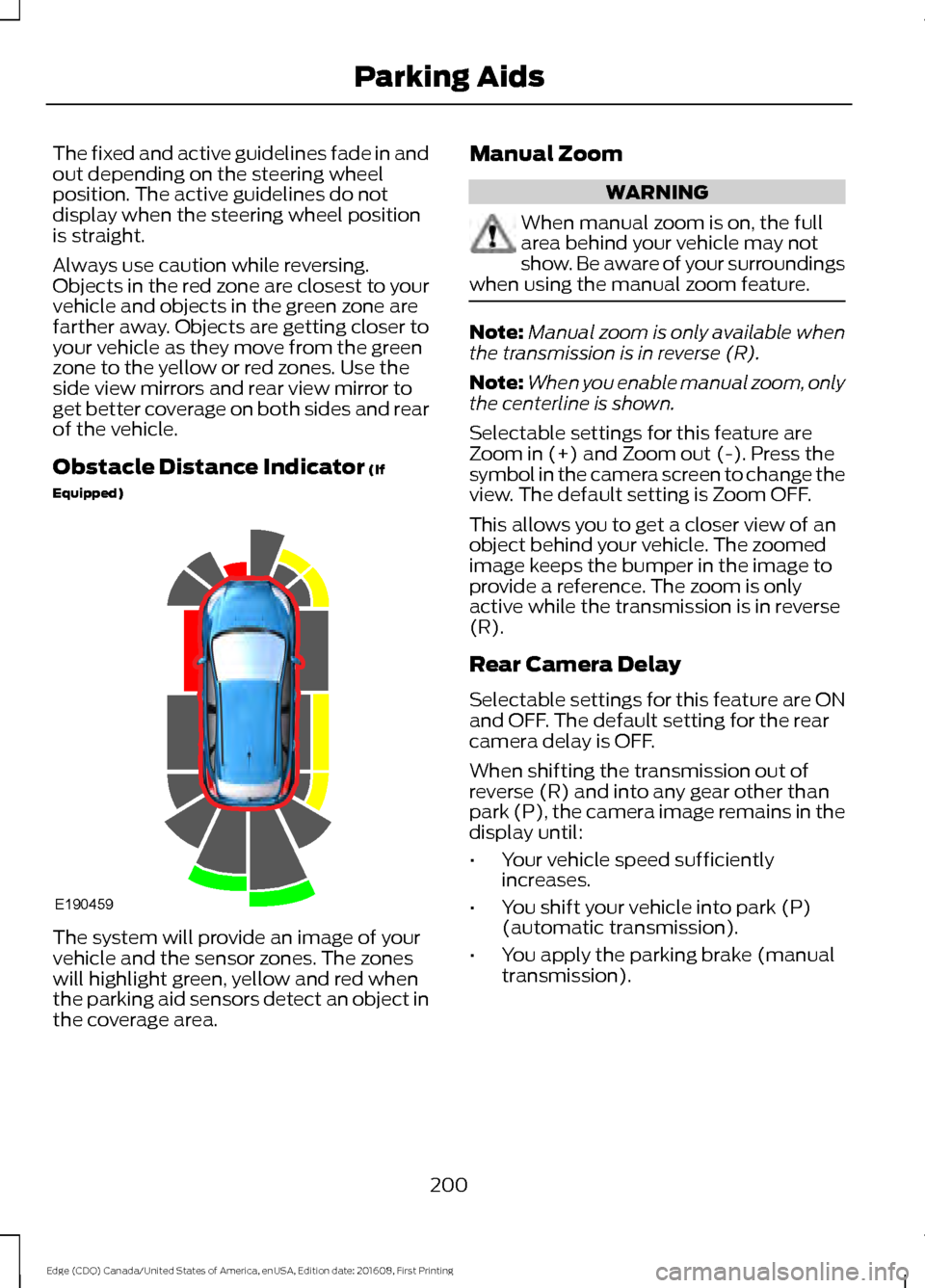
Always use caution while reversing.
Objects in the red zone are closest to your
vehicle and objects in the green zone are
farther away. Objects are getting closer to
your vehicle as they move from the green
zone to the yellow or red zones. Use the
side view mirrors and rear view mirror to
get better coverage on both sides and rear
of the vehicle.
Obstacle Distance Indicator (If
Equipped) The system will provide an image of your
vehicle and the sensor zones. The zones
will highlight green, yellow and red when
the parking aid sensors detect an object in
the coverage area. Manual Zoom WARNING
When manual zoom is on, the full
area behind your vehicle may not
show. Be aware of your surroundings
when using the manual zoom feature. Note:
Manual zoom is only available when
the transmission is in reverse (R).
Note: When you enable manual zoom, only
the centerline is shown.
Selectable settings for this feature are
Zoom in (+) and Zoom out (-). Press the
symbol in the camera screen to change the
view. The default setting is Zoom OFF.
This allows you to get a closer view of an
object behind your vehicle. The zoomed
image keeps the bumper in the image to
provide a reference. The zoom is only
active while the transmission is in reverse
(R).
Rear Camera Delay
Selectable settings for this feature are ON
and OFF. The default setting for the rear
camera delay is OFF.
When shifting the transmission out of
reverse (R) and into any gear other than
park (P), the camera image remains in the
display until:
• Your vehicle speed sufficiently
increases.
• You shift your vehicle into park (P)
(automatic transmission).
• You apply the parking brake (manual
transmission).
200
Edge (CDQ) Canada/United States of America, enUSA, Edition date: 201608, First Printing Parking AidsE190459
Page 218 of 544
Note:
The Blind Spot Information System
does not prevent contact with other vehicles
or objects; nor detect parked vehicles,
people, animals or infrastructure (fences,
guardrails, trees). It’ s only designed to alert
you to vehicles in the blind spot zones.
Note: When a vehicle passes quickly
through the blind spot zone, typically fewer
than two seconds, the system does not
trigger.
Using the System
The Blind Spot Information System turns
on when you start the engine and you drive
your vehicle forward above 5 mph
(8 km/h).
For automatic transmissions, the Blind
Spot Information System remains on while
the transmission is in drive (D). If shifted
into reverse (R) or park (P) the Blind Spot
Information System turns off. Once shifted
back into drive (D), the Blind Spot
Information System turns back on when
you drive your vehicle above
5 mph
(8 km/h).
For manual transmissions, the Blind Spot
Information System is on for all gears
except the reverse (R).
Note: The Blind Spot Information System
does not function in reverse (R) or park (P).
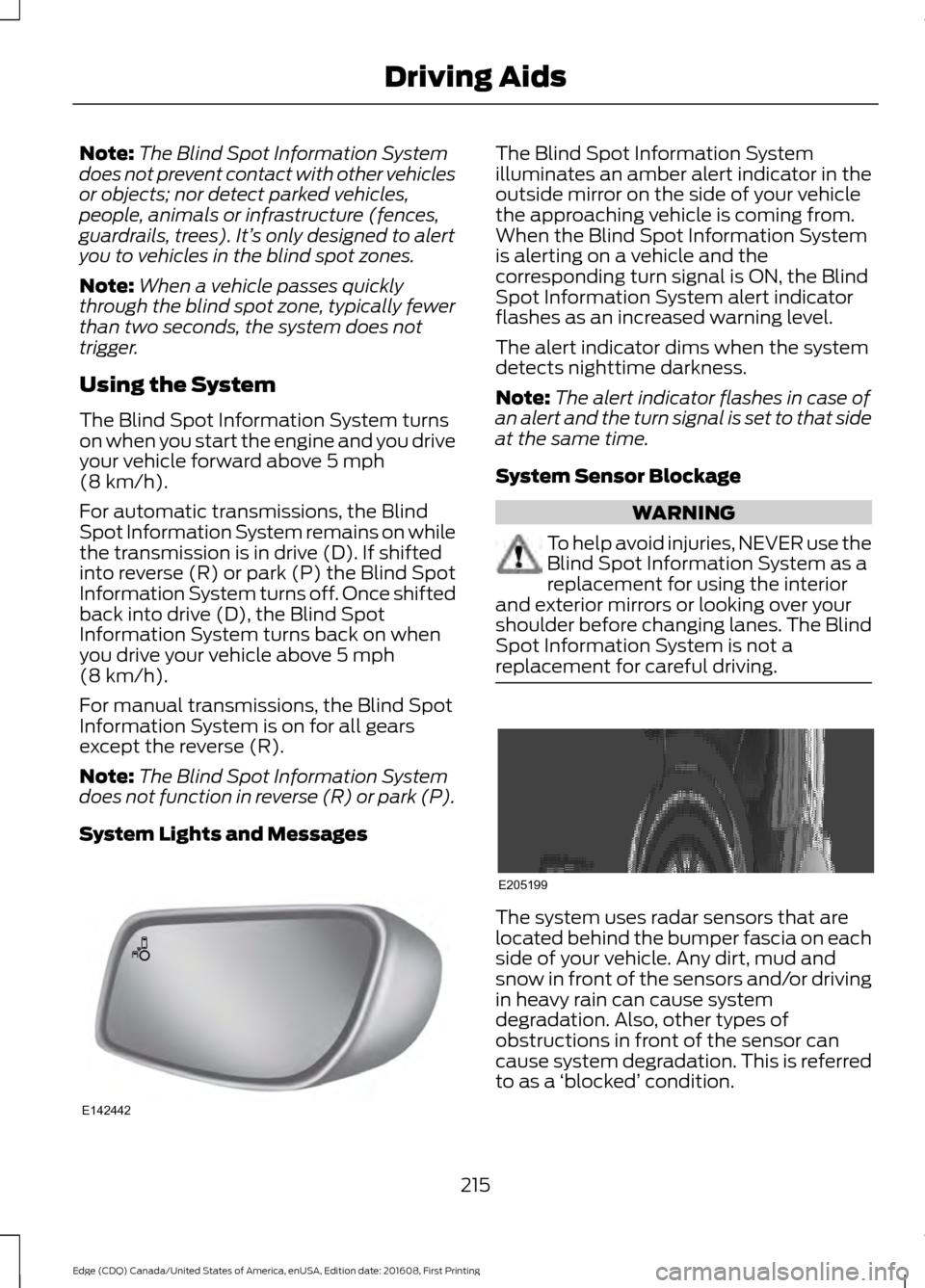
System Lights and Messages The Blind Spot Information System
illuminates an amber alert indicator in the
outside mirror on the side of your vehicle
the approaching vehicle is coming from.
When the Blind Spot Information System
is alerting on a vehicle and the
corresponding turn signal is ON, the Blind
Spot Information System alert indicator
flashes as an increased warning level.
The alert indicator dims when the system
detects nighttime darkness.
Note:
The alert indicator flashes in case of
an alert and the turn signal is set to that side
at the same time.
System Sensor Blockage WARNING
To help avoid injuries, NEVER use the
Blind Spot Information System as a
replacement for using the interior
and exterior mirrors or looking over your
shoulder before changing lanes. The Blind
Spot Information System is not a
replacement for careful driving. The system uses radar sensors that are
located behind the bumper fascia on each
side of your vehicle. Any dirt, mud and
snow in front of the sensors and/or driving
in heavy rain can cause system
degradation. Also, other types of
obstructions in front of the sensor can
cause system degradation. This is referred
to as a
‘blocked ’ condition.
215
Edge (CDQ) Canada/United States of America, enUSA, Edition date: 201608, First Printing Driving AidsE142442 E205199
Page 219 of 544

Note:
Do not apply bumper stickers and/or
repair compound to these areas, this can
cause degraded system performance.
If the system detects a degraded
performance condition, a message warning
of a blocked sensor will appear in the
information display. Also the BLIS alert
indicators will remain ON and BLIS will no
longer provide any vehicle warnings. You
can clear the information display warning
but the alert indicators will remain
illuminated.
A "blocked" condition can be cleared in
two ways:
• After the blockage in front of the
sensors is removed or the
rainfall/snowfall rate decreases or
stops, drive for a few minutes in traffic
to allow the sensors to detect passing
vehicles.
• By cycling the ignition from ON to OFF
and then back ON.
Note: If your vehicle has a tow bar with a
factory equipped trailer tow module and it
is towing a trailer, the sensors will
automatically turn the Blind Spot
Information System off. If your vehicle has
a tow bar but no factory equipped trailer
tow module, it is recommended to turn the
Blind Spot Information System off
manually. Operating the Blind Spot
Information System with a trailer attached
will cause poor system performance.
System Errors
If the system senses a problem with the
left or right sensor, the telltale will
illuminate and a message will appear in
the information display. See Information
Messages (page 113). Switching the System Off and On
You can temporarily switch the Blind Spot
Information System off in the information
display. See
General Information (page
104). When the Blind Spot Information
System switches off, you will not receive
alerts and the information display shows
a system off message. The telltale in the
cluster also illuminates. When you switch
the Blind Spot Information System on or
off, the alert indicators flash twice.
Note: The Blind Spot Information System
remembers the last selected on or off
setting.
You can also have the Blind Spot
Information System switched off
permanently at an authorized dealer. Once
switched off permanently, the system can
only be switched back on at an authorized
dealer.
CROSS TRAFFIC ALERT
(If
Equipped) WARNING
To help avoid personal injury, NEVER
use the Cross Traffic Alert system as
a replacement for using the interior
and exterior mirrors and looking over your
shoulder before backing out of a parking
space. Cross Traffic Alert is not a
replacement for careful driving. Cross Traffic Alert is designed to warn you
of vehicles approaching from the sides
when the transmission is in reverse (R).
Using the System
Cross Traffic Alert turns on when you start
the engine and you shift into reverse (R).
Once shifted out of reverse (R), Cross
Traffic Alert turns off.
216
Edge (CDQ) Canada/United States of America, enUSA, Edition date: 201608, First Printing Driving Aids
Page 222 of 544

Information System (page 214). If the
Blind Spot Information System is blocked,
Cross Traffic Alert is also blocked. A
corresponding message appears in the
information display as soon as you shift
the transmission into reverse (R).
System Limitations
Cross Traffic Alert has its limitations;
situations such as severe weather
conditions or debris build-up on the sensor
area may limit vehicle detection.
The following are other situations that may
limit the Cross Traffic Alert performance:
• Adjacently parked vehicles or objects
obstructing the sensors.
• Approaching vehicles passing at
speeds greater than
37 mph
(60 km/h).
• Driving in reverse faster than
7 mph
(12 km/h).
• Backing out of an angled parking spot.
False Alerts
Note: If your vehicle has a tow bar with a
factory equipped trailer tow module and it
is towing a trailer, the sensors will
automatically turn the Cross Traffic Alert
off. If your vehicle has a tow bar but no
factory equipped trailer tow module, it is
recommended to turn the Cross Traffic Alert
off manually. Operating Cross Traffic Alert
with a trailer attached will cause poor Cross
Traffic Alert performance.
There may be certain instances when there
is a false alert by the Cross Traffic Alert
system that illuminates the alert indicator
with no vehicle in the coverage zone. Some
amount of false alerts are normal; they are
temporary and self-correct. System Errors
If Cross Traffic Alert senses a problem with
the left or right sensor a message will
appear in the information display. See
Information Messages
(page 113).
Switching the System Off and On
You can temporarily switch Cross Traffic
Alert off in the information display. See
General Information
(page 104). When
you switch Cross Traffic Alert off, you will
not receive alerts and the information
display will display a system off message.
Note: The Cross Traffic Alert switches on
whenever the ignition is switched on and
ready to provide appropriate alerts when
the transmission is in reverse (R). Cross
Traffic Alert will not remember the last
selected on or off setting.
You can also have Cross Traffic Alert
switched off permanently at an authorized
dealer. Once switched off permanently,
the system can only be switched back on
at an authorized dealer.
STEERING
Electric Power Steering WARNINGS
The electric power steering system
has diagnostic checks that
continuously monitor the system. If
a fault is detected, a message displays in
the information display. Stop your vehicle
as soon as it is safe to do so. Switch the
ignition off. After at least 10 seconds,
switch the ignition on and watch the
information display for a steering system
warning message. If a steering system
warning message returns, have the system
checked as soon as possible.
219
Edge (CDQ) Canada/United States of America, enUSA, Edition date: 201608, First Printing Driving Aids
Page 376 of 544

Other features, such as text messaging
using Bluetooth and automatic phonebook
download, are phone-dependent features.
To check your phone's compatibility, see
your phone's manual and visit
www.SYNCMyRide.com,
www.SYNCMyRide.ca or
www.syncmaroute.ca.
Pairing a Phone for the First Time
Wirelessly pairing your phone with SYNC
allows you to make and receive hands-free
calls.
Note:
SYNC can support downloading up
to approximately 4000 entries per
Bluetooth-enabled cellular phone.
Note: Make sure to switch on the ignition
and the radio. Shift the transmission into
park (P) for automatic transmission or first
gear for manual transmission.
Using the Audio System
Note: To scroll through the menus, press
the up and down arrows on your audio
system.
1. Make sure to switch on your phone's Bluetooth feature before starting the
search. See your device's manual if
necessary.
2. Press the PHONE button. When the
audio display indicates there is no
paired phone, select the option to add.
3. When a message to begin pairing appears in the audio display, search for
SYNC on your phone to start the pairing
process. 4. When prompted on your cell phone
’s
display, confirm that the PIN provided
by SYNC matches the PIN displayed
on your cell phone. Your phone is now
paired and the display indicates that
the pairing was successful. If you are
prompted to enter a PIN on your device,
enter the PIN displayed on the screen.
The display indicates when the pairing
is successful.
Depending on your phone's capability and
your market, the system may prompt you
with questions, such as setting the current
phone as the primary phone (the phone
SYNC automatically tries to connect with
first upon vehicle start-up) and
downloading your phonebook.
Using Voice Commands Make sure to switch on your
phone's Bluetooth feature
before starting the search. See
your device's manual if necessary.
Press the voice and when prompted
say: Action and Descrip-
tion
Voice Command
Follow the instruc-
tions on the audio
display.
(pair ([Bluetooth]
device | phone |
Bluetooth audio) |
add phone)
You can say any of the voice commands
that appear within open and close brackets
that are separated by |. For example,
where; (what's | what is) appears you say;
what's or what is.
The commands that have [ ] around the
word means that the word is optional.
373
Edge (CDQ) Canada/United States of America, enUSA, Edition date: 201608, First Printing SYNC™E142599
Page 377 of 544

Depending on your phone's capability and
your market, the system may prompt you
with questions, such as setting the current
phone as the primary phone (the phone
SYNC automatically tries to connect with
first upon vehicle start-up) and
downloading your phonebook.
Pairing Subsequent Phones
Note:
Make sure to switch on the ignition
and the radio. Shift the transmission into
park (P) for automatic transmission or first
gear for manual transmission.
Note: To scroll through the menus, press
the up and down arrows on your audio
system.
1. Make sure to switch on your phone's Bluetooth feature before starting the
search. See your device's manual if
necessary.
2. Press the PHONE button.
3. Select the option for Bluetooth Devices.
4. Press the
OK button.
5. Select the option to add. This starts the pairing process.
6. When a message to begin pairing appears in the audio display, search for
SYNC on your device.
7. When prompted on your cell phone ’s
display, confirm that the PIN provided
by SYNC matches the PIN displayed
on your cell phone. Your phone is now
paired and the display indicates that
the pairing was successful. If you are
prompted to enter a PIN on your device,
enter the PIN displayed on the screen.
The display indicates when the pairing
is successful. SYNC may prompt you with more cell
phone options. Your cell phone may also
prompt you to give SYNC permission to
access information. For more information
on your cell phone
’s capability, see your
cell phone ’s manual and visit the website.
Phone Voice Commands Press the voice button. When
prompted, say any of the
following:
Voice Command
(phone | Blackberry | iPhone)
Then say any of the following:
call (___)
call ___ at home
call ___ ((in|at) [the] office | at work)
call ___ on (cell | mobile)
call ___ on other 1
dial [[a] number]
2
([go to] privacy | transfer to phone
| privacy on)
2
(hold call [on] | place call on hold)
2
join (calls | call)
2
mute call [on]
2
(mute call off | un-mute call)
(turn ringer on | silent mode off)
(turn ringer off | silent mode [on])
374
Edge (CDQ) Canada/United States of America, enUSA, Edition date: 201608, First Printing SYNC™E142599
Page 534 of 544

1
180 Degree Camera.....................................201
Camera Views...................................................... 201
Using the 180 degree camera system........201
A
A/C See: Climate Control......................................... 128
About This Manual...........................................7
ABS See: Brakes........................................................... 180
ABS driving hints See: Hints on Driving With Anti-Lock
Brakes................................................................ 180
Accessories
....................................................482
Exterior Style....................................................... 482
Interior Style........................................................ 482
Lifestyle................................................................. 482
Peace of Mind..................................................... 482
Accessories See: Replacement Parts
Recommendation............................................ 12
ACC See: Using Adaptive Cruise Control............203
Active Park Assist.........................................192 Deactivating the Active Park Assist
Feature.............................................................. 196
Parallel Parking, Perpendicular Parking, Parallel Park Out Assist............................... 192
Troubleshooting the System......................... 196
Adjusting the Headlamps.........................283 Vertical Aim Adjustment................................. 283
Adjusting the Steering Wheel - Vehicles With: Manual Adjustable Steering
Column............................................................78
Adjusting the Steering Wheel - Vehicles With: Power Adjustable Steering
Column............................................................78
Easy Entry and Exit Feature.............................. 79
End of Travel Position......................................... 79
Memory Feature.................................................... 79
Airbag Disposal..............................................50
Air Conditioning See: Climate Control......................................... 128
Air Filter See: Changing the Engine Air Filter............289 Alarm
See: Anti-Theft Alarm........................................ 76
All-Wheel Drive
..............................................175
Ambient Lighting.............................................91
Anti-Theft Alarm............................................76
Arming the Alarm................................................. 76
Disarming the Alarm........................................... 76
Appendices....................................................505
Apps.................................................................454 ........................................................................\
.......... 454
SiriusXM Traffic and Travel Link..................456
At a Glance........................................................16
Audible Warnings and Indicators...........103 Headlamps On Warning Chime....................103
Key in Ignition Warning Chime.......................103
Keyless Warning Alert....................................... 103
Parking Brake On Warning Chime................103
Audio Control - Vehicles With: Voice Control.............................................................79
Seek, Next or Previous........................................ 79
Audio Control - Vehicles Without: Voice Control.............................................................79
MEDIA...................................................................... 80
Seek, Next or Previous....................................... 80
Audio System................................................353 General Information......................................... 353
Audio Unit - Vehicles With: AM/FM/CD/ SYNC.............................................................358
Audio Unit - Vehicles With: Premium AM/FM/CD.................................................360
Audio Unit - Vehicles With: Sony AM/ FM/CD...........................................................354
Menu Structure................................................... 355
Autolamps
........................................................86
Windshield Wiper Activated
Headlamps........................................................ 86
Automatic Climate Control - Vehicles With: Dual Automatic Temperature
Control (DATC)/Premium AM/FM/
CD....................................................................129
Automatic Climate Control - Vehicles With: Sony Audio System
........................131
Automatic High Beam Control.................88 Activating the System........................................ 88
Manually Overriding the System.................... 89
Automatic Transmission
.............................171
Automatic Transmission Adaptive
Learning............................................................. 173
531
Edge (CDQ) Canada/United States of America, enUSA, Edition date: 201608, First Printing Index