2017 FIAT TIPO 5DOORS STATION WAGON buttons
[x] Cancel search: buttonsPage 229 of 264
SWITCHING THE SYSTEM
ON/OFF
The system is switched on/off by
pressing the
button/knob.
Turn the button/knob clockwise to
increase the radio volume or
anticlockwise to decrease it. The
electronic volume adjustment control
rotates continuously (360°) in both
directions, without stop positions.
RADIO MODE
To activate Radio mode press the
RADIO button on the front panel and
the following information will appear on
the display:
At the top: the list of radio stations
stored (preset) is displayed; the station
being listened to is highlighted.
In the middle: display of the name of
the current radio station and the
buttons for selecting the previous or
next radio station.
At the bottom: display of the following
buttons:
"Browse": list of the radio stations
available;
"AM/FM", "AM/DAB", "FM/DAB":
selection of the desired frequency band
(button reconfigurable according to the
band selected: AM, FM or DAB);
"Tune" : manual radio station tuning
(not available for DAB radios);
"Info": additional information on the
source being listened to;
"Audio": access to the "Audio
setting" screen.
Audio menu
To access the "Audio" menu press the
Audio" button
on the front panel or
the "Audio" graphic button located at
the bottom of the display.
The following adjustments can be
carried out using the "Audio" menu:
"Equalizer" (for versions/markets,
where provided);
"Balance/Fader" (left/right and
front/rear audio balance adjustment);
"Speed/Volume" (speed-dependent
automatic volume control);
"Loudness" (for versions/markets,
where provided);
"Auto-On Radio";
To exit the "Audio" menu, press the
/Done button.
MEDIA MODE
Press the "Source" button to select the
desired audio source among those
available: AUX, USB, iPod and
Bluetooth®.
Applications used on portable devices
may be not compatible with the
Uconnect™system.Track selection (Browse)
Use this function to scroll through and
select the tracks on the active device.
The choices available depend on the
device connected.
For example, on a USB/iPod device you
can also scroll through the list of artists,
genres and albums available on the
device depending on the information
present on the tracks using the
BROWSE ENTER button/knob.
Within each list, the "ABC" button
allows the user to skip to the desired
letter in the list.
NOTE This button might be disabled for
some
Apple®devices.
NOTE The BROWSE ENTER button
does not allow any operation on an
AUX device.
Press the BROWSE ENTER button to
activate this function on the source
being played.
Turn the BROWSE ENTER button/knob
to select the desired category and then
press the button/knob to confirm the
selection.
Press the
button on the front panel
to cancel the function.
Bluetooth® SOURCE
This mode is activated by pairing a
Bluetooth®device containing music
tracks with the system.
227
Page 230 of 264
PAIRING A Bluetooth®
AUDIO DEVICE
To pair aBluetooth®audio device,
proceed as follows:
activate theBluetooth®function on
the device;
press the MEDIA button on the front
panel;
if the "Media" source is active, press
the "Source" button;
select theBluetooth®Media
source;
press the "Add Device" button;
search forUconnect™on the
Bluetooth®audio device (during the
pairing stage a screen is displayed
showing the progress of the operation);
when requested by the audio device,
enter the PIN code shown on the
system display or confirm on the device
the PIN displayed;
if the pairing procedure is completed
successfully, a screen is displayed.
Answer "Yes" to the question to pair the
Bluetooth®audio device as favourite
(the device will have priority over all
other devices to be paired
subsequently). If "No" is selected, the
priority is determined according to the
order of connection. The last device
connected will have the highest priority;
an audio device can also be paired
by pressing the PHONE button on the
front panel and by selecting "Settings"
or, from the "Settings" menu, selecting"Phone/Bluetooth".
WARNING If the
Bluetooth®
connection between mobile phone and
system is lost, consult the mobile
phone handbook.
USB/iPod SOURCE
To activate the USB/iPod mode insert
the corresponding device (USB or iPod)
in the USB port located in the central
console.
When a USB/iPod device is inserted
with the radio on, it starts to play the
tracks on the device if the “AutoPlay” is
set to ON in the “Audio” menu.
AUX SOURCE
To activate AUX mode, insert an
appropriate device in the AUX socket
on the vehicle.
When a device is inserted using the
AUX output socket the system starts
reproducing the AUX source
connected, if it is already being played.
Adjust the volume using the
button/knob on the front panel or
using the volume adjustment control on
the connected device.
IMPORTANT NOTES
The functions of the device connected
with the AUX socket are directly
managed by the device itself: it is not
possible to change track/folder/playlistor control playing start/end/pause with
the controls on the front panel or on the
steering wheel.
Do not leave the cable of your portable
player connected to the AUX socket
after disconnection, to avoid possible
hiss from the speakers.
PHONE MODE
PHONE MODE ACTIVATION
Press the PHONE button on the front
panel to activate the Phone mode.
NOTE To consult the list of mobile
phones and supported functions, visit
the www.DriveUconnect.eu website.
Use the buttons on the display to:
dial the phone number (using the
graphic keypad on the display);
display and call the contacts in the
mobile phone phonebook;
display and call contacts from the
registers of previous calls;
pair up to 10 phones/audio devices
to make access and connection easier
and quicker;
transfer calls from the system to the
mobile phone and vice versa and
deactivate the microphone audio for
private conversations.
The mobile phone audio is transmitted
through the vehicle’s audio system; the
system automatically mutes the radio
when the Phone function is used.
228
MULTIMEDIA
Page 238 of 264
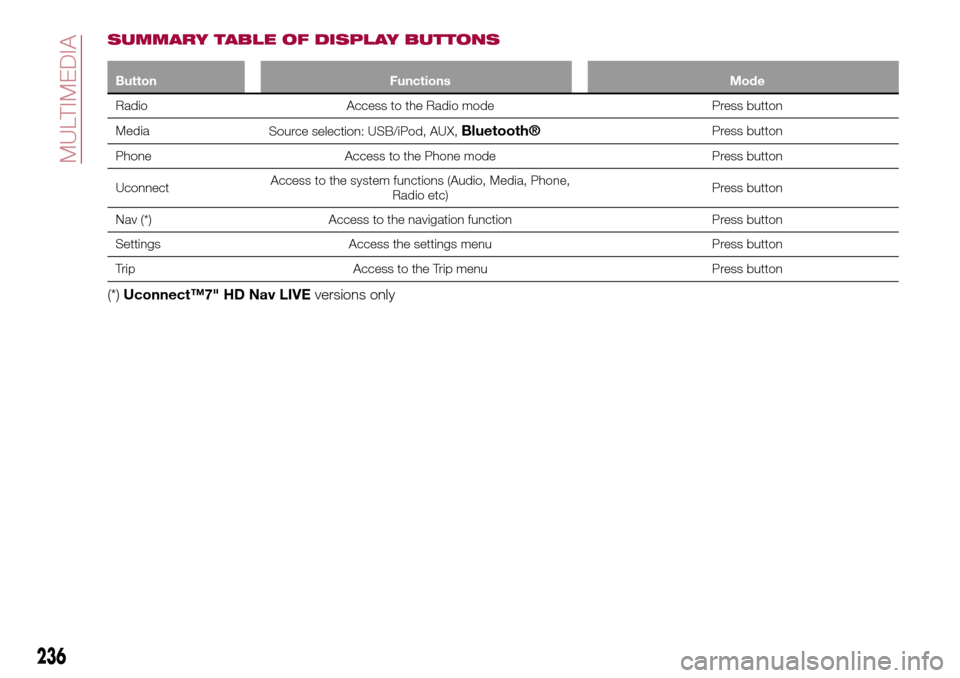
SUMMARY TABLE OF DISPLAY BUTTONS
Button Functions Mode
Radio Access to the Radio mode Press button
Media
Source selection: USB/iPod, AUX,
Bluetooth®Press button
Phone Access to the Phone mode Press button
UconnectAccess to the system functions (Audio, Media, Phone,
Radio etc)Press button
Nav (*) Access to the navigation function Press button
Settings Access the settings menu Press button
Trip Access to the Trip menu Press button
(*)Uconnect™7" HD Nav LIVEversions only
236
MULTIMEDIA
Page 241 of 264
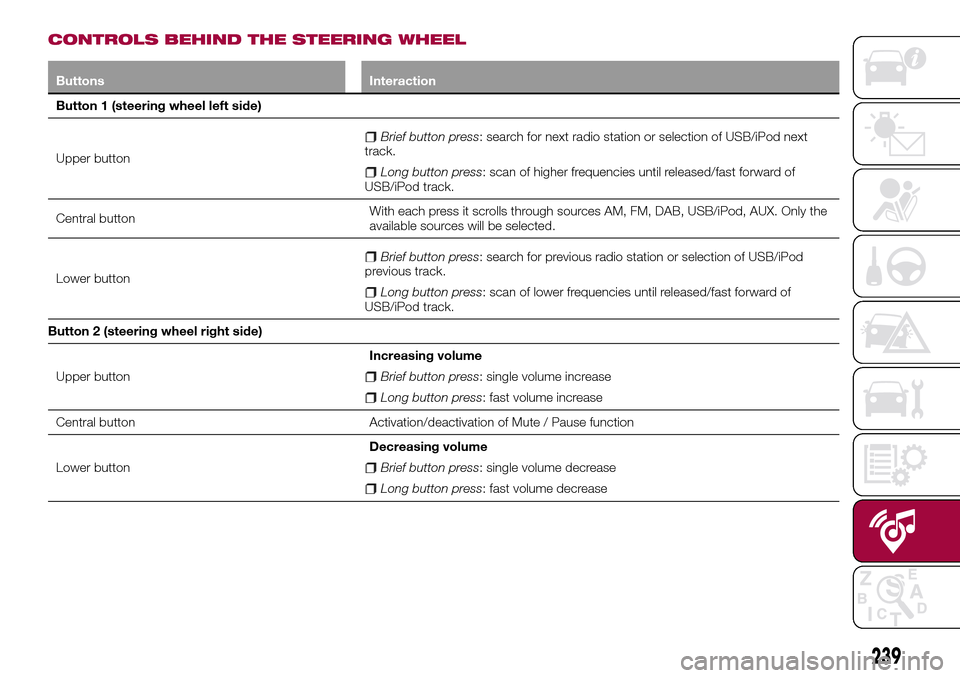
CONTROLS BEHIND THE STEERING WHEEL
Buttons Interaction
Button 1 (steering wheel left side)
Upper button
Brief button press: search for next radio station or selection of USB/iPod next
track.
Long button press: scan of higher frequencies until released/fast forward of
USB/iPod track.
Central buttonWith each press it scrolls through sources AM, FM, DAB, USB/iPod, AUX. Only the
available sources will be selected.
Lower button
Brief button press: search for previous radio station or selection of USB/iPod
previous track.
Long button press: scan of lower frequencies until released/fast forward of
USB/iPod track.
Button 2 (steering wheel right side)
Upper buttonIncreasing volume
Brief button press: single volume increase
Long button press: fast volume increase
Central button Activation/deactivation of Mute / Pause function
Lower buttonDecreasing volume
Brief button press: single volume decrease
Long button press: fast volume decrease
239
Page 242 of 264
SWITCHING THE SYSTEM
ON/OFF
The system is switched on/off by
pressing the
button/knob.
Turn the button/knob clockwise to
increase the radio volume or
anticlockwise to decrease it. The
electronic volume adjustment control
rotates continuously (360°) in both
directions, without stop positions.
RADIO MODE
After the desired radio station is
selected, the following information is
shown on the display:
At the top: the list of radio stations
stored (preset) is displayed; the station
being listened to is highlighted.
At the centre: the name of station
being listened too is displayed.
On the left side: the "AM", "FM",
"DAB” (for versions/markets, where
provided) buttons to select the desired
frequency band are displayed (the
button corresponding to the selected
band is highlighted);
On the right: display of the following
buttons:
"Info": additional information on the
source being listened to;
"Map": navigation map view
(Uconnect™7" HD Nav LIVEversions
only).At the bottom: display of the following
buttons:
“Browse": list of the radio stations
available;
/selection of the
previous/next radio station;
“Tune” : manual radio station tuning;
"Audio": access to the "Audio
settings" screen.
Audio menu
To access the "Audio" menu press the
Audio" button located at the bottom of
the display.
The following adjustments can be
carried out using the "Audio" menu:
“Balance & Fade" (left/right and
front/rear audio balance adjustment);
"Equalizer" (where provided);
“Speed Adj Volume" (speed-
dependent automatic volume control);
"Loudness" (where provided);
“AUX Volume Offset” (only active if an
AUX device is inserted);
“AutoPlay”;
"Auto-On Radio".
MEDIA MODE
Press the "Media" button to select the
desired audio source among those
available: USB/iPod,
Bluetooth®,
AUX.
IMPORTANT Applications used on
portable devices may be notcompatible with theUconnect™
system.
After Media mode is selected, the
following information is shown on the
display:
At the top: information on the track
being played and the following graphic
buttons:
"Repeat": to repeat the track being
played;
“Shuffle": to play the tracks in
random order;
Track progress and duration.
In the middle: information on the track
being played.
On the left: display of the following
buttons:
Selected device or audio source;
"Select device": select the required
audio source.
On the right: display of the following
buttons:
"Info": additional information on the
track being played;
"Tracks": list of available tracks.
"Map": navigation map view
(Uconnect™7" HD Nav LIVEversions
only).
At the bottom: information on the
track being played and the following
graphic buttons:
“Bluetooth”: for a Bluetooth(R) audio
source, opens the list of devices;
240
MULTIMEDIA
Page 243 of 264
“Browse” for a USB source, opens
browsing;
/: select previous/next
track;
: pause track being played;
"Audio": access to the "Audio
settings" screen.
Track selection
The “Tracks” function allows you to
open a window with the list of tracks
being played.
The choices available depend on the
device connected. For example, on a
USB/iPod device you can also scroll
through the list of artists, genres and
albums available on the device
depending on the information present
on the tracks using the BROWSE
ENTER button/knob or by means of the
egraphic buttons.
Within each list, the "ABC" button
allows the user to skip to the desired
letter in the list.
NOTE This button might be disabled for
some
Apple®devices.
NOTE The BROWSE ENTER button
does not allow any operation on an
AUX device.
Bluetooth® SOURCE
This mode is activated by pairing a
Bluetooth®device containing music
tracks with the system.
PAIRING A Bluetooth®
AUDIO DEVICE
To pair aBluetooth®audio device,
proceed as follows:
activate theBluetooth®function on
the device;
press the “Media” button on the
display;
press the "Select device" button;
select theBluetooth®Media
source;
press the "Add device" button;
search forUconnect™on the
Bluetooth®audio device (during the
pairing stage a screen is displayed
showing the progress of the operation);
when requested by the audio device,
enter the PIN code shown on the
system display or confirm on the device
the PIN displayed;
if the pairing procedure is completed
successfully, a screen is displayed.
Answer "Yes" to the question to pair the
Bluetooth®audio device as favourite
(the device will have priority over all
other devices to be paired
subsequently). If "No" is selected, the
priority is determined according to the
order of connection. The last device
connected will have the highest priority;
an audio device can also be paired
by pressing the "Phone" graphic button
on the display and by selecting
"Settings" or, from the "Settings" menu,
selecting "Phone/Bluetooth".
IMPORTANT If theBluetooth®
connection between mobile phone and
system is lost, consult the mobile
phone handbook.
USB/iPod SOURCE
To activate the USB/iPod mode insert
the corresponding device (USB or iPod)
in the USB port located in the central
console.
When a USB/iPod device is inserted
with the radio on, it starts to play the
tracks on the device if the “AutoPlay” is
set to ON in the “Audio” menu.
The Radio may change the track being
played by modifying the name-device in
the Bluetooth settings of the telephone
(where provided), if the device is
connected via USB after the Bluetooth
connection.
AUX SOURCE
To activate AUX mode, insert an
appropriate device in the AUX socket
on the vehicle.
When a device is inserted using the
AUX output socket the system starts
reproducing the AUX source
connected, if it is already being played.
Adjust the volume using the
button/knob on the front panel or
using the volume adjustment control on
the connected device.
241
Page 244 of 264
The "AUX Volume Offset" function can
be selected in “Audio” settings only
when the AUX source is active.
IMPORTANT NOTES
The functions of the device connected
with the AUX socket are directly
managed by the device itself: it is not
possible to change track/folder/playlist
or control playing start/end/pause with
the controls on the front panel or on the
steering wheel.
Do not leave the cable of your portable
player connected to the AUX socket
after disconnection, to avoid possible
hiss from the speakers.
PHONE MODE
PHONE MODE ACTIVATION
Press the “Phone” button on the display
to activate the Phone mode.
NOTE To consult the list of mobile
phones and supported functions, visit
the www.DriveUconnect.eu website.
Use the buttons on the display to:
dial the phone number (using the
graphic keypad on the display);
display and call the contacts in the
mobile phone phonebook;
display and call contacts from the
registers of previous calls;
pair up to 10 phones/audio devices
to make access and connection easier
and quicker;
transfer calls from the system to the
mobile phone and vice versa and
deactivate the microphone audio for
private conversations.
The mobile phone audio is transmitted
through the vehicle’s audio system; the
system automatically mutes the radio
when the Phone function is used.
PAIRING A MOBILE PHONE
IMPORTANT Carry out this operation
only with vehicle stationary and in safety
conditions; this function is deactivated
when the vehicle is moving.
The pairing procedure for a mobile
phone is described below: always
consult the handbook for the mobile
phone in any case.
To pair the mobile phone, proceed as
follows:
activate theBluetooth®function on
the mobile phone;
press the “Phone” button on the
display;
if no phone is paired with the system
yet, the display shows a dedicated
screen;
access “Settings” and select “Add
device” to start the pairing procedure,
then search for theUconnect™device
on the mobile phone;
when prompted by the mobile
phone, use its keypad to enter the PIN
code shown on the system display orconfirm on the mobile phone the PIN
displayed;
during the pairing stage a screen is
displayed showing the progress of the
operation;
when the pairing procedure is
completed successfully, a screen is
displayed: answer "Yes" to the question
to pair the mobile phone as favourite
(the mobile phone will have priority over
all other mobile phones to be paired
subsequently). If no other devices are
paired, the system will consider the first
associated device as favourite.
NOTE After updating the phone
software, for proper operation, it is
recommended to remove the phone
from the list of devices linked to the
radio, delete the previous system
pairing also from the list of
Bluetooth®
devices on the phone and make a new
pairing.
MAKING A PHONE CALL
The operations described below can
only be accessed if supported by the
mobile phone in use. For all functions
available, refer to the mobile phone
owner's handbook.
A call can be made by:
selecting "Phonebook";
selecting "Recent";
selecting "Dial";
selecting "Redial".
242
MULTIMEDIA
Page 245 of 264
FAVOURITES
You can add a number or a contact (if
already in Contacts) to the favourite list
during a call by pressing one of the five
"Empty" graphic buttons on the upper
part of the display. The favourites can
also be managed by using the
Phonebook options.
SMS MESSAGE READER
The system can read the messages
received by the mobile phone. To use
this function the mobile phone must
support the SMS exchange function
through
Bluetooth®.
If this function is not supported by the
phone, the corresponding "Text" button
is deactivated (greyed out).
When a text message is received, the
display will show a screen where the
options "Read", "View", "Call" or
"Ignore" can be selected.
Press the "Text" graphic button to
access the list of text messages
received by the mobile phone (the list
displays a maximum of 60 messages
received).
DO NOT DISTURB FUNCTION
If supported by the connected phone,
by pressing the "Do not disturb"
graphic button the user will not receive
notifications of incoming calls or text
messages. The user can reply with adefault or customised message by
means of the settings.
Uconnect™LIVE
SERVICES
Press theUconnect™button to
access theUconnect™ LIVE
applications.
The services available depend on the
car configuration and the market.
To use theUconnect™LIVEservices,
you need to download theUconnect™
LIVEapp from Google Play or Apple
Store and register using the app or on
www.DriveUconnect.eu.
First access to the vehicle
Once you have launched the
Uconnect™ LIVEApp and entered
your details, to access theUconnect™
LIVEservices in your vehicle you have
to pair the
Bluetooth®with your
smartphone and the radio, as
described in the "Pairing a mobile
phone" chapter.
When pairing is complete, the
connected services can be accessed
by pressing theUconnect™ LIVEicon
on the radio.
Before you can use the connected
services, complete the activation
procedure by following the instructions
that appear in theUconnect™LIVE
app after having done the
Bluetooth®
pairing.Settings of the Uconnect™ LIVE
services that can be managed
through the radio
In theUconnect™ LIVEradio menu
the "Settings" section can be accessed
by pressing the
icon. In this section
the user can check the system options
and change them according to their
preferences.
System updates
If an update for theUconnect™LIVE
system is available while the
Uconnect™LIVEservices are being
used, the user will be informed with a
message on the radio screen.
Connected services that can be
accessed on the vehicle
Theeco:Drive™andmy:Carapps are
developed to improve the customer's
driving experience, therefore they are
available in all markets where the
Uconnect™LIVEservices can be
accessed.
If the navigation system is installed in
the radio, accessing the
Uconnect™LIVEservices enables use
of the "Live" services.
eco:Drive™
Theeco:Drive™application allows you
to display your driving behaviour in real
time, in order to help you reach a more
efficient driving style as far as
243