2017 FIAT TIPO 4DOORS clock
[x] Cancel search: clockPage 128 of 240

turn the bulb-bulb holder assembly 1
fig. 116 anticlockwise and then remove
it sliding it outwards;
disconnect the electrical connector;
reconnect the connector to the new
assembly: then insert it, turning it
clockwise, ensuring that it locks
correctly;
finally, refit the inspection lid.
Side turn light
To replace the bulb, proceed as follows:
adjust the lens 1 fig. 117 to
compress in the internal clip 2, then pull
the cluster outwards;
turn the bulb holder 3 anticlockwise,
extract the press-fitted bulb 4 and
replace it;
refit the bulb holder 3 in the lens and
turn it clockwise;
refit the cluster making sure that the
internal clip 2 clicks into position.Rear bulb position
1. Tail lights/Brake lights
2. Turn indicator
3. Reverse gear
4. Rear fog light
Rear light cluster
To replace the bulbs, proceed as
follows:
open the rear lid and move the cover
on the inner trim 5 fig. 119;
disconnect the central electric
connector 6, operating on the
dedicated retainer, then unscrew the
screw 7 fig. 120;
remove the rear light cluster, pulling it
outwards as indicated in fig. 121;
11708026J0005EM
11808026J0006EM
11908026J0007EM
12008026J0008EM
12108026J0017EM
126
IN AN EMERGENCY
Page 129 of 240

to replace the rear fog light bulb, turn
the bulb holder 8 fig. 122 anticlockwise
and replace the bulb, extracting it from
its bulb holder;
to replace the other lamps, unscrew
the four fixing screws fig. 122 and
remove the bulb holder assembly;
replace the bulb involved (fig. 123: 9
= position; 10 = stop; 11 = reverse
gear; 12 = direction indicators);
refit the bulb holder unit correctly on
the rear light cluster, fully tightening the
four fixing screws;
reposition the rear light cluster on the
vehicle;
fully tighten the rear light cluster fixing
device and reconnect the electrical
connector;
reposition the section of the inner
trim;
reclose the rear lid.
3
rdbrake lights
To replace the bulbs proceed as
follows:
open the rear lid;
disconnect the electrical connection
1 fig. 124;
unscrew the 2 side nuts;
remove the bulb holder;
release and replace the bulb fig. 125.
Number plate lights
To replace the bulbs, proceed as
follows:
using the screwdriver provided,
remove the lenses 1 fig. 126 working in
the point shown;
122P08026J0018
12308026J0019EM12408026J0030EM
12508026J0031EM
12608026J0009EM
127
Page 130 of 240
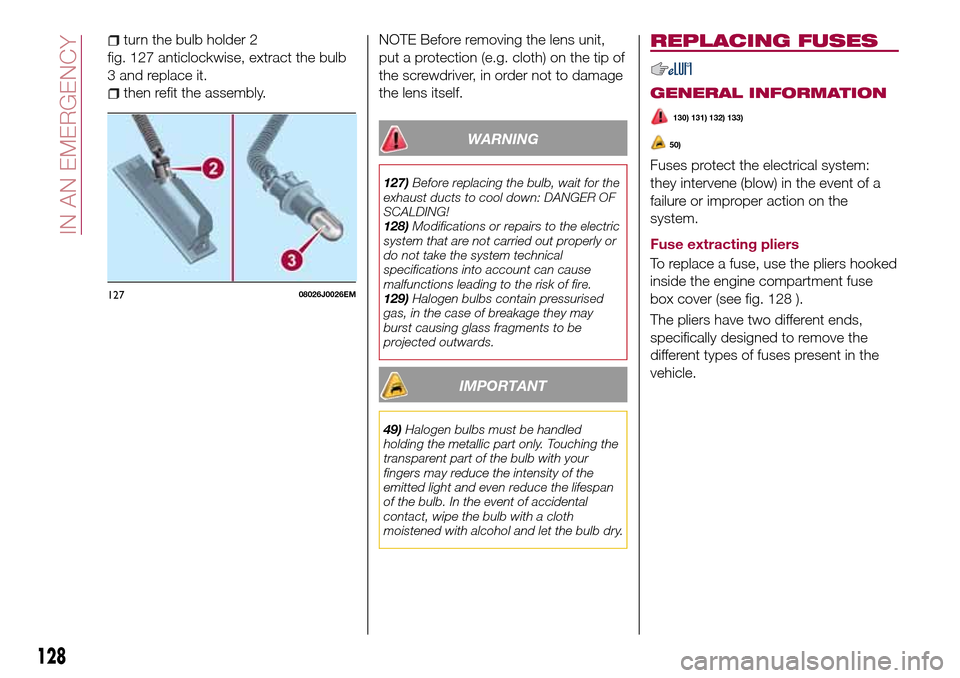
turn the bulb holder 2
fig. 127 anticlockwise, extract the bulb
3 and replace it.
then refit the assembly.NOTE Before removing the lens unit,
put a protection (e.g. cloth) on the tip of
the screwdriver, in order not to damage
the lens itself.
WARNING
127)Before replacing the bulb, wait for the
exhaust ducts to cool down: DANGER OF
SCALDING!
128)Modifications or repairs to the electric
system that are not carried out properly or
do not take the system technical
specifications into account can cause
malfunctions leading to the risk of fire.
129)Halogen bulbs contain pressurised
gas, in the case of breakage they may
burst causing glass fragments to be
projected outwards.
IMPORTANT
49)Halogen bulbs must be handled
holding the metallic part only. Touching the
transparent part of the bulb with your
fingers may reduce the intensity of the
emitted light and even reduce the lifespan
of the bulb. In the event of accidental
contact, wipe the bulb with a cloth
moistened with alcohol and let the bulb dry.
REPLACING FUSES
GENERAL INFORMATION
130) 131) 132) 133)
50)
Fuses protect the electrical system:
they intervene (blow) in the event of a
failure or improper action on the
system.
Fuse extracting pliers
To replace a fuse, use the pliers hooked
inside the engine compartment fuse
box cover (see fig. 128 ).
The pliers have two different ends,
specifically designed to remove the
different types of fuses present in the
vehicle.
12708026J0026EM
128
IN AN EMERGENCY
Page 132 of 240

ENGINE COMPARTMENT
CONTROL UNIT
51)
The fuse box is located by the side of
the battery fig. 129.To access the fuses, proceed as
follows:
fully tighten screw 1 fig. 130 using
the screwdriver provided;
at the same time slowly rotate the
screw anti-clockwise, until resistance is
encountered (do not over tighten);
slowly release the screw;
opening is indicated by the entire
screw head coming out of its housing;
remove cover 2, sliding it upwards
on the side guides, as indicated in the
figure.The number identifying the electrical
component corresponding to each fuse
is shown on the cover.
Once the fuse has been replaced,
proceed as follows:
correctly refit the cover 2 in the side
guides of the casing;
slide it down completely from the
top;
fully tighten screw 1 using the
screwdriver provided;
at the same time slowly rotate the
screw clockwise, until resistance is
encountered (do not over tighten);
slowly release the screw;
closure is indicated by the securing
of the entire screw head in its housing.
129P08036J003
13008036J0006EM
130
IN AN EMERGENCY
Page 139 of 240
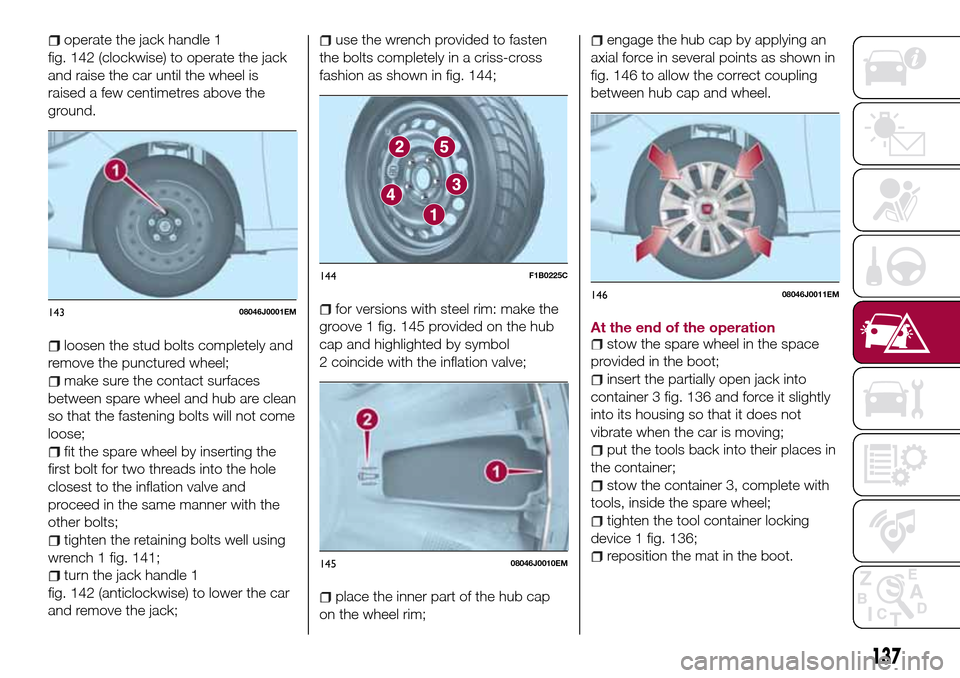
operate the jack handle 1
fig. 142 (clockwise) to operate the jack
and raise the car until the wheel is
raised a few centimetres above the
ground.
loosen the stud bolts completely and
remove the punctured wheel;
make sure the contact surfaces
between spare wheel and hub are clean
so that the fastening bolts will not come
loose;
fit the spare wheel by inserting the
first bolt for two threads into the hole
closest to the inflation valve and
proceed in the same manner with the
other bolts;
tighten the retaining bolts well using
wrench 1 fig. 141;
turn the jack handle 1
fig. 142 (anticlockwise) to lower the car
and remove the jack;
use the wrench provided to fasten
the bolts completely in a criss-cross
fashion as shown in fig. 144;
for versions with steel rim: make the
groove 1 fig. 145 provided on the hub
cap and highlighted by symbol
2 coincide with the inflation valve;
place the inner part of the hub cap
on the wheel rim;
engage the hub cap by applying an
axial force in several points as shown in
fig. 146 to allow the correct coupling
between hub cap and wheel.
At the end of the operation
stow the spare wheel in the space
provided in the boot;
insert the partially open jack into
container 3 fig. 136 and force it slightly
into its housing so that it does not
vibrate when the car is moving;
put the tools back into their places in
the container;
stow the container 3, complete with
tools, inside the spare wheel;
tighten the tool container locking
device 1 fig. 136;
reposition the mat in the boot.
14308046J0001EM
144F1B0225C
14508046J0010EM
14608046J0011EM
137
Page 209 of 240

FRONT PANEL CONTROL SUMMARY TABLE
Button Functions Mode
Switching on Short button press
Switching off Short button press
Volume adjustment Knob clockwise/anticlockwise turning
Volume activation/deactivation (Mute/Pause) Short button press
Exit the selection/return to previous screen Short button press
BROWSE ENTERScrolling the list or tuning to a radio station or select
previous/next trackKnob clockwise/anticlockwise turning
Confirmation of the option displayed Short button press
INFODisplay mode selection (Radio, Media) Short button press
PHONE
(*)Access to Telephone mode (or versions/markets,
where provided)Short button press
AUDIO
(*)Access to the sound setting and adjustment functions Short button press
MENUAccess to the Infotelematic Settings/System menu Short button press
MEDIASource selection: USB/iPod or AUX Short button press
RADIOAccess to the Radio mode Short button press
1-2-3-4-5-6Store current radio station Long button press
Stored radio station recall Short button press
A-B-CSelection of the group of radio presets or selection of
the desired letter in each listShort button press
Search for previous radio station or selection of
USB/iPod previous trackShort button press
Scan of lower frequencies until released/fast return of
USB/iPod trackLong button press
(*) (for versions/markets, where provided)
207
Page 214 of 240

SWITCHING THE SYSTEM
ON/OFF
The system is switched on/off by
pressing the
button/knob.
Turn the button/knob clockwise to
increase the radio volume or
anticlockwise to decrease it.
RADIO (TUNER) MODE
The system is equipped with the
following tuners: AM, FM and DAB (for
versions/markets, where provided).
Radio mode selection
Press the RADIO button on the front
panel to activate radio mode.
Selecting a frequency band
The different tuning modes can be
selected by pressing the RADIO button
on the front panel.
Indications on display
After the desired radio station is
selected on the display, the following
information is shown (INFO mode
activated):
In the upper part: the preset station, the
time and the other active radio settings
are highlighted.
In the central part: the name of the
current station, the frequency and the
radio text information (if any) are
highlighted.FM station list
Press the BROWSE ENTER
button/knob to display the complete list
of the FM stations that can be received.
AM/FM radio station storage
The preset stations are available in all
system modes and are selected by
touching one of the presetting buttons
1-2-3-4-5-6on the front panel. If you
are tuned to a radio station that you
wish to store, hold down the button on
the display which corresponds to the
desired preset until an acoustic
confirmation signal is emitted.
AM/FM radio station selection
To search for the desired radio station
press the
orbutton or use the
wheel of the steering wheel controls, or
turn the "BROWSE ENTER" knob.
Previous/next radio station search
Briefly press the
orbutton:
when the button is released the
previous or the next radio station is
displayed.
Previous/next radio station fast
search
Hold down the
orbutton to
start the fast search: when the button is
released, the first tunable radio is
played.
MEDIA MODE
Interaction modes for AUX, USB/iPod
operation.
Audio source selection
To select the desired audio source
among those available: AUX o
USB/iPod, press theMEDIAbutton.
To select and playback music tracks on
the cell phone CD card (where the
phone allows) press the BROWSE
ENTER button, select Folders then
Card.
IMPORTANT Some multimedia players
may not be compatible with the
Uconnect™.
Track change (next/previous)
Briefly press the
button to play the
next track or briefly press the
button to return to the beginning
of the selected track or to the beginning
of the previous track if this has been
played for less than 3 seconds.
Fast forward/rewind through tracks
Press and hold down the
button to
fast forward the selected track or keep
the
button pressed to fast rewind
the track.
212
MULTIMEDIA
Page 222 of 240

SWITCHING THE SYSTEM
ON/OFF
The system is switched on/off by
pressing the
button/knob.
Turn the button/knob clockwise to
increase the radio volume or
anticlockwise to decrease it.
RADIO MODE
After the desired radio station is
selected, the following information is
shown on the display:
At the top: the list of radio stations
stored (preset) is displayed; the station
being listened to is highlighted.
In the middle: display of the name of
the current radio station and the
buttons for selecting the previous or
next radio station.
At the bottom: display of the following
buttons:
"Browse": list of the radio stations
available;
"AM/FM", "AM/DAB", "FM/DAB":
selection of the desired frequency band
(button reconfigurable according to the
band selected: AM, FM or DAB);
"Tune" : manual radio station tuning
(not available for DAB radios);
"Info": additional information on the
source being listened to;
"Audio": access to the "Audio
setting" screen.Audio menu
To access the "Audio" menu press the
Audio" button located at the bottom of
the display.
The following adjustments can be
carried out using the "Audio" menu:
"Equalizer" (for versions/markets,
where provided);
"Balance/Fader" (left/right and
front/rear audio balance adjustment);
"Speed/Volume" (speed-dependent
automatic volume control);
"Loudness" (for versions/markets,
where provided);
"Auto-On Radio";
To exit the "Audio" menu, press the
/Done button.
MEDIA MODE
Press the "Source" button to select the
desired audio source among those
available: AUX, USB, iPod and
Bluetooth®.
Applications used on portable devices
may be not compatible with the
Uconnect™system
Track selection (browse)
Use this function to scroll through and
select the tracks on the active device.
The choices available depend on the
device connected.For example, on a USB/iPod device you
can also scroll through the list of artists,
genres and albums available on the
device depending on the information
present on the tracks using the
BROWSE ENTER button/knob.
Within each list, the "ABC" button
allows the user to skip to the desired
letter in the list.
NOTE This button might be disabled for
some
Apple®devices.
NOTE The BROWSE ENTER button
does not allow any operation on an
AUX device.
Press the BROWSE ENTER button to
activate this function on the source
being played.
Turn the BROWSE ENTER button/knob
to select the desired category and then
press the button/knob to confirm the
selection.
Press the
button to cancel the
function.
Bluetooth® SOURCE
This mode is activated by pairing a
Bluetooth®device containing music
tracks with the system.
220
MULTIMEDIA