Page 252 of 584
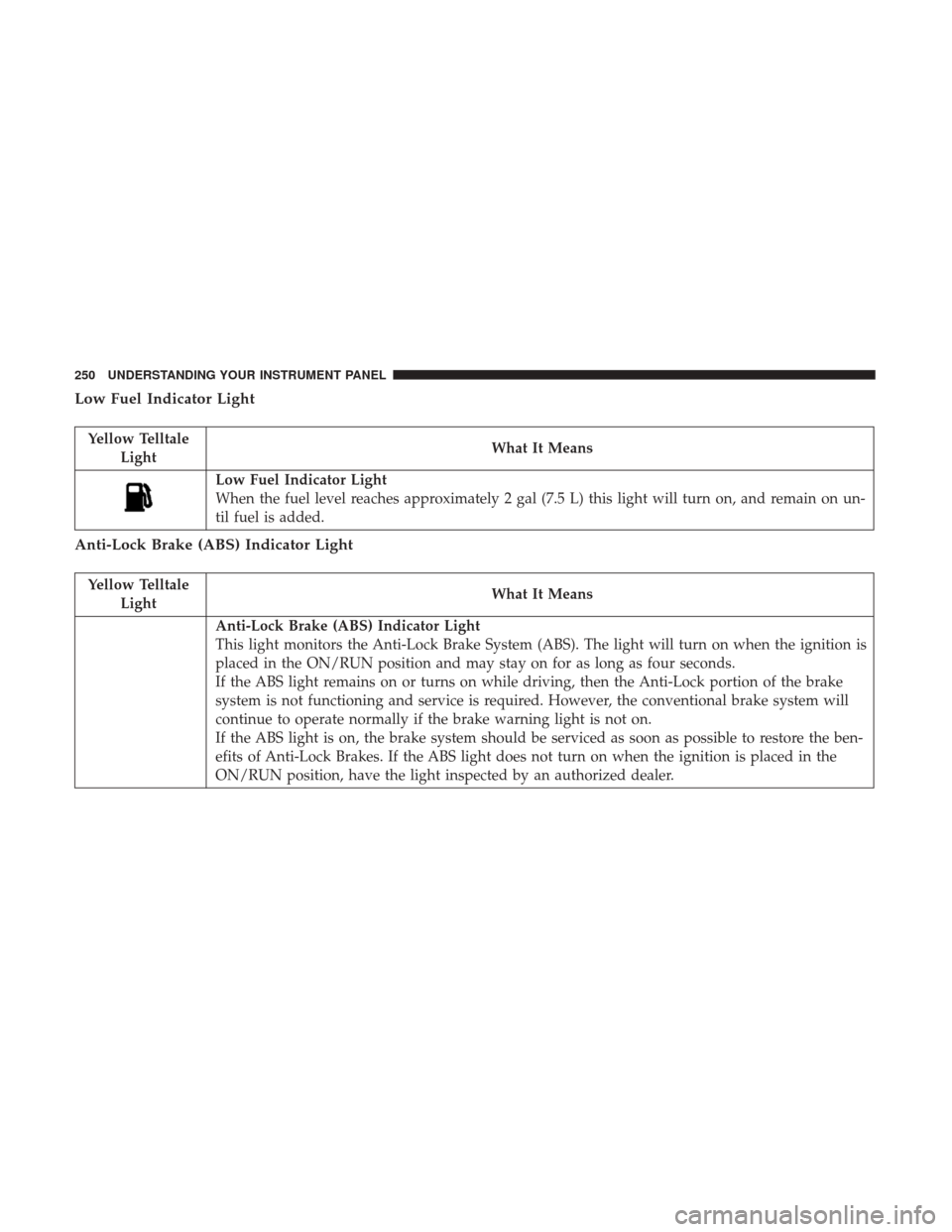
Low Fuel Indicator Light
Yellow TelltaleLight What It Means
Low Fuel Indicator Light
When the fuel level reaches approximately 2 gal (7.5 L) this light will turn on, and remain on un-
til fuel is added.
Anti-Lock Brake (ABS) Indicator Light
Yellow Telltale
Light What It Means
Anti-Lock Brake (ABS) Indicator Light
This light monitors the Anti-Lock Brake System (ABS). The light will turn on when the ignition is
placed in the ON/RUN position and may stay on for as long as four seconds.
If the ABS light remains on or turns on while driving, then the Anti-Lock portion of the brake
system is not functioning and service is required. However, the conventional brake system will
continue to operate normally if the brake warning light is not on.
If the ABS light is on, the brake system should be serviced as soon as possible to restore the ben-
efits of Anti-Lock Brakes. If the ABS light does not turn on when the ignition is placed in the
ON/RUN position, have the light inspected by an authorized dealer.
250 UNDERSTANDING YOUR INSTRUMENT PANEL
Page 261 of 584
INSTRUMENT CLUSTER DISPLAY
The vehicle is equipped with an interactive cluster display,
located in the instrument cluster, which offers useful
information to the driver. With the ignition in the STOP/
OFF position, the opening/closing of a door will activate
the display for viewing, and display the total miles or
kilometers in the odometer.
Instrument Cluster Display Location And Controls
The Instrument Cluster Display Menu items consists of the
following:
•Speedometer
• Vehicle Info
• Driver Assist — If Equipped
• Fuel Economy
• Trip
• Stop/Start — If Equipped
• Audio
• Stored Messages
• Screen Setup
Instrument Cluster Display Location
4
UNDERSTANDING YOUR INSTRUMENT PANEL 259
Page 263 of 584

The Instrument Cluster Display is located in the center
portion of the cluster and consist of multiple sections:
•Main Screen — The inner ring of the display will
illuminate in grey under normal conditions, yellow for
non critical warnings, red for critical warnings, and
white for on demand information.
• Sub-menu Dots— Whenever there are submenus avail-
able, the position within the submenus is shown here.
• Reconfigurable Telltales/Information
• Gear Selector Status (PRNDL)
• Selectable Information (Compass, Temp, Range to
Empty, Trip A, Trip B, Average Fuel Economy, Current
Fuel Economy)
• AWD Status — If Equipped
The Instrument Cluster Display will normally display the
main menu or the screens of a selected feature of the main
menu. The main display area also displays “pop up”
messages that consist of approximately 60 possible warn-
ing or information messages. These pop up messages fall
into several categories: •
Five Second Stored Messages
When the appropriate conditions occur, this type of mes-
sage takes control of the main display area for five seconds
and then returns to the previous screen. Most of the
messages of this type are then stored (as long as the
condition that activated it remains active) and can be
reviewed from the “Messages” main menu item. Examples
of this message type are “Right Front Turn Signal Lamp
Out” and “Low Tire Pressure.”
• Unstored Messages
This message type is displayed indefinitely or until the
condition that activated the message is cleared. Examples
of this message type are “Turn Signal On” (if a turn signal
is left on) and “Lights On” (if driver leaves the vehicle).
• Unstored Messages Until RUN
These messages deal primarily with the Remote Start
feature. This message type is displayed until the ignition is
in the RUN state. Examples of this message type are
“Remote Start Aborted - Door Ajar” and “Press Brake
Pedal and Push Button to Start.”
4
UNDERSTANDING YOUR INSTRUMENT PANEL 261
Page 265 of 584
Instrument Cluster Display Messages
Includes the following, but not limited to:
•Front Seatbelts Unbuckled
• Driver Seat Belt Unbuckled
• Passenger Seat Belt Unbuckled
• Traction Control Off
• Washer Fluid Low
• Oil Pressure Low
• Oil Change Due
• Fuel Low
• Service Anti-lock Brake System
• Service Electronic Throttle Control
• Service Power Steering
• Cruise Off
• Cruise Ready
• ACC Override
• Cruise Set To XXX MPH or km/h •
Tire Pressure Screen With Low Tire(s)
• Service Tire Pressure System
• Park Brake Engaged
• Brake Fluid Low
• Engine Temperature Hot
• Lights On
• Right Front Turn Signal Light Out
• Right Rear Turn Signal Light Out
• Left Front Turn Signal Light Out
• Left Rear Turn Signal Light Out
• Ignition or Accessory On
• Vehicle Not In Park
• Remote Start Active Push Start Button
• Remote Start Canceled Fuel Low
• Remote Start Canceled Too Cold
• Remote Start Canceled Door Open
• Remote Start Canceled Hood Open
4
UNDERSTANDING YOUR INSTRUMENT PANEL 263
Page 269 of 584

Fuel Economy
Push and release theUPorDOWNar-
row button until the Fuel Economy Menu
icon/title is highlighted. Push the LEFTor
RIGHT arrow button to scroll the submenus,
one with current fuel economy display and one without
it.
• Range
• Current MPG or L/100 km or km/l
• Average MPG or L/100 km or km/l
• Press the OKbutton to reset the average fuel economy
NOTE: The Range feature is not able to be reset through
the Instrument Cluster Display Controls.
Trip
Push and release the UPorDOWNar-
row button until the Trip icon/title is high-
lighted in the Instrument Cluster Display, then
push and release the LEFT
orRIGHT
arrow button to select Trip A or Trip B.
The Trip A and Trip B information will display the
following:
•Distance
• Average Fuel Economy
• Elapsed Time
Hold the OKbutton to reset all the information.
Stop/Start — If Equipped
Push and release the UPorDOWNar-
row button until the Stop/Start icon/title is
highlighted in the Instrument Cluster Display.
The screen will display the Stop/Start status.
Audio
Push and release the UPorDOWNar-
row button until the Audio Menu icon/title is
highlighted in the Instrument Cluster Display.
4
UNDERSTANDING YOUR INSTRUMENT PANEL 267
Page 270 of 584

Stored Messages
Push and release theUPorDOWNar-
row button until the Messages Menu item is
highlighted. This feature shows the number of
stored warning messages. Pushing the RIGHT
arrow button will allow you to see what the stored
messages are.
When no messages are present, main menu icon will be a
closed envelope.
Screen Setup
Push and release the UPorDOWNar-
row button until the Screen Setup Menu icon/
title is highlighted in the Instrument Cluster
Display. Push and release the OKbutton to
enter the submenus and follow the prompts on the
screen as needed. The Screen Setup feature allows you
to change what information is displayed in the instru-
ment cluster as well as the location that information is
displayed. Screen Setup Driver Selectable Items
Current Gear
•
On
• Off (default setting)
Favorite Menus
• Speedometer
• Vehicle Info
• Driver Assist (Show/Hide)
• Fuel Economy (Show/Hide)
• Trip (Show/Hide)
• Stop/Start
• Audio (Show/Hide)
• Stored Messages
• Screen Setup
NOTE: Menus with (show/hide) can push the OKbutton
to choose whether to show or hide this menu on the
Instrument Cluster Display.
268 UNDERSTANDING YOUR INSTRUMENT PANEL
Page 271 of 584

Upper Left
•None
• Compass (default setting)
• Outside Temp
• Time
• Range To Empty (RTE)
• Fuel Economy Average
• Fuel Economy Current
• Trip A
• Trip B
Upper Right
• None
• Compass
• Outside Temp (default setting)
• Time
• Range To Empty (RTE)
• Fuel Economy Average •
Fuel Economy Current
• Trip A
• Trip B
Defaults (Restores All Settings To Default Settings)
• Restore
• Cancel
Battery Saver On/Battery Saver Mode Message —
Electrical Load Reduction Actions — If Equipped
This vehicle is equipped with an Intelligent Battery Sensor
(IBS) to perform additional monitoring of the electrical
system and status of the vehicle battery.
In cases when the IBS detects charging system failure, or
the vehicle battery conditions are deteriorating, electrical
load reduction actions will take place to extend the driving
time and distance of the vehicle. This is done by reducing
power to or turning off non-essential electrical loads.
Load reduction is only active when the engine is running.
It will display a message if there is a risk of battery
depletion to the point where the vehicle may stall due to
lack of electrical supply, or will not restart after the current
drive cycle.
4
UNDERSTANDING YOUR INSTRUMENT PANEL 269
Page 278 of 584
Units
After pressing the “Units” button on the touchscreen you
may select each unit of measure independently displayed
in the Instrument Cluster Display, and navigation system
(if equipped). The following selectable units of measure are
listed below:
Setting NameSelectable Options
Units Custom
NOTE:
The “Custom” option allows you to set the “Speed” (MPH, or km/h), “Distance” (mi, or km), “Fuel Consumption”
[MPG (US), MPG (UK), L/100 km, or km/L], “Pressure” (psi, kPa, or bar), and “Temperature” (°C, or °F) units of
measure independently.
Voice
After pressing the “Voice” button on the touchscreen, the
following settings will be available:
Setting Name Selectable Options
Voice Response Length Brief Detailed
Show Command List AlwaysWith Help Never
276 UNDERSTANDING YOUR INSTRUMENT PANEL


