Page 439 of 527
86
111
8
9
10
15
161
Audio and Telematics
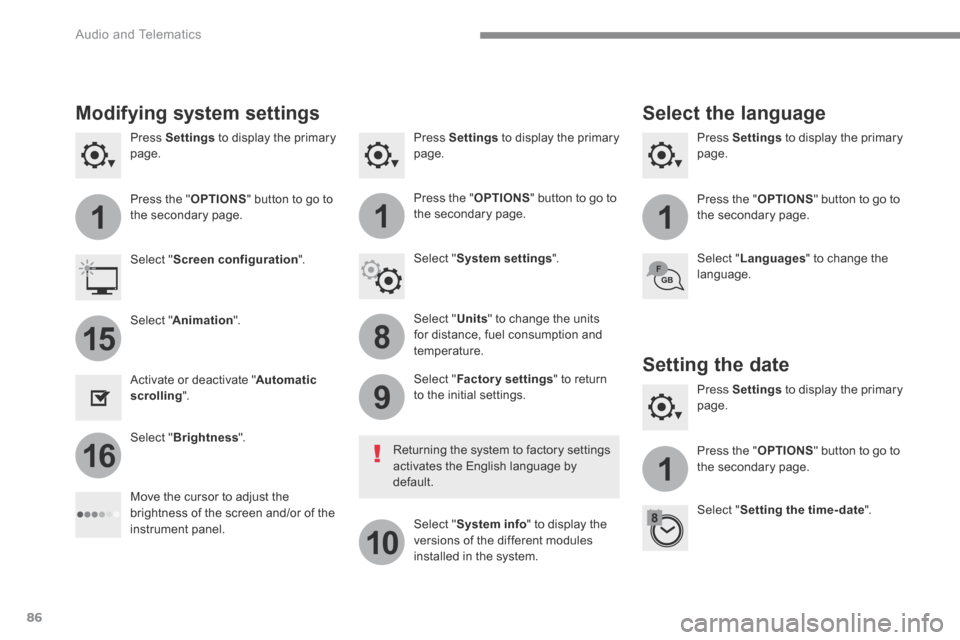
Press Settings to display the primary page. Press Settings to display the primary page. Press Settings to display the primary page.
Press the " OPTIONS " button to go to the secondary page. Press the " OPTIONS " button to go to the secondary page. Press the " OPTIONS " button to go to the secondary page.
Select " System settings ". Select " Screen configuration ".
Select " Units " to change the units for distance, fuel consumption and temperature.
Select " Languages " to change the language.
Activate or deactivate " Automatic scrolling ".
Move the cursor to adjust the brightness of the screen and/or of the instrument panel.
Select " Factory settings " to return to the initial settings.
Select " System info " to display the versions of the different modules installed in the system.
Modifying system settings
Returning the system to factory settings activates the English language by default.
Select " Animation ".
Select " Brightness ".
Select the language
Press Settings to display the primary page.
Press the " OPTIONS " button to go to the secondary page.
Select " Setting the time- date ".
Setting the date
Page 440 of 527
87
.
1
17
18
Audio and Telematics
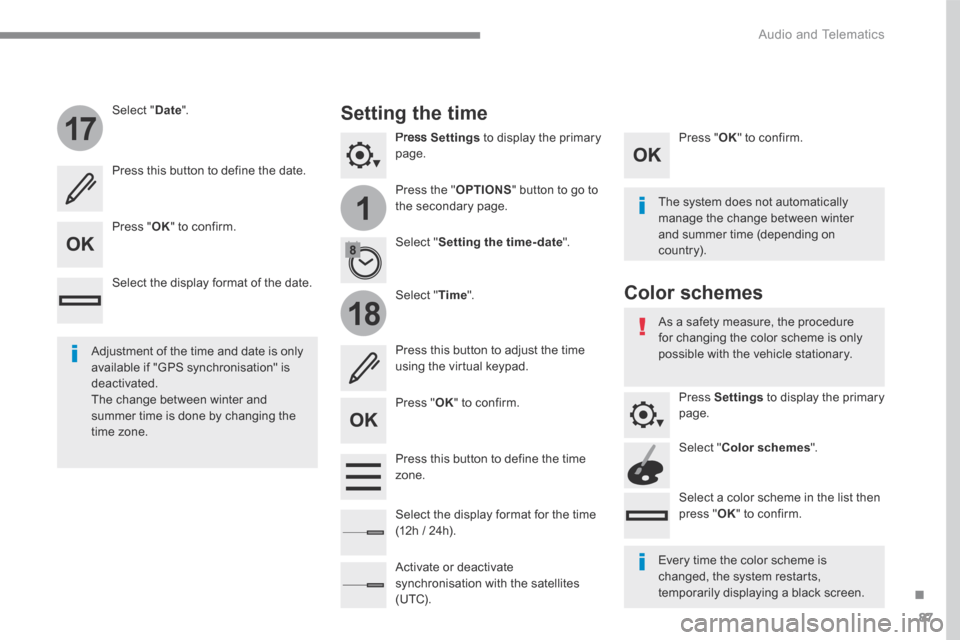
Press Settings to display the primary page.
Press the " OPTIONS " button to go to the secondary page.
Select " Date ".
Select " Time ".
Select " Setting the time- date ".
Adjustment of the time and date is only available if "GPS synchronisation" is deactivated. The change between winter and summer time is done by changing the time zone.
The system does not automatically manage the change between winter and summer time (depending on c ountr y).
Setting the time
Press this button to define the date.
Press this button to adjust the time using the virtual keypad.
Press " OK " to confirm.
Press " OK " to confirm.
Press " OK " to confirm.
Press this button to define the time z o n e .
Select the display format of the date.
Select the display format for the time (12h / 24h).
Activate or deactivate synchronisation with the satellites (UTC).
Every time the color scheme is changed, the system restarts, temporarily displaying a black screen.
As a safety measure, the procedure for changing the color scheme is only possible with the vehicle stationary.
Press Settings to display the primary page.
Select " Color schemes ".
Select a color scheme in the list then press " OK " to confirm.
Color schemes
Page 456 of 527
103
.
1
4
5
6
2
3
Audio and Telematics
Transversal-Citroen_en_Chap02_RCC-2-2-0_ed01-2016
Level 1Level 2Level 3Comments
Applications
Temperature conditioning
State Activate / deactivate the temperature conditioning.
Settings Configure the pre-conditioning.
Save the parameters.
Confirm the settings.
Applications
Trip computer
Instant
System providing information about the current journey (range, consumption…). Tr i p 1
Tr i p 2
Go back to the Applications page.
Applications
PhotosPhoto gallery
Photos Go to the photo gallery.
Go back a level.
Applications
OPTIONS
Bluetooth connection
Search Start the search for a device to be connected.
Delete Delete one or more devices.
Page 458 of 527
105
.
Audio and Telematics
Transversal-Citroen_en_Chap02_RCC-2-2-0_ed01-2016
Insert a USB memory stick in the USB port.
The system can read folders and image files in the formats: .tiff; .gif; .jpg/jpeg; .bmp; .png.
Viewing photos
Press Applications to display the primary page.
Press " Photos ".
Select a folder.
Press this button to display the details of the photo.
Press the back arrow to go back a level.
Select an image to view.
To protect the system, do not use a USB hub.
Page 465 of 527

112
4
5
Audio and Telematics
Transversal-Citroen_en_Chap02_RCC-2-2-0_ed01-2016
Press Radio Media to display the menu.
Press Radio Media to display the primary page.
Press the frequency.
Enter the FM and AM waveband values using the virtual keypad.
Press one of the buttons for an automatic search for radio stations.
Radio
Selecting a station Radio reception may be affected by the use of electrical equipment not approved by the Brand, such as a USB charger connected to the 12V socket. The exterior environment (hills,
buildings, tunnel, car park, below ground...) may prevent reception, even in RDS station tracking mode. This phenomenon is normal in the propagation of radio waves and is in no way indicative of a fault with the audio system.
Or
Or
Or
Move the cursor for a manual search for frequencies up or down.
Select a radio station or frequency.
Select a radio station or frequency.
Press " Preset ".
Press the " OPTIONS " button to go to the secondary page.
Make a short press on the star outline. If the star is solid, the radio station is already preset.
Make a long press on one of the buttons to preset the station.
Press " Band " to change waveband.
Press in the grey zone to confirm.
Preset a station
Changing waveband
Press " OK " to confirm.
Page 466 of 527

113
.
5
5
5
Audio and Telematics
Transversal-Citroen_en_Chap02_RCC-2-2-0_ed01-2016
Press in the grey zone to confirm.
Press in the grey zone to confirm.
Press in the grey zone to confirm.
Press Radio Media to display the primary page.
Press Radio Media to display the primary page.
Press Radio Media to display the primary page.
Press the " OPTIONS " button to go to the secondary page.
Press the " OPTIONS " button to go to the secondary page.
Press the " OPTIONS " button to go to the secondary page.
Activate/deactivate " RDS ".
Activate / Deactivate " NEWS ".
Activate / Deactivate " TA ". TA ". TA
Activate/ Deactivate RDS
RDS, if activated, allows you to continue listening to the same station by automatic
retuning to alternative frequencies. However, in certain conditions, coverage of an RDS station may not be assured throughout the entire country as radio stations do not cover 100 % of the territory. This explains the loss of reception of the station during a journey.
The "Radio Text" function allows information transmitted by the radio station and related to the station or the song playing to be displayed.
Display text information Play TA messages
The TA (Traffic Announcement) function gives priority to TAalert messages. To operate, this function
needs good reception of a radio station that carries this type of message. While traffic information is being broadcast, the current media is automatically interrupted so that the TA message can be heard. Normal play of the media previously playing is resumed at the end of the message.
Page 467 of 527

114
5
Audio and Telematics
Transversal-Citroen_en_Chap02_RCC-2-2-0_ed01-2016
Audio settings
Press Radio Media to display the primary page.
Pres s " Audio settings ".
On-board audio: Arkamys © Sound © Sound ©
Staging optimises the distribution of sound in the passenger compartment.
The sound distribution (or spatialisation with the Arkamys © system) is audio © system) is audio ©
processing that allows the quality of the sound to be adapted according to the number of passengers in the vehicle.
On the " To n e " tab, the Ambience audio settings and Bass , Medium and Tr e b l eare different and independent for each audio source.
On the " Balance " tab, the All passengers , Driver and Driver and DriverFront onlysettings are common to all sources.
On the " Sound " tab, activate or deactivate " Volume linked to speed ", " Auxiliary input " and " Touch tones ".
Press the " OPTIONS " button to go to the secondary page.
Select the "To n e" or "Balance " or " Sound" or " or " orRingtones " tab to configure the audio settings.
Press the back arrow to confirm.
Page 468 of 527

115
.
55
Audio and Telematics
Transversal-Citroen_en_Chap02_RCC-2-2-0_ed01-2016
DAB radio (Digital Audio Broadcasting)
Press Radio Media to display the primary page.
Press the " OPTIONS " button to go to the secondary page.
FM-DAB Follow-up Terrestrial Digital Radio
"DAB" does not cover 100% of the te r r i to r y. When the digital radio signal is poor, the "FM-DAB Follow-up" allows you to continue listening to the same station, by automatically switching to the corresponding "FM" analogue station (if there is one).
If the "FM-DAB Follow-up" is activated, there is a difference of a few seconds when the system switches to "FM" analogue radio with sometimes a variation in volume. Once the digital signal is restored, the system automatically changes back to " D A B " .
Digital radio provides higher quality reception. The different multiplexes offer a choice of radio stations arranged in
alphabetical order.
If the "DAB" station being listened to is not available on "FM", or if the "FM-DAB Follow-up" is not activated, the sound will cut out while the digital signal is too weak.
Activate / Deactivate " FM- DAB Follow-up ".
Press Radio Media to display the primary page.
Press the " OPTIONS " button to go to the secondary page.
Press " Band " to select " DAB band ".
Press in the grey zone to confirm. Press in the grey zone to confirm.

