2017 Citroen GRAND C4 PICASSO Sim
[x] Cancel search: SimPage 426 of 527
73
.
1
Audio and Telematics
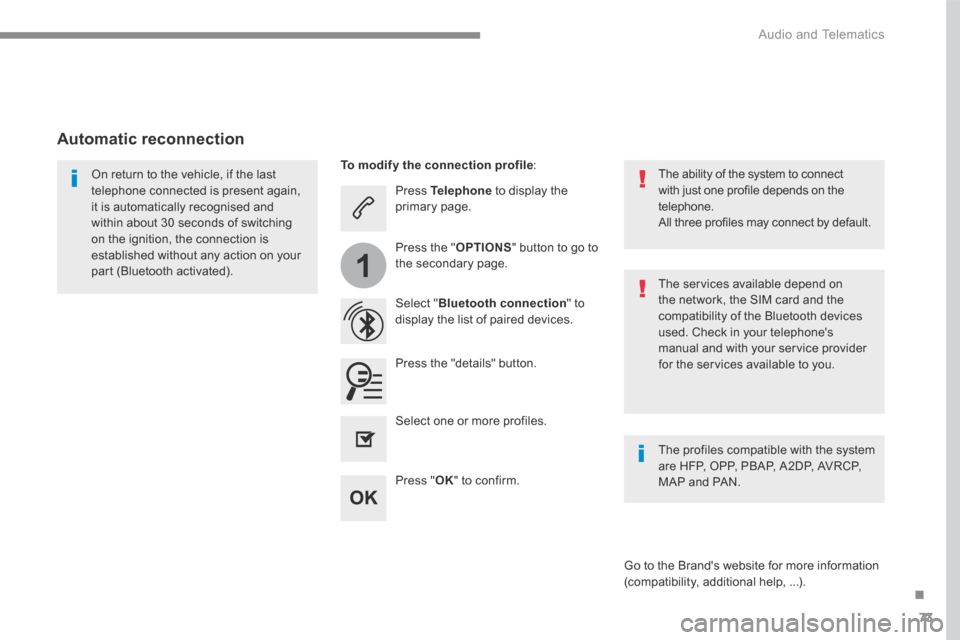
Press Telephone to display the primary page.
Select " Bluetooth connection " to display the list of paired devices.
On return to the vehicle, if the last telephone connected is present again, it is automatically recognised and within about 30 seconds of switching on the ignition, the connection is established without any action on your part (Bluetooth activated). The services available depend on the network, the SIM card and the compatibility of the Bluetooth devices used. Check in your telephone's manual and with your service provider for the services available to you.
The ability of the system to connect with just one profile depends on the telephone. All three profiles may connect by default.
Go to the Brand's website for more information (compatibility, additional help, ...).
To modify the connection profile :
Automatic reconnection
Press the "details" button.
Press the " OPTIONS " button to go to the secondary page.
Press " OK " to confirm.
Select one or more profiles.
The profiles compatible with the system are HFP, OPP, PBAP, A2DP, AVRCP, MAP and PAN.
Page 429 of 527
76
2
12
13
14
1
Audio and Telematics
The access to " Messages " depends on the compatibility of the smartphone and the integral system. Depending on the smartphone, access to your messages or email may be
slow.
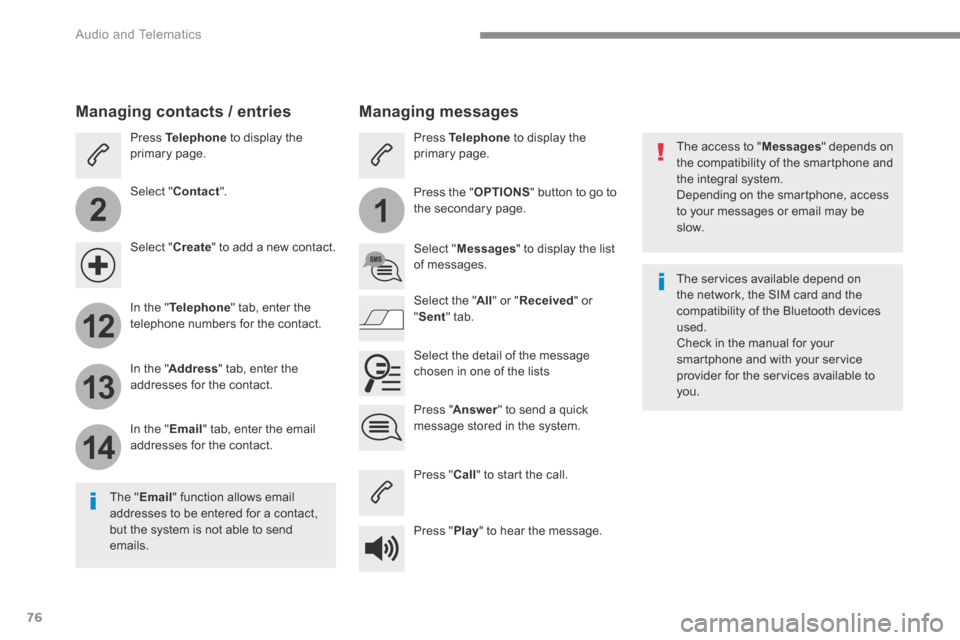
Managing messages
The " Email " function allows email addresses to be entered for a contact, but the system is not able to send emails.
Managing contacts / entries
Press Telephone to display the primary page.
Select " Contact ".
Select " Create " to add a new contact.
In the " Telephone " tab, enter the telephone numbers for the contact.
In the " Address " tab, enter the addresses for the contact.
In the " Email " tab, enter the email addresses for the contact.
Pres s " Answer " to send a quick message stored in the system.
Press Telephone to display the primary page.
Press the " OPTIONS " button to go to the secondary page.
Select " Messages " to display the list of messages.
Select the " All " or " Received " or " Sent " tab.
Select the detail of the message chosen in one of the lists
Press " Call " to start the call.
Press " Play " to hear the message.
The services available depend on the network, the SIM card and the compatibility of the Bluetooth devices used. Check in the manual for your smartphone and with your service provider for the services available to you.
Page 446 of 527

93
.
Audio and Telematics
QUESTIONANSWERSOLUTION
Some contacts are duplicated in the list. The options for synchronizing contacts are synchronizing the contacts on the SIM card, the contacts on the telephone, or both. When both synchronizations are selected, some contacts may be duplicated.
Select "Display SIM card contacts" or "Display telephone contacts".
Contacts are not shown in alphabetical order. Some telephones offer display options. Depending on the settings chosen, contacts can be transferred in a specific order. Modify the display setting in the telephone di r e c to r y.
The system does not receive SMS text messages. The Bluetooth mode does not permit sending SMS text messages to the system.
QUESTIONANSWERSOLUTION
In changing the setting of treble and bass the equalizer setting is deselected.
The selection of an equalizer setting imposes the settings for treble and bass and vice-versa. Modify the treble and bass or equalizer settings to obtain the desired musical ambience.
In changing the equalizer setting, treble and bass return to zero.
When changing the balance settings, the distribution setting is deselected.
The selection of a distribution setting imposes the balance settings and vice-versa. Modify the balance or distribution settings to obtain the desired musical ambience.
When changing an distribution setting, the balance setting is deselected.
Settings
Page 451 of 527

98
Audio and Telematics
Transversal-Citroen_en_Chap02_RCC-2-2-0_ed01-2016
Steering mounted controls - Type 1
Radio : Short press: display the list of radio stations. Long press: update the list. Media : Short press: display the list of folders. Long press: display the sorting options.
Decrease volume.
Radio : Select the previous / next preset radio station. Select the previous / next item in a menu or a list. Media: Select of the previous / next track Select the previous / next item in a menu or a list. Mute / Restore sound by simultaneously pressing the increase and decrease volume buttons. Change audio source (Radio; USB; AUX (if a device is connected); CD; Streaming)
Confirm a selection.
Increase volume.
Page 452 of 527

99
.
Audio and Telematics
Transversal-Citroen_en_Chap02_RCC-2-2-0_ed01-2016
Media (short press): change the multimedia source. Telephone (short press): call. Call in progress (short press): access to telephone menu. Telephone (long press): reject an incoming call, end call, access to telephone menu.
Decrease volume.
Voice commands : Short press, smartphone voice commands via the system.
Mute/ Restore the sound. Or Mute by pressing the volume increase and decrease buttons simultaneously. Restore the sound by pressing one of the two volume buttons.
Radio (rotate): previous / next preset. Media (rotate): previous / next track, move in a list. Short press : confirm a selection; other than selection, access to presets.
Radio : display the list of stations. Media : display the list of tracks. Radio (press and hold): update the list of stations received.
Increase volume.
Steering mounted controls - Type 2
Page 482 of 527

129
.
1
Audio and Telematics
Transversal-Citroen_en_Chap02_RCC-2-2-0_ed01-2016
Press Telephone to display the primary page.
Press " Bluetooth connection " to display the list of paired devices.
On return to the vehicle, if the last telephone connected is present again, it is automatically recognised and within about 30 seconds of switching on the ignition, the connection is established without any action on your part (Bluetooth activated). The services available depend on the network, the SIM card and the compatibility of the Bluetooth devices used. Check in your telephone's manual and with your service provider for the services available to you.
The ability of the system to connect with just one profile depends on the telephone. All three profiles may connect by default.
Go to the Brand's website for more information (compatibility, additional help, ...).
To modify the connection profile :
Automatic reconnection
Press the "details" button of a paired device.
Press the " PHONE " button to go to the secondary page.
Press " OK " to confirm.
Select one or more profiles.
The profiles compatible with the system are HFP, OPP, PBAP, A2DP, AVRCP, MAP and PAN.
The system offers to connect the telephone with 3 profiles: - " Telephone " (hands-free kit, telephone only), - " Streaming " (wireless playing of the audio files on the telephone), - " Internet data ".
Page 502 of 527

149
.
Audio and Telematics
Transversal-Citroen_en_Chap03_RD6_ed01-2016
Steering mounted controls - Type 1
Radio : Short press: display the list of radio stations. Long press: update the list. Media : Short press: display the list of folders. Long press: display the sorting options.
Decrease volume.
Radio : Select the previous / next preset radio station. Select the previous / next item in a menu or a list. Media: Select of the previous / next track. Select the previous / next item in a menu or a list. Mute / Restore sound by simultaneously pressing the increase and decrease volume buttons.
Other than telephone calls : Short press: change audio source (Radio; USB; AUX (if a device is connected); CD; Streaming), confirm if the " Telephone " menu is open. Long press: open the " Telephone " menu. In the event of a telephone call : Short press: accept the call. Long press: reject the call. During a telephone call: Short press: open the contextual telephone menu. Long press: end the call.
Confirm a selection.
Increase volume.
Page 514 of 527

161
.
Audio and Telematics
Transversal-Citroen_en_Chap03_RD6_ed01-2016
Telephone
Pairing a Bluetooth ® Pairing a Bluetooth ® Pairing a Bluetooth telephone ® telephone ®
As a safety measure and because it requires the sustained attention of the driver, the pairing of your a Bluetooth telephone to the Bluetooth hands-free audio system must only be carried
out with the vehicle stationary and the ignition on
The services available depend on the network, the SIM card and the compatibility of the Bluetooth telephone used. Refer to the instructions for your telephone and to your service provider for the services available to you.
Activate the telephone's Bluetooth function and ensure that it is "visible to all" (telephone configuration).
Go to the Brand's website for more information (compatibility, more help, ...).
* If your telephone is fully compatible.
The " Telephone " menu gives access to the following functions in particular: " Directory " * , " Calls list ", " View paired devices ". Depending on the type of telephone, you may be asked to accept or confirm access by the system to each of these functions.
If pairing fails, the number of attempts is not restricted. A message appears in the screen confirming the pairing.
Procedure from the telephone Completing the pairing
Procedure from the system
Select the name of the system in the list of devices detected. To complete the pairing, whichever procedure is used (from the telephone or from the system), check that the code displayed in the system and the
telephone is the same and confirm.
Press the MENU button.
Select the " Connections " menu.
Confirm with OK .
A window is displayed with a search in progress message.
In the list of devices detected, select a telephone to pair. Only one telephone can be
paired at a time.
Confirm with OK .
Select " Search for a Bluetooth device ".
Information and advice