Page 751 of 828
Press this button and use the “Listen In” feature to listen
to audio through cabin speakers.
Accessing The System From The Uconnect
Theater Rear Screens
You can also access your Uconnect Theater system from
the rear screens from the steps below:
1. Lift screen upward, the system will automaticallypower on.
NOTE: A message asking if you would like to pair a
remote will pop up if one has not already been paired to
the system.
2. If “YES” is selected to Pair a Remote, Pairing will immediately start.
3. If “NO” is selected, the Uconnect Theater home screen will pop up.
Listen In
10
MULTIMEDIA 749
Page 774 of 828
UCONNECT VOICE RECOGNITION QUICK TIPS
Introducing Uconnect
Start using Uconnect Voice Recognition with these help-
ful quick tips. It provides the key Voice Commands and
tips you need to know to control your Uconnect 5.0, 8.4 or
8.4 NAV system.
Uconnect 5.0
772 MULTIMEDIA
Page 775 of 828
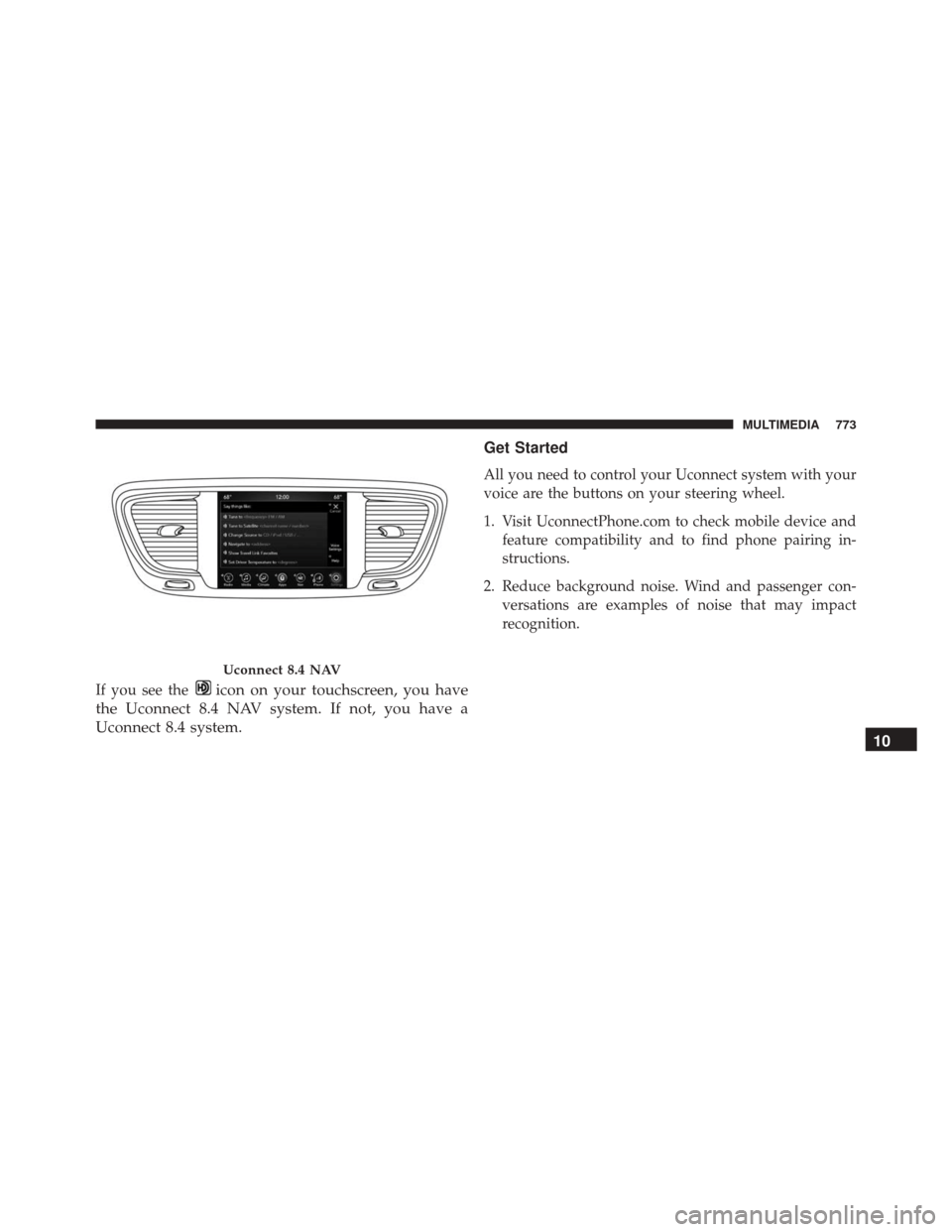
If you see theicon on your touchscreen, you have
the Uconnect 8.4 NAV system. If not, you have a
Uconnect 8.4 system. Get Started
All you need to control your Uconnect system with your
voice are the buttons on your steering wheel.
1. Visit UconnectPhone.com to check mobile device and
feature compatibility and to find phone pairing in-
structions.
2. Reduce background noise. Wind and passenger con- versations are examples of noise that may impact
recognition.
Uconnect 8.4 NAV
10
MULTIMEDIA 773
Page 783 of 828
Voice Text Reply
Uconnect will announceincomingtext messages. Push
the Phone button
and say Listen.(Must have com-
patible mobile phone paired to Uconnect system.)
1. Once an incoming text message is read to you, push the Phone button
and say . After the beep, say:
“Reply.”
2. Listen to the Uconnect prompts. After the beep, repeat one of the pre-defined messages and follow the system
prompts.
PRE-DEFINED VOICE TEXT REPLY RESPONSES
Yes. Stuck in traffic. See you later.
No. Start without
me. I’ll be late.
Okay. Where are you? I will be minuteslate.
Call me. Are you there
yet?
I’ll call you later. I need
directions. See you in
of minutes.
I’m on my way. Can’t talk right
now.
I’m lost. Thanks.
TIP: Your mobile phone must have the full implementa-
tion of the Message Access Profile (MAP) to take advan-
tage of this feature. For details about MAP, visit
UconnectPhone.com.
10
MULTIMEDIA 781
Page 786 of 828
Navigation
The Uconnect navigation feature helps you save time and
become more productive when you know exactly how to
get to where you want to go. (Navigation is optional on
the Uconnect 8.4 system. See your dealer to activate
navigation at any time.)
1. To enter a destination, push the VR button
. After
the beep, say:
• For the 8.4 Uconnect System, say: “Enter state.”
• For the 8.4 NAV Uconnect System, say: “Find ad-
dress 800 Chrysler Drive Auburn Hills, Michigan.”
2. Then follow the system prompts. TIP:
To start a POI search, push the VR button
. After
the beep, say: “ Find nearestcoffee shop.”
Uconnect 8.4 Navigation
784 MULTIMEDIA
Page 787 of 828
Uconnect Access
WARNING!
ALWAYS obey traffic laws and pay attention to the
road. Some Uconnect Access services, including 9-1-1
and Assist, will NOT work without an operable 1X
(voice/data) or 3G (data) network connection.
NOTE: Your vehicle may be transmitting data as autho-
rized by the subscriber.
An included trial and/or subscription is required to take
advantage of the Uconnect Access services in the next
section of this guide. To register with Uconnect Access,
press the Apps button on the 8.4-inch touchscreen to get
started. Detailed registration instructions can be found
on the next page.
NOTE: Uconnect Access is available only on equipped
vehicles purchased within the continental United States, Alaska and Hawaii. Services can only be used where
coverage is available; see coverage map for details.
9-1-1 Call
Security Alarm Notification
Remote Door Lock/Unlock
Stolen Vehicle Assistance
Remote Vehicle Start**
Remote Horn and Lights
Yelp Search
Voice Texting
Roadside Assistance Call
WiFi Hotspot***
**If vehicle is equipped.
***Extra charges apply.10
MULTIMEDIA 785
Page 789 of 828
To link your internet radio accounts:
1. Download the Uconnect Access App to your mobiledevice.
2. Press the Via Mobile icon on the navigation bar at the bottom of the app. 3. Press the app you’d like to connect to your vehicle.
4. Enter your login information for the selected app and
press Link.
5. Next time you’re in your vehicle, enable Bluetooth, pair your phone and select the Via Mobile app you
want to play from the Uconnect touchscreen to stream
your personalized music.
NOTE:
• You can also complete this process on the web. Simply
visit moparownerconnect.com log in and click Set Up
Via Mobile Profile (under Quick Links).
• Once you download the app to your compatible
mobile device, you will also be able to start your
vehicle and lock/unlock its doors from virtually any-
where.
Mobile App
10
MULTIMEDIA 787
Page 806 of 828
Owner’s Manuals
These Owner’s Manuals have been prepared with the
assistance of service and engineering specialists to ac-
quaint you with specific FCA US LLC vehicles. Included
are starting, operating, emergency and maintenance pro-
cedures as well as specifications, capabilities and safety
tips.Call toll free at:
•
1-800-890-4038 (U.S.)
• 1-800-387-1143 (Canada)
Or
Visit us on the Worldwide Web at:
• www.techauthority.com
804 CUSTOMER ASSISTANCE