Page 572 of 828
12. Place the deflated (flat) tire and foam tray coverassembly in the rear cargo area. Do not stow the
deflated tire in the inflatable spare tire location.
Have the full-sized tire repaired or replaced, as soon
as possible.
13. Stow the jack back in the stowage compartment and place the access panel back. The stud of the storage
are must be threaded through the lower part of the
jack. Then turn the Jack Screw clockwise to secure it
in place.
NOTE: Stow the foam tray and components in the cargo
area.
Storing The Jack
1 — Jack Screw
2 — Jack
3 — Stud
570 IN CASE OF EMERGENCY
Page 579 of 828

WARNING!(Continued)
•Tire Service Kit Sealant solution contains latex. In
case of an allergic reaction or rash, consult a phy-
sician immediately. Keep Tire Service Kit out of
reach of children. If swallowed, rinse mouth imme-
diately with plenty of water and drink plenty of
water. Do not induce vomiting! Consult a physician
immediately.
Whenever You Stop To Use Tire Service Kit:
1. Pull over to a safe location and turn on the vehicle’s Hazard Warning flashers.
2. Verify that the valve stem (on the wheel with the deflated tire) is in a position that is near to the ground.
This will allow the Tire Service Kit Hose to reach the
valve stem and keep the Tire Service Kit flat on the
ground. This will provide the best positioning of the kit when running the air pump. Move the vehicle as
necessary to place the valve stem in this position
before proceeding.
3. Place the transmission in PARK and cycle the ignition in the OFF position.
4. Ensure the park brake is engaged.
Setting Up To Use Tire Service Kit:
1. Remove the Tire Service Kit from the storage location. 2. Uncoil the Sealant/Air Hose. Re-move the cap from the valve stem
and then screw the fitting in at the
end of the Sealant/Air Hose clock-
wise onto the valve stem.
7
IN CASE OF EMERGENCY 577
Page 582 of 828
the lug nuts with the cone shaped end of the nut
toward the wheel. Lightly tighten the lug nuts.3. Align the valve notch in the wheel cover with the
valve stem on the wheel. Install the cover by hand,
snapping the cover over the two lug nuts. Do not use
a hammer or excessive force to install the cover.
4. Install the remaining lug nuts with the cone shaped end of the nut toward the wheel. Lightly tighten the
lug nuts.
WARNING!
To avoid the risk of forcing the vehicle off the jack,
do not tighten the wheel nuts fully until the vehicle
has been lowered. Failure to follow this warning may
result in serious injury.
5. Lower the vehicle to the ground by turning the jack handle counterclockwise.
6. Finish tightening the lug nuts. Push down on the wrench while at the end of the handle for increased
Tire And Wheel Cover Or Center Cap
1 — Valve Stem 4 — Wheel Cover
2 — Valve Notch 5 — Mounting Stud
3 — Wheel Lug Nut 580 IN CASE OF EMERGENCY
Page 583 of 828

leverage. Tighten the lug nuts in a star pattern until
each nut has been tightened twice. Refer to “Torque
Specifications” in the “Technical Data” section for
proper wheel lug nut torque. If in doubt about the
correct tightness, have them checked with a torque
wrench by your authorized dealer or at a service
station.
7. After 25 miles (40 km) check the lug nut torque with a torque wrench to ensure that all lug nuts are properly
seated against the wheel.
Vehicles Without Wheel Covers
1. Mount the road tire on the axle.
2. Install the remaining lug nuts with the cone shapedend of the nut toward the wheel. Lightly tighten the
lug nuts.
WARNING!
To avoid the risk of forcing the vehicle off the jack,
do not tighten the wheel nuts fully until the vehicle
has been lowered. Failure to follow this warning may
result in serious injury.
3. Lower the vehicle to the ground by turning the jack handle counterclockwise.
4. Finish tightening the lug nuts. Push down on the wrench while at the end of the handle for increased
leverage. Tighten the lug nuts in a star pattern until
each nut has been tightened twice. Refer to “Torque
Specifications” in the “Technical Data” section for
proper wheel lug nut torque. If in doubt about the
correct tightness, have them checked with a torque
wrench by your authorized dealer or at a service
station.
7
IN CASE OF EMERGENCY 581
Page 705 of 828

•Pressure
Select from: “psi,” “kPa,” or “bar.”
• Temperature
Select from: “°C,” or “°F.”
Clock & Date
After pressing the “Clock & Date” button on the touch-
screen the following settings will be available:
• Set Time and Format
When in this display, you may set the time and format
manually. Press the “Set Time and Format” button then
choose from a 12 hour or 24 hour format. Press the
corresponding arrow above and below the current time
to adjust, then select “AM” or “PM.”
• Show Time Status — If Equipped
When in this display, you may turn on or shut off the
digital clock in the status bar. To change the Show Time Status setting press the “Show Time Status” button on the
touchscreen and select from “ON” or “OFF.”
•
Sync Time — If Equipped
When in this display, you may sync the time with GPS.
Press the “Sync Time” button on the touchscreen and
select from “ON” or “OFF.”
Safety/Assistance
After pressing the “Safety/Assistance” button on the
touchscreen the following settings will be available:
• ParkView Backup Camera — If Equipped
When the vehicle is shifted out of REVERSE (with camera
delay turned OFF), the rear camera mode is exited and
the navigation or audio screen appears again. When the
vehicle is shifted out of REVERSE (with camera delay
turned ON), the rear view image with dynamic grid lines
will be displayed for up to 10 seconds after shifting out of
“REVERSE” unless the forward vehicle speed exceeds
10
MULTIMEDIA 703
Page 727 of 828

Voice
After pressing the “Voice” button on the touchscreen the
following settings will be available:
•Voice Response Length
When in this display, you may change the Voice Re-
sponse Length settings. To change the Voice Response
Length, press the “Brief” or “Detailed” button on the
touchscreen until a check-mark appears next to the
setting, showing that setting has been selected.
• Show Command List
When in this display, you may change the Show Com-
mand List settings. To change the Show Command List
settings, press the “Always,” “With Help” or “Never”
button on the touchscreen until a check-mark appears
next to the setting, showing that setting has been se-
lected.
Clock
After pressing the “Clock” button on the touchscreen the
following settings will be available:
• Sync Time With GPS — If Equipped
This feature will allow you to automatically have the
radio set the time. To change the Sync Time setting, press
the “Sync time with GPS” button on the touchscreen until
a check-mark appears next to the setting, showing that
setting has been selected.
• Set Time Hours
This feature will allow you to adjust the hours. The “Sync
time with GPS” button on the touchscreen must be
unchecked. To make your selection, press the “+” or “–”
buttons on the touchscreen to adjust the hours up or
down.
10
MULTIMEDIA 725
Page 728 of 828

•Set Time Minutes
This feature will allow you to adjust the minutes. The
“Sync time with GPS” button on the touchscreen must be
unchecked. To make your selection, press the “+” or “–”
buttons on the touchscreen to adjust the minutes up or
down.
• Time Format
This feature will allow you to select the time format
display setting. Press the “Time Format” button on the
touchscreen until a check-mark appears next to the 12hrs
or 24hrs setting, showing that setting has been selected.
• Show Time In Status Bar — If Equipped
This feature will allow you to turn on or shut off the
digital clock in the status bar. To change the Show Time
Status setting press the “Show Time in Status Bar” button
on the touchscreen until a check-mark appears next to the
setting, showing that setting has been selected.Safety & Driving Assistance
After pressing the “Safety & Driving Assistance” button
on the touchscreen the following settings will be avail-
able:
• Forward Collision On/Off — If Equipped
The default status of FCW is “On”, this allows the system
to warn you of a possible collision with the vehicle in
front of you. The forward collision button is located in
the Uconnect display in the controls settings. To turn the
FCW system OFF, push the forward collision button once
to turn the system OFF. To turn the FCW system back
ON, push the forward collision button again to turn the
system ON. Changing the FCW status to “OFF” prevents
the system from warning you of a possible collision with
the vehicle in front of you.
The FCW system state is kept in memory from one
ignition cycle to the next. If the system is turned OFF, it
will remain off when the vehicle is restarted.
726 MULTIMEDIA
Page 744 of 828
System Information
After pressing the “System Information” button on the
touchscreen the following information will be available:
•System Information
When System Information is selected, a System Informa-
tion screen will appear displaying the system software
version.
STEERING WHEEL AUDIO CONTROLS
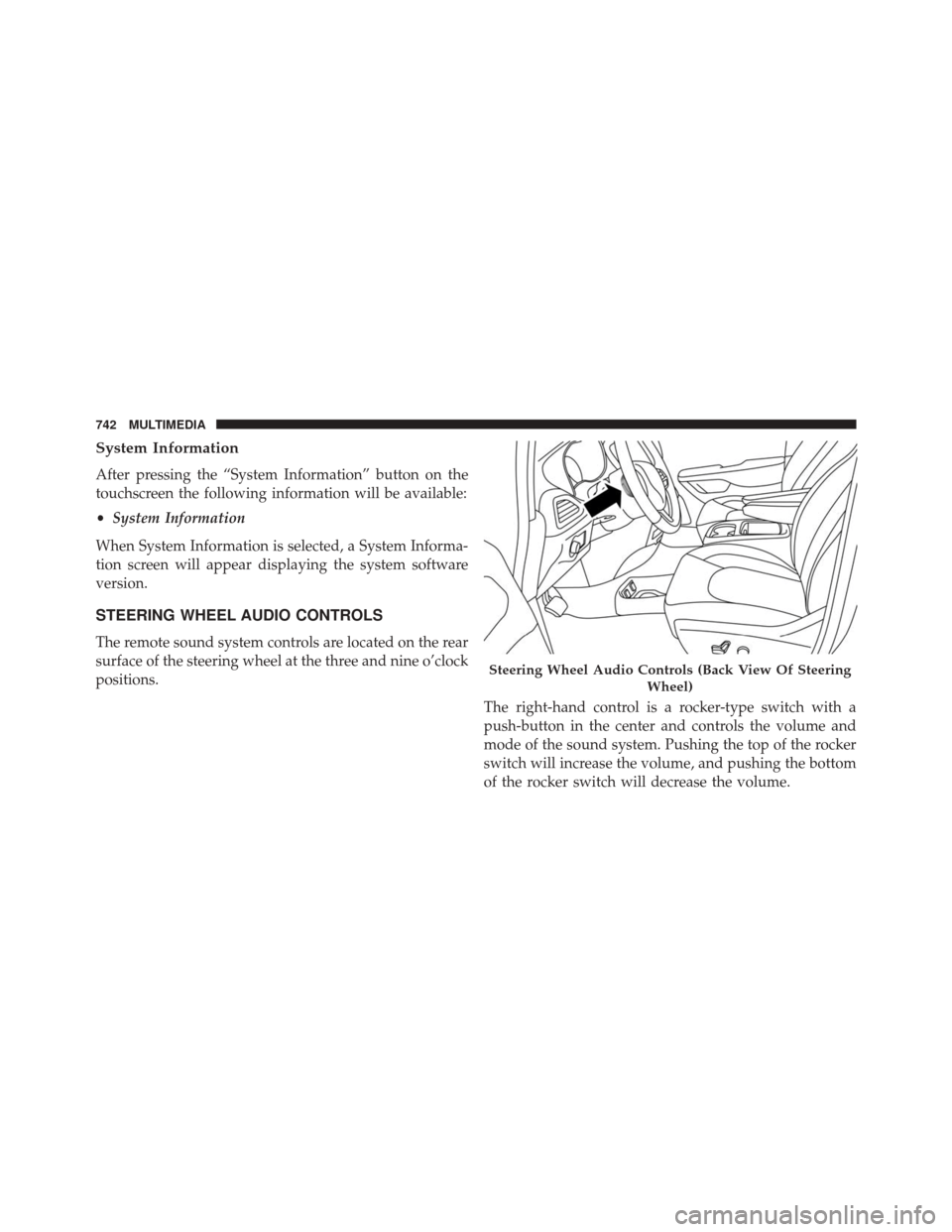
The remote sound system controls are located on the rear
surface of the steering wheel at the three and nine o’clock
positions. The right-hand control is a rocker-type switch with a
push-button in the center and controls the volume and
mode of the sound system. Pushing the top of the rocker
switch will increase the volume, and pushing the bottom
of the rocker switch will decrease the volume.
Steering Wheel Audio Controls (Back View Of SteeringWheel)
742 MULTIMEDIA