Page 486 of 592

IDENTIFICATION DATA
Vehicle Identification Number
The Vehicle Identification Number (VIN) is on the left front
corner of the instrument panel and is visible from outside
of the vehicle through the windshield. This number also
appears stamped under the right front seat and printed on
the Automobile Information Disclosure Label affixed to a
window on your vehicle, the vehicle registration and title.
NOTE:It is illegal to remove or alter the VIN.
WHEEL AND TIRE TORQUE SPECIFICATIONS
Proper lug nut/bolt torque is very important to ensure that
the wheel is properly mounted to the vehicle. Any time a
wheel has been removed and reinstalled on the vehicle, the
lug nuts/bolts should be torqued using a properly cali-
brated torque wrench.
Torque Specifications
Lug Nut/Bolt Torque **Lug Nut/
Bolt SizeLug Nut/
Bolt
Socket Size
100 Ft-Lbs (135 N·m) M12 x 1.5 19 mm
**Use only your authorized dealer recommended lug nuts/
bolts and clean or remove any dirt or oil before tightening.
Vehicle Identification Number
484 TECHNICAL SPECIFICATIONS
Page 487 of 592
Inspect the wheel mounting surface prior to mounting the
tire and remove any corrosion or loose particles.
Tighten the lug nuts/bolts in a star pattern until each
nut/bolt has been tightened twice.After 25 miles (40 km) check the lug nut/bolt torque to be
sure that all the lug nuts/bolts are properly seated against
the wheel.
WARNING!
To avoid the risk of forcing the vehicle off the jack, do
not tighten the lug nuts fully until the vehicle has been
lowered. Failure to follow this warning may result in
personal injury.
Wheel Mounting Surface
Torque Patterns
9
TECHNICAL SPECIFICATIONS 485
Page 495 of 592

MULTIMEDIA
CONTENTS
�UCONNECT RADIOS ....................495
� PERSONALIZED MENU BAR ...............495
� CYBERSECURITY ....................... .495
� UCONNECT SETTINGS ...................497
▫ Customer Programmable Features — Uconnect 8.4
Settings ............................. .497
� STEERING WHEEL AUDIO CONTROLS .......520
▫ Radio Operation ....................... .521
� AUX/USB/MP3 CONTROL ................521
� UCONNECT THEATER — IF EQUIPPED ......523
▫ Uconnect Theater Overview ...............523
▫ Getting Started ....................... .523
▫ Accessing The System From The Uconnect
Radio .............................. .524
▫ Uconnect Theater Controls ................525 ▫
Accessing The System From The Uconnect Theater
Rear Screens ......................... .526
▫ Pairing The Remote .....................527
▫ Unpairing The Remote ...................528
▫ Media Sources ........................ .528
▫ Uconnect Theater Remote Control ...........529
▫ Uconnect Theater Home Screen And Controls . . .530
▫ Play A DVD/Blu-ray Or USB Media File From
Uconnect System ...................... .532
▫ Blu-ray Controls – Disc Specific Functions .....534
▫ Uconnect Theater Apps ...................535
▫ Using The Rear Video USB Port .............537
▫ Play Video Games ..................... .538
▫ Headphones Operation .................. .538
▫ Disc
Menu ........................... .541
10
Page 507 of 592
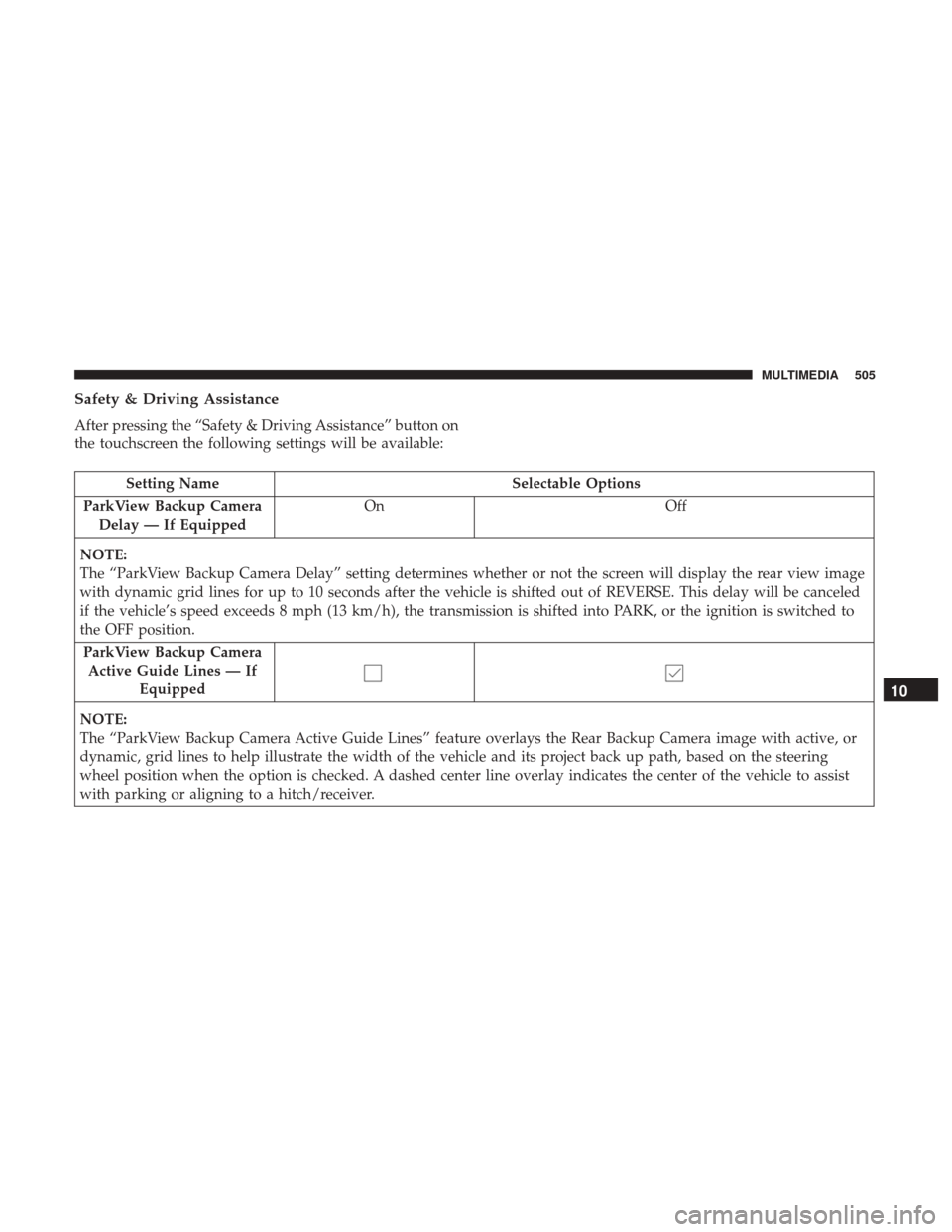
Safety & Driving Assistance
After pressing the “Safety & Driving Assistance” button on
the touchscreen the following settings will be available:
Setting NameSelectable Options
ParkView Backup Camera Delay — If Equipped On
Off
NOTE:
The “ParkView Backup Camera Delay” setting determines whether or not the screen will display the rear view image
with dynamic grid lines for up to 10 seconds after the vehicle is shifted out of REVERSE. This delay will be canceled
if the vehicle’s speed exceeds 8 mph (13 km/h), the transmission is shifted into PARK, or the ignition is switched to
the OFF position. ParkView Backup Camera Active Guide Lines — If Equipped
NOTE:
The “ParkView Backup Camera Active Guide Lines” feature overlays the Rear Backup Camera image with active, or
dynamic, grid lines to help illustrate the width of the vehicle and its project back up path, based on the steering
wheel position when the option is checked. A dashed center line overlay indicates the center of the vehicle to assist
with parking or aligning to a hitch/receiver.
10
MULTIMEDIA 505
Page 510 of 592
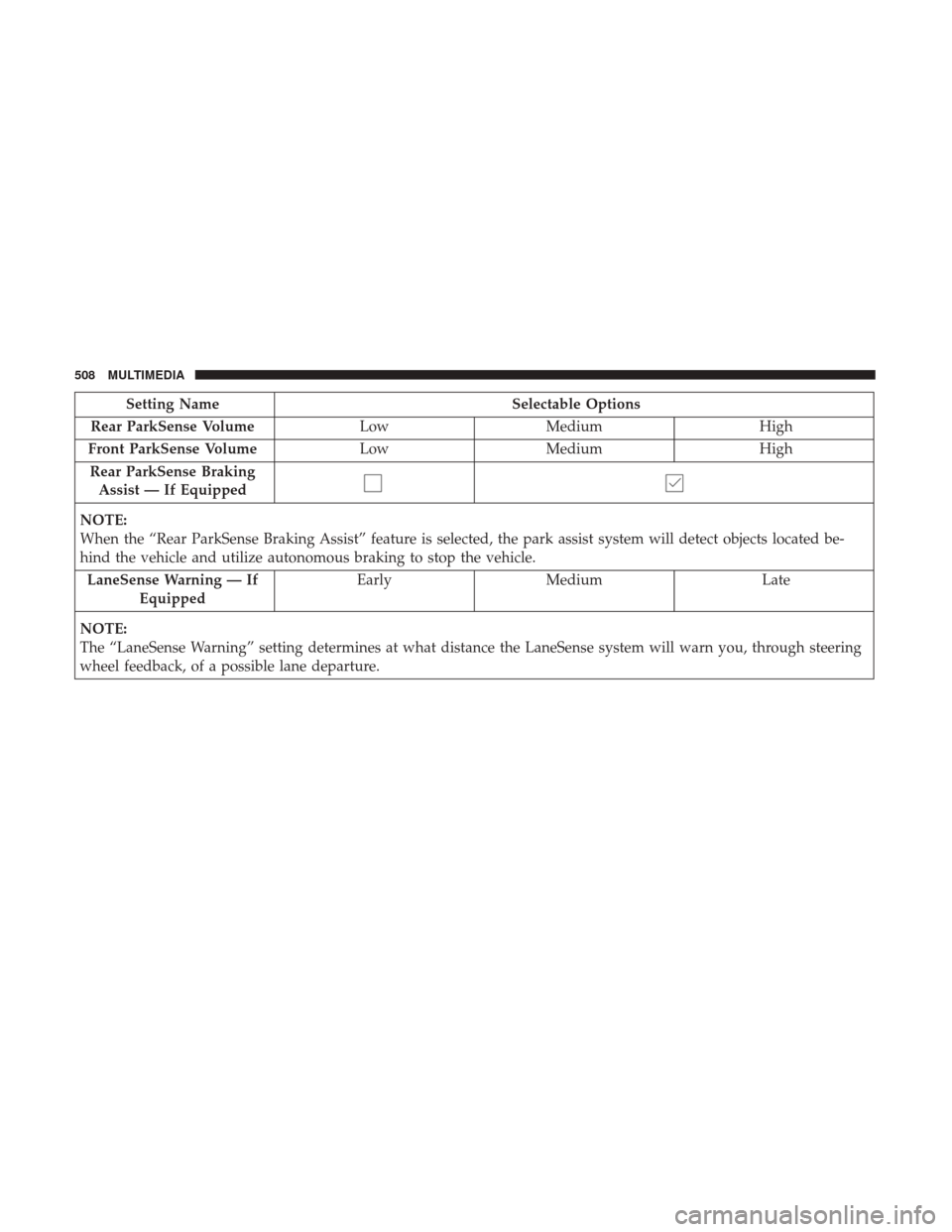
Setting NameSelectable Options
Rear ParkSense Volume LowMedium High
Front ParkSense Volume LowMedium High
Rear ParkSense Braking Assist — If Equipped
NOTE:
When the “Rear ParkSense Braking Assist” feature is selected, the park assist system will detect objects located be-
hind the vehicle and utilize autonomous braking to stop the vehicle. LaneSense Warning — If Equipped Early
Medium Late
NOTE:
The “LaneSense Warning” setting determines at what distance the LaneSense system will warn you, through steering
wheel feedback, of a possible lane departure.
508 MULTIMEDIA
Page 516 of 592
Auto Comfort Systems — If Equipped
After pressing the “Auto-On Comfort” button on the
touchscreen the following settings will be available:
Setting NameSelectable Options
Auto-On Driver Heated/
Ventilated Seat & Steering Wheel With Vehicle Start — If Equipped Off
Remote Start All Starts
NOTE:
When this feature is selected the driver ’s heated seat and heated steering wheel will automatically turn on when tem-
peratures are below 40° F (4.4° C). When temperatures are above 80° F (26.7° C) the driver vented seat will turn on.
Vehicle Off Options
After pressing the “Engine Off Options” button on the
touchscreen the following settings will be available:
Setting Name Selectable Options
Vehicle Off Power Delay — IfEquipped 0 sec
45 sec 5 min10 min
514 MULTIMEDIA
Page 522 of 592
System Information
After pressing the “System Information” button on the
touchscreen, the following settings will be available:
Setting NameSelectable Options
System Information System Software Information Screen
NOTE:
When this feature is selected, a “System Information” screen will appear, displaying the system software version.
STEERING WHEEL AUDIO CONTROLS
The remote sound system controls are located on the rear
surface of the steering wheel at the three and nine o’clock
positions.
Steering Wheel Audio Controls (Back View Of Steering Wheel)
520 MULTIMEDIA
Page 541 of 592
The headphone power indicator and controls are located
on the right ear cup.
NOTE:Uconnect Theater must be turned on before sound
can be heard from the headphones. To conserve battery life,
the headphones will automatically turn off approximately
three minutes after the Uconnect Theater system is turned
off. Changing The Audio Mode For Headphones
1. Ensure the remote control and the headphones are on
the same channel.
2. Push the Home button on the remote control.
3. When the Home menu appears on the touchscreen, use the arrow buttons on the remote control to navigate to
the available modes and push the OK button to select
the new mode or use the Gesture Pad at the top of the
remote control.
Uconnect Theater Headphones
1 — Power ON/OFF Button
2 — Volume Control Wheel
3 — Channel Selector Button
Headphone Channel Selector Button
10
MULTIMEDIA 539