2017 CHEVROLET SUBURBAN key
[x] Cancel search: keyPage 184 of 465
Chevrolet Tahoe/Suburban Owner Manual (GMNA-Localizing-U.S./Canada/
Mexico-9955986) - 2017 - crc - 7/5/16
Instruments and Controls 183
Remote Window Operation
This allows the window to be
opened when pressing and holding
Kon the RKE transmitter. See
Remote Keyless Entry (RKE)
System Operation (Key Access)
0 35 orRemote Keyless Entry
(RKE) System Operation (Keyless
Access) 037.
Select Off or On.
Passive Door Unlock
This allows the selection of what
doors will unlock when using the
button on the driver door to unlock
the vehicle.
Select All Doors or Driver Door.
Passive Door Lock
This allows passive locking to be
turned on or off and selects
feedback. See Remote Keyless
Entry (RKE) System Operation (Key
Access) 035 orRemote Keyless
Entry (RKE) System Operation
(Keyless Access) 037.
Select Off, On with Horn
Chirp, or On. Remote Left in Vehicle Alert
This feature sounds an alert when
the RKE transmitter is left in the
vehicle.
Select Off or On.
Bluetooth
Select and the following may
display:
.
Pair New Device
. Device Management
. Ringtones
. Voice Mail Numbers
. Text Message Alerts
Pair New Device
Select to pair a new device. See
“Pairing” in“Infotainment Controls”
under “Bluetooth (Overview) 0214
or Bluetooth (Infotainment Controls -
Base Radio) 0215 orBluetooth
(Voice Recognition - Base Radio)
0 219” or“Pairing” in“Infotainment
Controls” under“Bluetooth” in the
infotainment manual. Device Management
Select to connect to a different
phone source, disconnect a phone,
or delete a phone.
Ringtones
Select to change the ring tone for
the specific phone. The phone does
not need to be connected to change
the ring tones.
Voice Mail Numbers
This feature displays the voice mail
number for all connected phones.
To change the voice mail number,
select EDIT or press the EDIT
button. Type a new number, then
select SAVE or press the SAVE
button.
Text Message Alerts
This feature allows text messages
to be received. See
“Text
Messaging” under“Phone” in the
infotainment manual.
Select Off or On.
Apple CarPlay™
Select and the following may
display:
Page 190 of 465
Chevrolet Tahoe/Suburban Owner Manual (GMNA-Localizing-U.S./Canada/
Mexico-9955986) - 2017 - crc - 7/5/16
Lighting 189
Lighting
Exterior Lighting
Exterior Lamp Controls . . . . . . . 189
Exterior Lamps OffReminder . . . . . . . . . . . . . . . . . . . 191
Headlamp High/Low-Beam Changer . . . . . . . . . . . . . . . . . . . . 191
Flash-to-Pass . . . . . . . . . . . . . . . . 191
Daytime Running Lamps (DRL) . . . . . . . . . . . . . . . 192
Automatic Headlamp System . . . . . . . . . . . . . . . . . . . . . . 192
Hazard Warning Flashers . . . . . 193
Turn and Lane-Change Signals . . . . . . . . . . . . . . . . . . . . . . 193
Fog Lamps . . . . . . . . . . . . . . . . . . . 194
Interior Lighting
Instrument Panel Illumination Control . . . . . . . . . . . . . . . . . . . . . . 194
Dome Lamps . . . . . . . . . . . . . . . . . 195
Reading Lamps . . . . . . . . . . . . . . 195
Lighting Features
Entry Lighting . . . . . . . . . . . . . . . . 196
Exit Lighting . . . . . . . . . . . . . . . . . . 196
Battery Load Management . . . 196
Battery Power Protection . . . . . 197
Exterior Lighting
Exterior Lamp Controls
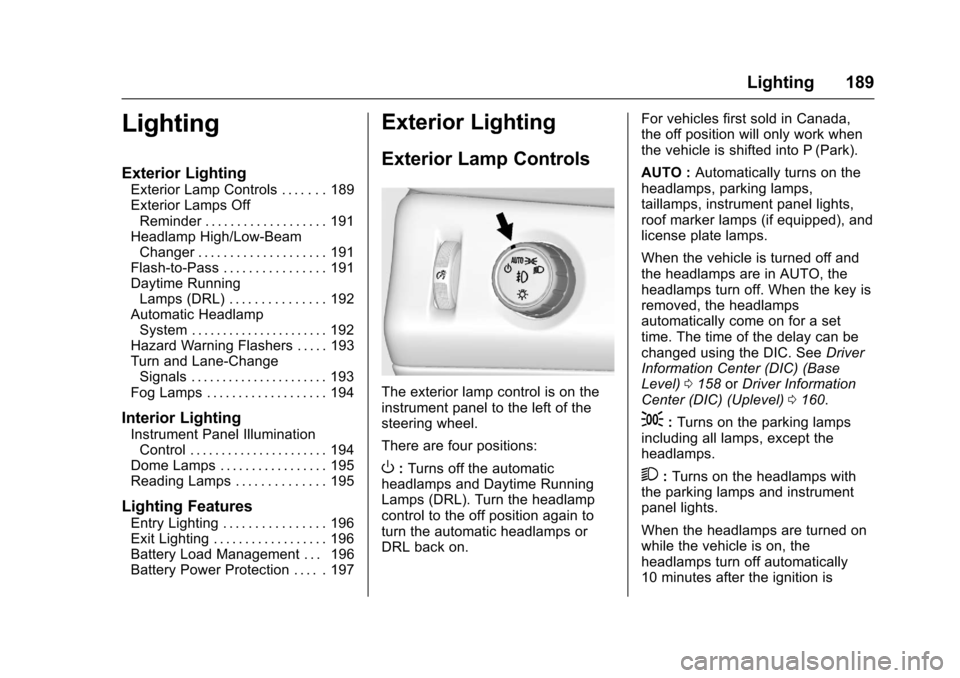
The exterior lamp control is on the
instrument panel to the left of the
steering wheel.
There are four positions:
O: Turns off the automatic
headlamps and Daytime Running
Lamps (DRL). Turn the headlamp
control to the off position again to
turn the automatic headlamps or
DRL back on. For vehicles first sold in Canada,
the off position will only work when
the vehicle is shifted into P (Park).
AUTO :
Automatically turns on the
headlamps, parking lamps,
taillamps, instrument panel lights,
roof marker lamps (if equipped), and
license plate lamps.
When the vehicle is turned off and
the headlamps are in AUTO, the
headlamps turn off. When the key is
removed, the headlamps
automatically come on for a set
time. The time of the delay can be
changed using the DIC. See Driver
Information Center (DIC) (Base
Level) 0158 orDriver Information
Center (DIC) (Uplevel) 0160.
;:Turns on the parking lamps
including all lamps, except the
headlamps.
2: Turns on the headlamps with
the parking lamps and instrument
panel lights.
When the headlamps are turned on
while the vehicle is on, the
headlamps turn off automatically
10 minutes after the ignition is
Page 197 of 465
Chevrolet Tahoe/Suburban Owner Manual (GMNA-Localizing-U.S./Canada/
Mexico-9955986) - 2017 - crc - 7/5/16
196 Lighting
Lighting Features
Entry Lighting
Some exterior lamps and the interior
lamps turn on briefly at night, or in
areas with limited lighting, when
K
is pressed on the Remote Keyless
Entry (RKE) transmitter. When a
door is opened, the interior lamps
come on if the dome lamp control is
in the DOOR position. After about
30 seconds the exterior lamps turn
off. Entry lighting can be disabled
manually by changing the ignition
out of the OFF position, or by
pressing the RKE transmitter
Q
button.
This feature can be changed. See
“Vehicle Locator Lights”under
Vehicle Personalization 0178.
Exit Lighting
Some exterior lamps and interior
lamps come on when the key is
removed from the ignition. The
exterior and interior lamps remain
on for a set amount of time, then
automatically turn off. If equipped with Keyless Access,
the exterior lamps automatically turn
on when the driver
’s door is opened
after the ignition is turned to OFF.
The interior lights turn on when the
ignition is turned to OFF.
The exterior lamps turn off
immediately by turning the exterior
lamp control off.
This feature can be changed. See
Vehicle Personalization 0178.
Battery Load
Management
The vehicle has Electric Power
Management (EPM), which
estimates the battery's temperature
and state of charge. It then adjusts
the voltage for best performance
and extended life of the battery.
When the battery's state of charge
is low, the voltage is raised slightly
to quickly bring the charge back up.
When the state of charge is high,
the voltage is lowered slightly to
prevent overcharging. The voltmeter
gauge or the voltage display on the
Driver Information Center (DIC), if equipped, may show the voltage
moving up or down. This is normal.
If there is a problem, an alert will be
displayed.
The battery can be discharged at
idle if the electrical loads are very
high. This is true for all vehicles.
This is because the generator
(alternator) may not be spinning fast
enough at idle to produce all the
power that is needed for very high
electrical loads.
A high electrical load occurs when
several of the following are on, such
as: headlamps, high beams, fog
lamps, rear window defogger,
climate control fan at high speed,
heated seats, engine cooling fans,
trailer loads, and loads plugged into
accessory power outlets.
EPM works to prevent excessive
discharge of the battery. It does this
by balancing the generator's output
and the vehicle's electrical needs.
It can increase engine idle speed to
generate more power, whenever
needed. It can temporarily reduce
the power demands of some
accessories.
Page 202 of 465
Chevrolet Tahoe/Suburban Owner Manual (GMNA-Localizing-U.S./Canada/
Mexico-9955986) - 2017 - crc - 7/5/16
Infotainment System 201
Radio with TONE
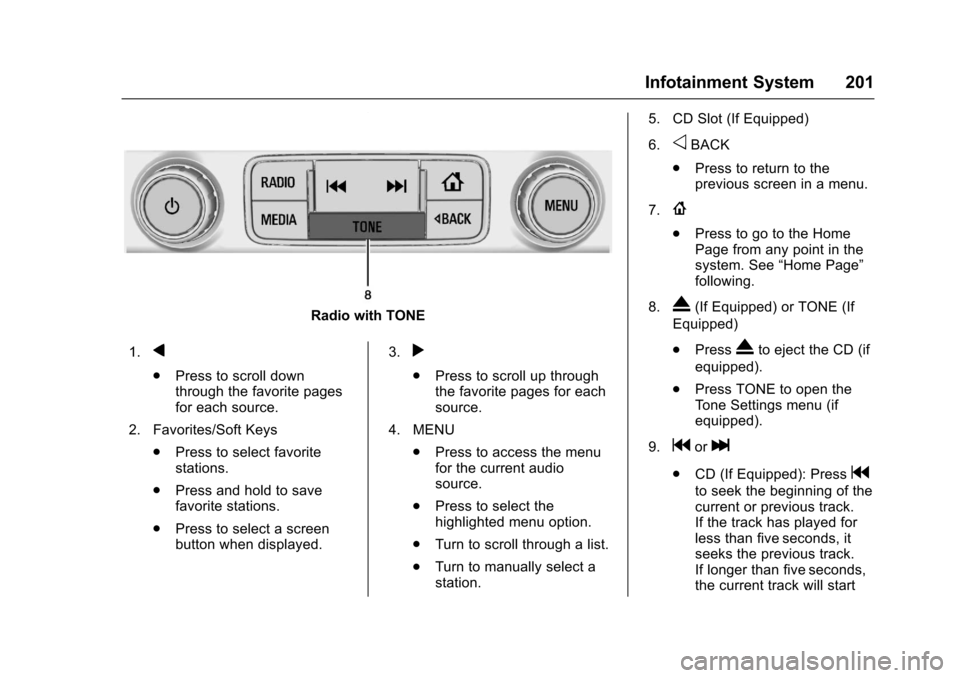
1.
q
. Press to scroll down
through the favorite pages
for each source.
2. Favorites/Soft Keys .Press to select favorite
stations.
. Press and hold to save
favorite stations.
. Press to select a screen
button when displayed. 3.
r
.
Press to scroll up through
the favorite pages for each
source.
4. MENU .Press to access the menu
for the current audio
source.
. Press to select the
highlighted menu option.
. Turn to scroll through a list.
. Turn to manually select a
station. 5. CD Slot (If Equipped)
6.
oBACK
. Press to return to the
previous screen in a menu.
7.
{
. Press to go to the Home
Page from any point in the
system. See “Home Page”
following.
8.
X(If Equipped) or TONE (If
Equipped)
. Press
Xto eject the CD (if
equipped).
. Press TONE to open the
Tone Settings menu (if
equipped).
9.
gorl
. CD (If Equipped): Pressg
to seek the beginning of the
current or previous track.
If the track has played for
less than five seconds, it
seeks the previous track.
If longer than five seconds,
the current track will start
Page 204 of 465
Chevrolet Tahoe/Suburban Owner Manual (GMNA-Localizing-U.S./Canada/
Mexico-9955986) - 2017 - crc - 7/5/16
Infotainment System 203
Valet Mode:
Using the circular numeric keypad,
enter a four-digit code:1. Turn the MENU knob to highlight a number.
2. Press the MENU knob to select it. Do this for each one of the
four digits. Select Enter to go to
the confirmation screen.
3. Re-enter the four-digit code. Select LOCK to lock the
system. This will also lock
access to the storage behind
the radio, if equipped. See
Instrument Panel
Storage 0125.
4. Enter the four-digit code to unlock the system.
Radio : See“Radio Setup” later in
this section.
Vehicle : SeeVehicle
Personalization 0178.
Display : Press the MENU knob to
turn the display on or off.
Return to Factory Settings : See
“Return to Factory Settings” later in
this section. Software Information :
Press the
MENU knob to select Save Vehicle
Info to USB. Press the MENU knob
again to start downloading the
vehicle information to the USB.
Radio Setup
From the RADIO/BAND screen icon,
the following may be displayed:
Manage Favorites:
. Turn the MENU knob and press
to select a favorite.
.
To delete a favorite, press
the button just below the
DELETE screen button.
. To move a favorite, press the
MOVE screen button. Turn
the MENU knob to select a
new location, then press the
DROP screen button to
select the new location.
. Select
oBACK to go back to
the previous menu.
Number of Favorites Shown : To
set the number of favorites for
display, select Auto to automatically
adjust the number of Favorites
pages shown as Favorites are added and removed. Another way to
adjust is to select a number from 5–
25 to show that selection of
favorites.
Audible Touch Feedback :
Select
to turn feedback off or on.
Auto Volume (If Equipped) : This
feature adjusts the volume based on
vehicle speed. The options are Off,
Low, Medium-Low, Medium,
Medium-High, or High. Select the
desired volume.
Maximum Startup Volume : This
feature sets the maximum startup
volume. If the vehicle is started and
the volume is greater than this level,
the volume is adjusted to this level.
To set the maximum startup volume,
Turn the MENU knob to increase or
decrease startup volume.
Rear Camera
From the Rear Camera screen
button, the following may display:
Guidance Lines (If Equipped) :
This feature will display guidance
lines on the screen when in
R (Reverse). Select Off or On.
Page 218 of 465
Chevrolet Tahoe/Suburban Owner Manual (GMNA-Localizing-U.S./Canada/
Mexico-9955986) - 2017 - crc - 7/5/16
Infotainment System 217
Deleting a Paired Phone1. From the Home Page, turn the MENU knob, then press to
select the PHONE screen
button.
2. Turn the MENU knob and press to select Manage
Phones.
3. Turn the MENU knob to highlight the phone to be
deleted.
4. Press the button below the DELETE screen button to
delete the highlighted device.
5. A confirmation screen is displayed. Press the button just
below the DELETE screen
button to confirm deletion.
Connecting to a Different Phone 1. From the Home Page, turn the MENU knob, then press to
select the PHONE screen
button.
2. Turn the MENU knob and press to select Manage
Phones. 3. Turn the MENU knob to
highlight the phone to be
connected.
4. Press the button just below the CONNECT screen button to
connect to the highlighted
device.
Phone Menu
Once a phone is connected and
selected, the following may display:
Recent Calls : Turn the MENU
knob to highlight Recent Calls and
press to select.
Contacts : Turn the MENU knob to
highlight Contacts and press to
select.
Keypad : Turn the MENU knob to
highlight Keypad and press to
select.
Active Call : Turn the MENU knob
to highlight Active Call and press to
select and display the active call
screen.
Manage Phones : Turn the MENU
knob to highlight Manage Phones
and press to select.
Making a Call Using Contacts
and Recent Calls
For cell phones that support the
Contacts and Recent Calls feature,
the Bluetooth system can use the
contacts stored on your cell phone
to make calls. See your cell phone
manufacturer ’s user guide or
contact your wireless provider to
find out if this feature is supported
by your phone.
If the phone prompts to allow phone
book download during the pairing
process, select Always Accept and
Allow. The phone book may not be
available if not accepted.
When a cell phone supports the
phone book feature, the Contacts
and Recent Calls menus are
automatically available.
The Contacts menu allows you to
access the phone book stored in the
cell phone to make a call.
The Recent Calls menu allows you
to access the phone numbers from
the Incoming Calls, Outgoing Calls,
and Missed Calls menus on the cell
phone to make a call.
Page 219 of 465
Chevrolet Tahoe/Suburban Owner Manual (GMNA-Localizing-U.S./Canada/
Mexico-9955986) - 2017 - crc - 7/5/16
218 Infotainment System
To make a call using the
Contacts menu:1. From the Home Page, turn the MENU knob, then press to
select the PHONE screen
button.
2. Turn the MENU knob to highlight Contacts and press to
select.
3. Turn the MENU knob to highlight the letter group and
press to select.
4. Turn the MENU knob to highlight the contact and press
to select.
5. Turn the MENU knob to highlight the desired number,
then press the MENU knob to
call the contact.
To make a call using the Recent
Calls menu:
1. From the Home Page, turn the MENU knob, then press to
select the PHONE screen
button. 2. Turn the MENU knob to
highlight Recent Calls and
press to select.
If necessary, select between
Missed, Recent, and Sent calls
by pressing the button below
the appropriate screen button.
3. Turn the MENU knob to highlight the contact or the
phone number.
4. Press the MENU knob to call the contact.
Making a Call Using the
Keypad
To make a call:
1. From the Home Page, turn the MENU knob, then press to
select the PHONE screen
button.
2. Turn the MENU knob and press to select Keypad.
3. Turn the MENU knob to highlight the first digit and
press to select. Continue this
process through the number.
To call, press the button just
below the CALL screen button.
Accepting or Declining a Call
When an incoming call is received,
the infotainment system mutes and
a ring tone is heard in the vehicle.
Accepting a Call
To accept a call, do one of the
following:
.Press the button just below the
ANSWER screen button.
. Press
gon the steering wheel
controls.
Declining a Call
To decline a call, do one of the
following:
. Press the button just below the
IGNORE screen button.
. Press
ion the steering wheel
controls.
. Do nothing.
Call Waiting
Call waiting must be supported on
the Bluetooth phone and enabled by
the wireless service carrier to work.
Page 220 of 465
Chevrolet Tahoe/Suburban Owner Manual (GMNA-Localizing-U.S./Canada/
Mexico-9955986) - 2017 - crc - 7/5/16
Infotainment System 219
Accepting a Call Waiting Call
To accept a call waiting call, do one
of the following:
.Press the button just below the
SWITCH screen button.
. Press
gon the steering wheel
controls.
Declining a Call Waiting Call
To decline a call waiting call, do one
of the following:
. Press the button just below the
IGNORE screen button.
. Press
ion the steering wheel
controls.
. Do nothing.
Ending a Call
To end a call, do one of the
following:
.Press the button just below the
END screen button.
. Press
ion the steering wheel
controls.
Dual Tone Multi-Frequency
(DTMF) Tones
The in-vehicle Bluetooth system can
send numbers during a call. This is
used when calling a menu-driven
phone system.
1. When a call is active, press the button just below the KEYPAD
screen button.
2. Turn the MENU knob to highlight the first digit and
press to select.
If not initially in the phone
application, from the Home Page,
turn the MENU knob, then press to
select the PHONE screen button.
From the PHONE main menu, turn
the MENU knob to highlight Active
Call and press to select.
Bluetooth (Voice
Recognition - Base
Radio)
Using Voice Recognition
To use voice recognition, pressg
on the steering wheel. Use the
commands below for the various
voice features. For additional
information, say “Help”while you
are in a voice recognition menu.
Pairing
Pairing a Phone
1. Press
g. The system responds
“Ready,” followed by a tone.
2. Say “Bluetooth.”
3. Say “Pair.”The system
responds with instructions and
a four-digit Personal
Identification Number (PIN).
The PIN is used in Step 5.
4. Start the pairing process on the cell phone that you want to
pair. For help with this process,
see your cell phone
manufacturer's user guide.