2017 CHEVROLET SONIC ECU
[x] Cancel search: ECUPage 122 of 342
Chevrolet Sonic Owner Manual (GMNA-Localizing-U.S./Canada-10122660) -2017 - crc - 5/13/16
Instruments and Controls 121
Door Ajar Light
This light comes on when a door isopen or not securely latched. Beforedriving, check that all doors areproperly closed.
Trunk Ajar Light
This light comes on when the trunkis ajar.
Information Displays
Driver Information
Center (DIC)
The DIC displays information aboutthe vehicle. It also displays warningmessages if a system problem isdetected. SeeVehicle Messages0126.AllmessagesappearintheDIC display in the instrument panelcluster.
DIC Operation and Displays
On some models, the trip odometerreset stem is used to operate theDIC. On other models, the controlsfor the DIC are on the turn signallever.
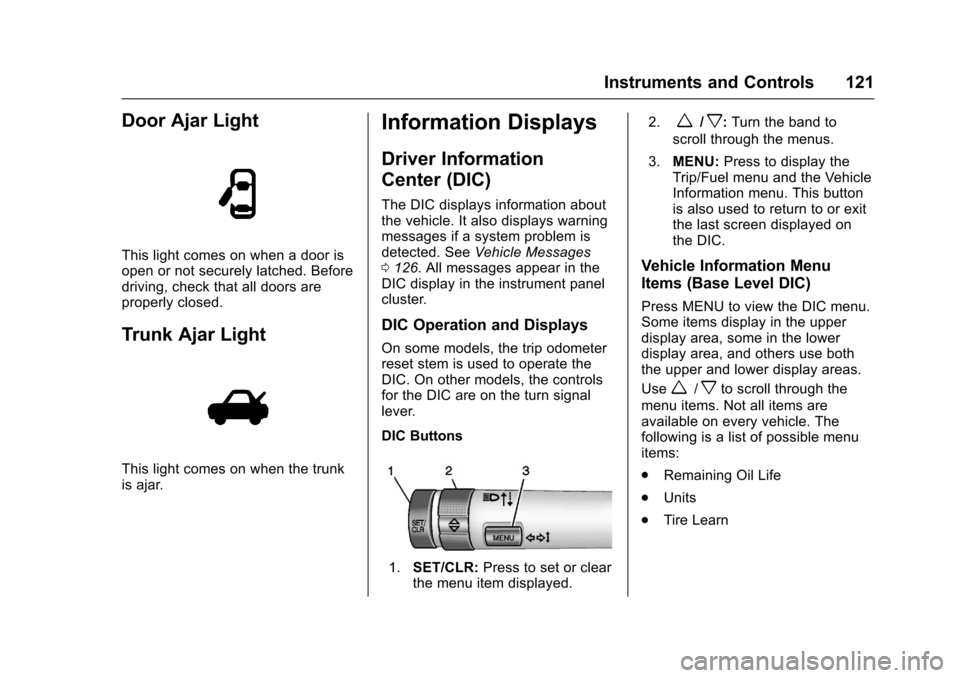
DIC Buttons
1.SET/CLR:Press to set or clearthe menu item displayed.
2.w/x:Turn the band to
scroll through the menus.
3.MENU:Press to display theTrip/Fuel menu and the VehicleInformation menu. This buttonis also used to return to or exitthe last screen displayed onthe DIC.
Vehicle Information Menu
Items (Base Level DIC)
Press MENU to view the DIC menu.Some items display in the upperdisplay area, some in the lowerdisplay area, and others use boththe upper and lower display areas.
Usew/xto scroll through the
menu items. Not all items areavailable on every vehicle. Thefollowing is a list of possible menuitems:
.Remaining Oil Life
.Units
.Tire Learn
Page 123 of 342

Chevrolet Sonic Owner Manual (GMNA-Localizing-U.S./Canada-10122660) -2017 - crc - 5/13/16
122 Instruments and Controls
Remaining Oil Life
This menu is not available while thevehicle is moving. This displayshows an estimate of the oil's
remaining useful life. If 99:%is
displayed, that means 99% of thecurrent oil life remains.
When the remaining oil life is low,
the:%CHANGEmessagewill
appear on the display. The oilshould changed as soon aspossible. SeeEngine Oil0220.Inaddition to the engine oil life systemmonitoring the oil life, additionalmaintenance is recommended in theMaintenance Schedule. SeeMaintenance Schedule0290.
Remember, the Oil Life display mustbe reset after each oil change. It willnot reset itself. Also, be careful notto reset the Oil Life displayaccidentally at any time other thanwhen the oil has just been changed.It cannot be reset accurately untilthe next oil change. To reset theengine oil life system, press SET/CLR while the Oil Life display isactive. SeeEngine Oil LifeSystem0222.
Units
This menu is not available while thevehicle is moving. Press SET/CLRwhile the unit display is active and
movew/xto change units when
UNIT SET is displayed. Press SET/CLR to confirm the setting. Select 1,2, or 3 for the unit display. 1 ismetric units, 2 is Imperial units, and3isUSunits.Thiswillchangethedisplays on the cluster and DIC tothe type of measurements selected.
Tire Learn
This display allows for matching ofthe TPMS sensors. The display willshow a vehicle with the approximatepressures of all four tires. Tirepressure is displayed in eitherkilopascal (kPa) or pounds persquare inch (psi). SeeTire PressureMonitor System0257andTirePressure Monitor Operation0258.
Trip/Fuel Menu Items (Base
Level DIC)
Press MENU until the Trip/Fuel
menu is displayed. Usew/xto
scroll through the menu items. On
some models, use the trip odometerreset stem to scroll through themenu. Not all items are available onevery vehicle. The following is a listof possible menu items:
.Trip Odometer
.Fuel Range
.Average Vehicle Speed
.Instantaneous Fuel Economy
.Average Fuel Economy
.Timer
Trip Odometer
This display shows the currentdistance traveled, in eitherkilometers (km) or miles (mi), sincethe last reset for the trip odometer.The trip odometer can be reset tozero by pressing SET/CLR orpressing and holding the tripodometer reset stem while the tripodometer display is showing.
Fuel Range
This display shows the approximatedistance the vehicle can be drivenwithout refueling. The fuel rangeestimate is based on an average of
Page 143 of 342

Chevrolet Sonic Owner Manual (GMNA-Localizing-U.S./Canada-10122660) -2017 - crc - 5/13/16
142 Infotainment System
features are also available throughthe instrument cluster and steeringwheel controls.
Before driving:
.Become familiar with theoperation, faceplate buttons, andscreen buttons.
.Set up the audio by presettingfavorite stations, setting thetone, and adjusting thespeakers.
.Set up phone numbers inadvance so they can be calledeasily by pressing a singlebutton or by using a single voicecommand if equipped withBluetooth phone capability.
SeeDefensive Driving0172.
To p l a y t h e i n f o t a i n m e n t s y s t e m w i t hthe ignition off, seeRetainedAccessory Power (RAP)0187.
Theft-Deterrent Feature
The infotainment system has anelectronic security system installedto prevent theft.
The infotainment system only worksin the vehicle in which it was firstinstalled, and cannot be used inanother vehicle.
Page 147 of 342
Chevrolet Sonic Owner Manual (GMNA-Localizing-U.S./Canada-10122660) -2017 - crc - 5/13/16
146 Infotainment System
Direct Tune
From the AM or FM menu:
1. Touch Tune.
2. Enter the station number.
3. Touch Go.
Favorites
1. TouchSorTto scroll through
the favorite pages.
2. Touch the station to select it.
Update Station List
.From the AM or FM menu, touchMenu, then touch Update StationList. The broadcasting listupdating will begin.
.During the AM or FMbroadcasting list update, touchCancel to stop the updates.
Station List
1. From the AM or FM menu,touch Menu.
2. Select Station List.
3. TouchQorRto scroll through
the list. Touch the station toselect it.
Menu
To u c h t o c h o o s e b e t w e e n a v a i l a b l emenus for the current source.
Storing a Station as a Favorite
Stations from all bands can bestored in any order in the favoritepages.
Up to 25 stations can be stored.
Storing Stations
To s t o r e t h e s t a t i o n t o a p o s i t i o n i nthe list, touch the correspondingbutton 1✓5untilabeepisheard.
1. Select the desired station.
2. TouchSorTto select the
desired page of savedfavorites.
3. Touch and hold any of thepreset buttons to save thecurrent radio station to thatbutton of the selectedfavorites page.
To c h a n g e a p r e s e t b u t t o n , t u n e t othe new desired radio station andtouch and hold the preset button.
Satellite Radio
If equipped, vehicles with anSiriusXM®Satellite Radio tuner andavalidSiriusXMSatelliteRadiosubscription can receive SiriusXMprogramming.
SiriusXM Satellite Radio
Service
SiriusXM is a satellite radio servicebased in the 48 contiguous UnitedStates and 10 Canadian provinces.SiriusXM Satellite Radio has a widevariety of programming andcommercial-free music, coast tocoast, and in digital-quality sound.During your trial or when yousubscribe, you will get unlimitedaccess to SiriusXM Radio Online forwhen you are not in the vehicle.Aservicefeeisrequiredtoreceivethe SiriusXM service. If SiriusXMservice needs to be reactivated, theradio will display "No SubscriptionPlease Renew" on channel SXM1.For more information, contactSiriusXM at www.siriusxm.com or1-888-601-6296 (U.S.), andwww.siriusxm.ca or 1-877-438-9677(Canada).
Page 153 of 342
Chevrolet Sonic Owner Manual (GMNA-Localizing-U.S./Canada-10122660) -2017 - crc - 5/13/16
152 Infotainment System
If the USB device is alreadyconnected:
1. Press{.
2. Touch AUDIO.
3. Touch Source.
4. Touch USB.
To s t o p t h e U S B d e v i c e a n d s e l e c tanother media source, touchSource, then select the othersource.
To r e m o v e t h e U S B d e v i c e , s e l e c tanother function, then remove theUSB device.
Pause
.To u c hjto pause.
.To u c hrto resume.
Changing to Next/Previous Files
.To u c hlto change to the
next file.
.To u c hgwithin five seconds of
the playback time to play theprevious file.
Returning to the Beginning of theCurrent File
To u c hgafter five seconds of the
playback time.
Scanning Forward or Backward
To u c h a n d h o l dgorlduring
playback to rewind or fast forward.Release the button to resumeplayback at normal speed.
Playing Files Randomly
To u c hZduring playback.
.ON: Plays all files randomly.
.OFF: Returns to normalplayback.
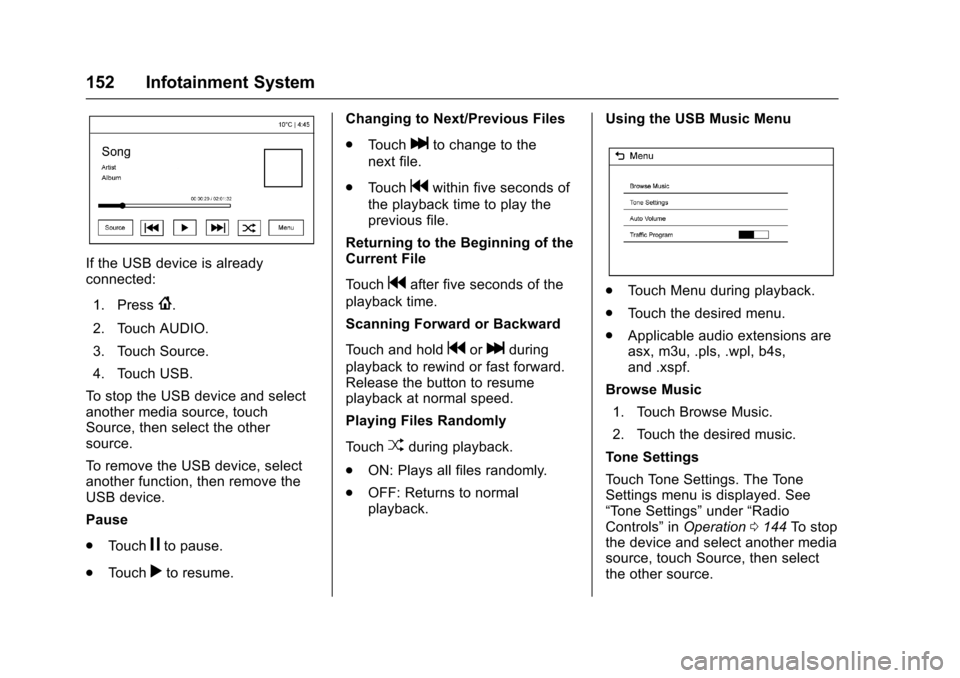
Using the USB Music Menu
.To u c h M e n u d u r i n g p l a y b a c k .
.To u c h t h e d e s i r e d m e n u .
.Applicable audio extensions areasx, m3u, .pls, .wpl, b4s,and .xspf.
Browse Music
1. Touch Browse Music.
2. Touch the desired music.
To n e S e t t i n g s
To u c h To n e S e t t i n g s . T h e To n eSettings menu is displayed. See“To n e S e t t i n g s”under“RadioControls”inOperation0144To s t o pthe device and select another mediasource, touch Source, then selectthe other source.
Page 154 of 342
Chevrolet Sonic Owner Manual (GMNA-Localizing-U.S./Canada-10122660) -2017 - crc - 5/13/16
Infotainment System 153
Auto Volume
To u c h A u t o V o l u m e . T h e A u t oVolume menu is displayed. See“Auto Volume”under“RadioControls”inOperation0144
Tr a f f i c P r o g r a m(If Equipped)
To u c h O n o r O f f .
MTP (Media Transfer Protocol)
.Connect an MTP supporteddevice.
.Play will start automatically afterthe system has finished readingthe MTP device.
.If a non-readable MTP device isconnected, an error messagedisplays and the system willswitch to the previous audiofunction.
iPod/iPhone Player
This feature is limited to modelssupporting the iPod/iPhoneconnection.
Playing Music Files
.Connect the iPod/iPhone to theUSB port.
.Play will start from the previouslyplayed point after the systemhas finished reading the USBdevice.
.If a non-readable USB device isconnected, an error messagedisplays and the system willswitch to the previous audiofunction.
If the iPod/iPhone is alreadyconnected:
1. Press{.
2. Touch AUDIO.
3. Touch Source.
4. Touch iPod.
To s t o p t h e d e v i c e a n d s e l e c tanother media source, touchSource, then select the othersource.
To r e m o v e t h e d e v i c e , s e l e c tanother function, then remove thedevice.
Pause
.To u c hjto pause.
.To u c hrto resume.
Changing to Next/Previous Song
.To u c hlto change to the
next song.
.To u c hgwithin two seconds of
the playback time to play theprevious file.
Returning to the Beginning of theCurrent File
To u c hgafter two seconds of the
playback time.
Scanning Forward or Backward
To u c h a n d h o l dgorlduring
playback to rewind or fast forward.Release the button to resumeplayback at normal speed.
Playing Files Randomly
To u c hZduring playback.
.ON: Plays all files randomly.
.OFF: Returns to normalplayback.
Using the iPod Menu
.To u c h M e n u d u r i n g p l a y b a c k .
.To u c h t h e a p p r o p r i a t eplay mode.
Page 158 of 342
Chevrolet Sonic Owner Manual (GMNA-Localizing-U.S./Canada-10122660) -2017 - crc - 5/13/16
Infotainment System 157
change the volume level. Theadjusted volume level remains inmemory for later calls. The systemmaintains a minimum volume level.
Other Information
SeeRadio FrequencyStatement0317.
Bluetooth (Infotainment
Controls)
To u s e i n f o t a i n m e n t c o n t r o l s t oaccess the menu system, seeOverview0143.
Pairing
ABluetooth-enabledcellphonemust be paired to the Bluetoothsystem and then connected to thevehicle before it can be used. Seeyour cell phone manufacturer's userguide for Bluetooth functions beforepairing the cell phone. If a Bluetoothphone is not connected, calls will bemade using OnStar Hands-FreeCalling, if available. SeeOnStarOverview0321.
Pairing Information
.ABluetoothphonewithMP3capability cannot be paired tothe vehicle as a phone and anMP3 player at the same time.
.Up to 10 cell phones can bepaired to the Bluetooth system.
.The pairing process is disabledwhen the vehicle is moving.
.Pairing only needs to becompleted once, unless thepairing information on the cellphone changes or the cell phoneis deleted from the system.
.Only one paired cell phone canbe connected to the Bluetoothsystem at a time.
.If multiple paired cell phones arewithin range of the system, thesystem connects to the firstavailable paired cell phone in theorder that they were first paired.
When the Bluetooth device andinfotainment system aresuccessfully paired, the phone bookis downloaded automatically. This isdependent on the type of phonepaired. If the automatic download
does not occur, proceed with thephone book download on thephone.
Pairing a Phone–SSP and NoPaired Device
When there is no paired device onthe infotainment system and SimpleSecure Pairing (SSP) is supported:
1. Press{.
2. Touch PHONE, press5on the
faceplate, or pressgon the
steering wheel without OnStar.
3. Touch Search Device.
4. Touch the desired device topair on the searched listscreen.
5. Touch Yes on the pop-upscreen of the Bluetooth deviceand infotainment system.
6. When the Bluetooth device andinfotainment system aresuccessfully paired, the phonescreen is displayed on theinfotainment system.
Page 159 of 342
Chevrolet Sonic Owner Manual (GMNA-Localizing-U.S./Canada-10122660) -2017 - crc - 5/13/16
158 Infotainment System
Pairing a Phone–SSP and PairedDevice
When a paired device is on theinfotainment system and SSP issupported:
1. Press{.
2. Touch SETTINGS.
3. Touch Bluetooth, then DeviceManagement.
4. Touch the desired device topair. When the Bluetoothdevice and infotainment system
are successfully paired,Z/5
is displayed on the pair devicescreen. If no desired device isavailable go to Step 5.
5. Touch Search Device to searchfor the desired device.
6. Touch the desired device topair on the searched listscreen.
7. Touch Yes on the pop-upscreen of the Bluetooth deviceand infotainment system.
.The connected phone is
highlighted by5.
.Z/5indicates the hands-free
and phone music functions areenabled.
.5indicates only the hands-free
function is enabled.
.Zindicates only Bluetooth
music is enabled.
Pairing a Phone–No SSP and NoPaired Device
When there is no paired device onthe infotainment system and SSP isnot supported:
1. Press{.
2. Touch PHONE, press5on the
faceplate, or pressgon the
steering wheel without OnStar.
3. Touch Search Device.
4. Touch the desired device topair on the searched listscreen.
5. Input the PersonalIdentification Number (PIN)code (default: 1234) to theBluetooth device. When theBluetooth device and
infotainment system aresuccessfully paired, thePHONE screen is displayed onthe infotainment system.
When the connection fails, a failuremessage is displayed on theinfotainment system.
If a Bluetooth device was previouslyconnected, the infotainment systemexecutes the auto connection.However, if the Bluetooth setting onthe Bluetooth device is turned off, afailure message is displayed on theinfotainment system.
Pairing a Phone–No SSP andPaired Device
When a paired device is on theinfotainment system and SSP is notsupported:
1. Press{.
2. Touch SETTINGS.
3. Touch Bluetooth, then DeviceManagement.
4. Touch the desired device topair. When the Bluetoothdevice and infotainment system