2017 CHEVROLET MALIBU USB
[x] Cancel search: USBPage 176 of 419
Chevrolet Malibu Owner Manual (GMNA-Localizing-U.S./Canada/Mexico-10122664) - 2017 - crc - 5/23/16
Infotainment System 175
1.{
.Press to go to the HomePage. SeeHome Page(Radio withTo u c h s c r e e n )0175.
2.g
.Radio: Press and release togo to the previous station orchannel. Press and hold tofast seek the previousstrongest station orchannel.
.USB/Bluetooth Music/Pictures: Press and releaseto go to the previous track.Press and hold to fastrewind.
3.O
.Press to turn the power on.
.Press and hold to turn thepower off.
.Press to mute the systemwhen on.
.Turn to decrease orincrease the volume.
4.d
.Radio: Press and release togo to the next station orchannel. Press and hold tofast seek the next strongeststation or channel.
.USB/Bluetooth Music/Pictures: Press and releaseto go to the next track.Press and hold to fastforward.
5.5
.Press and release toaccess the phone screen,answer an incoming call,or access the device homescreen.
Home Page (Radio with
Touchscreen)
Touchscreen Buttons
If equipped, touchscreen buttonsshow on the screen when available.When a function is unavailable, thebutton may gray out. When afunction is selected, the button mayhighlight.
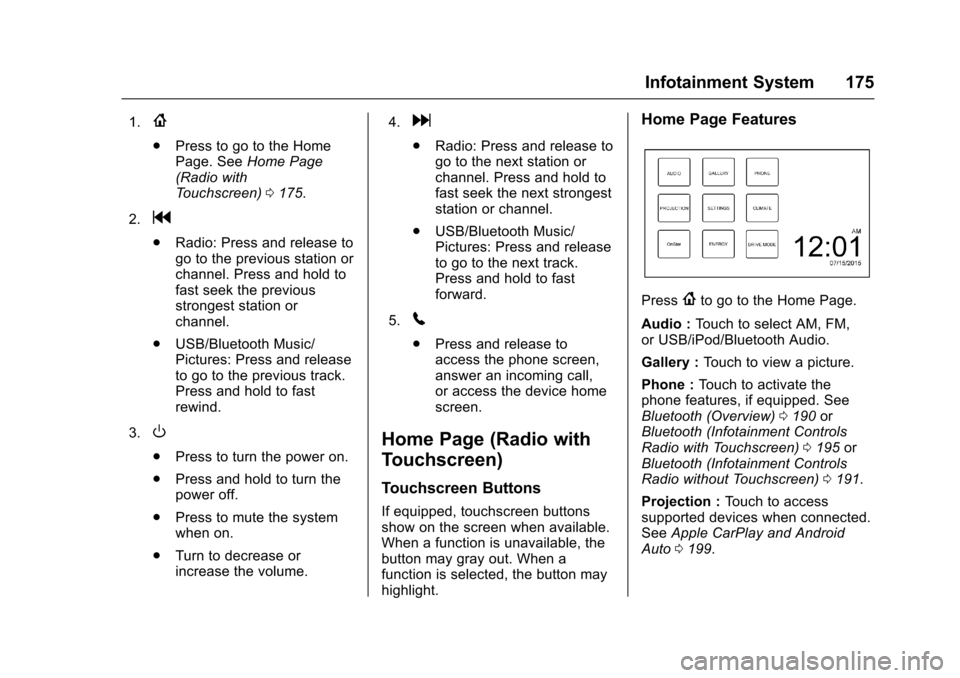
Home Page Features
Press{to go to the Home Page.
Audio :To u c h t o s e l e c t A M , F M ,or USB/iPod/Bluetooth Audio.
Gallery :To u c h t o v i e w a p i c t u r e .
Phone :To u c h t o a c t i v a t e t h ephone features, if equipped. SeeBluetooth (Overview)0190orBluetooth (Infotainment ControlsRadio with Touchscreen)0195orBluetooth (Infotainment ControlsRadio without Touchscreen)0191.
Projection :To u c h t o a c c e s ssupported devices when connected.SeeApple CarPlay and AndroidAuto0199.
Page 185 of 419
Chevrolet Malibu Owner Manual (GMNA-Localizing-U.S./Canada/Mexico-10122664) - 2017 - crc - 5/23/16
184 Infotainment System
Audio Players
Avoiding Untrusted Media
Devices
When using media devices such asCDs, DVDs, Blu-ray Discs®,SDcards, USB drives, and mobiledevices, consider the source.Untrusted media devices couldcontain files that affect systemoperation or performance. Avoid useif the content or origin cannot betrusted.
USB Port
Using the USB Port
The infotainment system can playmusic by connecting an auxiliarydevice to the USB port.
USB Support
The USB ports are in the centerconsole, and use the USB 2.0standard.
USB Supported Devices
.USB Flash Drives
.iPods/iPhones
.Portable USB Hard Drives
Not all iPods and USB drives arecompatible with the USB port.
Make sure the iPod has the latestfirmware from Apple®for properoperation. iPod firmware can beupdated using the latest iTunes®
application. See www.apple.com/itunes.
For help with identifying your iPod,go to www.apple.com/support.
The USB port can play both lowerand upper case .mp3, .wma, .ogg,and .wav files stored on a USBstorage device.
Supported Apple®Devices
To v i e w s u p p o r t e d d e v i c e s i n t h eU.S., see www.my.chevrolet.com\learned.
To v i e w s u p p o r t e d d e v i c e s i nCanada, seewww.chevroletowner.ca.
To v i e w s u p p o r t e d d e v i c e s i nMexico, see your dealer.
USB Supported File and FolderStructure
The infotainment system supports:
.FAT 1 6 .
.FAT 3 2 .
.exFAT.
Connecting a USB Storage
Device or iPod/iPhone
To c o n n e c t a U S B s t o r a g e d e v i c e ,connect the device to the USB port.
To c o n n e c t a n i P o d / i P h o n e , c o n n e c tone end of the device’scabletotheiPod/iPhone and the other end tothe USB port.
The iPod/iPhone charges while it isconnected to the vehicle if thevehicle is in ACC/ACCESSORY orON/RUN. SeeIgnition Positions0225.Whenthevehicleisturnedoff, the iPod/iPhone automaticallypowers off and will not charge ordraw power from the vehicle'sbattery.
For more information on USBusage, see“Audio SystemInformation”following.
Page 186 of 419
Chevrolet Malibu Owner Manual (GMNA-Localizing-U.S./Canada/Mexico-10122664) - 2017 - crc - 5/23/16
Infotainment System 185
Audio System Information
The infotainment system can playthe music files contained in the USBstorage device or iPod/iPhoneproducts.
Using MP3/WMA/OGG/WAV Files
.Music files with .mp3, .wma,.ogg, and .wav file nameextensions can be played.
.MP3 files that can be played: Bitrate: 8 kbps to 320 kbps.Sampling frequency: 48 kHz,44.1 kHz, 32 kHz, 24 kHz, 22.05kHz, and 16 kHz.
.Files with a bit rate above128 kbps will result in higherquality sound.
.ID3 Tag information for MP3files, such as the album nameand the artist, can be played.
.To d i s p l a y a l b u m t i t l e , t r a c k t i t l e ,and artist information, the fileshould be compatible with theID3 Tag V1 and V2 formats.
Using USB Storage Devices andiPod/iPhone
.Use a USB or flash memory typestorage device. Do not connectusing a USB adaptor.
.Do not connect and reconnectthe USB device repeatedly in ashort time, as this may causestatic electricity and problemsusing the device.
.Use a USB device with a metalconnecting terminal.
.Connection with i-Stick TypeUSB storage devices may befaulty due to vehicle vibration.
.Do not touch the USBconnecting terminal.
.Only USB storage devicesformatted in FAT16/32 or exFATfile systems are recognized.NTFS and other file systems arenot recognized.
.The time it takes to process fileswill depend on the USB storagedevice type and capacity, andthe type of files stored.
.Some USB storage device filesmay not be compatible.
.Up to two USB devices and oneiPod can be played through aUSB hub. All devices may not besupported, depending on theperformance of the USB hub.If there is not enough powersupply, it may not operatenormally.
.Do not disconnect the USBstorage device while it is playing.This may cause damage to theproduct or affect theperformance of the USB device.
.Disconnect the USB storagedevice when the ignition isturned off. If the ignition is turnedon while the USB device isconnected, the USB device maybe damaged or may not operatenormally.
.USB storage devices can onlybe connected for playing music,viewing photo files,or upgrading.
Page 187 of 419
Chevrolet Malibu Owner Manual (GMNA-Localizing-U.S./Canada/Mexico-10122664) - 2017 - crc - 5/23/16
186 Infotainment System
.Do not use the USB terminal tocharge USB accessoryequipment. The heat generatedmay cause performance issuesor damage.
.Music files to which Digital RightManagement (DRM) is appliedcannot be played.
.USB storage device that has acapacity limit of no more than5,000 files, such as music,photo, video, 15 levels of folderstructure. Normal usage cannotbe guaranteed for a storagedevice that exceeds this limit.The iPod/iPhone can play allmusic files that are supported.The music file lists will onlydisplay up to 5,000 files on thescreen. These files are sorted inalphabetical order.
.Some iPod/iPhone productmodels may not support theconnectivity or functionality ofthis product.
.Only connect the iPod/iPhonewith connection cablessupported by iPod/iPhoneproducts. Other connectioncables cannot be used.
.The iPod/iPhone may bedamaged if it is connected to thevehicle with the ignition on.When not in use, disconnect theiPod/iPhone.
.When the iPod/iPhone isconnected to the USB port byusing the iPod/iPhone cable, theBluetooth music is notsupported.
.The iPod/iPhone playbackfunctions and the informationdisplayed may be different whenplayed on the infotainmentsystem.
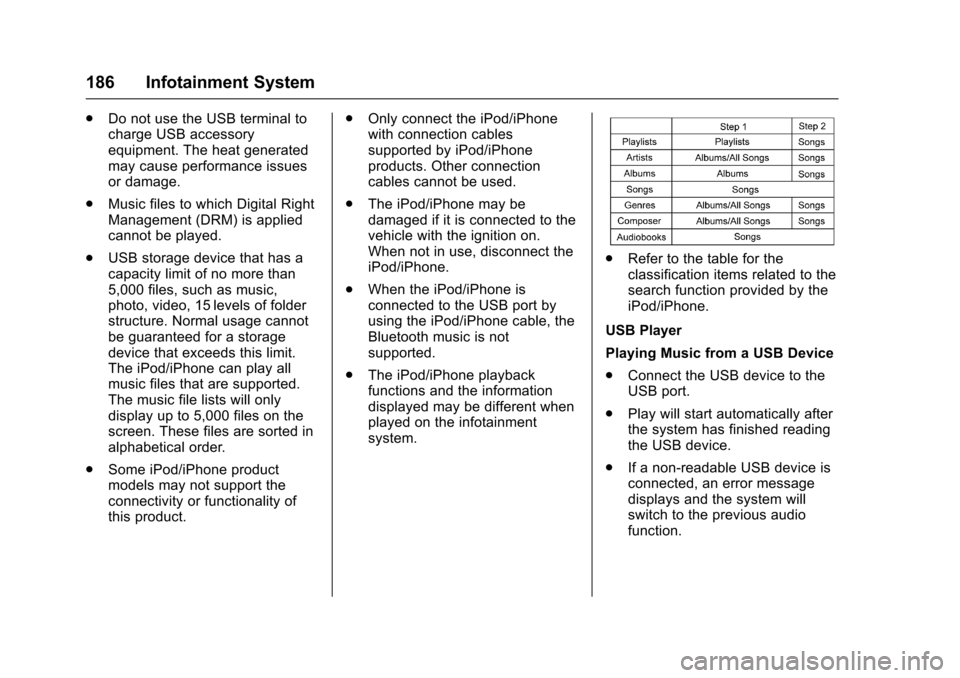
.Refer to the table for theclassification items related to thesearch function provided by theiPod/iPhone.
USB Player
Playing Music from a USB Device
.Connect the USB device to theUSB port.
.Play will start automatically afterthe system has finished readingthe USB device.
.If a non-readable USB device isconnected, an error messagedisplays and the system willswitch to the previous audiofunction.
Page 188 of 419
Chevrolet Malibu Owner Manual (GMNA-Localizing-U.S./Canada/Mexico-10122664) - 2017 - crc - 5/23/16
Infotainment System 187
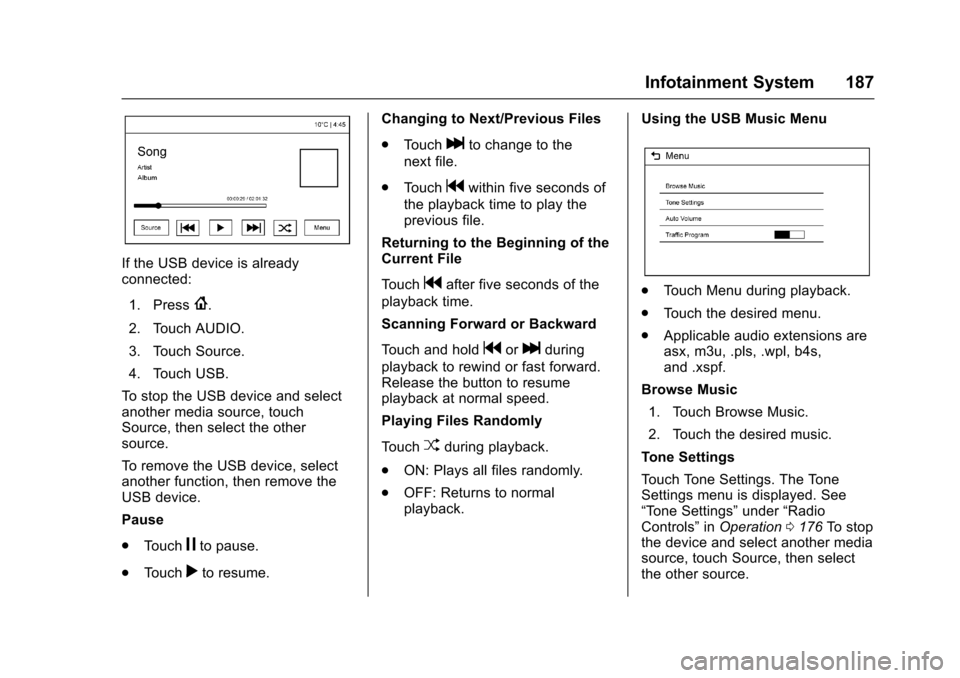
If the USB device is alreadyconnected:
1. Press{.
2. Touch AUDIO.
3. Touch Source.
4. Touch USB.
To s t o p t h e U S B d e v i c e a n d s e l e c tanother media source, touchSource, then select the othersource.
To r e m o v e t h e U S B d e v i c e , s e l e c tanother function, then remove theUSB device.
Pause
.To u c hjto pause.
.To u c hrto resume.
Changing to Next/Previous Files
.To u c hlto change to the
next file.
.To u c hgwithin five seconds of
the playback time to play theprevious file.
Returning to the Beginning of theCurrent File
To u c hgafter five seconds of the
playback time.
Scanning Forward or Backward
To u c h a n d h o l dgorlduring
playback to rewind or fast forward.Release the button to resumeplayback at normal speed.
Playing Files Randomly
To u c hZduring playback.
.ON: Plays all files randomly.
.OFF: Returns to normalplayback.
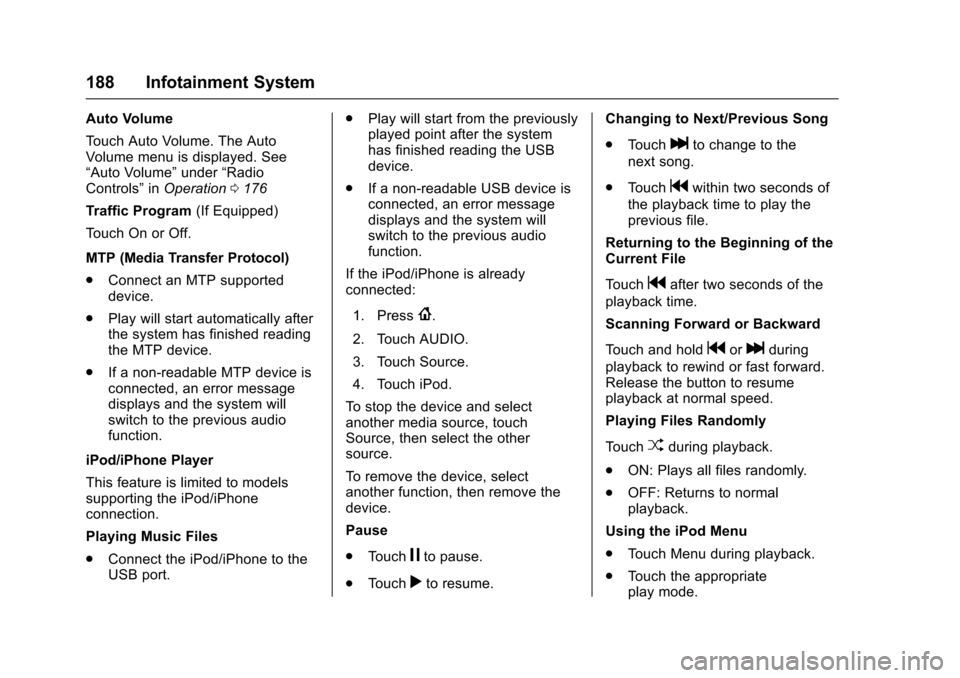
Using the USB Music Menu
.To u c h M e n u d u r i n g p l a y b a c k .
.To u c h t h e d e s i r e d m e n u .
.Applicable audio extensions areasx, m3u, .pls, .wpl, b4s,and .xspf.
Browse Music
1. Touch Browse Music.
2. Touch the desired music.
To n e S e t t i n g s
To u c h To n e S e t t i n g s . T h e To n eSettings menu is displayed. See“To n e S e t t i n g s”under“RadioControls”inOperation0176To s t o pthe device and select another mediasource, touch Source, then selectthe other source.
Page 189 of 419
Chevrolet Malibu Owner Manual (GMNA-Localizing-U.S./Canada/Mexico-10122664) - 2017 - crc - 5/23/16
188 Infotainment System
Auto Volume
To u c h A u t o V o l u m e . T h e A u t oVolume menu is displayed. See“Auto Volume”under“RadioControls”inOperation0176
Tr a f f i c P r o g r a m(If Equipped)
To u c h O n o r O f f .
MTP (Media Transfer Protocol)
.Connect an MTP supporteddevice.
.Play will start automatically afterthe system has finished readingthe MTP device.
.If a non-readable MTP device isconnected, an error messagedisplays and the system willswitch to the previous audiofunction.
iPod/iPhone Player
This feature is limited to modelssupporting the iPod/iPhoneconnection.
Playing Music Files
.Connect the iPod/iPhone to theUSB port.
.Play will start from the previouslyplayed point after the systemhas finished reading the USBdevice.
.If a non-readable USB device isconnected, an error messagedisplays and the system willswitch to the previous audiofunction.
If the iPod/iPhone is alreadyconnected:
1. Press{.
2. Touch AUDIO.
3. Touch Source.
4. Touch iPod.
To s t o p t h e d e v i c e a n d s e l e c tanother media source, touchSource, then select the othersource.
To r e m o v e t h e d e v i c e , s e l e c tanother function, then remove thedevice.
Pause
.To u c hjto pause.
.To u c hrto resume.
Changing to Next/Previous Song
.To u c hlto change to the
next song.
.To u c hgwithin two seconds of
the playback time to play theprevious file.
Returning to the Beginning of theCurrent File
To u c hgafter two seconds of the
playback time.
Scanning Forward or Backward
To u c h a n d h o l dgorlduring
playback to rewind or fast forward.Release the button to resumeplayback at normal speed.
Playing Files Randomly
To u c hZduring playback.
.ON: Plays all files randomly.
.OFF: Returns to normalplayback.
Using the iPod Menu
.To u c h M e n u d u r i n g p l a y b a c k .
.To u c h t h e a p p r o p r i a t eplay mode.
Page 190 of 419
Chevrolet Malibu Owner Manual (GMNA-Localizing-U.S./Canada/Mexico-10122664) - 2017 - crc - 5/23/16
Infotainment System 189
Browse Music
1. Touch Browse Music.
2. Touch the desired music.
To n e S e t t i n g s
To u c h To n e S e t t i n g s . T h e To n eSettings menu is displayed. See“To n e S e t t i n g s”under“RadioControls”inOperation0176
Auto Volume
To u c h A u t o V o l u m e . T h e A u t oVolume menu is displayed. See“Auto Volume”under“RadioControls”inOperation0176.
Picture System Information
The infotainment system can viewpicture files stored on a USBstorage device and devices thatsupport Media TransferProtocol (MTP).
.Supported file extensions: .jpg,.bmp, .png, .gif.
.Animated GIF files are notsupported.
.Some files may not operate dueto a different recording format orthe condition of the file.
Viewing Pictures
1. Connect the USB device to theUSB port.
2. Touch the screen to open to fullscreen. Touch the screen againto return to the previousscreen.
If the USB device is alreadyconnected:
1. Press{.
2. Touch GALLERY.
Some features are disabled whilethe vehicle is in motion.
Viewing a Slide Show
1. Touchzfrom the picture
screen.
2. Touch the screen to cancel theslide show during the slideshow playback.
Viewing a Previous or NextPicture
To u c hSorTfrom the picture
screen.
Rotating a Picture
To u c hwfrom the picture screen.
Enlarging a Picture
To u c hxfrom the picture screen.
Using the USB Picture Menu
1. Touch MENU from the picturescreen.
2. Touch the appropriate menu:
.Slide Show Time: Allowsselection of the slide showinterval.
.Clock, Temp. Display:Allows selection of On orOff to show the clock andtemperature on the fullscreen.
.Display Settings: Adjustsfor Brightness and Contrast.
3. Touch0to exit.
Page 201 of 419
Chevrolet Malibu Owner Manual (GMNA-Localizing-U.S./Canada/Mexico-10122664) - 2017 - crc - 5/23/16
200 Infotainment System
no app required for AppleCarPlay. Use the latestavailable operation system.
2. Connect your Android phone orApple iPhone by using thecompatible phone USB cableand plugging into a USB dataport. For best performance, usethe device’sfactory-providedUSB cable. Aftermarket orthird-party cables maynot work.
The PROJECTION icon on theHome Page will change to AndroidAuto or Apple CarPlay dependingon the phone. Android Auto and/orApple CarPlay may automaticallylaunch upon USB connection. If not,touch the ANDROID AUTO and/orAPPLE CARPLAY icon on theHome Page to launch.
For further information on how to setup Android Auto and Apple CarPlayin the vehicle, seewww.my.chevrolet.com for the U.S.and www.chevroletowner.ca forCanada only orCustomerAssistance Offices0385.
Android Auto is provided by Googleand is subject to Google’stermsand privacy policy. CarPlay isprovided by Apple and is subject toApple’stermsandprivacypolicy.For Android Auto support seehttps://support.google.com/androidauto or Apple CarPlaysupport at https://www.apple.com/ios/carplay/. Apple or Google maychange or suspend availability atany time. Android Auto is atrademark of Google Inc.; AppleCarPlay is a trademark of Apple Inc.
Hands-Free Phone
General Information without
Touchscreen
If equipped, pressg,selectOnStar
Hands-Free Calling, then say thedesired number.
General Information with
Touchscreen
If equipped, vehicles with aHands-Free Phone system can useaBluetooth-capablecellphonewithahands-freeprofiletomakeandreceive phone calls. The
infotainment system and voicecontrol are used to operate thesystem. Not all phones support allfunctions and not all phones workwith the Hands-Free Phone system.
Hands-Free Phone Controls
Use the buttons on the infotainmentsystem and the steering wheel tooperate the Hands-Free Phonesystem.
Steering Wheel Controls
Steering wheel controls can beused to:
.Answer incoming calls.
.Confirm system information.
.End a call.
.Decline a call.
.Cancel an operation.
.Make outgoing calls using thecall list.
g:Press to answer incoming calls.
c:Press to end a call, decline acall, or cancel an operation.