2017 CHEVROLET COLORADO key
[x] Cancel search: keyPage 156 of 419
Chevrolet Colorado Owner Manual (GMNA-Localizing-U.S./Canada/Mexico-10122675) - 2017 - crc - 8/22/16
Infotainment System 155
Overview (Base Radio)
Infotainment System Overview
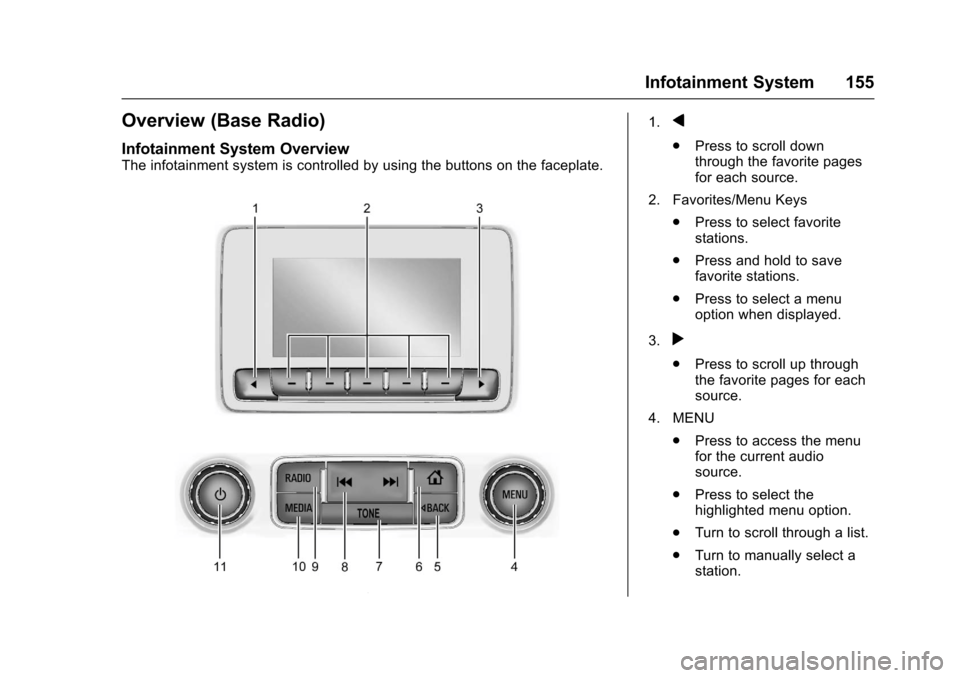
The infotainment system is controlled by using the buttons on the faceplate.
1.q
.Press to scroll downthrough the favorite pagesfor each source.
2. Favorites/Menu Keys
.Press to select favoritestations.
.Press and hold to savefavorite stations.
.Press to select a menuoption when displayed.
3.r
.Press to scroll up throughthe favorite pages for eachsource.
4. MENU
.Press to access the menufor the current audiosource.
.Press to select thehighlighted menu option.
.Turn to scroll through a list.
.Turn to manually select astation.
Page 159 of 419

Chevrolet Colorado Owner Manual (GMNA-Localizing-U.S./Canada/Mexico-10122675) - 2017 - crc - 8/22/16
158 Infotainment System
4.6
.Radio: Press and release togo to the next station orchannel. Press and hold tofast seek the next strongeststation or channel.
.USB/BT Music/Pictures:Press and hold to go to thenext content. Press andhold to fast forward.
5.#
.Press and release toaccess the phone screen,answer an incoming call,or access the device homescreen. Press and hold toaccess Press to Talk.
Home Page (Base Radio)
Home Page Features
The infotainment system displays aHome Page to access all of theapplications. Turn the MENU knobto highlight feature icons. Press theMENU knob to access the feature’soptions.
Va r i o u s f u n c t i o n s a r e d i s a b l e d w h e nthe vehicle is moving.
AUDIO :Select the AUDIO screenicon to display the active sourcepage. The sources available areAM, FM, SXM (if equipped), USB/iPod, AUX Input, and BluetoothAudio (if equipped). SeeAM-FMRadio (Base Radio)0161orAM-FM Radio (Base Radio withTo u c h s c r e e n )0163,Satellite Radio(Base Radio)0164orSatelliteRadio (Base Radio withTo u c h s c r e e n )0165,Auxiliary Jack0179,andBluetooth Audio0180.
PHONE :Select the PHONE screenicon to display the Phone mainpage. SeeBluetooth (Overview)0187orBluetooth (InfotainmentControls - Base Radio)0188orBluetooth (Voice Recognition)0192orBluetooth (Infotainment Controls -Base Radio withTo u c h s c r e e n )0197.
NAV (Navigation, If Equipped) :Select the NAV screen icon todisplay the OnStar Turn-by-TurnNavigation. SeeOnStar Overview0397,ifequipped.
SETTINGS :Select the SETTINGSscreen icon to display the Settingsmain page. See“Setting RadioPreferences”following.
Pandora (If Equipped)
Select the PANDORA icon to beginPandora. SeePandora InternetRadio0167.
Setting Radio Preferences
Select the SETTINGS screen iconto display the Settings menu andthe following may display:
Time and Date :SeeClock0106.
Language (Current Language) :This will set the display language inthe radio and instrument cluster.Select to display a list of languages.
SelectoBACK to go back to the
previous menu.
Valet Mode:
Using the circular numeric keypad,enter a four-digit code:
1. Turn the MENU knob tohighlight a number.
Page 160 of 419
Chevrolet Colorado Owner Manual (GMNA-Localizing-U.S./Canada/Mexico-10122675) - 2017 - crc - 8/22/16
Infotainment System 159
2. Press the MENU knob to selectit. Do this for each one of thefour digits. Select Enter to go tothe confirmation screen.
3. Re-enter the four-digit code.Select LOCK to lock thesystem.
4. Enter the four-digit code to
unlock the system. Selecto
BACK to go back to theprevious menu.
Radio :See“Radio Setup”later inthis section.
Vehicle :SeeVehiclePersonalization0139.
Display :Press the MENU knob toturn the display on or off.
Return to Factory Settings :See“Return to Factory Settings”later inthis section.
Software Information (IfEquipped) :Press the MENU knobto select Save Vehicle Info to USB.Press the MENU knob again to startdownloading the vehicle informationto the USB.
Radio Setup
Press the RADIO button and thefollowing may display:
Manage Favorites:
.Turn the MENU knob and pressto select a favorite.
.To d e l e t e a f a v o r i t e , p r e s sthe menu key just below theDELETE menu item.
.To m o v e a f a v o r i t e , p r e s s t h emenu key just below theMOVE menu item. Turn theMENU knob to select a newlocation, then press themenu key just below theDROP menu item to selectthe new location.
.SelectoBACK to go back to
the previous menu.
Number of Favorites Shown :Select Auto and the system willautomatically adjust the number offavorite pages when favorites areadded and removed, or select anumber from 5–25 to manuallyadjust the number of favoritesshown.
Audible Touch Feedback (IfEquipped) :Select Audible TouchFeedback to turn feedback off or on.
Auto Volume (If Equipped) :Thisfeature adjusts the volume based onvehicle speed. The options are Off,Low, Medium-Low, Medium,Medium-High, or High. Select thedesired volume.
Maximum Startup Volume :Thisfeature sets the maximum startupvolume. If the vehicle is started andthe volume is greater than this level,the volume is adjusted to this level.To s e t t h e m a x i m u m s t a r t u p v o l u m e ,Turn the MENU knob to increase ordecrease.
Rear Camera (If Equipped)
From the Rear Camera menu item,the following may display:
Return to Factory Settings
Select Return to Factory Settingsand the following may display:
Restore Vehicle Settings :Thisoption will restore factory vehiclepersonalization settings. SelectRestore Vehicle Settings. A screen
Page 163 of 419

Chevrolet Colorado Owner Manual (GMNA-Localizing-U.S./Canada/Mexico-10122675) - 2017 - crc - 8/22/16
162 Infotainment System
.DSP:IfequippedwithaBoseSurround®sound system, it willhave three DSP modesincluding:
⇣Normal: Adjusts the audio toprovide the best sound for allseating positions.
⇣Driver: Adjusts the audio toprovide the best sound for thedriver.
⇣Centerpoint: Creates asurround sound from nearlyany audio source.
.EQ (Equalizer):IfequippedwithaBosesoundsystem,turntheMENU knob to highlight. Turnthe MENU knob to scroll throughthe options. Press the MENU
knob to select. Press theo
BACK button to go to theprevious menu.
Station List :Select to display a list
of AM or FM stations. Presso
BACK to go to the previous menu.
Auto Volume :If equipped, thisfeature adjusts the volume based onthe vehicle speed. Select the level
between Off, Low, Medium-Low,Medium, Medium-High, and High.
PressoBACK to go to the
previous menu.
EQ (Equalizer) Settings :In certainconfigurations, the available choicesare Manual and Talk.
Options for SXM Only
SXM View :SXM view allows thechannel list to be viewed by channelname, artist playing on channel,or song playing on channel. Turnthe MENU knob to highlight andpress the MENU knob to select.
PressoBACK to go to the
previous menu.
SXM Channel List :Select todisplay a list of SXM channels. Turnthe MENU knob to highlight andpress the MENU knob to select.
PressoBACK to go to the
previous menu.
Also see the radio settings commonfor all sources earlier in this section.
Finding a Station
Seeking a Station
Pressgorlto search for the
previous or next strongest station.
Tuning a Station
Turn the MENU knob to manuallyfind a station.
Storing Radio Station Presets
Up to 25 preset stations from allbands can be stored in the favoritelists in any order. Up to five stationscan be stored in each favorite pageand the number of favorites canbe set.
AM, FM, or SXM (If Equipped) :While on the active source mainpage, such as AM, FM, or SXM (ifequipped), press and hold afavorites/soft key button on thefaceplate.
Mixed-Audio Favorites
Media (if equipped) and Broadcastfavorites can be stored.
To d i s p l a y t h e f a v o r i t e s p a g e , p r e s sqorron the radio faceplate.
Page 170 of 419
Chevrolet Colorado Owner Manual (GMNA-Localizing-U.S./Canada/Mexico-10122675) - 2017 - crc - 8/22/16
Infotainment System 169
Advertisement on Pandora
Pandora may displayadvertisements. The artist nameand track title will not be displayedand the skip track button will not beavailable.
Pandora Troubleshooting
Unable to Connect Device toVehicle
If the device is unable to connect tothe USB or Bluetooth:
1. Turn the vehicle off.
2. Take the Remote Keyless Entry(RKE) transmitter at least 6 m(20 ft) away from the vehicle.
3. Wait about 30 seconds, and tryto connect the device again.SeeBluetooth (Overview)0187orBluetooth(Infotainment Controls - BaseRadio)0188orBluetooth(Voice Recognition)0192orBluetooth (InfotainmentControls - Base Radio withTo u c h s c r e e n )0197.
Unable to Start Pandora
If the device is unable to launchPandora:
.Check that the latest version ofPandora is installed.
.Check that there is an activeaccount logged into Pandora.
.Have at least one stationcreated.
.For Android and BlackBerrydevices, check that the device ispaired with the vehicle, andwhether the device displays inthe Connected phone sourceslist under the Phone icon fromthe Home Page.
.For an iPhone, check that theUSB cable is connected to theUSB port and the screen isunlocked.
.Close Pandora on the deviceand launch again. Devices thatallow multitasking may requirean extra step to quit the Pandoraapplication. See the cell phonemanufacturer's user guide.
Thumbs Up or Thumbs DownError
If there is an error trying to rate a
track with,or-,themessage
“Thumbs Down Error”or“ThumbsUp Error”will display. Touch OK todismiss.
Loss of Audio
Loss of Pandora audio can happenin different ways:
.Weak or lost data connection.
.Device needs to be charged.
.Application needs to berelaunched.
.Connection between phone andradio lost.
.An iPhone is connected to bothBluetooth and the USB port.
Playback can be resumed fromalossofaudiobydoubletapping the iPhone home buttonthen scrolling through the iconsto find an icon that allows achange of flow betweenBluetooth and USB cable.
Page 182 of 419
Chevrolet Colorado Owner Manual (GMNA-Localizing-U.S./Canada/Mexico-10122675) - 2017 - crc - 8/22/16
Infotainment System 181
Voice Recognition
If equipped, voice recognition allowsfor hands-free operation within theaudio and phone applications. Thisfeature can be started by pressinggon the steering wheel or by
selectinggon the infotainment
display.
However, not all features withinthese areas are supported by voicecommands. Generally, only complextasks that require multiple manualinteractions to complete aresupported by voice commands.
For example, tasks that take morethan one or two button presses suchas selecting a song or artist to playfrom a media device would besupported by voice commands.Other tasks, like adjusting thevolume or seeking up or down areaudio features that are easilyperformed by pressing one or twobuttons, and are not supported byvoice commands.
In general there are flexible ways tospeak commands for completing thetasks. Most of them, except
destination entry and voice keypad,can be completed in a singlecommand. If the task takes morethan one command to complete, thefirst command would be to indicatethe kind of task that is to beperformed. The system replies withprompts that lead through a dialogto enter the necessary information.
Voice recognition can be used whenthe ignition is on or when RetainedAccessory Power (RAP) is active.SeeRetained Accessory Power(RAP)0237.
Using Voice Recognition
Voice recognition becomes availableonce the system has beeninitialized. This begins when theignition is turned on. Initializationmay take a few moments.
1. Pressgon the steering wheel
to activate voice recognition,
or selectgon the infotainment
display.
.If voice recognition isstarted from the steeringwheel control, the
instrument cluster displaysthe selections and visualdialog content.
.If voice recognition isstarted from theinfotainment display, theselections and visual dialogcontent appear on both theinfotainment display andthe instrument clusterdisplay.
2. The audio system mutes andthe system plays a promptfollowed by a beep.
3. Wait until after the beepcompletes, then clearly speakone of the commandsdescribed in this section.
Pressgto interrupt any voice
recognition system prompt. Forexample, if the prompt seemsto be taking too long to finish,
pressgagain and the beep
should happen right away.
There are two voice prompt modessupported:
Page 191 of 419
Chevrolet Colorado Owner Manual (GMNA-Localizing-U.S./Canada/Mexico-10122675) - 2017 - crc - 8/22/16
190 Infotainment System
2. Turn the MENU knob andpress to select ManagePhones.
3. Turn the MENU knob tohighlight the phone to bedeleted.
4. Press the button below theDELETE screen button todelete the highlighted device.
5. A confirmation screen isdisplayed. Press the button justbelow the DELETE screenbutton to confirm deletion.
Connecting to a Different Phone
1. From the Home Page, turn theMENU knob, then press toselect the PHONE screenbutton.
2. Turn the MENU knob andpress to select ManagePhones.
3. Turn the MENU knob tohighlight the phone to beconnected.
4. Press the button just below theCONNECT screen button toconnect to the highlighteddevice.
Phone Menu
Once a phone is connected andselected, the following may display:
Recent Calls :Turn the MENUknob to highlight Recent Calls andpress to select.
Contacts :Turn the MENU knob tohighlight Contacts and press toselect.
Keypad :Turn the MENU knob tohighlight Keypad and press toselect.
Active Call :Turn the MENU knobto highlight Active Call and press toselect and display the active callscreen.
Manage Phones :Turn the MENUknob to highlight Manage Phonesand press to select.
Making a Call Using Contacts
and Recent Calls
For cell phones that support theContacts and Recent Calls feature,the Bluetooth system can use thecontacts stored on your cell phoneto make calls. See your cell phonemanufacturer’suserguideorcontact your wireless provider tofind out if this feature is supportedby your phone.
If the phone prompts to allow phonebook download during the pairingprocess, select Always Accept andAllow. The phone book may not beavailable if not accepted.
When a cell phone supports thephone book feature, the Contactsand Recent Calls menus areautomatically available.
The Contacts menu allows you toaccess the phone book stored in thecell phone to make a call.
The Recent Calls menu allows youto access the phone numbers fromthe Incoming Calls, Outgoing Calls,and Missed Calls menus on the cellphone to make a call.
Page 192 of 419

Chevrolet Colorado Owner Manual (GMNA-Localizing-U.S./Canada/Mexico-10122675) - 2017 - crc - 8/22/16
Infotainment System 191
To m a k e a c a l l u s i n g t h eContacts menu:
1. From the Home Page, turn theMENU knob, then press toselect the PHONE screenbutton.
2. Turn the MENU knob tohighlight Contacts and press toselect.
3. Turn the MENU knob tohighlight the letter group andpress to select.
4. Turn the MENU knob tohighlight the contact and pressto select.
5. Turn the MENU knob tohighlight the desired number,then press the MENU knob tocall the contact.
To m a k e a c a l l u s i n g t h e R e c e n tCalls menu:
1. From the Home Page, turn theMENU knob, then press toselect the PHONE screenbutton.
2. Turn the MENU knob tohighlight Recent Calls andpress to select.
If necessary, select betweenMissed, Recent, and Sent callsby pressing the button belowthe appropriate screen button.
3. Turn the MENU knob tohighlight the contact or thephone number.
4. Press the MENU knob to callthe contact.
Making a Call Using the
Keypad
To m a k e a c a l l :
1. From the Home Page, turn theMENU knob, then press toselect the PHONE screenbutton.
2. Turn the MENU knob andpress to select Keypad.
3. Turn the MENU knob tohighlight the first digit andpress to select. Continue thisprocess through the number.To c a l l , p r e s s t h e b u t t o n j u s tbelow the CALL screen button.
Accepting or Declining a Call
When an incoming call is received,the infotainment system mutes andaringtoneisheardinthevehicle.
Accepting a Call
To a c c e p t a c a l l , d o o n e o f t h efollowing:
.Press the button just below theANSWER screen button.
.Pressgon the steering wheel
controls.
Declining a Call
To d e c l i n e a c a l l , d o o n e o f t h efollowing:
.Press the button just below theIGNORE screen button.
.Pression the steering wheel
controls.
.Do nothing.
Call Waiting
Call waiting must be supported onthe Bluetooth phone and enabled bythe wireless service carrier to work.