2017 CHEVROLET COLORADO phone
[x] Cancel search: phonePage 171 of 419

Chevrolet Colorado Owner Manual (GMNA-Localizing-U.S./Canada/Mexico-10122675) - 2017 - crc - 8/22/16
170 Infotainment System
Volume and song selection maybe controlled using theinfotainment controls or thephone/device. If Pandora isselected and nothing is heard,check the volume setting on thephone/device and theinfotainment system.
Common Pandora Messages
Pandora Error/Please CheckDevice :Not signed in or Pandorais down for maintenance.
No Stations Available :No stationsare available on the Pandora serverthrough the connected device.
Action Unavailable. Please CheckDevice Connection :Afewconditions for loss of Internetconnection are:
.The connected device loses itscellular connection.
.The device does not supportInternet connectivity.
.The device is not in the vehicle.
.The Bluetooth signal is lost.
No Skips Remaining For ThisStation or Permitted DuringAdvertisements :
.The maximum Pandora skip limithas been reached according tothe plan that was obtained.
.Skipping an advertisement wastried.
See www.pandora.com/help. If theservice will not work, see yourdealer for assistance.
Audio Players
Avoiding Untrusted Media
Devices
When using media devices such asCDs, DVDs, Blu-ray Discs®,SDcards, USB devices, and mobiledevices, consider the source.Untrusted media devices couldcontain files that affect systemoperation or performance. Avoid useif the content or origin cannot betrusted.
USB Port (Base Radio)
If equipped, there is a USB port fordata and charging in the centerstack, inside the center console,and/or at the rear of the centerconsole. For uplevel radios, see theinfotainment manual.
Playing from a USB
AUSBmassstoragedeviceorMedia Transfer Protocol (MTP)device can be connected to theUSB port.
Page 172 of 419
Chevrolet Colorado Owner Manual (GMNA-Localizing-U.S./Canada/Mexico-10122675) - 2017 - crc - 8/22/16
Infotainment System 171
The USB port uses the USB 2.0standard. External devices such asiPhones/iPods®and USB storagedevices may be connected.
USB MP3 Player and USB Drives
.The USB MP3 players and USBdrives connected must complywith the USB Mass StorageClass specification (USB MSC).
.Hard disk drives are notsupported.
.Supported file system is FAT32.
To p l a y a U S B d e v i c e :
1. Connect the USB.
2. Press MEDIA on the faceplateuntil the connected device isshown.
While the USB source is active,press the corresponding faceplatebutton for the icons on the screen tooperate USB function:
.t
.u
.j/r
.Z
USB Menu
Press MENU to display the USBmenu and the following may display:
Browse :Select to display the filesand folders on the USB device.
To n e S e t t i n g s :Select to adjustBass, Midrange, Treble, Balance,Fade, and EQ (Equalizer). See“To n e S e t t i n g s”inAM-FM Radio(Base Radio)0161orAM-FMRadio (Base Radio withTo u c h s c r e e n )0163.
Auto Volume :If equipped, see“Auto Volume”inAM-FM Radio(Base Radio)0161orAM-FMRadio (Base Radio withTo u c h s c r e e n )0163.
EQ :If equipped, this featureadjusts the equalizer settings. See“EQ (Equalizer) Settings”inAM-FMRadio (Base Radio)0161orAM-FM Radio (Base Radio withTo u c h s c r e e n )0163.
Playing from an iPod®/iPad®/
iPhone®
For supported devices, see yourdealer.
There may be problems withoperation and function in thefollowing situations:
.When connecting a device withamorerecentversionofthefirmware installed than issupported by the infotainmentsystem.
.When connecting a device onwhich firmware from otherproviders is installed.
To c o n n e c t a n d c o n t r o l a d e v i c e :
1. Connect one end of thestandard USB cable to thedevice's dock connector.
2. Connect the other end to theUSB port in the center stack.
3. Press MEDIA to select thesource.
The music information displays onthe radio’sdisplayandbeginsplaying through the vehicle’saudiosystem.
Page 174 of 419
Chevrolet Colorado Owner Manual (GMNA-Localizing-U.S./Canada/Mexico-10122675) - 2017 - crc - 8/22/16
Infotainment System 173
3. Turn MENU to highlight andpress to select to view albumsby that artist.
4. Turn MENU to highlight andpress to select an album toview songs.
5. Turn MENU to highlight andpress to select the song fromthe list to begin playback.
Songs:
1. Turn MENU to highlight andpress to view a list of all songsstored on the device.
2. Turn MENU to highlight andpress to select the song fromthe list to begin playback.
USB Port (Base Radio
with Touchscreen)
If equipped, there is a USB port fordata and charging in the centerstack, inside the center console,and/or at the rear of the centerconsole. For uplevel radios, see theinfotainment manual.
Using the USB Port
The infotainment system can playmusic by connecting an auxiliarydevice to the USB port.
USB Support
The USB port uses the USB 2.0standard. External devices such asiPhones/iPods®and USB storagedevices may be connected.
USB Supported Devices
.USB flash drives
.Portable USB hard drives
.iPod/iPhone devices
Not all iPods and USB drives arecompatible with the USB port.
Make sure the iPod has the latestfirmware from Apple®for properoperation. iPod firmware can beupdated using the latest iTunes®
application. See www.apple.com/itunes.
For help with identifying your iPod,go to www.apple.com/support.
The USB port can play both lowerand upper case .mp3, .wma, .ogg,and .wav files stored on a USBstorage device.
Supported Apple®Devices
To v i e w s u p p o r t e d d e v i c e s i n t h eU.S., see www.my.chevrolet.com/learned.
To v i e w s u p p o r t e d d e v i c e s i nCanada, seewww.chevroletowner.ca.
For supported devices in Mexico,see your dealer.
USB Supported File and FolderStructure
The infotainment system supports:
.FAT 1 6 .
.FAT 3 2 .
.exFAT.
Connecting a USB Storage
Device or iPod/iPhone
To c o n n e c t a U S B s t o r a g e d e v i c e ,connect the device to the USB port.
Page 175 of 419

Chevrolet Colorado Owner Manual (GMNA-Localizing-U.S./Canada/Mexico-10122675) - 2017 - crc - 8/22/16
174 Infotainment System
To c o n n e c t a n i P o d / i P h o n e , c o n n e c tone end of the device’scabletotheiPod/iPhone and the other end tothe USB port.
The iPod/iPhone charges while it isconnected to the vehicle if thevehicle is in ACC/ACCESSORY orON/RUN. SeeIgnition Positions0233.Whenthevehicleisturnedoff, the iPod/iPhone automaticallypowers off and will not charge ordraw power from the vehicle'sbattery.
For more information on USBusage, see“Audio SystemInformation”following.
Audio System Information
The infotainment system can playthe music files contained in the USBstorage device or iPod/iPhoneproducts.
Using MP3/WMA/OGG/WAV Files
.Music files with .mp3, .wma,.ogg, and .wav file nameextensions can be played.
.MP3 files that can be played: Bitrate: 8 kbps to 320 kbps.Sampling frequency: 48 kHz,44.1 kHz, 32 kHz, 24 kHz, 22.05kHz, and 16 kHz.
.Files with a bit rate above128 kbps will result in higherquality sound.
.ID3 Tag information for MP3files, such as the album nameand the artist, can be played.
.To d i s p l a y a l b u m t i t l e , t r a c k t i t l e ,and artist information, the fileshould be compatible with theID3 Tag V1 and V2 formats.
Using a USB Storage Device oriPod/iPhone
.Use a USB or flash memory typestorage device. Do not connectusing a USB adaptor.
.Do not connect and reconnectthe USB device repeatedly in ashort time, as this may causestatic electricity and problemsusing the device.
.Use a USB device with a metalconnecting terminal.
.Connection with i-Stick TypeUSB storage devices may befaulty due to vehicle vibration.
.Do not touch the USBconnecting terminal.
.Only USB storage devicesformatted in FAT16/32 or exFATfile systems are recognized.NTFS and other file systems arenot recognized.
.The time it takes to process fileswill depend on the USB storagedevice type and capacity, andthe type of files stored.
.Some USB storage device filesmay not be compatible.
.Up to two USB devices and oneiPod can be played through aUSB hub. All devices may not besupported, depending on theperformance of the USB hub.If there is not enough powersupply, it may not operatenormally.
Page 176 of 419
Chevrolet Colorado Owner Manual (GMNA-Localizing-U.S./Canada/Mexico-10122675) - 2017 - crc - 8/22/16
Infotainment System 175
.Do not disconnect the USBstorage device while it is playing.This may cause damage to theproduct or affect theperformance of the USB device.
.Disconnect the USB storagedevice when the ignition isturned off. If the ignition is turnedon while the USB device isconnected, the USB device maybe damaged or may not operatenormally.
.USB storage devices can onlybe connected for playing music,viewing photo files,or upgrading.
.Do not use the USB terminal tocharge USB accessoryequipment. The heat generatedmay cause performance issuesor damage.
.Music files to which Digital RightManagement (DRM) is appliedcannot be played.
.USB storage device with acapacity limit of 5,000 files, suchas music, photo, video, and15 stages of folder structure.
Normal usage cannot beguaranteed for a storage devicethat exceeds this limit. The iPod/iPhone can play all music filesthat are supported. The musicfile lists will only display up to5,000 files on the screen. Thesefiles are sorted in alphabeticalorder.
.Some iPod/iPhone models maynot support the connectivity orfunctionality of this product.
.Only connect the iPod/iPhonewith connection cablessupported by iPod/iPhoneproducts. Other connectioncables cannot be used.
.The iPod/iPhone may bedamaged if it is connected to thevehicle with the ignition on.When not in use, disconnect theiPod/iPhone.
.When the iPod/iPhone isconnected to the USB port byusing the iPod/iPhone cable, theBluetooth music is notsupported.
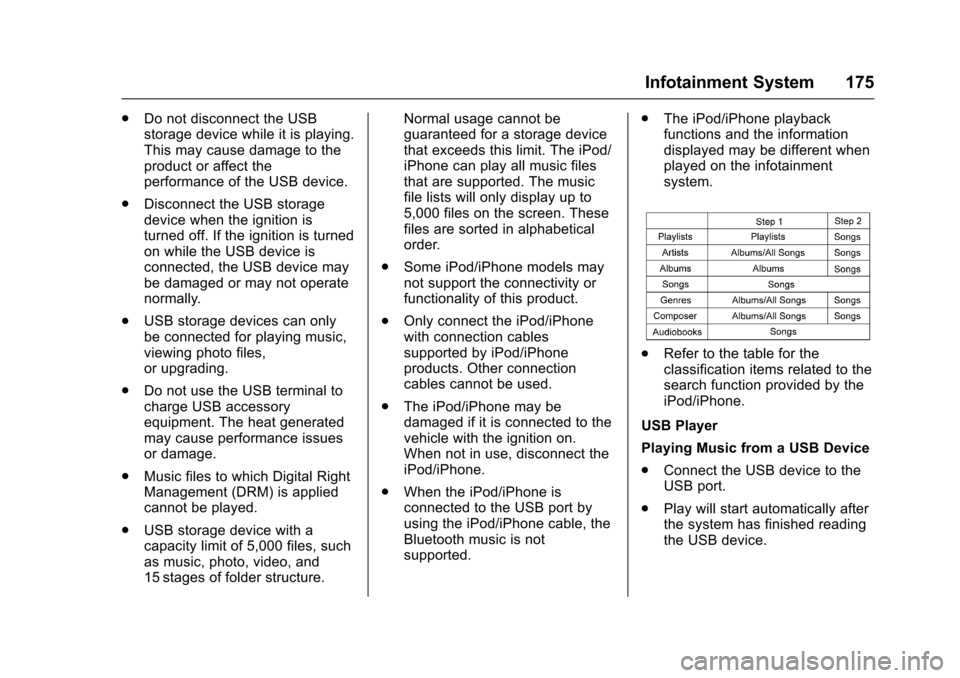
.The iPod/iPhone playbackfunctions and the informationdisplayed may be different whenplayed on the infotainmentsystem.
.Refer to the table for theclassification items related to thesearch function provided by theiPod/iPhone.
USB Player
Playing Music from a USB Device
.Connect the USB device to theUSB port.
.Play will start automatically afterthe system has finished readingthe USB device.
Page 178 of 419
Chevrolet Colorado Owner Manual (GMNA-Localizing-U.S./Canada/Mexico-10122675) - 2017 - crc - 8/22/16
Infotainment System 177
To n e S e t t i n g s
.To u c h To n e S e t t i n g s . T h e To n eSettings menu is displayed. See“To n e S e t t i n g s”inAM-FM Radio(Base Radio)0161orAM-FMRadio (Base Radio withTo u c h s c r e e n )0163.
Auto Volume
.To u c h A u t o V o l u m e . T h e A u t oVolume menu is displayed. See“Auto Volume”inAM-FM Radio(Base Radio)0161orAM-FMRadio (Base Radio withTo u c h s c r e e n )0163.
Tr a f f i c P r o g r a m(If Equipped)
.To u c h O n o r O f f .
MTP (Media Transfer Protocol)
.Connect a MTP supporteddevice.
.Play will start automatically afterthe system has finished readingthe MTP device.
.If a non-readable MTP device isconnected, an error messagedisplays and the system willswitch to the previous audiofunction.
iPod/iPhone Player
This feature is limited to modelssupporting the iPod/iPhoneconnection.
Playing Music Files
.Connect the iPod/iPhone to theUSB port.
.Play will start from the previouslyplayed point after the systemhas finished reading the USBdevice.
.If a non-readable USB device isconnected, an error messagedisplays and the system willswitch to the previous audiofunction.
If the iPod/iPhone is alreadyconnected:
1. Press{.
2. Touch AUDIO.
3. Touch Source.
4. Touch iPod.
To s t o p t h e d e v i c e a n d s e l e c tanother media source, touchSource, then select the othersource.
To r e m o v e t h e d e v i c e , s e l e c tanother function, then remove thedevice.
Pause
.To u c hjto pause.
.To u c hrto resume.
Changing to Next/Previous Song
.To u c hlto change to the
next song.
.To u c hgwithin two seconds of
the playback time to play theprevious file.
Returning to the Beginning of theCurrent File
To u c hgafter two seconds of the
playback time.
Scanning Forward or Backward
To u c h a n d h o l dgorlduring
playback to rewind or fast forward.Release the button to resumeplayback at normal speed.
Playing a File Randomly
To u c hZduring playback.
Page 180 of 419

Chevrolet Colorado Owner Manual (GMNA-Localizing-U.S./Canada/Mexico-10122675) - 2017 - crc - 8/22/16
Infotainment System 179
.Clock, Temp. Display:Allows selection of On orOff to show the clock andtemperature on the fullscreen.
.Display Settings: Adjustsfor Brightness and Contrast.
3. Touch0to exit.
Auxiliary Jack
If equipped, an AUX jack is locatedon the center stack or in the centerconsole storage. SeeCenterConsole Storage0101.
Possible auxiliary audio sourcesinclude:
.Laptop computer
.Audio music player
This jack is not an audio output. Donot plug headphones into theauxiliary input jack. Auxiliarydevices should be set up while thevehicle is in P (Park).
Connect a 3.5 mm (1/8 in) cablefrom the auxiliary device to theauxiliary input jack.
Base Radio
Playing from the AUX Jack
An auxiliary device is playedthrough the audio system andcontrolled through the device itself.
If an auxiliary device has alreadybeen connected, but a differentsource is currently active, press theMEDIA faceplate button repeatedlyto scroll through all of the availableaudio source screens, until the AUXsource screen is shown.
AUX Menu
Press the MENU knob to display theAUX menu and the following maydisplay:
To n e S e t t i n g s :Select to adjustBass, Midrange, Treble, Balance,Fade, and EQ (Equalizer). See“To n e S e t t i n g s”inAM-FM Radio(Base Radio)0161orAM-FMRadio (Base Radio withTo u c h s c r e e n )0163.
Auto Volume :If equipped, see“Auto Volume”under“Base Radio”inAM-FM Radio (Base Radio)0161orAM-FM Radio (Base Radio withTo u c h s c r e e n )0163.
DSP :If equipped, this featureadjusts the pre-defined settings.See“DSP”inAM-FM Radio (BaseRadio)0161orAM-FM Radio(Base Radio withTo u c h s c r e e n )0163.
EQ :If equipped, this featureadjusts the pre-defined equalizersettings. See“EQ (Equalizer)”inAM-FM Radio (Base Radio)0161orAM-FM Radio (Base Radio withTo u c h s c r e e n )0163.
Base Radio with Touchscreen
Play will begin when the system hasfinished reading the information onthe device.
Playing Music
To p l a y t h e m u s i c f r o m t h e d e v i c e ,if the device is already connected:
1. Press{.
2. Touch AUDIO.
Page 181 of 419
Chevrolet Colorado Owner Manual (GMNA-Localizing-U.S./Canada/Mexico-10122675) - 2017 - crc - 8/22/16
180 Infotainment System
3. Touch Source.
4. Touch AUX.
To a d j u s t t h e t o n e s e t t i n g s , s e e“Audio Settings”in“SystemSettings”underAM-FM Radio (BaseRadio)0161orAM-FM Radio(Base Radio withTo u c h s c r e e n )0163.
To a d j u s t t h e a u t o v o l u m e s e t t i n g s ,see“Auto Volume”under“BaseRadio with Touchscreen”inAM-FMRadio (Base Radio)0161orAM-FM Radio (Base Radio withTo u c h s c r e e n )0163.
Bluetooth Audio
If equipped, music may be playedfrom a paired Bluetooth device. See“Pairing”under“Bluetooth(Infotainment Controls - BaseRadio)”or“Bluetooth (InfotainmentControls - Base Radio withTo u c h s c r e e n )”inBluetooth(Overview)0187orBluetooth(Infotainment Controls - BaseRadio)0188orBluetooth (VoiceRecognition)0192orBluetooth
(Infotainment Controls - Base Radiowith Touchscreen)0197for helppairing a device.
Volume and song selection may becontrolled by using the infotainmentcontrols or the phone/device.If Bluetooth Audio is selected andnothing is heard, check the volumesetting on both the phone/deviceand the infotainment system.
Launch music by touching theMEDIA screen button on theHome Page.
To p l a y m u s i c v i a B l u e t o o t h :
1. Power on the device, and pairto connect the device.
2. Once paired, go into the audioapplication from the HomePage or via the application tray.Select MEDIA until Bluetoothdisplays.
Bluetooth Audio Menu
To u c h t h e M E N U s c r e e n b u t t o n t odisplay the Bluetooth Audio menu.The following may be available:
To n e :Turn the MENU knob toadjust the tone settings.
To u c hoBACK to go back to the
previous menu.
Manage Bluetooth Devices:Selectto go to the Bluetooth page to addor delete devices.
When selecting Bluetooth Audio, theradio may not be able to launch theaudio player on the connecteddevice to start playing. When thevehicle is not moving, use thephone to begin playback.
All devices launch audio differently.When selecting Bluetooth Audio asasource,theradiomayshowaspaused on the screen. Press play
on the device or pressrto begin
playback.
Some phones support sendingBluetooth music information todisplay on the radio. When the radioreceives this information, it willcheck to see if any is available anddisplay it. For more informationabout supported Bluetooth features,see www.gm.com/bluetooth in theU.S. and Canada only.