2017 CHEVROLET COLORADO buttons
[x] Cancel search: buttonsPage 156 of 419
Chevrolet Colorado Owner Manual (GMNA-Localizing-U.S./Canada/Mexico-10122675) - 2017 - crc - 8/22/16
Infotainment System 155
Overview (Base Radio)
Infotainment System Overview
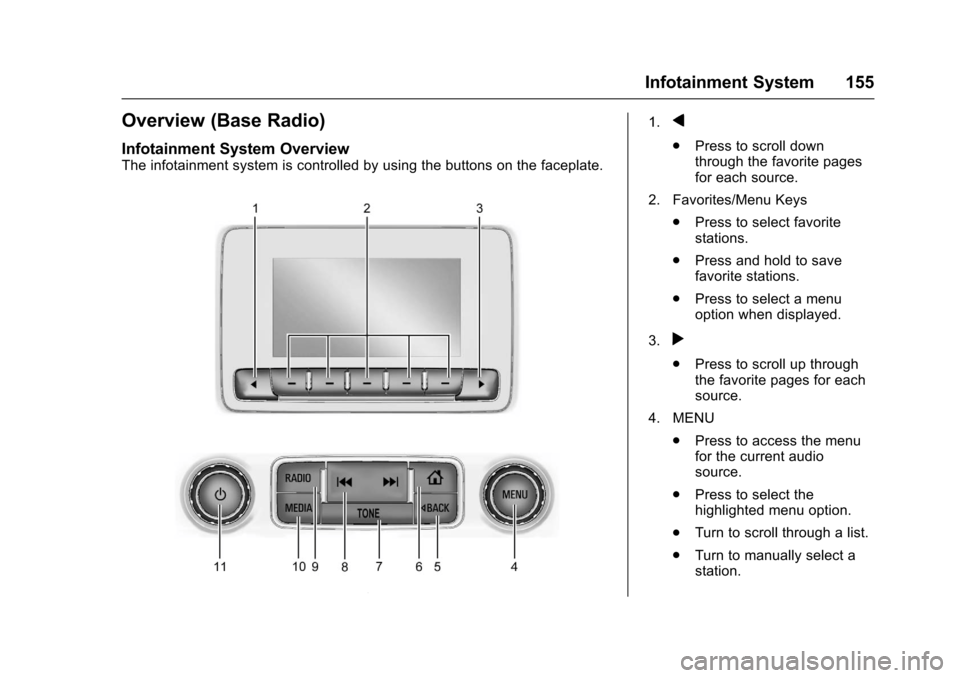
The infotainment system is controlled by using the buttons on the faceplate.
1.q
.Press to scroll downthrough the favorite pagesfor each source.
2. Favorites/Menu Keys
.Press to select favoritestations.
.Press and hold to savefavorite stations.
.Press to select a menuoption when displayed.
3.r
.Press to scroll up throughthe favorite pages for eachsource.
4. MENU
.Press to access the menufor the current audiosource.
.Press to select thehighlighted menu option.
.Turn to scroll through a list.
.Turn to manually select astation.
Page 161 of 419

Chevrolet Colorado Owner Manual (GMNA-Localizing-U.S./Canada/Mexico-10122675) - 2017 - crc - 8/22/16
160 Infotainment System
displays stating all vehiclecustomization settings will berestored to the factory settings.Select Cancel or Confirm.
Clear All Private Data (IfEquipped) :This option clears allprivate information from the vehicle.Select Clear All Private Data. SelectCancel or Confirm.
Restore Radio Settings :Thisoption will restore factory radiosettings. Select Restore RadioSettings. A screen displays statingall personalized radio settings willbe restored back to the factorysettings. Select Cancel or Confirm.
English and Metric Unit
Conversion
To c h a n g e t h e d i s p l a y u n i t s b e t w e e nEnglish and metric units, seeDriverInformation Center (DIC) (BaseLevel)0126orDriver InformationCenter (DIC) (Uplevel)0129orInstrument Cluster (Base Level)011 0orInstrument Cluster(Uplevel)011 2.
Home Page (Base Radio
with Touchscreen)
Touchscreen Buttons
To u c h s c r e e n b u t t o n s s h o w o n t h escreen when available. When afunction is unavailable, the buttonmay gray out. When a function isselected, the button may highlight.
Home Page Features
Press{to go to the Home Page.
Audio :To u c h t o s e l e c t A M , F M ,SXM (if equipped), USB/iPod/Bluetooth Audio, or AUX. SeeAM-FM Radio (Base Radio)0161orAM-FM Radio (Base Radio withTo u c h s c r e e n )0163,Satellite Radio(Base Radio)0164orSatelliteRadio (Base Radio withTo u c h s c r e e n )0165,USB Port(Base Radio)0170orUSB Port(Base Radio with Touchscreen)0173,Bluetooth Audio0180,orAuxiliary Jack0179.
Gallery :To u c h t o v i e w a p i c t u r e .SeeUSB Port (Base Radio)0170orUSB Port (Base Radio withTo u c h s c r e e n )0173.
Phone :To u c h t o a c t i v a t e t h ephone features (if equipped). SeeBluetooth (Overview)0187orBluetooth (Infotainment Controls -Base Radio)0188orBluetooth(Voice Recognition)0192orBluetooth (Infotainment Controls -Base Radio withTo u c h s c r e e n )0197.
Page 165 of 419
Chevrolet Colorado Owner Manual (GMNA-Localizing-U.S./Canada/Mexico-10122675) - 2017 - crc - 8/22/16
164 Infotainment System
Selecting a Station
Seek Tuning
If the radio station is not known:
Press7or6to automatically
search for available radio stations.
Manual Tuning
Continue touchingtoruto
manually change the radio station.
Direct Tune
From the AM or FM menu:
1. Touch Tune.
2. Enter the station number.
3. Touch Go ortoruto go to
the previous or next station.
Favorite
1. TouchSorTto scroll through
the favorites.
2. Touch the station to select it.
Station List
1. From the AM or FM menu,touch MENU.
2. Select Station List.
3. TouchQorRto scroll through
the list. Touch the station toselect it.
Update Station List
1. From the AM or FM menu,touch MENU, then touchUpdate Station List. Thebroadcasting list updating willbegin.
2. During the AM or FMbroadcasting list update, touchCancel to stop the updates.
Storing a Station as a Favorite
Stations from all bands can bestored in any order in the favoritepages.
Up to 25 stations can be stored.
Storing Stations
To s t o r e t h e s t a t i o n t o a p o s i t i o n i nthe list, touch the correspondingbutton 1✓5untilabeepisheard.
1. Select the desired station.
2. TouchSorTto select the
desired page of savedfavorites.
3. Touch and hold any of thepreset buttons to save thecurrent radio station to thatbutton of the selectedfavorites page.
To c h a n g e a p r e s e t b u t t o n , t u n e t othe new desired radio station andtouch and hold the preset button.
Satellite Radio (Base
Radio)
SiriusXM®Satellite Radio
Service
Vehicles with a SiriusXM satelliteradio tuner and a valid SiriusXMsatellite radio subscription canreceive SiriusXM programming.
SiriusXM is a satellite radio servicebased in the 48 contiguous UnitedStates and 10 Canadian provinces.SiriusXM satellite radio has a widevariety of programming andcommercial-free music, coast tocoast, and in digital-quality sound.Aservicefeeisrequiredtoreceivethe SiriusXM service. Seewww.siriusxm.com or call
Page 166 of 419
Chevrolet Colorado Owner Manual (GMNA-Localizing-U.S./Canada/Mexico-10122675) - 2017 - crc - 8/22/16
Infotainment System 165
1-888-601-6296 (U.S.); or seewww.siriusxm.ca or call1-877-438-9677 (Canada).
When SiriusXM is active, thechannel name and number,category name, song title, and artistdisplay on the screen.
Browsing SiriusXM Channels
To b r o w s e t h e S i r i u s X M c h a n n e l s :
1. Press the MENU knob.
2. Turn the MENU knob tohighlight SXM Channel List.
3. Turn the MENU knob tohighlight the desired SXMChannels.
Satellite Radio (Base
Radio with Touchscreen)
SiriusXM®Satellite Radio
Service
Vehicles with an SXM SatelliteRadio tuner and a valid SiriusXM®
Satellite Radio subscription canreceive SiriusXM programming.
SiriusXM is a satellite radio servicebased in the 48 contiguous UnitedStates and 10 Canadian provinces.SiriusXM Satellite Radio has a widevariety of programming andcommercial-free music, coast tocoast, and in digital-quality sound.Aservicefeeisrequiredtoreceivethe SiriusXM service. Seewww.siriusxm.com or call1-888-601-6296 (U.S.); or seewww.siriusxm.ca or call1-877-438-9677 (Canada).
When SiriusXM is active, thechannel name and number,category name, song title, and artistdisplay on the screen.
Listening to SiriusXM Radio
1. Press{.
2. Touch AUDIO.
3. Touch Source.
4. Touch SXM and the mostrecent listened to SiriusXMchannel will display.
To u c h0to return to the
HOME menu.
Selecting a Category
From Menu, touch Categories, thentouch the desired category or from
Categories, touchQorRto find the
desired channel. Touch the channelto select it.
Selecting a Channel
To u c huortand the previous or
next channel will be selected.
To u c h a n d h o l duortto jump
four channels backward or forward,then release the button at thedesired channel.
Using the Preset Buttons
Up to seven favorites pages can besaved, and each page can store upto five channels.
To c h a n g e a p r e s e t b u t t o n , t u n e t othe new desired channel and holdthe button.
Listening to Preset Channels
1. Continue touchingSorTto
select the desiredfavorites page.
Page 182 of 419
Chevrolet Colorado Owner Manual (GMNA-Localizing-U.S./Canada/Mexico-10122675) - 2017 - crc - 8/22/16
Infotainment System 181
Voice Recognition
If equipped, voice recognition allowsfor hands-free operation within theaudio and phone applications. Thisfeature can be started by pressinggon the steering wheel or by
selectinggon the infotainment
display.
However, not all features withinthese areas are supported by voicecommands. Generally, only complextasks that require multiple manualinteractions to complete aresupported by voice commands.
For example, tasks that take morethan one or two button presses suchas selecting a song or artist to playfrom a media device would besupported by voice commands.Other tasks, like adjusting thevolume or seeking up or down areaudio features that are easilyperformed by pressing one or twobuttons, and are not supported byvoice commands.
In general there are flexible ways tospeak commands for completing thetasks. Most of them, except
destination entry and voice keypad,can be completed in a singlecommand. If the task takes morethan one command to complete, thefirst command would be to indicatethe kind of task that is to beperformed. The system replies withprompts that lead through a dialogto enter the necessary information.
Voice recognition can be used whenthe ignition is on or when RetainedAccessory Power (RAP) is active.SeeRetained Accessory Power(RAP)0237.
Using Voice Recognition
Voice recognition becomes availableonce the system has beeninitialized. This begins when theignition is turned on. Initializationmay take a few moments.
1. Pressgon the steering wheel
to activate voice recognition,
or selectgon the infotainment
display.
.If voice recognition isstarted from the steeringwheel control, the
instrument cluster displaysthe selections and visualdialog content.
.If voice recognition isstarted from theinfotainment display, theselections and visual dialogcontent appear on both theinfotainment display andthe instrument clusterdisplay.
2. The audio system mutes andthe system plays a promptfollowed by a beep.
3. Wait until after the beepcompletes, then clearly speakone of the commandsdescribed in this section.
Pressgto interrupt any voice
recognition system prompt. Forexample, if the prompt seemsto be taking too long to finish,
pressgagain and the beep
should happen right away.
There are two voice prompt modessupported:
Page 183 of 419

Chevrolet Colorado Owner Manual (GMNA-Localizing-U.S./Canada/Mexico-10122675) - 2017 - crc - 8/22/16
182 Infotainment System
.Long verbal prompts: The longerprompts provide moreinformation regarding thesupported actions.
.Short prompts: The shortprompts provide simpleinstructions about what can bestated.
If a command is not spoken, thevoice recognition system says ahelp prompt.
Prompts and Screen Displays
While a voice recognition session isactive, there will be correspondingbuttons on screens displayed.Manual interaction in the voicerecognition session is permitted.Interaction during a voice sessionmay be completed entirely usingvoice commands, or someselections may expedite a session.If a selection is made using amanual control, the dialog willprogress in the same way as if theselection was made through a voicecommand. Once the system is ableto complete the task, or the sessionis terminated, the voice recognitiondialog stops.
An example of this type of manualintervention is pressing displayednumber list entry instead ofspeaking the number associatedwith the entry desired.
Canceling Voice Recognition
.To u c h t h e H o m e s c r e e n b u t t o nto terminate the voicerecognition session which was
initiated by touchinggon the
infotainment display.
.To u c h o r s a y“Cancel”or“Exit”to terminate the voicerecognition session and displaythe screen from which voicerecognition was initiated.
.Pression the steering wheel
to terminate the voice sessionand display the screen fromwhich voice recognition wasinitiated.
Helpful Hints for Speaking
Commands
Voice recognition can understandcommands that are either naturallystated in sentence form (Englishonly), or direct commands that statethe application and the task.
For languages that do not supportnatural language commands insentence form, use the directcommands shown as examples onthe display screen.
For best results:
.Listen for the prompt and waitfor the beep before saying acommand or reply.
.Say“Help”or look at the screendisplay for commands.
.Voice recognition system promptcan be interrupted during a
prompt by pressinggagain.
For example, if the promptseems to be taking too long tofinish, or if what is beingprompted causes a need for an
immediate reply, pressgagain
and wait for the beep.
Page 259 of 419

Chevrolet Colorado Owner Manual (GMNA-Localizing-U.S./Canada/Mexico-10122675) - 2017 - crc - 8/22/16
258 Driving and Operating
StabiliTrak will automatically turn onif the vehicle exceeds 56 km/h(35 mph). Traction control will
remain off until the driver pressesg
or the ignition is cycled Off then On.
Adding accessories can affect thevehicle performance. SeeAccessories andModifications0281.
Hill Descent
Control (HDC)
If equipped, HDC can be used whendriving downhill. It sets andmaintains vehicle speed whiledescending a very steep incline in aforward or reverse gear.
The HDC switch is on the centerstack, below the climate controls.
Press5to enable or disable HDC.
Vehicle speed must be below60 km/h (37 mph).
The HDC light displays on theinstrument cluster when enabled.
HDC can maintain vehicle speedsbetween 4 and 30 km/h (3 and19 mph) on an incline greater thanor equal to a 10% grade. A blinkingHDC light indicates that the systemis actively applying the brakes tomaintain vehicle speed.
When HDC is set, that is the initialset speed. It can be increased ordecreased by applying theaccelerator or brake pedal. SmallerHDC speed control adjustments areaccomplished using the cruise up ordown buttons. Each tap of the+RES will increase the set speed by0.8 km/h (0.5 mph), while each tapof the SET–will decrease the setspeed by 0.8 km/h (0.5 mph). Thisadjusted speed becomes the newset speed.
HDC will remain enabled between30 and 60 km/h (19 and 37 mph),however vehicle speed cannot beset or maintained in this range.It will automatically disable if thevehicle speed is above 80 km/h(50 mph) or above 60 km/h
(37 mph) for at least 30 seconds.5
must be pressed again tore-enable HDC.
When enabled, if the vehicle is at aspeed above 30 km/h (19 mph) andless than 60 km/h (37 mph), a DICmessage will display instructing thedriver to reduce speed for HDCoperation.
Cruise control will not function whileHDC is enabled and vehicle speedis below 40 km/h (25 mph).
Page 290 of 419

Chevrolet Colorado Owner Manual (GMNA-Localizing-U.S./Canada/Mexico-10122675) - 2017 - crc - 8/22/16
Vehicle Care 289
include engine revolutions, enginetemperature, and miles driven.Based on driving conditions, themileage at which an oil change isindicated can vary considerably. Forthe oil life system to work properly,the system must be reset every timethe oil is changed.
On some vehicles, when the systemhas calculated that oil life has beendiminished, a CHANGE ENGINEOIL SOON message comes on toindicate that an oil change isnecessary. SeeEngine OilMessages0134.Changetheoilassoon as possible within the next1000km (600mi). It is possible that,if driving under the best conditions,the oil life system might indicate thatan oil change is not necessary forup to a year. The engine oil andfilter must be changed at least onceayearand,atthistime,thesystemmust be reset. For vehicles withoutthe CHANGE ENGINE OIL SOONmessage, an oil change is neededwhen the OIL LIFE REMAININGpercentage is near 0%. Your dealerhas trained service people who willperform this work and reset the
system. It is also important to checkthe oil regularly over the course ofan oil drain interval and keep it atthe proper level.
If the system is ever resetaccidentally, the oil must bechanged at 5 000 km (3,000 mi)since the last oil change.Remember to reset the oil lifesystem whenever the oil is changed.
How to Reset the Engine Oil
Life System
Reset the system whenever theengine oil is changed so that thesystem can calculate the nextengine oil change. Always reset theengine oil life to 100% after every oilchange. It will not reset itself. Toreset the engine oil life system:
1. Display OIL LIFE REMAININGon the DIC. SeeDriverInformation Center (DIC) (BaseLevel)0126orDriverInformation Center (DIC)(Uplevel)0129.Ifthevehicledoes not have DIC buttons, thevehicle must be in P (Park) toaccess this display.
2. Press and holdVon the DIC,
or SET/CLR on the turn signallever if the vehicle does nothave DIC buttons, for severalseconds. The oil life willchange to 100%.
The oil life system can also be resetas follows:
1. Display OIL LIFE REMAININGon the DIC. SeeDriverInformation Center (DIC) (BaseLevel)0126orDriverInformation Center (DIC)(Uplevel)0129.
2. Fully press the acceleratorpedal slowly three times withinfive seconds.
If the display shows 100%, thesystem is reset.
If the vehicle has a CHANGEENGINE OIL SOON message and itcomes back on when the vehicle isstarted and/or the OIL LIFEREMAINING is near 0%, the engineoil life system has not been reset.Repeat the procedure.