2017 CHEVROLET BOLT EV ECO mode
[x] Cancel search: ECO modePage 114 of 361
Chevrolet Bolt EV Owner Manual (GMNA-Localizing-U.S./Canada/Mexico-
10122739) - 2017 - CRC - 10/3/16
Instruments and Controls 113
Reconfigurable Instrument
Cluster
The cluster layout can be changed.
There are three display
configurations to choose from:
Classic, Modern, and Enhanced.
Use the steering wheel control to
move between the different display
zones and scroll through the
different displays. See“Layout”
under “Cluster Menu” following.
. Classic configuration displays
the speedometer with a
simplified battery gauge and
efficiency light.
. Modern configuration displays
the speedometer with a battery
gauge and efficiency gauge.
. Enhanced configuration displays
the speedometer with battery
gauge, efficiency ring, and
power gauge.
Cluster Menu
There is an interactive display area
in the center of the instrument
cluster.
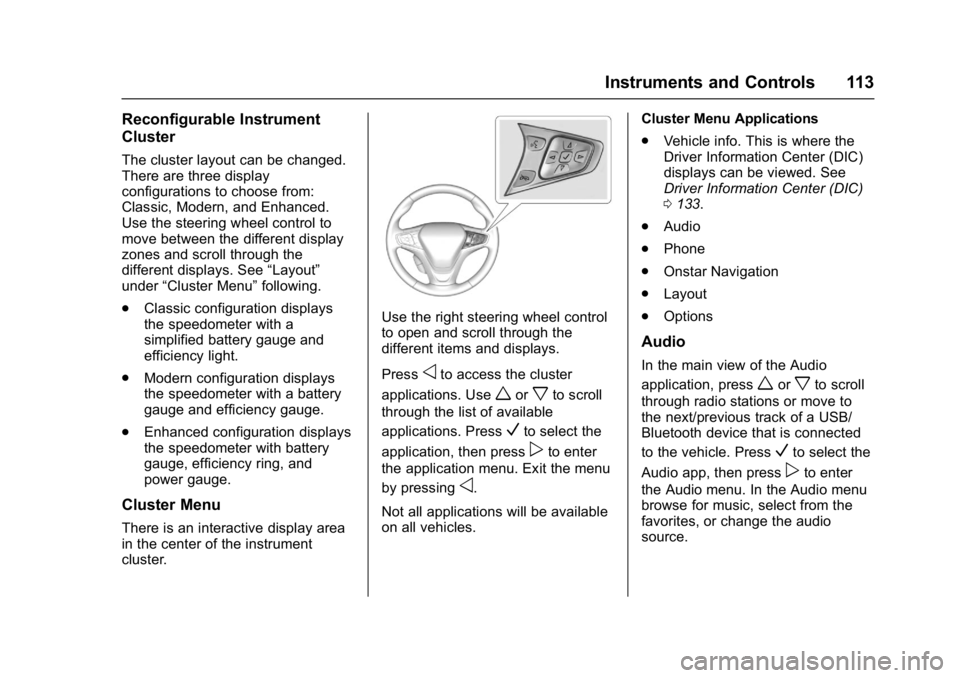
Use the right steering wheel control
to open and scroll through the
different items and displays.
Press
oto access the cluster
applications. Use
worxto scroll
through the list of available
applications. Press
Vto select the
application, then press
pto enter
the application menu. Exit the menu
by pressing
o.
Not all applications will be available
on all vehicles. Cluster Menu Applications
.
Vehicle info. This is where the
Driver Information Center (DIC)
displays can be viewed. See
Driver Information Center (DIC)
0133.
. Audio
. Phone
. Onstar Navigation
. Layout
. Options
Audio
In the main view of the Audio
application, press
worxto scroll
through radio stations or move to
the next/previous track of a USB/
Bluetooth device that is connected
to the vehicle. Press
Vto select the
Audio app, then press
pto enter
the Audio menu. In the Audio menu
browse for music, select from the
favorites, or change the audio
source.
Page 172 of 361

Chevrolet Bolt EV Owner Manual (GMNA-Localizing-U.S./Canada/Mexico-
10122739) - 2017 - CRC - 10/3/16
Infotainment System 171
.Bluetooth music can be played
only when a Bluetooth device
has been connected. To play
Bluetooth music, connect the
Bluetooth phone to the
infotainment system.
. If the Bluetooth device is
disconnected while playing
music, the music is
discontinued. The audio
streaming function may not be
supported in some Bluetooth
phones. Only one function can
be used at a time between the
Bluetooth hands-free phone
function or the Phone music
function. For example,
if switching to Bluetooth
hands-free phone mode while
playing Phone music, the music
streaming function will be
discontinued.
. For Bluetooth music to play, the
music must be played at least
once from the music player
mode of the mobile phone or
Bluetooth device after
connecting as a stereo headset.
After being played at least once,
the music player will be automatically played upon
entering play mode, and it will be
automatically stopped when the
music player mode ends. If the
mobile phone or Bluetooth
device is not in the waiting
screen mode, some devices may
not automatically play in
Bluetooth music play mode.
Playing Bluetooth Music
1. Press
{, then touchT.
2. Touch Audio, then Source on the screen.
3. Touch Bluetooth to select the connected Bluetooth device
music play mode.
Pause Touch
jduring playback.
Touch
ragain to resume
playback.
Playing the Next Music Touch
dto play the next music.
Playing the Previous Music Touch
gwithin two seconds of
playback time to play the
previous music. Returning to the Beginning of the
Current Music
Touch
gafter two seconds of
playback time.
Scanning Forward or Backward Hold
gordduring playback
to rewind or fast forward.
Release
gordto resume
playback at normal speed.
Playing Files Randomly Touch
Zduring playback.
Touch
Zagain to return to
normal playback.
Playing Files Repeatedly
1. Touch
"during playback.
2. Touch the desired option. .Repeat All: Plays all files
repeatedly.
. Repeat Song: Plays a
current file repeatedly.
. Repeat Off: Cancels repeat
function.
Page 174 of 361

Chevrolet Bolt EV Owner Manual (GMNA-Localizing-U.S./Canada/Mexico-
10122739) - 2017 - CRC - 10/3/16
Infotainment System 173
OnStar System
OnStar®with 4G LTE
If equipped with OnStar 4G LTE, up
to seven devices, such as
smartphones, tablets, and laptops,
can be connected to high-speed
Internet through the vehicle’s built-in
Wi-Fi hotspot.Call 1-888-4-ONSTAR
(1-888-466-7827) to connect to an
OnStar Advisor for assistance. See
www.onstar.com for a detailed
instruction guide, vehicle availability,
details, and system limitations.
Services and apps vary by make,
model, year, carrier, availability, and
conditions. 4G LTE service is
available in select markets. 4G LTE
performance is based on industry
averages and vehicle systems
design. Some services require a
data plan.
Phone
Bluetooth
Bluetooth Wireless Technology
Bluetooth wireless technology
establishes a wireless link between
two devices supported with
Bluetooth. After the initial pairing,
the two devices can connect
automatically when turned on.
Bluetooth allows wireless
transmission of information among
Bluetooth phones, PDAs, or other
devices within close range by using
2.45 GHz frequency short-distance
wireless telecommunication
technologies. Within this vehicle,
users can make hands-free calls,
transmit hands-free data, and play
audio streaming files by connecting
a mobile phone with the system.
.
There may be restrictions on
using Bluetooth wireless
technology in some locations.
Page 179 of 361
Chevrolet Bolt EV Owner Manual (GMNA-Localizing-U.S./Canada/Mexico-
10122739) - 2017 - CRC - 10/3/16
178 Infotainment System
Android Auto
1. Press{, then touchT.
2. Touch Settings and find Android Auto.
3. Select On or Off.
Even if Projection is set to Off,
connecting the device and touching
Projection on the Home Page will
display a pop-up message:
. For Apple CarPlay function:
“While active, Apple CarPlay will
be displayed on this screen.”
. For Android Auto function:
“While active, Android Auto will
be displayed on this screen.”
When the device is first connected,
the device projection privacy
consent pop-up message will be
displayed.
. Touch Continue to activate the
projection feature.
. Touch Disable and the device is
charging only.
If Android Auto is not activated,
make sure the mobile phone’s USB
connection mode is set to MTP. If the device has not previously
been paired, the consent pop-up will
display when touching continue.
Teen Driver
If equipped, this allows multiple
keys to be registered for beginner
drivers, to encourage safe driving
habits. When the vehicle is started
with a Teen Driver key, it will
automatically activate certain safety
systems, allow setting of some
features, and limit the use of others.
The Report Card will record vehicle
data about driving behavior that can
be viewed later. When the vehicle is
started with a registered key, the
Driver Information Center (DIC)
displays a message that Teen Driver
is active.
To access:
1. Touch Settings on the Home Page, then touch Teen Driver.
2. Create a Personal Identification Number (PIN) by choosing a
four-digit PIN. Re-enter the PIN
to confirm. To change the PIN,
select Change PIN. The PIN is required to:
.
Register or unregister keys.
. Change Teen Driver settings.
. Change or clear the Teen
Driver PIN.
. Access or delete Report
Card data.
Register keys to activate:
Any vehicle key can be registered,
up to a maximum of eight keys.
Label the key to tell it apart from the
other keys. 1. Start the vehicle.
2. The vehicle must be in P (Park).
3. From the Settings menu, select Teen Driver.
4. Enter the PIN.
5. Place the Remote Keyless Entry (RKE) transmitter key in
the transmitter pocket. See
Remote Keyless Entry (RKE)
System Operation 033 for the
transmitter pocket location.
Page 186 of 361

Chevrolet Bolt EV Owner Manual (GMNA-Localizing-U.S./Canada/Mexico-
10122739) - 2017 - CRC - 10/3/16
Climate Controls 185
Climate Control Touch Screen
The heated seats, if equipped,
climate on/off, recirculation, heat,
and air conditioning can be
controlled by touching Climate
Settings on the infotainment display.
A selection can then be made on
the climate settings page.
Automatic Operation
The system automatically controls
the fan speed, air delivery, air
conditioning, electric heating, and
recirculation to heat or cool the
vehicle to the selected temperature.
When AUTO is lit, all five functions
operate automatically. Each function
can also be manually set and the
selected setting is displayed or the
indicator is lit. Functions not
manually set will continue to be
automatically controlled, even if the
AUTO indicator is not lit.
For automatic operation:1. Press AUTO. 2. Set the temperature. An initial
setting of 22 °C (72 °F) is
recommended. Allow the
system time to stabilize. Adjust
the temperature as needed.
Manual Operation
ON : Touch to turn the climate
control system on and off.
The climate control system will turn
on when any climate control button
is pressed on the center stack or
touched on the touch screen. To
turn the system off, touch ON again
or lower the fan speed until off.
When the climate control system is
turned on again, it will use the
previous climate control settings. To
change the setting, press the button
again.
DorC: Press the buttons to
increase or decrease the fan speed.
The fan speed setting appears on
the infotainment display. Manually
adjusting the fan speed cancels
automatic fan control. Press AUTO
to return to automatic operation.
Touch ON to turn off the fan and the
climate control system. Temperature Control :
Turn the
knob clockwise or counterclockwise
to increase or decrease the
temperature setting.
Air Delivery Mode Control :
Press
c,d, or0on the
center stack to change the direction
of airflow. Any combination of the
three buttons can be selected. The
selected air delivery mode button
indicator is lit.
Pressing any button cancels
automatic air delivery control and
the direction of the airflow can be
controlled manually. Press AUTO to
return to automatic operation.
0: Air is directed to the
windshield.
d: Air is directed to the instrument
panel outlets.
c: Air is directed to the floor
outlets.
0MAX : Air is directed to the
windshield and the fan runs at a
higher speed. Fog or frost is cleared
from the windshield more quickly.
Page 187 of 361

Chevrolet Bolt EV Owner Manual (GMNA-Localizing-U.S./Canada/Mexico-
10122739) - 2017 - CRC - 10/3/16
186 Climate Controls
When the button is pressed again,
the system returns to the previous
mode setting.
For best results, clear all snow and
ice from the windshield before
defrosting.
L:Touch to turn on
recirculation.
An indicator light comes on. Air is
recirculated to quickly cool the
inside of the vehicle or to reduce the
entry of outside air and odors. Using
the recirculation mode for extended
periods may cause the windows to
fog. If this happens, select the
defrost mode.
Using air conditioning and
recirculation together for long
periods of time may cause the air
inside the vehicle to become too
dry. To prevent this from happening,
after the air in the vehicle has
cooled, turn the recirculation
mode off. Touching this button cancels
automatic recirculation. Press AUTO
to return to automatic operation;
recirculation runs automatically as
needed.
vHEAT & A/C :
Touch to turn the
air conditioning and heater on when
the fan is on.
Auto Defog : The system will
monitor high humidity inside the
vehicle. When high humidity is
detected, the climate control system
may adjust to outside air supply and
turn on the air conditioner or the
heater. The fan speed may slightly
increase to help prevent fogging.
When high humidity is no longer
detected, the system will return to
its prior operation. To turn Auto
Defog off or on, see “Climate and
Air Quality” underVehicle
Personalization 0142.
Auto Heated Seats : If equipped,
when the vehicle is on, this feature
will automatically activate the
heated seats at the level required by
the vehicle’ s interior temperature. In
auto mode, the AUTO text is
displayed without any indications. Use the manual heated seat buttons
on the infotainment display to turn
auto heated seats off. Once this
feature is turned off, the auto heated
seats will be activated the next time
the vehicle is turned on.
In manual mode, the controls can
be accessed while the vehicle is on
by touching
(orMwith three level
indicators high, medium, low or off
on the infotainment display. If the
passenger seat is unoccupied, the
auto heated seats feature will not
activate that seat.
See Heated Front Seats 058 and
Vehicle Personalization 0142.
Rear Window Defogger
K:Press to turn the rear window
defogger on or off. An indicator light
on the button comes on to show that
the rear window defogger is on.
The defogger only works when the
vehicle is on. The defogger will turn
off if the vehicle is turned off.
Page 192 of 361

Chevrolet Bolt EV Owner Manual (GMNA-Localizing-U.S./Canada/Mexico-
10122739) - 2017 - CRC - 10/3/16
Driving and Operating 191
Driving and
Operating
Driving Information
Distracted Driving . . . . . . . . . . . . 192
Defensive Driving . . . . . . . . . . . . . 192
Drunk Driving . . . . . . . . . . . . . . . . . 193
Control of a Vehicle . . . . . . . . . . . 193
Braking . . . . . . . . . . . . . . . . . . . . . . . 193
Steering . . . . . . . . . . . . . . . . . . . . . . 193
Off-Road Recovery . . . . . . . . . . . 194
Loss of Control . . . . . . . . . . . . . . . 194
Driving on Wet Roads . . . . . . . . 195
Hill and Mountain Roads . . . . . 196
Winter Driving . . . . . . . . . . . . . . . . 196
If the Vehicle Is Stuck . . . . . . . . 197
Vehicle Load Limits . . . . . . . . . . . 197
Starting and Operating
New Vehicle Break-In . . . . . . . . . 201
Power Button . . . . . . . . . . . . . . . . . 201
Starting and Stopping theVehicle . . . . . . . . . . . . . . . . . . . . . . 203
Retained Accessory Power (RAP) . . . . . . . . . . . . . . . . 203
Shifting Into Park . . . . . . . . . . . . . 204
Shifting out of Park . . . . . . . . . . . 204
Extended Parking . . . . . . . . . . . . 205
Electric Vehicle Operating
Modes
Driver Selected Operating Modes . . . . . . . . . . . . . . . . . . . . . . 205
Electric Drive Unit
Electric Drive Unit . . . . . . . . . . . . 206
Brakes
Antilock BrakeSystem (ABS) . . . . . . . . . . . . . . . 210
Electric Parking Brake . . . . . . . . 210
Brake Assist . . . . . . . . . . . . . . . . . . 212
Hill Start Assist (HSA) . . . . . . . . 212
Regenerative Braking . . . . . . . . 212
Ride Control Systems
Traction Control/Electronic Stability Control . . . . . . . . . . . . . 213
Cruise Control
Cruise Control . . . . . . . . . . . . . . . . 215
Driver Assistance Systems
Driver Assistance Systems . . . 218
Assistance Systems forParking or Backing . . . . . . . . . . 219
Assistance Systems for Driving . . . . . . . . . . . . . . . . . . . . . . 222
Forward Collision Alert (FCA) System . . . . . . . . . . . . . . . . . . . . . . 222 Forward Automatic
Braking (FAB) . . . . . . . . . . . . . . . 224
Front Pedestrian Braking (FPB) System . . . . . . . . . . . . . . . 225
Side Blind Zone
Alert (SBZA) . . . . . . . . . . . . . . . . 227
Lane Change Alert (LCA) . . . . . 227
Lane Departure Warning (LDW) . . . . . . . . . . . . . 229
Lane Keep Assist (LKA) . . . . . . 229
Charging
When to Charge . . . . . . . . . . . . . . 231
Plug-In Charging . . . . . . . . . . . . . 231
Delayed Charging Override . . . 235
Charging Status Feedback . . . 236
Charge Cord . . . . . . . . . . . . . . . . . 239
Utility Interruption of Charging . . . . . . . . . . . . . . . . . . . . 245
Electrical Requirements for Battery Charging . . . . . . . . . . . . 246
Trailer Towing
General TowingInformation . . . . . . . . . . . . . . . . . . 246
Conversions and Add-Ons
Add-On ElectricalEquipment . . . . . . . . . . . . . . . . . . 247
Page 203 of 361

Chevrolet Bolt EV Owner Manual (GMNA-Localizing-U.S./Canada/Mexico-
10122739) - 2017 - CRC - 10/3/16
202 Driving and Operating
instrument cluster, the vehicle is
ready to be driven. This could take
up to 15 seconds at extremely cold
temperatures.
Service Mode
This power mode is available for
service and diagnostics, and to
verify the proper operation of the
malfunction indicator lamp as may
be required for emission inspection
purposes. With the vehicle off, and
the brake pedal not applied,
pressing and holding POWER
Ofor
more than five seconds will place
the vehicle in Service Mode. The
instruments and audio systems will
operate as they do in ON/RUN, but
the vehicle will not be able to be
driven. The propulsion system will
not start in Service Mode. Press
POWER
Oagain to turn the
vehicle off.
Caution
Placing the vehicle in Service
Mode will use the 12-volt battery.
Do not use Service Mode for an
extended period, or the vehicle
may not start.
STOPPING THE VEHICLE/OFF :
To turn the vehicle off, press
POWER
Owith the vehicle in
P (Park). Retained Accessory Power
(RAP) will remain active until the
driver door is opened. When turning
off the vehicle, if the vehicle is not in
P (Park), the gear will go to P (Park)
and then power off automatically.
If the vehicle must be shut off in an
emergency:
1. Brake using a firm and steady pressure. Do not pump the
brakes repeatedly. This may
deplete power assist, requiring
increased brake pedal force.
2. Shift the vehicle to N (Neutral). This can be done while the
vehicle is moving. After shifting to N (Neutral), firmly apply the
brakes and steer the vehicle to
a safe location.
3. Come to a complete stop, shift to P (Park), and turn the vehicle
off by pressing POWER
O.
4. Set the parking brake.
{Warning
Turning off the vehicle while
moving may disable the airbags.
While driving, only shut the
propulsion system off in an
emergency.
If the vehicle cannot be pulled over,
and must be shut off while driving,
press and hold POWER
Ofor
longer than two seconds, or press
twice in five seconds.