2017 AUDI S3 SEDAN ignition
[x] Cancel search: ignitionPage 172 of 400

Voice recognition system
Voice recognition system Operating
Applies to: vehicles with vo ice recognition system
You con operate many Infotainment functions
conveniently by speaking.
Requirements: the ignition and the MM I must be
sw itched
on~ page 158, the re must not be any
phone call in progress and the parking system
m ust not be active.
.. Switching on : press the~ button @
¢ page 15, fig. 11 or@ ~ page 16, fig . 13
briefly on the multifunct ion steer ing whee l and
say the desired command after the
Beep.
.. Switching off : press and hold the~ button.
Or : press the l2l butto n.
.,. Pausing : say the command Pause. To resume,
press
the~ button.
.,. Corre cting : say the command Correction .
Input assistance
The system guides you through the input with
visua l and audio feedback.
- Visual input as sistance : after switching on
vo ice recognit ion, a display with a selection of
poss ible commands appears. This command
display can be sw itched on or off . Se lect:
IMENU I button> Settings > left control button
> MMI settings > Speech dialog sy stem .
- Audio input as sis tance :
to have the poss ible
commands read, turn the voice recognition sys
tem on and say
Help .
For the system to understand you:
Speak clearly and distinct ly at a normal volume.
Speak louder when driving faster.
Emphasize the words in the commands even ly
and do not leave long pauses.
Close the doors, the windows and the sunroof* to
reduce background noise. Make sure th at passen
gers are not speaking when you are giving a voice
command.
D o not direct the air vents toward the hands-free
microphone, whic h is on the roof head liner near
the front interior lights.
170
Only use the system from the dr iver's seat be
cause the hands-free microphone is directed to
ward that seat.
Additional sett ings
Refer to~ page 246.
_&. WARNING
- Direct your full attention to dr iv ing. As the
driver, you have complete responsibility fo r
safety in t raffic. Only use the functions in
such a way that you a lways maintain com
plete contro l over your vehicle in all traffic
situations.
-
- Do not use the voice recognition system in
emergencies because your voice may change
in stressful s ituations.
It may take longer to
dial the numbe r or the system may not be
ab le to dia l it at all. Dial the emergency
number manually .
(D Tips
- The d ia log pauses when the re is an incom
ing phone call a nd will continue i f you ig
nore the cal l. The dia log ends if you answer
the ca ll.
- There are no vo ice gu idance* prompts when
a dialog is act ive.
- You can select an item in the list using ei
ther the vo ice recognit ion system or the
cont rol knob.
Command overview
information
Applies to: vehicles with voice recognition system
The following overv iews des cribe the commands
that can be used to operate the MMI using the
vo ice recog nit ion system.
Alte rnative commands are separated using a"/",
for example say:
Telephone / (or) Navigation /
(or) Radio.
Sequences of com mands used to perform an a c
tion are iden tified w ith a
">", fo r example say:
Ente r addre ss > (then) Enter country /state. IJ,,
Page 177 of 400

CXl CXl .... N r--N .... 0 N > 00
Voice recognition system
Radio
Applies to: vehicles with voice recognition system
Requ ireme nt: the Radio must a lready be open. You can say the followi ng commands depend ing
o n t he sele cted frequen cy b and:
Function Say:
Sele cti ng the frequency ba nd FM */ SiriusXM * / FM / AM
Selecting a stat ion from the station Channel (XV ) / Frequency (XV)
list
S ele cti ng a s tat io n from favorites/
Radio prese ts > Line (XV)
presets
Setting the frequency
Frequency (XV) I Frequency (XV) HD 1
Correcting data inp ut No I meant (XV )
Closing the full-sc reen command Close
list
Media
Applies to: vehicles with voice recognitio n system
Re qui reme nt: you mus t be in the Media menu.
You can say the following commands depen ding
on the active media:
Function Say:
Selectin g a so urce directly Jukebox* / CD / DVD / SD card 1 / SD card 2 / Audi music inter-
face *
I iPhone* / USB * / Bluetooth* / Wi-Fi * / Medium (XV) , for
example "Jolhn 's player"
Selecti ng aud io/video * fi les in the
Media favorites / Artists / Albums / Genres / Track s/ Playlists /
Jukebox* Videos
Selecting aud io files on an iPod A rt ists / Albums / Genres / Tracks / Playlists /Composers /
(source: Audi music interface*) Podcasts / Audio books
Naviga ting w ith in a folder s truc -Folder up / Line (XV)
tu re/list
Selecti ng shuffle
Shuffle on I Shuffle off
C orrecting data inp ut No I meant (XV)
Clos ing the fu ll-sc reen command Close
list
External voice operation T he pa rk ing aid as well as the A ud i voice r ecogn i
t io n sys te m must not be a ctive.
Applies to: vehicles with voice recognition system and exter
nal voice operation
Requirement:
The ignition and the MMI m ust be switched on.
N o phone call is in progress . A cell phone must be connected to the MMI with
the Handsfree p rofile ~ pag e 177.
The cell p hone be ing connected must have voice
contro l that can be contro lled exte rna lly.
.,. Switching on : press and hold the lei.I button on
the multifunction steering wheel * and say the
liJJ,,
175
Page 179 of 400

CXl CXl .... N r--N .... 0 N > 00
Telephone Introduction
A pp lies to: ve hicles with telep hone
To make phone coils in your vehicle using the
MMI, connect your cell phone to the
MMI via
Bluetooth.
H and sfree
Afte r you have connected your cell phone to the
MMI via Bluetooth, you can use the handsfree
system and operate telephone functions through
your MMI. You can make calls using the antenna
on your cell phone.
A WARNING
- Medical experts warn that cell phones can
interfere w ith the function of pacemakers.
Always ma inta in a m inimum distance of 20
centimeters between the cell phone anten
na and the pacemaker.
- Do not carry the cell phone in a pocket di
rectly over the pacemaker when the phone
is switched on.
- Sw itch the cell phone off immediately if
you suspect it may be interfering with the pacemaker.
- Do not use the voice recognition system*
c::> page 170 in emergencies because your
voice may change in stressful situations. It may take longer to dial the number or the
system may not be able to dia l it at all. Dial
the emergency n umber manua lly.
- Switch your cell phone off in areas where
there is a risk of an exp losion. These loca
tions are not always clea rly marked. This
may include gas stations, fuel and chemical
storage facilities or transport vehicles, or lo
cations where fuel vapors (such as propane
or gasoline vapor in vehicles or bu ildings),
chem icals or large quantities of dust parti
cles (such as flour, sawdust or metal) may
be present in the air. Th is also applies to all
other locations where you would normally
tu rn your vehicle engine off .
- The demands of traffic requ ire your full at
tent io n. Always read t he chapter
c::> page 158, Traffic safety information.
-
T e le ph on e
(D Note
Always fo llow the information found in Q (!) in
Wi-Fi hotspot on page 195.
(D Tips
- The Bluetooth connect ion range is limited
to inside the vehicle. It can also be affected
by local condit ions and interference with
other devices.
- To learn which Bluetooth connections and
wh ich of the functions in your cell phone are
supported, check with your cell phone serv
ice provider or the database for mobile devi
ces at
www .audiu sa.com /bl uetooth .
Setup
Connecting a cell phone using Bluetooth
Applies to: vehicles wi th telepho ne
Fig . 17 6 Display ing t he PIN for enter ing in t he cell ph one
R equirem ent
The vehicle must be stationary and the ignition
must be switched on.
T he Bl uetoo th funct ion and v isib ility o f the MMI
¢ page 244 and cell phone must be sw itched on.
T he cell phone to be connected must not be con
nected to any other Bluetooth device.
T he
MMI must not be connected to a cell phone .
Connecting a cell phone
.,. Select: !MENU I button> Telephone > Co nnect
mobile dev ice
> Find new de vices > Ne xt. The
avai lable Bluetooth devices are shown in the In
fotainment system display .
Or select: !MENUI
button > S etting s> left contro l button > MMI
s ettin gs> Connec tion manag er ¢
page 242 . .,..
177
Page 180 of 400

Telephone
"'Se lect and confirm the desired ce ll phone from
the list of disp layed Bluetooth devices.
"' The MMI generates a PIN for the connect ion
setup
¢ fig. 176 .
"' Select and confirm Y es.
"' Enter the PIN for connecting on your cell
phone .
Or: when the PIN is d isplayed on your
ce ll phone, confirm the PIN on you r ce ll phone
and in the MMI. The time a llowed for ente ring
the PIN is l im ited to app rox imately 30 seconds.
"' Pay attention to any additiona l system prompts
displayed on your cell phone, for example if the
system should connect automatically in the fu
ture . Depending on the ce ll phone, you may
have to confirm downloading the directory sep
arately .
After connect ing succ essfull y
After connecting successfully, a short message
with information about the connected profi les
will appear . You can also change profiles later.
Select:
! MENU ! button> Sett ings> left control
button
> MMI sett ings > Conn ection man ag er
c:::;, page242 .
In addition, the cell phone contacts are automat
ically loaded in the MMI directory. Th is process
can take several minutes, depend ing on the num
ber of contacts .
You can a lso make your connected cell phone the
default phone by select ing
Se t as de fault tel e
phone
in the Conne ct ion man ager c:::;, page 244 .
Q) Note
Always follow the information found in c:::;,(D in
Wi-Fi hotspot on page 195.
(D Tips
- Making phone calls through the MMI is only
possib le using the
Handsfree Bluetooth pro
file.
- You can apply additional settings to con nected mobile devices using the
Connection
manager
c:::;, page 242.
- You can also search for the MMI in your cell phone us ing the Bluetooth device search.
- You only have to pair your device one t ime.
Bluetooth devices that are already paired
178
automatically connect to the M MI when the
Bluetooth function is switched on, they are
within range and the ignition is sw itched on.
The last connected cell phone is given first pr iority.
-Authoriz ing the MMI connect ion in your cell
phone wi ll make automatic connection pos
sible .
- Pay attention to any system prompts dis played on your cell phone, for example if
the system should connect automatically in
the future. Depend ing on the cell phone,
you may also need to download the directo
ry and confirm a ccess to your text messages
separately.
- When leaving the vehicle, the Bluetooth
c onnect ion to the cell phone will automati
cally disconnect. Depending on yo ur cell
phone, phone calls in progress may be auto
matically redirected from the MM I to your
cell phone and you can continue the ca ll on
your phone.
- You can obtain more info rmation from your
cell phone service provider or from yo ur ce ll
phone user guide. For information on us ing
the te lephone, v isit
ww w.audiu sa.com /
bluetooth
or contact an authorized Audi
dealer or author ized Audi Service Facility.
'
Operating two telephones through the
MMI
You can connect two cell phones to the MMI, for
example your business cell phone as the primary
phone and your private cell phone as the secon dary phone. You can be reached in your vehicle
through both cell phones .
The first connected cell phone is d isplayed as the
primary phone in the MM I. The second cell phone
i s connected as the secondary phone .
The directory from the con nected prima ry phone
will a lways be d isplayed . If yo u wo uld like to use
the d irecto ry from the secondary phone, you
must switch the primary and secondary phone
¢ page 179 .
Page 197 of 400

CXl CXl .... N r--N .... 0 N > 00
Wi-Fi hotspot
Applies to: vehicles with Wi-Fi hotspot
You con use the MMI as a Wi-Fi hotspot to con
nect up to eight Wi-Fi devices to the Internet. While driving, restricted use of unsecured, light,
small wireless devices is only possible from the
rear of the vehicle.
Requirement: the ignition must be switched on.
• Select: I MENU I button > Tele ph one> right con-
trol button >
Wi -F i s ettin gs.
The follow ing settings can be modified:
Wi-Fi
The MMI Wi-F i hotspot is deactivated at the fac
tory . Switch the Wi-Fi hotspot to
H otsp ot before
establishing a connection between your vehicle
and your W i- Fi dev ice.
- On : the MMI Wi-Fi hotspot is active and visible
to other devices . You can connect your Wi-Fi
device with the MMI.
- Off: the MMI W i-F i hotspot is deactivated . An
I n ternet connection fo r Wi-Fi devices is not
poss ible.
_& WARNING
- T o reduce the risk of an accident, use the
Audi connect In fotainment services with a
Wi-Fi hotspot only in the rear seat when the
vehicle is in motion, or on ly when the vehi
cle is stationary.
- It is only safe to use tab lets, laptops, mo
bile devices and other similar devices when
the vehicle is stationary because, like all loose objects, they could be thrown around
the ins ide of the vehicle in a crash and cause
serious injur ies. Store these types of devices
securely while driving.
- Do not use any w ireless devices on the front
seats w ith in range of the a irbags while driv
ing. Also read the warn ings in the chapter
~page 271, Front airbags.
- As the driver, do not allow usage of the Wi
Fi hotspot to dist ract you from driving, as
this could increase the risk of an accident .
-
Audi conn ect ( Inf ota inm ent )
(D Note
-Under some conditions, certain mobile devi
ces and operating systems may automati
cally switch from your vehicle's Wi-Fi hot
spot to the device's mobile data connection.
In that event , standard text and data usage
rates would apply wh ile the device's mobile
data connection is in use. Please refer to
documentation provided by your mobile de
vice's manufacture and your data carrier for details, related terms and privacy state
ment.
- You a re responsib le for all precautions tak
en for data protection, anti -virus protection
and protection against loss of data on mo
bile devices that are used to access the In
ternet through the Wi-Fi hotspot.
(D Tips
- In vehicles without Audi connect (Infotain
ment)*, the use of the Wi-Fi hotspot is only
possible for the W i-Fi audio player*. A data
connect ion to the Internet cannot be estab
lished.
- For add itional information about the Audi
connect Infotainment services, visit
ww w.a udiusa.c o m /aud iconn ect .
Configuring the data
connection
Applies to: vehicles with Audi connect (Infotainment)
The data connection for Audi connect Infotain
ment services is pre-configured at the factory.
However, if a configuration should be necessary,
you con adjust the following settings.
• Select: ! MENU I button> right control button>
Connecti on manag er.
• Select: right control button > Online setti ngs >
Data c onnec tion setting s.
Using the Data co nnection settin gs menu, you
can set when an Internet connection should be
made . T he Internet connection disconnects auto
matically once the requested Audi connect Info
tainment service no longer requires any data.
The following options can be selected:
195
Page 201 of 400

CXl CXl .... N r--N .... 0 N > 00
-If a t least two minutes have passed after
the last time the ignition was switched
off,
you can reset the access counter back to "O" as needed after switching the ignition on/
off again .
Vehicle status report
Applies to: veh icles with Audi connect e·tron services
You can access various vehicle statuses using the
services, such as:
- high-voltage battery charge level,
- electri c range,
- mileage,
- next inspection .
For addit ional information,
see ¢ page 97, Power
meter overview
and ¢ page 99, Range display .
A WARNING
Do not ignore messages and warning or indi
cator lights that turn on in the vehicle
be
cause of the information in the status report.
T his could le a d to b reak downs in on the ro ad,
ac cidents and serious injuries .
Car Finder
Applies to: vehicles with Audi connect e-tron services
The vehicle collects data under certa in conditions
a n d se nds it to a se rver.
When data is stored, you can access values such
as these us ing the service :
- Vehicle location d isplay,
- Display of one's own locat ion,
- Ro ute to your vehicle.
I f yo ur mobile device also has a navigation f unc
tion, yo u can navigate to your last know n pa rking
l ocat ion .
(D Tips
-The new pa rking location canno t be dete r
mined with this service if the vehicle is
moved after shutt ing the ve hicle
off and
without switching the ignition on and
off
again, for example when being towed o r if
the veh icle is stolen.
Audi connect e-tron s erv ic es
- If the vehicle is moved and shut off again
using the second key, for example, t he new
park ing location is transmitted to the server
after sw itching the ign ition
off.
Charging
Applies to: vehicles with Audi connect e-t ron services
You can contro l and access the hig h-voltage bat
tery charging process remotely using these serv ices. You have the followi ng options:
- check the battery charge level,
- start/end the cha rging p rocess,
- program the charging t imer with/wit hout cl i-
mate con trol,
- deactivate/activate the cha rg ing timer.
Fo r additional information,
see ¢ page 108,
Charging the battery with the Audi e-tron charg
ing system .
A WARNING
Only perform c harg ing f unct io ns on t he h igh
vol tage battery if t he ve hicl e is shut
off co r
r e ct ly, is con nected to a suitable socket an d if
the ignition is switched
off.
Temperature control
Applies to: vehicles with Audi connect e-tron services
You can co ntro l the clima te control in your vehi
cl e remo tely using these serv ices:
- start/end climate control,
- program the timer,
- deactivate/activate the timer.
For additional information,
see ¢ page 118 , Cli
mate control.
A WARNING "---
Only perform the climate cont rol functions i f
your vehicle was shut
off cor rectly and the ig
ni tion is switched off .
199
Page 208 of 400
Navigation
Personal route
assistance
App lies to: ve hicles w ith navigat ion system
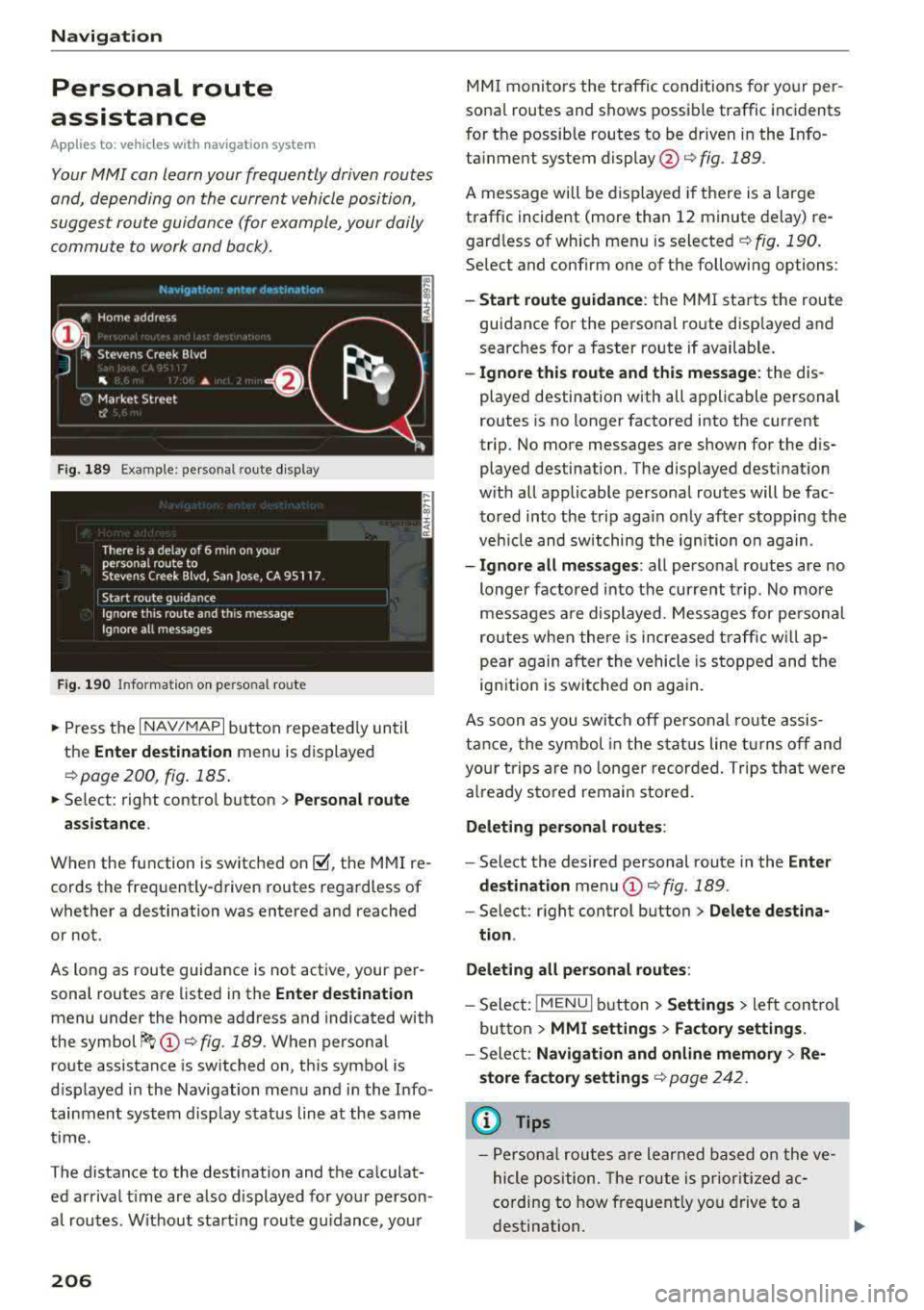
Your MMI can learn your frequently driven routes
and, depending on the current vehicle position,
suggest route guidance (for example, your daily commute to work and back).
Fig. 189 Exa mple: perso nal rou te display
Fig . 190 In forma tion on personal ro ute
.,. Press the I NAV/MAPI button repeated ly until
the
Enter destination menu is displayed
qpage 200 , fig . 185.
... Select : right contro l button > Personal route
assistance .
When the function is switched on~, the MMI re
cords the frequently-driven routes regardless of
whether a destination was entered and reached
or not .
As long as route guidance is not act ive, your per
sonal routes are listed in the
Enter destination
menu under the home address and indicated with
the
symbol ~ (D q fig. 189. When personal
route assistance is switched on, this symbol is
displayed in the Navigation menu and in the Info
tainment system disp lay status line at the same
time.
The distance to the destination and the calculat ed arrival time are also d isplayed for your person
al routes. Without start ing route gui dance, your
206
MMI monitors the traffic conditions for your per
sona l routes and shows possible traffic incidents
for t he possib le routes to be driven in the Info
ta inment system
display @q fig. 189.
A message will be displayed if there is a large
traffic incident (more than 12 minute delay) re
gardless of which menu is selected
¢fig . 190.
Select and confirm one of the following options :
-Start route guidance: the MMI starts the route
guidance for the personal ro ute disp layed and
searches for a faster route if available.
- Ignore this route and this message: the dis
played destination with all applicable personal
routes is no longer factored into the current
trip. No more messages are shown for the dis
played destination. The displayed destination
w ith all applicable personal routes will be fac
tored into the trip again on ly after stopping the
veh icle and switching the ignition on again.
-Ignore all messages : all personal routes are no
longer factored into the current trip. No more
messages are displayed . Messages for pe rsonal
routes when there is increased traffic will ap
pear again after the vehicle is stopped and the
ignition is switched o n again.
As soon as you switch off personal route assis
tance, the symbol in the status line turns off and
your trips are no longer recorded. Trips that were
already stored remain sto red .
Deleting personal routes :
-Select the desired personal route in the Enter
destination
menu (D ¢ fig. 189.
-Select: r ight control button> Delete destina
tion .
Deleting all personal routes:
-Select: !MENU I button> Settings > left control
button >
MMI settings > Factory settings.
-Sele ct: Navigation and online memory > Re·
store factory settings
¢ page 2 42.
(D Tips
-Personal routes are learned based on the ve
hicle position. The route is prioritized ac
cording to how frequently you drive to a
destination.
Page 216 of 400

Navigation
Selecting the online map update
- Se lect an update package from the list(~) @
<=>fig. 198 .
-Confirm you r se lection with the I BACK I button
and go back to the selection.
- T he number and amount of data for the select
ed updat e package are now displayed in the In
fotainment system.
Starting the download
- Select and confirm Start download .
-Confirm the secur ity prompt by selecting Start
download
again.
The update packages begin to down load and the
status of the download progress is shown in the
Infotainment system display .
Installation of online map updates
The downloaded map materia l installs after you
stop your vehicle. The new update packages in
stall only after you switch off the ignition. After
restarting the MMI, the Infota inment system dis
play ind icates if the updates installed successful
ly .
- Confirm the successful update with
OK .
The new map materia l can now be used for navi
gation.
(D Tips
- The amount of available on line map up
dates in the vehicle is lim ited . To update
more regions, use the map update via SD
card at
my.audiusa.com .
-Always read the chapter I:!) page 196, Audi
connect (Infotainment) general informa tion.
Accessing traffic information
Traffic information (TMC)
Ap plies to: ve hicles w ith navigation system
.. Press the I NAV/MAPI button repeated ly until
the map is d isp layed .
.. Se lect : left control button > Traffic messages .
214 An ove
rview of all the traffic messages is dis
played in the Infotainment system. Traffic inci
dents on your route are shown in the upper sec
tion of the list, sorted according to distance.
- Displaying all traffic messages for a street/
highway :
select and confirm the [ill symbol. A
list of all the traff ic messages for the selected
street/highway is displayed.
- Opening a detailed view of traffic information:
select and confirm the traffic information from
the list.
-Displaying the selected traffic information on
the map :
select and confirm the right control
button
> Show on map . The shaded line shows
the street and the length of the traffic jam.
-Displaying the next traffic message on the
map :
press the control knob.
Traffic information display
Colored warning symbols:
traffic incidents on
your route are shown in the upper section of the
list and are sorted according to distance.
Warning symbols with~: avoided traffic inci
dents .
Grayed out warning symbols: traffic incidents
that are not on your route. They are sorted ac
cording to road type (expressway, highway, other
road), country and name.
(D Tips
-Critical traffic information, such as warn
ings about wrong -way drivers, is automati
cally displayed. To hide the traffic informa
t ion, press the
I BACK ! button or the control
knob.
- TMC traffic reports are not available in Can
ada. For more information, please contact
Sirius Canada.