2017 AUDI S3 SEDAN phone
[x] Cancel search: phonePage 174 of 400

Voice recognition system Function
Calling the last number dialed
Dialing a phone numbe r
Correcti ng the phone number that
was entered
Showing contact information
L iste ning to messages
Entering the PIN (SIM)
Co rrecting the P IN entry
Correcting data input
C los ing the full-sc reen command
list
(D Tips
Say :
Redial
Enter number
> after being prompted, say the telephone num-
ber in groups of individual numbers,
fo r example. 888 555
1212 > Dial
Corr ect ion / Delete numb er
Director y
> say the desired contact when prompted,
for example John Sm ith
Call voicemai l
Ente r PIN
> when prompted, say the PIN in individual numbers
> Save
Corr ection / Delete PIN
No I meant ( XV)
Clos e
-Please note th at commands can on ly be giv
en for the primary
phone *¢ page 177 .
-Contacts in the directory can sele cted us ing
the full name ("first name las t name" and
"last name, first name") as well as with only
the fi rst or last name. This applies to cell
phones that transmit names separated into
first and last names. -
For more informat ion on s upported cell
phones, visit
www .audiusa. com /bluetooth
or contact an authorized Audi dealer or au
thorize d Audi Service Facility.
Audi connect (Infotainment)
A ppl ies to: ve hicles w ith vo ice recognition system and Audi co nnect (Infota inment)
Req uirement: The requ irements for Audi connect
(Infotainment) must be met
¢page 190 .
Function Say:
Accessing Audi connect Infotain-Audi connect > follow the system prompts
ment serv ices
Audi connect Infotainment services
Weather/ On line new s/ Fuel p rice s/ Parking info rmation /
T rav el info rmat ion / Twitter / Online tr affic info rmation / City
e v ents / Fl ight informat ion
Search areas for Aud i connect Info-Near de stination / Nearb y/ In a new city
tainment serv ices
Correcting data input
No I meant (XV)
(0 Tips
Always read the chapter ¢ page 196, Audi
connect (Infotainment) general information.
172
Page 175 of 400

CXl CXl .... N r--N .... 0 N > 00
Voice recognition system
Messages (Audi connect (Infotainment))
Applies to: vehicles with voice recognition system and Audi connect (Infotainment)
Requirement: a cell phone with an active MAP
(Message Access Profile) must be connected to
the MMI
¢page 182.
Function Say:
Text ed iting commands Read out / Add / Delete / Record everything again / Replace
with (XV) / Add recipient / Send
Reading out a new message Read out new text message / Read out new e-mail
Reading a message Read out text message / Read out e-mail
Replying to the open text message Reply
Forwarding the open text message Forward > Add recipient/ Insert template/ Send
Correcting data input No I meant (XV)
(D Tips
-For more information on supported cell
phones, visit
www.audiusa.com/bluetooth
or contact an authorized Audi dealer or au
thorized Audi Service Facility.
-Always read the chapter¢ page 196, Audi
connect (Infotainment) general informa
tion .
Navigation
Applies to: vehicles with voice recognitio n system and navigation system
Requirement: the Navigation menu must be
open
¢ table on page 171.
You can say the following commands for entering
a destination depending on the selected menu
item :
Function
Say:
Opening the list of previous naviga-Last destinations
tion destinations
Accessing favorites
Navigation favorites
Selecting the home address Home address or Drive home
Ent ering an address with guidance Enter address > follow the system prompts
from the system
Individual commands for entering a
Enter country/state / Enter city/ Enter ZIP code / Enter
destination street/ Enter house number
Making a correction while entering a Correction
destination
Navigating to a contact
Drive me to (XV) or Navigate to contact , for example Drive me
to "John Smith"
Navigating to a specific address for Navigate to contact (XV) business/ private,
a contact for example "Navigate to "John Smith" private"
Navigating to favorites
Navigation favorites > Line (XV) / Line contents> Start route
guidance when prompted
173
Page 177 of 400

CXl CXl .... N r--N .... 0 N > 00
Voice recognition system
Radio
Applies to: vehicles with voice recognition system
Requ ireme nt: the Radio must a lready be open. You can say the followi ng commands depend ing
o n t he sele cted frequen cy b and:
Function Say:
Sele cti ng the frequency ba nd FM */ SiriusXM * / FM / AM
Selecting a stat ion from the station Channel (XV ) / Frequency (XV)
list
S ele cti ng a s tat io n from favorites/
Radio prese ts > Line (XV)
presets
Setting the frequency
Frequency (XV) I Frequency (XV) HD 1
Correcting data inp ut No I meant (XV )
Closing the full-sc reen command Close
list
Media
Applies to: vehicles with voice recognitio n system
Re qui reme nt: you mus t be in the Media menu.
You can say the following commands depen ding
on the active media:
Function Say:
Selectin g a so urce directly Jukebox* / CD / DVD / SD card 1 / SD card 2 / Audi music inter-
face *
I iPhone* / USB * / Bluetooth* / Wi-Fi * / Medium (XV) , for
example "Jolhn 's player"
Selecti ng aud io/video * fi les in the
Media favorites / Artists / Albums / Genres / Track s/ Playlists /
Jukebox* Videos
Selecting aud io files on an iPod A rt ists / Albums / Genres / Tracks / Playlists /Composers /
(source: Audi music interface*) Podcasts / Audio books
Naviga ting w ith in a folder s truc -Folder up / Line (XV)
tu re/list
Selecti ng shuffle
Shuffle on I Shuffle off
C orrecting data inp ut No I meant (XV)
Clos ing the fu ll-sc reen command Close
list
External voice operation T he pa rk ing aid as well as the A ud i voice r ecogn i
t io n sys te m must not be a ctive.
Applies to: vehicles with voice recognition system and exter
nal voice operation
Requirement:
The ignition and the MMI m ust be switched on.
N o phone call is in progress . A cell phone must be connected to the MMI with
the Handsfree p rofile ~ pag e 177.
The cell p hone be ing connected must have voice
contro l that can be contro lled exte rna lly.
.,. Switching on : press and hold the lei.I button on
the multifunction steering wheel * and say the
liJJ,,
175
Page 178 of 400

Voice recognition system
desired command after the external speech di
alog begins.
~ Continuing/resuming the dialog: the system
remains ready to use for a short time after end
ing the dialog. You can start a new external dia
log during this time. Press the
10.I button if
needed, and say a new command .
Or: select
and confirm
Resume on the MMI control panel.
~ Switching off: press and hold the~ button .
Or: select and confirm Cancel on the MMI con
trol panel.
a) Tips
- There are no voice guidance* prompts when
a dialog is active.
- This function depends on the cell phone
used. You can obtain more information
from your cell phone service provider or
from your cell phone user guide.
- AUDI AG simply provides access to control
your cell phone with voice operation and
does not take any responsibility for the con
tents and commands within the external
voice control.
176
Page 179 of 400

CXl CXl .... N r--N .... 0 N > 00
Telephone Introduction
A pp lies to: ve hicles with telep hone
To make phone coils in your vehicle using the
MMI, connect your cell phone to the
MMI via
Bluetooth.
H and sfree
Afte r you have connected your cell phone to the
MMI via Bluetooth, you can use the handsfree
system and operate telephone functions through
your MMI. You can make calls using the antenna
on your cell phone.
A WARNING
- Medical experts warn that cell phones can
interfere w ith the function of pacemakers.
Always ma inta in a m inimum distance of 20
centimeters between the cell phone anten
na and the pacemaker.
- Do not carry the cell phone in a pocket di
rectly over the pacemaker when the phone
is switched on.
- Sw itch the cell phone off immediately if
you suspect it may be interfering with the pacemaker.
- Do not use the voice recognition system*
c::> page 170 in emergencies because your
voice may change in stressful situations. It may take longer to dial the number or the
system may not be able to dia l it at all. Dial
the emergency n umber manua lly.
- Switch your cell phone off in areas where
there is a risk of an exp losion. These loca
tions are not always clea rly marked. This
may include gas stations, fuel and chemical
storage facilities or transport vehicles, or lo
cations where fuel vapors (such as propane
or gasoline vapor in vehicles or bu ildings),
chem icals or large quantities of dust parti
cles (such as flour, sawdust or metal) may
be present in the air. Th is also applies to all
other locations where you would normally
tu rn your vehicle engine off .
- The demands of traffic requ ire your full at
tent io n. Always read t he chapter
c::> page 158, Traffic safety information.
-
T e le ph on e
(D Note
Always fo llow the information found in Q (!) in
Wi-Fi hotspot on page 195.
(D Tips
- The Bluetooth connect ion range is limited
to inside the vehicle. It can also be affected
by local condit ions and interference with
other devices.
- To learn which Bluetooth connections and
wh ich of the functions in your cell phone are
supported, check with your cell phone serv
ice provider or the database for mobile devi
ces at
www .audiu sa.com /bl uetooth .
Setup
Connecting a cell phone using Bluetooth
Applies to: vehicles wi th telepho ne
Fig . 17 6 Display ing t he PIN for enter ing in t he cell ph one
R equirem ent
The vehicle must be stationary and the ignition
must be switched on.
T he Bl uetoo th funct ion and v isib ility o f the MMI
¢ page 244 and cell phone must be sw itched on.
T he cell phone to be connected must not be con
nected to any other Bluetooth device.
T he
MMI must not be connected to a cell phone .
Connecting a cell phone
.,. Select: !MENU I button> Telephone > Co nnect
mobile dev ice
> Find new de vices > Ne xt. The
avai lable Bluetooth devices are shown in the In
fotainment system display .
Or select: !MENUI
button > S etting s> left contro l button > MMI
s ettin gs> Connec tion manag er ¢
page 242 . .,..
177
Page 180 of 400

Telephone
"'Se lect and confirm the desired ce ll phone from
the list of disp layed Bluetooth devices.
"' The MMI generates a PIN for the connect ion
setup
¢ fig. 176 .
"' Select and confirm Y es.
"' Enter the PIN for connecting on your cell
phone .
Or: when the PIN is d isplayed on your
ce ll phone, confirm the PIN on you r ce ll phone
and in the MMI. The time a llowed for ente ring
the PIN is l im ited to app rox imately 30 seconds.
"' Pay attention to any additiona l system prompts
displayed on your cell phone, for example if the
system should connect automatically in the fu
ture . Depending on the ce ll phone, you may
have to confirm downloading the directory sep
arately .
After connect ing succ essfull y
After connecting successfully, a short message
with information about the connected profi les
will appear . You can also change profiles later.
Select:
! MENU ! button> Sett ings> left control
button
> MMI sett ings > Conn ection man ag er
c:::;, page242 .
In addition, the cell phone contacts are automat
ically loaded in the MMI directory. Th is process
can take several minutes, depend ing on the num
ber of contacts .
You can a lso make your connected cell phone the
default phone by select ing
Se t as de fault tel e
phone
in the Conne ct ion man ager c:::;, page 244 .
Q) Note
Always follow the information found in c:::;,(D in
Wi-Fi hotspot on page 195.
(D Tips
- Making phone calls through the MMI is only
possib le using the
Handsfree Bluetooth pro
file.
- You can apply additional settings to con nected mobile devices using the
Connection
manager
c:::;, page 242.
- You can also search for the MMI in your cell phone us ing the Bluetooth device search.
- You only have to pair your device one t ime.
Bluetooth devices that are already paired
178
automatically connect to the M MI when the
Bluetooth function is switched on, they are
within range and the ignition is sw itched on.
The last connected cell phone is given first pr iority.
-Authoriz ing the MMI connect ion in your cell
phone wi ll make automatic connection pos
sible .
- Pay attention to any system prompts dis played on your cell phone, for example if
the system should connect automatically in
the future. Depend ing on the cell phone,
you may also need to download the directo
ry and confirm a ccess to your text messages
separately.
- When leaving the vehicle, the Bluetooth
c onnect ion to the cell phone will automati
cally disconnect. Depending on yo ur cell
phone, phone calls in progress may be auto
matically redirected from the MM I to your
cell phone and you can continue the ca ll on
your phone.
- You can obtain more info rmation from your
cell phone service provider or from yo ur ce ll
phone user guide. For information on us ing
the te lephone, v isit
ww w.audiu sa.com /
bluetooth
or contact an authorized Audi
dealer or author ized Audi Service Facility.
'
Operating two telephones through the
MMI
You can connect two cell phones to the MMI, for
example your business cell phone as the primary
phone and your private cell phone as the secon dary phone. You can be reached in your vehicle
through both cell phones .
The first connected cell phone is d isplayed as the
primary phone in the MM I. The second cell phone
i s connected as the secondary phone .
The directory from the con nected prima ry phone
will a lways be d isplayed . If yo u wo uld like to use
the d irecto ry from the secondary phone, you
must switch the primary and secondary phone
¢ page 179 .
Page 181 of 400
a, a, ..... N
" N ..... 0 N > 00
Connecting a c ell phone as th e prima ry
phon e
Connect your cell phone to the MMI via Blue
tooth. The first connected cell phone is displayed
as the
P ri ma ry p hone in the MMI.
Refer to
¢ page 177, Connect ing a cell phone us
ing Bluetooth .
Connecting a cell phone as th e secondar y
pho ne
Requirement: a cell phone must be connected to
the MMI as the primary phone.
Select:
IMENU ! button> Telephone > right con
trol button
> C onne ct sec ondary tel ephon e.
Refer to ~ page 177, Connecting a cell phone us
ing Bluetooth.
Example: you have connected your business cell
phone to the MMI as the primary phone and your
private cell phone as the secondary phone . To be
able to call contacts from your private cell phone
d irec tory, you must switch the primary and sec
ondary phone, s in ce the di rectory from the pri
mary phone is always displayed.
Switching the pr imar y and secondary phone
Requirement : a primary phone and a secondary
phone must be connected .
Switc h primar y and second. phone : select:
I MENU I button >Te lephone > right control but
ton >
S w it ch p rim ary and secon d. phon e.
@ Tips
-Please note that only the directory from the
primary phone is always displayed .
-You can see if a cell p hone is connected as
the primary phone or secondary phone in
the
C onne ction mana ger ¢ page 242 . Or:
the dev ice name of the connected primary
phone is shown in the
T elephone menu
(such as MyPhone).
-If the primary phone does not connect auto
matically to the MMI when the ign ition is
switched on, for examp le because it is out
of the vehicle range or the Bluetooth func
tion is switched off, then a previous ly paired
Teleph one
secondary phone is automatically connected
as the primary phone.
-You can send and receive messages on your primary phone as well as on your secondary
phone¢ page 179, fig . 177. You do not
need to switch your primary phone and sec
ondary phone for th is.
-You can also make your connected cell
phone the default phone by se lecting
Set a s
def ault telephon e
in the Co nnect ion ma n
a g er
¢ page 244 .
Using the telephone
Opening the telephone
Applies to: vehicles wi th telepho ne
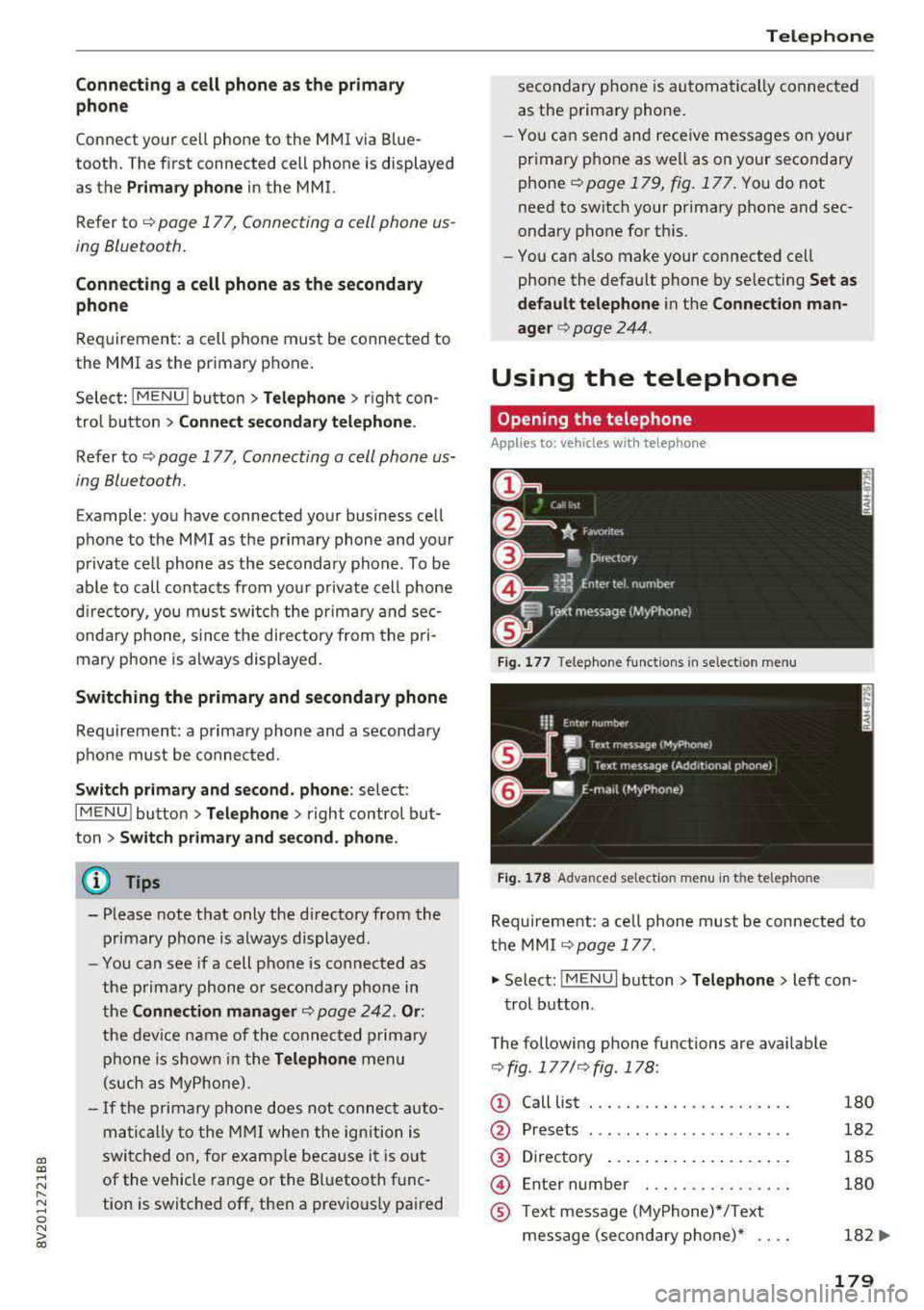
Fig . 17 7 Telephone func tion s in se lect io n menu
Fi g. 1 78 Adva nced selectio n menu in t he te lep hone
Requirement: a ce ll phone must be connected to
t h e MMI
¢ page 177 .
.,. Select: !M ENUI button> Tel ephon e> Left con
trol button .
The following phone functions are available
¢ fig . 177/ ¢fig . 178 :
(!) Call List
@
®
@
®
Presets
Directory ..... .. ... ... ...... .
En ter number . .. .. .... .. .... .
T ext message (MyPhone)*/Text
message (secondary phone)* ....
180
182
185
180
182
...
179
Page 182 of 400

Telephone
@ E-ma il (My Phone) */ E- mail (secon -
da ry phone)* . . . . . . . . . . . . . . . . . 184
T he devi ce nam e for y our cell p hone is disp la ye d
i n t he
Telephone menu , for e xample text mes
sage (My Phone) ¢
fig. 17 8.
Dialing a phone number
Applies to: ve hicles with telep hone
Fig . 179 Number spe ller
Fig . 180 D ia lin g a phone num ber from t he call list
.,. Se le ct: I M ENU I bu tton > Telephone > left co n -
t rol but to n.
Call list
Req uiremen t: the call lis t must contain a p ho ne
nu mber.
T ur n the control knob to d isplay the call list.
Select an d confirm t he desire d telephone num
be r from the recent calls list .
C all list symbol s¢
fig. 1 80:
CD M issed calls
@ D ialed numb ers
@ Accepted ca lls
Sele ct:
a con tac t fr om the li st> righ t co ntrol b ut
t o n .
-Call : call the selected contact.
-Connect secondary telephone* /Switch primary
and second. phone* :
see ¢ page 179 .
180
-Edit phone number before calling : edit a
phone number befo re dialing it. Select and con
firm
OK to edit . Or: press t he left contro l but
ton to return w it h out editing.
-Send text message : write a text message to
the se lected contact.
-Delete call list : select and confirm if yo u wo uld
like to
Delete this entry o r Delete all entries.
-Store as favorite : store t he se lected contact as
a favor ite.
-Show contact details : see i=:> page 1 86.
-Connection manager : see c::> page 242.
-Bluetooth settings : see c::> page 244 .
-Online settings: see i=:> page 244 .
-Wi-Fi settings : see i=:> page 195, Wi-Fi hotspot.
-Telephone settings : see¢ page 187.
Favorites
Requireme nt: a pho ne nu mbe r or c on tact m ust
b e stored as a favor ite
c::> page 1 82.
Se lect and co nfirm a f avor ite in the favor ites l ist.
Directory
Requirement: you must have at least one contact
stored in your cell pho ne.
Se lect and confirm a phone number from t he di
r ecto ry
¢ page 185 .
Enter number
-Entering a phone number as a sequence of
numbers :
enter the numbe r using t he nu mbe r
speller¢ fig . 179.
-Entering the phone number as a sequence of
letters :
select and confirm IABC I above the
number speller . Enter a sequence of letters us
ing the letter spe ller, for example
AUDISER
VICE.
-Dialing a phone number : select and confirm~
Or: push t he control knob down. Select and
confirm
OK .
-Delet ing indiv idual characters : select and con
firm
the contro l knob with the characte r selection to
Clear input field .