2017 AUDI A4 phone
[x] Cancel search: phonePage 40 of 386

Opening and closing
Key set
Fig. 25 Your veh icle key set
@ Remote control key with integrated
mechanical key
You can unlock/lock your veh icle w ith the remote
control key . A mechan ical key is integrated in the
remote control key~
page 39.
@ Key fob with vehicle code
Applies to veh icles with Audi connect vehicle control
Open the key tag and scratch to reveal the veh icle
code . You can unlock the Audi connect vehicle
control se rvices* for your vehicle with this vehicle
code . For additional information, refer to
~ page 181 .
Replacing a key
If a key is lost, see an authorized Audi dealer or
authorized Audi Service Facility. Have
this key de
activated .
It is important to bring all keys with
you .
If a key is lost, you should report it to your
insurance company.
Number of keys
You can check the number of keys assigned to
your vehicle in the Infotainment system . To do
this, select the
IM ENU I button > Vehicle > left
control button
> Service & checks> Vehicle in·
formation .
This way, you can make sure that you
have all the keys when purchasing a used vehicle.
Electronic immobilizer
The immob ilizer prevents unauthorized use of
the vehicle .
Under certain circumstances, the vehicle may not
be able to start if there is a key from a different
veh icle manufacturer on the key chain.
38
Data in the master key
When driving, service and maintenance-re levant
data is continuously stored in your remote con
trol key. Your A udi service advisor can read out
this data and tell you about the work your vehicle
needs . This applies also to vehicles with a con
venience key*.
Personal convenience settings
If two people use one vehicle, it is recommended
that each person always uses "their own" remote contro l key. When the ignition is switched off or
when the vehicle is locked, personal convenience
settings for some systems are stored and as
s igned to the remote control key .
The stored settings are automatically recalled
when you unlock the vehicle, open the doors or
turn on the ignition.
_&. WARNING
Always take the vehicle key with you when leaving the vehicle, even for a short period of
time. This applies particularly when children
r ema in in the vehicle . Otherwise the children
could start the engine or operate elec trical
equipment such as power windows.
(D Tips
-
The operation of the remote control key can
be temporarily disrupted by interference from
transmitters in the vicinity of the vehicle
working in the same frequency range (such as
a cell phone or radio equipment) . Always
check if yo ur vehicle is locked!
Page 46 of 386

Opening and clo sin g
- Move your foot back and forth below the bump
er¢
fig. 35. Do not touch the bumper. The lug
gage compartment lid will open/close once the
system detects the movement .
The luggage compartment lid will only open/
close if you perform the movement as described.
This prevents the luggage compartment lid from
open ing or closing due to similar movements,
such as when you walk between the rear of the
veh icle and your garage doo r.
The closing of the luggage compartment lid is in
d icated by a warning signal and can be canceled
by mak ing the described movement again.
The foot movement does not lock the vehicle.
General information
I n some s ituations, the function may be limited
or temporar ily unavai lable. This may happe n if:
- the luggage compartment lid was closed imme
diately before .
-you park close to a hedge and the branches
move back and forth under the vehicle for a
long pe riod of time.
- you clean your vehicle, for example with a pres
su re washe r or in a car wash.
- there is heavy rain .
- the bumper is
very dirty , for example after driv-
ing on salt-covered roads .
- there is interference to the radio signal from
the vehicle key, such as from cell phones or re
mote controls.
A WARNING
-Pay careful attention when closing the lug
gage compartment lid. Othe rw ise, you could
ca use serious in jury to yo urself or othe rs de
spite the pi nch protection.
- T o reduce the risk of pinch ing injur ies, al
ways m ake sure that no one is in the operat
ing area of the luggage compartmen t lid; in
cluding the h inge areas and the upper and
lower edge of the luggage compartment lid .
- Never dr ive with the luggage compartment
lid ajar or open, because poisonous gases
can enter the vehicle interior and increase
the risk of asphyxiation.
44
luggage compartment lid emergency
release
The luggage compartment lid can be released
from inside the luggage compartment in an
emergency.
Fig. 36 Inner luggage compartment l id: access to the
emergency release
F ig . 37 Rea r bench seat: emergency release cable
The rear lid can be opened from the luggage
compartment or from the rear bench seat using
the emergency release.
Folding rear seat backrest
• Remove the mechanical key¢ page 39.
• Using the emergency key, pry the cover off the
rear lid trim ¢
fig. 36.
• Press the lever in the direction of the arrow to
release the luggage compartment lid.
Fixed rear seat backrest
• Carefully pu ll the left side of the rear bench
seat out of its mount until you can reach the re
lease cable¢
fig. 3 7.
• Remove the Velcro tape @.
• Pull on the loop @ until the rear lid releases .
• Tape the release cab le back in place and press
the bench seat back into its retainer.
Page 149 of 386

Opening the selection/options menu with
the control knob
A pp lies to: ve hicles with joystick function
F ig . 152 Open in g th e selec tion/opt io ns menu with th e
contro l knob
Opening/closing the selection menu : push the
con trol knob to the left ¢
fig . 152 to open these
l ection menu. Then you can se lect and confirm a
function using the contro l kno b.
Pr es s t he !BACKI butto n
(J) ¢page 14 1, fig. 139
to re tu rn to the func tion one level up.
Opening /closing the options menu: p ush the
con trol knob to the right¢
fig. 1 52 to open the
o p tion s menu. Then you can se lect and confirm a
f u nction u sing t he contro l knob .
P ress the !BACKI button
(J) ¢ pag e 141, fig. 139
to re tu rn to t he func tio n one level up.
Multi Media Interface
Shortcut keys
You can assign frequently used functions to the
shortcut keys (such as navigation destination*,
phone number*, album, playlist and TV sta tion*) .
-The shortcut keys are located o n the M MI con-
trol panel @¢
page 141 , fig. 139 .
Assigning the shortcut key : select a function
(s uch as navigation destination) in the M MI.
P ress and hold the desired shortc ut key fo r sever
al seconds . The shortcut key is then assigned to
t h e active funct ion (such as navigation dest ina
t io n).
Opening an ass igned function : press the short
cut key.
Display an assigned function : swipe your finger
ove r th e shortcut keys .
Reassigning an assigned shortcut key : selec t a
f unct ion (such as a radio st ati on) in the MMI.
Press and hold the shortcut key for several sec
o nds .
Resetting assigned shortcut keys : to delete the
f unc tions assig ned to t he shortcut keys, reset the
Shortcut keys bac k to the defau lt factory set
t in gs
¢ page 230.
(D Tips
-If a s hortcu t key is assigned to a trac k fro m
the media center *, the correspondi ng album
is st ored .
- It is not p oss ible to e nter numbe rs usin g
t h e s ho rtc ut keys . Use the numbe r spe ller
¢ page 148 or MM I touch* ¢ page 144 to
enter num bers .
147
Page 151 of 386
Multi Media Interface
Symbol/Description Description
® E
Open additional spe ller options, for example Close speller, Clear in-
put field
® 1 ,&71 Cha racter sets and special characters
(j) laou l Language-dependent special characters
® 1123!/ IABC! Switches from letter to number input or from number to letter in-
put.
® A space is added to the input field . ........
@ Character selection Highlights the selected character.
@
•
Inserts the input suggestion* when you push the control knob up .
@ ~ Deletes the characte r to the left of the cursor.
Free text search
Applies to: vehicles with free text search
Using the free text search, you can select the or
der that the search terms are entered in the in
put field.
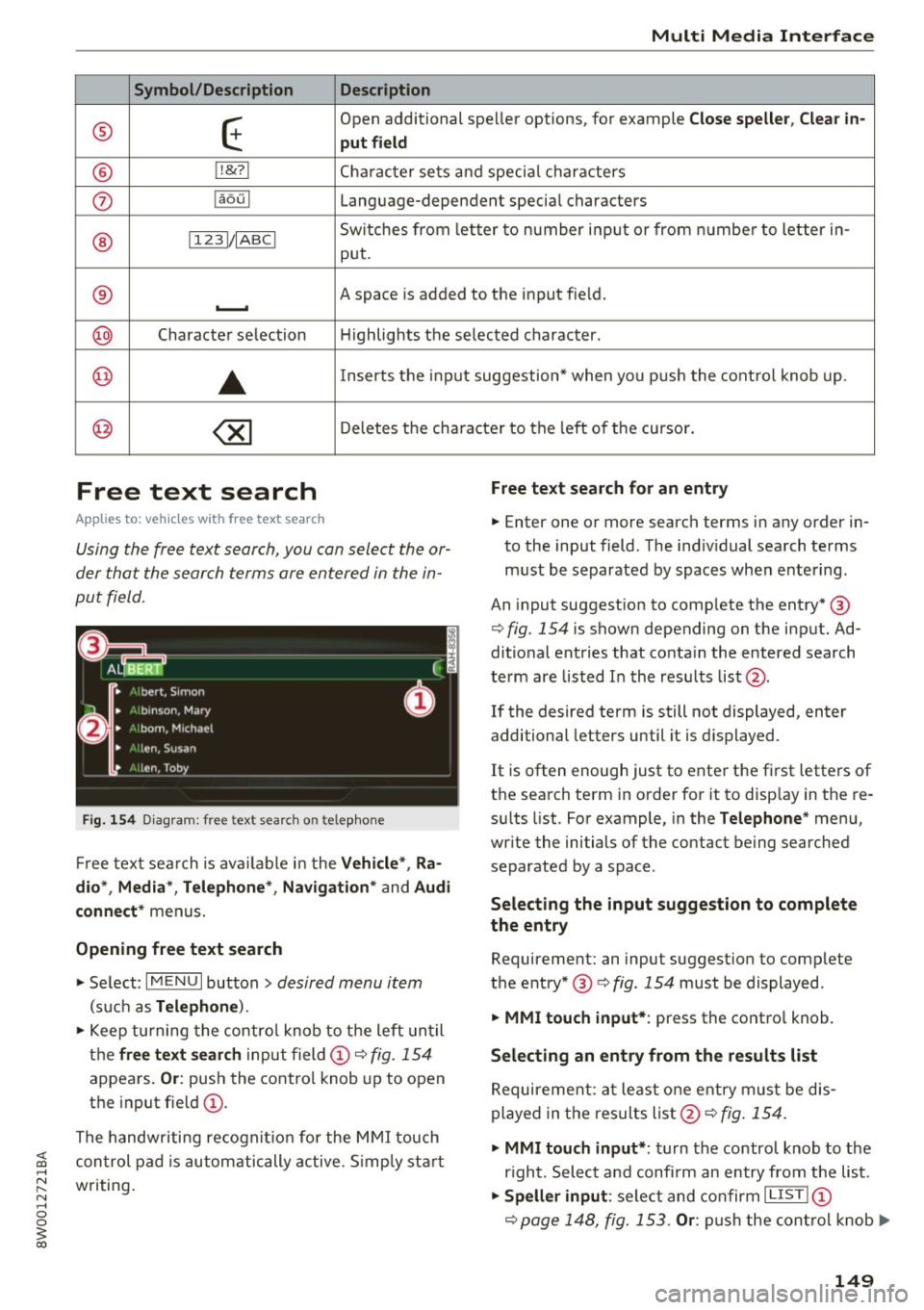
Fig. 154 Diagram: free text sea rch on telep hone
Free text search is available in the Vehicle *, Ra
dio *, Media *, Telephone* , Navigation*
and Audi
connect*
menus.
Opening free text search
• Se lect: I MENU I button > desired menu item
(such as Telephone ).
• Keep turning the control knob to the left until
the
free text search input field@c::> fig. 154
appea rs. Or : push the control knob up to open
the input field@ .
The handwriting recognition for the MMI touch
Free text search for an entry
• Enter one or more search terms in any order in
to the input field . The individual search terms
must be separated by spaces when entering.
An input suggestion to comp lete the entry* @
c::>
fig. 154 is shown depending on the input. Ad
ditional entries that contain the entered search
term are listed In the results list@.
If the desired term is still not displayed, enter
additional letters until it is displayed .
It is often enough just to enter the first letters of
the search term in order for it to display in the re
sults list. For example, in the
Telephone* menu,
write the initials of the contact being searched
separated by a space.
Selecting the input suggestion to complete
the entry
Requirement: an input suggestion to complete
the entry* @ c::>
fig. 154 must be displayed .
• MMI touch input* : press the control knob.
Selecting an entry from the results list
Requirement: at least one entry must be dis
played in the results list@c::>
fig. 154.
;;!; control pad is automatically active. Simp ly start ....
• MMI touch input* : turn the control knob to the
r ight. Select and confi rm an entry from the list .
~ writing . N .... 0 0
3
c::> page 148, fig. 153. Or: push the control knob..,.
149
Page 152 of 386
Multi Media Interface
down. Select and con firm an entry from the
list.
Menus and Symbols
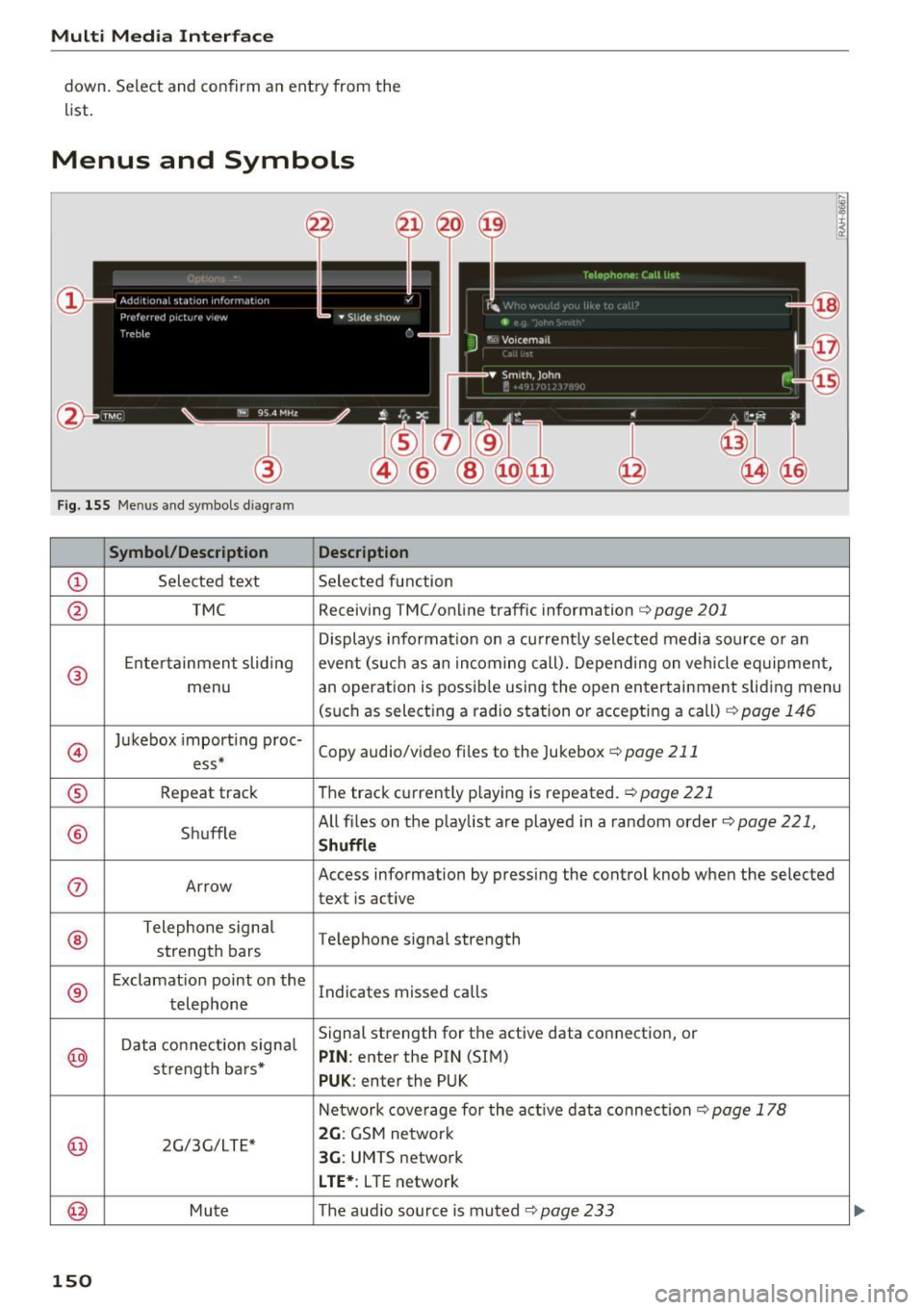
F ig . 155 Menus and symbols diagram
Symbol/Description Description
CD S elected text Selected f unction
@ TMC Receiving
TMC/online traffic information <=> page 201
Displays informa tion on a cu rrent ly selected media so urce o r an
®
E nte rtainmen t slid ing event (s uch as an incomi ng call). Depending on vehicle eq uipment,
menu an operation is possib le using the open entertainment slid ing menu
(such as select ing a radio sta tion or accepting a call)
c!.> page 146
@
Ju kebox import ing proc-
Copy audio/video fi les to the Jukebox
c!.> page 211 ess*
® Repeat track T
he trac k cu rrent ly p laying is repeated. c!.> page 221
® Shuffle All fi
les on the p lay list a re played in a random order c!.> page 221,
Shuffle
(J) Arrow Access
information by pressing the control knob when the selected
text is active
®
T elephone sign al
Telephone s ignal strength
strength bars
®
E xclamat io n point on the
Indicates missed calls
t elephone
D ata co nnection signa l Signal strength
for the active data connection, or
@ PIN : enter the PIN (SIM)
s tr engt h ba rs *
PUK : enter the PUK
N etwork cove rage for the act ive data connec tion
c!.> page 178
@ 2G/3G/LTE* 2G : GSM ne twor k
3G: UMTS network
L TE* : L TE network
@ Mu te The audio source is muted c!.> page 233
150
Page 153 of 386
<( a, .... N ,....
N .... 0 0
3 a,
@
~
@)
@
@
@
@)
@
@
@
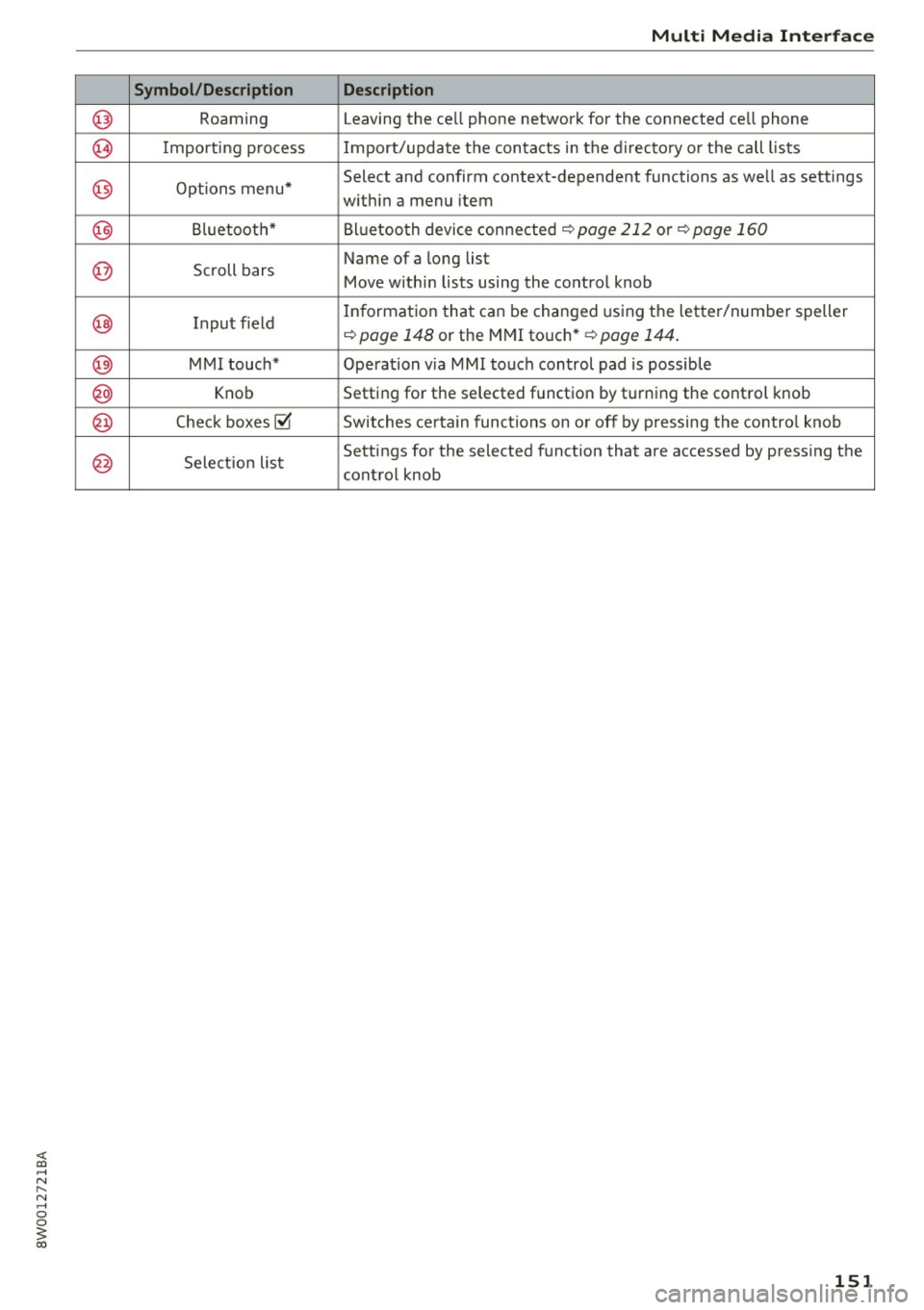
Symbol/Description
Roaming
I mporting p ro cess
Options menu* Bluetooth*
Scroll bars
Input field
MMI touch* Knob
Check boxes~
Sele ction list
Multi Media Interfac e
Description
Leaving the cell phone network for the connected cell phone
Import/update the contacts in the directo ry o r the call lists
Select and confirm context-dependent functions as we ll as settings
w ith in a menu item
Bl uetooth device con nected
r=;, page 212 o r r=;, page 160
Name of a long list
Move withi n lists using the control knob
In formation that can be changed using the letter/number speller
r:=;, page 148 or the MMI touch* r=;, page 144 .
Operation v ia M MI touch control pad is possible
Setting for the selected function by t urning the control knob
Switches ce rtain functions on or off by p ressing the contro l knob
Settings for the selected fu nction that are accessed by pressing the
control knob
151
Page 154 of 386

Voice recognition system
• Telephone
• Audi connect •
Favorites
• Call (XV)
• Navigation
• Directory
• Radio
• Media
• Sound •
Enter number
• Redial
• Read new text message
• Navigate to
(XY)
• Enter address/destination
• Help • Online destinations
• Help Speech dialog system
• Help Telephone •
Cancel route guidance
• Map
• Help Audi connect •
Line (XV)
• Help Navigation
• Help
Map
• Help Radio •
Next page
I previous page
• Cancel
• No. I meant (XV)
• He lp Media • Correction
TE ,EPflON ~
• Enter number • Call list
• Delete number/ correction • Redial
• Directory
• Call (XV) •
Call mailbox
• Enter PIN/ delete PIN
· business/ private/ land tine
I mobile • Telephone favorites
• Nav igate to contact (XV)
•Business address
I Pnvate address •
Block route for (XV) miles
I Block
the next section
• Start
I cancel route guidance
• Directory
• Last destinations • Route
list
• Calculate alternative routes
• Online destinations
• Nav igation favorites
• Drive home •
Special destination
• Enter address
• Enter country/ town / street / state
• Exclude route/ Exclude route for (XV) km/ m
• Map
• Day map/ Night map
• 2D driving position map/ 20 north position map/ 3D map/ Destination map/ Overview map
Al!IDI
• Audi connect
• Travel information/ Parking Information
• Fuel prices
• Weather
RADIO
• Radio presets
• Last stations
• FM
• FM / AM / SIRIUS XM
• Station (XV) / Frequency (XV)
• Traffic announcement on
I off
Fig. 156 Comm and overv iew
152
• Flight Information
• City events
• Online news
• Twitter
MEDIA
• Jukebox
• CO
I DVD
• SD card
l / SD card 2
• Audi music interface/ I Pod / USB / Bluetooth /
WI -Fl/ Medium (XV)
• Media favorites
I Artists / Albums / Genres /
Tracks
I Playtlsts / Videos
• Folder up
• Random playback on / off
Page 155 of 386

Voice recognition system Operating
A pp lies to: ve hicles with vo ice recognition system
You con operate many Infotainment functions
conveniently by speaking .
Fig . 157 Vo ice recognition system butto n on t he mult i·
function steering wheel
Requirements: the ignition and the MMI must be
switched on ¢
page 141, there must be no phone
call in progress and the parking system must not
be active .
.,. Switching on : briefly press the 12!] ¢ fig. 157
button on the multifunction steering wheel and
say the desired command after the
Beep .
.,. Switching off :
press and hold the 12!] button.
Or: press the [2] button.
.,. Pausing : say the comma nd Pau se . To res ume,
press the
1 0 .1 but ton .
.,. Correcting : say the command Correction .
Input assistance
The system guides you through the input with
visual and audio feedback .
-Vi sual input as sista nce : after switching on
vo ice recognit ion, a display with a selection of
poss ible commands appears . The comma nd
display can be sw itched on/off under
I MENU I >
Settings > left control bu tton > MMI settings >
Speech dialog system .
- Audio input a ssis tance :
to have the poss ible
commands read, turn the voice recognition sys
tem o n and say
Help .
For the system to understand you:
Speak clearly and distinct ly at a normal volume .
Speak louder w hen driv ing faster .
Voice re cogni tion system
Emphasize the words in the commands evenly
and do not leave long pauses.
Do no t spea k a command when the vo ice re cogni
tio n sys tem is making an announcemen t.
Close the doo rs , the w indows and the sun roof* to
r ed uce background no ise. Ma ke sure that passen
gers are not speaking w hen you are giv ing a voice
command.
Do not d irect the air vents toward the hands free
microp hone, which is on the roof headliner near
the fron t inte rior lights.
Only use the system from the dr iver's seat be
cause the hands free microphone is directed to
ward that seat.
Additional settings
Refer to¢ page 234.
A WARNING .
- Direct your full attention to dr iving . As the
d river, you have complete responsibility fo r
safety in t raff ic. Only use the functions in
s uch a way that you a lways m aintain com
p lete co ntro l over your vehicle in all tra ffi c
situa tions .
- Do not use t he voice recognition sys tem in
emergencies beca use your voice may ch ange
i n st ressfu l situations . It may take longe r to
d ia l the number o r the system may not be
ab le to dia l it at all. Dia l th e emergency
number manually.
@ Tips
- T he d ialog pauses w hen the re is an incom
ing phone call and will continue if yo u ig
nore the ca ll. The dia log ends if you answer
the ca ll.
- There are no Vo ice gu idance * prompts when
a dialog is active.
- You can select a n item in the list using ei
ther the voice recognit io n system or the
control knob .
153