Page 31 of 116
56 || 57
VEHICLE CONTROLSVEHICLE CONTROLS
n Unlocking the Hatch
To unlock:
Press the hatch release button on the vehicle, or
on the keyless remote.Door Operation from Inside the Vehicle
Use several methods to lock or unlock the doors.
n
Using the Lock Tab
To unlock: Pull
the lock tab rearward. When you unlock
either door using the lock tab, the specific door (driver’s or
passenger’s) unlocks.
To lock: Push the lock tab forward. When you lock the door
using the lock tab on the driver’s door, both doors lock at the
same time. When you lock the door using the lock tab on the
passenger’s door, only that door locks.
To Unlock
Lock Tab
To Lock
n Using the Master Door Lock Switch
To unlock: Press the unlock side of the switch to unlock both
doors.
To lock: Press the lock side of the switch to lock both doors.
Inner Handle
Page 32 of 116

58 || 59
VEHICLE CONTROLSVEHICLE CONTROLS
n Using the Front Door Inner Handle
To unlock: Pull
the inner handle. The door unlocks and opens
in one motion.
To lock: Press the lock side of the switch to lock both doors.
Inner Handle
Both doors unlock when opening the driver’s door from the inside.
Do not pull an inner handle while the vehicle is moving.
n
Opening the Hatch
To unlock:
Press the hatch release button on the driver’s door.
Hatch Release Button
n Hatch Main Switch
To disable all hatch r elease methods: Use the hatch main
switch in the glove compartment.
Main Switch
ON
OFF
Power Window Operation
The power windows can be opened and closed when the vehicle is on by using the switches on
the doors. The switches on the driver’s side can be used to open and close boith windows.
n
Automatic Operation
To open: Push the
switch down firmly.
To close: Pull the switch up firmly.
The window opens or closes completely. To stop the window
at any time, push or pull the switch again briefly.
ON
OF F
Lock ButtonPower Window
Indicator
Driver’s
Window
Switch Passenger’s
Window Switch
n Manual Operation
To open: Push the switch
down lightly.
To close: Pull the switch up lightly.
Release the switch when the windows reach the desired position.
n
Power Window Lock
Push in the power
window lock button so only the driver’s window can be operated.
Closing a power window on someone’s hands or fingers can cause serious injury.
Make sure your passengers are away from the windows before closing them.
WARNING
Page 33 of 116

60 || 61
VEHICLE CONTROLSVEHICLE CONTROLS
Interior and Exterior Lights
Operate interior and exterior lights when the vehicle is on or off.
n
Exterior Lights
Rotate the switches on the lev
er to operate the exterior lights. Push the lever forward to
turn on high beams. Return the lever to its original position for low beams.
Turn on all exterior lights including headlights.High Beams
Flashing the high beams
Low Beams
OFF All exterior lights are off.
Turn on exterior lights except headlights.
AUTO Turn on the automatic lighting feature.
Headlights turn on or off depending on ambient
brightness when the vehicle is on. Headlights
automatically come on after the wipers are
engaged for a certain time. n
Interior Lights
Located on the ceiling in the fr
ont.
ON position: Interior lights remain on.
Door activated position: Interior lights come on a door is
opened, the driver’s door is unlocked, or the vehicle is turned
off.
OFF position: Interior lights remain off.
Of f
Door
Activated Position
On
n Brightness Control
Adjust instrument panel brightness when the vehicle is on.
To brighten: Press the (+) button.
To dim: Press the (–) button.
A beep sounds when the brightness reaches minimum or
maximum.
(+) Button
(-) Butto n
Page 34 of 116
62 || 63
VEHICLE CONTROLSVEHICLE CONTROLS
n Map Lights
Press the map lights
in the ceiling to turn them on or off.
n One-Touch Turn Signal
Use this quick and conv enient method to signal a lane
change.
Lightly push the turn signal lever up or down for a three-blink
sequence.
For a continuous signal, push the lever up or down until it
locks into place.
Right
Left
Wiper Operation
The windshield wipers and washers can be used when the vehicle is on.
n
Front Wipers
Mov
e the wiper lever up or down to the desired position.
Pull to use
washer. MIST
OFF
INT (intermittent)
LO: Low speed wipe
HI: High speed wipe
Page 37 of 116
68 || 69
VEHICLE CONTROLSVEHICLE CONTROLS
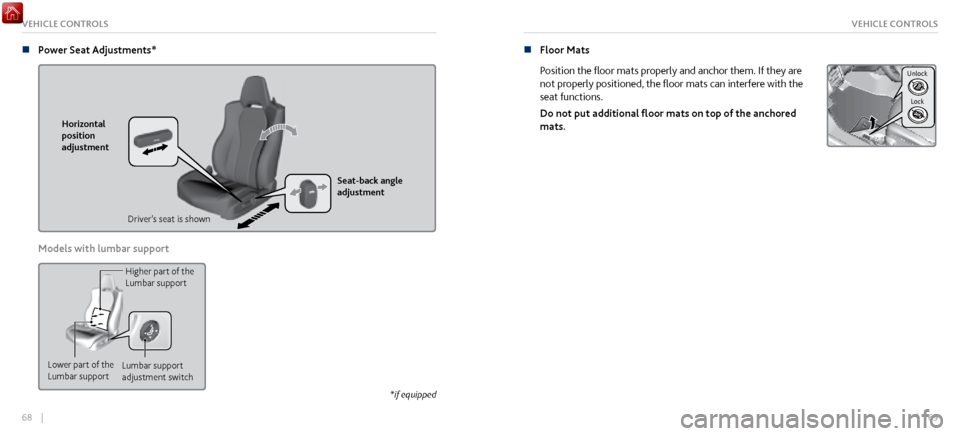
n Power Seat Adjustments*
Horizontal
position
adjustment
Seat-back angle
adjustment
Driver’s seat is shown
Models with lumbar support
Lower part of the
Lumbar support Lumbar support
adjustment switchHigher part of the
Lumbar support
*if equipped
n Floor Mats
Position the floor mats properly and anchor them. If they are
not properly positioned, the floor mats can interfere with the
seat functions.
Do not put additional floor mats on top of the anchored
mats.
Unlock
Lock
Page 38 of 116

70 || 71
VEHICLE CONTROLSVEHICLE CONTROLS
n Adjusting the Steering Wheel
The steering wheel height and distance
from your body can be adjusted so that you can
comfortably grip the steering wheel in an appropriate driving posture.
1.
Pull up the steering wheel adjustment lever
.
2.
Move the steering
wheel up or down, and in or out.
3.
Push down the steering wheel adjustment lev
er to lock
the steering wheel in position.
To adjust
To lock
Lever
Adjusting the steering wheel position while driving may cause you to lose control
of the vehicle and be seriously injured in a crash.
Adjust the steering wheel only when the vehicle is stopped.
WARNING
Driving Position Memory System*
You can store two driver’s seat and door mirror positions into memory when the vehicle is
on. When you unlock and open the driver’s door with a remote transmitter, the seat and door
mirrors adjust automatically to the corresponding preset positions.
Adjust the seat and mirrors to your preferred positions.
1.
Press SET.
2.
Press and hold memory button 1 or 2. Y
ou will
hear two beeps when the memory is set.
Press one of the memory buttons to recall previously stored
positions. Lumbar positions cannot be stored.
SET Button
Memory
Button
1
Memory
Button 2
*if equipped
Page 42 of 116
78 || 79
VEHICLE CONTROLSVEHICLE CONTROLS
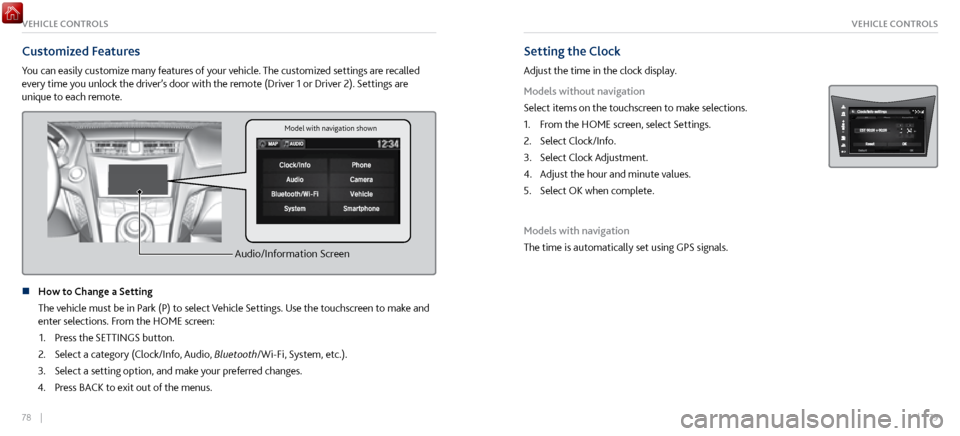
Customized Features
You can easily customize many features of your vehicle. The customized settings are recalled
every time you unlock the driver’s door with the remote (Driver 1 or Driver 2). Settings are
unique to each remote.
Audio/Information Screen
n How to Change a Setting
The vehicle must be in P
ark (P) to select Vehicle Settings. Use the touchscreen to make and
enter selections. From the HOME screen:
1.
Press the SETTINGS button.
2.
Select a category (Clock/Info, Audio,
Bluetooth/Wi-Fi, System, etc.).
3.
Select a setting option, and make y
our preferred changes.
4.
Press BACK to
exit out of the menus.
Setting the Clock
Adjust the time in the clock display.
Models without navigation
Select items on the touchscreen to make selections.
1.
From the HOME scr
een, select Settings.
2.
Select Clock/Info.
3.
Select Clock Adjustment.
4.
Adjust the hour and minute values.
5.
Select OK when complete.
Models with navigation
The time is automatically set using GPS signals.
Model with navigation shown
Page 59 of 116
112 || 113
Subscription Features
A subscription-based service that provides convenient features, such as collision notification,
emergency assistance, online security, and important messages about your vehicle.
To subscribe or get more information, contact a dealer or visit owners.acura.com (U.S.) or
www.myacura.ca (Canada). Requires enrollment and privacy agreement.
n
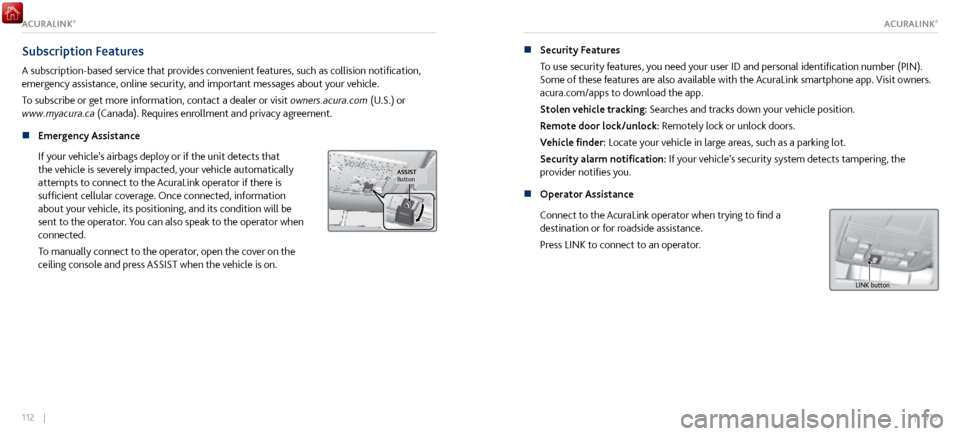
Emergency Assistance
If your v
ehicle’s airbags deploy or if the unit detects that
the vehicle is severely impacted, your vehicle automatically
attempts to connect to the AcuraLink operator if there is
sufficient cellular coverage. Once connected, information
about your vehicle, its positioning, and its condition will be
sent to the operator. You can also speak to the operator when
connected.
To manually connect to the operator, open the cover on the
ceiling console and press ASSIST when the vehicle is on.
ButtonASSIST
n Security Features
To use security
features, you need your user ID and personal identification number (PIN).
Some of these features are also available with the AcuraLink smartphone app. Visit owners.
acura.com/apps to download the app.
Stolen vehicle tracking: Searches and tracks down your vehicle position.
Remote door lock/unlock: Remotely lock or unlock doors.
Vehicle finder: Locate your vehicle in large areas, such as a parking lot.
Security alarm notification: If your vehicle’s security system detects tampering, the
provider notifies you.
n
Operator Assistance
Connect to the AcuraLink operator
when trying to find a
destination or for roadside assistance.
Press LINK to connect to an operator.
L INK button
ACURALINK®ACURALINK®