Page 428 of 800
428
PRIUS_OM_OM47A29U_(U)
5-2. Setup
Setup menu
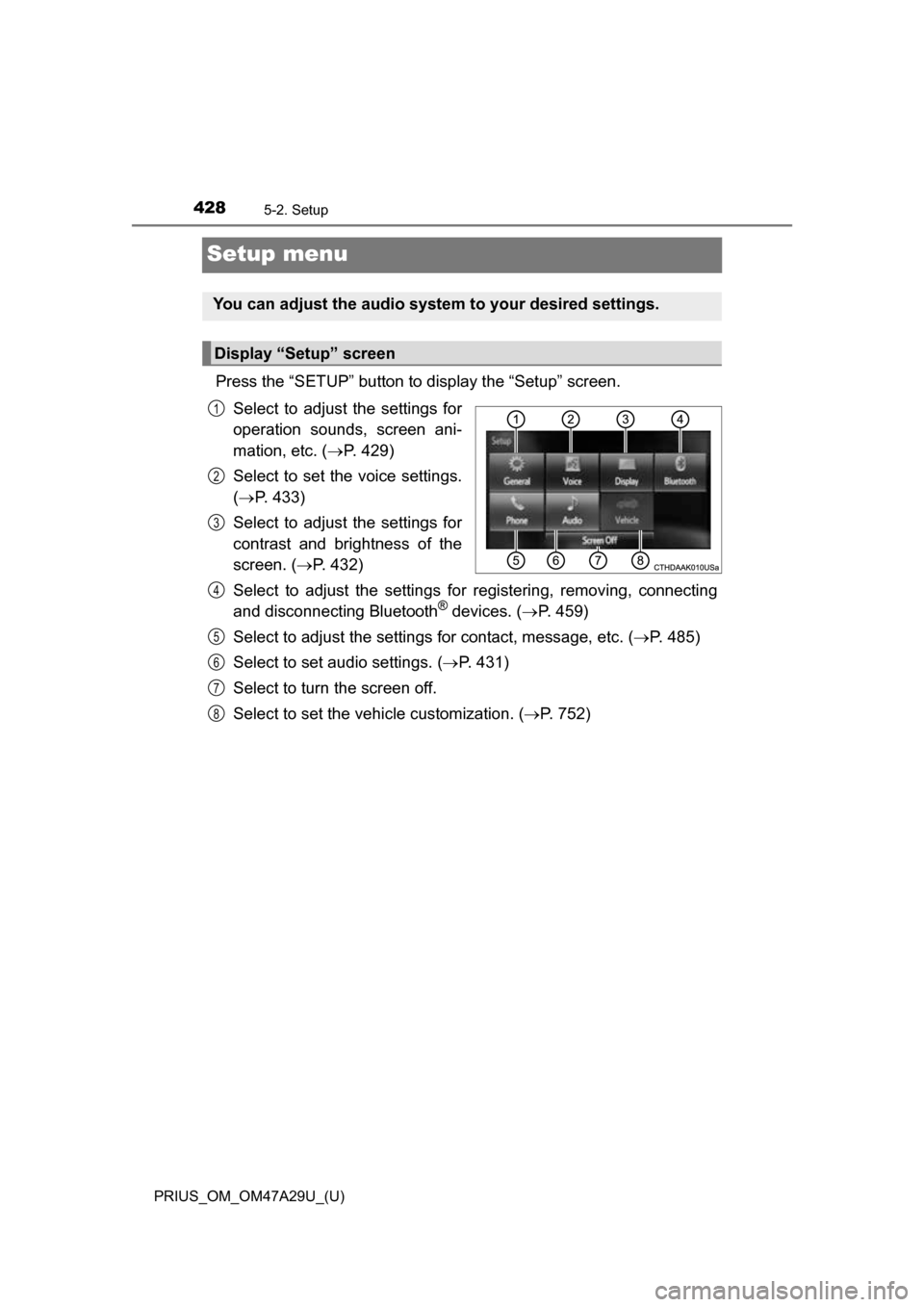
Press the “SETUP” button to display the “Setup” screen.Select to adjust the settings for
operation sounds, screen ani-
mation, etc. ( P. 429)
Select to set the voice settings.
( P. 433)
Select to adjust the settings for
contrast and brightness of the
screen. ( P. 432)
Select to adjust the settings for registering, removing, connecting
and disconnecting Bluetooth
® devices. ( P. 459)
Select to adjust the settings for contact, message, etc. (P. 485)
Select to set audio settings. ( P. 431)
Select to turn the screen off.
Select to set the vehicle customization. ( P. 752)
You can adjust the audio system to your desired settings.
Display “Setup” screen
1
2
3
4
5
6
7
8
Page 436 of 800
4365-3. Using the Multimedia system
PRIUS_OM_OM47A29U_(U)■
Selecting a track/file/song
Press the “
” or “” button on “SEEK•TRACK” or turn the
“TUNE•SCROLL” knob to select the desired track/file/song number.
To fast-forward or reverse, press and hold the “ ” or “” button on
“SEEK•TRACK”.
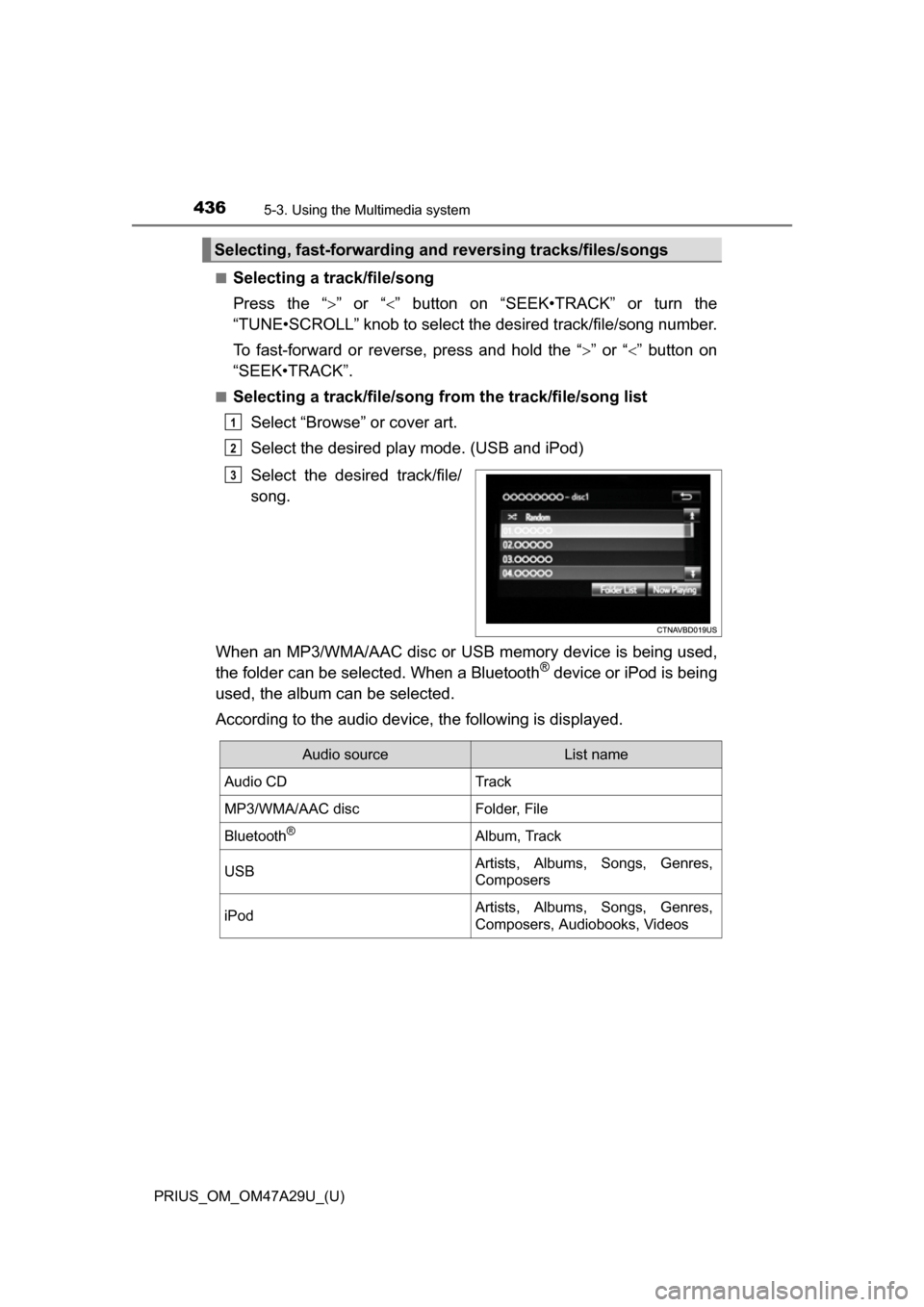
■Selecting a track/file/song from the track/file/song list
Select “Browse” or cover art.
Select the desired play mode. (USB and iPod)
Select the desired track/file/
song.
When an MP3/WMA/AAC disc or USB memory device is being used,
the folder can be selected. When a Bluetooth
® device or iPod is being
used, the album can be selected.
According to the audio device, the following is displayed.
Selecting, fast-forwarding a nd reversing tracks/files/songs
1
2
3
Audio sourceList name
Audio CDTrack
MP3/WMA/AAC discFolder, File
Bluetooth®Album, Track
USBArtists, Albums, Songs, Genres,
Composers
iPodArtists, Albums, Songs, Genres,
Composers, Audiobooks, Videos
Page 457 of 800
457
PRIUS_OM_OM47A29U_(U)
5-7. Connecting Bluetooth®
5
Audio system
Preparations to use wireless communication
The following can be performed using Bluetooth® wireless com-
munication:
■A portable audio player can be operated and listened to via
audio system
■Hands-free phone calls can be made via a cellular phone
In order to use wireless communication, register and connect a
Bluetooth
® device by performing the following procedures.
Page 458 of 800
4585-7. Connecting Bluetooth®
PRIUS_OM_OM47A29U_(U)
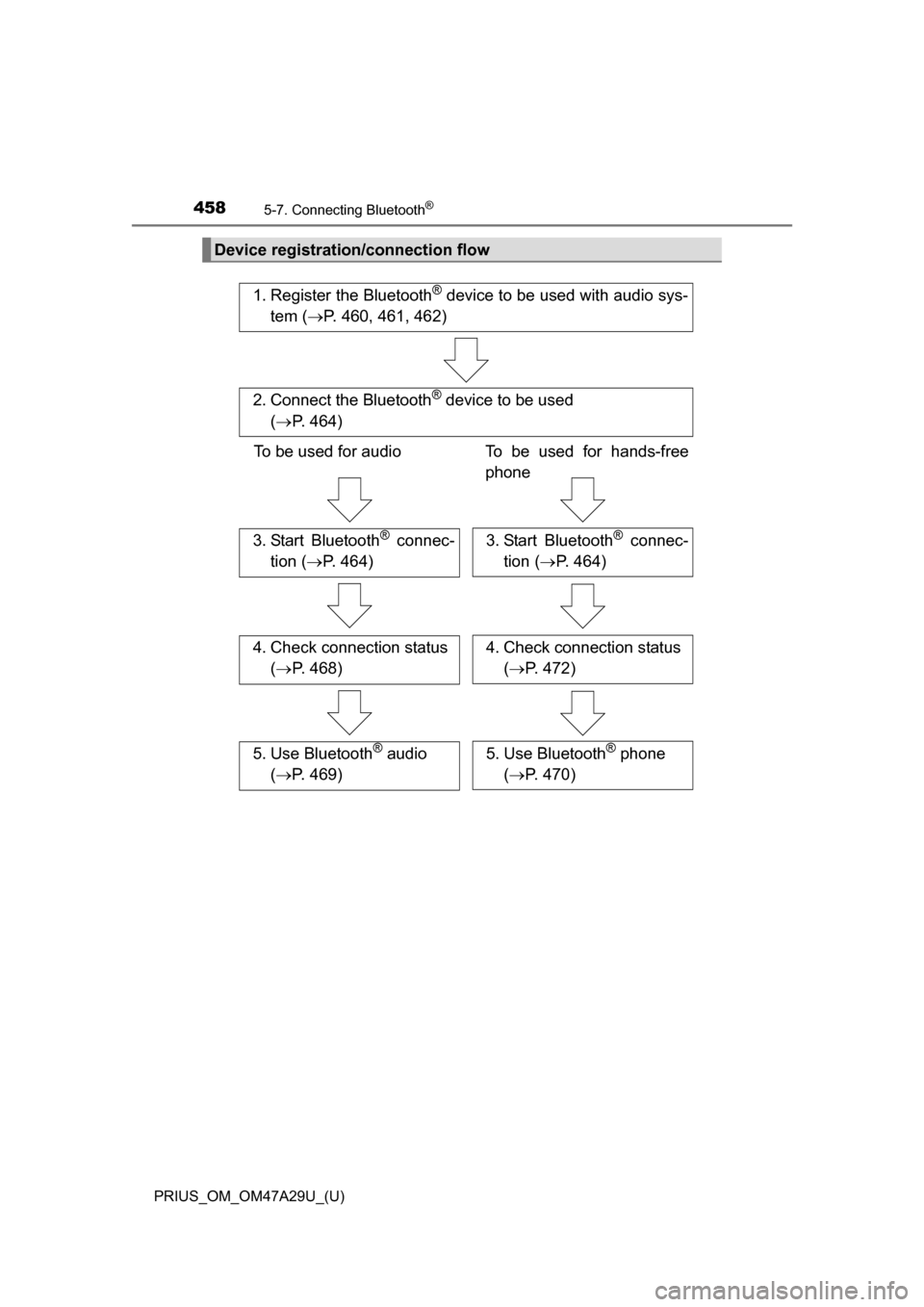
Device registration/connection flow
1. Register the Bluetooth® device to be used with audio sys-
tem ( P. 460, 461, 462)
2. Connect the Bluetooth® device to be used
( P. 464)
To be used for audio To be used for hands-free
phone
3. Start Bluetooth® connec-
tion ( P. 464)3. Start Bluetooth® connec-
tion ( P. 464)
4. Check connection status
( P. 468)4. Check connection status
( P. 472)
5. Use Bluetooth® audio
( P. 469)5. Use Bluetooth® phone
( P. 470)
Page 459 of 800
PRIUS_OM_OM47A29U_(U)
4595-7. Connecting Bluetooth®
5
Audio system
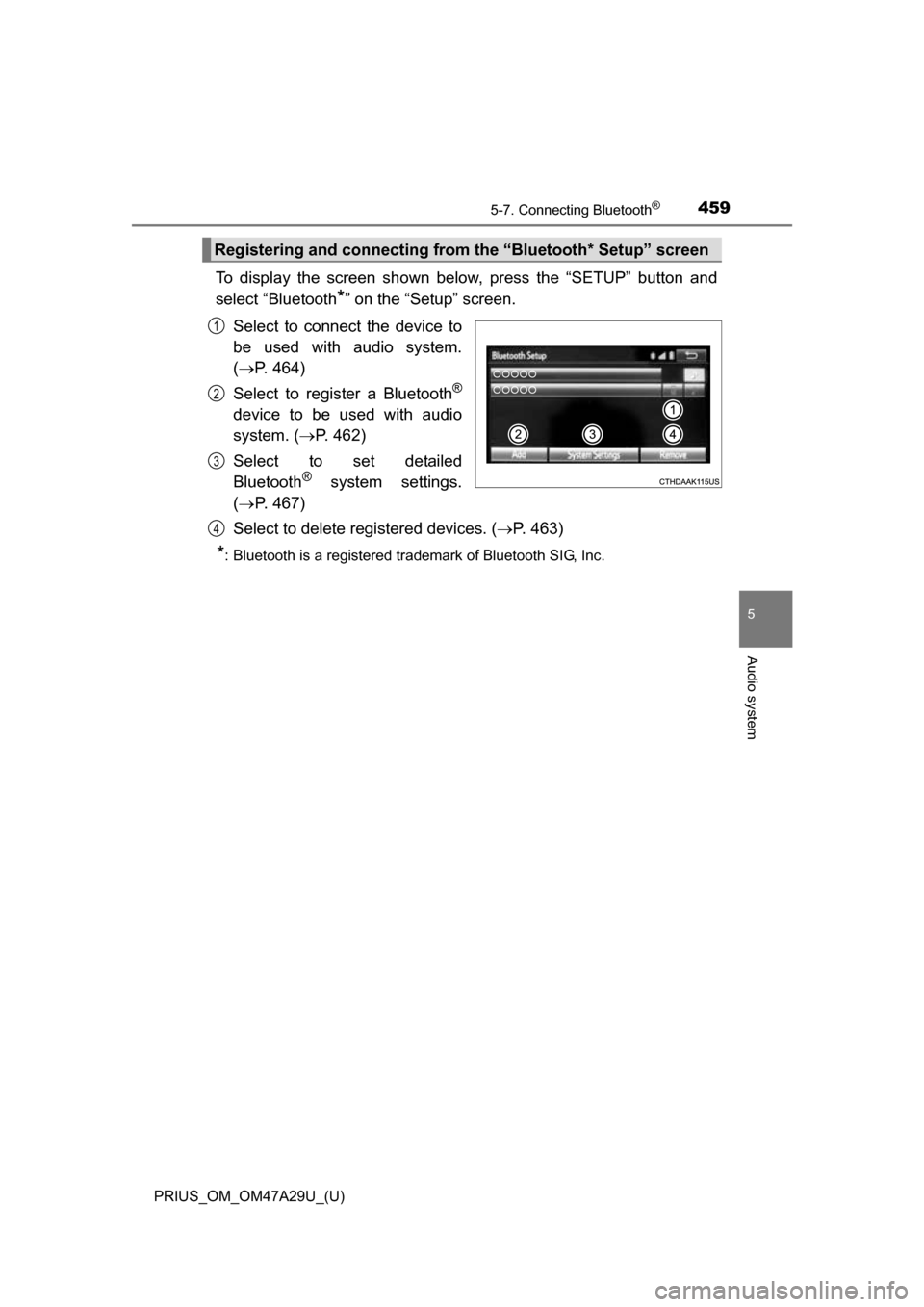
To display the screen shown below, press the “SETUP” button and
select “Bluetooth
*” on the “Setup” screen.
Select to connect the device to
be used with audio system.
( P. 464)
Select to register a Bluetooth
®
device to be used with audio
system. ( P. 462)
Select to set detailed
Bluetooth
® system settings.
( P. 467)
Select to delete registered devices. ( P. 463)
*: Bluetooth is a registered trademark of Bluetooth SIG, Inc.
Registering and connecting from the “Bluetooth* Setup” screen
1
2
3
4
Page 460 of 800
460
PRIUS_OM_OM47A29U_(U)
5-7. Connecting Bluetooth®
Registering a Bluetooth® audio player for
the first time
Turn the Bluetooth® connection setting of your audio player on.
Press the “AUDIO” button.
Select “ Audio”.
Follow the steps in “How to register a Bluetooth
® device” from .
( P. 462)
To use the Bluetooth® Audio, it is necessary to register an audio
player with the system.
Once the player has been registered, it is possible to use the
Bluetooth
® Audio.
For details about registering a Bluetooth
® device ( P. 462)
1
2
3
42
Page 461 of 800
461
PRIUS_OM_OM47A29U_(U)
5-7. Connecting Bluetooth®
5
Audio system
Registering a Bluetooth® phone for the first
time
Turn the Bluetooth® connection setting of your cellular phone on.
Press the “ ” button.
Select “Yes” to register a phone.
Follow the steps in “How to register a Bluetooth
® device” from .
( P. 462)
To use the hands-free system, it is necessary to register a
Bluetooth® phone with the system.
Once the phone has been registered, it is possible to use the
hands-free system.
For details about registering a Bluetooth
® device ( P. 462)
1
2
3
43
Page 462 of 800
462
PRIUS_OM_OM47A29U_(U)
5-7. Connecting Bluetooth®
Registering a Bluetooth® device
Display the “Bluetooth* Setup” screen. (P. 459)
*: Bluetooth is a registered trademark of Bluetooth SIG, Inc.
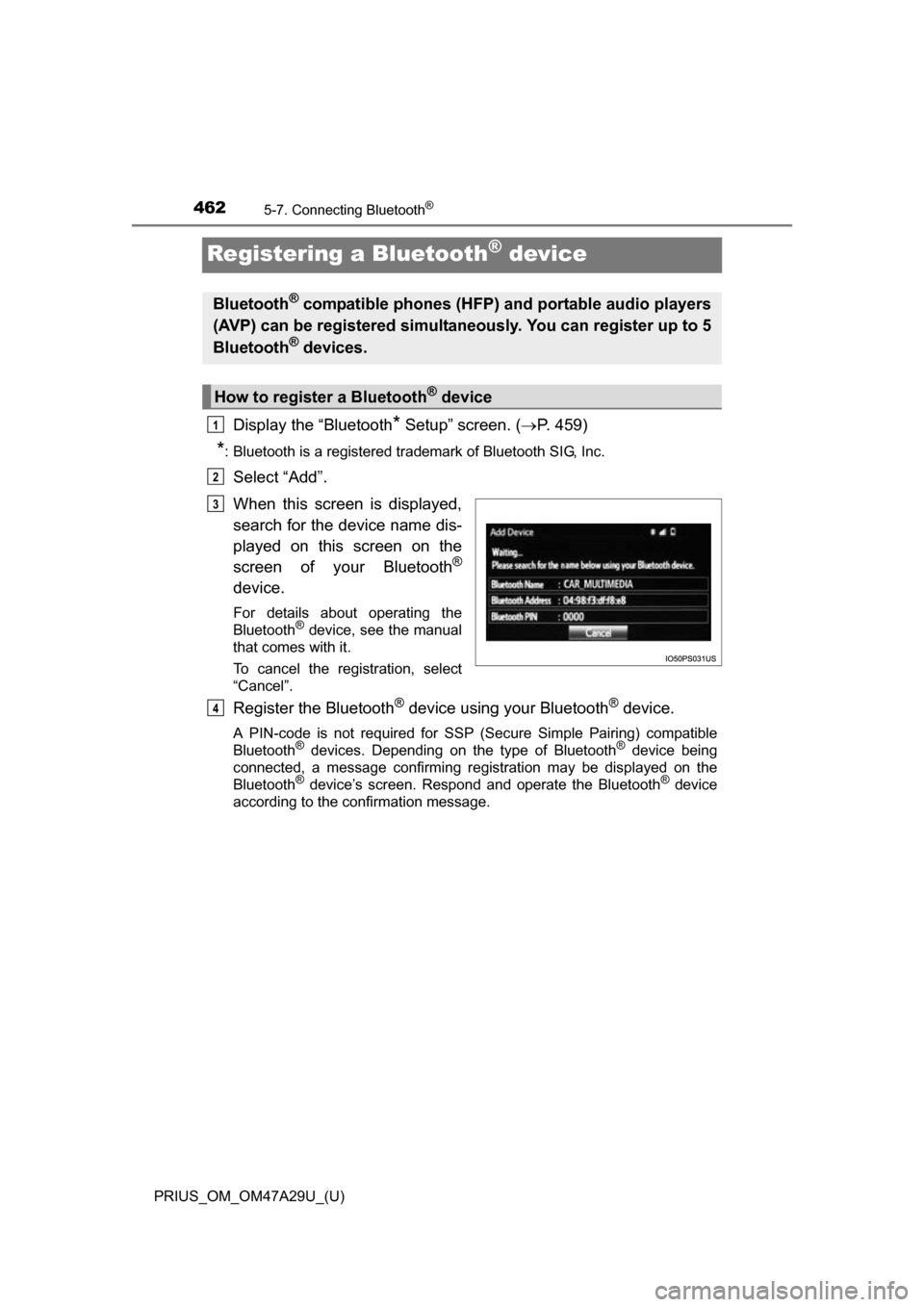
Select “Add”.
When this screen is displayed,
search for the device name dis-
played on this screen on the
screen of your Bluetooth
®
device.
For details about operating the
Bluetooth® device, see the manual
that comes with it.
To cancel the registration, select
“Cancel”.
Register the Bluetooth® device using your Bluetooth® device.
A PIN-code is not required for SSP (S ecure Simple Pairing) compatible
Bluetooth® devices. Depending on the type of Bluetooth® device being
connected, a message confirming registration may be displayed on the
Bluetooth
® device’s screen. Respond and operate the Bluetooth® device
according to the confirmation message.
Bluetooth® compatible phones (HFP) and portable audio players
(AVP) can be registered simultaneously. You can register up to 5
Bluetooth
® devices.
How to register a Bluetooth® device
1
2
3
4