2016 TOYOTA CAMRY Fold
[x] Cancel search: FoldPage 264 of 568

2645-5. Playing an audio CD and MP3/WMA/AAC discs
CAMRY_U (OM33D37U)●
Compatible disc formats
The following disc formats can be used.
• Disc formats: CD-ROM Mode 1 and Mode 2
CD-ROM XA Mode 2, Form 1 and Form 2
• File formats: ISO9660 Level 1, Level 2, (Romeo, Joliet) UDF (2.01 or lower)
MP3, WMA and AAC files written in any format other than those listed
above may not play correctly, and their file names and folder names may
not be displayed correctly.
Items related to standards and limitations are as follows.
• Maximum directory hierarchy: 8 levels (including the root)
• Maximum length of folder names/file names: 32 characters
• Maximum number of folders: 192 (including the root)
• Maximum number of files per disc: 255
● File names
The only files that can be recognized as MP3/WMA/AAC and played are
those with the extension .mp3, .wma or .m4a.
● Discs containing multi-session recordings
As the multimedia system is compatible with multi session discs, it is possi-
ble to play discs that contain MP3, WMA and AAC files. However, only the
first session can be played.
● ID3, WMA and AAC tags
ID3 tags can be added to MP3 files, making it possible to record the track
title, artist name, etc.
The system is compatible with ID3 Ver. 1.0, 1.1, and Ver. 2.2, 2.3 ID3 tags.
(The number of characters is based on ID3 Ver. 1.0 and 1.1.)
WMA tags can be added to WMA files, making it possible to record the
track title and artist name in the same way as with ID3 tags.
AAC tags can be added to AAC files, making it possible to record the track
title and artist name in the same way as with ID3 tags.
● MP3, WMA and AAC playback
When a disc containing MP3, WMA or AAC files is inserted, all files on the
disc are first checked. Once the file check is finished, the first MP3, WMA or
AAC file is played. To make the file check finish more quickly, we recom-
mend you do not write any files to the disc other than MP3, WMA or AAC
files or create any unnecessary folders.
Discs that contain a mixture of music data and MP3, WMA or AAC format
data cannot be played.
● Extensions
If the file extensions .mp3, .wma and .m4a are used for files other than
MP3, WMA and AAC files, they may be mistakenly recognized and played
as MP3, WMA and AAC files. This may result in large amounts of interfer-
ence and damage to the speakers.
Page 271 of 568

2715-6. Using an external device
5
Audio system
CAMRY_U (OM33D37U)
P. 2 4 5
Pressing the “AUDIO” button disp lays the audio control screen from
any screens of the selected source.
Audio source selection screen
appears
Displays cover art
Displaying the folder list
Random playback ( P. 247)
Repeat play ( P. 247)
Pause
Select to resume playback
Setting the sound ( P. 258)
Select “Browse” on the screen.
Select the desired play mode. Then select a song to begin using
the selected play mode.
■Displaying the now playing list
Touch the cover art display.
Listening to a USB memory device
Connecting a USB memory device enables you to enjoy music
from the vehicle speakers.
Touch “USB” on the audio source selection screen.
Connecting a USB memory device
Audio control screen
1
2
3
4
5
6
Selecting a play mode
7
1
2
Page 272 of 568

2725-6. Using an external device
CAMRY_U (OM33D37U)
■USB memory functions
●Depending on the USB memory device that is connected to the system, the
device itself may not be operable and certain functions may not be avail-
able. If the device is inoperable or a function is unavailable due to a mal-
function (as opposed to a system specification), disconnecting the device
and reconnecting it may resolve the problem.
● If the USB memory device still does not begin operation after being discon-
nected and reconnected, format the memory.
■ Error messages for USB memory
■ USB memory
●Compatible devices
USB memory device that can be used for MP3, WMA and AAC playback.
● Compatible device formats
The following device format can be used:
• USB communication format: USB2.0 HS (480 Mbps) and FS (12 Mbps)
• File system format: FAT16/32 (Windows)
• Correspondence class: Mass storage class
MP3, WMA and AAC files written to a device with any format other than
those listed above may not play correctly, and their file names and folder
names may not be displayed correctly.
Items related to standards and limitations are as follows:
• Maximum directory hierarchy: 8 levels
• Maximum number of folders in a device: 3000 (including the root)
• Maximum number of files in a device: 9999
• Maximum number of files per folder: 255
● MP3, WMA and AAC files
MP3 (MPEG Audio LAYER 3) is a standard audio compression format.
Files can be compressed to approximately 1/10 of their original size usi\
ng
MP3 compression.
WMA (Windows Media Audio) is a Microsoft audio compression format. This
format compresses audio data to a size smaller than that of the MP3 format.
AAC is short for Advanced Audio Coding and refers to an audio compression
technology standard used with MPEG2 and MPEG4.
MP3, WMA and AAC file and media/fo rmats compatibility are limited.
MessageCause/Correction procedures
“Connection error. Please
consult your Owner’s Man-
ual for instructions on how
to connect the USB device.”
This indicates a problem with the USB mem-
ory device or its connection.
“There are no files available
for playback. Please add
compatible files to your USB
device.”
This indicates that no MP3/WMA/AAC files
are included on the USB memory device.
Page 274 of 568

2745-6. Using an external device
CAMRY_U (OM33D37U)●
MP3, WMA and AAC playback
• When a device containing MP3, WMA and AAC files is connected, all
files in the USB memory device are checked. Once the file check is fin-
ished, the first MP3, WMA and AAC file is played. To make the file check
finish more quickly, we recommend that you do not include any files other
than MP3, WMA and AAC files or create any unnecessary folders.
• When a USB memory device is connected and the audio source is
changed to USB memory mode, the USB memory device will start play-
ing the first file in the first folder. If the same device is removed and
reconnected (and the con- tents have not been changed), the USB mem-
ory device will resume play from the same point in which it was last used.
● Extensions
If the file extensions .mp3, .wma and .m4a are used for files other than
MP3, WMA and AAC files, they will be skipped (not played).
● Playback
• To play MP3 files with steady sound quality, we recommend a fixed bit
rate of at least 128 kbps and a sampling frequency of 44.1 kHz.
• There is a wide variety of freeware and other encoding software for MP3, WMA and AAC files on the market, and depending on the status of the
encoding and the file format, poor sound quality or noise at the start of
playback may result. In some cases, playback may not be possible at all.
• Microsoft, Windows, and Windows Media are the registered trademarks of Microsoft Corporation in the U.S.A. and other countries.
WARNING
■While driving
Do not connect a USB memory device or operate the device controls.
NOTICE
■To prevent damage to the USB memory device or its terminals
● Do not leave the USB memory device in the vehicle. The temperature
inside the vehicle may become high, resulting in damage to the USB
memory device.
● Do not push down on or apply unnecessary pressure to the USB memory
device while it is connected.
● Do not insert foreign objects into the port.
Page 299 of 568
2995-9. Bluetooth® phone
5
Audio system
CAMRY_U (OM33D37U)
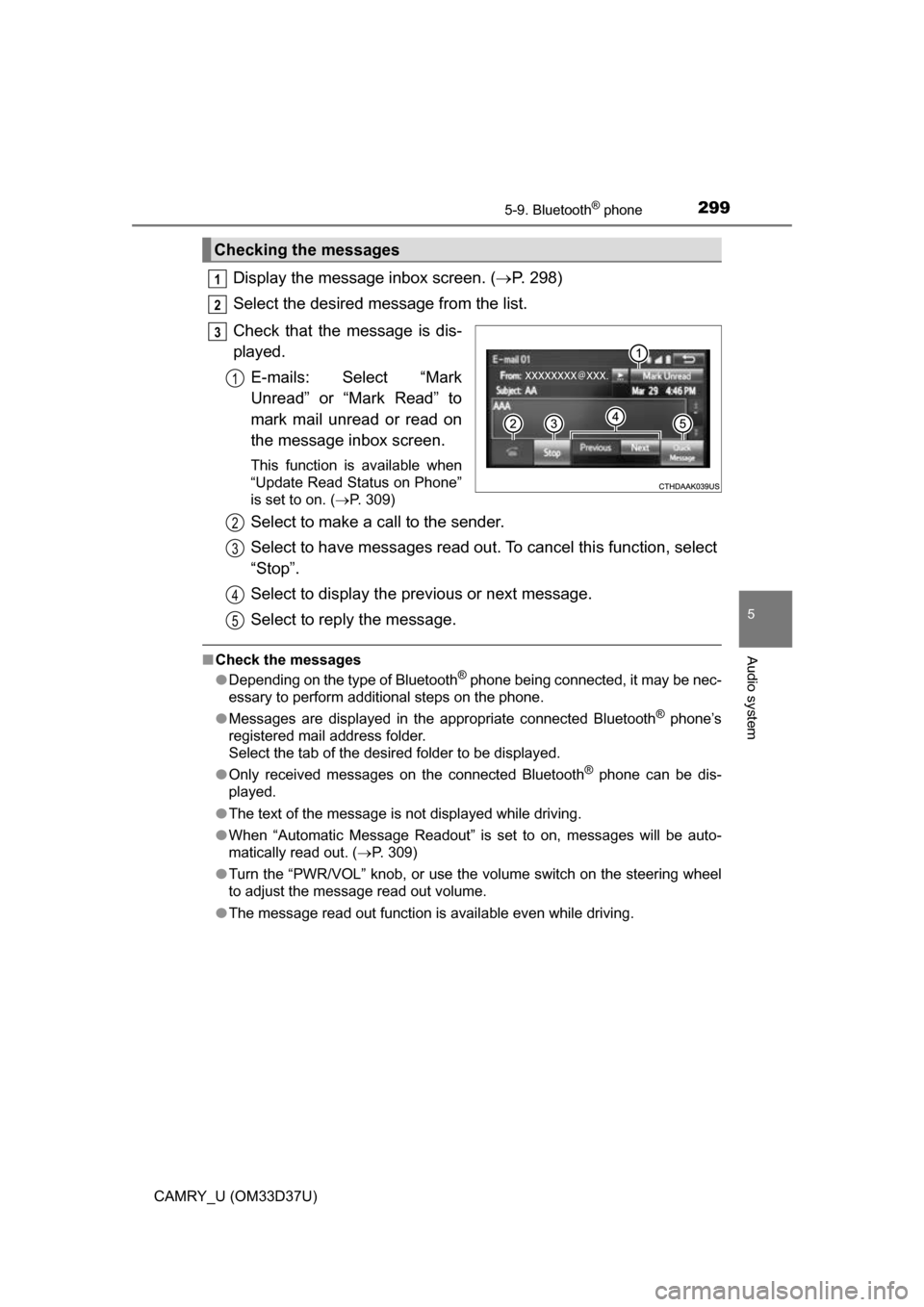
Display the message inbox screen. (P. 298)
Select the desired message from the list.
Check that the message is dis-
played. E-mails: Select “Mark
Unread” or “Mark Read” to
mark mail unread or read on
the message inbox screen.
This function is available when
“Update Read Status on Phone”
is set to on. ( P. 309)
Select to make a call to the sender.
Select to have messages read ou t. To cancel this function, select
“Stop”.
Select to display the previous or next message.
Select to reply the message.
■ Check the messages
●Depending on the type of Bluetooth® phone being connected, it may be nec-
essary to perform additional steps on the phone.
● Messages are displayed in the appropriate connected Bluetooth
® phone’s
registered mail address folder.
Select the tab of the desired folder to be displayed.
● Only received messages on the connected Bluetooth
® phone can be dis-
played.
● The text of the message is not displayed while driving.
● When “Automatic Message Readout” is set to on, messages will be auto-
matically read out. ( P. 309)
● Turn the “PWR/VOL” knob, or use the volume switch on the steering wheel
to adjust the message read out volume.
● The message read out function is available even while driving.
Checking the messages
1
2
3
1
2
3
4
5
Page 356 of 568
3566-4. Other interior features
CAMRY_U (OM33D37U)
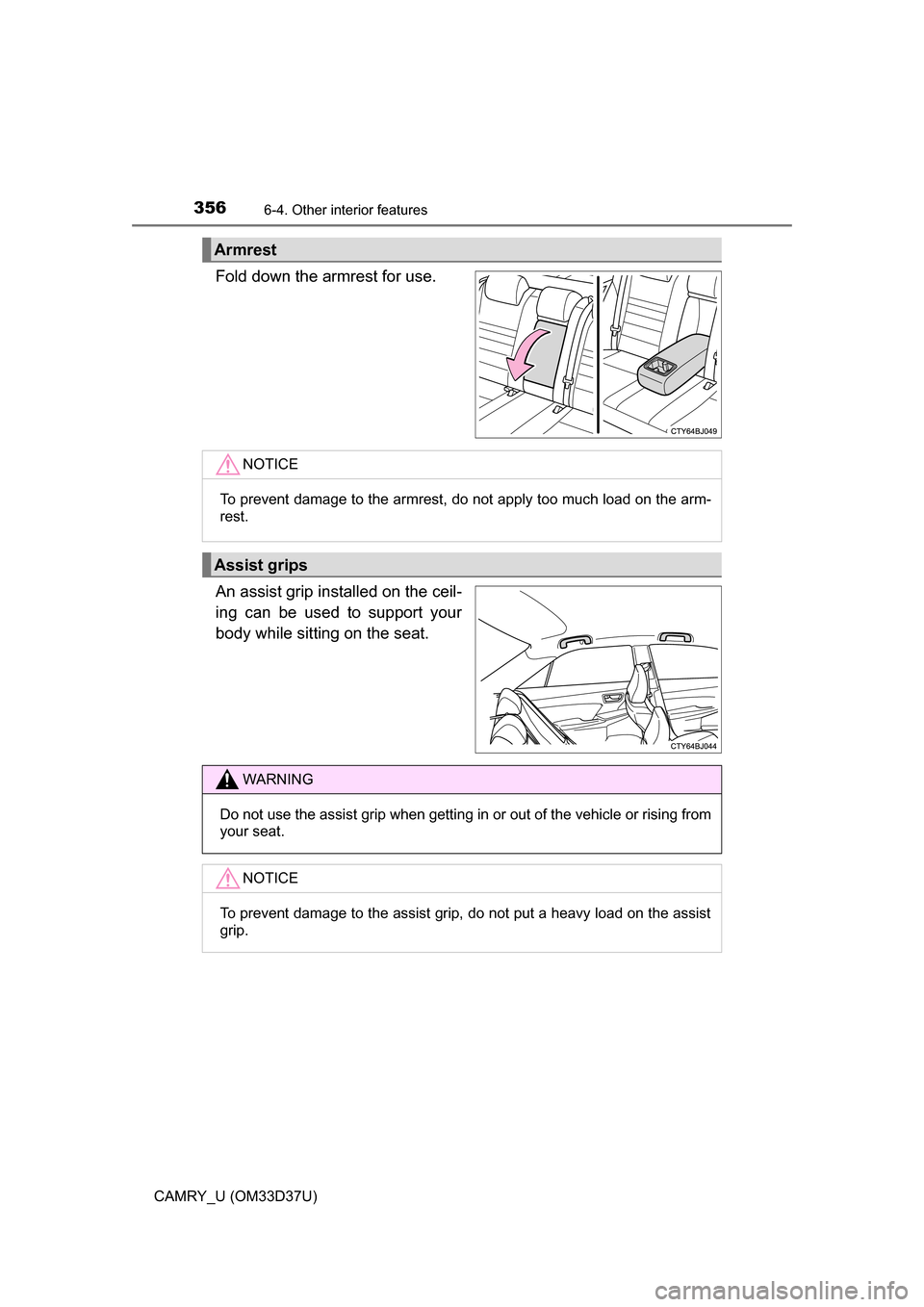
Fold down the armrest for use.
An assist grip installed on the ceil-
ing can be used to support your
body while sitting on the seat.
Armrest
NOTICE
To prevent damage to the armrest, do not apply too much load on the arm-
rest.
Assist grips
WARNING
Do not use the assist grip when getting in or out of the vehicle or rising from
your seat.NOTICE
To prevent damage to the assist grip, do not put a heavy load on the assist
grip.
Page 374 of 568
374
CAMRY_U (OM33D37U)
7-1. Maintenance and care
●Working from top to bottom, liber ally apply water to the vehicle
body, wheel wells and underside of the vehicle to remove any dirt
and dust.
● Wash the vehicle body using a sponge or soft cloth, such as a
chamois.
● For hard-to-remove marks, use car wash soap and rinse thoroughly
with water.
● Wipe away any water.
● Wax the vehicle when the wate rproof coating deteriorates.
If water does not bead on a clean surface, apply wax when the vehicle
body is cool.
■Automatic car washes
●Fold the mirrors before washing the vehicle. Start washing from the fron\
t of
the vehicle. Make sure to extend the mirrors before driving.
● Brushes used in automatic car washes may scratch the vehicle surface and
harm your vehicle's paint.
● Vehicles with rear spoiler: In certain automatic car washes, the rear spoiler
may interfere with machine operation. This may prevent the vehicle from
being cleaned properly or result in damage to the rear spoiler.
■ High pressure car washes
●Do not allow the nozzles of the car wash to come within close proximity of
the windows.
● Before using the car wash, check that the fuel filler door on your vehicle is
closed properly.
Cleaning and prot ecting the vehicle
exterior
Perform the following to protect the vehicle and maintain it in
prime condition:
Page 389 of 568

3897-3. Do-it-yourself maintenance
7
Maintenance and care
CAMRY_U (OM33D37U)
WARNING
The engine compartment contains many mechanisms and fluids that may
move suddenly, become hot, or become electrically energized. To avoid death
or serious injury, observe the following precautions.
■When working on the engine compartment
● Keep hands, clothing and tools away from the moving fan and engine
drive belt.
● Be careful not to touch the engine, radiator, exhaust manifold, etc. right
after driving as they may be hot. Oil and other fluids may also be hot.
● Do not leave anything that may burn easily, such as paper and rags, in the
engine compartment.
● Do not smoke, cause sparks or expose an open flame to fuel or the bat-
tery. Fuel and battery fumes are flammable.
● Be extremely cautious when working on the battery. It contains poisonous
and corrosive sulfuric acid.
■ When working near the electric cooling fans or radiator grille
Vehicles without a smart key system:
Be sure the engine switch is off. With the engine switch in the “ON” position,
the electric cooling fans may automatically start to run if the air conditioning
is on and/or the coolant temperature is high. ( P. 398)
Vehicles with a smart key system:
Be sure the engine switch is off. With the engine switch in IGNITION ON
mode, the electric cooling fans may automatically start to run if the air condi-
tioning is on and/or the coolant temperature is high. ( P. 398)
■ Safety glasses
Wear safety glasses to prevent flying or falling material, fluid spray, etc.
from getting in your eyes.
NOTICE
■If you remove the air cleaner filter
Driving with the air cleaner filter removed may cause excessive engine wear
due to dirt in the air.