2016 SUBARU WRX light
[x] Cancel search: lightPage 253 of 594

Climate control/Operating tips for heater and air conditioner
& Efficient cooling after parking
in direct sunlightAfter parking in direct sunlight, drive with
the windows open for a few minutes to
allow outside air to circulate into the
heated interior. This results in quicker
cooling by the air conditioner. Keep the
windows closed during the operation of
the air conditioner for maximum cooling
efficiency.
& Lubrication oil circulation in
the refrigerant circuitOperate the air conditioner compressor at
a low engine speed (at idle or low driving
speeds) a few minutes each month during
the off-season to circulate its oil.
& Checking air conditioning
system before summer sea-
sonCheck the air conditioner unit for refriger-
ant leaks, hose conditions, and proper
operation each spring. Have the air con-
ditioning system checked by your
SUBARU dealer. & Cooling and dehumidifying in
high humidity and low tem-
perature weather conditions Under certain weather conditions (high
relative humidity, low temperatures, etc.) a
small amount of water vapor emission
from the air outlets may be noticed. This
condition is normal and does not indicate
any problem with the air conditioning
system.
& Air conditioner compressor
shut-off when engine is
heavily loaded To improve acceleration and gas mileage,
the air conditioner compressor is designed
to temporarily shut off during air condi-
tioner operation whenever the accelerator
is fully depressed such as during rapid
acceleration or when driving up a steep
incline. & Refrigerant for your climate
control system
1) Air conditioner label
Your air conditioner uses ozone friendly
refrigerant HFC134a (as shown on the air
conditioner label). Therefore, the method
of adding, changing or checking the
refrigerant is different from the method
for CFC12 (freon). Consult your SUBARU
dealer for service. Repairs needed as a
result of using the wrong refrigerant are
not covered under warranty.4-10
Page 262 of 594
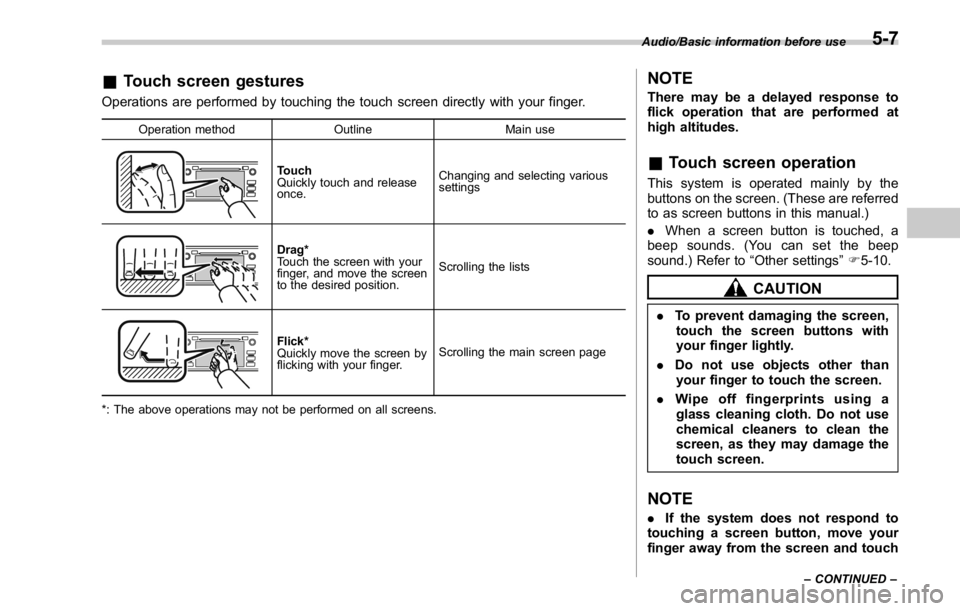
& Touch screen gestures Operations are performed by touching the touch screen directly with your finger. Operation method Outline Main use
Touch
Quickly touch and release
once. Changing and selecting various
settings
Drag*
Touch the screen with your
finger, and move the screen
to the desired position. Scrolling the lists
Flick*
Quickly move the screen by
flicking with your finger. Scrolling the main screen page
*: The above operations may not be performed on all screens. NOTE There may be a delayed response to
flick operation that are performed at
high altitudes.
& Touch screen operation This system is operated mainly by the
buttons on the screen. (These are referred
to as screen buttons in this manual.)
. When a screen button is touched, a
beep sounds. (You can set the beep
sound.) Refer to “ Other settings ” F 5-10.
CAUTION. To prevent damaging the screen,
touch the screen buttons with
your finger lightly.
. Do not use objects other than
your finger to touch the screen.
. Wipe off fingerprints using a
glass cleaning cloth. Do not use
chemical cleaners to clean the
screen, as they may damage the
touch screen.
NOTE . If the system does not respond to
touching a screen button, move your
finger away from the screen and touch Audio/Basic information before use
– CONTINUED –5-7
Page 263 of 594

Audio/Basic information before use
it again.
. Grayed-out screen buttons cannot
be operated.
. The displayed image may become
darkerandmovingimagesmaybe
slightly distorted when the screen is
cold.
. In extremely cold conditions, the
map may not be displayed and the data
input by a user may be deleted. Also,
the screen buttons may be harder than
usual to press.
. When you look at the screen
through polarized material such as
polarized sunglasses, the screen may
be dark and hard to see. If so, look at
the screen from different angles, adjust
the screen settings on the “ Display
Settings (Display Settings) ” screen or
take off your sunglasses.
& Entering letters and num-
bers/list screen operation! Entering letters and numbers
When entering the Bluetooth device name
or PIN-code, or the phone number, letters
and numbers can be entered via the
screen. In-Car-Device setting
No. Function
& 1
Enter the desired characters (alpha-
bet key mode).
& 2
Display the number keys (change to
number key mode).
& 3
Enter a space.
& 4
Set the characters/numbers entered
into the window.
& 5
Delete a character/number entered
into the window. Dialpad
No. Function
& 1
Enter the desired numbers.
& 2
Delete a number entered into the
window.5-8
Page 265 of 594

Audio/Other settings
No. Function
& 1
Select “ Day/Night Mode ” .
“ Auto ” , “ Day ” ,or “ Night ” can be se-
lected on the pop-up screen.
When “ Auto ” is selected, the screen
changes to day or night mode de-
pending on the position of the head-
light switch.
& 2
Select “ Brightness ” .
Press “ + ” or “ - ” to adjust the bright-
ness.
NOTE . When the screen is viewed through
polarized sunglasses, a rainbow pat-
tern may appear on the screen due to
optical characteristics of the screen. If
this is disruptive, please operate the
screen without polarized sunglasses.
. If the screen is set to “ Day ” mode
with the headlight switch turned on,
this condition is memorized even with
the engine turned off.
In Camera display, the brightness, tint,
color, and black level of the screen can be
adjusted.
1. Set the selector lever in the R range.
2. Touch the items to be set after the rear
camera monitor is displayed. NOTE The Camera display can be accessed
when the rear camera monitor is dis-
played.
Camera display
Other settings 1. Select .
2. Select
SETTINGS (SETTINGS).
3. Select the items to be set.5-10
Page 267 of 594
Audio/Basic operation
Item Function
Vocal Im-
age Con-
trol Select to pick-up vocal sound
signal from the sound data, and
adjust it to right/left or front/rear.
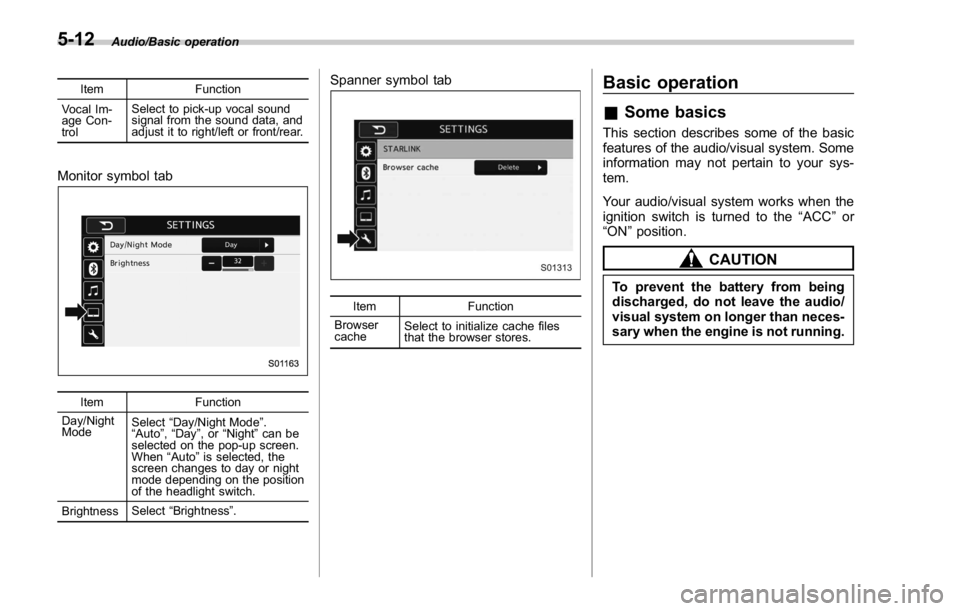
Monitor symbol tab
Item Function
Day/Night
Mode Select “ Day/Night Mode ” .
“ Auto ” , “ Day ” ,or “ Night ” can be
selected on the pop-up screen.
When “ Auto ” is selected, the
screen changes to day or night
mode depending on the position
of the headlight switch.
Brightness Select “ Brightness ” . Spanner symbol tab
Item Function
Browser
cache Select to initialize cache files
that the browser stores.Basic operation & Some basics This section describes some of the basic
features of the audio/visual system. Some
information may not pertain to your sys-
tem.
Your audio/visual system works when the
ignition switch is turned to the “ ACC ” or
“ ON ” position.
CAUTIONTo prevent the battery from being
discharged, do not leave the audio/
visual system on longer than neces-
sary when the engine is not running.5-12
Page 276 of 594

Tips for operating the audio/
visual system & Operating information CAUTION. To avoid damage to the audio/
visual system:
– Be careful not to spill bev-
erages over the audio/visual
system.
– Do not put anything other than
an appropriate disc into the
disc slot.
NOTE The use of a cellular phone inside or
near the vehicle may cause a noise
from the speakers of the audio/visual
system which you are listening to.
However, this does not indicate a
malfunction.
! Radio
Usually, a problem with radio reception
does not mean there is a problem with the
radio — it is just the normal result of
conditions outside the vehicle.
For example, nearby buildings and terrain can interfere with FM reception. Power
lines or phone wires can interfere with AM
signals. And of course, radio signals have
a limited range. The farther the vehicle is
from a station, the weaker its signal will
be. In addition, reception conditions
change constantly as the vehicle moves.
Here, some common reception problems
that probably do not indicate a problem
with the radio are described.
! FM
Fading and drifting stations: Generally, the
effective range of FM is about 25 miles (40
km). Once outside this range, you may
notice fading and drifting, which increase
with the distance from the radio transmit-
ter. They are often accompanied by
distortion.
Static and fluttering: These occur when
signals are blocked by buildings, trees or
other large objects. Increasing the bass
level may reduce static and fluttering.
Station swapping: If the FM signal being
listened to is interrupted or weakened, and
there is another strong station nearby on
the FM band, the radio may tune in the
second station until the original signal can
be picked up again. ! AM
Fading: AM broadcasts are reflected by
the upper atmosphere — especially at
night. These reflected signals can inter-
fere with those received directly from the
radio station, causing the radio station to
sound alternately strong and weak.
Station interference: When a reflected
signal and a signal received directly from
a radio station are very nearly the same
frequency, they can interfere with each
other, making it difficult to hear the broad-
cast.
Static: AM is easily affected by external
sources of electrical noise, such as high
tension power lines, lightening or electrical
motors. This results in static.
! SiriusXM
. Cargo loaded on the roof luggage
carrier, especially metal objects, may
adversely affect the reception of SiriusXM
Satellite Radio.
. Alternation or modifications carried out
without appropriate authorization may in-
validate the user ’ s right to operate the
equipment.Audio/Tips for operating the audio/visual system
– CONTINUED –5-21
Page 278 of 594
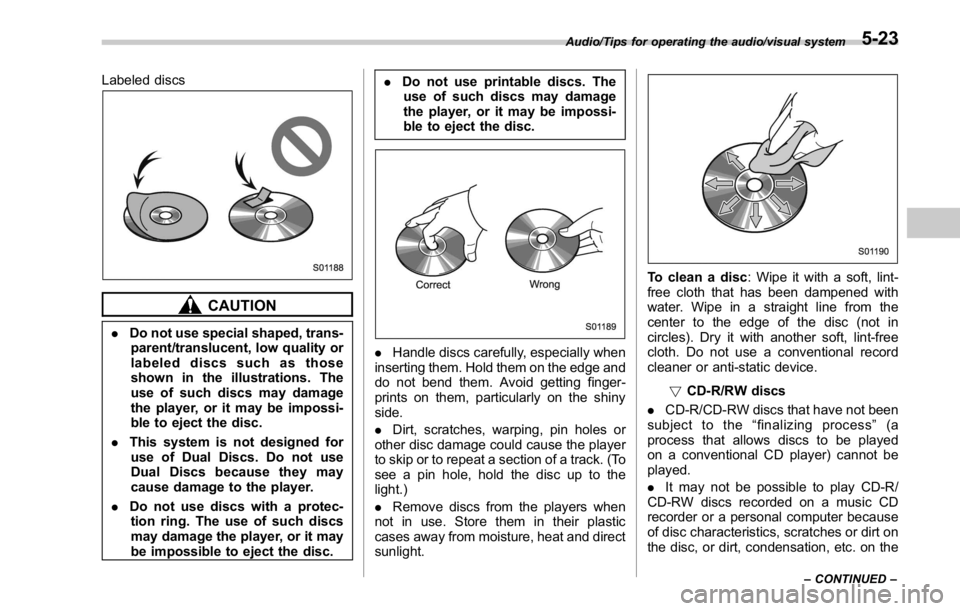
Labeled discs
CAUTION. Do not use special shaped, trans-
parent/translucent, low quality or
labeled discs such as those
shown in the illustrations. The
use of such discs may damage
the player, or it may be impossi-
ble to eject the disc.
. This system is not designed for
use of Dual Discs. Do not use
Dual Discs because they may
cause damage to the player.
. Do not use discs with a protec-
tion ring. The use of such discs
may damage the player, or it may
be impossible to eject the disc. . Do not use printable discs. The
use of such discs may damage
the player, or it may be impossi-
ble to eject the disc.
. Handle discs carefully, especially when
inserting them. Hold them on the edge and
do not bend them. Avoid getting finger-
prints on them, particularly on the shiny
side.
. Dirt, scratches, warping, pin holes or
other disc damage could cause the player
to skip or to repeat a section of a track. (To
see a pin hole, hold the disc up to the
light.)
. Remove discs from the players when
not in use. Store them in their plastic
cases away from moisture, heat and direct
sunlight. To clean a disc : Wipe it with a soft, lint-
free cloth that has been dampened with
water. Wipe in a straight line from the
center to the edge of the disc (not in
circles). Dry it with another soft, lint-free
cloth. Do not use a conventional record
cleaner or anti-static device.
! CD-R/RW discs
. CD-R/CD-RW discs that have not been
subject to the “ finalizing process ” (a
process that allows discs to be played
on a conventional CD player) cannot be
played.
. It may not be possible to play CD-R/
CD-RW discs recorded on a music CD
recorder or a personal computer because
of disc characteristics, scratches or dirt on
the disc, or dirt, condensation, etc. on theAudio/Tips for operating the audio/visual system
– CONTINUED –5-23
Page 279 of 594

Audio/Tips for operating the audio/visual system
lens of the unit.
. It may not be possible to play discs
recorded on a personal computer depend-
ing on the application settings and the
environment. Record with the correct
format. (For details, contact the appropri-
ate application manufacturers of the ap-
plications.)
. CD-R/CD-RW discs may be damaged
by direct exposure to sunlight, high tem-
peratures or other storage conditions. The
unit may be unable to play some damaged
discs.
. If you insert a CD-RW disc into the
player, playback will begin more slowly
than with a conventional CD or CD-R disc.
. Recordings on CD-R/CD-RW cannot
be played using the DDCD (Double
Density CD) system.
! USB memory device
. USB communication formats: USB
1.1/2.0 HS (480 Mbps) and FS (12 Mbps)
. File formats: FAT 16/32
. Correspondence class: Mass storage
class
! iPod
The following iPod ®
, iPod nano ®
, iPod
classic ®
, iPod touch ®
and iPhone ®
de-
vices can be used with this system. Made for
. iPod touch (5th generation)*
. iPod touch (4th generation)
. iPod touch (3rd generation)
. iPod touch (2nd generation)
. iPod touch (1st generation)
. iPod classic
. iPod nano (7th generation)*
. iPod nano (6th generation)*
. iPod nano (5th generation)
. iPod nano (4th generation)
. iPod nano (3rd generation)
. iPod nano (2nd generation)*
. iPod nano (1st generation)*
. iPhone 5S*
. iPhone 5C*
. iPhone 5*
. iPhone 4S
. iPhone 4
. iPhone 3GS
. iPhone 3G
. iPhone
*: iPod video not supported
Depending on differences between mod-
els or software versions etc., some mod-
els might be incompatible with this sys-
tem. ! File information
Compatible compressed files (Audio) Item USB DISC
Compatible
file format MP3/WMA/AAC
Folders in the
device Maximum
512 Maximum
255
Files in the
device Maximum
8000 Maximum
512
Files per
folder Maximum
255 —
Corresponding sampling frequency
(Audio) File type Frequency (kHz)
MP3 files:
MPEG 1 LAYER 3 32/44.1/48
MP3 files:
MPEG 2 LSF LAYER 3 16/22.05/24
WMA files:
Ver. 7, 8, 9 (9.1/9.2) 32/48/64/80/96/128/
160/192
AAC files:
MPEG4/AAC-LC 48/44.1/32/24/22.05/
16/12/11.025/85-24