2016 SUBARU OUTBACK arm
[x] Cancel search: armPage 223 of 572

the instrument panel and some through
windshield defroster outlets (A small
amount of air flows to the windshield and
both side windows to prevent fogging.)
A) Models with rear ventilators
(Heat-def): Windshield defroster outlets,
foot outlets and both side outlets of the
instrument panel
A) Models with rear ventilators
(Defrost): Windshield defroster outlets and
both side outlets of the instrument panel
NOTE
.When the“”mode or“”mode
is selected, the air conditioner com-
pressor automatically operates to more
quickly defog the windshield. At the
same time, the air inlet selection is
automatically set to the outside air
mode.
In this state:
–The air conditioner indicator light
does not illuminate.
–You cannot stop the air condi-
tioner compressor by pressing the
air conditioner button.
&Temperature control
Turn the temperature control dial over a
range from the blue side (cool) to red side
(warm) to regulate the temperature of
airflow from the air outlets.
!MAX A/C mode
Perform the following operation to select
the MAX A/C mode.
.Turn the temperature control dial to the
“MAX A/C”position (models with type A
climate control system).
.Press the“MAX A/C”button (models
with type B climate control system).
When this mode is selected, some of the
settings will be changed as follows.
Type A climate control system:
.The air inlet selection mode will be
changed to the ON position (recirculation).
.The air conditioner will turn on.
Type B climate control system:
.The temperature setting will be chan-
ged to the maximum cooling mode.
.The fan speed setting will be changed
to the maximum speed.
.The airflow mode setting will be chan-
ged to the“
”(ventilation) mode.
.The air inlet selection mode will be
changed to the ON position (recirculation).
Climate control/Manual climate control
–CONTINUED–4-7
Page 229 of 572

Antenna................................................................ 5-2
Printed antenna................................................... 5-2
Roof antenna (if equipped).................................. 5-2
Audio set............................................................. 5-2Base display audio set (if equipped).................... 5-4
SUBARU STARLINKTMMultimedia Plus audio set
(U.S. spec. models only, if equipped)................. 5-6
Tips for operating the audio/visual system........... 5-7
Basic information before use.............................. 5-15
Basic operation.................................................. 5-18
Unit settings...................................................... 5-19
STARLINK (if equipped)...................................... 5-26
AM/FM radio....................................................... 5-28
SiriusXM Satellite Radio (if equipped)................. 5-37
aha
TMby HARMAN............................................. 5-44
Pandora®(if equipped)....................................... 5-50
CD ..................................................................... 5-53
USB memory...................................................... 5-55
iPod................................................................... 5-56
Bluetooth audio.................................................. 5-58
AUX ................................................................... 5-61
Steering switches for audio.............................. 5-63
Bluetooth®settings............................................ 5-66Regulatory information....................................... 5-66Registering/connecting Bluetooth
®device.......... 5-66
Setting Bluetooth details.................................... 5-69
Hands-free phone system................................. 5-71
Control screen................................................... 5-72
Registering/connecting a Bluetooth phone......... 5-73
Using the phone switch/microphone................... 5-73
How to change the hands-free phone system..... 5-73
Making a call..................................................... 5-73
Receiving a call................................................. 5-77
Talking on the phone......................................... 5-78
Phone settings.................................................. 5-79
Voice command system.................................... 5-81Using the voice command system...................... 5-81
Voice command system operation...................... 5-82
Command list.................................................... 5-84
What to do if....................................................... 5-88Troubleshooting................................................. 5-88
Appendix............................................................ 5-92Certification....................................................... 5-92
Certification for the Hands-free system............... 5-92
Certification for Mexico models.......................... 5-93
Audio
5
Page 232 of 572

Audio/Audio set
&Base display audio set (if equipped)
1) Power/VOLUME knob
2) Eject button
3) AUDIO/TUNE knob
4) HOME button5) APPS button
6) Display
7) SEEK/TRACK buttons
The audio set will operate only when the
ignition switch is in the“ACC”or“ON”
position.
.Power and audio controls: refer to
“Basic operation”F5-18.
.STARLINK (if equipped): refer to
“STARLINK”F5-26.
.Radio operation: refer to“AM/FM radio”
F5-28.
.Satellite radio operation (if equipped):
refer to“SiriusXM Satellite Radio”F5-37.
.aha
TM: refer to“ahaTMby HARMAN”
F5-44.
.Pandora
®(if equipped): refer to“Pan-
dora®”F5-50.
.CD (compact disc) player operation:
refer to“CD”F5-53.
.USB storage device: refer to“USB
memory”F5-55.
.iPod operation: refer to“iPod”F5-56.
.Bluetooth
®audio: refer to“Bluetooth
audio”F5-58.
.Auxiliary input jack: refer to“AUX”F5-
61.
.Hands-free phone system: refer to
“Hands-free phone system”F5-71.
5-4
Page 248 of 572
Audio/Audio set
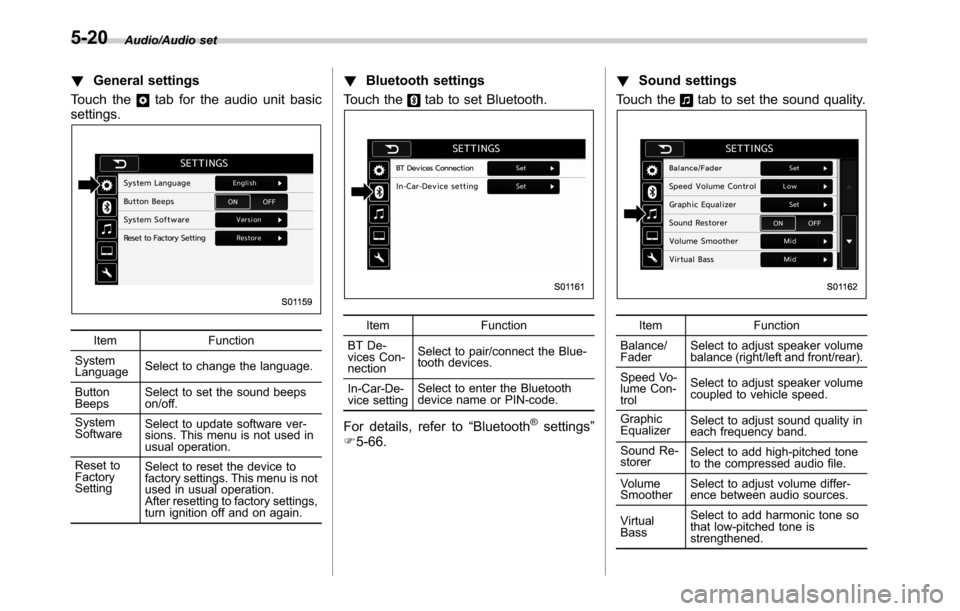
!General settings
Touch the
tab for the audio unit basic
settings.
Item Function
System
LanguageSelect to change the language.
Button
BeepsSelect to set the sound beeps
on/off.
System
SoftwareSelect to update software ver-
sions. This menu is not used in
usual operation.
Reset to
Factory
SettingSelect to reset the device to
factory settings. This menu is not
used in usual operation.
After resetting to factory settings,
turn ignition off and on again.
!Bluetooth settings
Touch the
tab to set Bluetooth.
Item Function
BT De-
vices Con-
nectionSelect to pair/connect the Blue-
tooth devices.
In-Car-De-
vice settingSelect to enter the Bluetooth
device name or PIN-code.
For details, refer to“Bluetooth®settings”
F5-66.!Sound settings
Touch the
tab to set the sound quality.
Item Function
Balance/
FaderSelect to adjust speaker volume
balance (right/left and front/rear).
Speed Vo-
lume Con-
trolSelect to adjust speaker volume
coupled to vehicle speed.
Graphic
EqualizerSelect to adjust sound quality in
each frequency band.
Sound Re-
storerSelect to add high-pitched tone
to the compressed audio file.
Volume
SmootherSelect to adjust volume differ-
ence between audio sources.
Virtual
BassSelect to add harmonic tone so
that low-pitched tone is
strengthened.
5-20
Page 272 of 572
Audio/Audio set
&ahaTMby HARMAN
aha is a cloud-based application that
connects to the system and gives you
access to your favorite web content safely
and easily. There are over 30,000 stations
spanning internet radio, personalized mu-
sic, audiobooks, Facebook, Twitter, res-
taurant and hotel searches, weather and
more. For more about aha, go to the aha
site (http://www.aharadio.com).
When connecting iPhone and iPod touch
or Android devices with the aha applica-
tion installed, you can control, view, and
hear aha content through the system.
In order to connect to this system, use a
USB port for an iPhone or iPod touch and
Bluetooth for Android devices.In this chapter, iPhone and iPod touch or
Android devices will be referred to as a
smartphone.
WARNING
Do not connect or operate the
smartphone while driving. Doing so
may result in loss of control of your
vehicle and cause an accident or
serious injury.
CAUTION
.Do not leave your smartphone in
the car. In particular, high tem-
peratures inside the vehicle may
damage the smartphone.
.Do not push down on or apply
unnecessary pressure to the
smartphone while it is connected
as this may damage the smart-
phone or its terminal.
.Do not insert foreign objects into
the port as this may damage the
smartphone or its terminal.
5-44
Page 320 of 572

Audio/Appendix
Appendix
&Certification
.Bluetooth
The Bluetooth word mark and logo are
registered trademarks of Bluetooth SIG,
Inc. and any use of such marks by Clarion
Co., Ltd. is under license.
.SiriusXM Satellite Radio (if
equipped)
SiriusXM
TMand all related marks and
logos are trademarks of SiriusXM Radio
Inc. All rights reserved.
.Pandora (if equipped)
Pandora, the Pandora logo, and other
Pandora marks are trademarks or regis-
tered trademarks of Pandora Media, Inc.,
or its subsidiaries worldwide.
If you have any issues with the Pandora
application on your mobile phone, please
direct them to
[email protected].
.iPod
“Made for iPod”and“Made for iPhone”
mean that an electronic accessory has
been designed to connect specifically to
iPod or iPhone respectively, and has been
certified by the developer to meet Apple
performance standards. Apple is not
responsible for the operation of this device
or its compliance with safety and regula-
tory standards. Please note that the use of
this accessory with iPod or iPhone may
affect wireless performance.
iPhone, iPod, iPod classic, iPod nano,
iPod touch, and iTunes are trademarks of
Apple Inc., registered in the U.S. and other
countries.
.How to get the source code using
the open source
This system implements software using
the open source. For customers who
would like to get the source code of the
software, it is available by downloading it
from the web site of Clarion Co., Ltd.
For details, refer to the following web site.http://www.clarion.com/us/en/support/in-
dex.html
&Certification for the Hands-
free system
This device complies with Part 15 of FCC
Rules and Industry Canada licence-ex-
empt RSS standard(s). Operation is sub-
ject to the following two conditions: (1) this
device may not cause harmful interfer-
ence, and (2) this device must accept any
interference received, including interfer-
ence that may cause undesired operation.
Le présent appareil est conforme à la
partie 15 des règles de la FCC et CNR
d’Industrie Canada applicables aux appa-
reils radio exempts de licence. L’exploita-
tion est autorisée aux deux conditions
suivantes : (1) l’appareil ne doit pas
produire de brouillage, et (2) l’utilisateur
de l’appareil doit accepter tout brouillage
radioélectrique subi, même si le brouillage
est susceptible d’en compromettre le
fonctionnement.
This equipment complies with FCC/IC
radiation exposure limits set forth for an
uncontrolled environment and meets the
FCC radio frequency (RF) Exposure
Guidelines in Supplement C to OET65
and RSS-102 of the IC radio frequency
(RF) Exposure rules. This equipment has
5-92
Page 329 of 572
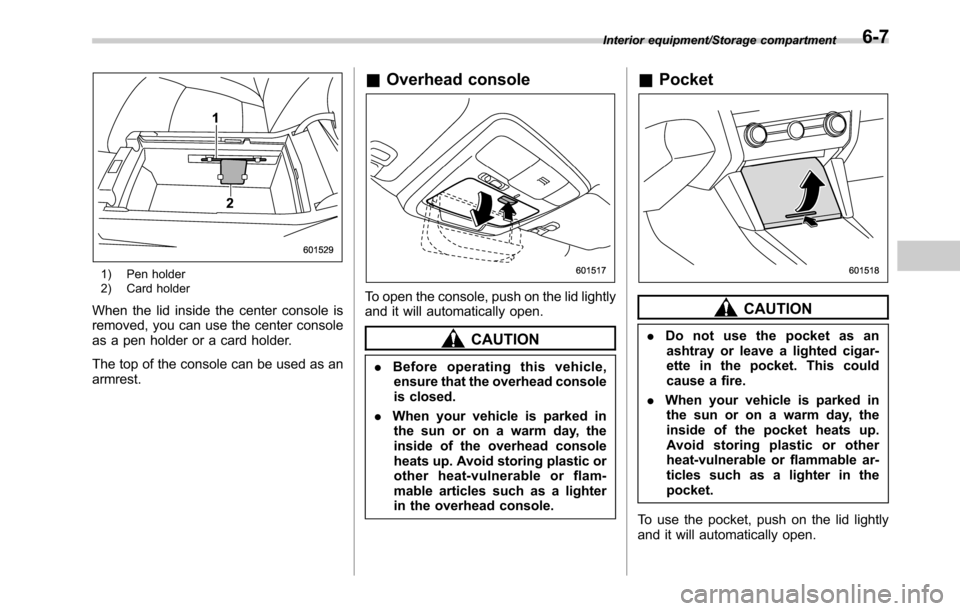
1) Pen holder
2) Card holder
When the lid inside the center console is
removed, you can use the center console
as a pen holder or a card holder.
The top of the console can be used as an
armrest.
&Overhead console
To open the console, push on the lid lightly
and it will automatically open.
CAUTION
.Before operating this vehicle,
ensure that the overhead console
is closed.
.When your vehicle is parked in
the sun or on a warm day, the
inside of the overhead console
heats up. Avoid storing plastic or
other heat-vulnerable or flam-
mable articles such as a lighter
in the overhead console.
&Pocket
CAUTION
.Do not use the pocket as an
ashtray or leave a lighted cigar-
ette in the pocket. This could
cause a fire.
.When your vehicle is parked in
the sun or on a warm day, the
inside of the pocket heats up.
Avoid storing plastic or other
heat-vulnerable or flammable ar-
ticles such as a lighter in the
pocket.
To use the pocket, push on the lid lightly
and it will automatically open.
Interior equipment/Storage compartment6-7
Page 331 of 572
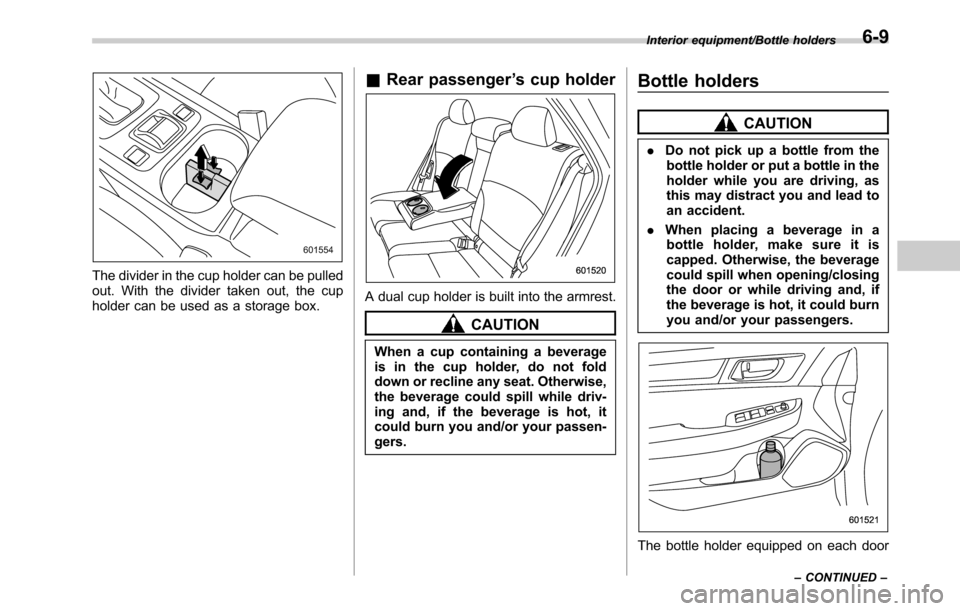
The divider in the cup holder can be pulled
out. With the divider taken out, the cup
holder can be used as a storage box.
&Rear passenger’s cup holder
A dual cup holder is built into the armrest.
CAUTION
When a cup containing a beverage
is in the cup holder, do not fold
down or recline any seat. Otherwise,
the beverage could spill while driv-
ing and, if the beverage is hot, it
could burn you and/or your passen-
gers.
Bottle holders
CAUTION
.Do not pick up a bottle from the
bottle holder or put a bottle in the
holder while you are driving, as
this may distract you and lead to
an accident.
.When placing a beverage in a
bottle holder, make sure it is
capped. Otherwise, the beverage
could spill when opening/closing
the door or while driving and, if
the beverage is hot, it could burn
you and/or your passengers.
The bottle holder equipped on each door
Interior equipment/Bottle holders
–CONTINUED–6-9