2016 SUBARU IMPREZA phone
[x] Cancel search: phonePage 281 of 594

Audio/Audio set
To clean a disc: Wipe it with a soft, lint-
free cloth that has been dampened with
water. Wipe in a straight line from the
center to the edge of the disc (not in
circles). Dry it with another soft, lint-free
cloth. Do not use a conventional record
cleaner or anti-static device.
!CD-R/RW discs
. CD-R/CD-RW discs that have not been
subject to the “finalizing process ”(a
process that allows discs to be played
on a conventional CD player) cannot be
played.
. It may not be possible to play CD-R/
CD-RW discs recorded on a music CD
recorder or a personal computer because
of disc characteristics, scratches or dirt on
the disc, or dirt, condensation, etc. on the lens of the unit.
.
It may not be possible to play discs
recorded on a personal computer depend-
ing on the application settings and the
environment. Record with the correct
format. (For details, contact the appropri-
ate application manufacturers of the ap-
plications.)
. CD-R/CD-RW discs may be damaged
by direct exposure to sunlight, high tem-
peratures or other storage conditions. The
unit may be unable to play some damaged
discs.
. If you insert a CD-RW disc into the
player, playback will begin more slowly
than with a conventional CD or CD-R disc.
. Recordings on CD-R/CD-RW cannot
be played using the DDCD (Double
Density CD) system.
! USB memory device
. USB communication formats: USB
1.1/2.0 HS (480 Mbps) and FS (12 Mbps)
. File formats: FAT 16/32
. Correspondence class: Mass storage
class
! iPod
The following iPod, iPod nano, iPod
classic, iPod touch and iPhone devices
can be used with this system. Made for
.
iPod touch (5th generation)*
. iPod touch (4th generation)
. iPod touch (3rd generation)
. iPod touch (2nd generation)
. iPod touch (1st generation)
. iPod classic
. iPod nano (7th generation)*
. iPod nano (6th generation)*
. iPod nano (5th generation)
. iPod nano (4th generation)
. iPod nano (3rd generation)
. iPod nano (2nd generation)*
. iPod nano (1st generation)*
. iPhone 5s*
. iPhone 5c*
. iPhone 5*
. iPhone 4s
. iPhone 4
. iPhone 3GS
. iPhone 3G
. iPhone
*: iPod video not supported
Depending on differences between mod-
els or software versions etc., some mod-
els might be incompatible with this sys-
tem.
5-10
Page 287 of 594
Audio/Audio set
!Touch screen operation
This system is operated mainly by the
keys on the screen.
When a screen key is touched, a beep
sounds. You can set the beep sound.
Refer to “Unit settings” F5-19.
NOTE
. If the system does not respond to
touching a screen key, move your
finger away from the screen and touch
it again.
. Grayed-out screen keys cannot be
operated.
. The displayed image may become
darkerandmovingimagesmaybe
slightly distorted when the screen is
cold.
. In extremely cold conditions, the
screen may not be displayed correctly.
Also, the screen keys may be less
responsive than usual when pressed.
. When you look at the screen
through polarized material such as
polarized sunglasses, the screen may
be dark and difficult to see. If so, look at
the screen from different angles, adjust
the screen settings or take off your
sunglasses. Refer to “Unit settings”
F 5-19. !
Entering letters and numbers/list
screen operation
! Entering letters and numbers
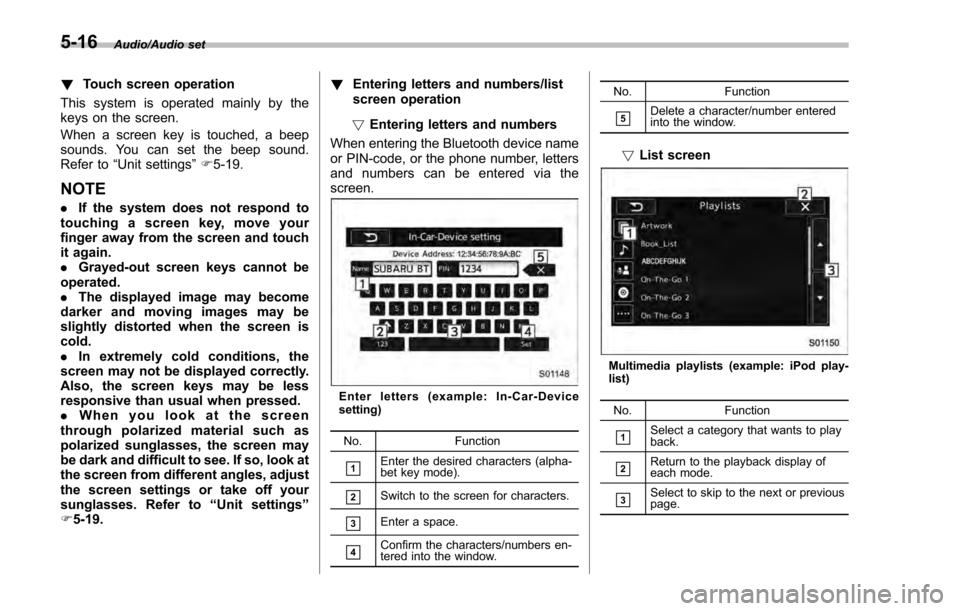
When entering the Bluetooth device name
or PIN-code, or the phone number, letters
and numbers can be entered via the
screen.
Enter letters (example: In-Car-Device
setting)
No. Function
&1Enter the desired characters (alpha-
bet key mode).
&2Switch to the screen for characters.
&3Enter a space.
&4Confirm the characters/numbers en-
tered into the window. No. Function
&5Delete a character/number entered
into the window.
!
List screen
Multimedia playlists (example: iPod play-
list)
No. Function
&1Select a category that wants to play
back.
&2Return to the playback display of
each mode.
&3Select to skip to the next or previous
page.
5-16
Page 290 of 594
NOTE
.If the audio control screen appears,
select the “Source”key on the audio
screen or press the AUDIO/TUNE knob
again.
. When you push the AUDIO/TUNE
knob while any screen other than the
audio control screen is displayed, the
display will return to the audio control
screen.
. When the AUDIO/TUNE knob is
pushed and held, the graphic equalizer
screen will be displayed. Refer to
““Graphic Equalizer ””F5-23.
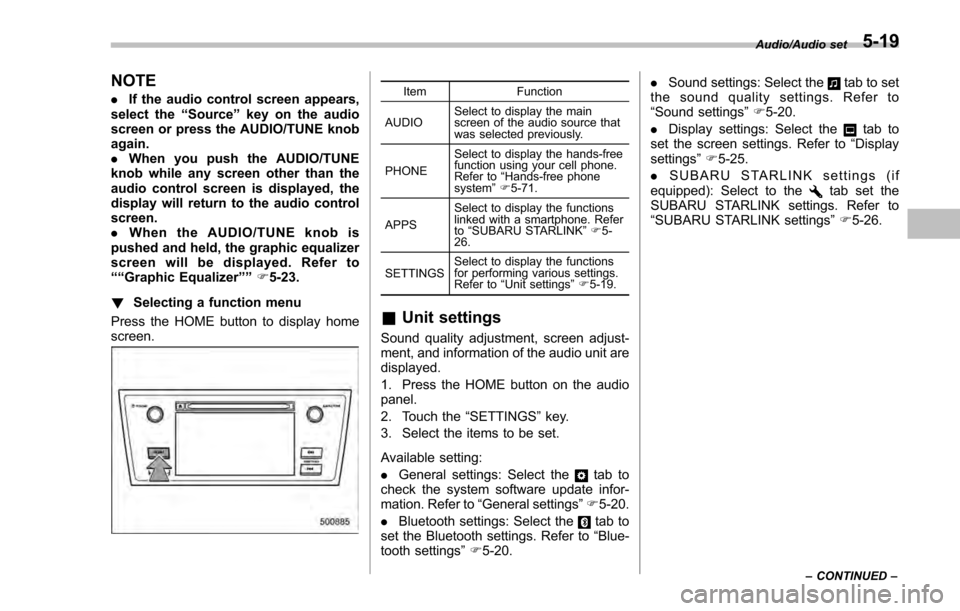
! Selecting a function menu
Press the HOME button to display home
screen.Item Function
AUDIO Select to display the main
screen of the audio source that
was selected previously.
PHONE Select to display the hands-free
function using your cell phone.
Refer to
“Hands-free phone
system ”F 5-71.
APPS Select to display the functions
linked with a smartphone. Refer
to
“SUBARU STARLINK ”F 5-
26.
SETTINGS Select to display the functions
for performing various settings.
Refer to
“Unit settings ”F 5-19.
& Unit settings
Sound quality adjustment, screen adjust-
ment, and information of the audio unit are
displayed.
1. Press the HOME button on the audio
panel.
2. Touch the “SETTINGS”key.
3. Select the items to be set.
Available setting:
. General settings: Select the
tab to
check the system software update infor-
mation. Refer to “General settings” F5-20.
. Bluetooth settings: Select the
tab to
set the Bluetooth settings. Refer to “Blue-
tooth settings” F5-20. .
Sound settings: Select the
tab to set
the sound quality settings. Refer to
“Sound settings” F5-20.
. Display settings: Select the
tab to
set the screen settings. Refer to “Display
settings ”F 5-25.
. SUBARU STARLINK settings (if
equipped): Select to the
tab set the
SUBARU STARLINK settings. Refer to
“SUBARU STARLINK settings” F5-26.
Audio/Audio set
–CONTINUED –5-19
Page 297 of 594
Audio/Audio set
!SUBARU STARLINK settings (if
equipped)
Touch the
tab to change the SUBARU
STARLINK settings.
Item Function
Browser
cache Select to initialize cache files
that the browser stores. If the
confirmation screen appears
and the
“OK ”key is selected, the
cache files will be deleted.
& SUBARU STARLINK (if
equipped)
The SUBARU STARLINK function allows
the system to link with a smartphone using
Bluetooth.
! How to use SUBARU STARLINK
1. Connect to the audio system. Use a
USB port for an iPhone or iPod touch and
Bluetooth for Android devices. .For details about connecting an
iPhone/iPod touch: Refer to “Connect-
ing and disconnecting a USB memory/
portable device ”F 5-17.
. For details about registering or con-
necting an Android device: Refer to
“ Registering/connecting Bluetooth
®
device ”F 5-66.
2. Press the HOME button, and then
touch the “APPS”key, or press the APPS
button on the audio panel. The APPS
screen is displayed.
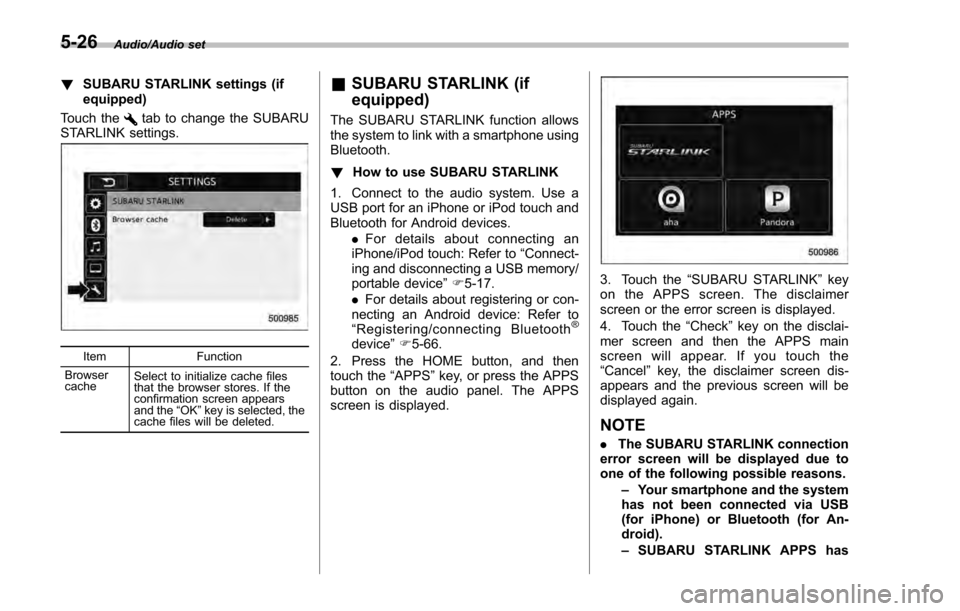
3. Touch the “SUBARU STARLINK ”key
on the APPS screen. The disclaimer
screen or the error screen is displayed.
4. Touch the “Check”key on the disclai-
mer screen and then the APPS main
screen will appear. If you touch the
“Cancel ”key, the disclaimer screen dis-
appears and the previous screen will be
displayed again.
NOTE
. The SUBARU STARLINK connection
error screen will be displayed due to
one of the following possible reasons.
–Your smartphone and the system
has not been connected via USB
(for iPhone) or Bluetooth (for An-
droid).
– SUBARU STARLINK APPS has
5-26
Page 298 of 594
not been activated.
. You can also switch to aha or
Pandora (if equipped) from the APPS
screen.
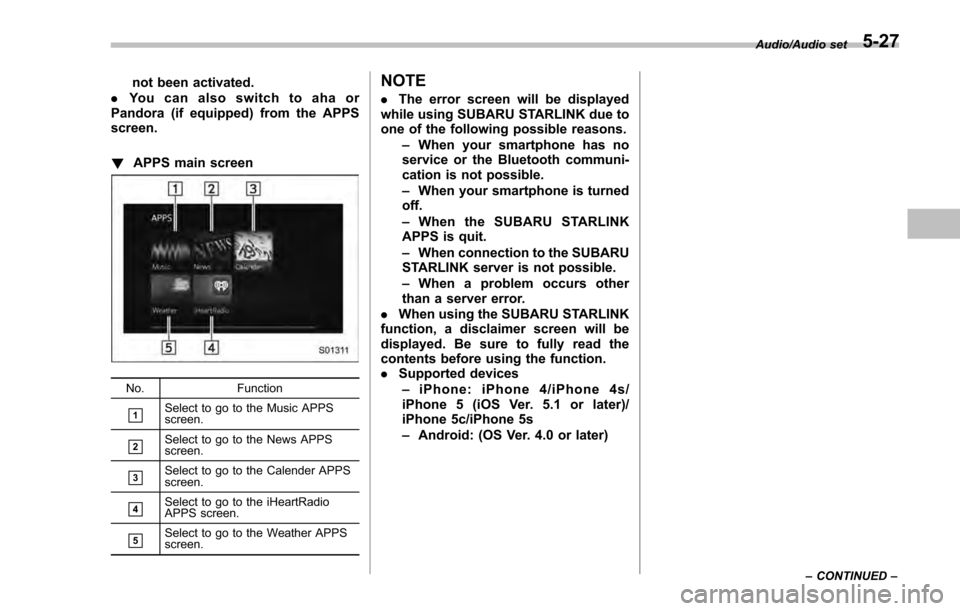
! APPS main screen
No. Function
&1Select to go to the Music APPS
screen.
&2Select to go to the News APPS
screen.
&3Select to go to the Calender APPS
screen.
&4Select to go to the iHeartRadio
APPS screen.
&5Select to go to the Weather APPS
screen.
NOTE
.The error screen will be displayed
while using SUBARU STARLINK due to
one of the following possible reasons.
–When your smartphone has no
service or the Bluetooth communi-
cation is not possible.
– When your smartphone is turned
off.
– When the SUBARU STARLINK
APPS is quit.
– When connection to the SUBARU
STARLINK server is not possible.
– When a problem occurs other
than a server error.
. When using the SUBARU STARLINK
function, a disclaimer screen will be
displayed. Be sure to fully read the
contents before using the function.
. Supported devices
– iPhone: iPhone 4/iPhone 4s/
iPhone 5 (iOS Ver. 5.1 or later)/
iPhone 5c/iPhone 5s
– Android: (OS Ver. 4.0 or later)
Audio/Audio set
–CONTINUED –5-27
Page 301 of 594
Audio/Audio set
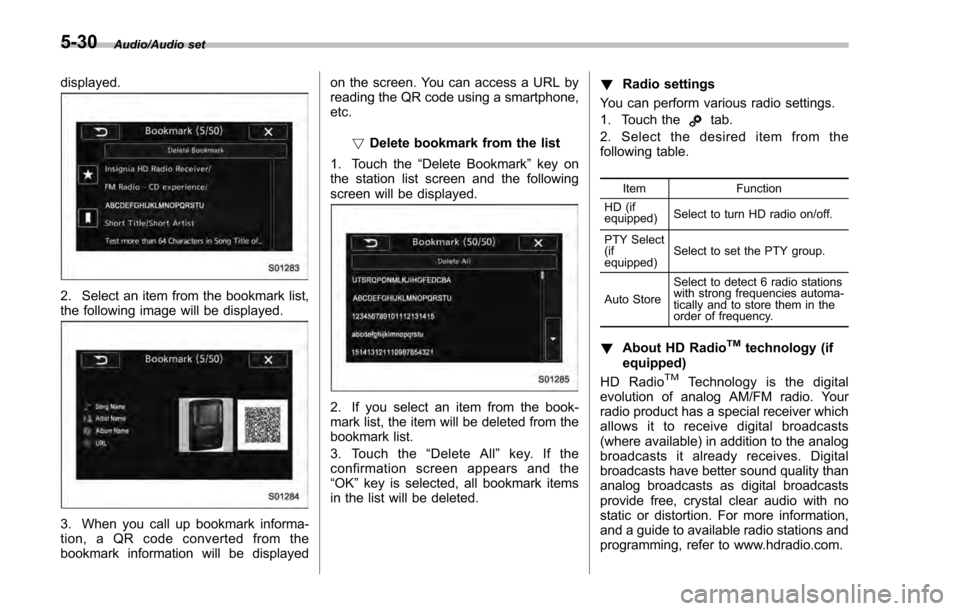
displayed.
2. Select an item from the bookmark list,
the following image will be displayed.
3. When you call up bookmark informa-
tion, a QR code converted from the
bookmark information will be displayedon the screen. You can access a URL by
reading the QR code using a smartphone,
etc.
!Delete bookmark from the list
1. Touch the “Delete Bookmark ”key on
the station list screen and the following
screen will be displayed.
2. If you select an item from the book-
mark list, the item will be deleted from the
bookmark list.
3. Touch the “Delete All” key. If the
confirmation screen appears and the
“OK” key is selected, all bookmark items
in the list will be deleted. !
Radio settings
You can perform various radio settings.
1. Touch the
tab.
2. Select the desired item from the
following table.
Item Function
HD (if
equipped) Select to turn HD radio on/off.
PTY Select
(if
equipped) Select to set the PTY group.
Auto Store Select to detect 6 radio stations
with strong frequencies automa-
tically and to store them in the
order of frequency.
!
About HD RadioTMtechnology (if
equipped)
HD Radio
TMTechnology is the digital
evolution of analog AM/FM radio. Your
radio product has a special receiver which
allows it to receive digital broadcasts
(where available) in addition to the analog
broadcasts it already receives. Digital
broadcasts have better sound quality than
analog broadcasts as digital broadcasts
provide free, crystal clear audio with no
static or distortion. For more information,
and a guide to available radio stations and
programming, refer to www.hdradio.com.
5-30
Page 315 of 594
Audio/Audio set
&ahaTMby HARMAN
aha is a cloud-based application that
connects to the system and gives you
access to your favorite web content safely
and easily. There are over 30,000 stations
spanning internet radio, personalized mu-
sic, audiobooks, Facebook, Twitter, res-
taurant and hotel searches, weather and
more. For more about aha, go to the aha
site (http://www.aharadio.com).
When connecting iPhone and iPod touch
or Android devices with the aha applica-
tion installed, you can control, view, and
hear aha content through the system.
In order to connect to this system, use a
USB port for an iPhone or iPod touch and
Bluetooth for Android devices. In this chapter, iPhone and iPod touch or
Android devices will be referred to as a
smartphone.
WARNING
Do not connect or operate the
smartphone while driving. Doing so
may result in loss of control of your
vehicle and cause an accident or
serious injury.
CAUTION
.
Do not leave your smartphone in
the car. In particular, high tem-
peratures inside the vehicle may
damage the smartphone.
. Do not push down on or apply
unnecessary pressure to the
smartphone while it is connected
as this may damage the smart-
phone or its terminal.
. Do not insert foreign objects into
the port as this may damage the
smartphone or its terminal.
5-44
Page 316 of 594
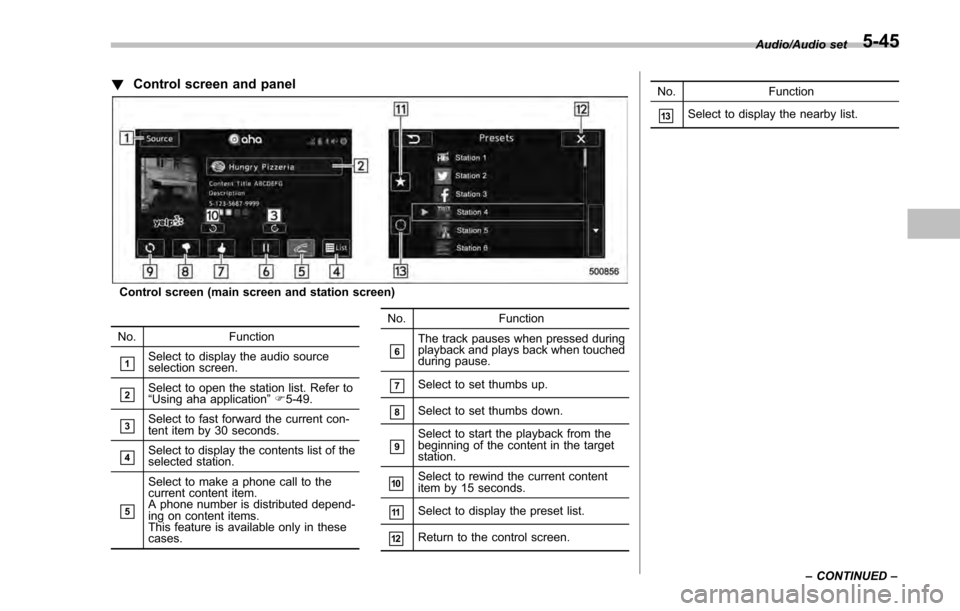
!Control screen and panel
Control screen (main screen and station screen)
No. Function
&1Select to display the audio source
selection screen.
&2Select to open the station list. Refer to
“ Using aha application ”F 5-49.
&3Select to fast forward the current con-
tent item by 30 seconds.
&4Select to display the contents list of the
selected station.
&5
Select to make a phone call to the
current content item.
A phone number is distributed depend-
ing on content items.
This feature is available only in these
cases. No. Function
&6The track pauses when pressed during
playback and plays back when touched
during pause.
&7Select to set thumbs up.
&8Select to set thumbs down.
&9Select to start the playback from the
beginning of the content in the target
station.
&10Select to rewind the current content
item by 15 seconds.
&11Select to display the preset list.
&12Return to the control screen. No. Function
&13Select to display the nearby list.
Audio/Audio set
–CONTINUED –
5-45