2016 SKODA OCTAVIA light
[x] Cancel search: lightPage 111 of 324

WARNING■The auxiliary heating must never be operated in closed rooms (e.g. garag-
es) – risk of poisoning!■
The auxiliary heating must not be allowed to run during refuelling – risk
of fire.
■
The exhaust pipe of the auxiliary heating is located on the underside of
the vehicle. If you want to use the auxiliary heating, do not park the vehicle
in places where the exhaust fumes can come into contact with flammable
materials such as dry grass, undergrowth, leaves, spilled fuel etc. - There is
a risk of fire.
CAUTION
The air inlet in front of the windscreen must be free (e.g. of ice, snow or
leaves) to ensure that the auxiliary heating operates properly.
Note
■ The auxiliary heating only switches the blower on, if it has achieved a coolant
temperature of approx. 50 °C.■
In the engine compartment, water vapour may form during the operation of
the heater.
Switch on / off
Fig. 134
Button for switching on / off (Climatronic / manual air condition-
ing)
Read and observe and on page 109 first.
Functional requirements of the auxiliary heating.
The charge state of the vehicle battery is sufficient.
The fuel supply is adequate (the warning light
is not illuminated in the
instrument cluster).
Manual on / off ▶ Using the
button on the control panel of the air conditioning » Fig. 134.
▶ Using the
(switch on) /
(switch off) button on the remote control opera-
tion.
Automatic on / off ▶ Via an automatically programmed and activated pre-set time in Infotainment.
▶ According to the environmental conditions.
Switching off the auxiliary heating takes place automatically when there is a
lack of fuel (warning light in the instrument cluster lights up).
After switching off the system, the coolant pump and the auxiliary heating will
continue running a little while longer in order to burn the remaining fuel in the
heating.
Setting automatic on / off
Climatronic: on the Climatronic button
→ Tap the function area
in the
Infotainment screen. There will be a display of the last set operating mode
with the option to change this.
Manual air conditioning: on Infotainment, press the button
→ Tap the
function surface .
Then follow the instructions on the Infotainment screen.
When automatic switching on is activated, the warning light in the symbol
button lights up for about 10 seconds after the ignition is turned off » Fig. 134.
109Heating and ventilation
Page 112 of 324
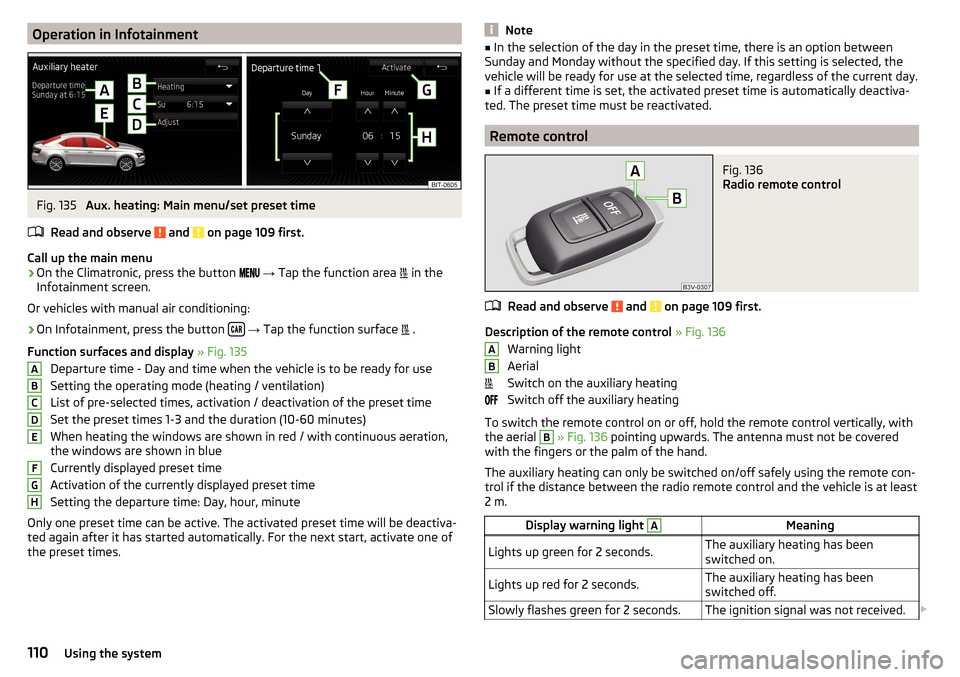
Operation in InfotainmentFig. 135
Aux. heating: Main menu/set preset time
Read and observe
and on page 109 first.
Call up the main menu
›
On the Climatronic, press the button
→ Tap the function area
in the
Infotainment screen.
Or vehicles with manual air conditioning:
›
On Infotainment, press the button
→ Tap the function surface
.
Function surfaces and display » Fig. 135
Departure time - Day and time when the vehicle is to be ready for use
Setting the operating mode (heating / ventilation)
List of pre-selected times, activation / deactivation of the preset time Set the preset times 1-3 and the duration (10-60 minutes)
When heating the windows are shown in red / with continuous aeration,
the windows are shown in blue
Currently displayed preset time
Activation of the currently displayed preset time
Setting the departure time: Day, hour, minute
Only one preset time can be active. The activated preset time will be deactiva-
ted again after it has started automatically. For the next start, activate one of
the preset times.
ABCDEFGHNote■ In the selection of the day in the preset time, there is an option between
Sunday and Monday without the specified day. If this setting is selected, the
vehicle will be ready for use at the selected time, regardless of the current day.■
If a different time is set, the activated preset time is automatically deactiva-
ted. The preset time must be reactivated.
Remote control
Fig. 136
Radio remote control
Read and observe and on page 109 first.
Description of the remote control » Fig. 136
Warning light
Aerial
Switch on the auxiliary heating
Switch off the auxiliary heating
To switch the remote control on or off, hold the remote control vertically, with the aerial
B
» Fig. 136 pointing upwards. The antenna must not be covered
with the fingers or the palm of the hand.
The auxiliary heating can only be switched on/off safely using the remote con-
trol if the distance between the radio remote control and the vehicle is at least
2 m.
Display warning light AMeaningLights up green for 2 seconds.The auxiliary heating has been
switched on.Lights up red for 2 seconds.The auxiliary heating has been
switched off.Slowly flashes green for 2 seconds.The ignition signal was not received. AB110Using the system
Page 113 of 324

Display warning light AMeaning
Quickly flashes green for 2 seconds.
The auxiliary heating is blocked, e.g.
because the tank is nearly empty or
there is a fault in the auxiliary heat-
ing.Flashes red for 2 seconds.The switch off signal was not re-
ceived.Lights up orange for 2 seconds, then
green or red.The battery is weak, however the
switching on or off signal was re-
ceived.Lights up orange for 2 seconds, then
flashes green or red.The battery is weak, however the
switching on or off signal was not re-
ceived.Flashes orange for 5 seconds.The battery is discharged, however
the switching on or off signal was not
received.
Replace the battery » page 275.
CAUTION
■
The remote control must be protected against moisture, severe shocks and
direct sunlight - Otherwise, there is a risk of damage to the remote control.■
The range of the remote control with a charged battery is a few hundred me-
tres (depending on obstructions between the remote control and the vehicle,
weather conditions, the battery condition etc.).
111Heating and ventilation
Page 117 of 324

External moduleFig. 142
External Module: Infotainment Columbus with SIM card slot / In-
fotainment Columbus without a SIM card slot
Fig. 143
External Module: Infotainment Bolero / Infotainment Amundsen
The external module is located in the storage compartment on the front pas-
senger side.
SD1 card slot
SD2 card slot
- CD / DVD eject button
CD / DVD slot
SIM card slot
12345Touch screen
Applies to Infotainment Columbus, Amundsen, Bolero.
Infotainment is equipped with a touch screen which can be operated with a
light touch or swipe of a finger.
The brightness level of the screen can be set » page 123.
CAUTION
■
It is not possible to operate the screen with your fingernails or while wearing
gloves.■
To protect the screen, you can use a suitable screen protector for touch pads
that does not affect its functionality.
■
Dirt can be removed from the screen by using a soft cloth and, if necessary,
methylated spirits.
Touch screen
Applies to Infotainment Swing.
Infotainment is equipped with a touch screen that can be operated by light
finger pressure on the screen surface.
The brightness level of the screen can be set » page 130.
CAUTION
■
The screen can only be operated by a slight touch of a finger. If there is too
much pressure there is a risk of damage to the screen!■
To protect the screen, you can use a suitable screen protector for touch pads
that does not affect its functionality.
■
Dirt can be removed from the screen by using a soft cloth and, if necessary,
methylated spirits.
115Introductory information
Page 125 of 324

■Touchscreen tone - Switch on/off audible tone when touching the screen
■No navigation sound during call
- Switching on / off the nav. announcements dur-
ing a telephone call (not applicable to Infotainment Bolero)
Display settings
›
Press the button, then tap on the function surface
Tap →
Screen
.
■
Switch off screen (in 10 seconds)
- Enable / disable the automatic power off func-
tion
■
Brightness:
- Adjusts the brightness of the screen
■
Touchscreen tone
- Switch on/off audible tone when touching the screen
■
Animation when finger near screen
- Turn the proximity sensors on/off (When the
function is on, e.g. Navigation will be shown in the main menu when moving a
finger towards the bottom bar with the function surfaces on the screen)
■
Show clock in standby mode
- Time and date displayed on the screen when the
ignition is switched on and Infotainment is switched off
Time and date settings
›
Press the button, then tap on the function surface
→
Time and date
.
■
Clock time source:
- Setting the time source: Manual / GPS (applies to Infotain-
ment Columbus, Amundsen)
■
Time:
- Time settings
■
Summer time
- Switches the summer time setting on/off (applies to Infotain-
ment Columbus, Amundsen)
■
Automatic summertime
- Turn on / off the automatic switch to daylight saving
time
■
Time zone:
- Choice of time zone
■
Time format:
- Specify the time format
■
Date:
- Date settings
■
Date format:
- Setting the date format
Setting the Infotainment language
›
Press the button, then tap on the function surface
→
Language
.
›
Select the Infotainment language.
In some languages, after selecting the function surface
Female
and
Male
are dis-
played for the choice of voice prompts for Infotainment.
Note■ When a language is selected which does not support voice control, Infotain-
ment will indicate this with a message on the screen.■
The messages are generated by Infotainment. Flawless clarity (e.g. road or
city name) cannot always be guaranteed.
Additional keypad language settings
›
Press the button, then tap on the function surface
→
Additional keypadlanguages
.
In this menu, a keyboard language set can be added to allow the entering of
characters other than those in the currently selected language (function sur-
face ).
Unit settings
›
Press the button, then tap on the function surface
→
Units
.
■
Distance:
- Distance units
■
Speed:
- Speed units
■
Temperature:
- Temperature units
■
Volume:
- Volume units
■
Consumption:
- Consumption units
■
CNG consump.:
- CNG consumption units
■
Pressure:
- Pressure units for tire pressure
Setting data transfer
An active data transfer allows data transfer between Infotainment and the ex-
ternal device (e.g. MirrorLink ®
application) or the operation of some Infotain-
ment functions using the application of the external device (e.g. ŠKODA Media
Command).
›
Press the button, then tap on the function surface
→
Mobile device datatransfer
.
■
Activate data transfer for ŠKODA apps
- Turning data transfer on and off
■
Use apps to operate::
- Setting Infotainment operation via the applications of the
external device (applies to Infotainment Columbus)
■
Deactivate
- Deactivation of Infotainment operation via an external device
■
Confirm
- Infotainment operation with required confirmation
■
Allow
- Infotainment operation without required confirmation
123Infotainment settings - Columbus, Amundsen, Bolero
Page 132 of 324

Infotainment settings - Swing
Infotainment system settings
Sound settings
›
Press the button.
■
Volume
- Volume settings
■
Max. switch-on volume.
- Sets the maximum volume when Infotainment is
turned on
■
Message
- Adjustment of traffic announcements volume (TP)
■
Speed-dependent volume adjustment
- Volume increases as speed increases
■
Entert. Fading
- Lowers the audio volume (e.g. radio volume) with activated
parking aid
■
AUX volume
- Sets the volume for the device connected through AUX
■
BT audio:
- Volume setting of the device connected via Bluetooth ®
audio pro-
file
■
Balance - Fader
- Sets the balance between left and right, front and rear
■
Bass - Mid - Treble
- Setting the equaliser
■
Confirmation tone
- Switch on/off audible tone when touching the screen
Display settings
›
Press the button, then tap the function surface
Screen
.
■
Switch off screen (in 10 seconds)
- Enable / disable the automatic power off func-
tion 1)
■
Brightness:
- Adjusts the brightness of the screen
■
Confirmation tone
- Switch on/off audible tone when touching the screen
■
Show clock in standby mode
- Time and date displayed on the screen when the
ignition is switched on and Infotainment is switched off
Time and date settings
›
Press the button, then tap the function surface
Time and date
.
■
Time:
- Time settings
■
Time format:
- Specify the time format
■
Summer time
- Switches the summer setting on/off
■Automatic summer time - Switch on/off the automatic switch to daylight saving
time
■Date:
- Date settings
■
Date format:
- Setting the date format
Setting the Infotainment language
›
Press the button, then tap the function surface
Language
.
›
Select the Infotainment language.
Additional keypad language settings
›
Press the
button, then tap the function surface
Additional keypad languages
.
In this menu, a keyboard language set can be added to allow the entering of
characters other than those in the currently selected language.
Unit settings
›
Press the button, then tap the function surface
Units
.
■
Distance:
- Distance units
■
Speed:
- Speed units
■
Temperature:
- Temperature units
■
Volume:
- Volume units
■
Consumption:
- Fuel units
■
CNG consump.:
- CNG consumption units
■
Pressure:
- Pressure units for tire pressure
Safe removal of the data source
›
Press the button, then tap the function surface
Remove SD card safely
/
Re-move USB Safely
.
The appropriate message concerning the safe removal of the source is dis-
played in the screen.
Now the external source can be removed or separated.
1)
Infotainment turns the screen off when no touch screen is performed or none of the keys are pressed /
rotated for more than 10 seconds.
130Infotainment
Page 178 of 324

Image with GPS coordinatesFig. 210
Image with GPS coordinates
Infotainment enables guidance to the GPScoordinate data stored in the image.
›
Press the button, then tap on the function surface
Images
.
›
Select the connected source and open the image with GPS coordinates.
›
Tap on the function surface
» Fig. 210 in the image, a menu opens with the
option to start route guidance.
The image can be obtained from an external device in which GPS coordinates are stored during image creation. If necessary, this can be created and impor-
ted in the “MyDestination” » Fig. 209 on page 175 application.
Map
Tap map point
Fig. 211
Menu after tapping the map
point
By tapping the map in the Main Menu Navigation the symbol
and a menu
with the following menu items appear (depending on the context) » Fig. 211.
Display the details of the selected item (e.g. Address)
Display the POI details / display the POI list
Start route guidance to the selected point
ABPaste the selected point as the next destination in the current route
guidance
Start route guidance to the favourite
Start route guidance to the home address
Destination search in the vicinity of the selected point » page 171
Define the starting point for demo mode (if it is turned on) » page 180
Show POIs in the map ▶ To switch on/off the display in the main menu Navigation, tap on the func-
tion surface
→ POIs
.
▶ To select to display POIs in the main menu Navigation tap on the function
surface Tap on
→
Map
→
Select categories for POIs
and select the desired cate-
gories (maximum of 10).
Options for map display
Fig. 212
Map options
›
In the Navigation main menu, tap on the function surface
.
The following function surfaces are displayed » Fig. 212.
2D - Two-dimensional map display
3D - Three-dimensional map display
Display of the route from the current vehicle location to the destination
Presentation of the destination or the next interim destination in the map
(depending on the menu item setting)
→
Advanced settings
→
Status line:
)
Automatic map display in day or night mode (depending on the currently
active vehicle lighting)
Daytime map display
Night-time map display
CABC176Infotainment
Page 179 of 324

Switching on / off of the split screen display » page 171
Switching on/ off of the selected POI categories display » page 176, Tap
map point
If the map scale of the 2D Map or 3D Map is greater than 10 km (5 miles), then
the map is automatically displayed as 2D and aligned in the direction of north.
If the scale is increased beyond this value, then the map is switched back to
the original representation.
Map scale
Fig. 213
Function surfaces for the map
scale change
It is possible to change the map scale manually or to turn on the automatic
change of scale.
Symbols of the scale function surfaces
In the map area
A
» Fig. 213 the following context-dependent function surfa-
ces and information is displayed.
Current elevationMap view in reduced scaleSize of the manually set map scaleSize of the automatically set map scaleSwitch on/off the automatic change of scale
Manual change of scale
Map scale can be changed in the following ways.
▶ Turning the control knob Turn.
▶ Touching the screen with two fingers and pulling them apart or closing them
together.
Enabling automatic scaling
▶ In the Navigation main menu, tap on the function surface
→
.
DETap on the function surface
is highlighted in green.
The automatic scale is only active as long as the map is centred on the vehicle position (the function surface
or. is hidden).
If the automatic scale is active, the map scale will change automatically de-
pending on the type of roads travelled (motorway - smaller map scale / town larger map scale) and from the manoeuvre to be carried out.
Turn off the automatic change of scale
▶ In the Navigation main menu, tap on the function surface
→
.
Tap on the function surface
is highlighted in white.
The turning off occurs likewise when the map is moved or the map scale is
changed manually.
Map view in reduced scale ▶ In the Navigation main menu, tap on the function surface
→
or.
→
.
The map scale is reduced for a few seconds and then restored.
Change map orientation
Fig. 214
Change the map orientation
Changing map orientation is possible under the following conditions. The map is in the 2D display.
The map is centred (the function surface /
is hidden).
The map scale is max. 10 km away.
With a larger map scale than 10 km, the map is automatically oriented towards
north.
A change of map orientation is only possible in the 2D display when the map is
centred on the vehicle position (the function surface or.
is hidden
» page 178 , Map alignment ).
177Navigation