2016 SKODA KODIAQ service
[x] Cancel search: servicePage 162 of 344
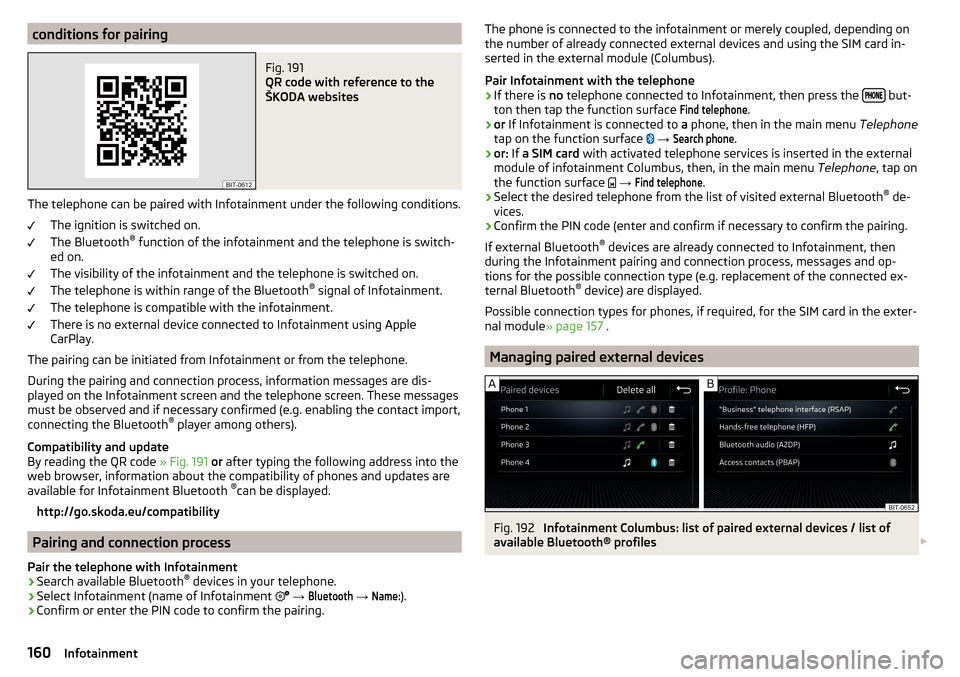
conditions for pairingFig. 191
QR code with reference to the
ŠKODA websites
The telephone can be paired with Infotainment under the following conditions.
The ignition is switched on.
The Bluetooth ®
function of the infotainment and the telephone is switch-
ed on.
The visibility of the infotainment and the telephone is switched on.
The telephone is within range of the Bluetooth ®
signal of Infotainment.
The telephone is compatible with the infotainment.
There is no external device connected to Infotainment using Apple
CarPlay.
The pairing can be initiated from Infotainment or from the telephone.
During the pairing and connection process, information messages are dis-
played on the Infotainment screen and the telephone screen. These messages
must be observed and if necessary confirmed (e.g. enabling the contact import,
connecting the Bluetooth ®
player among others).
Compatibility and update
By reading the QR code » Fig. 191 or after typing the following address into the
web browser, information about the compatibility of phones and updates are
available for Infotainment Bluetooth ®
can be displayed.
http://go.skoda.eu/compatibility
Pairing and connection process
Pair the telephone with Infotainment
›
Search available Bluetooth ®
devices in your telephone.
›
Select Infotainment (name of Infotainment
→
Bluetooth
→
Name:
).
›
Confirm or enter the PIN code to confirm the pairing.
The phone is connected to the infotainment or merely coupled, depending on
the number of already connected external devices and using the SIM card in-
serted in the external module (Columbus).
Pair Infotainment with the telephone›
If there is no telephone connected to Infotainment, then press the but-
ton then tap the function surface
Find telephone
.
›
or If Infotainment is connected to a phone, then in the main menu Telephone
tap on the function surface
→
Search phone
.
›
or: If a SIM card with activated telephone services is inserted in the external
module of infotainment Columbus, then, in the main menu Telephone, tap on
the function surface
→
Find telephone
.
›
Select the desired telephone from the list of visited external Bluetooth ®
de-
vices.
›
Confirm the PIN code (enter and confirm if necessary to confirm the pairing.
If external Bluetooth ®
devices are already connected to Infotainment, then
during the Infotainment pairing and connection process, messages and op-
tions for the possible connection type (e.g. replacement of the connected ex-
ternal Bluetooth ®
device) are displayed.
Possible connection types for phones, if required, for the SIM card in the exter- nal module » page 157 .
Managing paired external devices
Fig. 192
Infotainment Columbus: list of paired external devices / list of
available Bluetooth® profiles
160Infotainment
Page 164 of 344
Use the SIM card in the external module
Applies to Infotainment Columbus with the SIM card slot in the external mod-
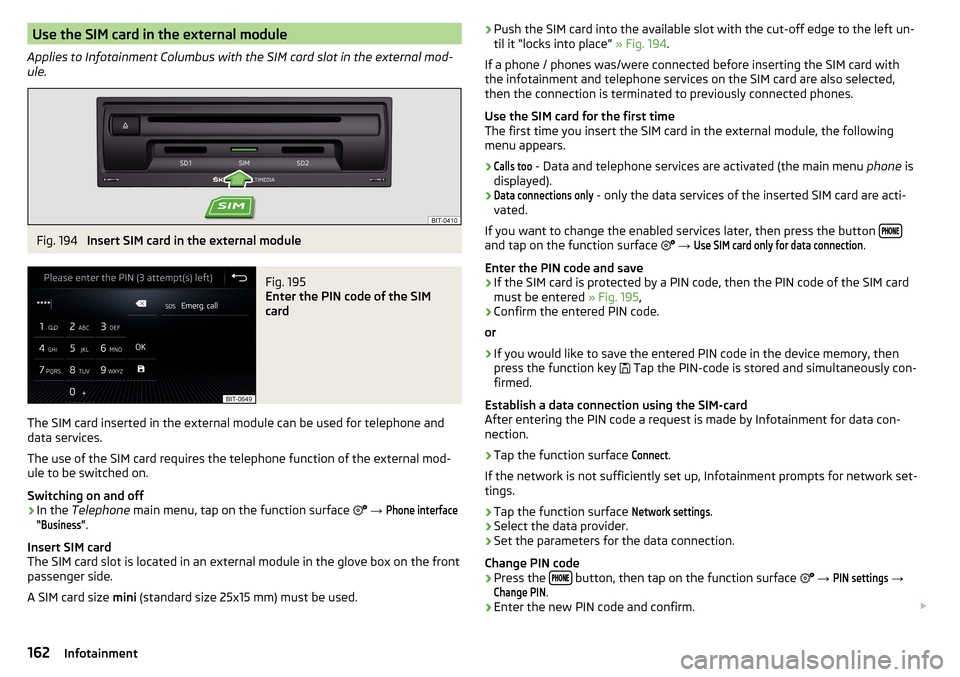
ule.Fig. 194
Insert SIM card in the external module
Fig. 195
Enter the PIN code of the SIM
card
The SIM card inserted in the external module can be used for telephone and
data services.
The use of the SIM card requires the telephone function of the external mod-
ule to be switched on.
Switching on and off
›
In the Telephone main menu, tap on the function surface
→
Phone interface“Business”
.
Insert SIM card
The SIM card slot is located in an external module in the glove box on the front
passenger side.
A SIM card size mini (standard size 25x15 mm) must be used.
›Push the SIM card into the available slot with the cut-off edge to the left un-
til it “locks into place” » Fig. 194.
If a phone / phones was/were connected before inserting the SIM card with the infotainment and telephone services on the SIM card are also selected,
then the connection is terminated to previously connected phones.
Use the SIM card for the first time
The first time you insert the SIM card in the external module, the following
menu appears.›Calls too
- Data and telephone services are activated (the main menu phone is
displayed).
›Data connections only
- only the data services of the inserted SIM card are acti-
vated.
If you want to change the enabled services later, then press the button
and tap on the function surface
→
Use SIM card only for data connection
.
Enter the PIN code and save
›
If the SIM card is protected by a PIN code, then the PIN code of the SIM card
must be entered » Fig. 195,
›
Confirm the entered PIN code.
or
›
If you would like to save the entered PIN code in the device memory, then
press the function key Tap the PIN-code is stored and simultaneously con-
firmed.
Establish a data connection using the SIM-card
After entering the PIN code a request is made by Infotainment for data con- nection.
›
Tap the function surface
Connect
.
If the network is not sufficiently set up, Infotainment prompts for network set-
tings.
›
Tap the function surface
Network settings
.
›
Select the data provider.
›
Set the parameters for the data connection.
Change PIN code
›
Press the button, then tap on the function surface
→
PIN settings
→
Change PIN
.
›
Enter the new PIN code and confirm.
162Infotainment
Page 165 of 344
see SIM card›Press on the inserted SIM card.
The SIM card “jumps” into the eject position.›
Remove the SIM card from the slot.
CAUTION
■ When inserting an incorrectly sized SIM card, there is a risk of damage to In-
fotainment.■
Avoid using a an adapter for the SIM card as the SIM card may fall out while
driving due to vehicle vibrations - There is the risk of damage to the external
module.
■
If you let the SIM card protrude out from the slot, then it may fall out of the
slot while driving due to vehicle vibrations.
rSAP
Applies to Infotainment Columbus with the SIM card slot in the external mod-
ule.
The Bluetooth ®
profile RSAP (remote transmission of data SIM) also allows, in
contrast to Bluetooth ®
profile HFP, the use of data services from the connec-
ted phone (if this profile is supported by the phone and data services are ena-
bled in this phone) » page 171.
The use of Bluetooth ®
profile RSAP requires the telephone function of the ex-
ternal module to be switched on.
Switching on and off
›
In the Telephone main menu, tap on the function surface
→
Phone interface“Business”
.
The pairing and connection process takes place in the same way to the Blue-
tooth ®
profile HFP » page 159.
If the rSAP profile supported by the phone to be connected, then Infotainment
tries to connect using this profile. Depending on the phone, the connection
can be blocked or released using an rSAP profile in the phone.
If a SIM card is inserted in the external module, the phone cannot be connec-
ted to Infotainment by the rSAP profile.
Note
If an external device is connected via Apple CarPlay or Android Auto, then the
data connection using rSAP cannot be carried out.163Telephone
Page 166 of 344
Telephone functions
Enter telephone number and select
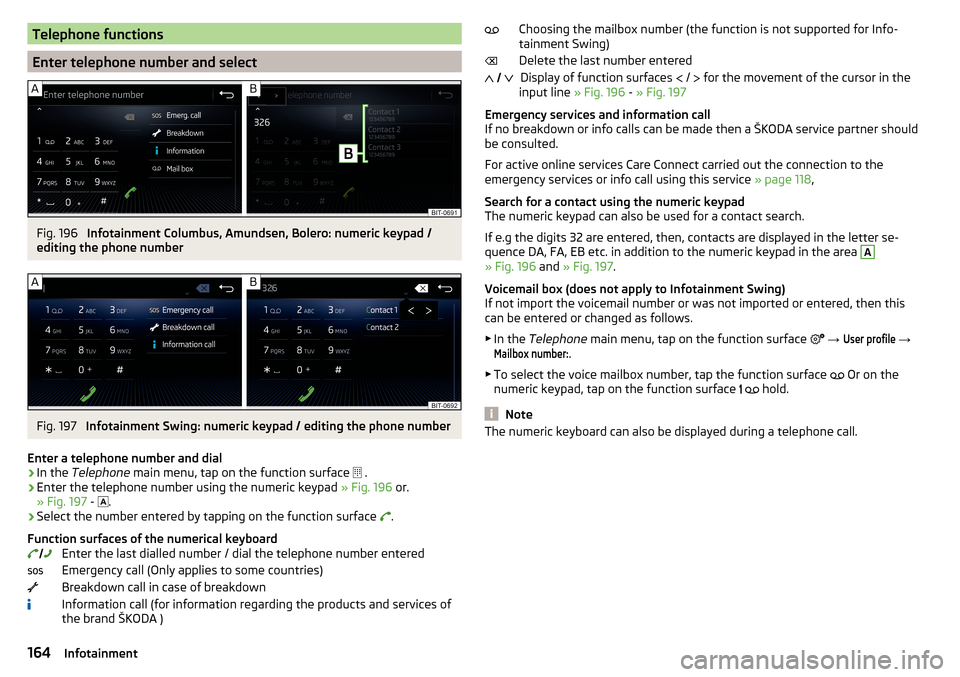
Fig. 196
Infotainment Columbus, Amundsen, Bolero: numeric keypad /
editing the phone number
Fig. 197
Infotainment Swing: numeric keypad / editing the phone number
Enter a telephone number and dial
›
In the Telephone main menu, tap on the function surface
.
›
Enter the telephone number using the numeric keypad » Fig. 196 or.
» Fig. 197 -
.
›
Select the number entered by tapping on the function surface
.
Function surfaces of the numerical keyboard Enter the last dialled number / dial the telephone number entered
Emergency call (Only applies to some countries)
Breakdown call in case of breakdown Information call (for information regarding the products and services ofthe brand ŠKODA )
Choosing the mailbox number (the function is not supported for Info-
tainment Swing)
Delete the last number entered Display of function surfaces
/
for the movement of the cursor in the
input line » Fig. 196 - » Fig. 197
Emergency services and information call
If no breakdown or info calls can be made then a ŠKODA service partner should
be consulted.
For active online services Care Connect carried out the connection to the
emergency services or info call using this service » page 118,
Search for a contact using the numeric keypad
The numeric keypad can also be used for a contact search.
If e.g the digits 32 are entered, then, contacts are displayed in the letter se- quence DA, FA, EB etc. in addition to the numeric keypad in the area A
» Fig. 196 and » Fig. 197 .
Voicemail box (does not apply to Infotainment Swing)
If not import the voicemail number or was not imported or entered, then this
can be entered or changed as follows.
▶ In the Telephone main menu, tap on the function surface
→
User profile
→
Mailbox number:
.
▶ To select the voice mailbox number, tap the function surface Or on the
numeric keypad, tap on the function surface
hold.
Note
The numeric keyboard can also be displayed during a telephone call.
164Infotainment
Page 167 of 344
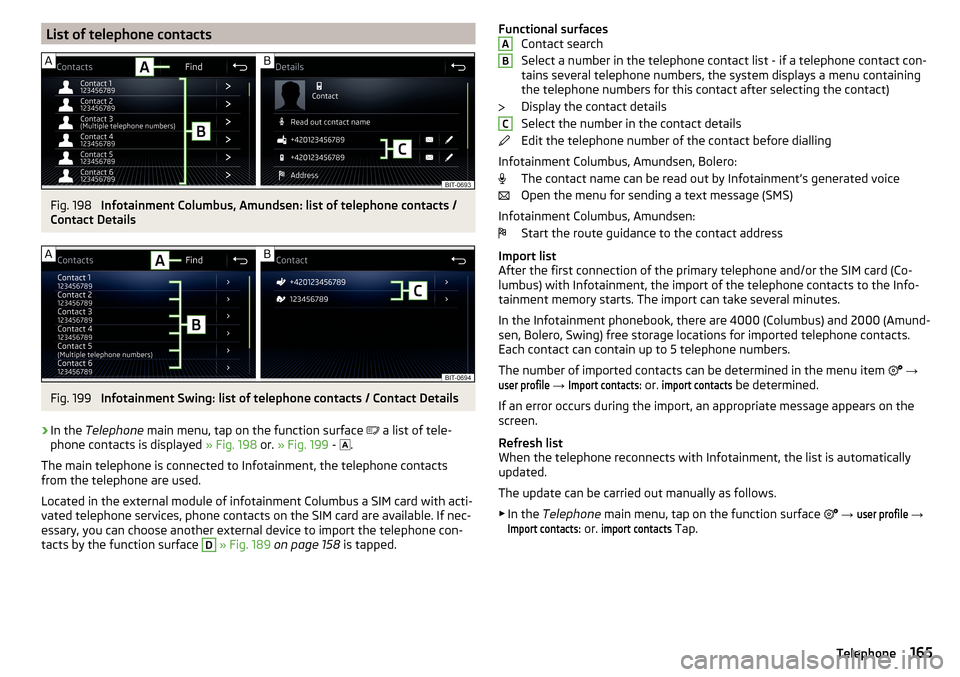
List of telephone contactsFig. 198
Infotainment Columbus, Amundsen: list of telephone contacts /
Contact Details
Fig. 199
Infotainment Swing: list of telephone contacts / Contact Details
›
In the Telephone main menu, tap on the function surface
a list of tele-
phone contacts is displayed » Fig. 198 or. » Fig. 199 -
.
The main telephone is connected to Infotainment, the telephone contacts
from the telephone are used.
Located in the external module of infotainment Columbus a SIM card with acti-
vated telephone services, phone contacts on the SIM card are available. If nec-
essary, you can choose another external device to import the telephone con-
tacts by the function surface
D
» Fig. 189 on page 158 is tapped.
Functional surfaces
Contact search
Select a number in the telephone contact list - if a telephone contact con-
tains several telephone numbers, the system displays a menu containing
the telephone numbers for this contact after selecting the contact)
Display the contact details
Select the number in the contact details
Edit the telephone number of the contact before dialling
Infotainment Columbus, Amundsen, Bolero: The contact name can be read out by Infotainment’s generated voice
Open the menu for sending a text message (SMS)
Infotainment Columbus, Amundsen: Start the route guidance to the contact address
Import list
After the first connection of the primary telephone and/or the SIM card (Co-
lumbus) with Infotainment, the import of the telephone contacts to the Info-
tainment memory starts. The import can take several minutes.
In the Infotainment phonebook, there are 4000 (Columbus) and 2000 (Amund-
sen, Bolero, Swing) free storage locations for imported telephone contacts.
Each contact can contain up to 5 telephone numbers.
The number of imported contacts can be determined in the menu item
→user profile
→
Import contacts:
or.
import contacts
be determined.
If an error occurs during the import, an appropriate message appears on the
screen.
Refresh list
When the telephone reconnects with Infotainment, the list is automatically
updated.
The update can be carried out manually as follows. ▶ In the Telephone main menu, tap on the function surface
→
user profile
→
Import contacts:
or.
import contacts
Tap.
ABC165Telephone
Page 170 of 344

Display details of participant
Talk to a participant separately from the conference call
End the call to a conference participant
Text messages (SMS)
Main menu
Applies to Infotainment Columbus, Amundsen, Bolero.
Fig. 205
Main menu text messages
›
In the Telephone main menu, tap on the function surface
The main menu
for text messages appears » Fig. 205.
›
If required, Select whether the SIM card inserted in the external module SIM
card or the phone (Columbus) is to be used as the source of the text messag-
es.
Depending on your model of connected telephone, you can perform the fol-
lowing functions.
Opening a list of templates for quick answers
New text message
- Creating and sending the message
Inbox
- Open a list of received messages
Sent
- Open a list of sent messages
Outbox
- Open a list of messages not sent
Drafts
- Open a list of drafts (messages in progress)
Deleted
- Open a list of deleted messages
Send contact details
- send the contact details (business card) (Columbus)
ADisplay options to adjust the source of text messages (applies to
Infotainment Columbus)
If there is a SIM card in the external module with telephone services and is al-
so a phone connected to Infotainment, then for which source this is for after
tapping the function surface
From the main menu Telephone, a menu of
text messages should be displayed automatically.
▶ In the Telephone main menu, tap on the function surfaces
→ Text messagesettings
→
Standard Account
Tap.
▶ Select the desired menu item.
New text message
Fig. 206
Composing a text message / viewing a text message
Fig. 207
Contact list / recipient list
Creating and sending the message
›
In the main menu of the text messages, tap on the function surface
» Fig. 205 on page 168 .
›
Write a message and tap on the function surface
» Fig. 206 -
, a view of
the text message is displayed » Fig. 206-
.
168Infotainment
Page 172 of 344

Hotspot (WLAN) and data connection
Hotspot (WLAN)
Introduction to the subject
Applies to Infotainment Columbus, Amundsen.
WLAN can be used to connect to the Internet, to playback audio files in the menu media (if the connected external device allows this) or for operating the
device using an application in the external device (e.g. ŠKODA Media Command
or ŠKODA One App).
The requirement for the WLAN function is that the ignition is switched on. Af-
ter switching on the ignition, the last-used WLAN connection appears.
It is possible to connect up to 8 external devices to the Infotainment hotspot
and at the same time to connect Infotainment to the hotspot of other external
devices.
If there is a SIM card with activated data services in the external module of In-
fotainment Columbus or there is a connection to the phone via Bluetooth ®
profile RSAP, a connection cannot be established to the external device hot- spot.
connect an external device to the hotspot (WLAN) infotainment
Switch Infotainment hotspot on / off
›
Press the button, then tap on the function surface
Tap on
→
WLAN
→
Mobile hotspot
→
Mobile hotspot
.
Set infotainment Hotspot
▶ Press the
button, then tap on the function surface
Tap on
→
WLAN
→
Mobile hotspot
→
Hotspot (WLAN) settings
.
▶ Setting required menu items from the following menu.
■
Security level:
- Setting the connection security
■
Network key
- Entering the access password
■
SSID:
- Name of the infotainment Hotspots
■
Do not send network name (SSID)
-Turn Infotainment hotspot visibility on/off
▶ Tap the function surface Store to save the parameters of the Infotainment
hotspot.
Connect ▶ Enable the Wi-Fi in the external device and search for any available hotspots.
▶ Select the Infotainment hotspot (if necessary, enter the required password).
▶ Confirm the connection.
Establish secure connection using WPS (applies to Infotainment Amundsen) ▶ Turn on Infotainment in the device.
▶ Press the
button, then tap on the function surface
→
WIRELESS INTER-NET ACCESS
→
WIRELESS INTERNET ACCESS
→
WPS quick connection (WPS button)
Tap.
▶ Turn on the option to connect to Infotainment hotspot using WPS.
Note
If the external device is connected to the Infotainment hotspot (WLAN), then
the data connection to the external device cannot be used.
Connect infotainment with the hotspot (WLAN) of the external
device
Fig. 208
List of available wireless networks: Infotainment Columbus / in-
fotainment Amundsen
›
To Turn on / off the Infotainment WLAN press the button , then the
function surface →
→
WIRELESS INTERNET ACCESS
→
WIRELESS INTERNET ACCESS
→
WIRELESS INTERNET ACCESS
Tap.
170Infotainment
Page 173 of 344

Show available hotspots
▶ Press the button, then tap on the function surface
→
WIRELESS INTER-NET ACCESS
→
WIRELESS INTERNET ACCESS
1)
Tap.
With WLAN activated, a list of available or previously connected hotspots with
the following information and function surfaces is displayed » Fig. 208.
Searching for available hotspots
Turn Infotainment WLAN on/off
Manual hotspot search and connect
Automatic establishment of the secure connection to the hotspot via WPS
(Applies to Infotainment Amundsen)
Functional surfaces of the available hotspots
Disconnection from the currently connected hotpot by deleting the Info-
tainment memory access password (The function surface will only be
shown when connected)
Current connection
Wi-Fi strength of the external device
Connect ▶ Turn on Infotainment in the device.
▶ Show the list of available hotspots, if necessary, update the list by tapping
the function surface
Find
.
▶ Select the desired hotspot.
▶ If the access to the hotspot is password protected, then enter the required
password.
Search for connection manually and connect ▶ Turn on Infotainment in the device.
▶ Display list of available hotspots.
▶ Tap on the function surface
Manual settings
and set the required hotspot pa-
rameters.
▶ Tap the function surface
Connect
.
▶ If the parameters for the search are set correctly and the hotspot is available,
then the connection will take place.
ABCDEFEstablish secure connection using WPS (applies to Infotainment Amundsen) ▶ Turn on Infotainment in the device.
▶ In the external device, turn on the option to connect to the external device
via WPS.
▶ Press the
button, then tap on the function surface
Tap on →
WLAN
→
Mobile hotspot
→
WPS quick connection (WPS button)
.
End connection to the hotspot ▶ Press button when the desired Hotspot (WLAN) is found
,then the func-
tion surface →
→
WIRELESS INTERNET ACCESS
→
WIRELESS INTERNET ACCESS
→
Delete
Tap.
Data Connection
Using the data connection, Infotainment can be connected to the Internet. The
data connection can be established in one of the following ways.
Data connection via WLAN
›
Connect Infotainment to the hotspot of an external device with activated da-
ta services » page 170, Connect infotainment with the hotspot (WLAN) of the
external device .
Data connection using the SIM card in the external module (applies to
Infotainment Columbus)
›
Insert a SIM card with activated data services in the external mod-
ule » page 162 , Use the SIM card in the external module .
Data connection using rSAP (applies to Infotainment Columbus)
›
Connect Infotainment via Bluetooth ®
profile rSAP to a telephone with activa-
ted data services » page 163, rSAP .
Data connection using CarStick (applies to Infotainment Columbus,
Amundsen)
The prerequisite for the correct function is in Carstick inserted SIM card size
mini (Standard Size 25x15 mm) with activated data services. The CarstickIP-
MENT supports the wireless network using the standard 2G and 3G,
To the connection proceed as follows.
›
Turn on the ignition and switch on Infotainment.
›
In the Front USB » page 90 the Carstick insert with inserted SIM card.
›
Wait until the light on Carstick permanently illuminated.
1)
As long as Infotainment is connected to the hotspot of the external device, its hotspot name is displayed
in this function surface.
171Hotspot (WLAN) and data connection