2016 SKODA KODIAQ ECU
[x] Cancel search: ECUPage 104 of 344
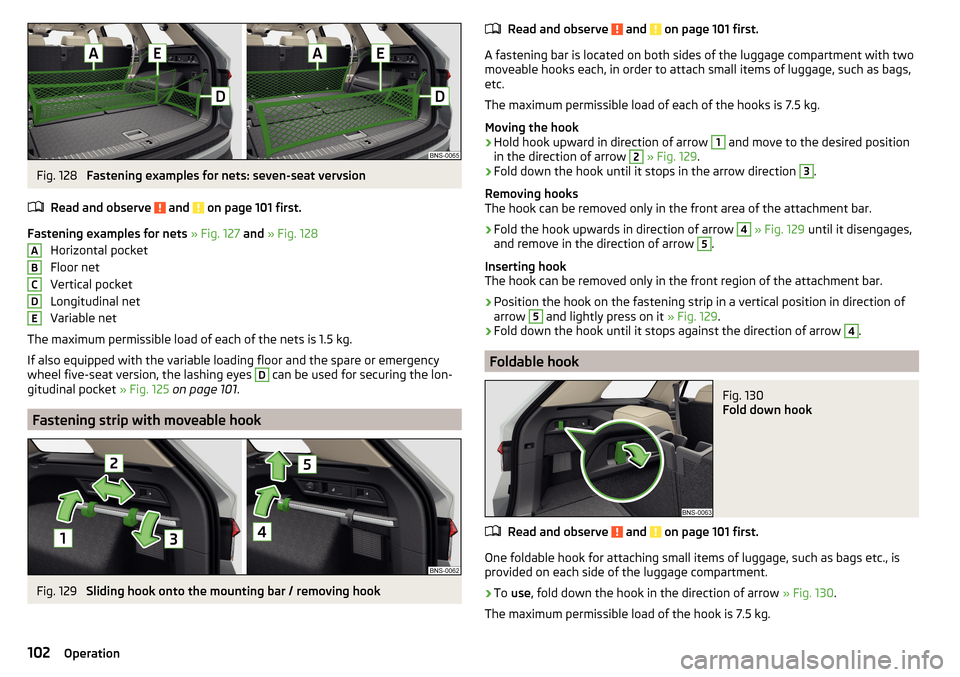
Fig. 128
Fastening examples for nets: seven-seat vervsion
Read and observe
and on page 101 first.
Fastening examples for nets » Fig. 127 and » Fig. 128
Horizontal pocket
Floor net
Vertical pocket
Longitudinal net
Variable net
The maximum permissible load of each of the nets is 1.5 kg.
If also equipped with the variable loading floor and the spare or emergency
wheel five-seat version, the lashing eyes
D
can be used for securing the lon-
gitudinal pocket » Fig. 125 on page 101 .
Fastening strip with moveable hook
Fig. 129
Sliding hook onto the mounting bar / removing hook
ABCDERead and observe and on page 101 first.
A fastening bar is located on both sides of the luggage compartment with two
moveable hooks each, in order to attach small items of luggage, such as bags,
etc.
The maximum permissible load of each of the hooks is 7.5 kg.
Moving the hook
›
Hold hook upward in direction of arrow
1
and move to the desired position
in the direction of arrow
2
» Fig. 129 .
›
Fold down the hook until it stops in the arrow direction
3
.
Removing hooks
The hook can be removed only in the front area of the attachment bar.
›
Fold the hook upwards in direction of arrow
4
» Fig. 129 until it disengages,
and remove in the direction of arrow
5
.
Inserting hook
The hook can be removed only in the front region of the attachment bar.
›
Position the hook on the fastening strip in a vertical position in direction of
arrow
5
and lightly press on it » Fig. 129.
›
Fold down the hook until it stops against the direction of arrow
4
.
Foldable hook
Fig. 130
Fold down hook
Read and observe and on page 101 first.
One foldable hook for attaching small items of luggage, such as bags etc., is
provided on each side of the luggage compartment.
›
To use , fold down the hook in the direction of arrow » Fig. 130.
The maximum permissible load of the hook is 7.5 kg.
102Operation
Page 107 of 344
Side storage compartment and traysFig. 135
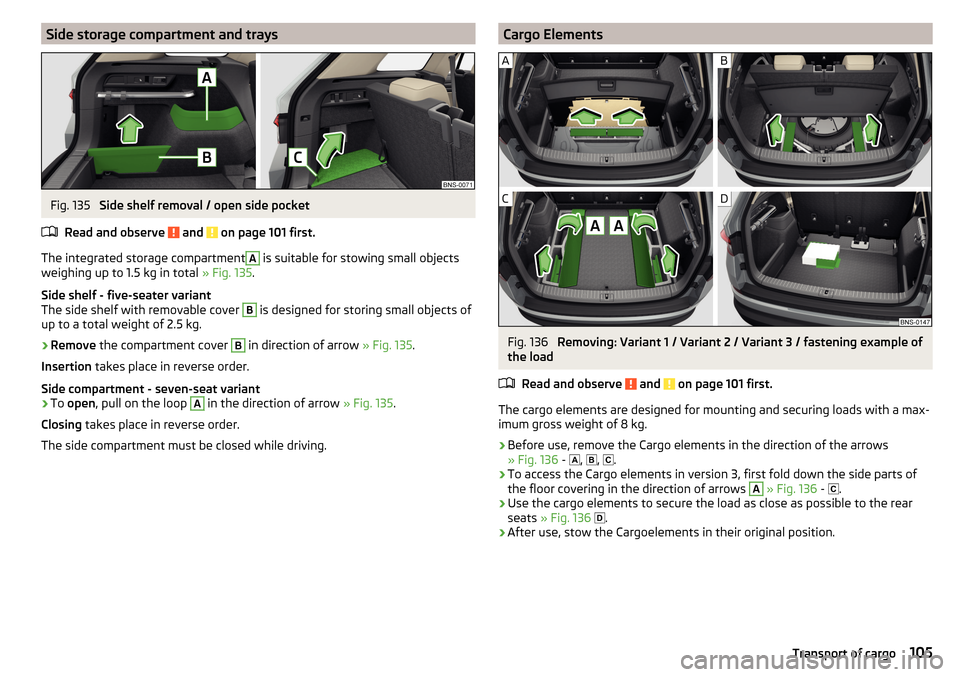
Side shelf removal / open side pocket
Read and observe
and on page 101 first.
The integrated storage compartment
A
is suitable for stowing small objects
weighing up to 1.5 kg in total » Fig. 135.
Side shelf - five-seater variant
The side shelf with removable cover
B
is designed for storing small objects of
up to a total weight of 2.5 kg.
›
Remove the compartment cover
B
in direction of arrow » Fig. 135.
Insertion takes place in reverse order.
Side compartment - seven-seat variant
›
To open , pull on the loop
A
in the direction of arrow » Fig. 135.
Closing takes place in reverse order.
The side compartment must be closed while driving.
Cargo ElementsFig. 136
Removing: Variant 1 / Variant 2 / Variant 3 / fastening example of
the load
Read and observe
and on page 101 first.
The cargo elements are designed for mounting and securing loads with a max-imum gross weight of 8 kg.
›
Before use, remove the Cargo elements in the direction of the arrows
» Fig. 136 -
,
,
.
›
To access the Cargo elements in version 3, first fold down the side parts of
the floor covering in the direction of arrows
A
» Fig. 136 -
.
›
Use the cargo elements to secure the load as close as possible to the rear
seats » Fig. 136
.
›
After use, stow the Cargoelements in their original position.
105Transport of cargo
Page 110 of 344
Dividing the luggage compartmentFig. 141
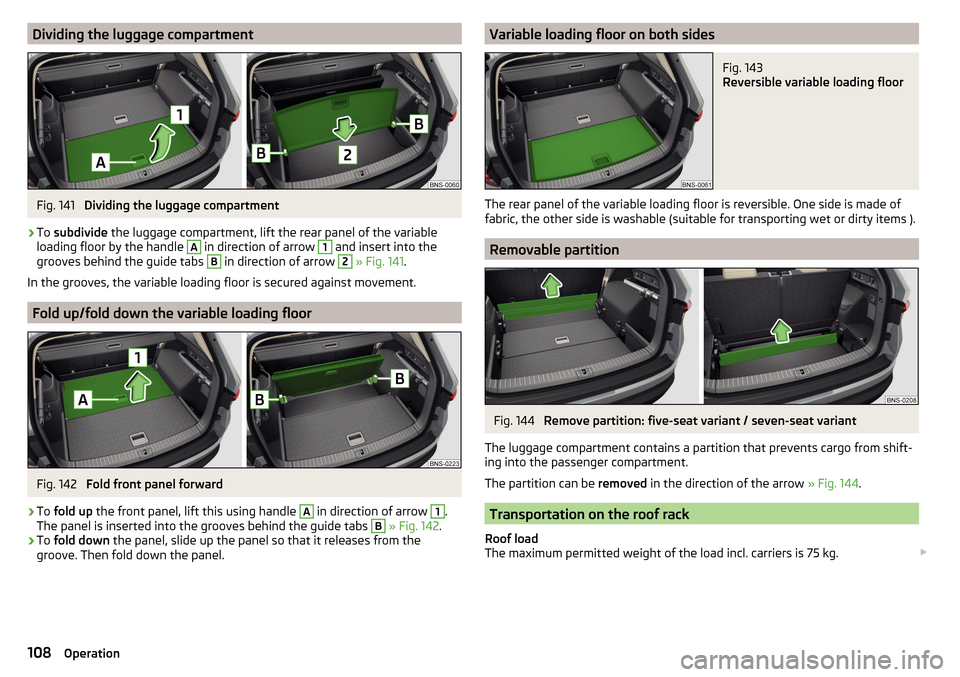
Dividing the luggage compartment
›
To subdivide the luggage compartment, lift the rear panel of the variable
loading floor by the handle
A
in direction of arrow
1
and insert into the
grooves behind the guide tabs
B
in direction of arrow
2
» Fig. 141 .
In the grooves, the variable loading floor is secured against movement.
Fold up/fold down the variable loading floor
Fig. 142
Fold front panel forward
›
To fold up the front panel, lift this using handle
A
in direction of arrow
1
.
The panel is inserted into the grooves behind the guide tabs
B
» Fig. 142 .
›
To fold down the panel, slide up the panel so that it releases from the
groove. Then fold down the panel.
Variable loading floor on both sidesFig. 143
Reversible variable loading floor
The rear panel of the variable loading floor is reversible. One side is made of
fabric, the other side is washable (suitable for transporting wet or dirty items ).
Removable partition
Fig. 144
Remove partition: five-seat variant / seven-seat variant
The luggage compartment contains a partition that prevents cargo from shift-
ing into the passenger compartment.
The partition can be removed in the direction of the arrow » Fig. 144.
Transportation on the roof rack
Roof load
The maximum permitted weight of the load incl. carriers is 75 kg.
108Operation
Page 111 of 344

WARNINGFor road safety when transporting cargo on the roof rack, observe the fol-
lowing instructions.■
Always distribute the load on the roof rack evenly and secure properly us-
ing suitable lashing straps or tensioning straps.
■
When transporting heavy objects or objects which take up a large area on
the roof rack system, the handling of the car may change as a result of the
displacement of the centre of gravity. The style of driving and speed must
therefore be adapted to the current circumstances.
■
The permissible roof load, permissible axle loads and permissible total ve-
hicle weight must not be exceeded under any circumstances – risk of acci-
dent!
CAUTION
■ Make sure that the sliding / tilting roof or the boot lid does not collide with
the roof load when opened.■
Ensure the roof aerial is not impaired by the load being transported.
Note
We recommend that you use a roof rack from ŠKODA Original Accessories.Heating and ventilation
Heating, manual air conditioning system, Climatronic
Introduction
This chapter contains information on the following subjects:
Heating and manual air conditioning
110
Climatronic (automatic air conditioning)
110
Operate Climatronic in Infotainment
112
Climatronic - automatic operation
112
Air distribution control
113
Air outlet vents
113
The heating heats and ventilates the vehicle interior. The air conditioning sys-
tem also cools and dehumidifies the vehicle interior.
The heating effect is dependent upon the coolant temperature, thus full heat
output only occurs when the engine has reached its operating temperature.
The cooling system works under the following conditions. The cooling system is switched on.
The engine is running.
The outside temperature is below 2 ° C.
The blower is switched on.
Fogging is prevented when the cooling system is switched on.
To increase the efficiency of the cooling system, recirculation mode can be
swtiched on briefly » page 113.
Health protection
To reduce health risks (e.g. common colds), the following instructions for the
use of the cooling system are to be observed. ▶ The difference between the indoor temperature and the outdoor air temper-
ature should not be greater than about 5 ° C.
▶ The cooling system should be turned off about 10 minutes before the end of
the journey.
▶ Once a year, the air conditioning should be disinfected by a specialist garage.
109Heating and ventilation
Page 134 of 344

Voice control settings›
Press the button, then tap on the function surface
Tap →
Voice control
.
■
Example commands (infotainment system)
- Turn on/off the menus containing basic
voice commands when voice control is activated
■
Voice control session start tone
- Switch on/off the audible signal when turning on
the voice control
■
Voice control session end tone
- Switch on/off the audible signal when voice con-
trol ends
■
Input tone in voice dialogue
- Switch on/off the audible signal for the voice input
■
End tone in voice dialogue
- Switch on/off the audible signal for the voice input
Safe removal of the external device
›
Press the button, then tap on the function surface
→
Remove safely
and
select the external device to be removed.
Reset to factory settings
›
Press the button, then tap on the function surface
→
Factory settings
.
In this menu, all or only chosen settings can be restored.
Bluetooth ®
Settings
›
Press the button, then tap on the function surface
Tap on
→
Bluetooth
.
■
Bluetooth
- Switch on/off Bluetooth ®
function
■
Visibility:
- Switch on/off the visibility of the Bluetooth ®
device for Bluetooth ®
devices
■
Name:
- Changing the name of the Bluetooth ®
unit
■
Paired devices
- Display the list of coupled Bluetooth ®
devices
■
Find devices
- Searches for available Bluetooth ®
devices
■
Bluetooth audio (A2DP/AVRCP)
- Turn on/off the ability to connect a Bluetooth ®
audio device (e.g. MP3 player, tablet etc...)
Wireless settings
Applies to Infotainment Columbus, Amundsen.
›
Press the button, then tap on the function surface
Tap on
→
WLAN
.
■WLAN - List of available hotspots of external devices
■WLAN
- Turn on / off Infotainment wireless
■
WPS quick connection (WPS button)
- Establishing a secure connection to the
hotspot of the external device using WPS (applies to Infotainment Amund- sen)
■
Manual settings
- Setting the parameters for search and connection to the
hotspot of the external device ■
Network name
- Enter the Hotspot name
■
Network key
- Setting the access password
■
Security level:
- Adjustment of the hedging
■
WPA2
- WPA2 security
■
WPA
- WPA security
■
No security level
- No coverage (without required entry of the access pass-
word)
■
Connect
- Connection establishment
■
Search
- Search / Restore the list of available hotspots
■
Mobile hotspot
- Setting Infotainment hotspot (in the function surface the sym-
bol displayed with the number of connected external devices)
■
Mobile hotspot
- Switching on / off Infotainment hotspot
■
WPS quick connection (WPS button)
- Establishing a secure connection to the In-
fotainment hotspot via WPS (applies to Amundsen)
■
Hotspot (WLAN) settings
- Setting the parameters for the connection to Info-
tainment hotspot
■
Security level:
- Setting the connection security
■
WPA2
- WPA2 security
■
WPA
- WPA security
■
No security level
- No coverage (without required entry of the access pass-
word)
■
Network key
- Entering the access password
■
SSID:
- Name of the infotainment Hotspots
■
Do not send network name (SSID)
-Turn Infotainment hotspot visibility on/off
■
Store
- Storage of Infotainment hotspot parameters
Settings
Applies to the infotainment Columbus with seated in the external module SIM
card as well as for the Infotainment Amundsen with the connected Carstick-
Device.
›
Press the button, then tap on the function surface
→
Network
.
132Infotainment
Page 145 of 344

›To
filter the stations according to programme type (e.g. culture, music, sport
etc.) in the FM 1)
and DAB 2)
station list, tap on the function surface -- » Fig. 175
- .
Information symbolsSymbolMeaningRadio station, which is stored on a preset buttonCurrently played stationsTraffic information station(e.g.) Type of program being broadcast (FM) (does not apply to Info-
tainment Swing)(e.g.) Type the regional broadcast (FM) (e.g.)Type of program being broadcast (FM, DAB) (applies to the info-
tainment Swing)Signal reception is not available (DAB)The transmitter reception is not secure (DAB) (applies to Info-
tainment Amundsen, Bolero, Swing)Stations with image broadcasting (DAB) (does not apply to info-
tainment Swing)
Refresh list
Depending on Infotainment, the station list update takes place as follows:
Frequen- cyColumbusAmundsen, BoleroSwingFMautomaticallyautomaticallyautomaticallyAMautomaticallymanuallymanuallyDABautomaticallymanuallymanually
▶To manually update, tap on the function surface
» Fig. 175 .
CAUTION
To sort the stations according to genre, the RDS and AF functions must be
switched on. These functions can be set in the radio main menu in the FM
band by tapping the function surface
→ Advanced settings
switched on / off.
Preset buttons for your favourite channels
In every broadcasting range, there are station buttons available to store pre-
ferred stationsC
That are split into groups
E
» Fig. 174 on page 141 or .
›
To save a station on the main menu Radio , hold down the desired function
surface
C
until an acoustic signal sounds.
›
To save a station in the station list , keep the function surface of the desired
station held down, select the memory group, and then tap the desired sta-
tion button.
If a station is saved on an already assigned station button, this station button will be overwritten.
Station logos - Columbus, Amundsen, Bolero
Station logos are stored in the Infotainment memory which are assigned auto- matically by the device when storing the stations under preset buttons.
Assign station logo automatically
›
to Disable / Enable in the radio main menu, tap on the function surface
Tap on →
Advanced settings
→
Auto-save station logos
.
Assign station logo manually
›
Tap on the function surface in the Radio main menu
→
Station logos
.
›
Tap on an occupied station button and select the data carrier (SD card, USB).
›
Search for and select the desired station logo on the respective data carrier.
Remove channel logo manually
›
Tap on the function surface in the Radio main menu
→
Station logos
.
›
Tap on the station button from which you want to remove a logo.
Note
■
The following image formats are supported: jpg, gif, png, bmp.■We recommend a resolution of up to 500x500 pixels.
Station logos - Swing
The station button of a preferred station can contain the name and the station
logo.
1)
Applies when the RDS function is switched on.
2)
Applies during selected global sorting of the station list.
143Radio
Page 171 of 344
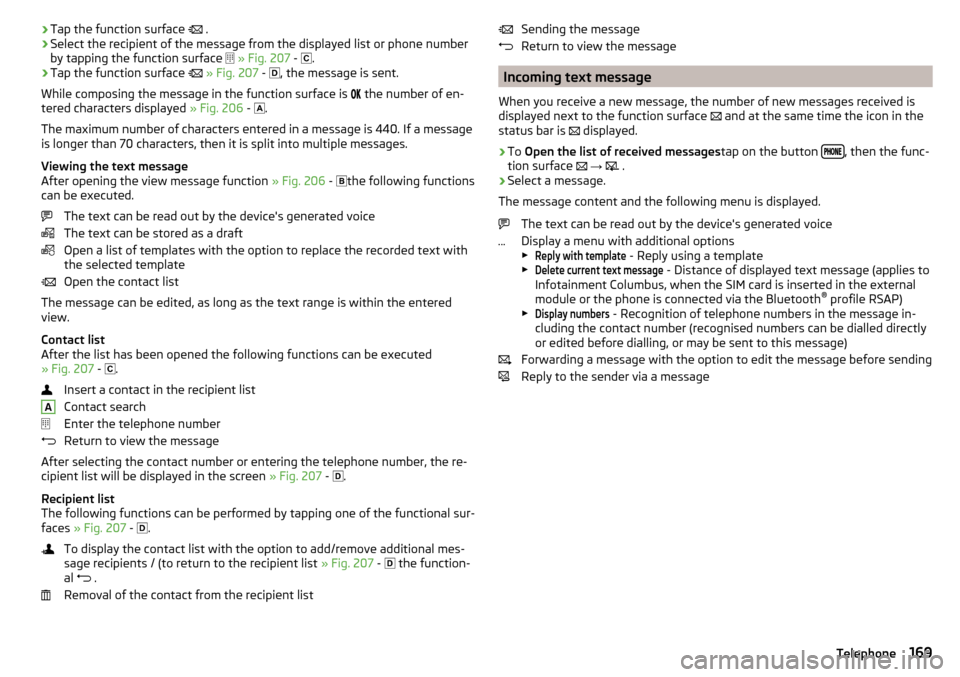
›Tap the function surface
.›Select the recipient of the message from the displayed list or phone number
by tapping the function surface
» Fig. 207 -
.›
Tap the function surface
» Fig. 207 -
, the message is sent.
While composing the message in the function surface is
the number of en-
tered characters displayed » Fig. 206 -
.
The maximum number of characters entered in a message is 440. If a message
is longer than 70 characters, then it is split into multiple messages.
Viewing the text message
After opening the view message function » Fig. 206 -
the following functions
can be executed.
The text can be read out by the device's generated voice
The text can be stored as a draft
Open a list of templates with the option to replace the recorded text with
the selected template
Open the contact list
The message can be edited, as long as the text range is within the entered
view.
Contact list
After the list has been opened the following functions can be executed
» Fig. 207 -
.
Insert a contact in the recipient list
Contact search
Enter the telephone number
Return to view the message
After selecting the contact number or entering the telephone number, the re- cipient list will be displayed in the screen » Fig. 207 -
.
Recipient list
The following functions can be performed by tapping one of the functional sur-
faces » Fig. 207 -
.
To display the contact list with the option to add/remove additional mes-
sage recipients / (to return to the recipient list » Fig. 207 -
the function-
al .
Removal of the contact from the recipient list
ASending the message
Return to view the message
Incoming text message
When you receive a new message, the number of new messages received is
displayed next to the function surface
and at the same time the icon in the
status bar is
displayed.
›
To Open the list of received messages tap on the button , then the func-
tion surface
→
.
›
Select a message.
The message content and the following menu is displayed.
The text can be read out by the device's generated voice
Display a menu with additional options
▶
Reply with template
- Reply using a template
▶
Delete current text message
- Distance of displayed text message (applies to
Infotainment Columbus, when the SIM card is inserted in the external
module or the phone is connected via the Bluetooth ®
profile RSAP)
▶
Display numbers
- Recognition of telephone numbers in the message in-
cluding the contact number (recognised numbers can be dialled directly
or edited before dialling, or may be sent to this message)
Forwarding a message with the option to edit the message before sending
Reply to the sender via a message
169Telephone
Page 172 of 344

Hotspot (WLAN) and data connection
Hotspot (WLAN)
Introduction to the subject
Applies to Infotainment Columbus, Amundsen.
WLAN can be used to connect to the Internet, to playback audio files in the menu media (if the connected external device allows this) or for operating the
device using an application in the external device (e.g. ŠKODA Media Command
or ŠKODA One App).
The requirement for the WLAN function is that the ignition is switched on. Af-
ter switching on the ignition, the last-used WLAN connection appears.
It is possible to connect up to 8 external devices to the Infotainment hotspot
and at the same time to connect Infotainment to the hotspot of other external
devices.
If there is a SIM card with activated data services in the external module of In-
fotainment Columbus or there is a connection to the phone via Bluetooth ®
profile RSAP, a connection cannot be established to the external device hot- spot.
connect an external device to the hotspot (WLAN) infotainment
Switch Infotainment hotspot on / off
›
Press the button, then tap on the function surface
Tap on
→
WLAN
→
Mobile hotspot
→
Mobile hotspot
.
Set infotainment Hotspot
▶ Press the
button, then tap on the function surface
Tap on
→
WLAN
→
Mobile hotspot
→
Hotspot (WLAN) settings
.
▶ Setting required menu items from the following menu.
■
Security level:
- Setting the connection security
■
Network key
- Entering the access password
■
SSID:
- Name of the infotainment Hotspots
■
Do not send network name (SSID)
-Turn Infotainment hotspot visibility on/off
▶ Tap the function surface Store to save the parameters of the Infotainment
hotspot.
Connect ▶ Enable the Wi-Fi in the external device and search for any available hotspots.
▶ Select the Infotainment hotspot (if necessary, enter the required password).
▶ Confirm the connection.
Establish secure connection using WPS (applies to Infotainment Amundsen) ▶ Turn on Infotainment in the device.
▶ Press the
button, then tap on the function surface
→
WIRELESS INTER-NET ACCESS
→
WIRELESS INTERNET ACCESS
→
WPS quick connection (WPS button)
Tap.
▶ Turn on the option to connect to Infotainment hotspot using WPS.
Note
If the external device is connected to the Infotainment hotspot (WLAN), then
the data connection to the external device cannot be used.
Connect infotainment with the hotspot (WLAN) of the external
device
Fig. 208
List of available wireless networks: Infotainment Columbus / in-
fotainment Amundsen
›
To Turn on / off the Infotainment WLAN press the button , then the
function surface →
→
WIRELESS INTERNET ACCESS
→
WIRELESS INTERNET ACCESS
→
WIRELESS INTERNET ACCESS
Tap.
170Infotainment