2016 Seat Ibiza ST phone
[x] Cancel search: phonePage 30 of 100

Audio and Media ModeValid for the model: Media System Plus/Navi System
Data storage deviceRequirements for playing in the unit
Audio files
Optical discs:
– audio CD (up to 80 min).
– CD-ROM, CD-R, CD-RW with audio data up to a maximum of 700 MB (mega-
bytes) using ISO 9660 Level 1 and 2, Joliet or UDF 1.02, 1.5, 2.01 file system.
Memory cards :
– SD and MMC in the file system must be FAT12, FAT16, FAT32 or VFAT (max. 2
GB).
– SDHC (max. 32 GB) and SDXC (max. 2 TB (terabytes) in exFAT and NTFS file
systems.
USB data storage device:
– Devices compliant with USB 2.0 and 3.0 specifications.
– FAT16, FAT32, exFAT and NTFS file systems.
– iPods™ a)
, iPads™ a)
and iPhones™ a)
of various generations.
– MTP players with the “PlaysForSure” or “ReadyForVista” logo.
– Digital Audio specification.
– MP2 (.mp2) and MP3 (.mp3) files with bit rates of between 32 and 320 kbit/s or variable bit rate.
– WAV (.wav) files.
– WMA (.wma) files up to 10 mono/stereo without copy protection and bit rates of up to 384 kbit/s.
– AAC (.m4a, .m4b and .aac) files without copy protection
– OGG-Vorbis 1 (.ogg) files with bit rates of up to 256 kbit/s.
– FLAC (.flac) files.
– Playlists in the formats M3U, PLS, ASX and WPL.
– Playlists must not exceed 20 kB or have more than 1000 entries.
– Filenames and paths that do not exceed 256 characters.
– For memory cards, a maximum of 4000 files and a maximum of 1000 files per directory.
Playing audio files via the AUX-IN socket.– The external audio source must meet a series of playback conditions
››› page 37.
Audio file playback via Bluetooth
®b)
.– The external media player must be compatible with the A2DP Bluetooth ®
profile ››› page 37.
a)
iPod™, iPad™ and iPhone™ are registered trademarks of Apple Inc.
b) Bluetooth ®
is a registered trademark of Bluetooth ®
SIG, Inc.
Read and bear in mind the manufacturer's in-
struction manual for the external data stor-
age device. Restrictions and instructions
Cont
amination, exposure to high tempera-
tures and mechanical damage may render a
data medium unusable. Please observe the
manufacturer's instructions. Variations in the quality of data media pro-
duced b
y different manufacturers can lead to
problems during playback.
Please observe copyright laws.
28
Page 38 of 100

Audio and Media Mode
menu or press the Infotainment MENU button
and then pr e
ss Settings to open the System
settings menu.
● Press the R
emo
ve safely function button. A
dr opdo
wn menu appears with the following
options: SD1 Card, SD2 Card*, USB1 and
USB2*. After correctly ejecting the memory
card from the system, the function button be-
comes inactive (grey colour).
● Press the inserted memory card. The mem-
ory
card “jumps” to the eject position.
● Remove the memory card.
Unre
adable memory card
If a memory card is inserted and the data
cannot be read, the relevant warning ap-
pears.
External data storage device connec-
ted t
o USB port Depending on the features and the country,
the
v
ehicle may have one or two USB connec-
tions. For their location consult the ›››
Book-
let Instruction Manual.
Audio files on an external data storage de-
vice connected to the USB port can be
played and controlled via the Infotainment
system.
Where this manual refers to external data
storage devices, this means USB mass stor- age devices containing supported audio
fil
es, such as MP3 players, iPods™ and USB
sticks.
Only supported audio files are displayed and
played. Other files are ignored.
Further operation of the external data medi-
um (changing track, selecting tracks and
playback modes) is described in the appro-
priate chapters of this manual ››› page 26.
Instructions and restrictions
Compatibility with Apple™ devices and other
media players depends on the unit.
The USB port supplies the usual USB volt-
age of 5 volts for a USB connection.
External hard disks with a capacity greater
than 32 GB must be reformatted for the
FAT32 file system in some circumstances. You
will find the necessary software and informa-
tion on the Internet.
Take into account all other instructions and
limitations regarding requirements for media
sources ››› page 26.
iPod™, iPad™ and iPhone™
Depending on the country and the equip-
ment, iPods™, iPads™ or iPhones™ can be
connected using the device's USB cable to
the USB port of the vehicle and used as
audio sources. After connecting an iPod™, iPad™ or
iPhone™, the spec
ific list views of the iPod
are displayed in the upper selection level
( Playlists , Artists, Albums ,
Tracks , Podcasts etc.).
Possible error messages after connecting an
external data storage device
Error mes-
sageCauseProcedure
The device
is not
compatibleThe external
data carrier
cannot be
played or com-
munication is
not possible
with the adapt-
er cable being
used.Check the connec-
tion and make sure
the external data
medium is working
correctly.
If possible, update
the data storage de-
vice software.
The device
does not
workCommunication
fault.Check the connec-
tion and make sure
the external data
medium is working
correctly.
Due to the large number of different data storage devi-
ces and various iPod™, iPad™ and iPhone™ genera-
tions available, it is not possible to guarantee fault-free
operation of all functions described here. Disconnecting
An
y
connected data storage devices must be
prepared before their disconnection in order
to remove them.
36
Page 39 of 100

Audio and Media Mode
● From the m
ain Media menu, press the
SETUP button to open the Media Settings
menu or pr e
ss the Infotainment MENU button
and then pr e
ss Settings to open the System
settings menu.
● Press the R
emo
ve safely function button. A
dr opdo
wn menu appears with the following
options: SD1 Card, SD2 Card*, USB1 and
USB2*. After correctly ejecting the data stor-
age device from the system, the function but-
ton becomes inactive (grey colour).
● Now the data storage device can be discon-
nected. Note
● Do not c
onnect an external media player at
the same time to play music via Bluetooth ®
and via the USB port with the Infotain-
ment system, as this could cause playback
limitations.
● If the external player is an Apple device™,
it c
annot be simultaneously connected by
USB and by Bluetooth.
● If a connected device is not recognised, dis-
connect
all the connected devices and try
connecting the device again.
● Do not use memory card adaptors, USB ex-
ten
sion cords or USB hubs! External audio source connected to
the A
UX
-IN multimedia socket Depending on the equipment and country
ther
e m
ay be an AUX-IN multimedia socket
››› Booklet Instruction Manual.
In order to connect the external audio source
to the AUX-IN socket, a suitable cable is re-
quired with a 3.5 mm jack that is inserted in-
to the AUX-IN socket of the vehicle.
The connected external audio source is
played over the vehicle speakers and cannot
be controlled via the Infotainment system
controls.
The connection of an external audio source is
indicated by AUX on the screen.
Connecting an external audio source to the
AUX-IN multimedia socket ● Lower the base volume on the Infotainment
sy s
tem.
● Connect the external audio source to the
AUX
-IN multimedia socket.
● Start playback on the external audio
sourc
e.
● In the MEDIA main menu, press the SOURCE function button and select
A
UX .
The outp ut
volume of the connected external
audio source should be adjusted to the vol-
ume of the other audio sources ›››
page 87. Information on operating an external audio
sourc
e connected to the AUX-IN multimedia
socket
OperationEffect
Selection of another au-
dio source from the Info-
tainment system.The external audio source
continues to run in the
background.
Stopping playback on the
external audio source.The infotainment system
remains in the AUX menu.
Disconnecting the plug
from the AUX-IN multime-
dia socket.The infotainment system
remains in the AUX menu. Note
● Ple
ase read and observe the manufactur-
er's instruction manual for the external audio
source.
● Interference noise may be heard if the ex-
tern
al audio source is powered from the 12-
volt power socket of the vehicle. Connecting an external audio source
v
i
a Bluetooth ® Bluetooth
®
Audio mode al lo
ws you to listen
to audio files being played on a Bluetooth ®
audio source (e.g., a mobile telephone) con-
nected via Bluetooth ®
(audio playback by
Bluetooth ®
) over the vehicle speakers. »
37
Page 40 of 100

Audio and Media Mode
Conditions
● The Bluetooth ®
audio sour c
e must support
the A2DP Bluetooth ®
profile.
● In the Bluetooth settings menu, the
Bluetooth Audio (A2DP/A
VRCP) function must
be activ at
ed ››› page 75.
Starting Bluetooth ®
audio transfer
● Activate Bluetooth ®
vi
sibility on the exter-
nal Bluetooth ®
audio source (e.g., mobile tel-
ephone).
● Lower the base volume on the Infotainment
sys
tem.
● Press the Infotainment MEDIA button.
● Press the SOURC
E function button and then
sel ect
BT audio .
● Press Find new dev
ic
e in order to connect an
e xt
ernal Bluetooth ®
audio source for the first
time ››› page 66.
● OR: Select a Bluetooth ®
e
xternal audio
source from the list.
● Please refer to the instructions on the
sc
reen of the Infotainment system and on the
Bluetooth ®
audio source regarding the rest
of the procedure.
You may still need to manually start playback
on the Bluetooth ®
source.
When playback on the Bluetooth ®
audio
source is stopped, the Infotainment system
remains in Bluetooth ®
Audio mode. Controlling playback
The ext
ent to which the Bluetooth ®
audio
source can be controlled via the Infotainment
system depends on the connected Blue-
tooth ®
audio source.
The available functions will depend on the
Bluetooth ®
Audio profile that the connected
external player supports.
With media players that support the AVRCP
Bluetooth ®
profile, playback on the Blue-
tooth ®
audio source can be automatically
started or stopped when the unit is switched
to Bluetooth ®
Audio mode or to a different
audio source. In addition, it is possible to
view or change the track via the Infotainment
system. Note
● Due t
o the large number of possible Blue-
tooth ®
audio sources, it is not possible to
guarantee fault-free operation of all descri-
bed functions.
● Always switch off the warning and service
tone
s on a connected Bluetooth ®
audio
source, e.g. key tones on a mobile telephone,
to prevent possible interference noise and
malfunctions.
● To play music, do not link the external me-
dia p
layer simultaneously to Bluetooth and
the USB interface of the infotainment system,
as this can cause limitations during playback. ●
Dependin
g on the external player connec-
ted, the response time of the system can
vary.
● Do not connect an external media player to
pl
ay music via Bluetooth ®
and via the USB
port ››› page 36 at the same time with the
Infotainment system, as this could cause playback limitations.
● If the external player is an Apple device™,
it
cannot be simultaneously connected by
USB and by Bluetooth. Jukebox (SSD)
3 On
ly
available for the model: Navi System Plus Fig. 25
Manage Jukebox38
Page 42 of 100
Audio and Media Mode
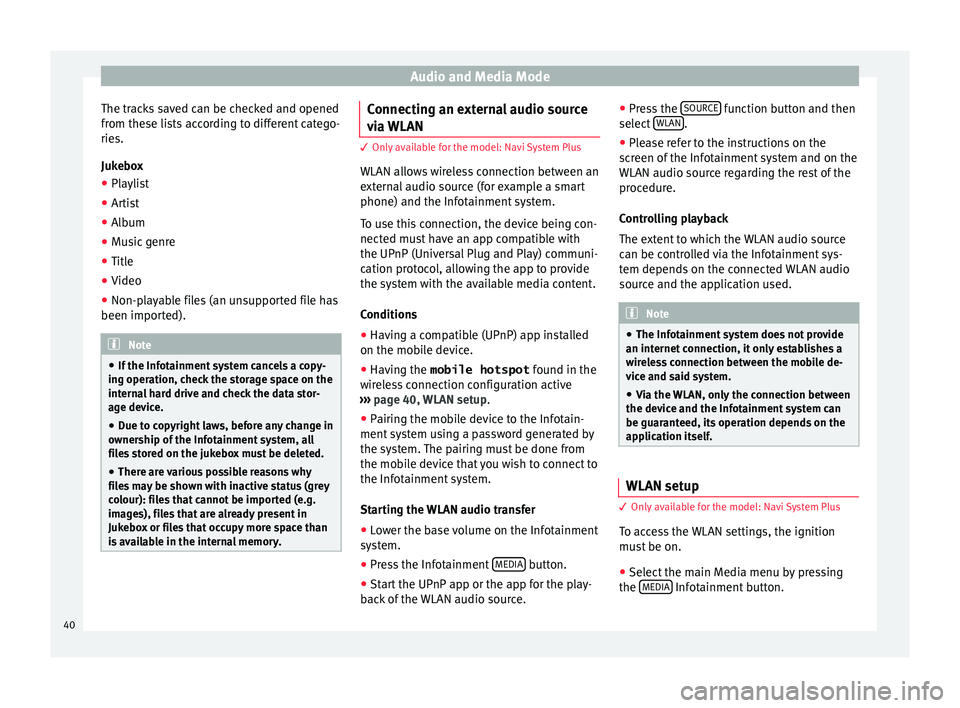
The tracks saved can be checked and opened
fr om the
se lists according to different catego-
ries.
Jukebox
● Playlist
● Artist
● Album
● Music genre
● Title
● Video
● Non-playable files (an unsupported file has
been import
ed). Note
● If the Inf
otainment system cancels a copy-
ing operation, check the storage space on the
internal hard drive and check the data stor-
age device.
● Due to copyright laws, before any change in
owner
ship of the Infotainment system, all
files stored on the jukebox must be deleted.
● There are various possible reasons why
fil
es may be shown with inactive status (grey
colour): files that cannot be imported (e.g.
images), files that are already present in
Jukebox or files that occupy more space than
is available in the internal memory. Connecting an external audio source
v
i
a WLAN 3 On
ly available for the model: Navi System Plus
WLAN al
lows wireless connection between an
external audio source (for example a smart
phone) and the Infotainment system.
To use this connection, the device being con-
nected must have an app compatible with
the UPnP (Universal Plug and Play) communi-
cation protocol, allowing the app to provide
the system with the available media content.
Conditions
● Having a compatible (UPnP) app installed
on the mo b
ile device.
● Having the mobile hotspot fou
nd in the
wireless connection configuration active
››› page 40, WLAN setup.
● Pairing the mobile device to the Infotain-
ment sy
stem using a password generated by
the system. The pairing must be done from
the mobile device that you wish to connect to
the Infotainment system.
Starting the WLAN audio transfer
● Lower the base volume on the Infotainment
sys
tem.
● Press the Infotainment MEDIA button.
● Start the UPnP app or the app for the play-
b ac
k of the WLAN audio source. ●
Pre
ss the SOURCE function button and then
sel ect
WLAN .
● Please refer to the instructions on the
s c
reen of the Infotainment system and on the
WLAN audio source regarding the rest of the
procedure.
Controlling playback
The extent to which the WLAN audio source
can be controlled via the Infotainment sys-
tem depends on the connected WLAN audio
source and the application used. Note
● The Inf ot
ainment system does not provide
an internet connection, it only establishes a
wireless connection between the mobile de-
vice and said system.
● Via the WLAN, only the connection between
the devic
e and the Infotainment system can
be guaranteed, its operation depends on the
application itself. WLAN setup
3 On
ly
available for the model: Navi System Plus
To access the WLAN settings, the ignition
must be on.
● Select the main Media menu by pressing
the MEDIA Infotainment button.
40
Page 53 of 100
Navigation
Last destinations
V iew of
destinations for which a route has al-
ready been started.
Destinations
● Select the desired function button.
Function button: function
Destination memory: View of destinations stored manually
and from imported vCards ››› page 54, Importing
vCards (electronic business cards) .
Favourites: View of destinations stored as favourites.
Contacts: View of entries in the phonebook that have a
stored address (postal address). Home address
On
ly
one address or position can be stored
as the home address at any one time. The
stored home address can be edited or over-
written.
If a home address has already been stored,
route guidance will be started to the stored
home address.
If a home address has not yet been stored,
an address can be assigned as the home ad-
dress.
Assigning the home address for the first time:
Position: Press to store the vehicle's current position as
the home address.
Address: Press to enter the home address manually.
Editing the home address:
The home address can be edited in the Navigation
settings menu ››› page 56.
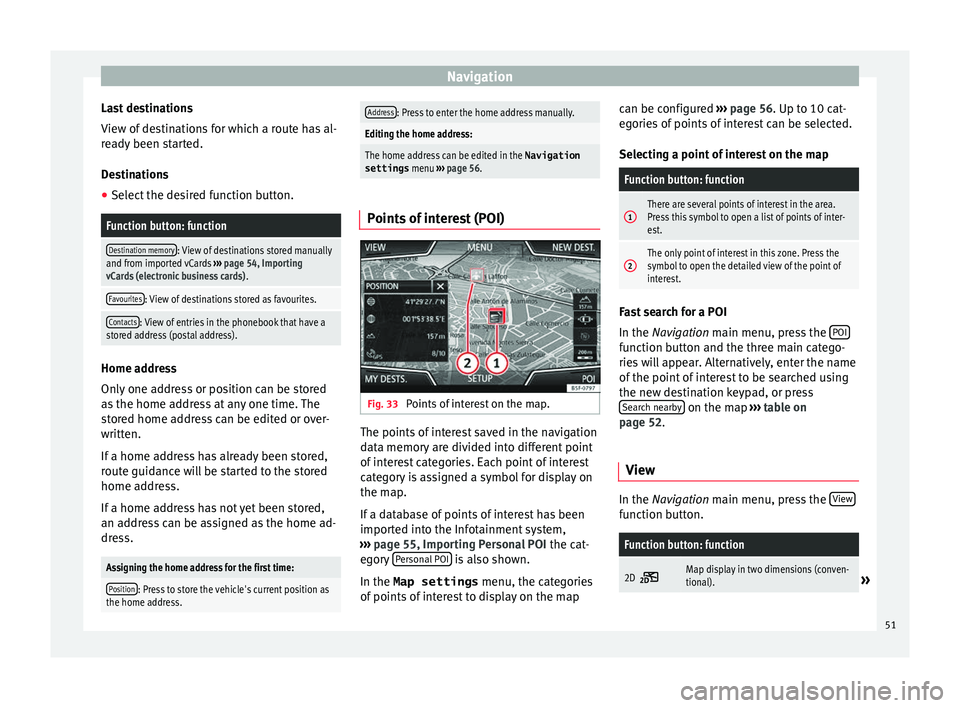
Points of interest (POI) Fig. 33
Points of interest on the map. The points of interest saved in the navigation
d
at
a memory are divided into different point
of interest categories. Each point of interest
category is assigned a symbol for display on
the map.
If a database of points of interest has been
imported into the Infotainment system,
››› page 55, Importing Personal POI the cat-
egory Personal POI is also shown.
In the Map settings menu, the cat
egories
of points of interest to display on the map can be configured
››
› page 56. Up to 10 cat-
egories of points of interest can be selected.
Selecting a point of interest on the map
Function button: function
1There are several points of interest in the area.
Press this symbol to open a list of points of inter-
est.
2The only point of interest in this zone. Press the
symbol to open the detailed view of the point of
interest. Fast search for a POI
In the Na
vigation
main menu, press the POI function button and the three main catego-
rie
s
will appear. Alternatively, enter the name
of the point of interest to be searched using
the new destination keypad, or press Search nearby on the map
››
›
table on
page 52.
View In the Na
vigation main menu, press the V
iew function button.
Function button: function
2D Map display in two dimensions (conven-
tional).»
51
Page 59 of 100

NavigationFunction button: function
Manage memory: To modify saved destinations.
Sort contacts: To select the sequential order of the en-
tries in the phonebook that have (postal) addresses,
see also ››› page 49.
Define home address: To assign or edit a home address,
see also ››› page 51.
Delete my points of interest (POI): To delete the points of
interest stored in the destination memory ››› page 55.
Update my POIs: To update the stored points of interest
››› page 55.
Import destinations (SD/USB): To import electronic busi-
ness cards (vCards) into the destination memory
››› page 54.
Delete user data: To delete the stored destinations
(e.g., the Last destinations or the Destina-
tion memory ).
Navigation announcements: To make adjustments to naviga-
tion announcements.
Volume: To adjust the volume for driving recommen-
dations.
Entertainment fading (nav. announcements): Adjusting the
volume of the active audio source during navigation
instructions.
Navigation announcementsb) : To adjust driving recom-
mendations during route guidance.
Comprehensive: Detailed driving recommendations
and other directions.
Brief: Some recommendations and directions are
muted.
Function button: function
Congestion only: Recommendations are only given
in the event of congestion along the route (e.g.
traffic jam).
No voice guidance during call: No audible driving in-
structions will be given during a telephone conversa-
tion.
Warning: My points of interest: Audible announcement
when nearing a point of interest.
Fuel options: To make adjustments relating to fuel.
Select preferred fuel station: The selected petrol station
mark will be shown before other points of interest in
the search.
Fuel warning: The warning to refuel is active.
If the fuel level reaches the reserve level, the corre-
sponding warning is generated which permits the
search for petrol stations.
Version information: Information on the stored navigation
data.
Speed limits: Shows the speed limits, depending on the
road, for the current country.
Advanced setup: To make advanced adjustments to the
navigation.
Time display: displayed during route guidance.
Estimated time of arrival: The estimated time of arrival
at the final destination is displayed.
Duration: The estimated travelling time to the final
destination is displayed.
Status line: displayed during route guidance.
Function button: function
Destination: The distance calculated to final desti-
nation is displayed.
Next stopover: The calculated distance until next
stopover is displayed.
Note: National border crossed: Displays the speed lim-
its of the country in question when crossing the bor-
der.
Demo mode: When Demo mode is activated and
route guidance is started, virtual guidance to the en-
tered destination can be initiated ››› page 55.
Define demo mode starting point: if demo mode is acti-
vated, a fictitious starting point for virtual route
guidance can be defined when the vehicle is sta-
tionary.
Waypoint modeb) : To start Offroad navigation.
a) This function depends on the country.
b) Only available for the model: “Navi System Plus”.
Navigation in Offroad mode*
Introduction 3 On
ly
available for the model: Navi System Plus
Offroad* navigation is a function for offroad
driving that provides directions in “non-digi-
tised areas” at low speeds.
Non-digitised areas are areas about which
the system does not have information for the »
57
Page 67 of 100

Telephone management system (PHONE)
Telephone management sys-
t em (PHONE)
Intr
oduction to the telephone
management system
General information
› ›
›
table on page 2
The Telephone functions described below
can be used through the Infotainment system
if there is a mobile telephone connected to it
via Bluetooth ®
››› page 67.
In order for the mobile telephone to be able
to connect to the Infotainment system the tel-
ephone must be equipped with Bluetooth®
.
If there is no mobile telephone connected to
the Infotainment system, the telephone man-
agement system will not be available.
The instructions shown on the screen for the
telephone menus will depend on the mobile
telephone used. There may be variations.
Only use compatible Bluetooth ®
devices. For
further information on compatible Blue-
tooth ®
products, ask your nearest SEAT deal-
er or check on the internet.
Use the instruction manual of the mobile tel-
ephone and of any accessories. If you detect any operating issues between
y
our mo
bile telephone and the Infotainment
system, restart your mobile by switching it off
and on again.
You may experience poor reception or may be
cut off in areas where the signal is weak.
Most electronic devices are shielded against
HF (high-frequency) signals. In any case, the
electronic equipment may not be protected
from the HF signals of the telephone man-
agement system. This may cause interfer-
ence. WARNING
Speaking by telephone and operating the mo-
b i
le telephone whilst driving can distract you
from the road and cause an accident.
● Always drive carefully and responsibly.
● Select volume settings that allow you to
ea
sily hear signals from outside the vehicle
at all times (e.g. emergency services sirens
and horns).
● In areas of little or no coverage or, in some
ca
ses, in a tunnel, garage or underpass, your
call may be cut off and you may not be able to
make even emergency calls. WARNING
If a mobile telephone is not secured or is in-
c orr
ectly secured in the vehicle, it could move
around the passenger compartment in the event of a sudden driving manoeuvre or emer-
g
ency
stop, resulting in injury.
● While the vehicle is in motion, always se-
cur
e the mobile telephone properly outside
the airbag deployment zone. WARNING
Mobile telephones may interfere with and al-
t er the c
orrect operation of pacemakers if
they are carried directly over them.
● Maintain a minimum distance of at least
20 centimetr
es between the aerials of the
mobile telephone and the pacemaker, as mo-
bile phones may affect the functioning of
pacemakers.
● Do not carry your switched-on mobile tele-
phone in y
our breast pocket directly over the
pacemaker.
● If you suspect interference, switch off the
mob
ile telephone immediately. CAUTION
High speeds, poor weather or road conditions
and the qua lity
of reception can all affect the
quality of a telephone conversation in the ve-
hicle. Note
● Re
strictions on the use of devices using
Bluetooth ®
technology may apply in some
countries. For further information, contact the
local authorities. » 65