Page 379 of 669
Phone
Making and answering hands-free phone calls is easy
with Uconnect. When the Phonebook button is illumi-
nated for the Uconnect 5.0 and 8.4A/AN radios, your
system is ready. Check UconnectPhone.com for mobile
phone compatibility and pairing instructions.
Push the Phone button
. After the beep, say one of
the following commands �
•Call John Smith
• Dial 123-456-7890 and follow the system prompts
• Redial (call previous outgoing phone number)
• Call back (call previous incoming phone number) TIP:
When providing a Voice Command, push the Phone
button
and say “Call,”then pronounce the name
exactly as it appears in your phone book. When a
contact has multiple phone numbers, you can say
“Call John Smith work.”
Uconnect 5.0 Phone
4
UNDERSTANDING YOUR INSTRUMENT PANEL 377
Page 380 of 669
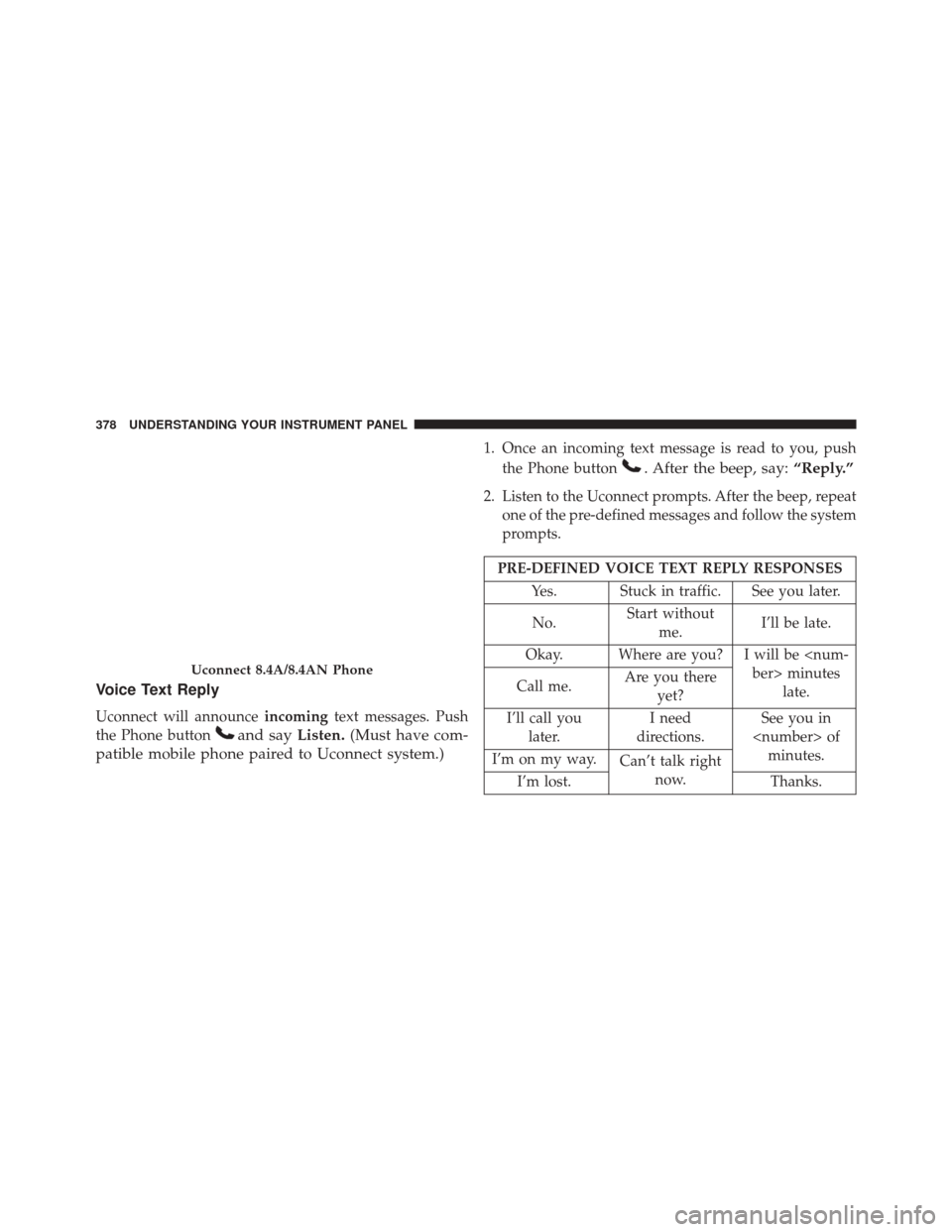
Voice Text Reply
Uconnect will announceincomingtext messages. Push
the Phone button
and say Listen.(Must have com-
patible mobile phone paired to Uconnect system.)
1. Once an incoming text message is read to you, push
the Phone button
. After the beep, say: “Reply.”
2. Listen to the Uconnect prompts. After the beep, repeat
one of the pre-defined messages and follow the system
prompts.
PRE-DEFINED VOICE TEXT REPLY RESPONSES
Yes. Stuck in traffic. See you later.
No. Start without
me. I’ll be late.
Okay. Where are you? I will be minuteslate.
Call me. Are you there
yet?
I’ll call you later. I need
directions. See you in
of minutes.
I’m on my way. Can’t talk right
now.
I’m lost. Thanks.
Uconnect 8.4A/8.4AN Phone
378 UNDERSTANDING YOUR INSTRUMENT PANEL
Page 381 of 669
TIP:Your mobile phone must have the full implementa-
tion of the Message Access Profile (MAP) to take advan-
tage of this feature. For details about MAP, visit
UconnectPhone.com.
Apple iPhone iOS 6 or later supports reading incoming
text messages only. To enable this feature on your Apple
iPhone, follow these 4 simple steps:
iPhone Notification Settings
1 — Select “Settings”
2 — Select “Bluetooth”
3 — Select the (i) for the paired vehicle
4 — Turn on “Show Notifications”
4
UNDERSTANDING YOUR INSTRUMENT PANEL 379
Page 382 of 669
TIP:Voice Text Reply is not compatible with iPhone, but
if your vehicle is equipped with Siri Eyes Free, you can
use your voice to send a text message.
Climate (8.4A/8.4AN)
Too hot? Too cold? Adjust vehicle temperatures hands-
free and keep everyone comfortable while you keep
moving ahead. (If vehicle is equipped with climate
control.)
Push the VR button
. After the beep, say one of the
following commands:
• Set driver temperature to 70degrees
• Set passenger temperature to 70degrees TIP:
Voice Command for Climate may only be used to
adjust the interior temperature of your vehicle. Voice
Command will not work to adjust the heated seats or
steering wheel if equipped.
Uconnect 8.4A/8.4AN Climate
380 UNDERSTANDING YOUR INSTRUMENT PANEL
Page 385 of 669
Register (8.4A/8.4AN)
To unlock the full potential of Uconnect Access in your
vehicle, you first need to register with Uconnect Access.
1. Push the ASSIST button on your rearview mirror.2. Press the “Uconnect Care” button on the touchscreen.
3. A helpful Uconnect Care Agent will register your
vehicle and handle all of the details.
Signing up is easy! Simply follow the steps above. Or,
press the “Apps
” button on the touchscreen to
“Register By Web” to complete the process using your
smartphone or computer.
For further information please visit DriveUconnect.com.
4
UNDERSTANDING YOUR INSTRUMENT PANEL 383
Page 386 of 669
Mobile App (8.4A/8.4AN)
You’re only a few steps away from using remote com-
mands and playing your favorite music in your vehicle.To link your internet radio accounts:
1. Download the Uconnect Access App to your mobile
device.
2. Press the Via Mobile icon on the navigation bar at the bottom of the app.
3. Press the app you’d like to connect to your vehicle.
4. Enter your login information for the selected app and press Link.
5. Next time you’re in your vehicle, enable Bluetooth, pair your phone and select the Via Mobile app you
want to play from the Uconnect touchscreen to stream
your personalized music.
Mobile App
384 UNDERSTANDING YOUR INSTRUMENT PANEL
Page 387 of 669

NOTE:
•You can also complete this process on the web. Simply
visit moparownerconnect.com log in and click Set Up
Via Mobile Profile (under Quick Links).
• Once you download the app to your compatible
mobile device, you will also be able to start your
vehicle and lock/unlock its doors from virtually any-
where.
Voice Texting (8.4A/8.4AN)
1. To send a message, push the Phone button. After
the beep, say the following command: “Send mes-
sage to John Smith.”
2. Listen to the prompt. After the beep, dictate the
message you would like to send. Wait for Uconnect to
process your message. 3. The Uconnect system will repeat your message and
provide a variety of options to add to, delete, send or
hear the message again. After the beep, tell Uconnect
what you’d like to do. For instance, if you’re happy
with your message, after the beep, say: “Send.”
You must be registered with Uconnect Access and have a
compatible MAP – enabled smartphone to use your voice
to send a personalized text message. For details about
MAP, visit UconnectPhone.com.
4
UNDERSTANDING YOUR INSTRUMENT PANEL 385
Page 388 of 669
Apple iPhone iOS6 or later supports readingincoming
text messages only. To enable this feature on your Apple
iPhone, follow these 4 simple steps:
iPhone Notification Settings
1 — Select “Settings”
2 — Select “Bluetooth”
3 — Select the (i) for the paired vehicle
4 — Turn on “Show Notifications”
386 UNDERSTANDING YOUR INSTRUMENT PANEL