Page 319 of 398
317
308_en_Chap10c_SMegplus_ed02-2015
the audio equipment will only play audio
f iles with ".wma, .aac, .flac, .ogg and. mp3"
file extensions and with a bit rate of between
32
K
bps and 320 Kbps.
It also supports VBR (Variable Bit Rate) mode.
No other type of file (.mp4, ...) can be played.
".wma" files must be of the standard
wma 9 type.
the s
ampling rates supported are 32, 44 and
48 KHz.
It is advisable to restrict file names to
20
c
haracters, without using of special
characters (e.g.: " " ? ; ù) to avoid any playing
and displaying problems.
Information and advice
use only uSB m emory sticks formatted
FAt 3 2 (file allocation table).
the s
ystem supports
uSB m
ass
storage devices, BlackBerry
® devices
or Apple® players via uSB p orts. the
a
daptor cable not supplied.
Control of the peripheral device is with
the audio system controls.
Other peripherals, not recognised on
connection, must be connected to the
auxiliary socket using a Jack cable (not
supplied). It is recommended that the
uSB c
able
for the portable device is used.
the s
ystem does not support the
simultaneous connection of two
identical devices (two memory sticks,
two Apple
® players) but it is possible
to c
onnect one memory stick and one
Apple
® player at the same time.
In order to be able to play a recorded CDR or
CDRW, when recording it is preferable to select
the ISO 9660 level 1, 2 or Joliet standard.
If the disc is recorded in another format it may
not be played correctly.
It is recommended that the same recording
standard is always used for an individual disc,
with as low a speed as possible (4x maximum)
for optimum sound quality.
In the particular case of a multi-session CD, the
Joliet standard is recommended.
.
Audio and telematics
Page 320 of 398
318
308_en_Chap10c_SMegplus_ed02-2015
Bluetooth® audio streaming
Streaming allows audio files on your telephone
to be played through the vehicle's speakers.
Connect the telephone: see the "Telephone"
section, then " Bluetooth".
Choose the " Audio" or "All" profile.
If play does not start automatically, it may be
necessary to start the audio playback from the
telephone.
Control is from the peripheral device or by
using the audio system buttons.
Once connected in streaming mode,
the telephone is considered to be a
media source.
It is recommended that you activate
"Repeat " on the Bluetooth peripheral.
Connecting Apple® players
Connect the Apple® player to the uSB p ort
using a suitable cable (not supplied).
Play starts automatically.
Control is via the audio system.
the c
lassifications available are those
of the portable device connected
(artists / albums / genres / playlists /
audiobooks / podcasts).
the d
efault classification used is by
artist.
to mo
dify the classification used,
return to the first level of the menu
then select the desired classification
(playlists for example) and confirm
to go down through the menu to the
desired track.
the v
ersion of software in the audio system
may not be compatible with the generation of
your Apple
® p l aye r.
Audio and telematics
Page 322 of 398
320
308_en_Chap10c_SMegplus_ed02-2015
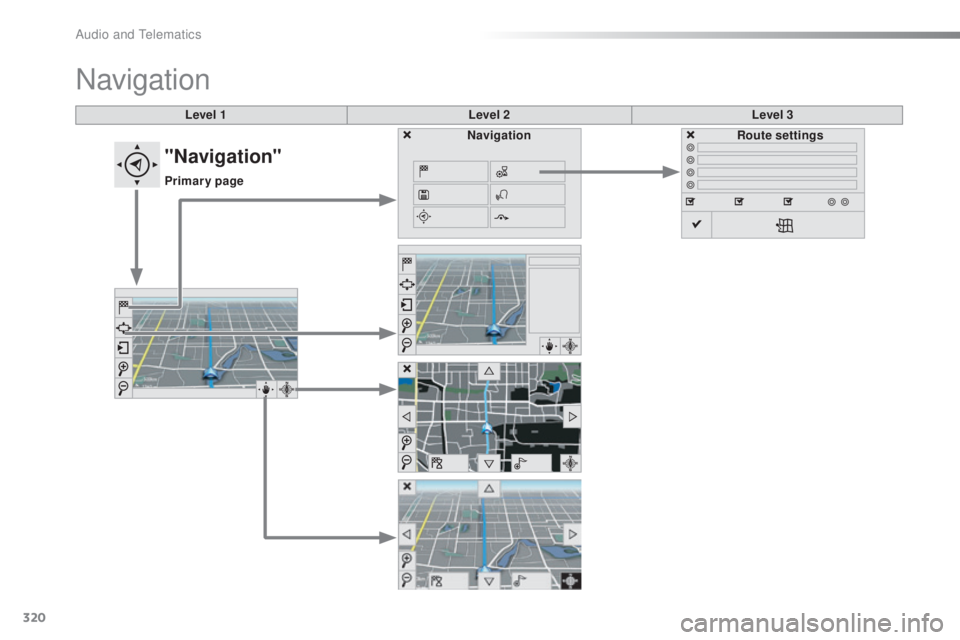
Level 1Level 2Level 3
Navigation
NavigationRoute settings
"Navigation"
Primary page
Audio and telematics
Page 323 of 398
321
308_en_Chap10c_SMegplus_ed02-2015
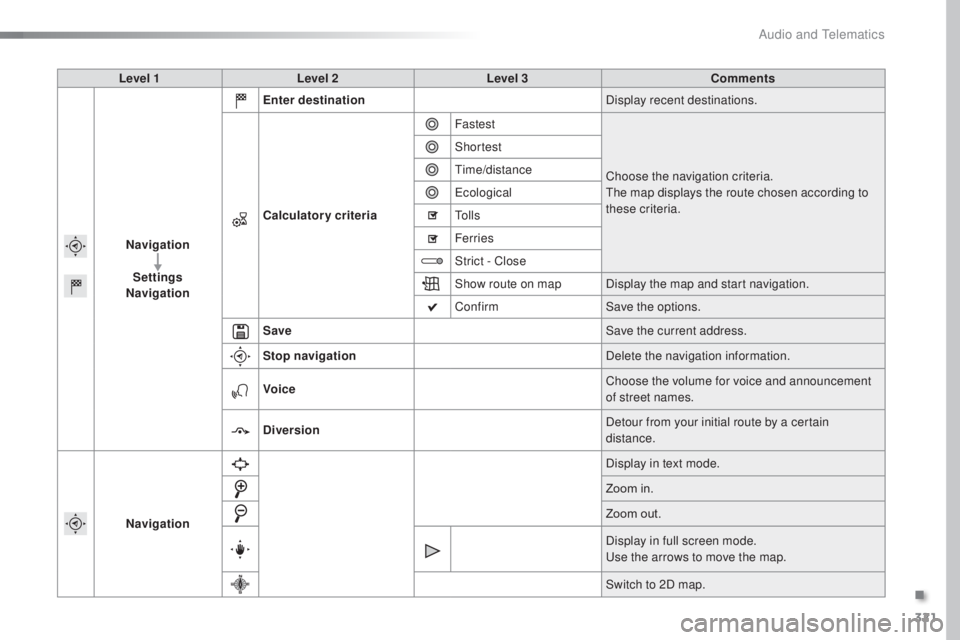
Level 1Level 2 Level 3 Comments
Navigation Settings
Navigation Enter destination
Display recent destinations.
Calculatory criteria Fastest
Choose the navigation criteria.
the m
ap displays the route chosen according to
these criteria.
Shortest
time
/distance
eco
logical
to l
l s
Ferries
Strict - Close
Show route on map Display the map and start navigation.
Confirm Save the options.
Save Save the current address.
Stop navigation Delete the navigation information.
Voice Choose the volume for voice and announcement
of street names.
Diversion Detour from your initial route by a certain
distance.
Navigation Display in text mode.
Zoom in.
Zoom out.
Display in full screen mode.
use t
he arrows to move the map.
Switch to 2D map.
.
Audio and telematics
Page 324 of 398
322
308_en_Chap10c_SMegplus_ed02-2015
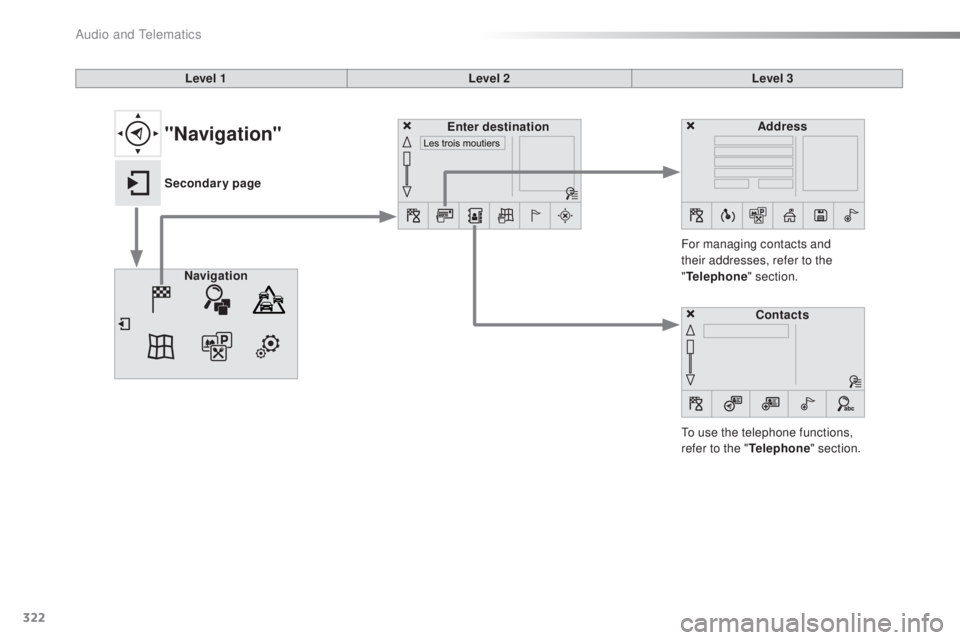
Level 1Level 2Level 3
to us
e the telephone functions,
refer to the " Telephone" section.
For managing contacts and
their addresses, refer to the
"
Telephone " section.
Navigation Address
Enter destination
Contacts
"Navigation"
Secondary page
Audio and telematics
Page 325 of 398
323
308_en_Chap10c_SMegplus_ed02-2015
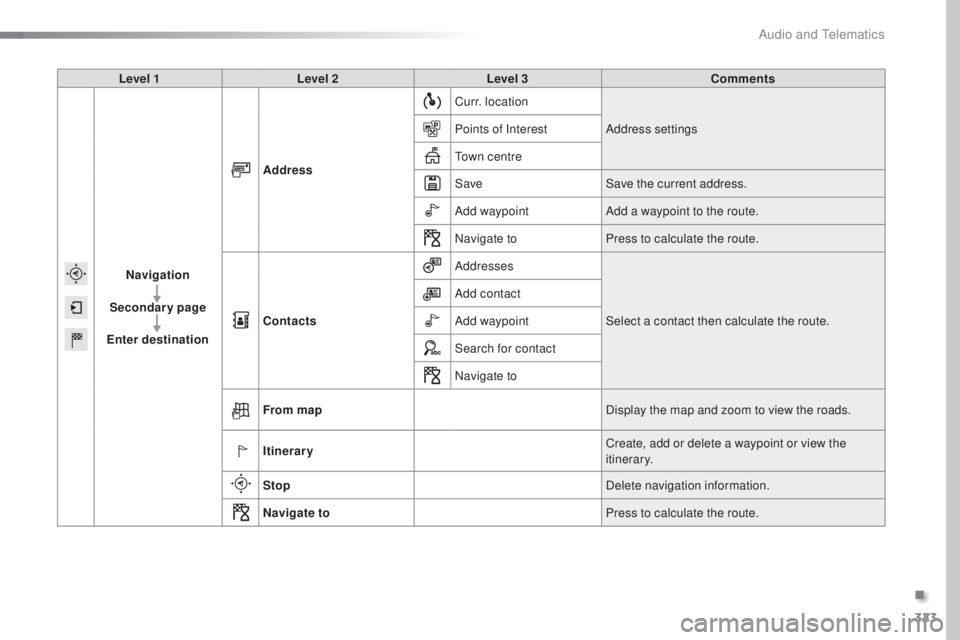
Level 1Level 2 Level 3 Comments
Navigation
Secondary page
Enter destination Address
Curr. location
Address settings
Points of Interest
town
centre
Save Save the current address.
Add waypoint Add a waypoint to the route.
Navigate to Press to calculate the route.
Contacts Addresses
Select a contact then calculate the route.
Add contact
Add waypoint
Search for contact
Navigate to
From map Display the map and zoom to view the roads.
Itinerary Create, add or delete a waypoint or view the
itinerary.
Stop Delete navigation information.
Navigate to Press to calculate the route.
.
Audio and telematics
Page 326 of 398
324
308_en_Chap10c_SMegplus_ed02-2015
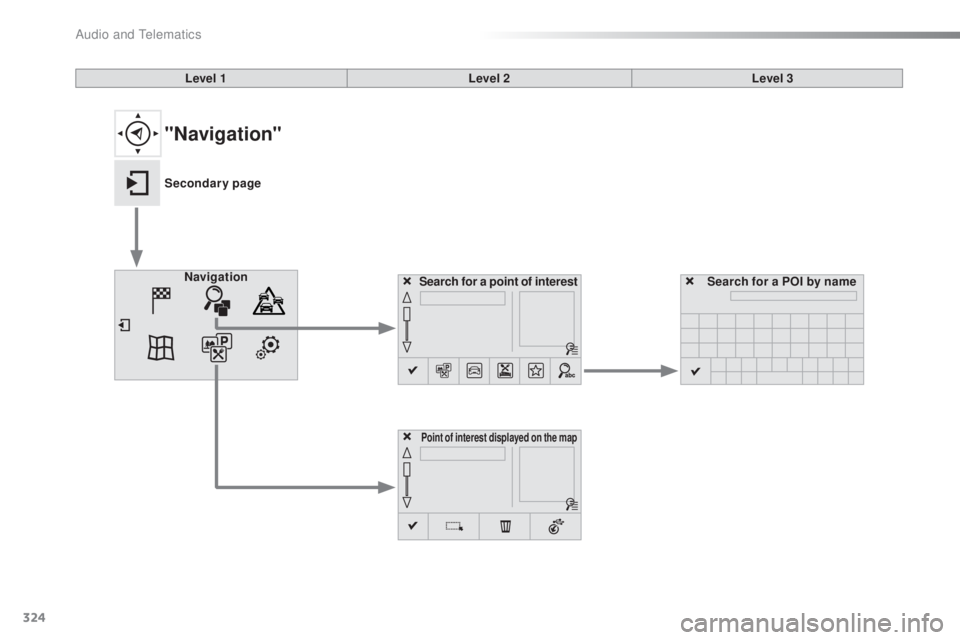
Search for a point of interest
Navigation
Point of interest displayed on the map
Search for a POI by name
Level 1
Level 2Level 3
"Navigation"
Secondary page
Audio and telematics
Page 327 of 398
325
308_en_Chap10c_SMegplus_ed02-2015
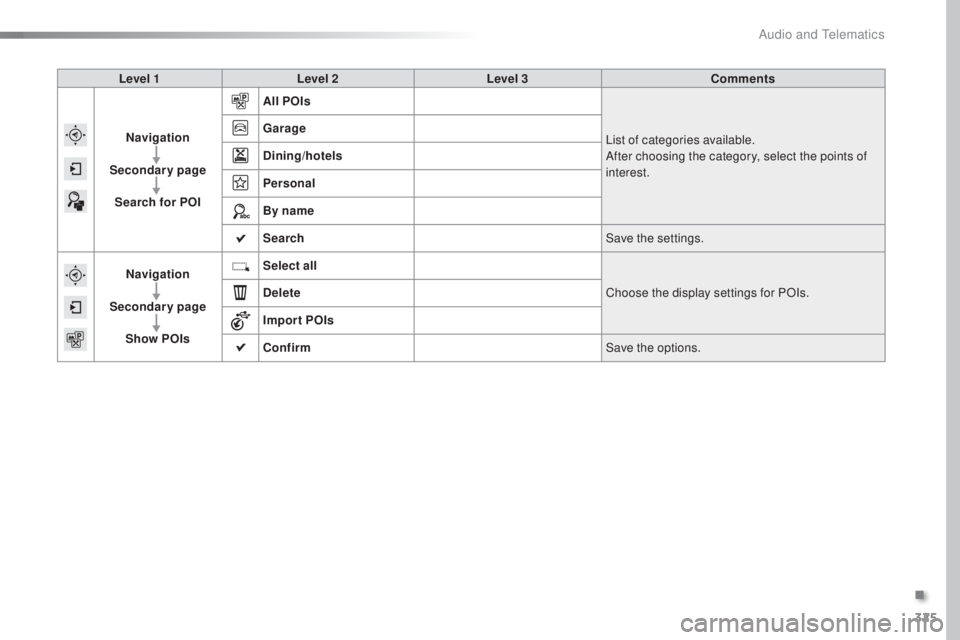
Level 1Level 2 Level 3 Comments
Navigation
Secondary page Search for POI All POIs
List of categories available.
After choosing the category, select the points of
interest.
Garage
Dining/hotels
Personal
By name
Search
Save the settings.
Navigation
Secondary page Show POIs Select all
Choose the display settings for POIs.
Delete
Import POIs
Confirm Save the options.
.
Audio and telematics