Page 173 of 312
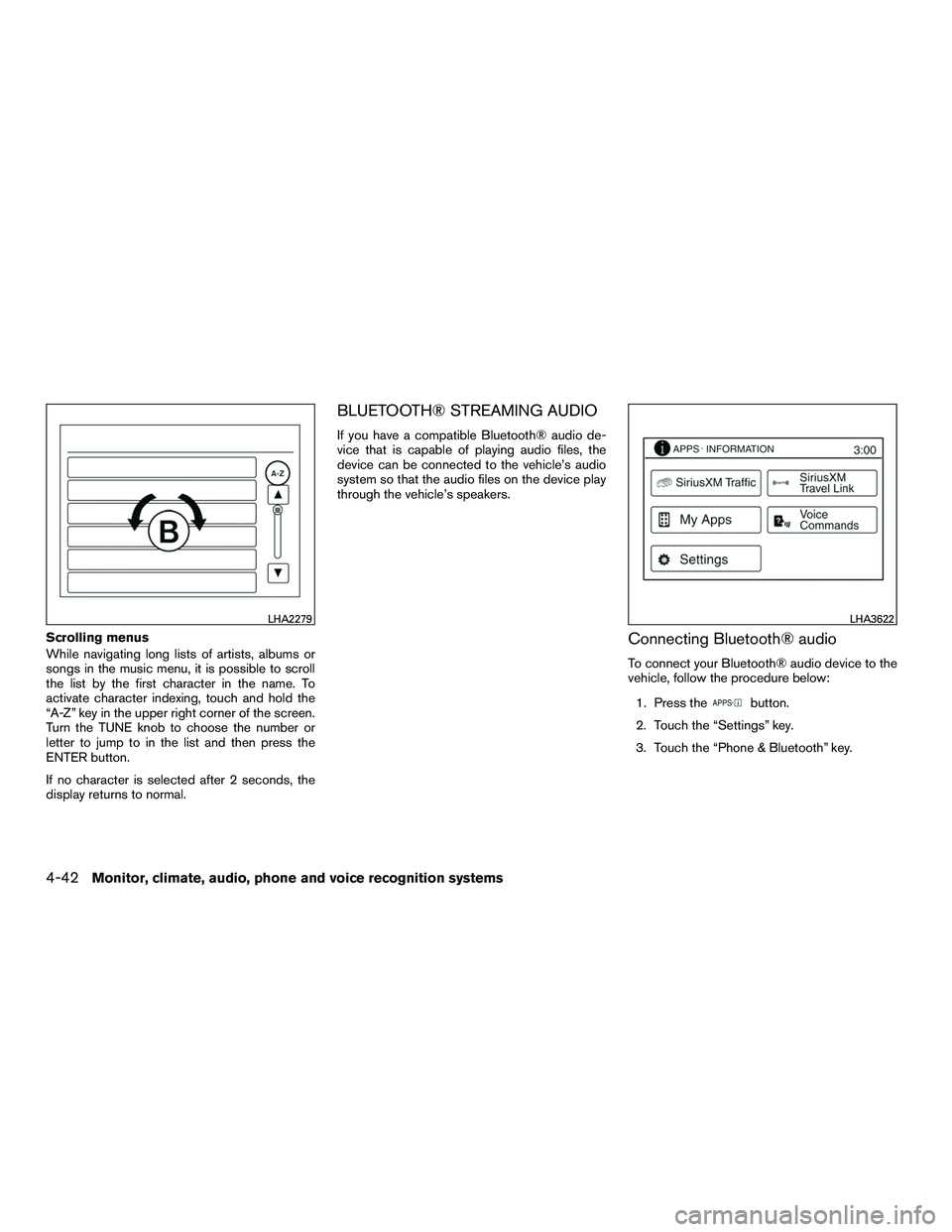
Scrolling menus
While navigating long lists of artists, albums or
songs in the music menu, it is possible to scroll
the list by the first character in the name. To
activate character indexing, touch and hold the
“A-Z” key in the upper right corner of the screen.
Turn the TUNE knob to choose the number or
letter to jump to in the list and then press the
ENTER button.
If no character is selected after 2 seconds, the
display returns to normal.
BLUETOOTH® STREAMING AUDIO
If you have a compatible Bluetooth® audio de-
vice that is capable of playing audio files, the
device can be connected to the vehicle’s audio
system so that the audio files on the device play
through the vehicle’s speakers.
Connecting Bluetooth® audio
To connect your Bluetooth® audio device to the
vehicle, follow the procedure below:1. Press the
button.
2. Touch the “Settings” key.
3. Touch the “Phone & Bluetooth” key.
LHA2279LHA3622
4-42Monitor, climate, audio, phone and voice recognition systems
Page 181 of 312
Voice Prompt Interrupt
While using the voice recognition system, the
system voice can be interrupted to allow the user
to speak commands. While the system is speak-
ing, press the
button on the steering
wheel. The system voice will stop and a tone will
be heard. After the tone, speak desired command
(displayed on the touch-screen) .
One Shot Call
To use the system faster, you may speak the
second level commands with the main menu
command on the main menu. For example, press
the
button and after the tone say, “Call
Redial”.
CONNECTING PROCEDURE
NOTE:
The connecting procedure must be per-
formed when the vehicle is stationary. If the
vehicle starts moving during the procedure,
the procedure will be cancelled.
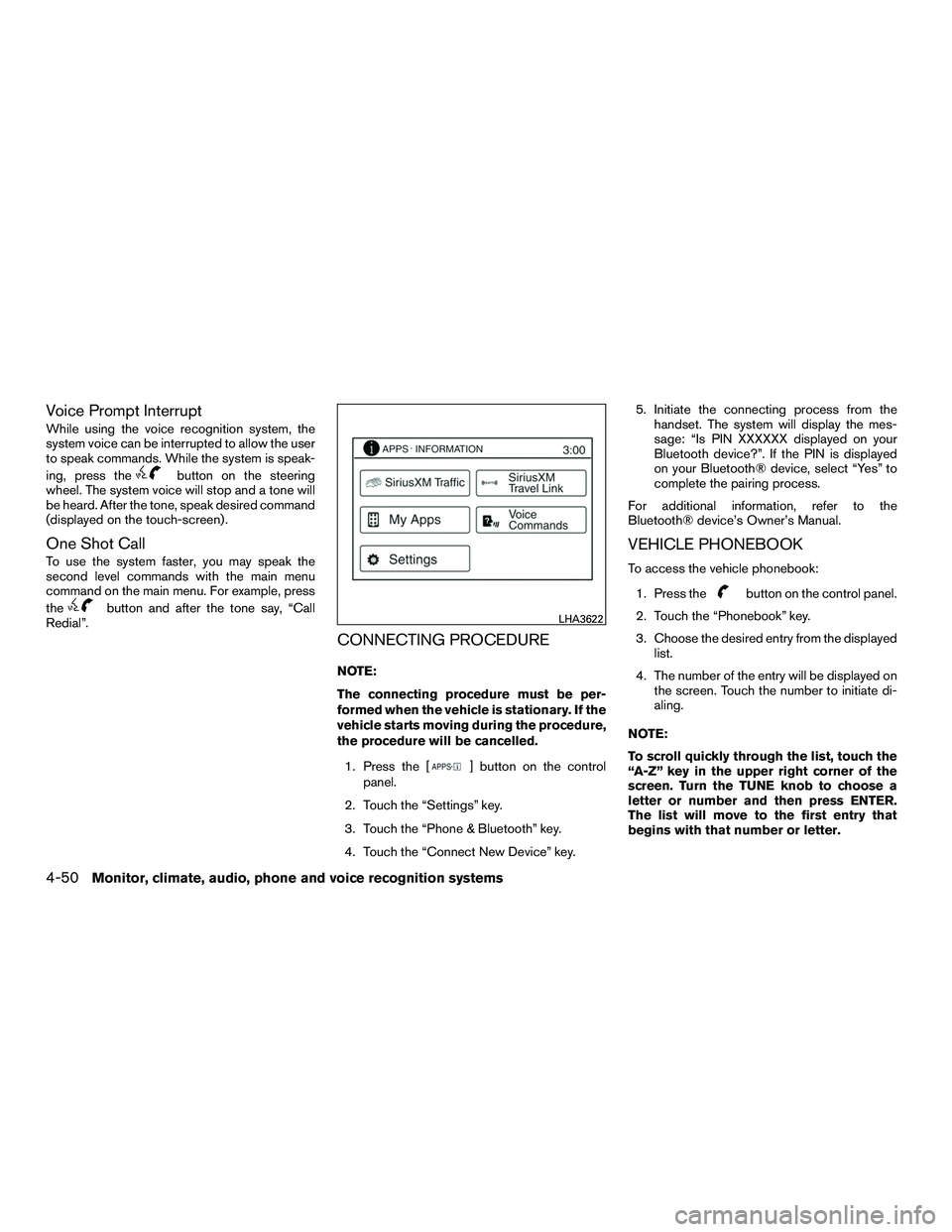
1. Press the [
] button on the control
panel.
2. Touch the “Settings” key.
3. Touch the “Phone & Bluetooth” key.
4. Touch the “Connect New Device” key. 5. Initiate the connecting process from the
handset. The system will display the mes-
sage: “Is PIN XXXXXX displayed on your
Bluetooth device?”. If the PIN is displayed
on your Bluetooth® device, select “Yes” to
complete the pairing process.
For additional information, refer to the
Bluetooth® device’s Owner’s Manual.
VEHICLE PHONEBOOK
To access the vehicle phonebook:
1. Press the
button on the control panel.
2. Touch the “Phonebook” key.
3. Choose the desired entry from the displayed list.
4. The number of the entry will be displayed on the screen. Touch the number to initiate di-
aling.
NOTE:
To scroll quickly through the list, touch the
“A-Z” key in the upper right corner of the
screen. Turn the TUNE knob to choose a
letter or number and then press ENTER.
The list will move to the first entry that
begins with that number or letter.
LHA3622
4-50Monitor, climate, audio, phone and voice recognition systems
Page 183 of 312
NOTE:
Many phones may require special permis-
sion to enable text messaging. Check the
phone’s screen during Bluetooth® pairing.
For some phones, you may need to enable
‘Notifications’ in the phone’s Bluetooth®
menu for text messages to appear on the
headunit. For additional information, refer
to the phone’s Owner’s Manual.
Text message integration requires that the
phone support MAP (Message Access Pro-
file) for both receiving and sending text
messages. Some phones may not support
all text messaging features. Please visit
www.nissanusa.com/bluetooth for com-
patibility information, as well as your de-
vices’ Owner’s manual.
The system allows for the sending and receiving
of text messages through the vehicle interface.
Sending a text message:1. Press the
button on the steering
wheel.
2. Say “Phone” after the tone.
3. Say “Send Text” after the tone. 4. The system will provide a list of available
commands in order to determine the recipi-
ent of the text message. Choose from the
following:
● To (a name)
● Enter Number
● Missed Calls
● Incoming Calls
● Outgoing Calls
For additional information, refer to “Voice
commands” in this section.
5. Once a recipient is chosen, the system prompts for which message to send. Nine
predefined messages are available as well
as three custom messages. To choose one
of the predefined messages, speak one of
the following after the tone:
● “Driving, can’t text”
● “Call me”
● “On my way”
● “Running late”
● “Okay”
● “Yes”
● “No” ●
“Where are you?”
● “When?”
To send one of the custom messages, say
“Custom Messages”. If more than one cus-
tom message is stored, the system will
prompt for the number of the desired cus-
tom message. For additional information, re-
fer to “Bluetooth® settings” in this section.
Reading a received text message:
1. Press the
button on the steering
wheel.
2. Say “Phone” after the tone.
3. Say “Read Text” after the tone.
The text message, sender and delivery time are
shown on the screen. Use the tuning switch to
scroll through all text messages if more than one
are available. Press the
button to exit the
text message screen. Press the
button to
access the following options for replying to the
text message:
● Call Back
Speak this command to call the sender of
the text message using the Bluetooth®
Hands-Free Phone System.
● Send Text
Speak this command to send a text message
response to the sender of the text message.
4-52Monitor, climate, audio, phone and voice recognition systems
Page 184 of 312
●Read Text
Speak this command to read the text mes-
sage again.
● Previous Text
Speak this command to move to the previ-
ous text message (if available) .
● Next Text
Speak this command to move to the next text
message (if available) .
NOTE:
Text messages are only displayed if the
vehicle speed is less than 5 mph (8 km/h).BLUETOOTH® SETTINGS
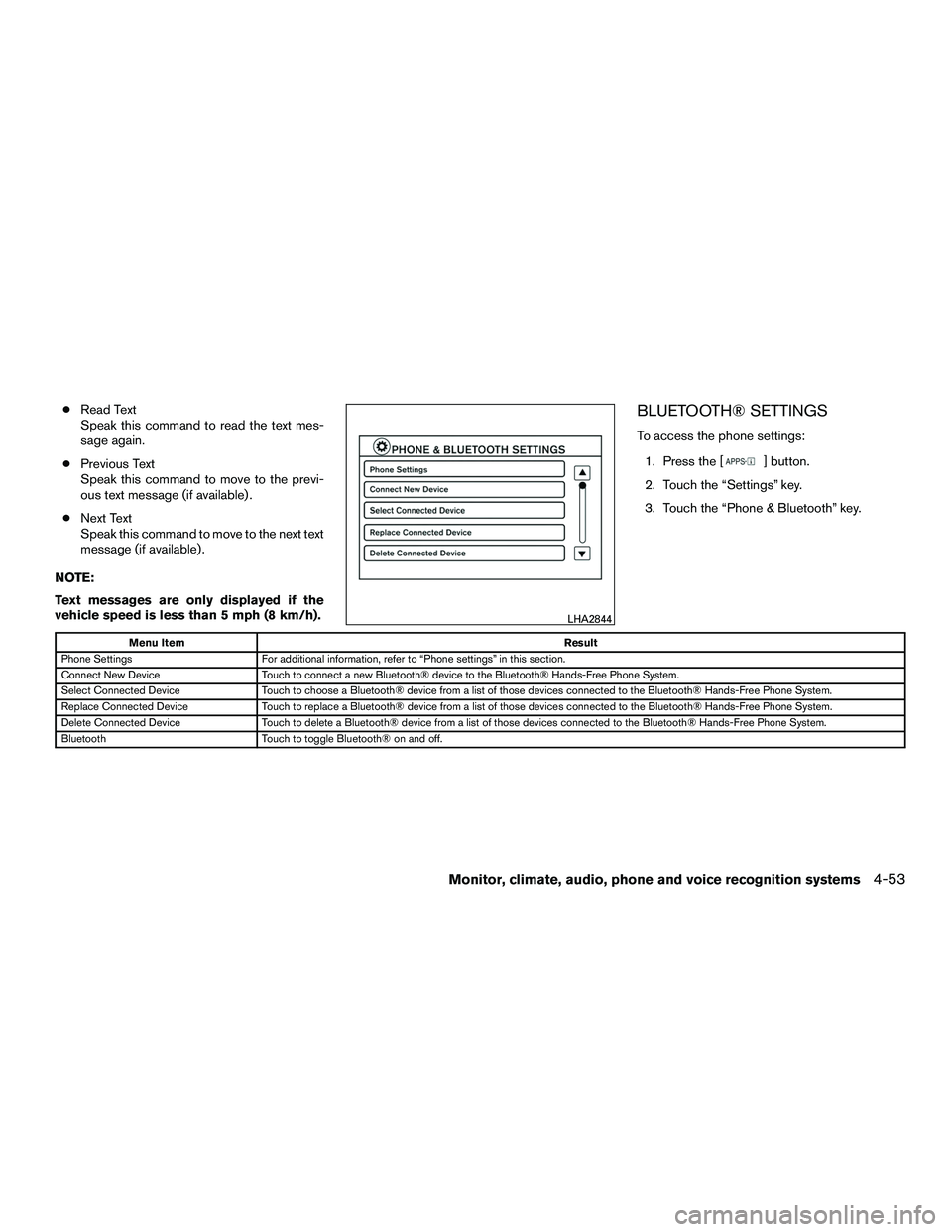
To access the phone settings: 1. Press the [
] button.
2. Touch the “Settings” key.
3. Touch the “Phone & Bluetooth” key.
Menu Item Result
Phone Settings For additional information, refer to “Phone settings” in this section.
Connect New Device Touch to connect a new Bluetooth® device to the Bluetooth® Hands-Free Phone System.
Select Connected Device Touch to choose a Bluetooth® device from a list of those devices connected to the Bluetooth® Hands-Free Phone System.
Replace Connected Device Touch to replace a Bluetooth® device from a list of those devices connected to the Bluetooth® Hands-Free Phone System.
Delete Connected Device Touch to delete a Bluetooth® device from a list of those devices connected to the Bluetooth® Hands-Free Phone System.
Bluetooth Touch to toggle Bluetooth® on and off.
LHA2844
Monitor, climate, audio, phone and voice recognition systems4-53
Page 185 of 312
![NISSAN NV200 2016 Owners Manual PHONE SETTINGS
To access the phone settings:1. Press the [
] button.
2. Touch the “Settings” key.
3. Touch the “Phone & Bluetooth” key.
4. Touch the “Phone Settings” key and adjust the fol](/manual-img/5/58180/w960_58180-184.png "NISSAN NV200 2016 Owners Manual PHONE SETTINGS
To access the phone settings:1. Press the [
] button.
2. Touch the “Settings” key.
3. Touch the “Phone & Bluetooth” key.
4. Touch the “Phone Settings” key and adjust the fol")
PHONE SETTINGS
To access the phone settings:1. Press the [
] button.
2. Touch the “Settings” key.
3. Touch the “Phone & Bluetooth” key.
4. Touch the “Phone Settings” key and adjust the following settings as desired:
● Sort Phonebook By:
Touch “First Name” or “Last Name” to
choose how phonebook entries are alpha-
betically displayed on the screen.
● Use Phonebook From:
Touch “Handset” to use the phone’s phone-
book. Select “SIM” to use the phonebook on
the SIM card. Touch “Both” to use both
sources.
● Download Phonebook Now:
Touch to download the phonebook to the
vehicle from the chosen source.
● Record Name for Phonebook Entry:
Touch to record a name for a phonebook
entry for use with the NISSAN Voice Recog-
nition System. ●
Phone Notifications for:
Touch “Driver” to have phone notifications
shown in the vehicle information display.
Touch “Both” to have phone notifications
shown in both the vehicle information display
and the center display screen.
● Text Messaging:
Touch to toggle the text message function-
ality on or off.
● Show Incoming Text for:
Touch “Driver” to have incoming text notifi-
cations shown in the vehicle information dis-
play. Touch “Both” to have text notifications
shown in both the vehicle information display
and the center display screen. Touch “Off” to
turn off all text notifications.
● Auto Reply:
Touch to toggle the auto reply functionality
on or off.
● Auto Reply Message:
Touch to indicate preferred message to be
sent when “Auto Reply” function is activated.
● Use Vehicle’s Signature:
Touch to toggle on or off the addition of the
vehicle signature to outgoing messages. ●
Custom Text Messages:
Touch this option to select a custom mes-
sage to edit. There are 4 customer message
slots available.
4-54Monitor, climate, audio, phone and voice recognition systems