2016 NISSAN MURANO bluetooth
[x] Cancel search: bluetoothPage 4 of 465
IMPORTANT INFORMATION ABOUT
THIS MANUAL
You will see various symbols in this manual. They
are used in the following ways:
WARNING
This is used to indicate the presence of a
hazard that could cause death or serious
personal injury. To avoid or reduce the
risk, the procedures must be followed
precisely.
CAUTION
This is used to indicate the presence of a
hazard that could cause minor or moder-
ate personal injury or damage to your ve-
hicle. To avoid or reduce the risk, the pro-
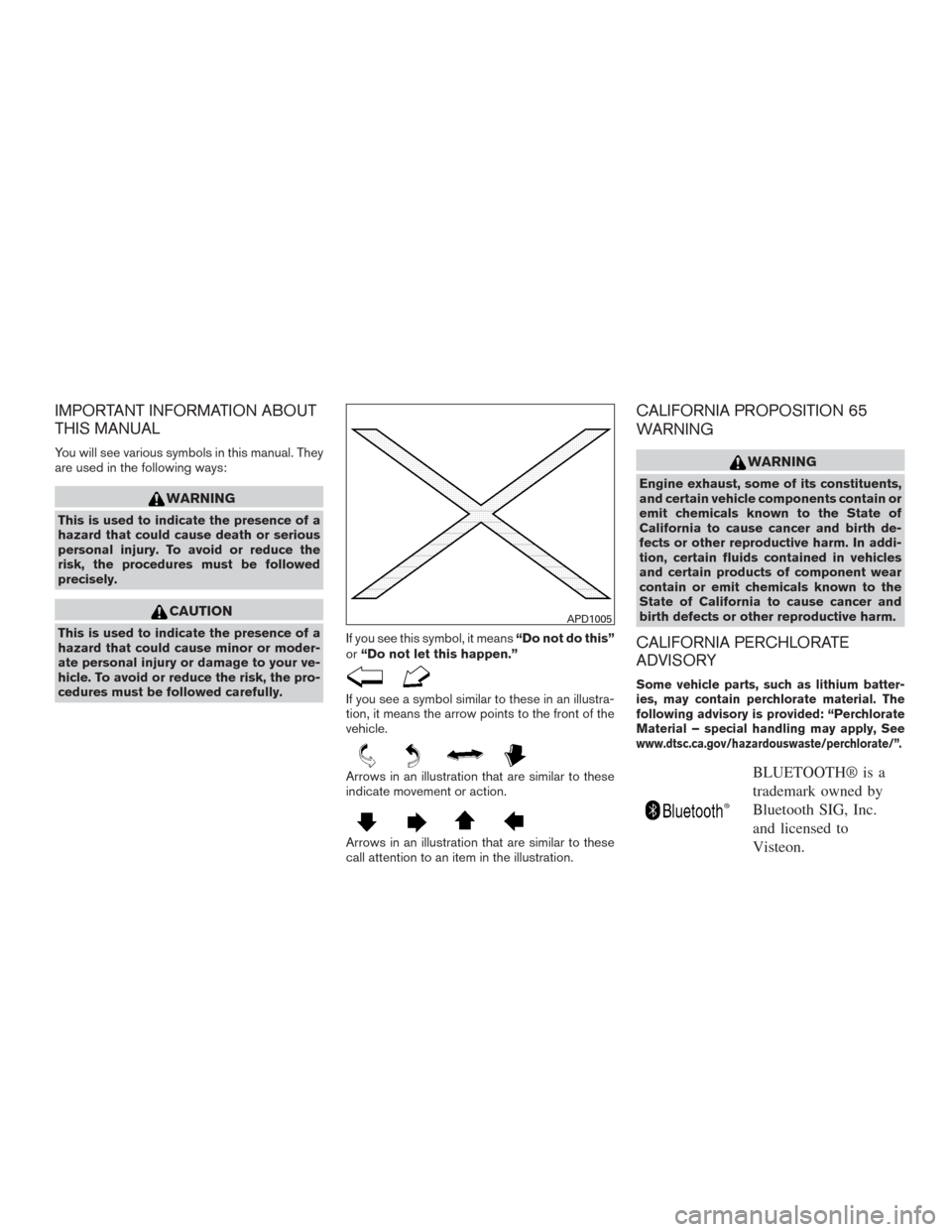
cedures must be followed carefully.If you see this symbol, it means“Do not do this”
or“Do not let this happen.”
If you see a symbol similar to these in an illustra-
tion, it means the arrow points to the front of the
vehicle.
Arrows in an illustration that are similar to these
indicate movement or action.
Arrows in an illustration that are similar to these
call attention to an item in the illustration.
CALIFORNIA PROPOSITION 65
WARNING
WARNING
Engine exhaust, some of its constituents,
and certain vehicle components contain or
emit chemicals known to the State of
California to cause cancer and birth de-
fects or other reproductive harm. In addi-
tion, certain fluids contained in vehicles
and certain products of component wear
contain or emit chemicals known to the
State of California to cause cancer and
birth defects or other reproductive harm.
CALIFORNIA PERCHLORATE
ADVISORY
Some vehicle parts, such as lithium batter-
ies, may contain perchlorate material. The
following advisory is provided: “Perchlorate
Material – special handling may apply, See
www.dtsc.ca.gov/hazardouswaste/perchlorate/”.
BLUETOOTH® is a
trademark owned by
Bluetooth SIG, Inc.
and licensed to
Visteon.
APD1005
Page 16 of 465
14. Heater and air conditioning controls
(P. 4-26)
15. Shift lever (P. 5-16)
16. Push-button ignition switch (P. 5-11)
17. Cruise control switches (if so
equipped) (P. 5-39)
Intelligent Cruise Control (ICC)
switches (if so equipped) (P. 5-41)
18. Driver supplemental knee air bag
(P. 1-47)
19. Bluetooth® Hands-Free Phone
System/Audio control switches
(P. 4-29)
20. Hood release (P. 3-21)
Fuel door release (P. 3-27)
Powered rear seatback switch (P. 1-2)
21. Fuse box (P. 8-22)
22. Liftgate opener switch (if so equipped)
(P. 3-22)
Heated steering wheel switch
(if so equipped) (P. 2-40)
Vehicle Dynamic Control (VDC) OFF
switch (P. 2-40)
23. Instrument brightness control (P. 2-32)
Twin trip odometer reset switch (P. 2-4)
*: Refer to the separate Navigation System Own-
er’s Manual (if so equipped) .Refer to the page number indicated in pa-
rentheses for operating details.
Illustrated table of contents0-7
Page 92 of 465
14. Heater and air conditioning controls
(P. 4-26)
15. Shift lever (P. 5-16)
16. Push-button ignition switch (P. 5-11)
17. Cruise control switches (if so
equipped) (P. 5-39)
Intelligent Cruise Control (ICC)
switches (if so equipped) (P. 5-41)
18. Driver supplemental knee air bag
(P. 1-47)
19. Bluetooth® Hands-Free Phone
System/Audio control switches
(P. 4-29)
20. Hood release (P. 3-21)
Fuel door release (P. 3-27)
Powered rear seatback switch (P. 1-2)
21. Fuse box (P. 8-22)
22. Liftgate opener switch (if so equipped)
(P. 3-22)
Heated steering wheel switch
(if so equipped) (P. 2-40)
Vehicle Dynamic Control (VDC) OFF
switch (P. 2-40)
23. Instrument brightness control (P. 2-32)
Twin trip odometer reset switch (P. 2-4)
*: Refer to the separate Navigation System Own-
er’s Manual (if so equipped) .Refer to the page number indicated in pa-
rentheses for operating details.
Instruments and controls2-3
Page 191 of 465
4 Display screen, heater, air conditioner,
audio and phone systems
RearView Monitor.................................4-2
RearView Monitor system operation..............4-3
How to read the displayed lines..................4-3
Difference between predicted and actual
distances......................................4-4
How to park with predicted course lines...........4-5
Adjusting the screen............................4-7
How to turn on and off predicted course
lines (models with navigation)....................4-7
RearView Monitor system limitations..............4-8
System maintenance............................4-9
Around View® Monitor (if so equipped).............4-10
Around View® Monitor system operation.........4-11
Difference between predicted and actual
distances.....................................4-14
How to park with predicted course lines..........4-16
How to switch the display......................4-17
Adjusting the screen...........................4-18
Around View® Monitor system limitations........4-18
System maintenance...........................4-20
Moving Object Detection (MOD) (if so equipped)....4-21
MOD system operation.........................4-22
Turning MOD on and off........................4-23
MOD system limitations........................4-23System maintenance...........................4-24
Vents...........................................4-25
Heater and Air Conditioner (automatic)..............4-26
Automatic operation...........................4-27
Manual operation..............................4-28
Operating tips.................................4-28
Servicing air conditioner...........................4-29
Audio system....................................4-29
Radio........................................4-29
FM radio reception............................4-30
AM radio reception............................4-30
Satellite radio reception........................4-30
Audio operation precautions....................4-31
FM/AM/SAT radio with compact disc (CD)
player (if so equipped).........................4-38
USB (Universal Serial Bus) Connection Port
(models without Navigation System)
(if so equipped)...............................4-42
iPod®* player operation without Navigation
System (if so equipped)........................4-45
Bluetooth® streaming audio without
Navigation System.............................4-47
CD care and cleaning..........................4-48
Steering wheel switch for audio control..........4-48
Page 192 of 465

Antenna......................................4-49
NissanConnectSMMobile Apps....................4-50
Registering NissanConnectSMMobile Apps......4-50
Connect Phone...............................4-50
Application Download..........................4-50
Car phone or CB radio............................4-51
Bluetooth® Hands-Free Phone System without
Navigation System (if so equipped).................4-51
Regulatory Information.........................4-53
Using the system..............................4-53
Control buttons...............................4-55Connecting procedure.........................4-55
Voice commands..............................4-57
Making a call ..................................4-58
Receiving a call...............................4-59
During a call..................................4-59
Ending a call..................................4-59
Text messaging (if so equipped).................4-59
Bluetooth® settings...........................4-61
Manual control . ...............................4-62
Troubleshooting guide.........................4-63
Page 228 of 465
Bluetooth® streaming audio
●Some Bluetooth® audio devices may not be
recognized by the in-vehicle audio system.
●It is necessary to set up the wireless con-
nection between a compatible Bluetooth®
audio device and the in-vehicle Bluetooth®
module before using the Bluetooth® audio.
●Operating procedure of the Bluetooth® au-
dio will vary depending on the devices. Make
sure how to operate your audio device be-
fore using it with this system.
●The Bluetooth® audio may be stopped un-
der the following conditions:
●Receiving a call on the Hands-Free
Phone System.
●Checking the connection to the hands-
free phone.
●Do not place the Bluetooth® audio device in
an area surrounded by metal or far away from
the in-vehicle Bluetooth® module to prevent
tone quality degradation and wireless con-
nection disruption.
●While an audio device is connected through
the Bluetooth® wireless connection, the
battery power of the device may discharge
quicker than usual.●This system supports the Bluetooth® Audio
Distribution Profile (A2DP, AVRCP) .
BLUETOOTH® is a
trademark owned by
Bluetooth SIG, Inc.
and licensed to
Visteon.
Display screen, heater, air conditioner, audio and phone systems4-37
Page 230 of 465
Audio main operation
(power) button / VOL (volume)
control knob
Place the ignition switch in the ACC or ON
position and press the
(power) button
while the system is off to call up the mode (radio,
CD, AUX, Bluetooth® audio, USB or iPod®) that
was playing immediately before the system was
turned off.To turn the system off, press the
(power)
button.
Turn the VOL (volume) control knob to adjust the
volume.
This vehicle may be equipped with Speed Sen-
sitive Volume. When this feature is active, the
audio volume changes as the driving speed
changes.SETTING button
Press the SETTING button to show the Settings
screen on the display. Turn the TUNE-SCROLL
knob to navigate the options and then press the
SETTING button to make a selection.
Settings
Bluetooth For additional information, refer to “Bluetooth® Hands-Free Phone System without Navigation System” in this
section.
Bass Adjusts the bass to the desired level.
Treble Adjusts the treble to the desired level.
Balance Adjusts the balance to the desired level. Balance adjusts the sound level between the left and right speakers.
Fade Adjusts the fade to the desired level. Fade adjusts the sound level between the front and rear speakers.
Brightness Adjust the brightness to adjust the appearance of the display screen.
Contrast Adjust the contrast to adjust the appearance of the display screen.
Clock adjust Press the SETTING button to highlight the hours or minutes and then use the TUNE-SCROLL knob to adjust
the value. Press the SETTING button again to set the value.
On-Screen Clock Toggles ON or OFF the clock display on the upper right corner of the display screen.
RDS Display Toggles ON or OFF the RDS information displayed on the screen while the radio is playing.
Speed Sens Vol. Adjusts the Speed Sensitive Volume function, which increases the volume of the audio system as the speed of
the vehicle increases. Set to “OFF” to disable the feature. The higher the setting, the more the volume in-
creases in relation to vehicle speed.
AUX Vol. Choose a setting from 0 to +3 to control the boost of incoming auxiliary device volume. A setting of 0 provides
no additional boost in volume. A setting of +3 provides the greatest boost in volume.
Language select Select the desired language for the system from the available options.
Display screen, heater, air conditioner, audio and phone systems4-39
Page 231 of 465
Bass, treble, balance and fade can also be ad-
justed by pressing the SETTING button and turn-
ing the TUNE-SCROLL knob to select the item to
adjust. When the desired item is shown on the
display, turn the tuning to adjust and then press
the SETTING button until the display returns to
the main audio screen. If the button is not
pressed for approximately 10 seconds, the radio
or CD display will automatically reappear.
Apps button
Press the Apps button to launch the Smartphone
Integration Mode. For additional information, re-
fer to “NissanConnect
SMMobile Apps” in this
section regarding this feature.
For additional information, refer to “Bluetooth®
Hands-Free Phone system without Navigation” in
this section regarding connecting your phone.
BACK button
Press the BACK button to return to the previous
menu screen.
DISP (display) button
The DISP (display) button turns the display
screen on or off.
FM/AM/SAT radio operation
FM·AM button
Press the FM·AM button to change the band as
follows:
AM→FM1→FM2→AM
If another audio source is playing when the
FM·AM button is pressed, the audio source play-
ing will automatically be turned off and the last
radio station played will begin playing.
The FM stereo indicator (STEREO) is shown on
the screen during FM stereo reception. When the
stereo broadcast signal is weak, the radio auto-
matically changes from stereo to monaural re-
ception.
XM band select
Press the XM button to change the band as
follows:
XM1*→XM2*→XM3*→XM1
When the XM button is pressed while the ignition
switch is in the ACC or ON position, the radio will
come on at the station last played.
The last station played will also come on when
the
(power) button is pressed on.
*When the XM button is pressed, the satellite
radio reception will not be available unless an
optional satellite receiver and antenna are in-stalled and a SiriusXM® Satellite Radio service
subscription is active. Satellite radio is not avail-
able in Alaska, Hawaii and Guam.
If a compact disc is playing when the XM button
is pressed, the compact disc will automatically be
turned off and the last radio station played will
come on.
TUNE-SCROLL knob (Tuning)
Turn the TUNE-SCROLL knob to the left or right
for manual tuning.
SEEK tuning
Press the
orSEEK buttons to tune
from low to high or high to low frequencies and to
stop at the next broadcasting station.
SCAN tuning
Press the SCAN button to stop at each broad-
casting station for 5 seconds. SCAN will appear
on the screen while the radio is scan tuning.
Pressing the button again during this 5 second
period will stop SCAN tuning and the radio will
remain tuned to that station. If the SCAN button is
not pressed within 5 seconds, SCAN tuning
moves to the next station.
4-40Display screen, heater, air conditioner, audio and phone systems