2016 NISSAN MURANO wheel
[x] Cancel search: wheelPage 238 of 465
All Repeat: all songs in the current list are re-
peated.
Repeat Off: no repeat play pattern is applied.
RANDOM (RDM)
When the RDM button is pressed while a track is
being played, the play pattern can be changed as
follows:
Shuffle Off→Track Shuffle→Album Shuffle→
Shuffle Off
Track Shuffle: the tracks in the current list will be
played randomly.
Album Shuffle: the albums in the current list will
be played randomly.
Shuffle Off: no random play pattern is applied.
BACK button
When the BACK button is pressed, it returns to
the previous menu.
BLUETOOTH® STREAMING AUDIO
WITHOUT NAVIGATION SYSTEM
If you have a compatible Bluetooth® audio de-
vice that is capable of playing audio files, the
device can be connected to the vehicle’s audio
system so that the audio files on the device play
through the vehicle’s speakers.
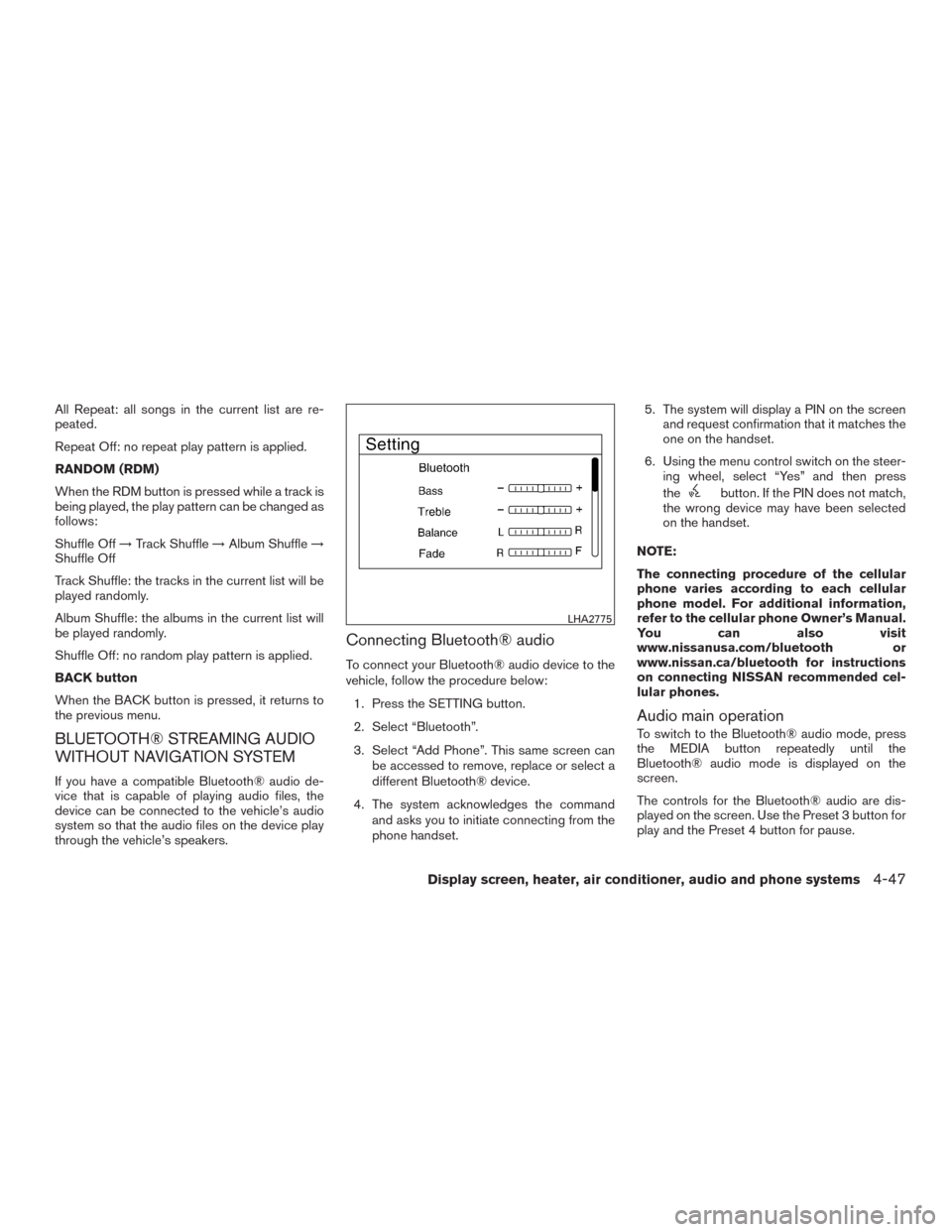
Connecting Bluetooth® audio
To connect your Bluetooth® audio device to the
vehicle, follow the procedure below:
1. Press the SETTING button.
2. Select “Bluetooth”.
3. Select “Add Phone”. This same screen can
be accessed to remove, replace or select a
different Bluetooth® device.
4. The system acknowledges the command
and asks you to initiate connecting from the
phone handset.5. The system will display a PIN on the screen
and request confirmation that it matches the
one on the handset.
6. Using the menu control switch on the steer-
ing wheel, select “Yes” and then press
the
button. If the PIN does not match,
the wrong device may have been selected
on the handset.
NOTE:
The connecting procedure of the cellular
phone varies according to each cellular
phone model. For additional information,
refer to the cellular phone Owner’s Manual.
You can also visit
www.nissanusa.com/bluetooth or
www.nissan.ca/bluetooth for instructions
on connecting NISSAN recommended cel-
lular phones.
Audio main operation
To switch to the Bluetooth® audio mode, press
the MEDIA button repeatedly until the
Bluetooth® audio mode is displayed on the
screen.
The controls for the Bluetooth® audio are dis-
played on the screen. Use the Preset 3 button for
play and the Preset 4 button for pause.
LHA2775
Display screen, heater, air conditioner, audio and phone systems4-47
Page 239 of 465
CD CARE AND CLEANING
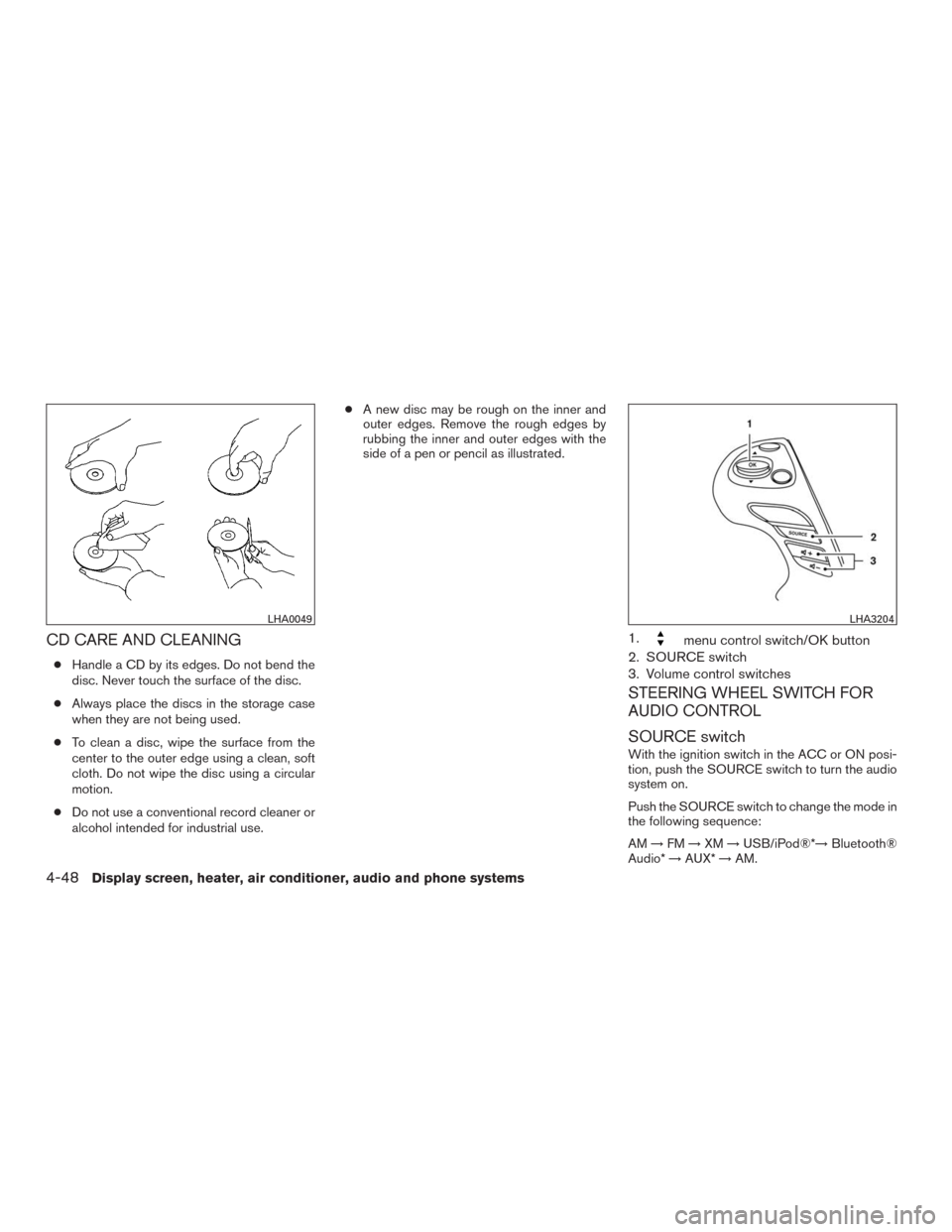
●Handle a CD by its edges. Do not bend the
disc. Never touch the surface of the disc.
●Always place the discs in the storage case
when they are not being used.
●To clean a disc, wipe the surface from the
center to the outer edge using a clean, soft
cloth. Do not wipe the disc using a circular
motion.
●Do not use a conventional record cleaner or
alcohol intended for industrial use.●A new disc may be rough on the inner and
outer edges. Remove the rough edges by
rubbing the inner and outer edges with the
side of a pen or pencil as illustrated.
1.menu control switch/OK button
2. SOURCE switch
3. Volume control switches
STEERING WHEEL SWITCH FOR
AUDIO CONTROL
SOURCE switch
With the ignition switch in the ACC or ON posi-
tion, push the SOURCE switch to turn the audio
system on.
Push the SOURCE switch to change the mode in
the following sequence:
AM→FM→XM→USB/iPod®*→Bluetooth®
Audio*→AUX*→AM.
LHA0049LHA3204
4-48Display screen, heater, air conditioner, audio and phone systems
Page 245 of 465
Initialization
When the ignition switch is placed in the ON
position, NISSAN Voice Recognition is initialized,
which takes a few seconds. If the
button is
pressed before the initialization completes, the
system will announce “Hands-free phone system
not ready” and will not react to voice commands.
Operating tips
To get the best performance out of the NISSAN
Voice Recognition system, observe the following:
●Keep the interior of the vehicle as quiet as
possible. Close the windows to eliminate
surrounding noises (traffic noises, vibration
sounds, etc.) , which may prevent the system
from recognizing voice commands correctly.
●Wait until the beep sounds before speaking
a command. Otherwise, the command will
not be received properly.
●Start speaking a command within 5 seconds
after the beep sounds.
●Speak in a natural voice without pausing
between words.
Giving voice commands
To operate NISSAN Voice Recognition, press
and release the
button located on the
steering wheel. After the beep sounds, speak a
command.
The command given is picked up by the micro-
phone, and voice feedback is given when the
command is accepted.
●If you need to hear the available commands
for the current menu again, say “Help” and
the system will repeat them.
●If a command is not recognized, the system
announces, “Command not recognized.
Please try again.” Make sure the command is
said exactly as prompted by the system and
repeat the command in a clear voice.
●If you want to go back to the previous com-
mand, you can say “Go back” or “Correc-
tion” any time the system is waiting for a
response.●You can cancel a command when the sys-
tem is waiting for a response by saying,
“Cancel” or “Quit.” The system announces
“Cancel” and ends the Voice Recognition
session. You can also press and hold
the
button on the steering wheel for
5 seconds at any time to end the Voice
Recognition session. Whenever the Voice
Recognition session is cancelled, a double
beep is played to indicate you have exited
the system.
●If you want to adjust the volume of the voice
feedback, push the volume control switches
(+ or -) on the steering wheel while being
provided with feedback. You can also use
the radio volume control knob.
Voice Prompt Interrupt
In most cases you can interrupt the voice feed-
back to speak the next command by pressing
the
button on the steering wheel. After
interrupting the system, wait for a beep before
speaking your command.
One Shot Call
To use the system faster, you may speak the
second level commands with the main menu
command on the main menu. For example, press
the
button and after the beep say, “Call
Redial”.
4-54Display screen, heater, air conditioner, audio and phone systems
Page 246 of 465
CONTROL BUTTONS
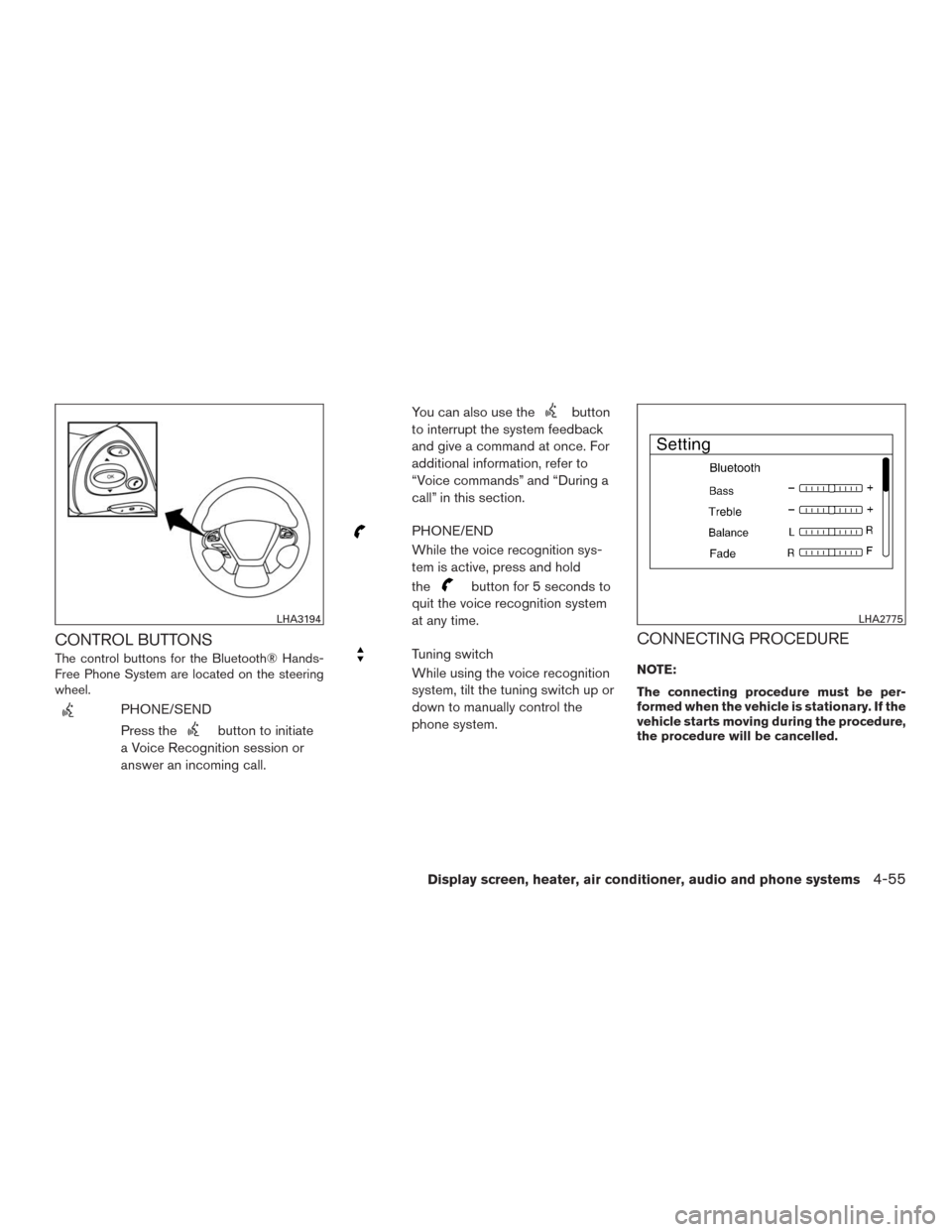
The control buttons for the Bluetooth® Hands-
Free Phone System are located on the steering
wheel.
PHONE/SEND
Press the
button to initiate
a Voice Recognition session or
answer an incoming call.You can also use the
button
to interrupt the system feedback
and give a command at once. For
additional information, refer to
“Voice commands” and “During a
call” in this section.
PHONE/END
While the voice recognition sys-
tem is active, press and hold
the
button for 5 seconds to
quit the voice recognition system
at any time.
Tuning switch
While using the voice recognition
system, tilt the tuning switch up or
down to manually control the
phone system.CONNECTING PROCEDURE
NOTE:
The connecting procedure must be per-
formed when the vehicle is stationary. If the
vehicle starts moving during the procedure,
the procedure will be cancelled.
LHA3194LHA2775
Display screen, heater, air conditioner, audio and phone systems4-55
Page 249 of 465
●Outgoing Calls
Speak this command to list the last five
outgoing calls from the vehicle. If the call
was to an entry in the phonebook, the name
will be displayed. Otherwise, the phone
number of the outgoing call will be dis-
played.
Say “Dial” to call the number or “Send Text”
to send a text message to that number. Say
“Next Entry” or “Previous Entry” to move
through the list of outgoing calls.
●Redial
Speak this command to call the last number
dialed.
●Call Back
Speak this command to call the number of
the last incoming call to the vehicle.
“Messaging”
Speak this command to access text messaging
functions. For additional information on these
commands, refer to “Text messaging” in this sec-
tion.
“Show Applications”
Speak this command to display list of smart-
phone apps available.NOTE:
Compatible smartphone and registration
necessary to access applications. For addi-
tional information, refer to “NissanCon-
nect
SMMobile Apps” in this section.
“Select Phone”
Speak this command to select a phone to use
from a list of those phones connected to the
vehicle.
MAKING A CALL
To make a call from a phone connected to the
vehicle’s Bluetooth® Hands-Free Phone Sys-
tem:
1. Press the
button on the steering
wheel.
2. The system will prompt you for a command.
Say “Call”.
3. Select one of the available voice commands
to continue:
●“(A Name)” — Speak the name of a phone-
book entry to place a call to that entry. The
system will respond with the name it inter-
preted from your command and will prompt
you to confirm that the name is correct. Say
“Yes” to initiate the call or “No” to hear an-
other name from the phonebook.●“Phone Number” — Speak this command to
place a call by inputting numbers. For 7– to
10–digit phone number, speak the numbers.
Say “Correction” at any time in the process
to correct a misspoken or misinterpreted
number. For phone numbers with more dig-
its or special characters, say “Special Num-
ber”, then speak the digits. Up to 24 digits
can be entered. Available special characters
are “start”, “pound”, “plus”, and “pause”.
When finished, say “Dial” to initiate the call.
Say “Correction” at any time in the process
to correct a misspoken or misinterpreted
number or character.
●“Redial” – Speak this command to dial the
number of the last outgoing call. The system
will display “Re-dialing
The name of the phonebook entry will be
displayed if it available, otherwise the num-
ber being re-dialed will be displayed.
●“Call Back” – Speak this command to dial
the number of the last incoming call. The
system will display “Calling back
book entry will be displayed if it available,
otherwise the number being called back will
be displayed.
4-58Display screen, heater, air conditioner, audio and phone systems
Page 251 of 465
NOTE:
Many phones may require special permis-
sion to enable text messaging. Check the
phone’s screen during Bluetooth® pairing.
For some phones, you may need to enable
‘Notifications’ in the phone’s Bluetooth®
menu for text messages to appear on the
headunit. Please consult your phone’s
Owner’s manual. Text messages integra-
tion requires that phone support MAP
(Message Access Profile) for both receiving
and sending text messages. Some phones
may not support all text messaging
features. Please visit
www.nissanusa.com/bluetooth or
www.nissan.ca/bluetooth for compatibility
information, as well as your devices’s Own-
er’s manual.
The system allows for the sending and receiving
of text messages through the vehicle interface.
Sending a text message:
1. Press the
button.
2. Say “Messaging”.
3. Say “Send Text”.4. The system will provide a list of available
commands in order to determine the recipi-
ent of the text message. Choose from the
following:
●(A name)
●Number
●Incoming Calls
●Outgoing Calls
●Missed Calls
If “Incoming Calls”, “Outgoing Calls”, or
“Missed Calls” is selected, the following ad-
ditional commands will be displayed:
●Send Text
●Next Entry
●Previous Entry
For additional information about these op-
tions, refer to “Voice commands” in this sec-
tion.
5. Once a recipient is chosen, the system
prompts for which message to send. Five
predefined messages are available and
three custom messages. To choose one of
the predefined messages, speak one of the
following:
●“Driving, can’t text”●“Call me”
●“On my way”
●“Running late”
●“Okay”
To send one of the custom messages, say
“Custom Message”. If more than one custom
message is stored, the system will prompt for
the number of the desired custom message.
For additional information on setting and man-
aging custom text messages, refer to
“Bluetooth® settings” in this section.
Reading a received text message:
1. Press the
button.
2. Say “Messaging”.
3. Say “Read Text”.
The text message, sender and delivery time are
shown on the screen. Use the tuning switch on
the steering wheel to scroll through all text mes-
sages if more than one are available. Press
the
button to exit the text message screen.
Press the
button to access the following
options for replying to the text message:
●Call Back
Speak this command to call the sender of
the text message using the Bluetooth®
Hands-Free Phone System.
4-60Display screen, heater, air conditioner, audio and phone systems
Page 253 of 465
●New Text Sound (if so equipped)
Select to adjust the volume of the sound that
plays when a new text is received by a phone
connected to the Bluetooth® Hands-Free
Phone System. The setting all the way to the
left indicates that the new text sound will be
muted.
●Show Incoming Text (if so equipped)
Select “Driver Only” to have incoming text
messages displayed only in the vehicle infor-
mation display. Select “Both” to have incom-
ing text messages displayed in both the ve-
hicle information display and the center
display screen. Select “None” to have no
display of incoming text messages.
●Edit Custom Messages (if so equipped)
Select to set a custom message that will be
available with the standard options when
sending a text message. To set a custom
message, send a text message to your own
phone number while the phone is connected
to the system. Three custom messages can
be set. Custom messages can only be set
while the vehicle is stationary.●Auto Reply (if so equipped)
Select to turn on or off the Auto Reply func-
tion. When enabled, the vehicle will auto-
matically send a predefined text message to
the sender when a text message is received
while driving.
●Auto Reply Message (if so equipped)
Select to choose the message that is sent
when the Auto Reply function is enabled.
Choose from “I’m Driving” or one of the three
custom messages stored in the system.
●Vehicle Signature On/Off (if so equipped)
Select to choose whether or not the vehicle
signature is added to outgoing text mes-
sages from the vehicle. This message can-
not be changed or customized.MANUAL CONTROL
While using the NISSAN Voice Recognition sys-
tem, it is possible to select menu options by using
the steering wheel controls instead of speaking
voice commands. To activate manual control
mode, press the PHONE/SEND (
) button
on the steering wheel to access the phone menu
and then push either up or down on the tuning
switch (
).
The manual control mode does not allow dialing a
phone number by digits. The user may select an
entry from the Phonebook or Recent Calls lists.
To reactivate NISSAN Voice Recognition, exit the
manual control mode by pressing and holding the
PHONE/END (
) button. At that time, press-
ing the PHONE/SEND (
) button will start
the Hands Free Phone System.
4-62Display screen, heater, air conditioner, audio and phone systems
Page 256 of 465
FEB system operation..........................5-57
Turning the FEB system on/off . .................5-59
FEB system limitations.........................5-59
System temporarily unavailable..................5-60
System malfunction............................5-61
System maintenance...........................5-61
Predictive Forward Collision Warning (PFCW)
(if so equipped)..................................5-62
PFCW system operation.......................5-64
Turning the PFCW system on/off................5-65
PFCW system limitations.......................5-66
System temporarily unavailable..................5-71
System malfunction............................5-72
System maintenance...........................5-72
Driver Attention Alert (if so equipped)...............5-73
Driver Attention Alert system operation...........5-74
How to enable/disable the Driver Attention
Alert system..................................5-75
Driver Attention Alert system limitations..........5-75
Break-in schedule................................5-76
Fuel efficient driving tips...........................5-77Increasing fuel economy...........................5-78
All-Wheel Drive (AWD) (if so equipped).............5-78
Parking/parking on hills............................5-81
Power steering...................................5-82
Brake system....................................5-82
Brake precautions.............................5-82
Anti-lock Braking System (ABS).................5-83
Brake assist..................................5-84
Vehicle Dynamic Control (VDC) system.............5-84
Rise-up and build-up..........................5-86
Brake force distribution........................5-86
Hill Start Assist system............................5-87
Cold weather driving..............................5-88
Freeing a frozen door lock......................5-88
Antifreeze.....................................5-88
Battery.......................................5-88
Draining of coolant water.......................5-88
Tire equipment . ...............................5-88
Special winter equipment.......................5-88
Driving on snow or ice.........................5-88
Engine block heater (if so equipped).............5-89