2016 NISSAN 370Z COUPE USB
[x] Cancel search: USBPage 197 of 428
4-36Center display, heater, air conditioner, audio, phone and voice recognition systems
SAA2494
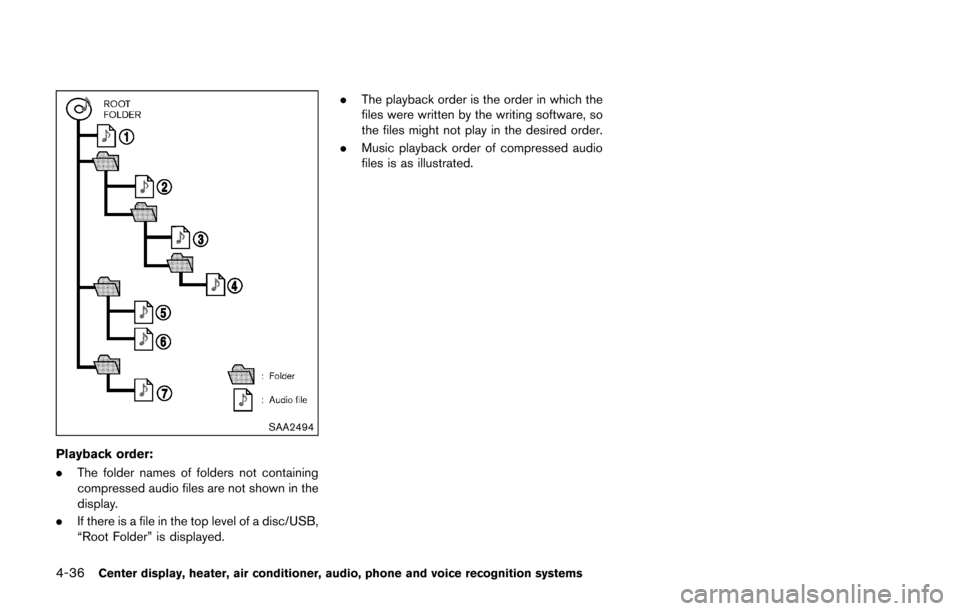
Playback order:
.The folder names of folders not containing
compressed audio files are not shown in the
display.
. If there is a file in the top level of a disc/USB,
“Root Folder” is displayed. .
The playback order is the order in which the
files were written by the writing software, so
the files might not play in the desired order.
. Music playback order of compressed audio
files is as illustrated.
Page 198 of 428
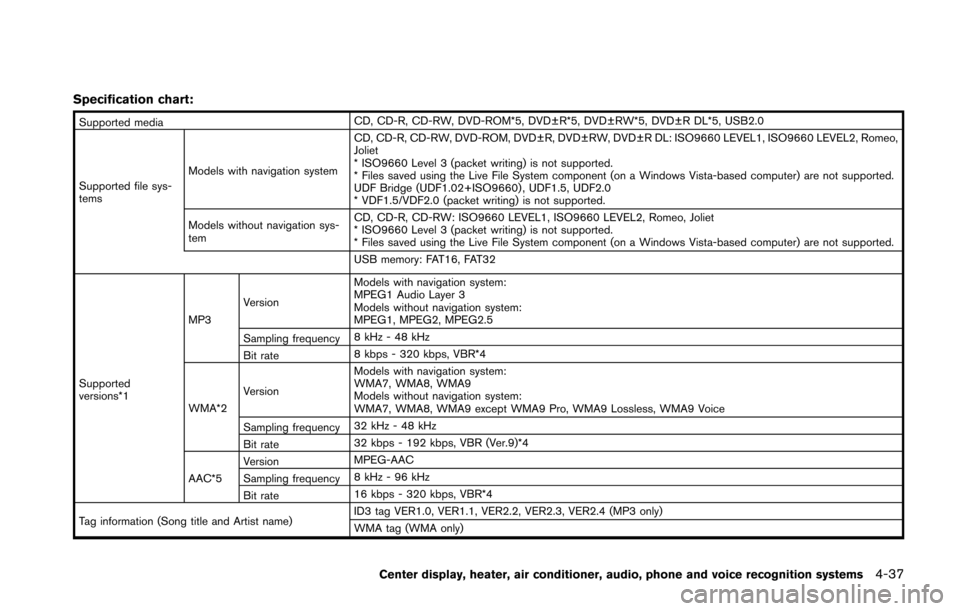
Specification chart:
Supported mediaCD, CD-R, CD-RW, DVD-ROM*5, DVD±R*5, DVD±RW*5, DVD±R DL*5, USB2.0
Supported file sys-
tems Models with navigation system CD, CD-R, CD-RW, DVD-ROM, DVD±R, DVD±RW, DVD±R DL: ISO9660 LEVEL1, ISO9660 LEVEL2, Romeo,
Joliet
* ISO9660 Level 3 (packet writing) is not supported.
* Files saved using the Live File System component (on a Windows Vista-based computer) are not supported.
UDF Bridge (UDF1.02+ISO9660) , UDF1.5, UDF2.0
* VDF1.5/VDF2.0 (packet writing) is not supported.
Models without navigation sys-
tem CD, CD-R, CD-RW: ISO9660 LEVEL1, ISO9660 LEVEL2, Romeo, Joliet
* ISO9660 Level 3 (packet writing) is not supported.
* Files saved using the Live File System component (on a Windows Vista-based computer) are not supported.
USB memory: FAT16, FAT32
Supported
versions*1 MP3
Version Models with navigation system:
MPEG1 Audio Layer 3
Models without navigation system:
MPEG1, MPEG2, MPEG2.5
Sampling frequency 8 kHz - 48 kHz
Bit rate 8 kbps - 320 kbps, VBR*4
WMA*2 Version Models with navigation system:
WMA7, WMA8, WMA9
Models without navigation system:
WMA7, WMA8, WMA9 except WMA9 Pro, WMA9 Lossless, WMA9 Voice
Sampling frequency 32 kHz - 48 kHz
Bit rate 32 kbps - 192 kbps, VBR (Ver.9)*4
AAC*5 Version
MPEG-AAC
Sampling frequency 8 kHz - 96 kHz
Bit rate 16 kbps - 320 kbps, VBR*4
Tag information (Song title and Artist name) ID3 tag VER1.0, VER1.1, VER2.2, VER2.3, VER2.4 (MP3 only)
WMA tag (WMA only)
Center display, heater, air conditioner, audio, phone and voice recognition systems4-37
Page 200 of 428
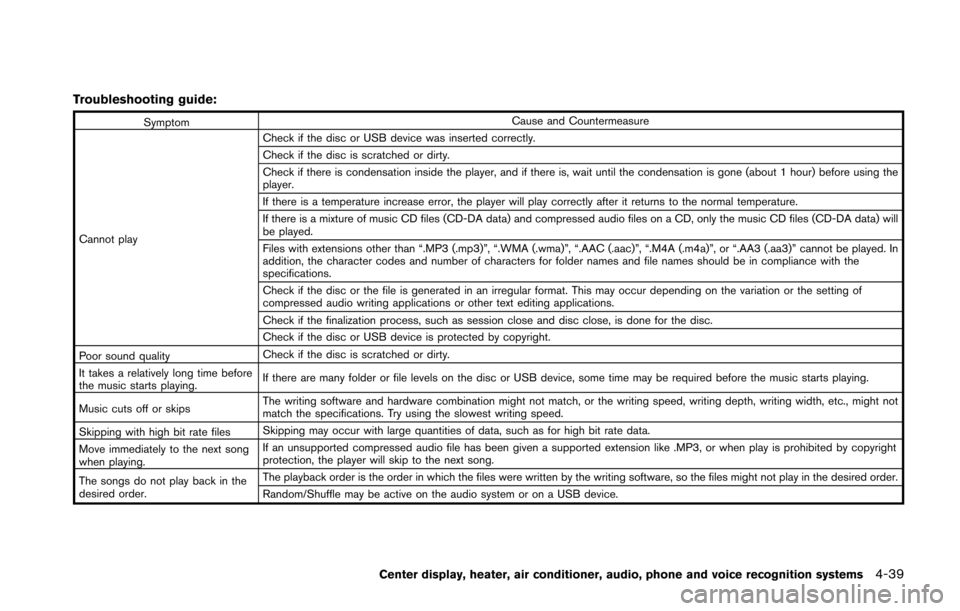
Troubleshooting guide:
SymptomCause and Countermeasure
Cannot play Check if the disc or USB device was inserted correctly.
Check if the disc is scratched or dirty.
Check if there is condensation inside the player, and if there is, wait until the condensation is gone (about 1 hour) before using the
player.
If there is a temperature increase error, the player will play correctly after it returns to the normal temperature.
If there is a mixture of music CD files (CD-DA data) and compressed audio files on a CD, only the music CD files (CD-DA data) will
be played.
Files with extensions other than “.MP3 (.mp3)”, “.WMA (.wma)”, “.AAC (.aac)”, “.M4A (.m4a)”, or “.AA3 (.aa3)” cannot be played. In
addition, the character codes and number of characters for folder names and file names should be in compliance with the
specifications.
Check if the disc or the file is generated in an irregular format. This may occur depending on the variation or the setting of
compressed audio writing applications or other text editing applications.
Check if the finalization process, such as session close and disc close, is done for the disc.
Check if the disc or USB device is protected by copyright.
Poor sound quality Check if the disc is scratched or dirty.
It takes a relatively long time before
the music starts playing. If there are many folder or file levels on the disc or USB device, some time may be required before the music starts playing.
Music cuts off or skips The writing software and hardware combination might not match, or the writing speed, writing depth, writing width, etc., might not
match the specifications. Try using the slowest writing speed.
Skipping with high bit rate files Skipping may occur with large quantities of data, such as for high bit rate data.
Move immediately to the next song
when playing. If an unsupported compressed audio file has been given a supported extension like .MP3, or when play is prohibited by copyright
protection, the player will skip to the next song.
The songs do not play back in the
desired order. The playback order is the order in which the files were written by the writing software, so the files might not play in the desired order.
Random/Shuffle may be active on the audio system or on a USB device.
Center display, heater, air conditioner, audio, phone and voice recognition systems4-39
Page 202 of 428
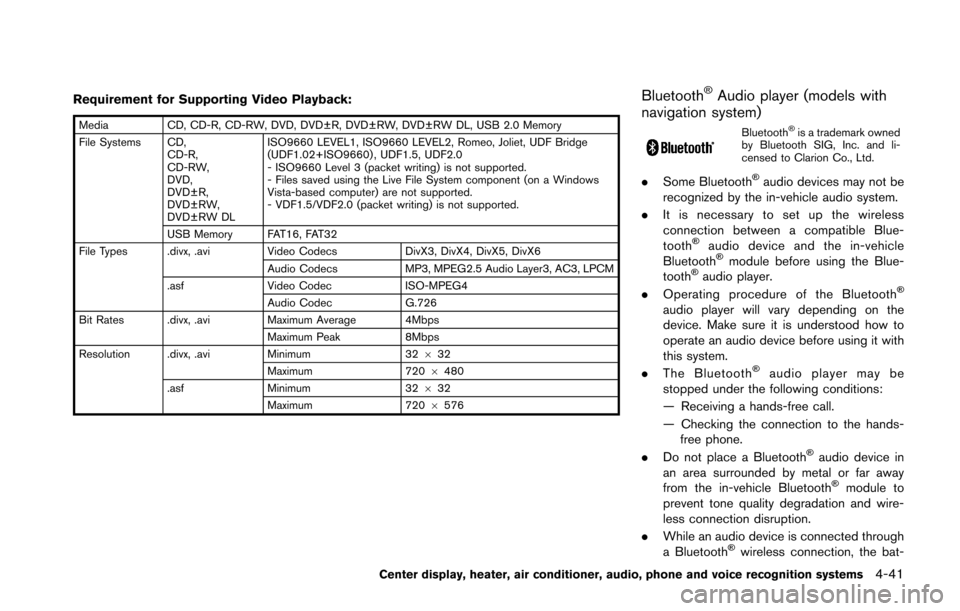
Requirement for Supporting Video Playback:
MediaCD, CD-R, CD-RW, DVD, DVD±R, DVD±RW, DVD±RW DL, USB 2.0 Memory
File Systems CD, CD-R,
CD-RW,
DVD,
DVD±R,
DVD±RW,
DVD±RW DL ISO9660 LEVEL1, ISO9660 LEVEL2, Romeo, Joliet, UDF Bridge
(UDF1.02+ISO9660) , UDF1.5, UDF2.0
- ISO9660 Level 3 (packet writing) is not supported.
- Files saved using the Live File System component (on a Windows
Vista-based computer) are not supported.
- VDF1.5/VDF2.0 (packet writing) is not supported.
USB Memory FAT16, FAT32
File Types .divx, .avi Video CodecsDivX3, DivX4, DivX5, DivX6
Audio Codecs MP3, MPEG2.5 Audio Layer3, AC3, LPCM
.asf Video Codec ISO-MPEG4
Audio Codec G.726
Bit Rates .divx, .avi Maximum Average 4Mbps
Maximum Peak 8Mbps
Resolution .divx, .avi Minimum32632
Maximum 7206480
.asf Minimum 32632
Maximum 7206576
BluetoothŠAudio player (models with
navigation system)
BluetoothŠis a trademark owned
by Bluetooth SIG, Inc. and li-
censed to Clarion Co., Ltd.
. Some BluetoothŠaudio devices may not be
recognized by the in-vehicle audio system.
. It is necessary to set up the wireless
connection between a compatible Blue-
tooth
Šaudio device and the in-vehicle
BluetoothŠmodule before using the Blue-
toothŠaudio player.
. Operating procedure of the BluetoothŠ
audio player will vary depending on the
device. Make sure it is understood how to
operate an audio device before using it with
this system.
. The Bluetooth
Šaudio player may be
stopped under the following conditions:
— Receiving a hands-free call.
— Checking the connection to the hands- free phone.
. Do not place a Bluetooth
Šaudio device in
an area surrounded by metal or far away
from the in-vehicle Bluetooth
Šmodule to
prevent tone quality degradation and wire-
less connection disruption.
. While an audio device is connected through
a Bluetooth
Šwireless connection, the bat-
Center display, heater, air conditioner, audio, phone and voice recognition systems4-41
Page 204 of 428
JVH0923X
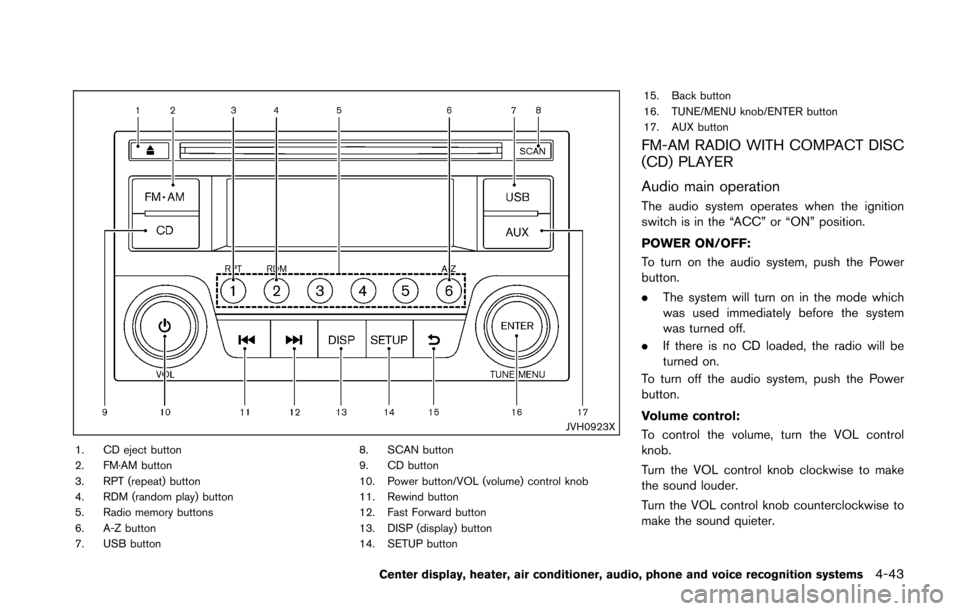
1. CD eject button
2. FM·AM button
3. RPT (repeat) button
4. RDM (random play) button
5. Radio memory buttons
6. A-Z button
7. USB button8. SCAN button
9. CD button
10. Power button/VOL (volume) control knob
11. Rewind button
12. Fast Forward button
13. DISP (display) button
14. SETUP button15. Back button
16. TUNE/MENU knob/ENTER button
17. AUX button
FM-AM RADIO WITH COMPACT DISC
(CD) PLAYER
Audio main operation
The audio system operates when the ignition
switch is in the “ACC” or “ON” position.
POWER ON/OFF:
To turn on the audio system, push the Power
button.
.
The system will turn on in the mode which
was used immediately before the system
was turned off.
. If there is no CD loaded, the radio will be
turned on.
To turn off the audio system, push the Power
button.
Volume control:
To control the volume, turn the VOL control
knob.
Turn the VOL control knob clockwise to make
the sound louder.
Turn the VOL control knob counterclockwise to
make the sound quieter.
Center display, heater, air conditioner, audio, phone and voice recognition systems4-43
Page 208 of 428
DISP button:
While a CD with recorded music information
tags (CD-text/ID3-text tags) is being played, the
title of the played track is displayed. If the title
information is not provided then “Track” is
displayed.
When the DISP button is pushed repeatedly,
further information about the track can be
displayed along with the track title as follows:
CD:
Track time ?Album ?Artist ?Track time
CD with MP3/WMA:
Track time ?Album ?Artist ?Folder name ?
Track time
Track details:
Pushing and holding the DISP button will turn
the display into a detailed overview and after a
few seconds it returns to the main display.
button:
When the SCAN button is pushed while a CD is
being played, the first 10 seconds of all the
tracks will be played.
When the SCAN button is pushed again, the
CD will return to normal play from the track
which is playing.
CD eject button:
When the CD eject button is pushed while a CD
is loaded, the CD will be ejected.
When the CD eject button is pushed twice, the
CD will be ejected further, and the CD can be
removed with ease.
When the ignition switch is in the “OFF” or
“LOCK” position it is possible to eject the CD
currently being played. However the audio unit
will not be activated.
If a CD is ejected by pushing the CD eject
button, and it is not taken out from the loading
slot within 8 seconds, the CD will automatically
be reloaded to the slot to protect the CD.
JVH0920X
USB (Universal Serial Bus) connection
port
Connecting USB device:
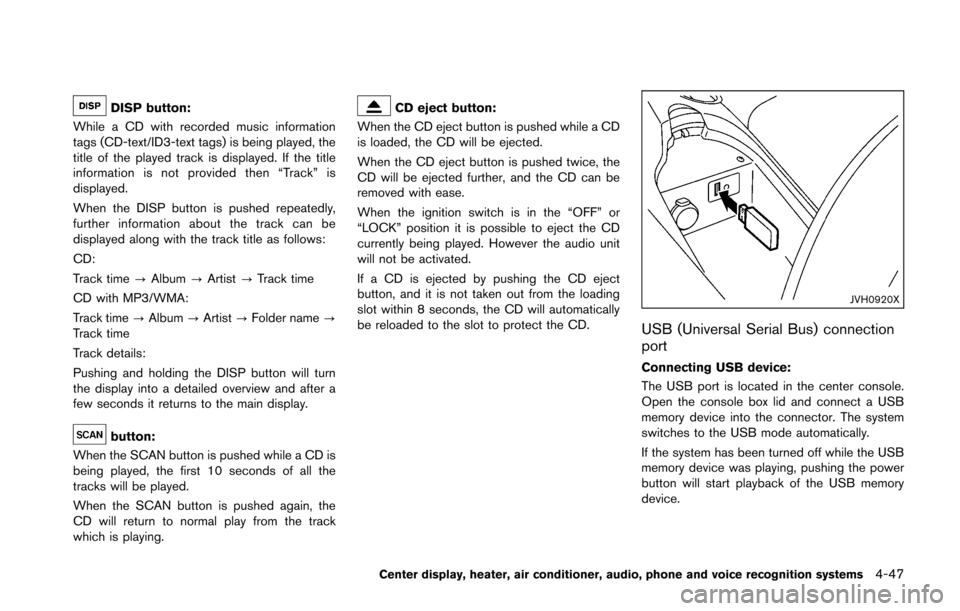
The USB port is located in the center console.
Open the console box lid and connect a USB
memory device into the connector. The system
switches to the USB mode automatically.
If the system has been turned off while the USB
memory device was playing, pushing the power
button will start playback of the USB memory
device.
Center display, heater, air conditioner, audio, phone and voice recognition systems4-47
Page 209 of 428
4-48Center display, heater, air conditioner, audio, phone and voice recognition systems
WARNING
Do not connect, disconnect or operate
the USB device while driving. Doing so
can be a distraction. If distracted you
could lose control of your vehicle and
cause an accident or serious injury.
CAUTION
.Do not force the USB device into the
USB port. Inserting the USB device
tilted or up-side-down into the port
may damage the port. Make sure
that the USB device is connected
correctly into the USB port. (Some
USB devices come with a
mark as a guide. Make sure that
the mark is facing the correct direc-
tion before inserting the device.)
. Do not leave the USB cable in a
place where it can be pulled unin-
tentionally. Pulling the cable may
damage the port.
Refer to your device manufacturer’s owner
information regarding the proper use and care of the device.
USB button:
When the USB button is pushed with the
system off and the USB memory device is
inserted, the system will turn on.
USB device main operation:
The following operations are identical to the
audio main operation of the Compact Disc (CD)
operation. For details, see “CD player operation”
(P.4-45) .
. List view
. Quick search
.
. RDM (Random play)
. RPT (Repeat track)
. SCAN
. Folder browsing
DISP button:
While a track with recorded music information
tags (ID3-tags) is being played, the title of the
played track is displayed. If the tags are not
provided then a notification message is dis-
played.
When the DISP button is pushed repeatedly,
further information about the track can be
displayed along with the track title as follows: Track time
?Artist ?Album ?Folder name ?
Track time
Track details:
Pushing and holding the DISP button will turn
the display into a detailed overview and after a
few seconds it returns to the main display, or
push the DISP button briefly.
Page 210 of 428
JVH0921X
iPodŠplayer operation
Connecting iPodŠ:
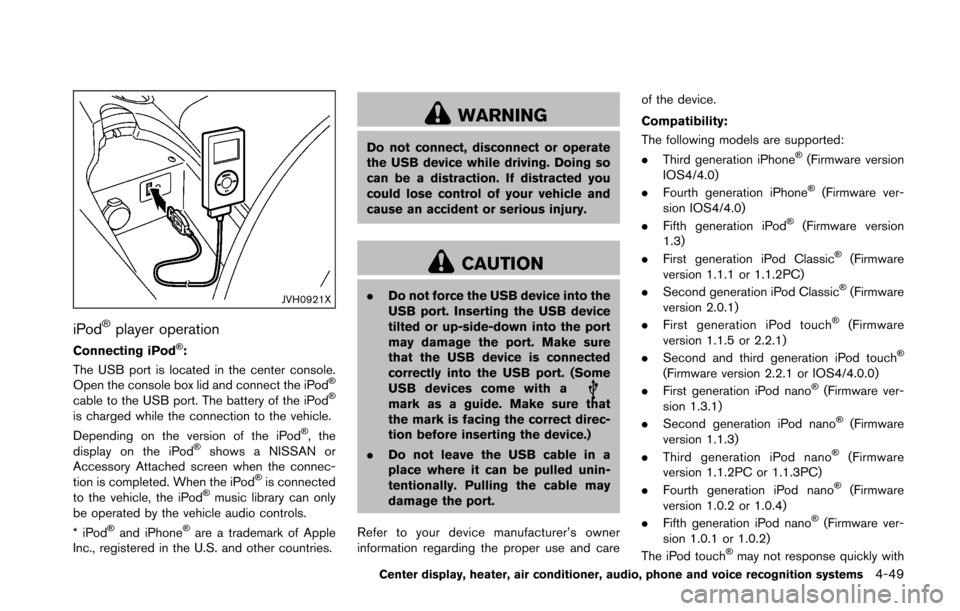
The USB port is located in the center console.
Open the console box lid and connect the iPod
Š
cable to the USB port. The battery of the iPodŠ
is charged while the connection to the vehicle.
Depending on the version of the iPodŠ, the
display on the iPodŠshows a NISSAN or
Accessory Attached screen when the connec-
tion is completed. When the iPod
Šis connected
to the vehicle, the iPodŠmusic library can only
be operated by the vehicle audio controls.
*iPod
Šand iPhoneŠare a trademark of Apple
Inc., registered in the U.S. and other countries.
WARNING
Do not connect, disconnect or operate
the USB device while driving. Doing so
can be a distraction. If distracted you
could lose control of your vehicle and
cause an accident or serious injury.
CAUTION
. Do not force the USB device into the
USB port. Inserting the USB device
tilted or up-side-down into the port
may damage the port. Make sure
that the USB device is connected
correctly into the USB port. (Some
USB devices come with a
mark as a guide. Make sure that
the mark is facing the correct direc-
tion before inserting the device.)
. Do not leave the USB cable in a
place where it can be pulled unin-
tentionally. Pulling the cable may
damage the port.
Refer to your device manufacturer’s owner
information regarding the proper use and care of the device.
Compatibility:
The following models are supported:
.
Third generation iPhone
Š(Firmware version
IOS4/4.0)
. Fourth generation iPhone
Š(Firmware ver-
sion IOS4/4.0)
. Fifth generation iPod
Š(Firmware version
1.3)
. First generation iPod Classic
Š(Firmware
version 1.1.1 or 1.1.2PC)
. Second generation iPod Classic
Š(Firmware
version 2.0.1)
. First generation iPod touch
Š(Firmware
version 1.1.5 or 2.2.1)
. Second and third generation iPod touch
Š
(Firmware version 2.2.1 or IOS4/4.0.0)
. First generation iPod nanoŠ(Firmware ver-
sion 1.3.1)
. Second generation iPod nano
Š(Firmware
version 1.1.3)
. Third generation iPod nano
Š(Firmware
version 1.1.2PC or 1.1.3PC)
. Fourth generation iPod nano
Š(Firmware
version 1.0.2 or 1.0.4)
. Fifth generation iPod nano
Š(Firmware ver-
sion 1.0.1 or 1.0.2)
The iPod touch
Šmay not response quickly with
Center display, heater, air conditioner, audio, phone and voice recognition systems4-49