2016 MERCEDES-BENZ SPRINTER phone
[x] Cancel search: phonePage 135 of 290

Rswitch off the electrical system using the bat-
tery main switch (Ypage 118) and
Rdisconnect the vehicle's auxiliary battery
Otherwise, you need to check the battery's con- dition of charge every three weeks, since
standby power consumption can drain the bat-
tery. If the battery voltage is lower than 12.2 V,
the battery must be charged. Otherwise, the
battery may be damaged by exhaustive dis-
charging.
Be sure to observe the notes on disconnecting
and charging the batteries under "Battery"
(
Ypage 227). You can obtain information about
trickle chargers from a qualified specialist work- shop.
If you leave the vehicle parked for longer than
6 weeks, the vehicle may suffer damage as a
result of lack of use. In this event, consult a
qualified specialist workshop.
Driving tips
General notes
Important safety notes
GWARNING
The driver's attention to the road must always be his/her primary focus when driving. For
your safety and the safety of others, we rec-
ommend that you pull over to a safe location
and stop before placing or taking a telephone
call. If you choose to use the telephone while
driving, please use the hands-free device and
only use the telephone when road, weather
and traffic conditions permit.
Some jurisdictions prohibit the driver from
using a mobile phone while driving a vehicle.
Bear in mind that at a speed of just 30 mph
(approximately 50 km/h), your vehicle covers
a distance of 44 feet (approximately 14 m)
ever yse cond.
GWARNING
If you switch off the ignition while driving,
safety-relevant functions are only available
with limitations, or not at all. This could affect, for example, the power steering and the brake
boosting effect. You will require considerably
more effort to steer and brake. There is a risk
of an accident.
Do not switch off the ignition while driving.
!Always observe the ground clearance of the
vehicle and avoid obstacles. On vehicles with a step, ground clearance is further restricted.
Obstacles can damage the vehicle.
If you must drive over obstacles, drive espe-
cially slowly and carefully. If necessary, have
another person direct you.
Drive sensibly – save fuel
In order to save fuel, observe the following tips:
XThe tires should always be inflated to the rec-
ommended tire pressure.
XRemove unnecessary loads.
XRemove roof carriers when they are not nee-
ded.
XWarm up the engine at low engine speeds.
XAvoid frequent acceleration or braking.
XHave all maintenance work carried out as
indicated by the service intervals in the Main-
tenance Booklet or by the service interval dis-
play.
Fuel consumption also increases when driving in cold weather, in stop-start traffic and in moun-
tainous terrain.
Overrun cutoff
If you are in overrun mode and take your foot off
the accelerator pedal, the fuel supply is cut off
when the engine speed is out of the idle speed
control range.
Drinking and driving
GWARNING
Drinking and driving and/or taking drugs and driving are very dangerous combinations.
Even a small amount of alcohol or drugs can
affect your reflexes, perceptions and judg-
ment.
The possibility of a serious or even fatal acci-
dent are greatly increased when you drink or
take drugs and drive.
Driving tips133
Driving and parking
Z
Page 167 of 290

:Display
On-board computer operation
;WandX
RSelects submenus
RChanges values
RAdjusts the volume
Using the telephone
6 Accepts a call
~ Ends a call
=Scrolls from one menu to another
V Forwards
U Back
Scrolls within a menu
9 Forwards
: Back
Controls
You can think of the order of the menus and of
the functions within a menu as a circle:
XPress the VorU button repeatedly.
The menus are displayed one after the other.
XPress the :or9 button repeatedly.
The functions in the menu or submenu are
displayed successively.
Several functions are combined thematically in
the menus.
The display changes when you press one of the
buttons on the steering wheel. You can use a
function to call up information or to change the
settings for the vehicle.
For example, the AUDIOmenu has functions for
controlling the radio or CD player.
Unlike in other menus, you will find submenus in
the Settings
menu. For information on how to
use these submenus, see the "Settings menu"
section (
Ypage 168).
The number of menus depends on your vehicle's
equipment.
iOperation of the audio equipment using the
steering wheel buttons and making settings
using the AUDIOmenu only function with
Sprinter audio equipment. If you are using
audio equipment from another manufacturer,
the described functions may be restricted or
not available at all.
On-board computer (vehicles withsteering whee lbu ttons)165
On-board computer and displays
Z
Page 168 of 290

Menu overview
Diagrams
This is what the displays look like when you scroll through the menus.
Generic terms
The illustration shows the menus on a vehicle
with Audio 15.
On Sound 5/Audio 20, the on-board computer
always shows the AUDIOandTEL (telephone)
menus in English. This is the case even if a dif-
ferent language is selected for the display.
Operation
:Operation menu (Ypage 166)
RStandard display
RCalling up the service due date
(Ypage 226)
RTire pressure monitor (Ypage 253)
RChecking the engine oil level
(Ypage 220)
;Audio menu (Ypage 167)
=Message memory menu (Ypage 176)
?Settings menu (Ypage 168)
ATrip computer menu (Ypage 174)
BTelephone menu (Ypage 175)
iThe generic terms in the tabular overview
should make orientation easier for you. How-
ever, they are not always shown on the dis-
play.
Operation menu
Overview
You can select the following functions in the
Operation menu by pressing the 9or:
button on the steering wheel:
RDisplaying the trip odometer and odometer
(standard display) (Ypage 167)
RDisplaying the coolant temperature
(Ypage 167)
RCalling up the service due date
(Ypage 226)
RTire pressure monitor (Ypage 253)
RChecking the oil level (Ypage 220)
166On-board computer (vehicles with steering wheel buttons)
On-board computer and displays
Page 177 of 290

Telephone menu
Introduction
GWARNING
If you operate information systems and com-
munication equipment integrated in the vehi-
cle while driving, you will be distracted from
traffic conditions. You could also lose control
of the vehicle. There is a risk of an accident.
Only operate the equipment when the traffic
situation permits. If you are not sure that this
is possible, park the vehicle paying attention
to traffic conditions and operate the equip-
ment when the vehicle is stationary.
You must observe the legal requirements of the
country in which you are currently driving when
operating a mobile phone in the vehicle. If it is
permitted to operate a mobile phone while the
vehicle is in motion, only operate it when road
and traffic conditions permit.
If you have connected a mobile phone to the
Sprinter hands-free system, you can operate it
using the functions in the TEL
menu.
XSwitch on the mobile phone (see the separate
operating instructions).
XSwitch on the audio equipment (see the sep-
arate operating instructions).
XEstablish a Bluetooth®connection between
the mobile phone and the audio equipment
(see the separate operating instructions).
XPress the VorU button on the steering
wheel to select the TELmenu.
XWhenPlease enter PIN:appears in the
display, enter the PIN using the mobile phone
or audio equipment.
The mobile phone will search for a network.
The display remains blank during this time.
You will see the mobile phone operational
readiness display once the mobile phone has
found a network.
iYou can obtain further information about
suitable mobile phones and connecting
mobile phones via Bluetooth
®at any qualified
specialist workshop.
iIf the mobile phone operational readiness
symbol goes out, your vehicle is outside of the
transmission and reception range.
Accepting a call
XPress the 6button on the steering wheel
to accept an incoming call.
The display shows the call duration.
Rejecting or ending a call
XPress ~button on the steering wheel to
reject or end a call.
The caller then hears the engaged tone.
The display shows the mobile phone opera-
tional readiness symbol again.
Dialing a number from the phone book
You can enter new telephone numbers into the
phone book via the mobile phone (see the sep-
arate operating instructions). If your mobile
phone is able to receive calls, you can search for
and dial a number from the phone book.
Using the steering wheel buttons
XUse the VorU button to select the TELmenu.
The display shows the mobile phone opera-
tional readiness symbol.
XPress the9or: button to switch to
the phone book.
The on-board computer reads the phone book
stored on the SIM card or in the mobile phone.
This may take more than a minute.
When the message is no longer displayed,
reading has ended.
XPress the 9or: button to select the
desired name.
or
XTo start rapid scrolling: press and hold the
9 or: button longer than 1 second.
Rapid scrolling stops when you release the
button or reach the end of the list.
Using the steering wheel buttons
XTo start dialing: press the6button.
The on-board computer dials the correspond-
ing phone number.
When a connection is established, the name
of the other person and/or the call duration
appear in the display.
XTo exit the phone book: press the~but-
ton.
On-board computer (vehicles withsteering whee lbu ttons)175
On-board computer and displays
Z
Page 178 of 290

Redialing
The on-board computer saves the last names or
numbers dialed in the redial memory.
Using the steering wheel buttons
XUse theVorU button to select the TELmenu.
The display shows the mobile phone opera-
tional readiness symbol.
XPress the6button.
The display shows the most recently dialed
numbers or names in the redial memory.
XPress the 9or: button to select the
desired name or number.
XTo start dialing: press the6button.
The on-board computer dials the correspond-
ing phone number.
When a connection is established, the name
of the other person and/or the call duration
appear in the display.
or
XTo exit the redial memory: press the~
button.
Display messages
Notes on display messages
Important safety notes
GWARNING
No information will be displayed if either the
instrument cluster or the display is inopera-
tive.
As a result, you will not be able to see warning
and indicator lamps or information about the
driving conditions, such as speed or outside
temperature. Driving characteristics may be
impaired. Adjust your driving style and vehicle
speed accordingly.
Contact a qualified specialist workshop
immediately.
GWARNING
If service work is not carried out correctly, the operating safety of your vehicle may be affec-
ted. This could cause you to lose control of
your vehicle and cause an accident. More-
over, the safety systems may no longer be
able to protect you or others as they are
designed to do.
Always have service work carried out at a
qualified specialist workshop.
iIf you turn the key to position 2in the igni-
tion, a display check is performed. All warning
and indicator lamps (except the turn signal
indicator lamps) and the display are activa-
ted. Before starting the journey, check that
the warning and indicator lamps are operating
correctly.
Vehicles without steering wheel but-
tons
Warnings, malfunctions or additional informa-
tion may also be shown in the display. The fol-
lowing tables show all the display messages. A
warning tone sounds with certain display mes-
sages.
Vehicles with steering wheel buttons
The on-board computer shows warnings, mal-
functions or additional information in the dis-
play. A warning tone sounds with certain display
messages. Display messages of a high priority
are shown in red.
Please respond in accordance with the display
messages and follow the additional notes in this Operator's Manual.
You can hide low-priority display messages by
pressing the V,U,9or: button
on the steering wheel or the 9reset button.
You cannot hide display messages of the highest
priority. These messages will continue to be
shown in the display until their cause has been
eliminated.
The on-board computer stores certain display
messages in the message memory
(
Ypage 176).
Message memory
The on-board computer only records and shows
malfunctions and warnings from certain sys-
tems. Therefore, make sure that your vehicle is
safe to use. You could otherwise cause an acci-
dent by driving an unsafe vehicle.
176Display messages
On-board computer and displays
Page 195 of 290
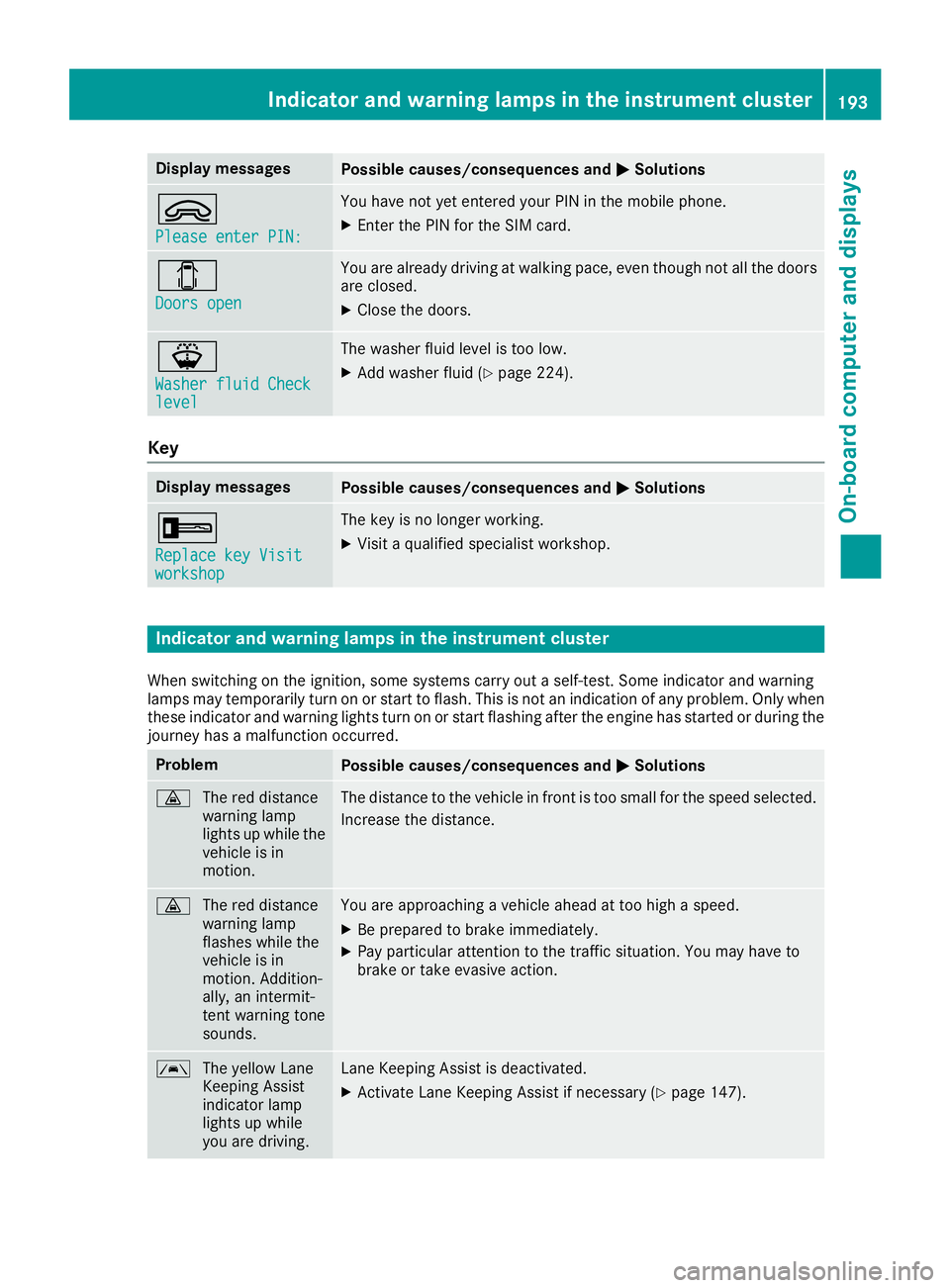
Display messagesPossible causes/consequences andMSolutions
9
Please enter PIN:
You haveno tyet entered your PIN in th emobile phone .
XEnterth ePIN for th eSI M card.
1
Doors ope n
You are already drivin gat walking pace, eve nthough no tall th edoor s
are closed .
XCloseth edoors.
¦
Washer fluid Checklevel
The washer flui dlevel is to olow.
XAd dwasher flui d (Ypage 224).
Key
Display messagesPossible causes/consequences and MSolutions
+
Replacekey Visitworkshop
The ke yis no longer working .
XVisitaqualified specialist workshop .
Indicatorand warning lamps in the instrume nt cluster
Whenswitching on th eignition ,som esystems carry out aself-test .Some indicator and warning
lamp smay temporarily tur non or start to flash. This is no tan indication of any problem .Only when
these indicator and warning lights tur non or start flashin gafter th eengin ehas started or during th e
journey has amalfunction occurred .
ProblemPossible causes/consequences and MSolutions
·
The red distanc e
warning lamp
lights up while th e
vehicl eis in
motion .The distanc eto th evehicl ein fron tis to osmall for th espeed selected.
Increase th edistance.
·
The red distanc e
warning lamp
flashes while th e
vehicl eis in
motion .Addition -
ally, an intermit -
tent warning tone
sounds.You are approachin g avehicl eahead at to ohigh aspeed.
XBe prepare dto brak eimmediately.
XPay particular attention to th etraffic situation .You may hav eto
brak eor tak eevasive action .
Ã
The yello wLan e
Keepin gAssis t
indicator lamp
lights up while
you are driving.Lan eKeepin gAssis tis deactivated.
XActivat eLan eKeepin gAssis tif necessar y (Ypage 147).
Indicator and warning lamps in the instrument cluster193
On-board computer and displays
Z
Page 207 of 290

Eyeglasses compartment in the over-
head control panel
XTo open:briefly press cover :.
The eyeglasses compartment opens down-
wards.
XTo close: press the eyeglasses compartment
into the overhead control panel until it
engages.
Make sure that the eyeglasses compartment is
always closed while the vehicle is in motion.
Dashboard stowage compartments
GWARNING
Objects protruding from the stowage com-
partment above the front passenger front air
bag could obstruct or even prevent deploy-
ment of the front passenger front air bag. The front passenger front air bag may then fail to
provide the intended protection. There is an
increased risk of injury.
Do not place any protruding objects in the
stowage compartment above the front
passenger front air bag.
!The right and left storage spaces may be
loaded with a maximum of 11 lb (5 kg) each.
Stowage space (example: front passenger side)
Stowage compartment equipped withsmartphone
connections
=
USB port
?3.5 mm audio jack
iDepending on the vehicle equipment, a USB
port and an AUX-in connection is installed in
the stowage compartment. A Media Interface
is a universal interface for portable audio
equipment, e.g. for an iPod
®or MP3 player
(see the separate audio system operating
instructions).
Stowage spaces and stowage compartments205
Stowing and features
Z
Page 212 of 290

12 V socket
Socket on the lower section of the center console
:
12 V socket (25 A)
The 12 V sockets for accessories are:
Ron the lower section of the center console
(12 V, 25 A)
Ron the inside of the driver's seat frame (12V,
15 A)
Rin the respective corner trim next to the rear
doors in the passenger compartment (12 V,
15 A)
Rin the cargo compartment next to the left rear door (12 V,15 A)
You can use the 12 V sockets (15 A) for acces-
sories with a maximum power consumption of
180 W. You can connect accessories with a
maximum power consumption of 300 W to the
12 V socket (25 A) on the lower section of the
center console.
iThe sockets are supplied with power even
when the key is removed from the ignition
lock. If accessories, e.g. a coolbox, remain
connected while the engine is not running, the
battery will discharge.
Mobile phone
Important safety notes
GWARNING
If you operate information systems and com-
munication equipment integrated in the vehi-
cle while driving, you will be distracted from
traffic conditions. You could also lose control
of the vehicle. There is a risk of an accident.
Only operate the equipment when the traffic
situation permits. If you are not sure that this is possible, park the vehicle paying attention
to traffic conditions and operate the equip-
ment when the vehicle is stationary.
You must observe the legal requirements for the
country in which you are currently driving when
operating mobile phones.
Bear in mind that at a speed of just 30 mph
(approximately 50 km/h), your vehicle is cov-
ering a distance of 44 feet (approximately 14 m)
every second.
You and others can suffer health-related dam-
age through electromagnetic radiation. By using
an exterior antenna, a possible health risk
caused by electromagnetic fields, as discussed
in scientific circles, is taken into account. Only
have the exterior antenna installed by a qualified
specialist workshop.
We recommend the use of an approved exterior
antenna for operating the mobile phone. Only in
this way can optimal mobile phone reception
quality in the vehicle be ensured and mutual
interference between the vehicle electronics
and mobile phones minimized.
Observe the legal requirements for each indi-
vidual country.
Mobile phone pre-installation
The mobile phone pre-installation includes a
hands-free system integrated into the vehicle.
The microphone for the hands-free system is
installed in the overhead control panel or in the
overhead stowage compartment together with
the front interior light.
In order to use the hands-free system, you will
need a special bracket. The Sprinter accesso-
ries include brackets for various mobile phone
models.
iMobile phone brackets which are available
from various manufacturers on the open mar- ket are not compatible with the Sprinter tele-
phone system. You can recognize suitable
holders for your mobile phone by the imprin-
ted star and the B6 spare part number on the back of the bracket.
Detailed instructions for use can be found in the
operating instructions for the mobile phone
210Mobile phone
Stowing and features