2016 MERCEDES-BENZ GLE-CLASS SUV reset
[x] Cancel search: resetPage 180 of 450
Every person who has access to the informa-
tion stated can use the functions of the online
access to the vehicle.
iInformation when selling a vehicle or
buying a used vehicle:
RIf you sell your vehicle, you are obliged to
delete the vehicle from your personal area
on the online access to the vehicle.
RIf you have bought a used vehicle, it is pos-
sible that the previous owner still has
access to the online access to the vehicle.
Calling up functions
The online access to the vehicle allows you
access to your vehicle's information and func-
tions using remote query and remote configu-
ration.
The following functions can be accessed:
Rrequest the current condition of charge of the
high-voltage battery
Rprogram the departure time (Ypage 274)
Rset or activate the "Pre-entry climate control
at departure time" function (see the separate
COMAND operating instructions)
Information on additional functions and operat- ing instructions can be found within the online
access to the vehicle.
Connecting the vehicle to the Internet
iThis function is not available in all countries
and requires activated access to the mbrace
emergency call system.
You can use the online access to the vehicle if
the vehicle has a connection to the Internet via a mobile phone network. The necessary data is
transmitted by radio. The vehicle automatically
recognizes whether a connection to the Internet
is possible or not. No presets are necessary.
iRestrictions in reception are possible if the
vehicle is in an underground car park, for
example. Restrictions may also occur in areas with poor mobile network coverage.
Parking
Important safety notes
GWARNING
Flammable material such as leaves, grass or
twigs may ignite if they come into contact with
hot parts of the exhaust system or exhaust
gas flow. There is a risk of fire.
Park the vehicle so that no flammable mate-
rials come into contact with parts of the vehi-
cle which are hot. Take particular care not to
park on dry grassland or harvested grain
fields.
GWARNING
If you leave children unsupervised in the vehi-
cle, they could set it in motion by, for example:
Rrelease the parking brake.
Rshift the automatic transmission out of the
parking position P.
Rstart the engine.
In addition, they may operate vehicle equip-
ment and become trapped. There is a risk of
an accident and injury.
When leaving the vehicle, always take the
SmartKey with you and lock the vehicle. Never
leave children unsupervised in the vehicle.
!Always secure the vehicle correctly against
rolling away. Otherwise, the vehicle or its driv-
etrain could be damaged.
To ensure that the vehicle is secured against
rolling away unintentionally:
Rthe electric parking brake must be applied.
Rthe transmission must be in position Pand the
SmartKey must be removed from the ignition
lock.
Rthe front wheels must be turned towards the
curb on steep uphill or downhill gradients.
Rthe empty vehicle must be secured at the
front axle with a wheel chock or similar, for
example, on uphill or downhill gradients.
Ra laden vehicle must also be secured at the
rear axle with a wheel chock or similar, for
example, on uphill or downhill gradients.
178Parking
Driving an d parking
Page 252 of 450
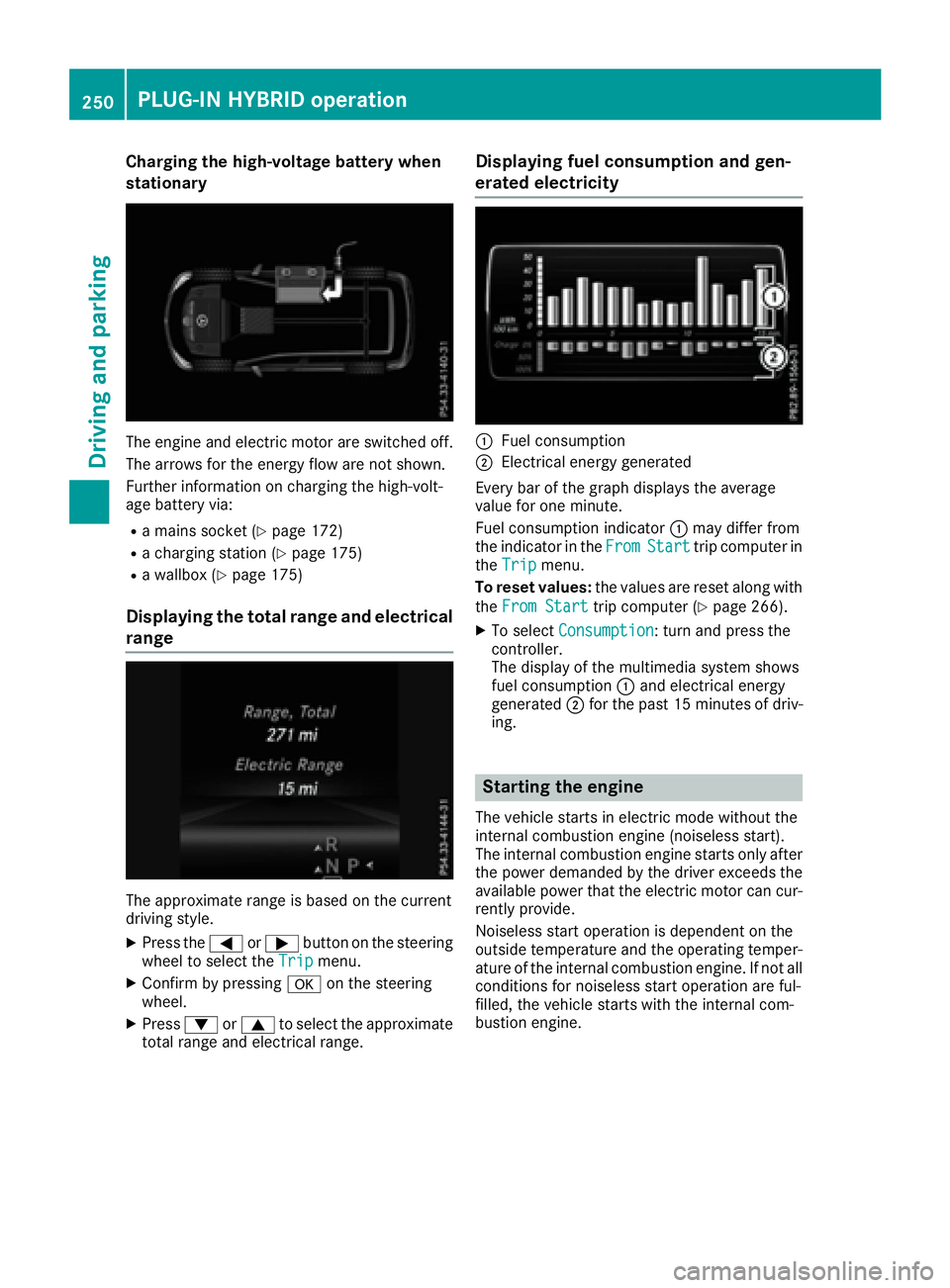
Charging the high-voltage battery when
stationary
The engine and electric motor are switched off.
The arrows for the energy flow are not shown.
Further information on charging the high-volt-
age battery via:
Ra mains socket (Ypage 172)
Ra charging station (Ypage 175)
Ra wallbox (Ypage 175)
Displaying the total range and electrical
range
The approximate range is based on the current
driving style.
XPress the=or; button on the steering
wheel to select the Tripmenu.
XConfirm by pressing aon the steering
wheel.
XPress :or9 to select the approximate
total range and electrical range.
Displaying fuel consumption and gen-
erated electricity
:Fuel consumption
;Electrical energy generated
Every bar of the graph displays the average
value for one minute.
Fuel consumption indicator :may differ from
the indicator in the From
Starttrip computer in
the Tripmenu.
To reset values: the values are reset along with
the From Start
trip computer (Ypage 266).
XTo select Consumption: turn and press the
controller.
The display of the multimedia system shows
fuel consumption :and electrical energy
generated ;for the past 15 minute sof driv-
ing.
Starting the engine
The vehicle starts in electric mode without the
internal combustion engine (noiseless start).
The internal combustion engine starts only after
the power demanded by the driver exceeds the
available power that the electric motor can cur-
rently provide.
Noiseless start operation is dependent on the
outside temperature and the operating temper-
ature of the internal combustion engine. If not all
conditions for noiseless start operation are ful-
filled, the vehicle starts with the internal com-
bustion engine.
250PLUG-IN HYBRID operation
Driving and parking
Page 267 of 450

Left control panel
=
;RCalls up the menu and menu bar
9
:Press briefly:
RScrolls in lists
RSelects a submenu or function
RIn theAudiomenu: selects the
previous or next station, when the
preset list or station list is active,
or an audio track or video scene
RIn the Tel(telephone) menu:
switches to the phone book and
selects a name or telephone num-
ber
9
:Press and hold:
RIn the Audiomenu: selects a pre-
set list or a station list in the
desired frequency range, or
selects an audio track or video
scene using rapid scrolling
RIn the Tel(Telephone) menu:
starts rapid scrolling if the phone
book is open
aRConfirms the selection or display
message
RIn the Tel(Telephone) menu:
switches to the telephone book
and starts dialing the selected
number
%Press briefly:
RBack
RSwitches off voice-operated con-
trol for navigation or the Voice
Control System
RHides display messages or calls up
the last Tripmenu function used
RExits the telephone book/redial
memory
%Press and hold:
RCalls up the standard display in the
Tripmenu
Right control panel
~RRejects or ends a call
RExits the telephone book/redial
memory
6RMakes or accepts a call
RSwitches to the redial memory
W
XRAdjusts the volume
8RMute
?RSwitches on voice-operated con-
trol for navigation or the Voice
Control System
Multifunction display
:Permanent display: outside temperature or
speed (Ypage 274)
;Time
=Text field
?Menu bar
ADrive program (Ypage 154)
BTransmission position (Ypage 154)
XTo display menu bar ?: press the=
or ; button on the steering wheel.
If you do not press the buttons any longer,
menu bar ?is faded out after a few seconds.
Text field =shows the selected menu or sub-
menu as well as display messages.
Displays and operation265
On-board computer and displays
Z
Page 268 of 450

iSet the time using the multimedia system
(see the Digital Operator's Manual).
Possible displays in the multifunction dis-
play:
RZ Gearshift recommendation, when shifting
manually (Ypage 159)
Rj Active Parking Assist (Ypage 213)
RCRUISECruise control (Ypage 191)
RREADYPLUG-IN HYBRID operation activated
(PLUG-IN HYBRID vehicles) (Ypage 250)
RHYBRIDoperating mode, additional operating
mode displays (PLUG-IN HYBRID vehicles)
(
Ypage 245)
Rè Electric range (PLUG-IN HYBRID vehi-
cles) (Ypage 245)
RLOW RANGELOW RANGE off-road gear
(Ypage 239)
R_ Adaptive Highbeam Assist
(Ypage 118)
Rè ECO start/stop function (Ypage 149)
RëHOLD function (Ypage 204)
RaDISTRONIC PLUS Steering Assist and
Stop&Go Pilot (Ypage 199)
RDSRDownhill Speed Regulation
(Ypage 236)
Menus and submenus
Menu overview
Press the =or; button on the steering
wheel to call up the menu bar and select a menu.
Operating the on-board computer (
Ypage 264).
Depending on the equipment installed in the
vehicle, you can call up the following menus:
RTripmenu (Ypage 266)
RNavimenu (navigation instructions)
(Ypage 268)
RAudiomenu (Ypage 269)
RTelmenu (telephone) (Ypage 270)
RDriveAssistmenu (assistance)
(Ypage 271)
RServ.menu (Ypage 273)
RSett.menu (settings) (Ypage 273)
RON&OFFROADmenu (Ypage 276)
RAMGmenu (Mercedes-AMG vehicles)
(Ypage 277)
Trip menu
Standard display
XPress and hold the %button on the steer-
ing wheel until the Tripmenu with trip odom-
eter :and odometer ;appears.
Trip computer "From Start" or "From
Reset"
:Distance
;Driving time
=Average speed
?Average fuel consumption
XPress the =or; button on the steering
wheel to select the Tripmenu.
XPress the9or: button to select
From Startor From Reset.
The values in the From
Startsubmenu are cal-
culated from the start of a journey, while the
values in the From Reset
submenu are calcu-
lated from the last time the submenu was reset
(
Ypage 267).
The From Start
trip computer is automatically
reset if:
Rthe ignition has been switched off for more
than four hours.
R999 hours have been exceeded.
R9,999 miles have been exceeded.
The From Reset
trip computer is automatically
reset if the value exceeds 9,999 hours or
99,999 miles.
266Menus and submenus
On-board computer and displays
Page 269 of 450
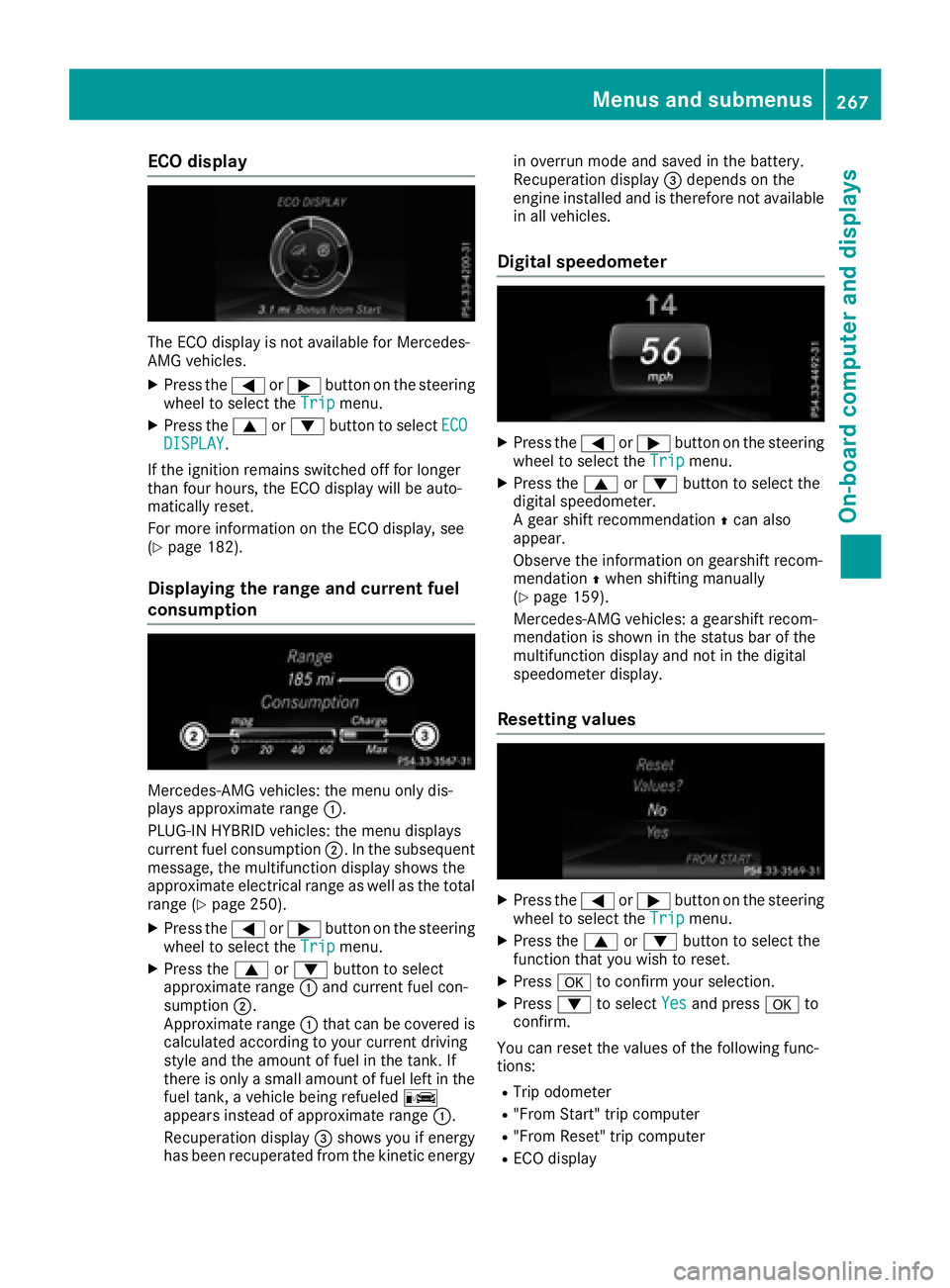
ECO display
The ECO display is not available for Mercedes-
AMG vehicles.
XPress the=or; button on the steering
wheel to select the Tripmenu.
XPress the9or: button to select ECODISPLAY.
If the ignition remains switched off for longer
than four hours, the ECO display will be auto-
matically reset.
For more information on the ECO display, see
(
Ypage 182).
Displaying the range and current fuel
consumption
Mercedes-AMG vehicles: the menu only dis-
plays approximate range :.
PLUG-IN HYBRID vehicles: the menu displays
current fuel consumption ;. In the subsequent
message, the multifunction display shows the
approximate electrical range as well as the total
range (
Ypage 250).
XPress the =or; button on the steering
wheel to select the Tripmenu.
XPress the9or: button to select
approximate range :and current fuel con-
sumption ;.
Approximate range :that can be covered is
calculated according to your current driving
style and the amount of fuel in the tank. If
there is only a small amount of fuel left in the fuel tank, a vehicle being refueled C
appears instead of approximate range :.
Recuperation display =shows you if energy
has been recuperated from the kinetic energy in overrun mode and saved in the battery.
Recuperation display
=depends on the
engine installed and is therefore not available
in all vehicles.
Digital speedometer
XPress the =or; button on the steering
wheel to select the Tripmenu.
XPress the9or: button to select the
digital speedometer.
A gear shift recommendation Zcan also
appear.
Observe the information on gearshift recom-
mendation Zwhen shifting manually
(
Ypage 159).
Mercedes-AMG vehicles: a gearshift recom-
mendation is shown in the status bar of the
multifunction display and not in the digital
speedometer display.
Resetting values
XPress the =or; button on the steering
wheel to select the Tripmenu.
XPress the9or: button to select the
function that you wish to reset.
XPress ato confirm your selection.
XPress :to select Yesand press ato
confirm.
You can reset the values of the following func-
tions:
RTrip odometer
R"From Start" trip computer
R"From Reset" trip computer
RECO display
Menus and submenus267
On-board computer and displays
Z
Page 270 of 450
If you reset the values in the ECO display, the
values in the "From Start" trip computer are also
reset. If you reset the values in the "From Start"
trip computer, the values in the ECO display are
also reset.
Navigation system menu
Displaying navigation instructions
In the Navimenu, the multifunction display
shows navigation instructions.
Observe the additional information on naviga-
tion in the separate multimedia system operat-
ing instructions.
XSwitch on the multimedia system (see sepa-
rate operating instructions).
XPress the =or; button on the steering
wheel to select the Navimenu.
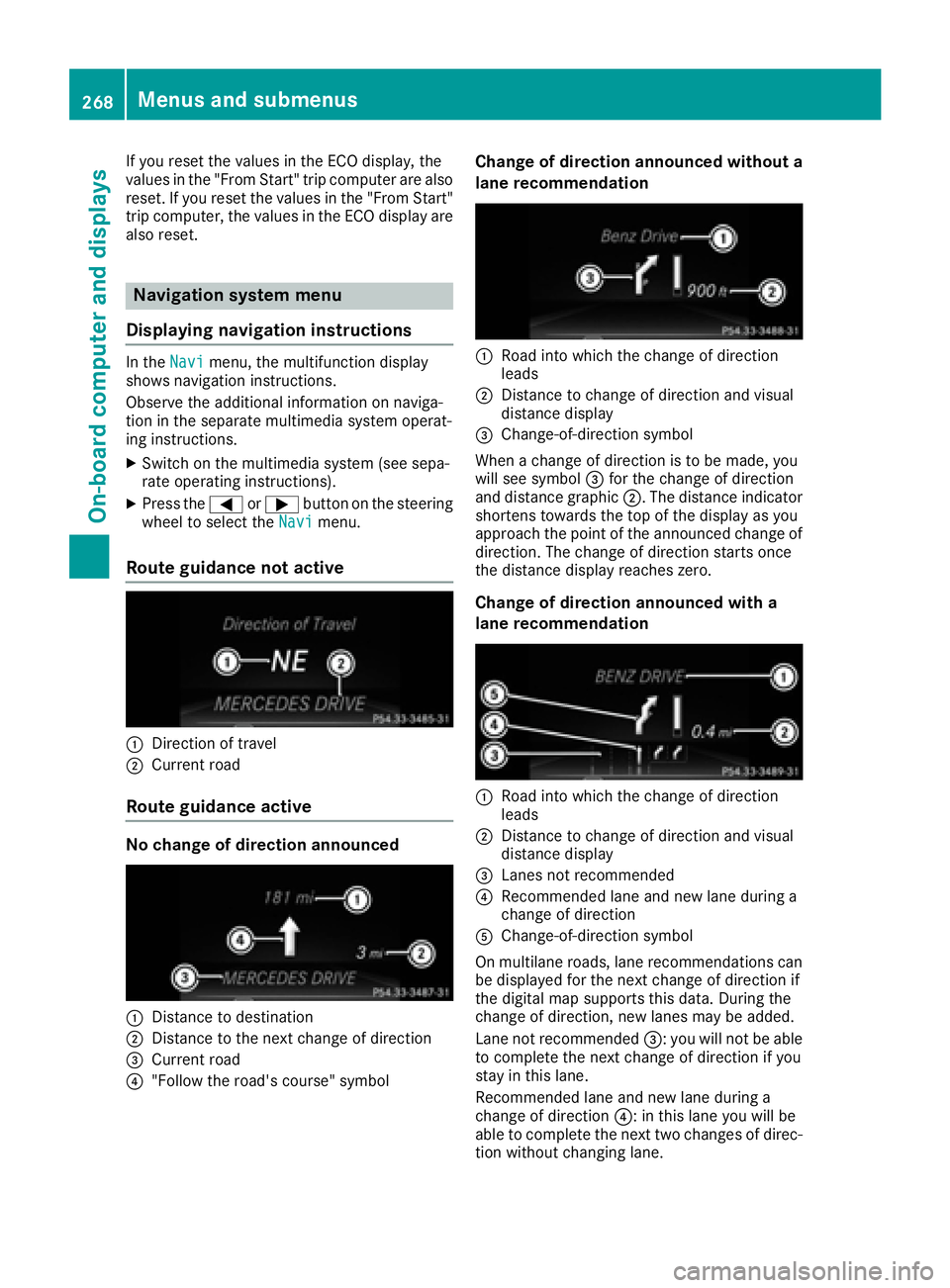
Route guidance not active
:Direction of travel
;Current road
Route guidance active
No change of direction announced
:Distance to destination
;Distance to the next change of direction
=Current road
?"Follow the road's course" symbol
Change of direction announced without a
lane recommendation
:Road into which the change of direction
leads
;Distance to change of direction and visual
distance display
=Change-of-direction symbol
When a change of direction is to be made, you
will see symbol =for the change of direction
and distance graphic ;. The distance indicator
shortens towards the top of the display as you
approach the point of the announced change of
direction. The change of direction starts once
the distance display reaches zero.
Change of direction announced with a
lane recommendation
:Road into which the change of direction
leads
;Distance to change of direction and visual
distance display
=Lanes not recommended
?Recommended lane and new lane during a
change of direction
AChange-of-direction symbol
On multilane roads, lane recommendations can
be displayed for the next change of direction if
the digital map supports this data. During the
change of direction, new lanes may be added.
Lane not recommended =: you will not be able
to complete the next change of direction if you
stay in this lane.
Recommended lane and new lane during a
change of direction ?: in this lane you will be
able to complete the next two changes of direc-
tion without changing lane.
268Menus and submenus
On-board computer and displays
Page 271 of 450
Other status indicators of the naviga-
tion system
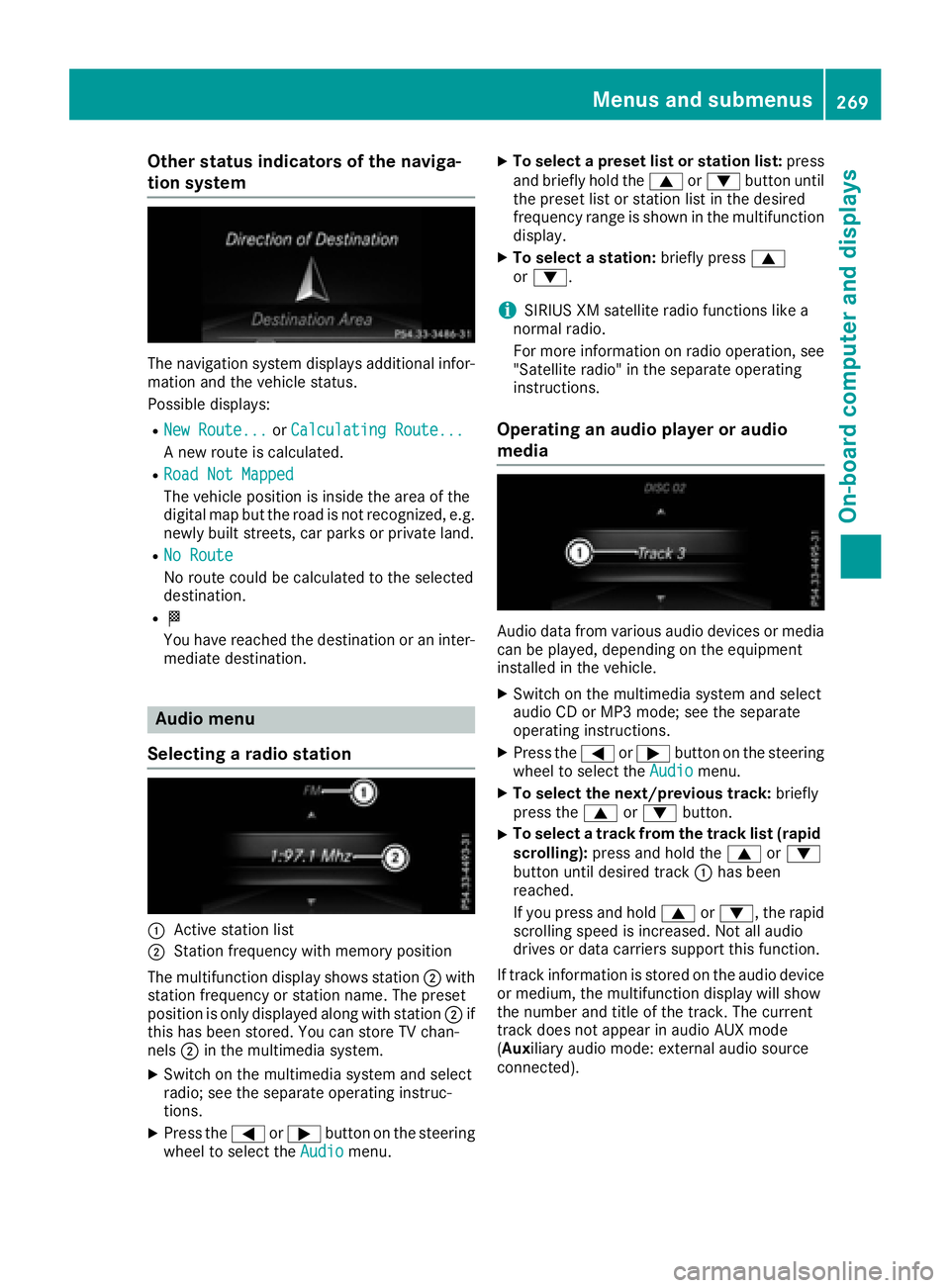
The navigation system displays additional infor-mation and the vehicle status.
Possible displays:
RNew Route...or Calculating Route...
A new route is calculated.
RRoad Not Mapped
The vehicle position is inside the area of the
digital map but the road is not recognized, e.g.
newly built streets, car parks or private land.
RNo Route
No route could be calculated to the selected
destination.
RO
You have reached the destination or an inter-
mediate destination.
Audio menu
Selecting a radio station
:Active station list
;Station frequency with memory position
The multifunction display shows station ;with
station frequency or station name. The preset
position is only displayed along with station ;if
this has been stored. You can store TV chan-
nels ;in the multimedia system.
XSwitch on the multimedia system and select
radio; see the separate operating instruc-
tions.
XPress the =or; button on the steering
wheel to select the Audiomenu.
XTo select a preset list or station list: press
and briefly hold the 9or: button until
the preset list or station list in the desired
frequency range is shown in the multifunction
display.
XTo select a station: briefly press9
or :.
iSIRIUS XM satellite radio functions like a
normal radio.
For more information on radio operation, see
"Satellite radio" in the separate operating
instructions.
Operating an audio player or audio
media
Audio data from various audio devices or media
can be played, depending on the equipment
installed in the vehicle.
XSwitch on the multimedia system and select
audio CD or MP3 mode; see the separate
operating instructions.
XPress the =or; button on the steering
wheel to select the Audiomenu.
XTo select the next/previous track: briefly
press the 9or: button.
XTo select a track from the track list (rapid
scrolling): press and hold the 9or:
button until desired track :has been
reached.
If you press and hold 9or:, the rapid
scrolling speed is increased. Not all audio
drives or data carriers support this function.
If track information is stored on the audio device
or medium, the multifunction display will show
the number and title of the track. The current
track does not appear in audio AUX mode
(Auxiliary audio mode: external audio source
connected).
Menus and submenus269
On-board computer and displays
Z
Page 276 of 450
Before charging the high-voltage battery at a
wallbox or charging station, ensure that the
charging current is not limited by the function. If
charging at a wallbox or a charging station,
select the maximum value.
Further information on charging the high-volt-
age battery and setting the charge current
(PLUG-IN HYBRID vehicles) (
Ypage 170).
XPress the=or; button on the steering
wheel to select the Sett.menu.
XPress the:or9 button to select the
HYBRID PLUSsubmenu.
XConfirm by pressing aon the steering
wheel.
XPress the :or9 button to select the
Maximum Charge Current:function.
You will see the selected setting.
XPress the abutton to save the setting.
The maximum charge current values in the on-
board computer may deviate from the charg- ing cable values.
Further information on charging the high-volt-
age battery (PLUG-IN HYBRID vehicles)
(
Ypage 170).
Setting the departure time
You can climatize the vehicle interior prior to
your departure with the "Set departure time"
function. Further information on pre-entry cli-
mate control (
Ypage 140).
If you recharge the high-voltage battery, the
function also displays the charging prediction.
XPress the =or; button on the steering
wheel to select the Sett.menu.
XPress the:or9 button to select the
HYBRID PLUSsubmenu.
XConfirm by pressing aon the steering
wheel.
XPress the :or9 button to select the
Departure Time:function.
You will see the selected setting.
XTo set no departure time: press the:or
9 button to select No Preselection
.
XPressato confirm.
If you recharge the high-voltage battery, the
multifunction display also shows the time
when the high-voltage battery will be fully
charged.
or
XTo set a departure time: press the:or
9 A
,Bor Cto select the desired preset.
XPress the abutton to confirm the selec-
tion.
XPress :or9 to set the hours.
XPress ato confirm.
XPress :or9 to set the minutes.
XPress ato confirm.
If you recharge the high-voltage battery, the
multifunction display shows the expected
condition of charge of the high-voltage bat-
tery for the departure time set.
Further information on charging the high-volt-
age battery (PLUG-IN HYBRID vehicles)
(
Ypage 170).
Instrument cluster submenu
Selecting the distance unit
The Display Unit Speedometer / Odome‐ter:function allows you to choose whether
certain displays appear in kilometers or miles in
the multifunction display.
XPress the =or; button on the steering
wheel to select the Sett.menu.
XPress the:or9 button to select the
Instrument Clustersubmenu.
XPress ato confirm.
XPress the :or9 button to select the
Display Unit Speedometer / Odometer
function.
You will see the selected setting: kmormiles.
XPress the abutton to save the setting.
The selected unit of measurement for distance
applies to:
RDigital speedometer in the Tripmenu
ROdometer and the trip odometer
RTrip computer
RCurrent consumption and the range
RNavigation instructions in the Navimenu
RCruise control
RDISTRONIC PLUS
RASSYST PLUS service interval display
Selecting permanent display
ThePermanent Display:function allows you
to choose whether the multifunction display
always shows the outside temperature or the
speed.
The speed display is inverse to the speedome-
ter.
274Menus and submenus
On-board computer and displays