2016 MERCEDES-BENZ E-Class Media
[x] Cancel search: MediaPage 198 of 246

Media Interface basic display
:Main function bar
;Display for the active data medium
=Media menu bar
?Title display in the media list
ACurrent track/number in track list
BNumerical time display
CGraphic time display
DAdditional display area with cover view
Switching to Media Interface
XConnect a data medium to USB socket 1 or
USB socket 2 (
Ypage 184).
XSelect the basic menu for Media Interface 1
or Media Interface 2 (
Ypage 179).
If playable media files are found, they will
be played by COMAND.
If you remove a device, the No Device
Connectedmessage appears.
Supported devices
The following data media can be connected to
COMAND via the Media Interface:
RiPod®
RiPhone®
RiPad®
RMP3
RUSB devices
iIt is not possible to run two Apple®devi-
ces simultaneously.
iiPod®, iPhone®and iPad®are registered
trademarks of Apple Inc., Cupertino, Cali-
fornia, USA.
iAudio files, photos and video files can be
played back.
For details and a list of supported devices,
visit our website at http://www.mercedes-
benz-mobile.com/ . Then follow the instruc-
tions in the "Media Interface" section.
Or call the Mercedes-Benz Customer Assis-
tance Center at 1-800-FOR-MERCedes
(1-800-367-6372) (for the USA) or Customer
Relations at 1-800-387-0100 (for Canada).
Supported data formats
Musicmp3, wma, aac
Videompeg, wmv, mov,
avi, mp4
Imagesjpg, jpeg, bmp, png
Selecting a music file
Selecting with the controller
XTo display the current track list: press
the controller in the basic display.
The track list for the active data medium
appears.
XTo select a track: turn the controller and
press to confirm.
XTo skip forwards or backwards to a
track: turn the controller in the basic dis-
play.
The selected track is played.
Fast forward/rewind
XWith the media source active in the basic
display, slide 1the controller and hold
it until the desired position has been
reached.
196Operation with the Media Interface
Media
Page 199 of 246

Search function
Selecting Search using media menu bar
XSlide 6the controller.
The media menu bar appears.
XTo select Search: turn and press the con-
troller.
The category list appears.
Overview
The following categories are listed:
RCurrent Track List
RFolder
RSelect By Cover
RKeyword Search
RPlaylists
RArtists
RAlbums
RTracks
RGenres
RYear
RComposers
RVideos
RPhotos
RAudiobücher (Audio Books)
RPodcasts
RiTunes U
RGenius Mixes
iThe functions are available as soon as the
entire media content has been read and
analyzed.
If the same device is reconnected with
unchanged media content, these functions
are available more quickly.
The categories Audio Books, Podcasts,
iTunes U
®and Genius Mixes®are only
available for Apple®devices.
When connecting Apple
®devices, the cat-
egories “Folder”, “Year”, "Videos" and
“Photos” are not available.
XTo select a category, e.g. CurrentTrack
List: turn and press the controller.
The selection list appears.
XSelect the required track.
XKeyword search: using the controller,
enter the characters for the desired search
term and confirm (
Ypage 189).
Search results are sorted according to the
available categories, displayed and can
then be selected.
Playback options
Operation with the Media Interface197
Media
Z
Page 200 of 246

XSelect playback options (Ypage 184).
iThePlayMoreLikeThisoption is also
available for Apple®devices. This is only
possible if the Genius function is activated
in iTunes followed by a synchronization of
the Apple
®device with iTunes again.
Video function
If playable video files are found, they will be
played by COMAND.
XTo switch on full-screen mode: press the
controller in the basic display.
XTo show the video menu: slide 6the con-
troller in full-screen mode.
The Media Interface menu bar appears.
XTo select Options: turn and press the con-
troller.
XSelect Video Settings.
Operate Video Settings
(Ypage 200).
Video DVD mode
Important safety notes
GWARNING
The CD/DVD drive is a class 1 laser product.
If you open the housing of the CD/DVD drive,
there is a risk of exposure to invisible laser
radiation. This laser radiation could damage
your retina. There is a risk of injury.
Never open the housing. Always have main-
tenance and repair work carried out at a quali- fied specialist workshop.
GWARNING
Handling discs while driving may distract you from traffic conditions. You could also lose
control of the vehicle. There is a risk of an
accident.
Handle discs only when the vehicle is station-
ary.
Bear in mind that at a speed of only 30 mph
(approximately 50 km/h) your vehicle covers
a distance of 44 feet (approximately 14 m)
ever yse cond.
General notes
Notes on discs
!Do not affix stickers or labels to the discs.
They could peel off and damage COMAND.
Stickers can cause the disc to bend, which
can result in read errors and disc recogni-
tion problems.
!COMAND is designed to play discs that
comply with the EN 60908 standard. There-
fore, you can only use discs with a maxi-
mum thickness of 1.3 mm.
If you insert thicker discs, e.g. those that
contain data on both sides (DVD on one
side and audio data on the other), they can- not be ejected and can damage the device.
Only use round discs with a diameter of
12 cm. Do not use discs with a diameter of
8 cm, even with an adapter.
The variety of data media, burners and burn
software means there is no guarantee that
the system will be able to play discs that you
have copied yourself.
DVD playback conditions
If video DVDs do not conform to the NTSC or
PAL TV standards, they may create picture,
sound or other problems during playback.
198Video DVD mode
Media
Page 201 of 246

COMANDiscapable of playing back video
DVDs produced according to the fol lowing
standards:
RRegion co de1 or region code 0 (no region
code)
RPAL or NTSC standard
You willgenerally find the relevant details
either on the DVD itself or on the DVD case.
iIf you insert a video DVD with a different
region code, a message to this effect
appears.
iCOMAND isset to region co de1 at the
factory. This setting can be changed at an
authorized Mercedes-Benz Center. It isalso
possible to play video DVDs with a different
region code, provided that they are pro-
duced inaccordance with the PAL or NTSC
TV standard. The region code can be
changed a maximum of four times.
Control options
There are various control menus availab lein
DVD video mode.
Most DVDs have their own control menu.
The DVD's control menu isoperated directly
using the controller or DVD functions.
Control menu and
functionOperation
RDVD's control
menu
Se lection of title,
scene, language,
subtit les ...Operation with the
controller
RMenu Options
Selection of
brig htness, con-
trast, color, for-
mat
Operation using the
menu bar/options/
video settings
Control menu and
functionOperation
RVideo menu
Se lection of
scene, fast
forward/rewindIn full-screen mode,
slide 6the con-
troller
RDVD functions
Se lection of title,
scene, language,
subtit les ...Infull-screen mode,
press the controller
Function restrictions
Depending on the DVD, certain functions or
actions may not function at all. The symbol K
appears inthe display.
Switching on video DVD mode
RInsert and eject a discfrom the single drive
(
Ypage 182)
RIn sert a disc into the DVD changer
(
Ypage 182)
Further options for switching on:
RUsing the number keypad (Ypage 179)
RUsing the main function bar (Ypage 179)
RUsing the device list (Ypage 179)
RUsing the Õbutton (Ypage 178)
DVD basic display
:Status bar
;Main function bar
Video DVD mode199
Media
Z
Page 202 of 246

=Main display field
?Media menu bar
The DVD basic display appears once the DVD
has been inserted.
DVD full-screen mode
Once a video DVD has been inserted, the disc is played.
XTo set full-screen mode: slide 5the
controller.
The main function bar and menu bar are
hidden. A full-screen symbol will be shown.
XPress the controller.
The full-screen mode appears.
XTo show the DVD basic display in full-
screen mode: slide6the controller.
The video menu appears.
XPress the controller.
The basic display appears.
Menu options
XTo select options: in full-screen mode,
slide 6the controller.
The video menu appears.
XPress the controller.
The DVD basic display appears.
XTo select Optionsin the menu bar: turn
and press the controller.
The Options
menu appears.
DVD functions
XTo select DVD Functions: turn and press
the controller.
A menu appears (
Ypage 201).
Video settings
Setting the picture format
The following options are available for the
screen format for the DVD being played:
RAuto
R16:9
R4:3
RZoom
XTo set the picture format: turn and press
the controller.
The dot before the menu entry shows the
selected format.
Manual image enhancement
XTo select Brightness,Contrastor
Color
: turn and press the controller.
A sliding menu appears.
XTo select the required value: turn the con-
troller.
XTo exit the sliding menu: slide8 the
controller.
200Video DVD mode
Media
Page 203 of 246

DVD'scontro lmenu
Mos tDVDs hav etheir own contro lmenu
whic hcan be operated usin gth econtroller .
Showin gth eDVD' scontro lmen u
XTo selec tMen ufrom th eDV Doverlay menu:
turn and press th econtroller .
The men uof th eDV Doverlay men uis hid-
den and th eDVD' smen uentries (e.g.
scenes, language ,trailers) are displayed .
XTo select amen uentry: slid eand press th e
controller .
Video menu
:Type of dat amedium
;Curren ttitl e
=Shows th emen ubar sfo rth eDV Dbasi c
display
?Curren tscen e
ATrack time
Operating th evideo menu
XTo show: in full-screen video mode, slid e
6 thecontroller .
XTo hide:slid e5 thecontroller .
XTo selectth enext/previous scene: turn th e
controller clockwise/counter-clockwise .
XTo fastforward/rewind: slid e1 and
hol dth econtroller until th edesire dposi-
tion has been reached.
XTo hide th evideo menu: slid e5 thecon-
troller.
XTo sho wthemen ubar sfo rth eDV Dbasi c
display: press th econtroller .
The video men uis hidden and th eDV D
basi cmen uappears .
DVD functions
Showing/hiding th eDVD functions
XTo show theDV Doverlay menu: in full -
scree nvideo mode, press th econtroller .
The DV Doverlay men uis shown .
XTo hide: select% in theDV Doverlay
men uby turnin gand pressing th econtrol-
ler
XTo show th eDVD basic display :selec t
ò in theDV Doverlay men uby turnin g
and pressing th econtroller .
Overview of DVD overlay menu
:Activates DV Dcontro lmen u
;Hides DV Doverlay men u
=Shows theDV Dbasi cdisplay
?Confirms entr yin contro lmen u
ANavigates DV Dlist s
BJump sto th estart of th escen e
CDisplays camera perspective s
DShows subtitles
ESelects language
FStop function
GPausefunction
Video DVD mode20 1
Media
Z
Page 204 of 246

Operating the DVD's own menu with the
DVD overlay menu
XIn full-screen mode, press the controller
The DVD overlay menu is shown.
It is possible to navigate within the DVD's
own control menu using the arrows in the
upper bar of the DVD overlay menu.
XTo select theXZ¬Yarrow to navigate in the
DVD's own menu: turn the controller.
The active arrow is highlighted.
XTo select the arrow: press the controller.
The next menu entry in the direction of the arrow is highlighted.
XTo select OKfrom the DVD overlay menu:
turn and press the controller.
The selected DVD scene is played.
XTo hide the DVD overlay menu: select
& using the controller.
XPress the controller.
The DVD overlay menu is hidden.
If there are functions, such as Display cam-
era perspectives on the DVD, these are
shown in the DVD overlay menu.
XTo call up Display camera perspectives:
turn and press the controller
Stop function
XShow the DVD overlay menu (Ypage 201).
XInterrupting playback To select
Éin the menu of the DVD
overlay menu: turn and press the control-
ler.
The Ë display changes to Ì. The
video image is hidden.
XTo continue playback: selectÌ.
Playback continues from the point where it was interrupted.
XTo stop playback: selectÉagain while
playback is interrupted.
XTo start playback again: selectÌ.
Playback restarts from the beginning.
Pause function
XShow the DVD overlay menu (Ypage 201).
XPausing playback
To select Ë: turn and press the control-
ler.
The Ë display changes to Ì.
XTo continue playback: selectÌ.
Selecting a scene/chapter
If the film is divided into scenes or chapters,
these can be selected directly while the film is
running, or skipped forwards step by step.
This is not possible at certain points for some
DVDs (e.g. during the opening credits).
It may also be possible to select the scene/
chapter from the functions stored on the
DVD.
XTo skip forwards or back: in the video
menu, turn the controller.
or
XPress the EorF button.
The next or previous scene in the film is
skipped to.
iThe DVD overlay menu can also be used
to make selections (
Ypage 201).
202Video DVD mode
Media
Page 205 of 246
Picture viewer
General notes
If pictures are stored on a medium (except on
Apple®devices) which is connected to
COMAND, you can view these on the
COMAND display.
The following data media and picture formats are supported:
RData media: CD, DVD, USB devices, SD
memory cards
RPicture formats: jpeg, jpg, bmp, png
The maximum image resolution is 20 mega-
pixels for jpeg, jpg and 1.5 megapixels for
bmp, png.
Displaying pictures
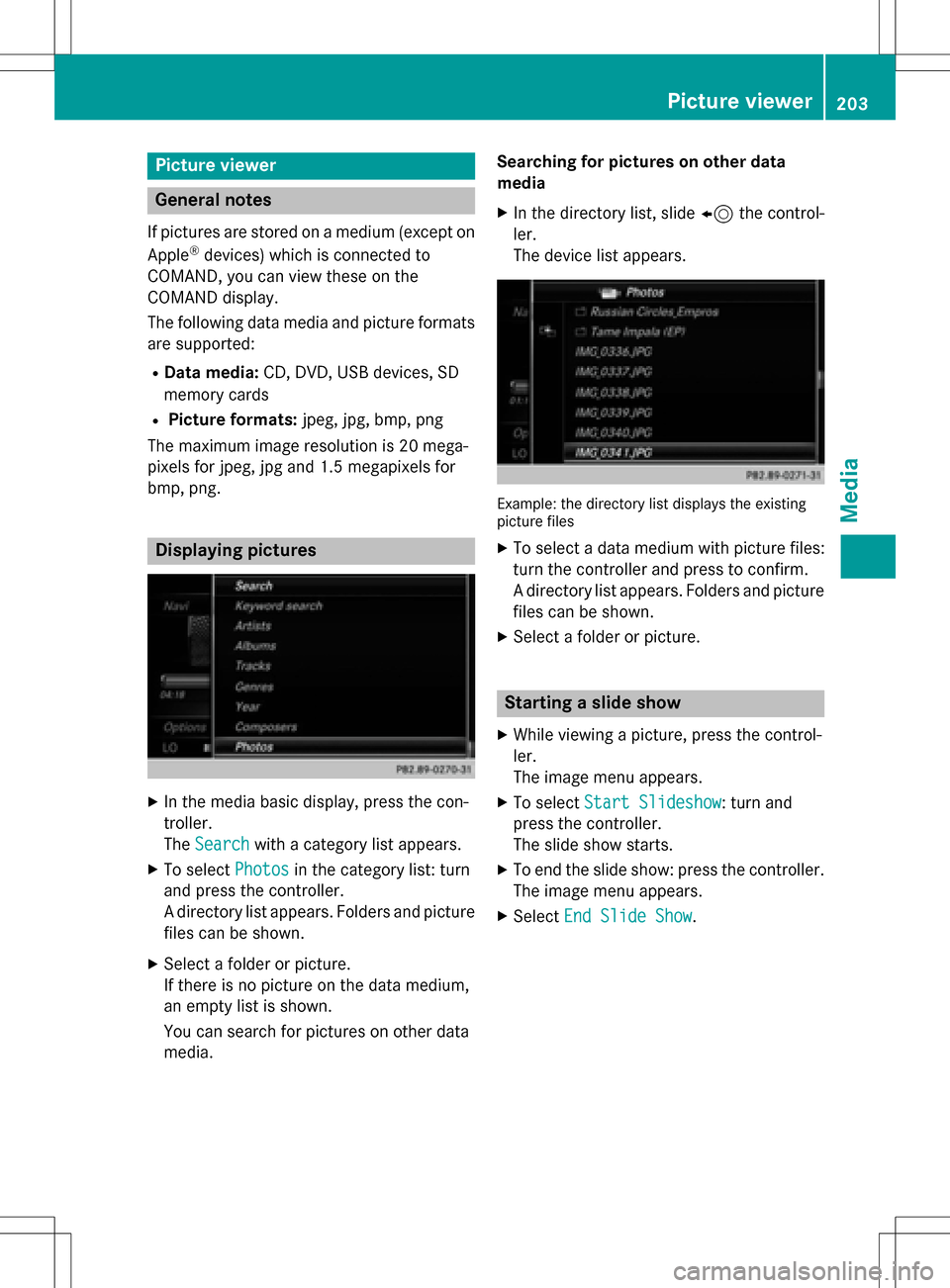
XIn the media basic display, press the con-
troller.
The Search
with a category list appears.
XTo select Photosin the category list: turn
and press the controller.
A directory list appears. Folders and picture
files can be shown.
XSelect a folder or picture.
If there is no picture on the data medium,
an empty list is shown.
You can search for pictures on other data
media. Searching for pictures on other data
media
XIn the directory list, slide
8the control-
ler.
The device list appears.
Example: the directory list displays the existing
picture files
XTo select a data medium with picture files:
turn the controller and press to confirm.
A directory list appears. Folders and picture
files can be shown.
XSelect a folder or picture.
Starting a slide show
XWhile viewing a picture, press the control-
ler.
The image menu appears.
XTo select Start Slideshow: turn and
press the controller.
The slide show starts.
XTo end the slide show: press the controller.
The image menu appears.
XSelect End Slide Show.
Picture viewer203
Media
Z