2016 MERCEDES-BENZ B-Class ELECTRIC reset
[x] Cancel search: resetPage 147 of 342
(Ypage 187) trip computer in theTrip
menu.
Displaying energy consumption and recu-
perated electric energy:
XSwitch on Audio 20/COMAND (see the
separate operating instructions).
XTo select Vehiclefrom the main function
bar: turn and press the controller.
The vehicle menu is displayed.
XTo select Consumption: turn and press the
controller.
Energy consumption :and recuperated
electric energy ;for the last 15 minutes of
the journey are shown.
Exiting the vehicle settings:
XPress the %button on the controller.
or
XTo select %: slide 6and press the
controller.
To reset values: the values are reset along
with the From Start
trip computer
(
Ypage 189).
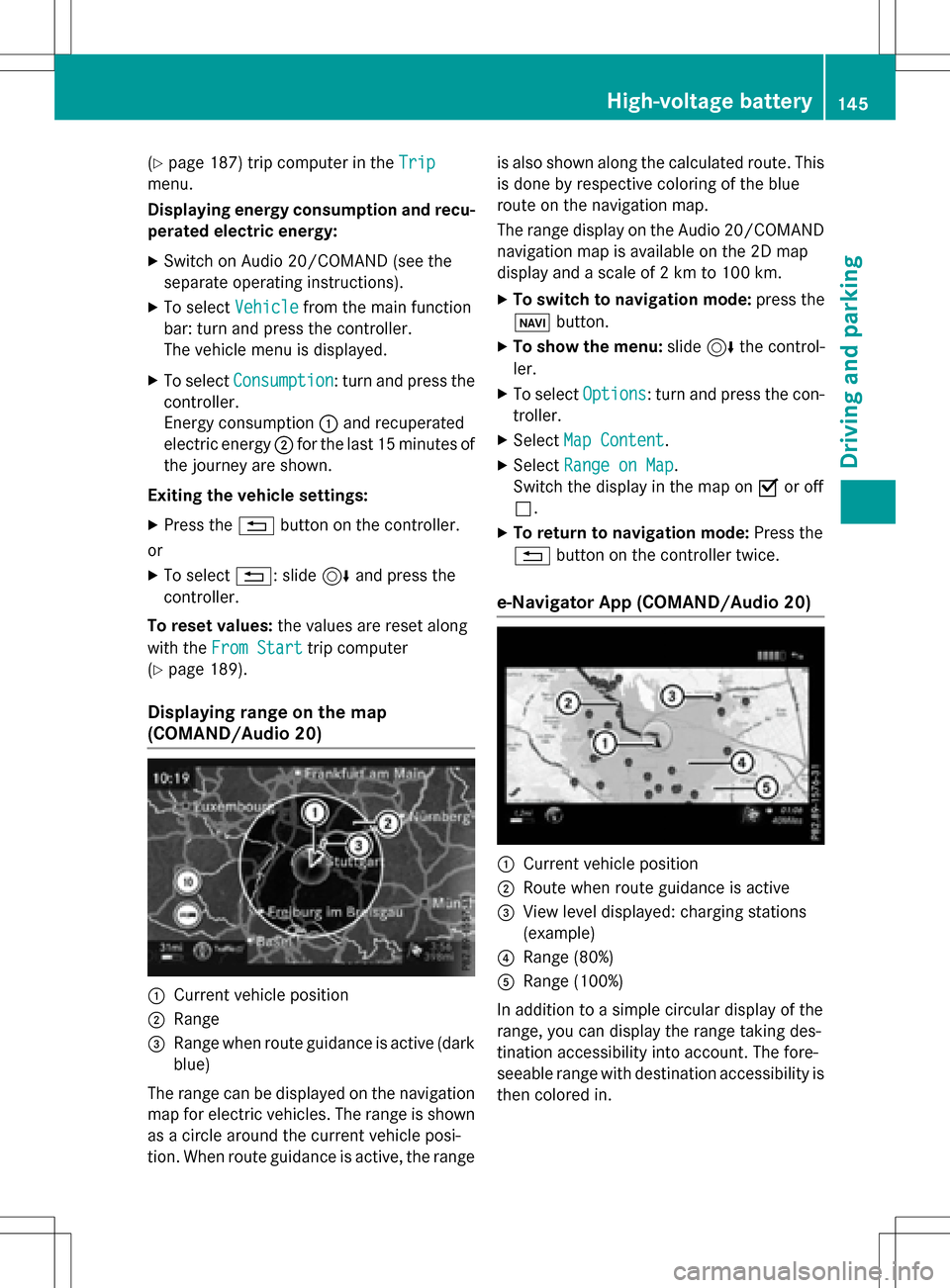
Displaying range on the map
(COMAND/Audio 20)
:Current vehicle position
;Range
=Range when route guidance is active (dark
blue)
The range can be displayed on the navigation
map for electric vehicles. The range is shown
as a circle around the current vehicle posi-
tion. When route guidance is active, the range is also shown along the calculated route. This
is done by respective coloring of the blue
route on the navigation map.
The range display on the Audio 20/COMAND
navigation map is available on the 2D map
display and a scale of 2 km to 100 km.
XTo switch to navigation mode:
press the
ß button.
XTo show the menu: slide6the control-
ler.
XTo select Options: turn and press the con-
troller.
XSelect Map Content.
XSelectRange on Map.
Switch the display in the map on Oor off
ª.
XTo return to navigation mode: Press the
% button on the controller twice.
e-Navigator App (COMAND/Audio 20)
:Current vehicle position
;Route when route guidance is active
=View level displayed: charging stations
(example)
?Range (80%)
ARange (100%)
In addition to a simple circular display of the
range, you can display the range taking des-
tination accessibility into account. The fore-
seeable range with destination accessibility is
then colored in.
High-voltage battery145
Driving and parking
Z
Page 150 of 342
charge current. If necessary, lower the set
charge current or use another power
socket.
You can set a limit for the values of the charge
current used in charging the high-voltage bat-
tery. This acts as a means of preventing the
power supply from overloading. You can set
this limit by using the controls on the charging
cable or in the on-board computer's menu.
Only set the maximum charge current in the
on-board computer menu if there are no
charge current settings on the charging
cable.
The default standard value is the minimum
charge current setting. This corresponds to
the minimum available charge current from
the power supply.
iThe value of the maximum setting and the
relevant adjustment values may vary
depending on the country.
Before charging the high-voltage battery,
have the maximum permissible charge cur-
rent for the relevant power socket checked by
an electrician.
XTo adjust the setting: press button?
repeatedly until the desired setting is selec-
ted in display =.
RTwo LEDs are flashing: minimum setting
RAll LEDs are flashing: maximum setting
Information about the charging time
(
Ypage 338)
If, after the charging process, the charging
cable is:
Rleft connected to the power socket, the
currently selected values will be used for
the next charging process.
Rremoved from the power socket, the values
will be reset to the minimum setting for the
next charging process. You may then need
to reset the values of the maximum charge
current.
If the charge current values that have been
set on the charging cable and the on-board computer are different, the high-voltage bat-
tery is charged using the lower value.
If the vehicle requires more time than usual to
charge the high-voltage battery, check:
Rthe settings of the maximum charge cur-
rent on the controls of the charging cable
Rthe settings of the maximum charge cur-
rent in the menu of the on-board computer
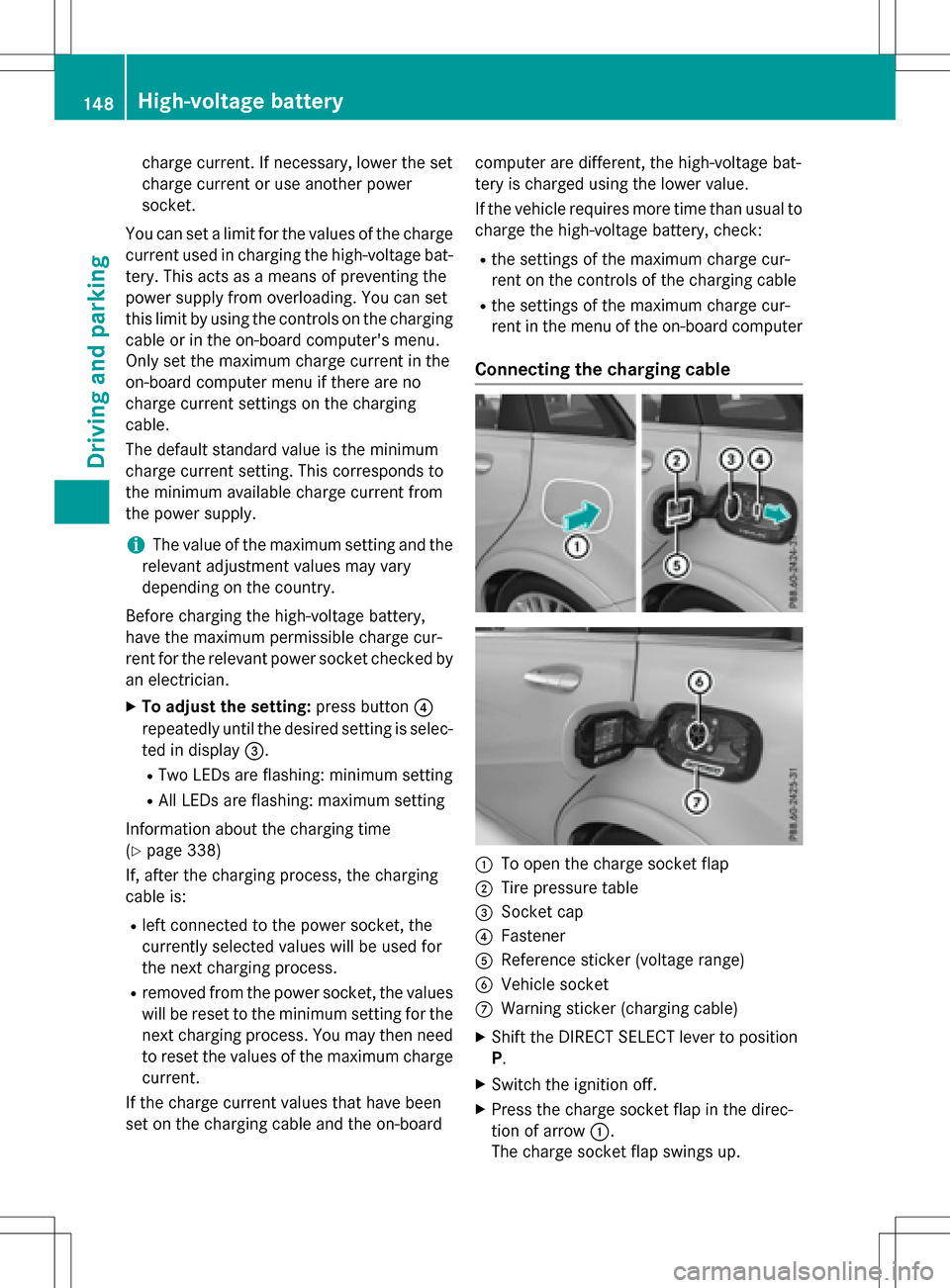
Connecting the charging cable
:To open the charge socket flap
;Tire pressure table
=Socket cap
?Fastener
AReference sticker (voltage range)
BVehicle socket
CWarning sticker (charging cable)
XShift the DIRECT SELECT lever to position
P.
XSwitch the ignition off.
XPress the charge socket flap in the direc-
tion of arrow
:.
The charge socket flap swings up.
148High-voltage battery
Driving and parking
Page 155 of 342
Calling up functions in the "My
Mercedes Electric - Vehicle Homepage"
The "My Mercedes Electric - Vehicle Home-
page" allows you access to information about
your vehicle and its functions using remote
query and remote configuration. For example,
climate control can be activated using remote
configuration which means that it need not be
set in the vehicle. Power for the climate con-
trol is primarily supplied via the charging
cable connected to the mains supply. In this
way, the range of the vehicle in most cases is
not reduced. If climate control is activated,
the battery charge level and thus the range
may be reduced. The "Vehicle Homepage"
provides you with information all about how
to use your vehicle.
If the vehicle is entered in your personal area
of the "Vehicle Homepage", you can also
access the following functions:
Rrequest the current condition of charge of
the high-voltage battery
Rprogram the departure time (Ypage 195)
Rorder and activate the "Pre-entry climate
control at departure time" function
If the vehicle is charging, the predicted charg-
ing time and the predicted range will also be
shown.
This data is estimated and may be influenced
by the following factors:
Routside temperature
Rswitched on consumers, e.g. climate con-
trol and seat heating
Rpersonal driving style
Rroad and traffic conditions
Rroute characteristics
Therefore, allow for a sufficient reserve.
iInformation on additional functions and
operating instructions can be found on the "Vehicle Homepage".
Connecting the vehicle to the Internet
Via a radio module
This function is not available in all countries
and requires an activated mbrace access.
You can use the "Vehicle Homepage" if the
vehicle has a connection to the Internet via a
mobile phone. The radio module uses a
mobile phone connection and transmits the
necessary data by radio. The vehicle auto-
matically recognizes whether a connection to
the Internet via the radio module is possible
or not. No presets are necessary.
To enable the transfer of data via the mobile
communications module, you do not need a
SIM card.
iRestrictions in reception are possible if
the vehicle is in an underground car park,
for example. Restrictions may also occur in areas with poor mobile network coverage.
Parking
Important safety notes
GWARNING
If you release the parking brake on uphill or
downhill gradients, the vehicle can begin to
move when in park position P. There is a risk
of an accident.
To avoid hazardous situations:
Rprevent the parked vehicle from rolling on
uphill or downhill gradients by always
applying the parking brake.
Rdo not park the vehicle on uphill or downhill
gradients if the parking brake is malfunc-
tioning.
Parking153
Driving and parking
Z
Page 160 of 342
The ECO display does not indicate the actual
fuel consumption. A fixed percentage count
in the ECO display does not indicate a fixed
consumption.
Apart from driving style, consumption is
dependent on many factors such as, e.g.:
Rload
RTire pressure
Rcold start
Rchoice of route
Relectrical consumers switched on
These factors are not included in the ECO dis-
play.
The evaluation of your driving style is carried out using the following three categories:
RAcceleration(evaluation of all accelera-
tion processes):
-The bar fills up: moderate acceleration,
especially at higher speeds
-The bar empties: sporty acceleration
RConstant(assessment of driving behavior
at all times)
-The bar fills up: constant speed and
avoidance of unnecessary acceleration
and deceleration
-The bar empties: fluctuations in speed
RCoasting(assessment of all deceleration
processes)
-The bar fills up: anticipatory driving,
keeping your distance and early release
of the accelerator. The vehicle can coast
without use of the brakes.
-The bar empties: frequent braking
To achieve a higher value in the categories
Acceleration
and Constant, drive the vehi-
cle in drive program E+orE.
On long journeys at a constant speed, e.g. on
the highway, only the bar for Constant
will
change.
The ECO display summarizes the driving char-
acteristics from the start of the journey to its
completion. For this reason, the bars change
dynamically at the beginning of the journey.
On longer journeys, there are fewer changes. For more dynamic changes, carry out a man-
ual reset.
For further information on the ECO display,
see (
Ypage 187).
Braking
Important safety notes
GWARNING
If you increase the recuperation level on slip-
pery road surfaces, the drive wheels may lose
their traction. There is an increased danger of
skidding and accidents.
Do not increase the recuperation level on slip-
pery road surfaces.
The braking performance of the electric
motor using recuperative braking is, in some
operating modes, either reduced or not effec- tive:
Rwhen the condition of charge of the high-
voltage battery increases
Rif the high-voltage battery is not yet at a
normal operating temperature
Rwhen driving close to the maximum speed
Rwhen the vehicle is almost stationary
Rin transmission position N
Rduring and after ESP stability control
If you do not make an additional effort to
apply the brake yourself, the braking effect
may not be sufficient. If necessary, counter-
act the reduced regenerative braking effect
by applying the brake yourself.
Downhill gradients
On long, steep gradients, you must reduce the
load on the brakes by selecting maximum
recuperation. This helps you to avoid over-
heating the brakes and wearing them out
excessively.
Recuperation allows the vehicle to be decel-
erated without placing a load on the braking
system.
158Driving tips
Driving and parking
Page 178 of 342
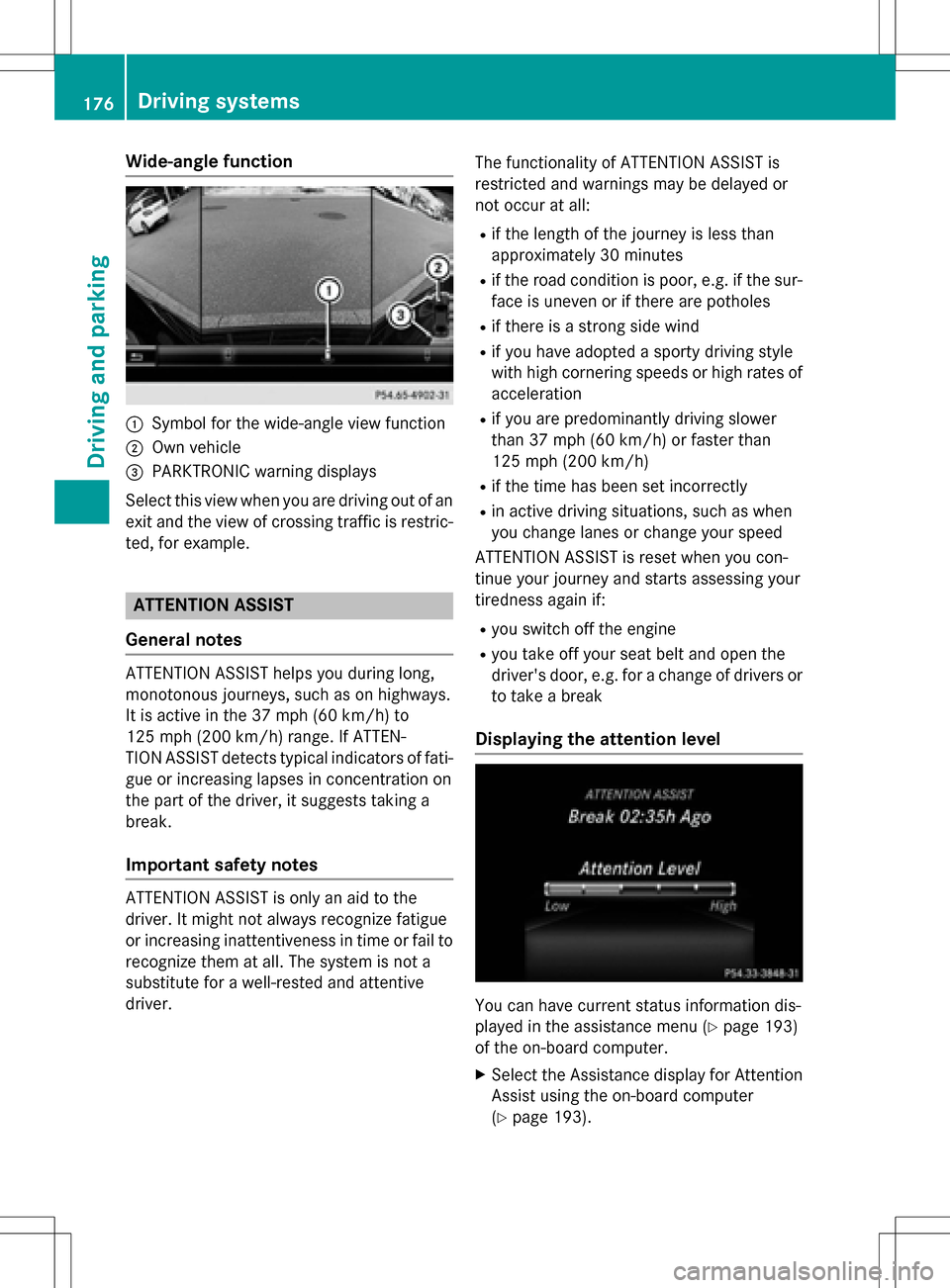
Wide-angle function
:Symbol for the wide-angle view function
;Own vehicle
=PARKTRONIC warning displays
Select this view when you are driving out of an
exit and the view of crossing traffic is restric-
ted, for example.
ATTENTION ASSIST
General notes
ATTENTION ASSIST helps you during long,
monotonous journeys, such as on highways.
It is active in the 37 mph (60 km/h) to
125 mph (200 km/h) range. If ATTEN-
TION ASSIST detects typical indicators of fati-
gue or increasing lapses in concentration on
the part of the driver, it suggests taking a
break.
Important safety notes
ATTENTION ASSIST is only an aid to the
driver. It might not always recognize fatigue
or increasing inattentiveness in time or fail to recognize them at all. The system is not a
substitute for a well-rested and attentive
driver. The functionality of ATTENTION ASSIST is
restricted and warnings may be delayed or
not occur at all:
Rif the length of the journey is less than
approximately 30 minutes
Rif the road condition is poor, e.g. if the sur-
face is uneven or if there are potholes
Rif there is a strong side wind
Rif you have adopted a sporty driving style
with high cornering speeds or high rates of
acceleration
Rif you are predominantly driving slower
than 37 mph (60 km/h) or faster than
125 mph (200 km/h)
Rif the time has been set incorrectly
Rin active driving situations, such as when
you change lanes or change your speed
ATTENTION ASSIST is reset when you con-
tinue your journey and starts assessing your
tiredness again if:
Ryou switch off the engine
Ryou take off your seat belt and open the
driver's door, e.g. for a change of drivers or
to take a break
Displaying the attention level
You can have current status information dis-
played in the assistance menu (
Ypage 193)
of the on-board computer.
XSelect the Assistance display for Attention
Assist using the on-board computer
(
Ypage 193).
176Driving systems
Driving and parking
Page 187 of 342

Vehicles with COMAND: switches on the
Voice Control System (see the separate
operating instructions)
=Right control panel
?Left control panel
ABack button
XTo activate the on-board computer:turn
the SmartKey to position 1in the ignition
lock.
You can control the multifunction display and
the settings in the on-board computer using
the buttons on the multifunction steering
wheel.
Left control panel
=
;RCalls up the menu and menu bar
9
:Press briefly:
RScrolls in lists
RSelects a submenu or function
RIn the Audiomenu: selects the
previous or next station, when
the preset list or station list is
active, or an audio track or video
scene
RIn the Tel(Telephone) menu:
switches to the phone book and
selects a name or telephone
number
9
:Press and hold:
RIn the Audiomenu: selects a pre-
set list or a station list in the
desired frequency range or an
audio track or video scene using
rapid scrolling
RIn the Tel(Telephone) menu:
starts rapid scrolling if the phone
book is open
aRConfirms the selection or display
message
RIn the Tel(Telephone) menu:
switches to the telephone book
and starts dialing the selected
number
Right control panel
8RMute
W
XRAdjusts the volume
~RRejects or ends a call
RExits the telephone book/redial
memory
6RMakes or accepts a call
RSwitches to the redial memory
Displays and operation185
On-board computer and displays
Z
Page 189 of 342
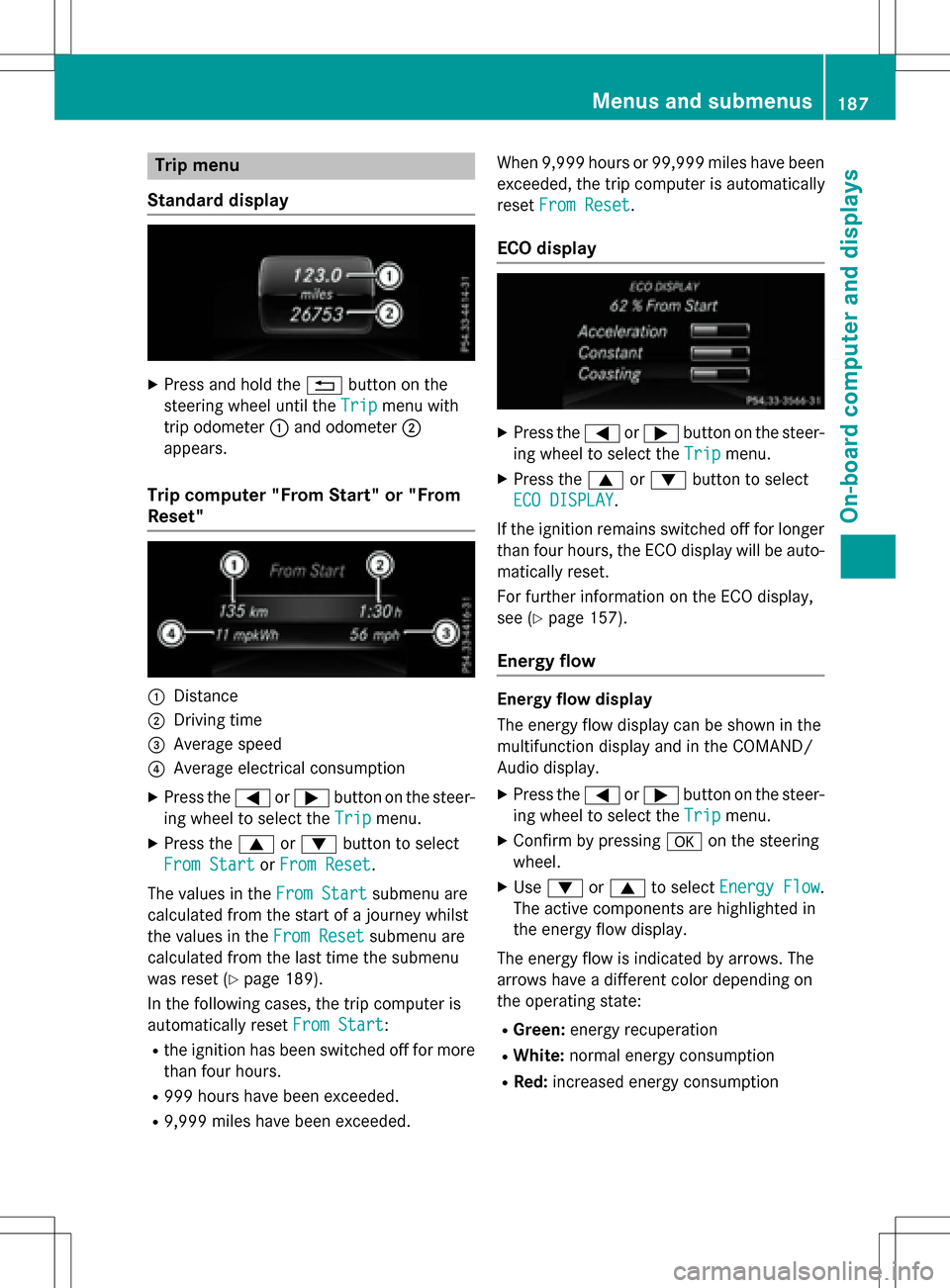
Trip menu
Standard display
XPress and hold the %button on the
steering wheel until the Trip
menu with
trip odometer :and odometer ;
appears.
Trip computer "From Start" or "From
Reset"
:Distance
;Driving time
=Average speed
?Average electrical consumption
XPress the =or; button on the steer-
ing wheel to select the Trip
menu.
XPress the9or: button to select
From Start
or From Reset.
The values in the From Start
submenu are
calculated from the start of a journey whilst
the values in the From Reset
submenu are
calculated from the last time the submenu
was reset (
Ypage 189).
In the following cases, the trip computer is
automatically reset From Start
:
Rthe ignition has been switched off for more
than four hours.
R999 hours have been exceeded.
R9,999 miles have been exceeded. When 9,999 hours or 99,999 miles have been
exceeded, the trip computer is automatically
reset
From Reset
.
ECO display
XPress the =or; button on the steer-
ing wheel to select the Trip
menu.
XPress the9or: button to select
ECO DISPLAY
.
If the ignition remains switched off for longer
than four hours, the ECO display will be auto- matically reset.
For further information on the ECO display,
see (
Ypage 157).
Energy flow
Energy flow display
The energy flow display can be shown in the
multifunction display and in the COMAND/
Audio display.
XPress the =or; button on the steer-
ing wheel to select the Trip
menu.
XConfirm by pressingaon the steering
wheel.
XUse : or9 to select Energy Flow.
The active components are highlighted in
the energy flow display.
The energy flow is indicated by arrows. The
arrows have a different color depending on
the operating state:
RGreen: energy recuperation
RWhite:normal energy consumption
RRed:increased energy consumption
Menus and submenus187
On-board computer and displays
Z
Page 191 of 342
low, the display shows a vehicle being
charged instead of the approximate range.
The specified values for range depend on
the driving program selected and may vary
as a result of:
Rhigher and lower outside temperatures
Rthe style of driving
Ractivated electrical consumers
Digital speedometer
XPress the=or; button on the steer-
ing wheel to select the Trip
menu.
XPress the9or: button to select the
digital speedometer.
Resetting values
XPress the =or; button on the steer-
ing wheel to select the Trip
menu.
XPress the9or: button to select the
function that you wish to reset.
XPress ato confirm.
XSelect :Yesand press ato con-
firm.
You can reset the values of the following func- tions:
RTrip odometer
R"From Start" trip computer
R"From Reset" trip computer
RECO display If you reset the values in the ECO display, the
values in the "From Start" trip computer are
also reset. If you reset the values in the "From
Start" trip computer, the values in the ECO
display are also reset.
Navigation system menu
Displaying navigation instructions
In the Navimenu, the multifunction display
shows navigation instructions.
Additional information on navigation can be
found in the separate Audio 20 or COMAND
operating instructions.
XSwitch on Audio 20 or COMAND, see the
separate operating instructions.
XPress the =or; button on the steer-
ing wheel to select the Navi
menu.
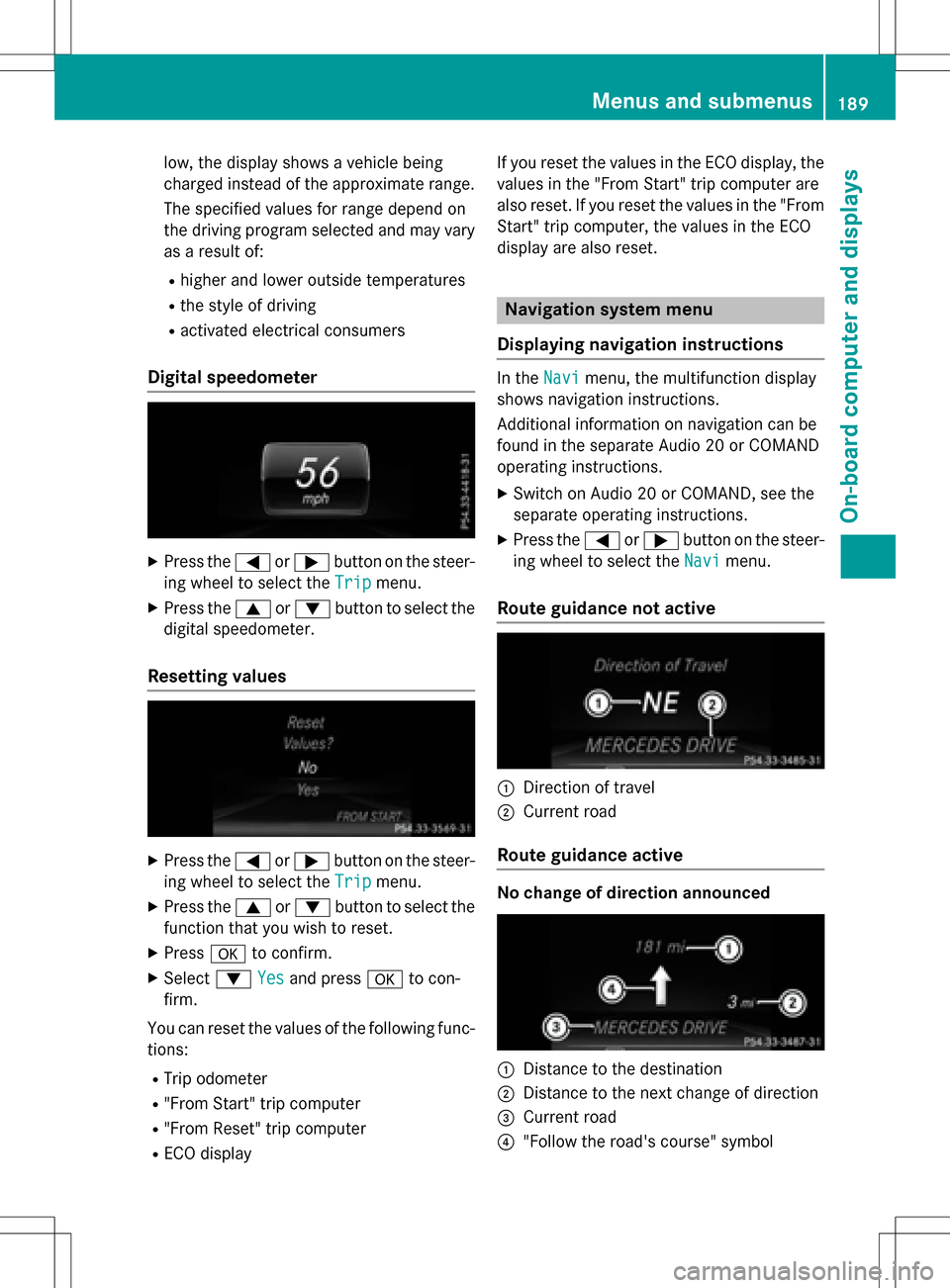
Route guidance not active
:Direction of travel
;Current road
Route guidance active
No change of direction announced
:Distance to the destination
;Distance to the next change of direction
=Current road
?"Follow the road's course" symbol
Menus and submenus189
On-board computer and displays
Z