2016 MERCEDES-BENZ AMG GT S map orientation
[x] Cancel search: map orientationPage 10 of 226

M
Map (navigation)3D map ............................................ 98
Adjusting the scale ..........................9 8
Building images ............................. 101
Country-specific information ......... 101
Displaying the next intersection .... 100
Elevation modeling ........................ 101
Map heading up ............................... 98
Map settings .................................... 98
Moving ............................................. 60
North orientation ............................. 98
Notes ............................................... 98
Rotating the 3D map ...................... 101
Selecting POI symbols on the
map ................................................. 99
Selecting text information on the
map ................................................. 99
Showing the map version ............... 100
Switching highway information
on/off ............................................ 100
Updating ........................................ 104
Map functions ...................................... 98
Media Interface
Basic display .................................. 200
Playback options ........................... 202
Search ........................................... 201
Selecting a music file ..................... 201
Supported devices ......................... 200
Supported file formats ................... 201
Switching to Media Interface ......... 200
Video function ............................... 202
Media mode
Switching on .................................. 180
Media Register
Basic display .................................. 190
Calling up memory space informa-tion ................................................ 193
Copying files .................................. 190
Deleting all files ............................. 193
Renaming/deleting files ................ 192
Selecting a playback mode ............ 194
Switching on .................................. 190
Media search
Category list .................................. 188
Current tracklist ............................ 188
General information ....................... 188 General notes ................................ 187
Keyword search ............................. 189
Music genres ................................. 189
Selecting by cover ......................... 189
Starting the media search .............. 188
Memory card
see SD memory card
Mercedes-Benz Apps ......................... 159
Microphone, switching on/off ......... 121
Mobile phone
Authorizing .................................... 116
Connecting (
Bluetooth®inter-
face) .............................................. 114
Connecting another mobile
phone ............................................ 117
De-authorizing ............................... 118
Displaying Bluetooth
®connection
details ............................................ 118
Enabling for Internet access .......... 149
Monitor
see COMAND display
MP3
Copyright ....................................... 182
Stop and playback function ........... 186
see Audio CD/DVD and MP3 mode
Multimedia system
see Display
Music
see Audio CD/DVD and MP3 mode
MUSIC REGISTER
General notes ................................ 190
My address
Saving .............................................. 65
N
NavigationAdjusting the volume of the navi-
gation announcements .................... 30
Alternative route .............................. 88
Avoiding an area ............................ 102
Basic settings .................................. 60
Blocking a route section affected
by a traffic jam ................................. 89
Calling up the compass display ..... 106
Calling up the menu ....................... 105
Canceling/continuing route guid-
ance ................................................. 87
8Index
Page 11 of 226

Country information .......................101
Displaying current position .............. 89
Drive Information ........................... 106
Entering a destination ......................6 3
Entering a destination using geo-
coordinates ...................................... 77
Entering a destination using
Mercedes-Benz Apps ....................... 77
Entering a destination using the
map ................................................. 73
Entering a point of interest .............. 69
Entering characters (character
bar) .................................................. 33
Entering intermediate destina-
tions ................................................. 74
Entry restriction ............................... 58
First use ........................................... 58
General notes .................................. 58
GPS reception .................................. 58
Important safety notes .................... 58
Info on navigation .......................... 107
Lane recommendation ..................... 85
Map functions .................................. 98
Moving the map ............................... 60
Off-road/Off-map (off-road desti-
nation) ............................................. 90
Online map display ........................ 106
Personal POIs and routes ................. 78
Problems ....................................... 108
Reading out traffic reports ............... 94
Repeating announcements .............. 86
Route flight .................................... 107
Route information ............................ 87
Saving destinations .......................... 95
Saving home address ....................... 65
Selecting a destination from the
list of last destinations ..................... 68
Setting route options (avoiding:
highways, toll roads, tunnels, fer-
ries) ................................................. 61
Setting the announcements vol-
ume ................................................. 87
Setting the route type (short
route, fast route, dynamic route or
economic route) ............................... 60
Showing/hiding the menu ............... 59
Starting route calculation ................ 65 Switching announcements on/
off .................................................... 87
Switching to ..................................... 59
Traffic jam function .......................... 89
Updating the digital
map ................ 104
Navi
gation announcements
Switching off .................................... 30
North orientation (navigation) ........... 98
O
Off-road................................................ 90
Online and Internet functions
Calling up ....................................... 153
Calling up the device list ................ 152
Destination/routes download ........ 156
Enabling a mobile phone for Inter-
net access ..................................... 149
Ending the connection ................... 154
Establishing a connection .............. 153
Further Mercedes-Benz Apps ......... 159
Manually setting the access data
of the mobile phone network pro-
vider .............................................. 150
Mercedes-Benz Mobile Website ..... 159
Options menu ................................ 160
Resetting settings .......................... 160
Selecting the access data of the
mobile phone network provider ..... 150
Setting automatic disconnection
of the Internet connection ............. 153
Setting up an Internet connection .. 149
Web browser .................................. 160
Own address (navigation)
see Home address
P
Pause functionVideo DVD ..................................... 207
Personal POIs and routes
Alert when approaching (personal
POI) .................................................. 79
General notes .................................. 78
Importing via Mercedes-Benz
Apps ................................................ 80
Recording the route ......................... 82
Saving .............................................. 79
Selecting and editing ....................... 81
Index9
Page 75 of 226
Requirementsfor "Viewin gth evicinit yof th e
destination "and "Loadin gdat afrom th eInter-
net" (Canada): amobile phone mus tbe con-
nected via Bluetoot h
®(Ypage 114) or USB
(
Ypage 200) wit hCOMAND .
The complet eaddress of th ePOI is shown.
XTo view th evicinit yof th edestination:
select :by turning and pressing th econ-
troller.
If stree timages are available, th estree tin
th evicinit yof th edestination address is
shown.
XTo call up th emap: select Map.
XMoveth emap, chang eth emap scale
(
Ypage 73) and select th ePOI .
3D POI scan be displayed in an all-roun d
vie w (
Ypage 73)
XTo call up aPOI: select Call.
If aphone number is available, COMAND
switches to th etelephon efunction .
XTo load data from th eInternet :select
www
.
If an Internet address is available, dat ais
loade dfrom th eInternet .
XTo store aPOI: select Save.
The POI can be saved as:
Rhom eaddress
Ranavigabl eaddress boo kcontact
(
Ypage 127)
Ra personal destination on th eSD memory
car d (
Ypage 96)
XTo star trout ecalculation: selectStart
orContinueby turning and pressing th e
controller . If
Calculate Alternative Routes
is
activated (
Ypage 60), Continueis availa-
ble.
Rotating a3D POI
Realisticall ymodeled building sare shown on
th emap in an all-roun dview. These 3D POI s
are sights or building sof regional importance,
e.g. amain railway station .
3D POI scan be turne don th e20 m, 50 mand
10 0 m map scales. To aid orientation ,th e
points of th ecompas sare shown while turn-
ing.
XSelec t apoin tof interes t (Ypage 72).
XTo selectMap:tur nand press th econtroller .
XSelect a3D POI from th emap usin gPre ‐
viousorNex t.
If th e3D POI is marke din gold ,you can
select 3D
.
XSelect3D.
The 3D POI turns on it sown axis.
XTo exit th eall-roun dview, press th econ-
troller.
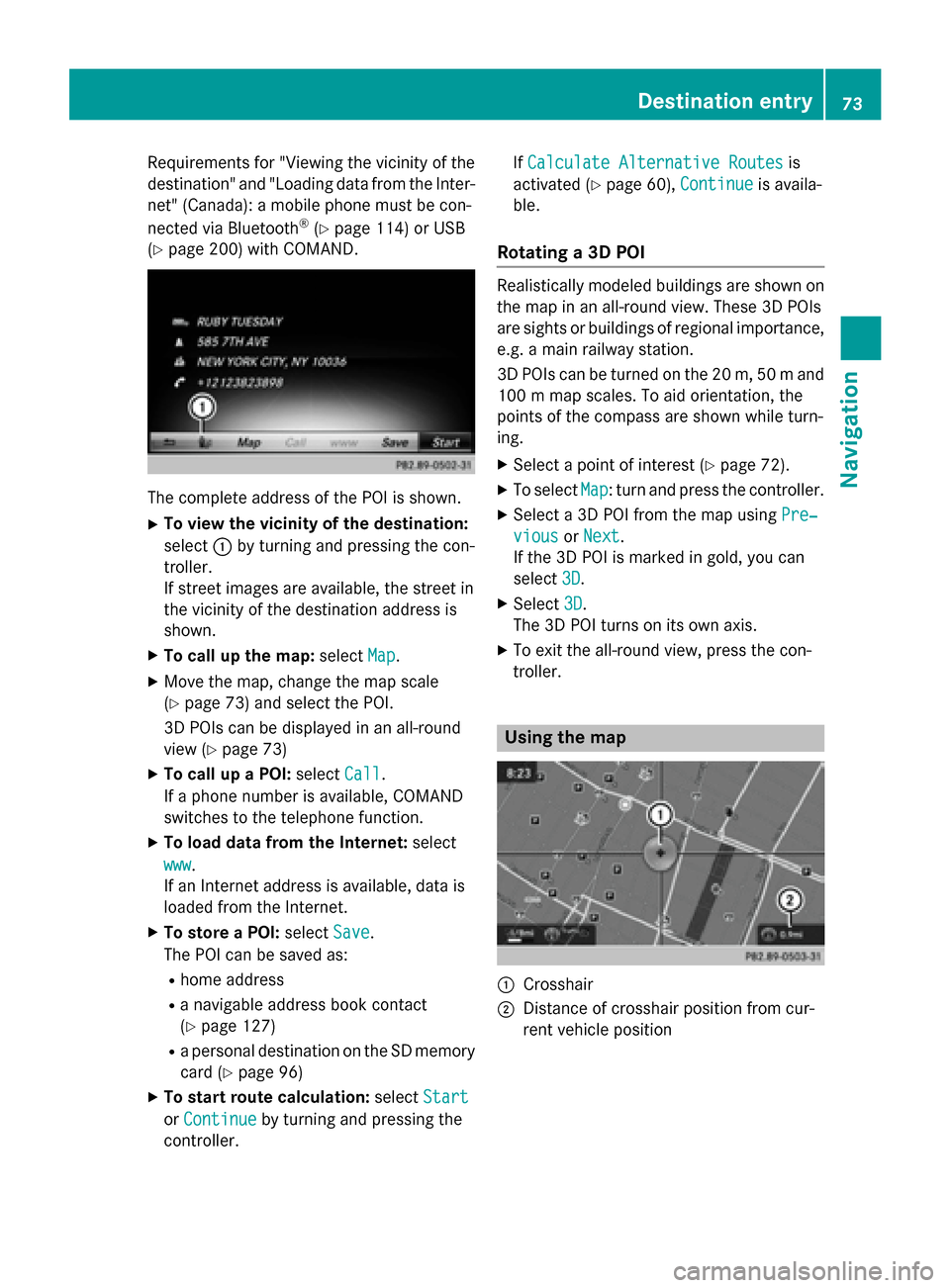
Usin gth ema p
:Crosshai r
;Distanceof crosshair position from cur -
ren tvehicl eposition
Destination entry73
Navigation
Z
Page 100 of 226

Map functions
General notes
Company logos displayed on the map are
trademarks of the respective companies and
used solely for the purpose of indicating the
locations of these companies. The use of such
logos on the map does not indicate approval
of, support of or advertising by these compa-
nies for the navigation system itself.
iAlternatively, you can carry out this oper-
ation using the touchpad (
Ypage 25).
Map settings
Setting the map scale
Requirement: the map is in full screen mode, the menu is faded out (
Ypage 59).
The lower left-hand section of the map shows
the currently set map scale and compass nee-
dle.
Right-hand-drive vehicles: the currently set
map scale and compass needle are displayed
in the lower right-hand section of the map.
XTo show the map in full screen mode: to
hide the menu, push the %button.
or
XSlide the controller to the center of the map
and press to confirm.
XTo set the map scale: as soon as you turn
the controller, the scale bar appears on the
bottom of the display.
XTurn the controller until the needle points
to the desired map scale.
Once you are finished selecting a map
scale, the new map scale will be shown.
Selecting map orientation
XTo switch to navigation mode: slide5
the controller.
XTo select Navi: turn and press the control-
ler.
The map displays the current vehicle posi-
tion or the navigation menu appears.
XIf the navigation menu appears, press the
controller.
The map shows the vehicle's current posi-
tion.
XTo show the menu: slide6the control-
ler.
XTo select Options: turn and press the con-
troller.
XSelect Map Orientation.
The #dot indicates the current setting.
XTurn and press the controller.
The map orientation is set.
The image is an example of the 3D map dis-
play with crosshair.
98Map functions
Navigation