2016 MERCEDES-BENZ AMG GT S bass
[x] Cancel search: bassPage 12 of 226

Settings for personal POIs ............... 78
Phone book
Adding a new contact .................... 125
Adding information to a contact .... 125
Calling up ....................................... 123
Deleting a contact ......................... 126
Displaying the details of an entry ... 125
Entering characters ......................... 32
Saving a contact ............................ 126
Searching for a contact ................. 124
Symbol overview ............................ 124
Phone call
Dialing ........................................... 119
Picture viewer
Changing view ............................... 208
Displaying pictures ........................ 207
Exiting the picture viewer .............. 208
General notes ................................ 207
Starting a slide show ..................... 208
PIN protection
Activating/deactivating ................... 46
POI (navigation)
Calling up the menu ......................... 69
Category .......................................... 72
Defining the position for the POI
search .............................................. 71
Entering ........................................... 69
Rotating 3D POI ............................... 73
Selecting .......................................... 72
Previous destinations (navigation) .... 97
Q
Quick access for audio and tele-
phone
Changing the station/music
track ................................................ 29
Sending DTMF tones ........................ 29
R
RadioActivating/deactivating the sta-
tion presets display ....................... 171
Deleting a station .......................... 170
Displaying information ................... 172
Displaying station information ....... 171
Displaying the artist and track ....... 171
Overview ........................................ 168 Setting the waveband .................... 169
Sound settings (balance, bass,
treble) ............................................ 172
Station list ..................................... 170
Storing stations ............................. 170
Switching on .................................. 168
Tagging music tracks (download-
ing/purchasing tracks from the
iTunes Store
®) ............................... 171
Radio station
Storing ........................................... 170
Read-aloud function
Automatic ........................................ 95
Read-aloud function for e-mails ....... 141
Reading out
Traffic reports on the route .............. 94
Real-time traffic reports ..................... 91
Rear view camera
Displaying the image ........................ 52
Switching on/off (COMAND) ........... 52
Receiving vCards ............................... 133
Redialing (telephone) ........................ 120
Reducing the volume
Switching announcements on/off
(COMAND) ....................................... 61
Reserve fuel level
Switching announcements on/off
(COMAND) ....................................... 61
Resetting (factory settings) ............... 47
Road map
see Map (navigation)
Route (navigation)
Selecting an alternative route .......... 88
Setting route options (avoiding:
highways, toll roads, tunnels, fer-
ries) ................................................. 61
Setting the route type (short
route, fast route, dynamic route or
economic route) ............................... 60
Starting calculation .......................... 65
Route guidance
Canceling/continuing ...................... 87
Freeway information ........................ 85
General notes .................................. 83
Lane recommendations ................... 85
Off-road ........................................... 90
Traffic reports .................................. 91
10Index
Page 212 of 226
Your COMANDequipment
i
These operatin ginstruction sdescribe all
th estandar dan doptional equipmen tof
your COMAN Dsystem, as available at th e
time of going to print .Country-specifi cdif -
ference sare possible. Bear in min dthat
your vehicle may no tfeature all function s
described here. Thi salso applies to safety-
relevant systems an dfunctions.
iRead th einformation on qualified special-
ist workshop sin th evehicle Operator's
Manual.
Sound settings
Calling up th esound menu
You can mak evarious soun dsetting sfo rth e
differen taudio an dvideo sources. It is possi-
ble to set more bass fo rradio mode than fo r
CD audio mode, fo rexample. The respective
soun dmen ucan be called up from th emen u
of th edesire dmode.
XSwitch to radio mode (Ypage 168).
or
XSwitch to media mode (Ypage 180).
XTo switch to themen ubar :slid e6 the
controller .
XTo selectà: turn an dpress th econtrol-
ler .
The men uappears wit hth elast setting
accessed, e.g. Equalizer
.
Sound men uoverview
FunctionOptions
EqualizerSets treble ,mid -
range an dbass
BalanceAdjust sth evolume :
left/right
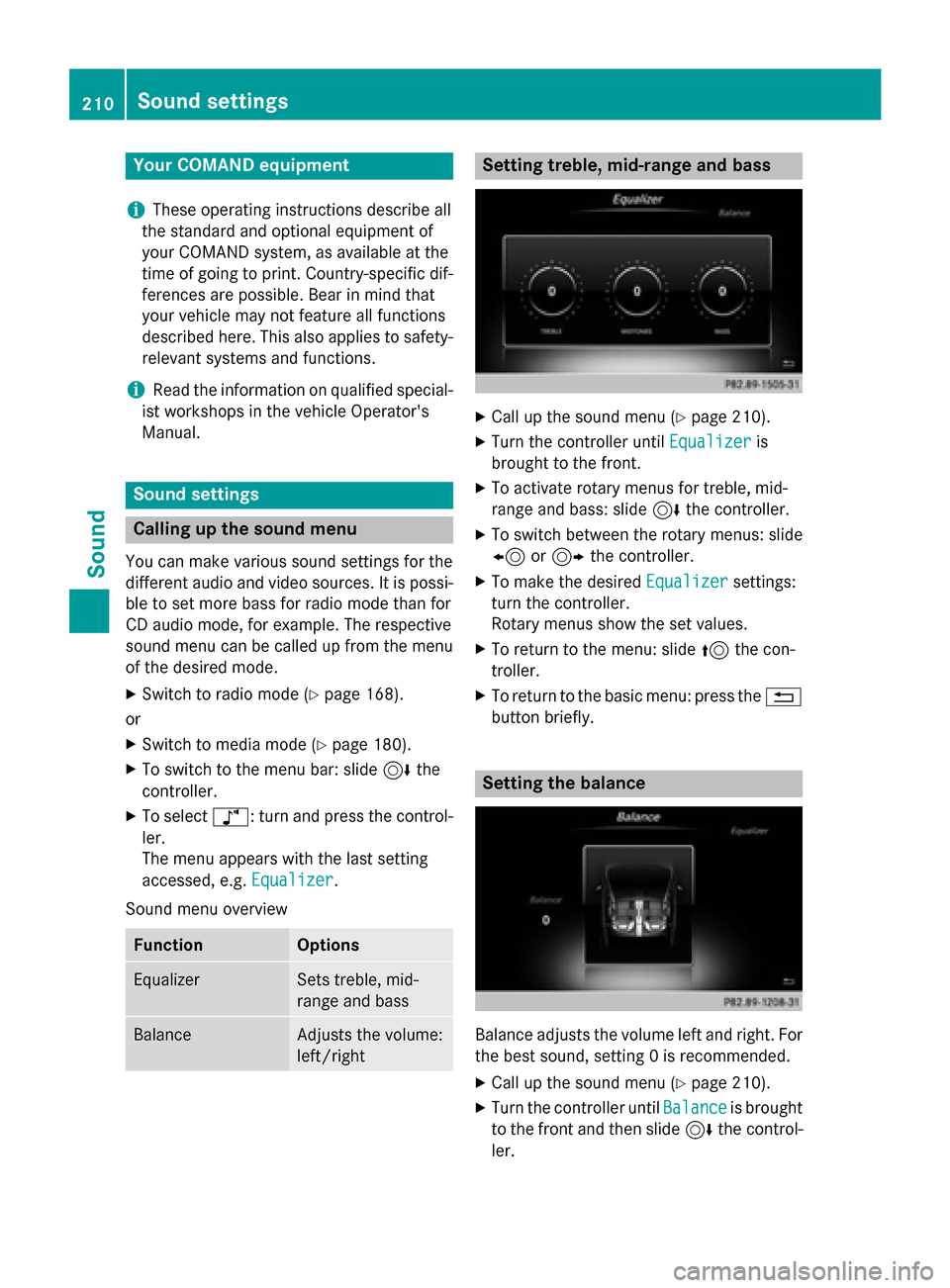
Setting treble, mid-range an dbass
XCall up th esoun dmen u (Ypage 210).
XTurnth econtroller until Equalizeris
brought to th efront.
XTo activat erotary menus fo rtreble ,mid -
range an dbass :slid e6 thecontroller .
XTo switch between th erotary menus: slid e
8 or9 thecontroller .
XTo maketh edesire dEqualize rsettings:
turn th econtroller .
Rotary menus sho wtheset values.
XTo return to th emenu: slid e5 thecon-
troller.
XTo return to th ebasi cmenu: press th e%
butto nbriefly.
Setting th ebalance
Balance adjust sth evolume lef tan dright .Fo r
th ebes tsound, setting 0is recommended.
XCall up th esoun dmen u (Ypage 210).
XTurnth econtroller until Balanceis brought
to th efron tan dthen slid e6 thecontrol-
ler .
210Sound settings
Sound
Page 213 of 226
XTo activate the menu for balance: press thecontroller.
XTo adjust the balance: slide 8or9
the controller.
An image shows the sound focus set.
XTo exit the menu: press the %button.
Burmester®surround sound system
General notes
The Burmester®surround sound system has
a total output of 640 watts and is equipped
with 10 loudspeakers.
The Burmester
®surround sound system is
available for all functions in the radio and
media modes.
The following modes are available for the
Burmester
®surround sound system:
RRadio
RSatellite radio
RAudio CD
RAudio DVD (MLP, PCM DTS®and Dolby®
Digital audio formats)
RVideo DVD (PCM, DTS®and Dolby®Digital
audio formats)
RMP3/AAC
RMedia Interface
RBluetooth®audio mode
iFor the best sound, CD or WAV CD format
is recommended. For data-reduced media,
AAC with a data rate of 320 kbit/s is rec-
ommended.
Calling up the sound menu
You can make various sound settings for the
different audio and video sources. It is possi-
ble to set more bass for radio mode than for
CD audio mode, for example. The respective
sound menu is called up from the menu of the
desired mode.
XSwitch to radio mode (Ypage 168).
or
XSwitch to media mode (Ypage 180).
XTo switch to the menu bar: slide 6the
controller.
XTo select à: turn and press the control-
ler.
The menu appears with the last setting
accessed, e.g. Equalizer
.
Overview of Burmester
®surround sound sys-
tem
FunctionOptions
EqualizerSets treble, mid-
range and bass
BalanceAdjusts the volume:
left/right
SurroundOptimizes spatial
composition for all
seats
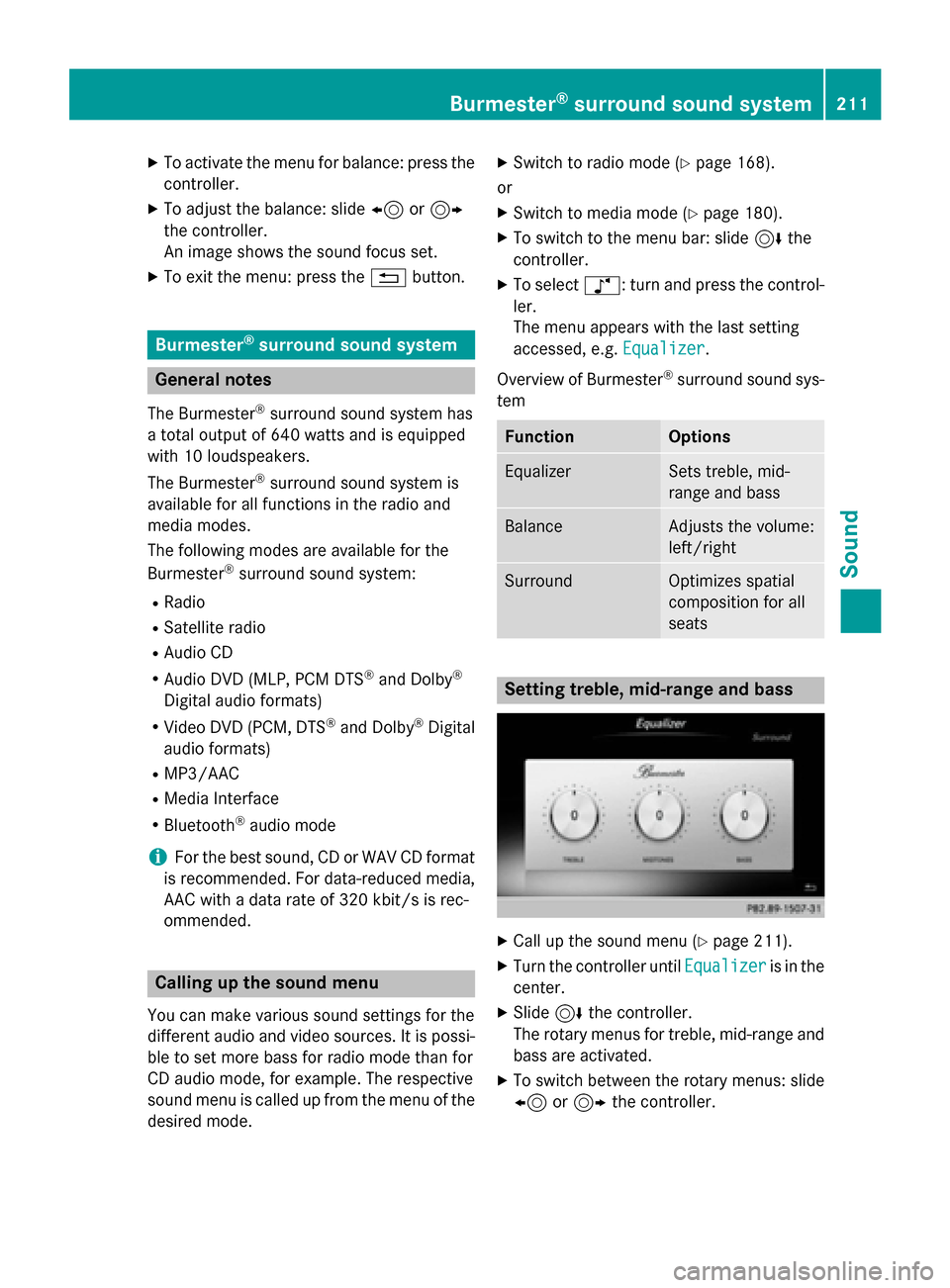
Setting treble, mid-range and bass
XCall up the sound menu (Ypage 211).
XTurn the controller until Equalizeris in the
center.
XSlide 6the controller.
The rotary menus for treble, mid-range and
bass are activated.
XTo switch between the rotary menus: slide
8 or9 the controller.
Burmester®surround sound system211
Sound
Page 215 of 226
Calling up the sound menu
You can select various sound settings while in
radio mode or another media mode. It is pos-
sible to set more bass for radio mode than for
audio CD mode, for example. The respective
sound menu can be called up from the menu
bar of the desired mode.
XSwitch to radio mode (Ypage 168).
or
XSwitch to media mode (Ypage 180).
XTo switch to the menu bar: slide 6the
controller.
XTo select à: turn and press the control-
ler.
The menu appears with the last setting
accessed, e.g. Sound Profile
.
Overview of Burmester
®high-end surround
sound system
FunctionOptions
EqualizerSets treble, mid-
range and bass
BalanceAdjusts the volume:
left/right
VIP & BAL selectionOptimizes sound
playback for individ-
ual seats
Sound profileFour defined sound
settings: PURE/
EASY LISTENING/
LIVE/SURROUND
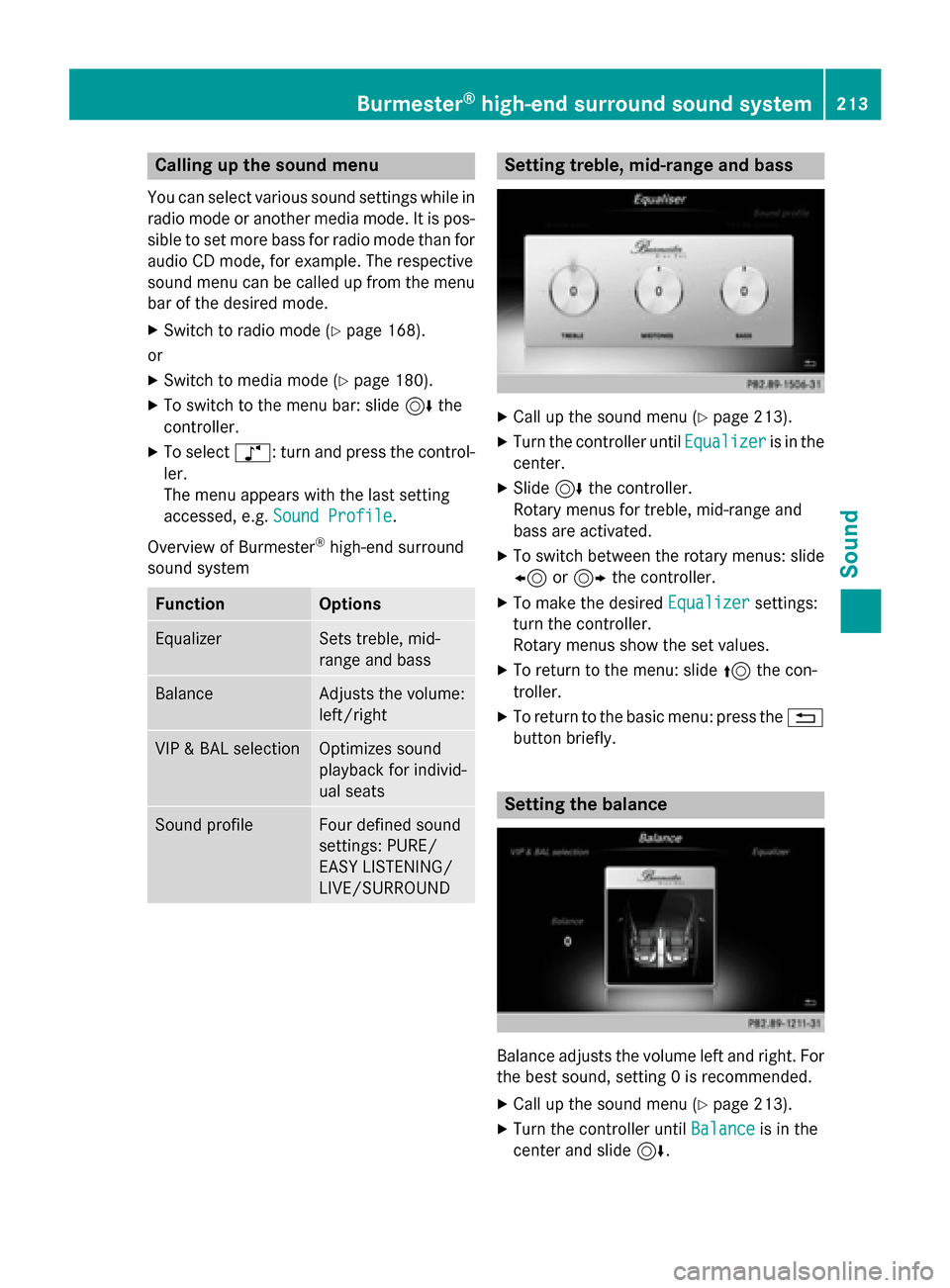
Setting treble, mid-range and bass
XCall up the sound menu (Ypage 213).
XTurn the controller until Equalizeris in the
center.
XSlide 6the controller.
Rotary menus for treble, mid-range and
bass are activated.
XTo switch between the rotary menus: slide
8 or9 the controller.
XTo make the desired Equalizersettings:
turn the controller.
Rotary menus show the set values.
XTo return to the menu: slide 5the con-
troller.
XTo return to the basic menu: press the %
button briefly.
Setting the balance
Balance adjusts the volume left and right. For
the best sound, setting 0 is recommended.
XCall up the sound menu (Ypage 213).
XTurn the controller until Balanceis in the
center and slide 6.
Burmester®high-end surround sound system213
Sound