Rejecting:
XTo selectReject: turn the controller and
press to confirm.
or
XPress ~on the multifunction steering
wheel.
The behavior after the call is rejected
depends on your mobile phone and mobile
phone network provider.
Option 1: The originally active call is con-
tinued and the incoming call is rejected.
Option 2: The originally active call is ended
and the incoming call is accepted.
Option 3: Both calls are ended.
Ending an active call
XTo select =in the telephone menu: turn
and press the controller.
or
XPress ~on the multifunction steering
wheel.
The active call is ended.
Mobile phone voice recognition
You can start or end voice recognition on your mobile phone with this function. Further infor-
mation on the voice recognition service; see
the manufacturer's operating instructions.
To start the mobile phone voice recogni-
tion:
XConnect the mobile phone to COMAND
(
Ypage 114).
XPress and hold the óbutton on the mul-
tifunction steering wheel for more than one second.
You can now use the mobile phone voice
recognition.
To end the mobile phone voice recogni-
tion:
XPress ñon the multifunction steering
wheel.
The mobile phone voice recognition is stop-
ped.
Phone book
Introduction
The telephone book displays the contacts
from the address book which have a phone
number.
The mobile phone's telephone book is auto-
matically displayed in COMAND after connec-
tion (default setting). You can deactivate
automatic calling up (
Ypage 132).
In the telephone book, you can:
RCreate new contacts (Ypage 125)
RAdd information to contacts (Ypage 125)
RSearch for contacts (Ypage 124)
RStore contacts (Ypage 126)
RDelete contacts (Ypage 126)
Further information on importing contacts
(
Ypage 132).
When you import, save, edit or add contacts,
they will be permanently saved in COMAND.
These contacts will remain there even when
you connect COMAND to a different mobile
phone. You can view these contacts even
without a mobile phone.
Calling up the phone book
Phone book123
Telephone
Z
XTo show the main function bar: slide5
the controller.
XTo select Phone: turn and press the con-
troller.
The telephone menu is displayed.
XTo select Namein the telephone menu: turn
and press the controller.
If the phone book contains contacts, they
will be displayed in alphabetical order. The character bar at the bottom of the display is
active.
You can now search for a contact
(
Ypage 124).
Further information on the symbols shown
(
Ypage 124).
iYou can also call up the phone book with
the multifunction steering wheel; see the
separate operating instructions.
Symbol overview
Sym-
bolExplanation
ÆContact that has been entered, edi-
ted or saved on COMAND.
\Contact with voice tag
These contacts have also been
assigned a voice tag. Voice tags are
available in vehicles with the Voice
Control System (see the vehicle
Operator's Manual).
ÃContact that was called up from a
mobile phone
¯Contact imported from the SD
memory card or USB device.
®Contact imported via the Blue-
tooth®interface.
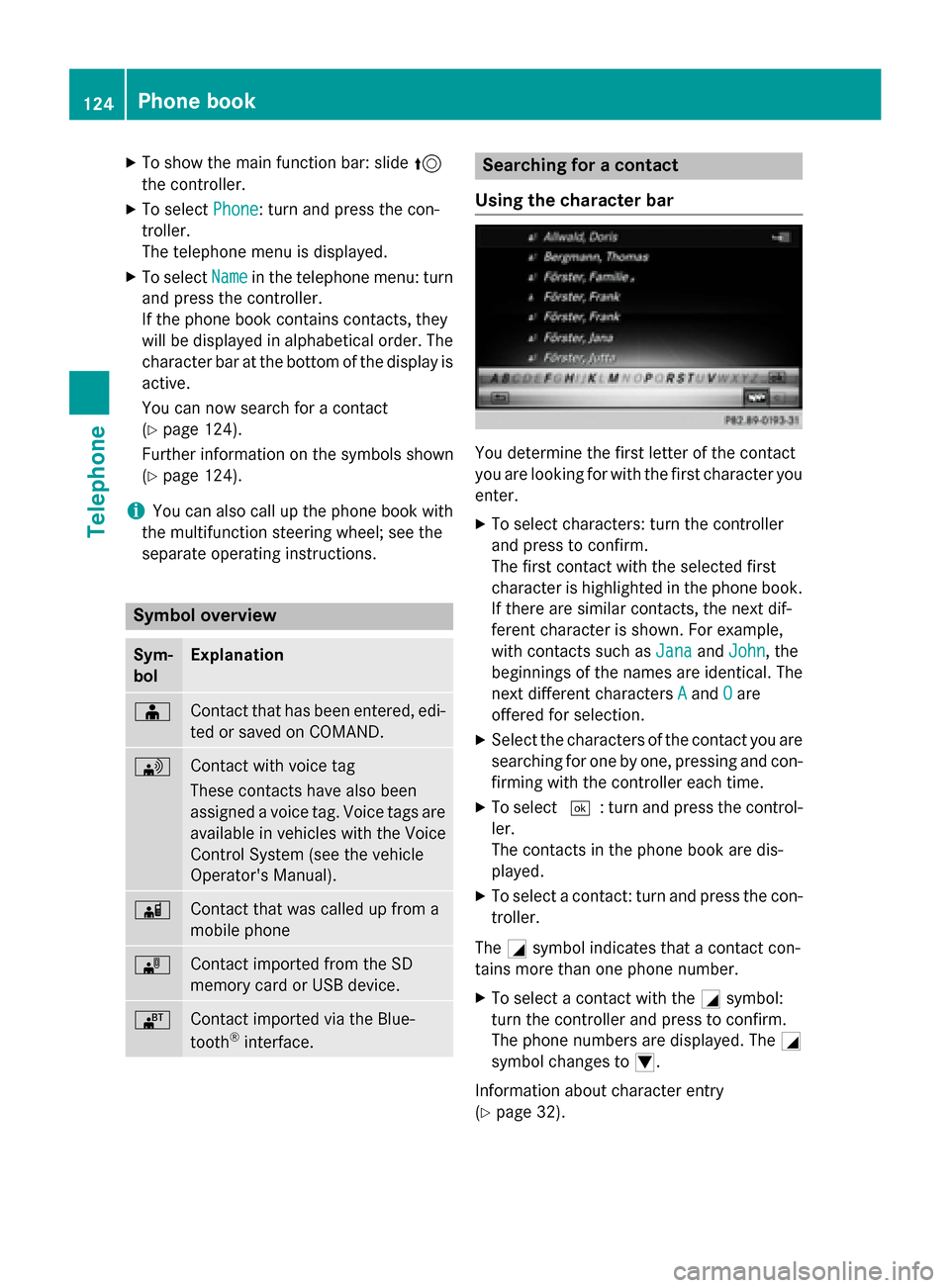
Searching for a contact
Using the character bar
You determine the first letter of the contact
you are looking for with the first character you
enter.
XTo select characters: turn the controller
and press to confirm.
The first contact with the selected first
character is highlighted in the phone book.
If there are similar contacts, the next dif-
ferent character is shown. For example,
with contacts such as Jana
andJohn, the
beginnings of the names are identical. The
next different characters A
andOare
offered for selection.
XSelect the characters of the contact you are
searching for one by one, pressing and con- firming with the controller each time.
XTo select ¬: turn and press the control-
ler.
The contacts in the phone book are dis-
played.
XTo select a contact: turn and press the con-
troller.
The Gsymbol indicates that a contact con-
tains more than one phone number.
XTo select a contact with the Gsymbol:
turn the controller and press to confirm.
The phone numbers are displayed. The G
symbol changes to I.
Information about character entry
(
Ypage 32).
124Phone book
Telephone
Starting playback if the Bluetooth®
audio device has been stopped
During the search for mobile phones
(
Ypage 115), the connection with the Blue-
tooth®audio device is terminated. In the
Bluetooth®audio basic display (Ypage 198)
you will see the No Bluetooth Audio
Device Connectedmessage and the Con‐
nectLastUsedPlayermenu item cannot
be selected.
When the search is finished, the Bluetooth
®
audio device can be reconnected.
XTo select Start playback: Ì: slide6
and press the controller.
Playback resumes from the beginning.
XTo select Connect Last Used Player:
press the controller.
Depending on the Bluetooth
®audio device
used, playback starts immediately or you
must start playback manually.
In this case, you will see the Bluetooth
Audio Device Pausedmessage.
iIf there is an Internet connection and the
mobile phone that is connected only sup-
ports two Bluetooth
®profiles at the same
time, the Internet connection is interrup-
ted.
iThe connection to the Bluetooth®audio
device can also be interrupted if:
Rthe connected mobile phone only sup-
ports 2 Bluetooth®profiles at the same
time.
Ryou connect to the Internet using
COMAND (
Ypage 153).
Selecting a track
The function is not supported by all Blue-
tooth®audio devices. Some mobile phones impair function with
regard to the following criteria:
Rthe number of tracks that can be selected
Rthe time period until the next or previous
track is played
XSwitch the multifunction steering wheel to
the media menu (see the vehicle Operator's
Manual).
XTo skip forwards or backwards to a
track: press the 9or: button on
the multifunction steering wheel.
XRapid scroll: press and hold the 9
or : button on the multifunction steer-
ing wheel until the desired track is reached.
If you press and hold the 9or:
buttons, the rapid scrolling speed increa-
ses after a short time.
iIn rapid scroll, track names are not
shown, but instead only Track1, Track2 etc.
The playback times for the tracks played
are not displayed. This is available as an
optional function starting with AVRCP Ver-
sion 1.3. There is also no music search
option available with Bluetooth
®Audio.
Selecting playback options
If the Bluetooth®audio device supports the
corresponding function, the following options
are available:
RNormal Track Sequence: the tracks are
played in the normal order (e.g. track 1, 2, 3
etc.).
Audio data playback is determined by the
order in which the tracks are written to the
data medium. Alphabetical order is the
most common. Once all the tracks in a
folder have been played, the tracks in the
next folder are played.
RRandomTrackList: the current track list
is played in random order (e.g. 3, 8, 5 etc.).
RRandom Medium: all tracks on the data
medium are played in random order (e.g.
track 3, 8, 5 etc.).
Bluetooth®audio mode199
Media
Z